Smart PIERRE - Kiosk Mode
Description
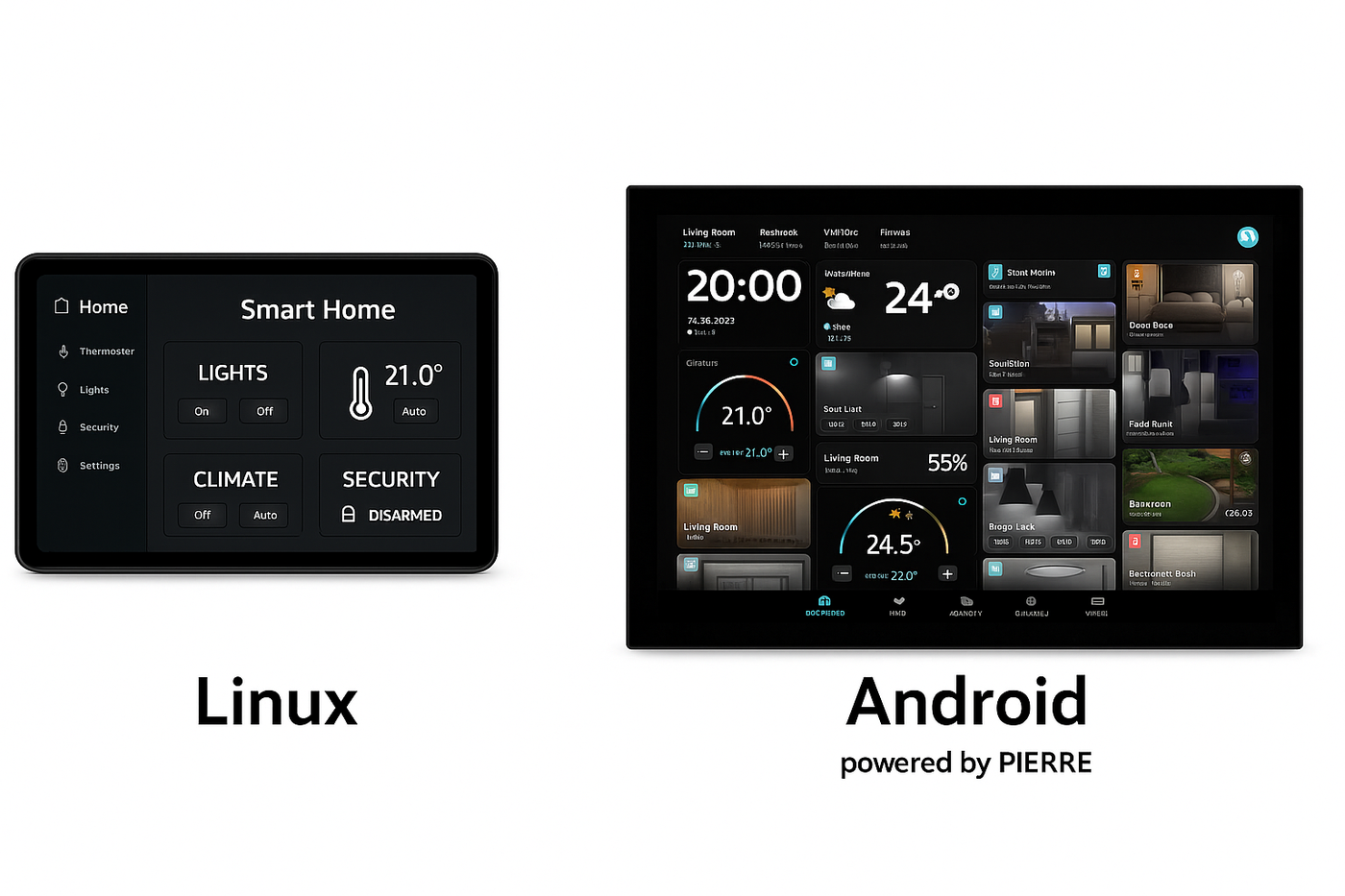
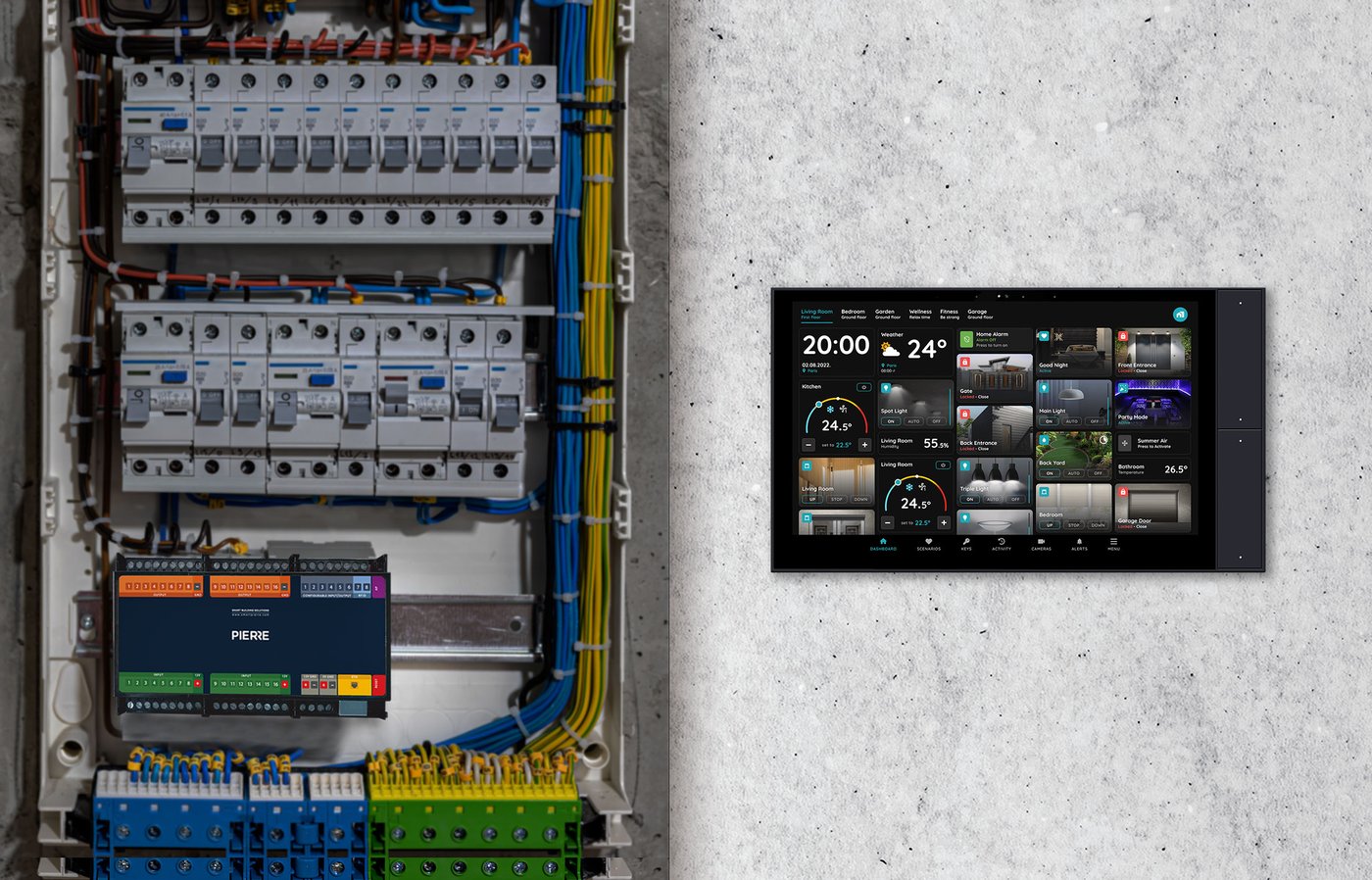
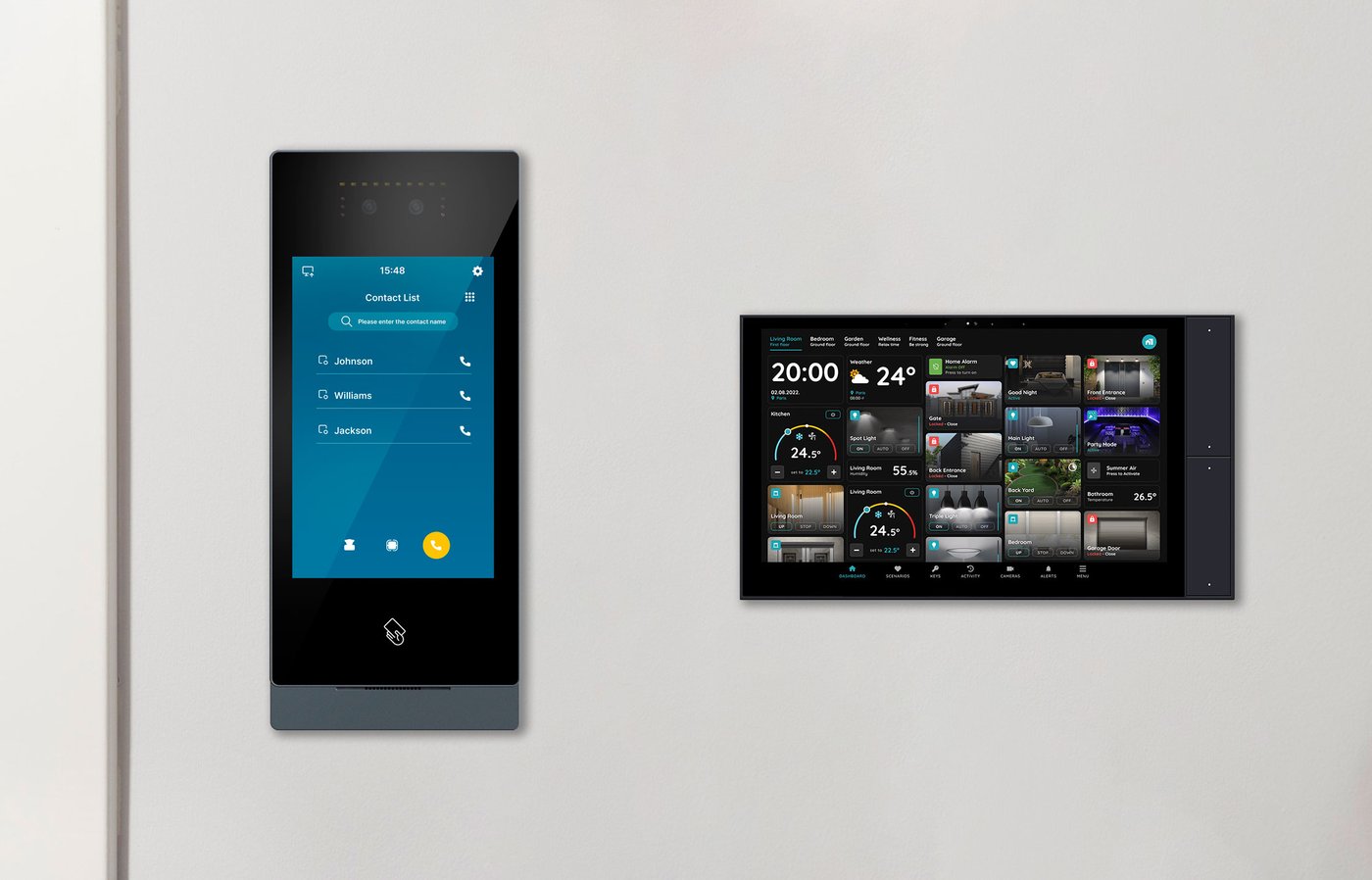
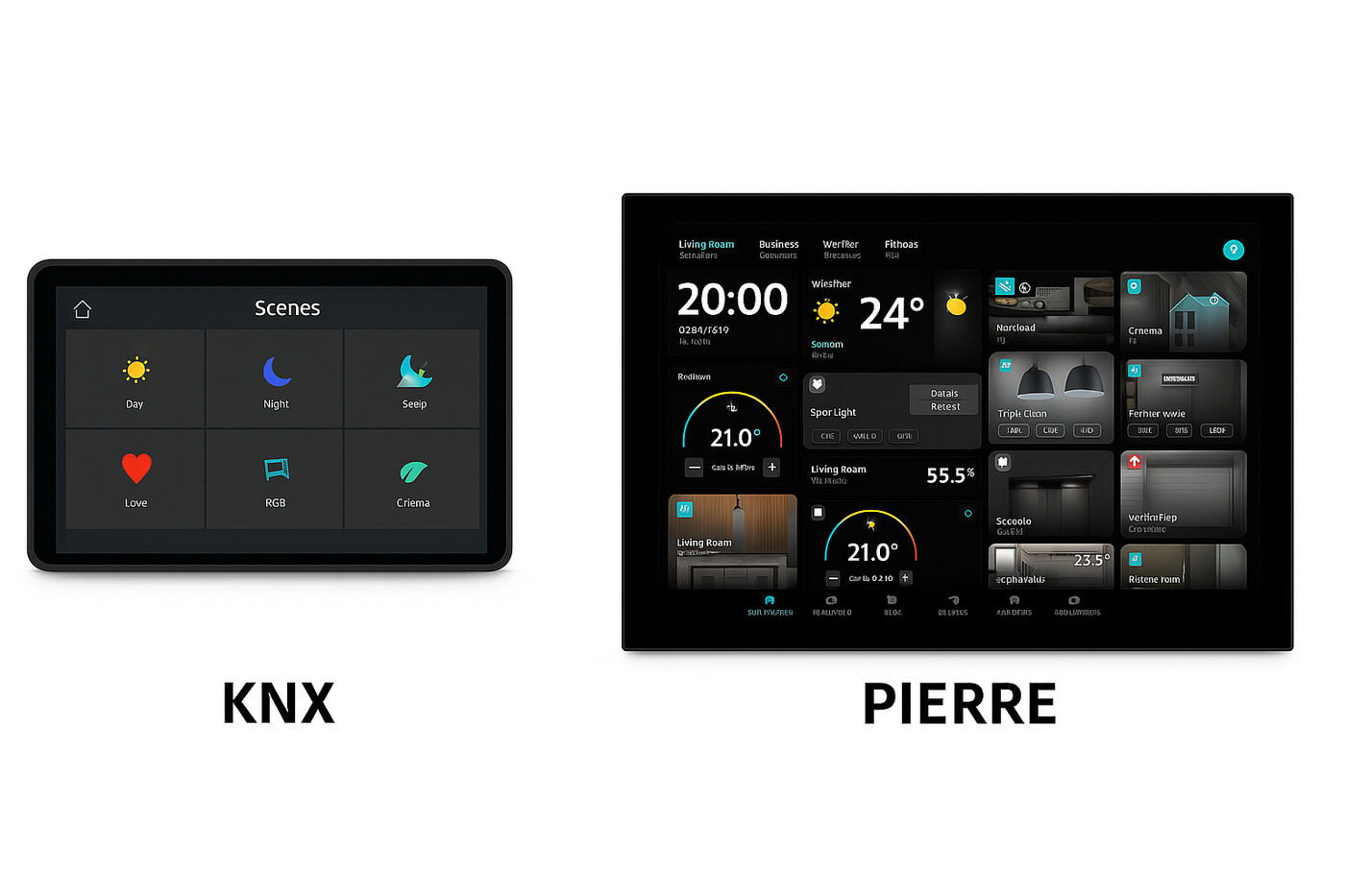
Kiosk Mode turns a wall-mounted tablet or touch panel into a dedicated PIERRE control interface. With it enabled, the device works only as a control panel and the underlying Android system is not reachable.
What Kiosk Mode Does
- The Android status bar is hidden.
- The Android navigation bar is hidden.
- The display stays continuously active.
- Access to Android settings is restricted.
- The user cannot exit the PIERRE application.
Typical Applications
- Wall-mounted tablets
- Reception displays
- Building management panels
- Room control panels
- Hotel automation interfaces
Why It Is Used
- The panel cannot be closed by accident, so the control interface is always available.
- Android settings cannot be changed by a guest or a passer-by.
- The user sees one interface, which makes the panel simple to operate.
Technical Notes
- Intended for permanently installed devices. The PIERRE application must be configured as the primary interface.
- The screen stays active while Kiosk Mode is enabled, so the device needs permanent power at the mounting position.
- A tablet kept permanently on charge ages its battery. Where the mount allows it, use a device intended for permanent installation.
- Configure which controls appear on each panel according to the room it serves, rather than showing the whole system on every device.
Activate Kiosk mode
Kisok mode can be activate through few steps.
Under Settings, open Users.
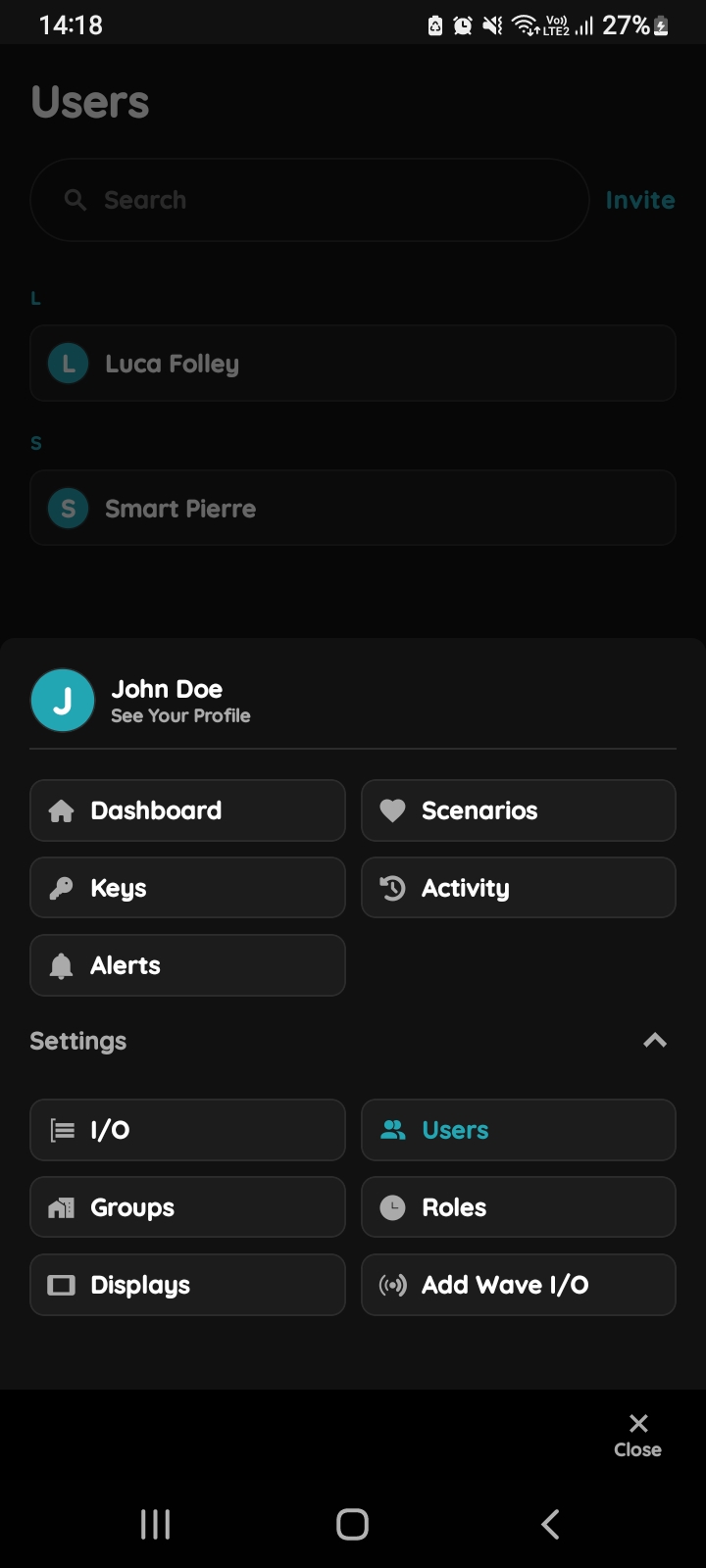
Open Users list
Tap on the Users under the Settings.
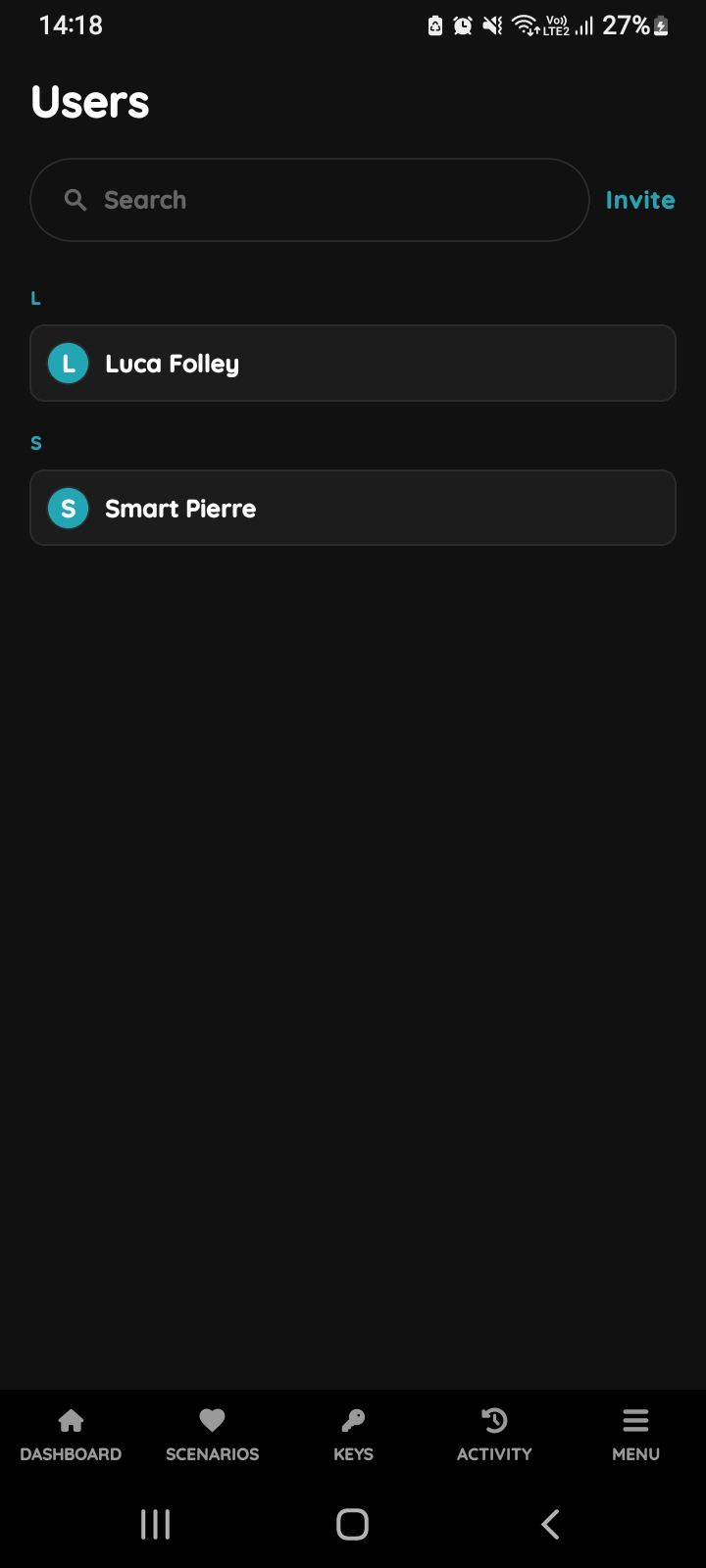
Users list
List of the Users is shown. Select the User from the list (tap on the name).
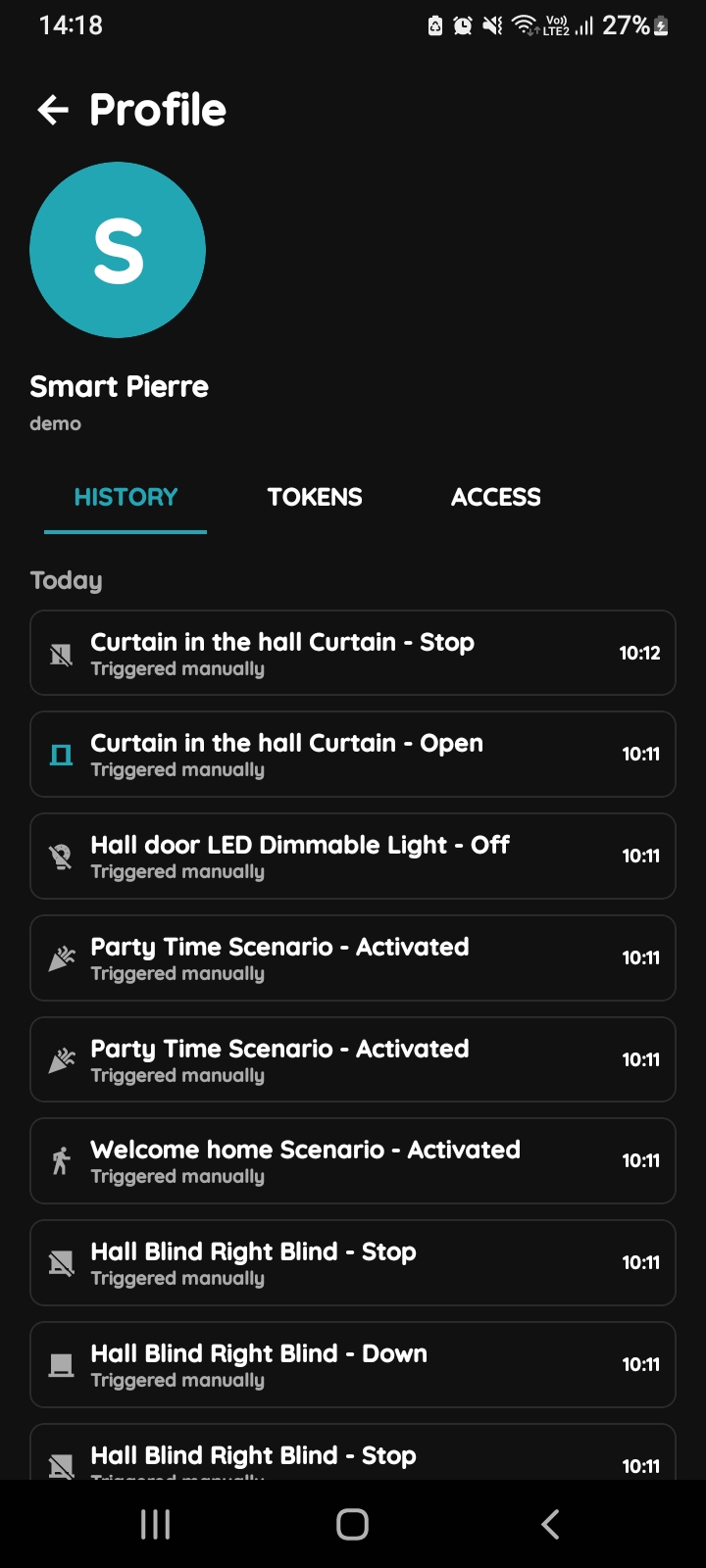
Open Profile, History, Tokens, Access
- History is displayed - It shows a list of all the I/Os that are activated during time by this User.
- Tokens are used to add a new token (New RFID card, New Licence Plate, New PIN).
- Access - Here are displayed details about the Role of the selected User. Also here can be added new role to the selected User.
To change the User's picture, tap on the current picture. To add Tokens, tap on the Tokens tab. To set the User's access permissions, tap on the Access tab.
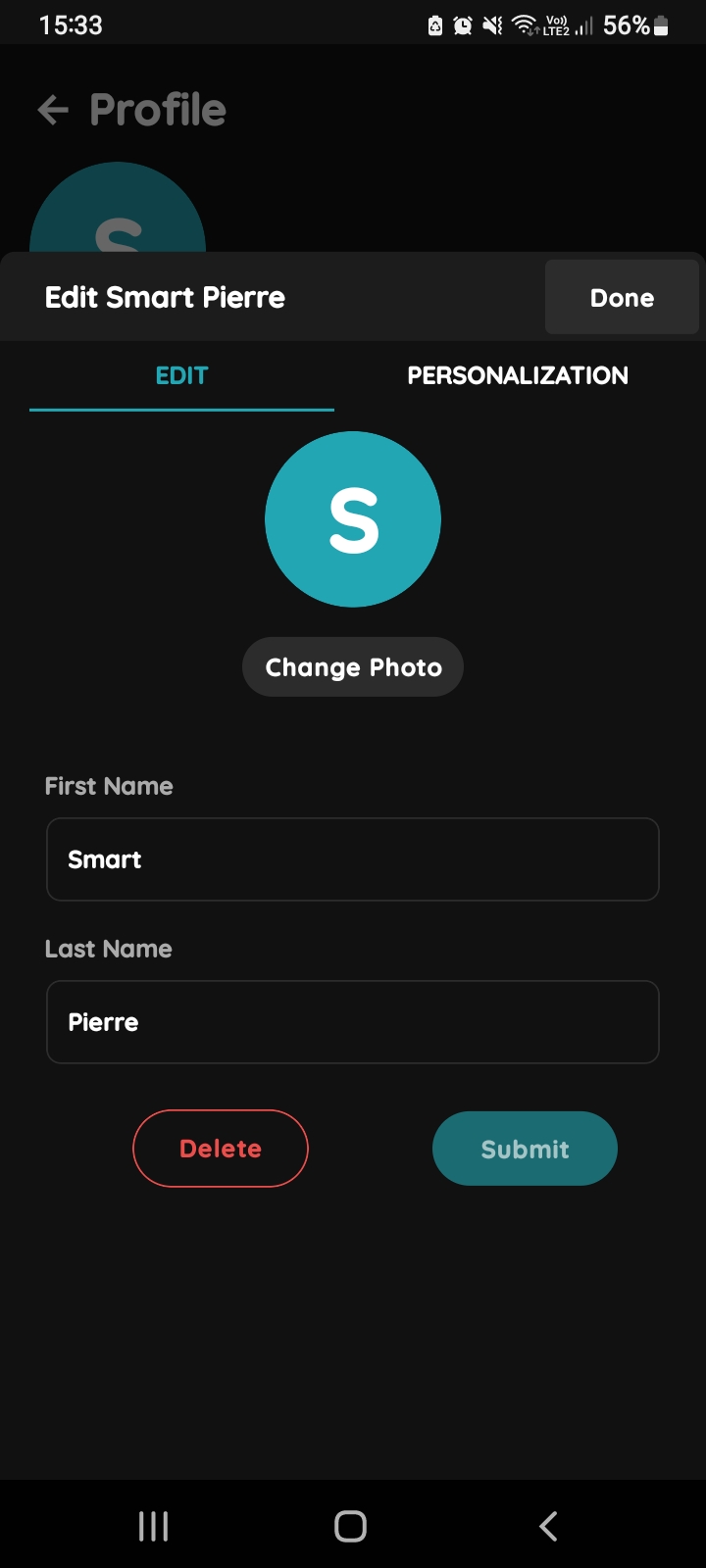
Edit User and Personalization
You have two tabs:
- Edit - You can Edit form for the selected User (First Name and Last Name). Change photo-Tap to edit photo of the User.
- Personalization - You can acitvate/deactivate by slider buttons: Kiosk, Bottom Tabs, Group Picker, Building Picker and functionality Mange Self.
Tap the Personalization.
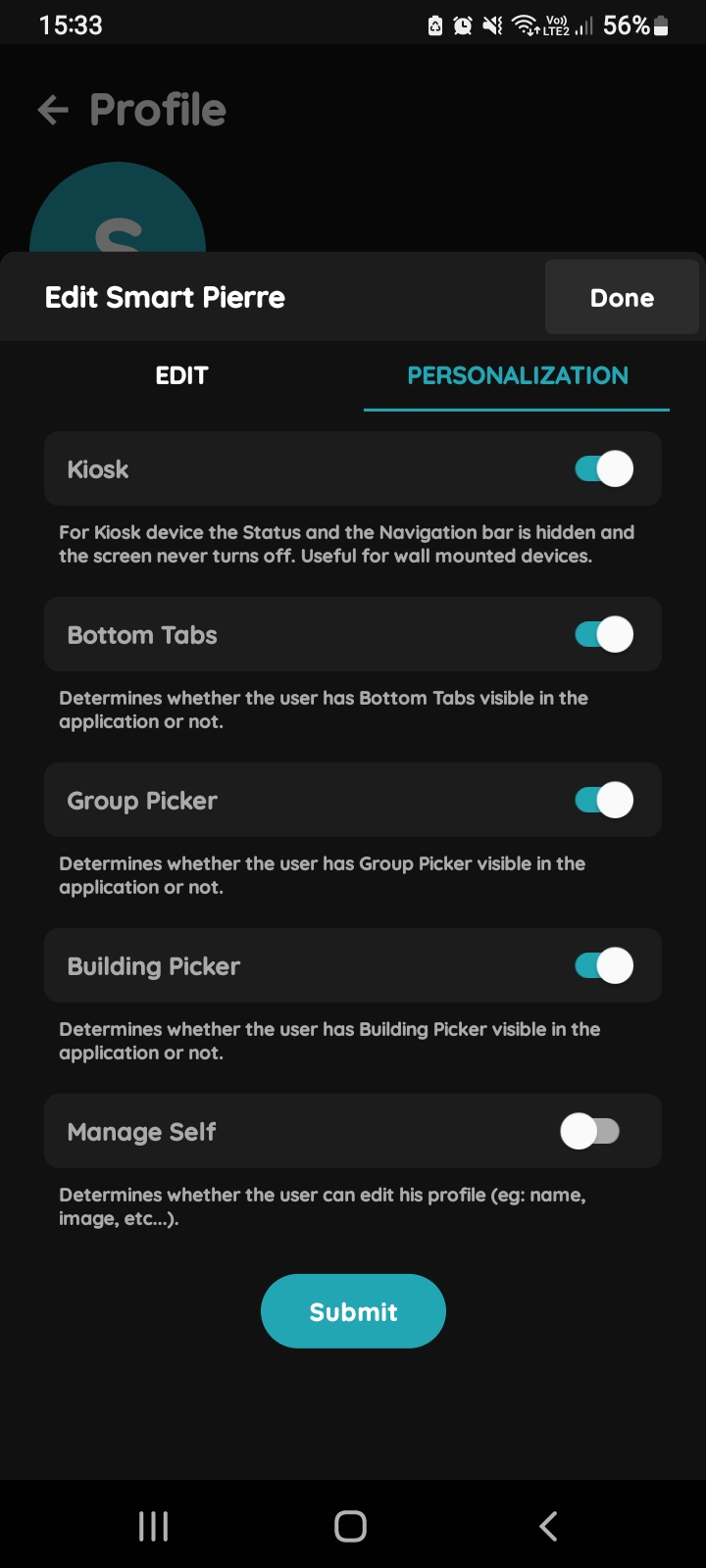
Personalization
Activate Kiosk mode by enabling the slider button.
For Kiosk device the Status and the Navigation bar is hidden and the screen never turns off. Useful for wall mounted devices.
Tap Submit/Done.