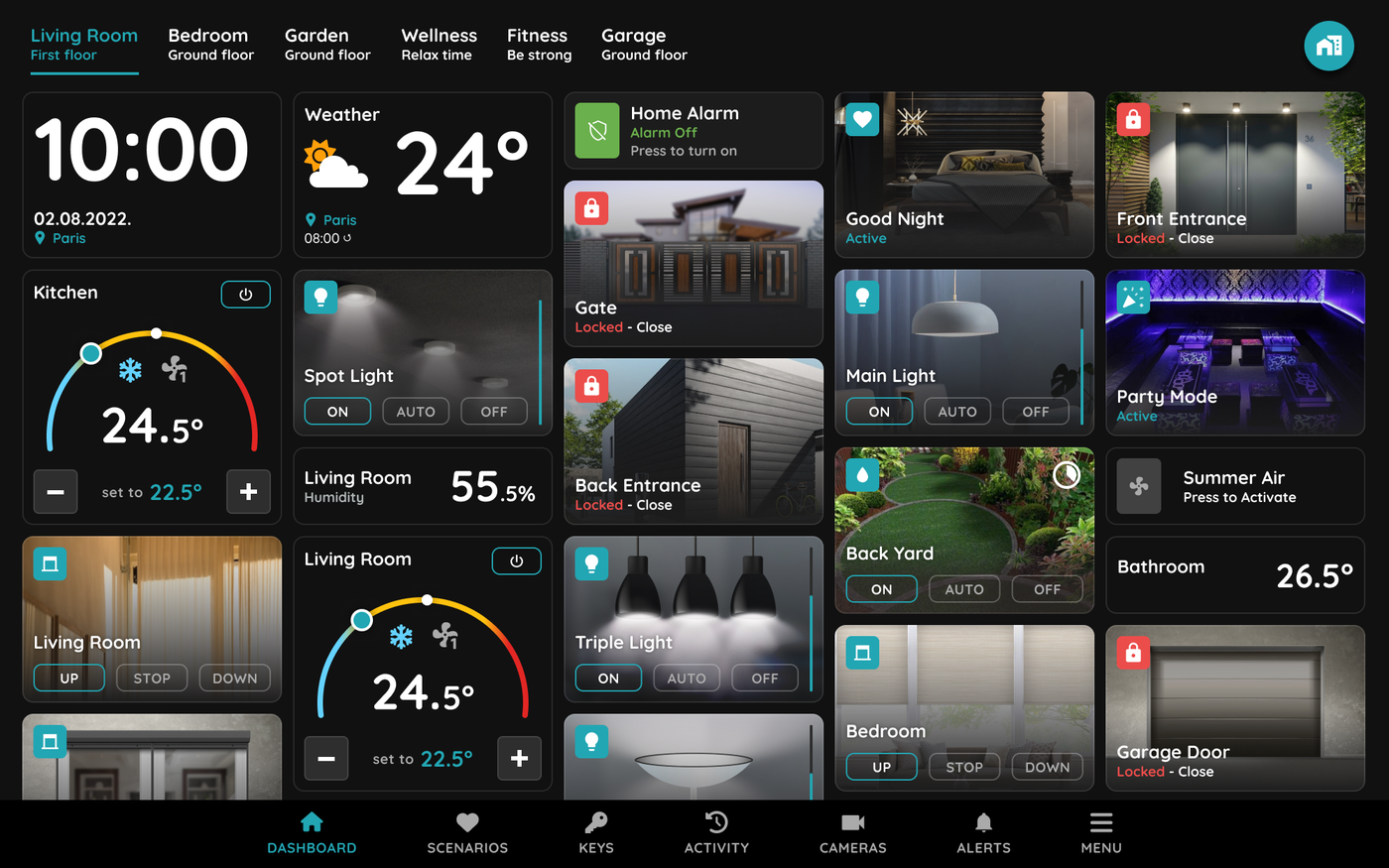
PIERRE Display - Berlin 10"
Description
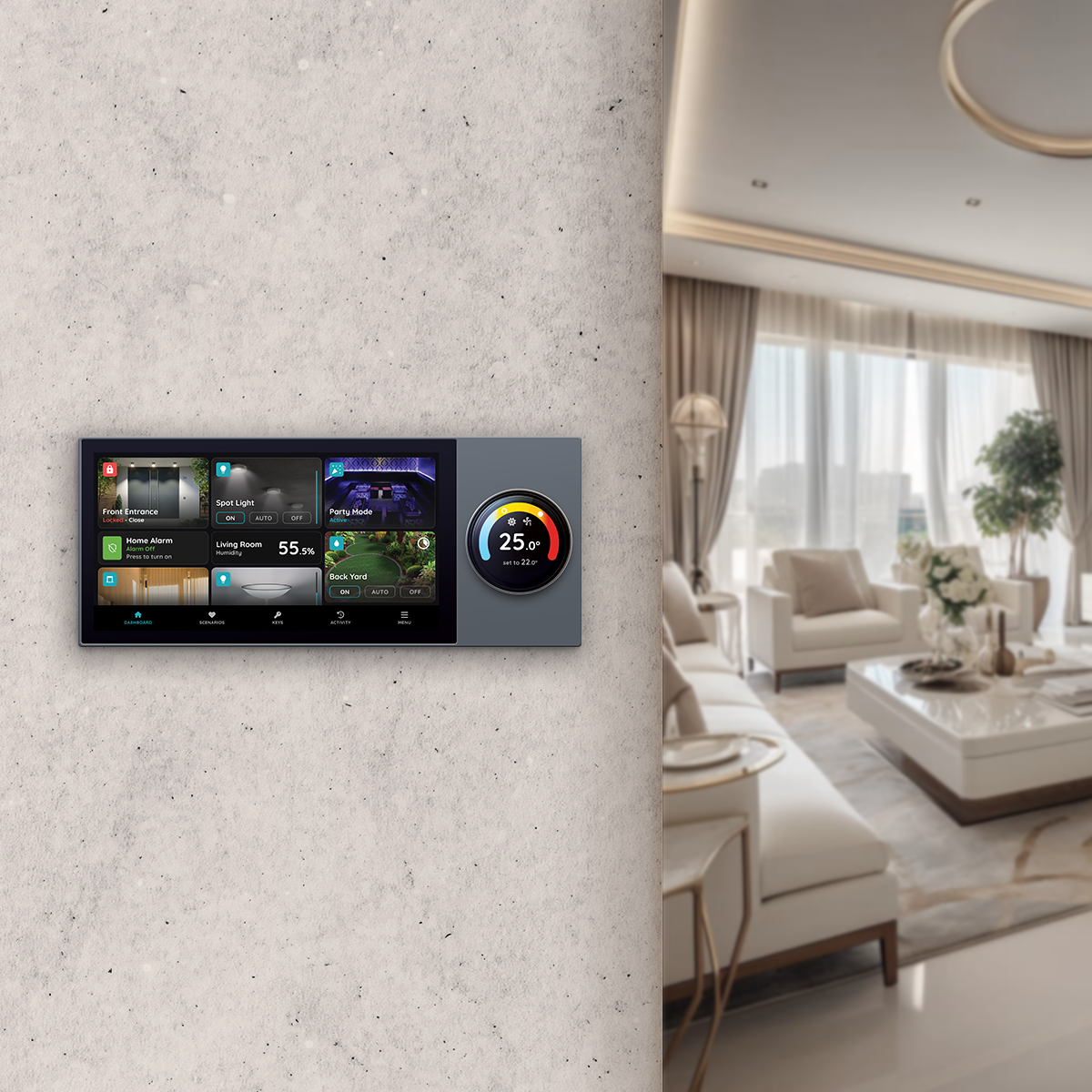
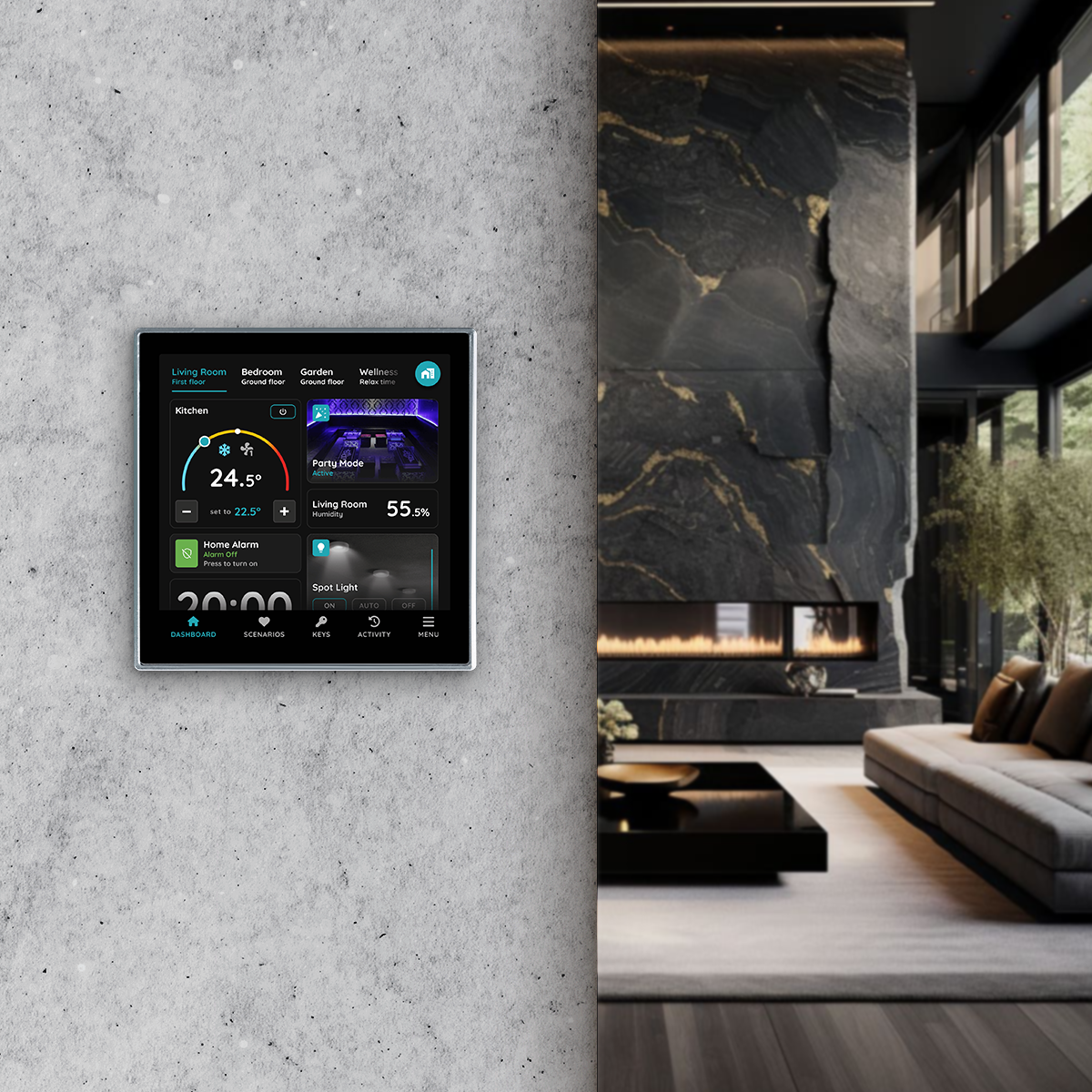
The PIERRE Room Control Display Berlin 10" is a wall-mounted unit that combines four roles in one device: room control panel, PIERRE Wave gateway, local server, and indoor intercom unit.
Touchscreen Control
The 10.1-inch touchscreen gives direct control of the system:
- Lighting control.
- Blind and curtain control.
- Heating and cooling control.
- Scene activation.
- Device monitoring.
PIERRE Wave Gateway
The display acts as a PIERRE Wave gateway, handling communication with the wireless devices:
- Device pairing.
- Device control.
- Mesh network management.
- Wave device communication.
Local Mode
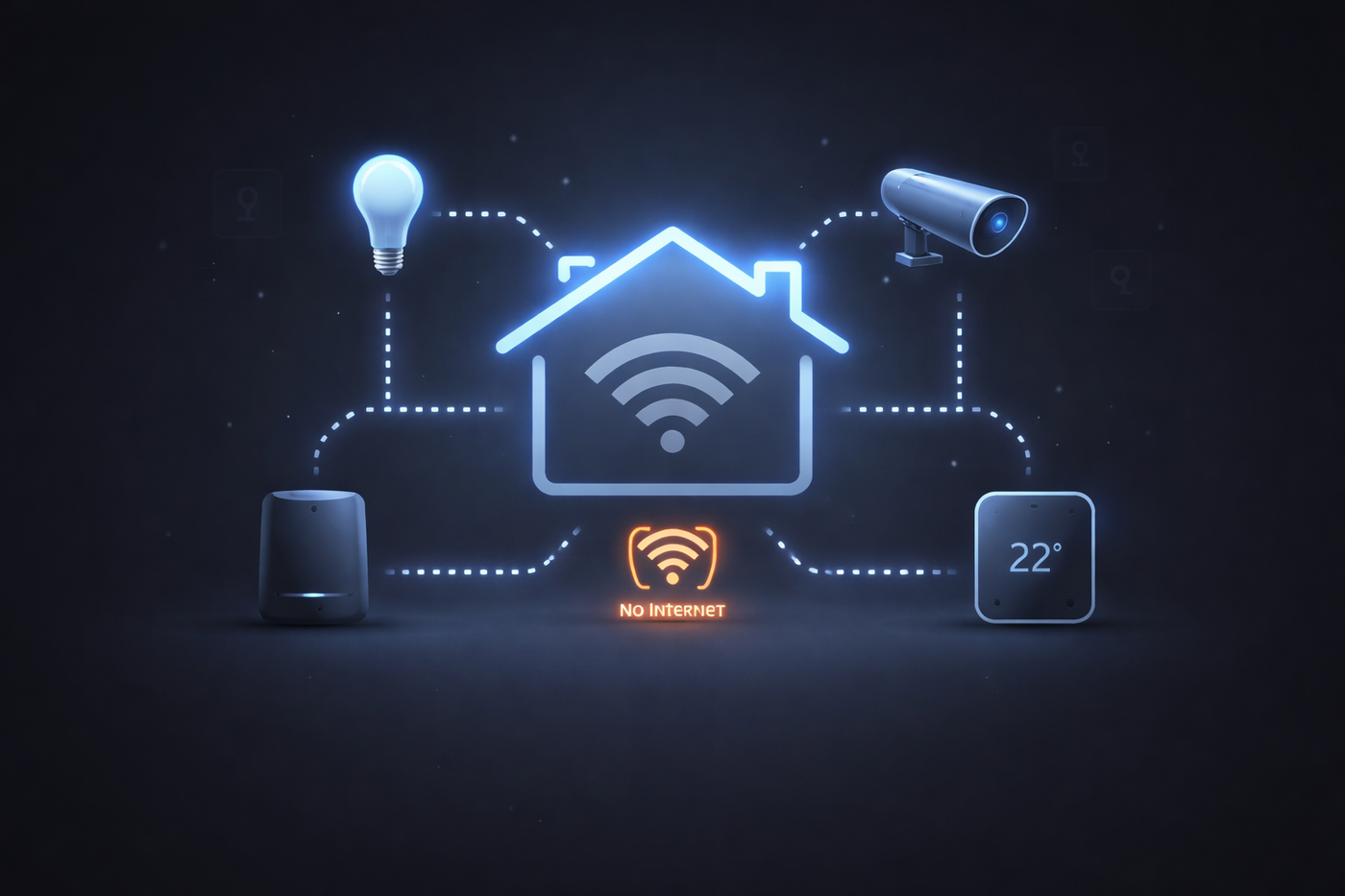
The display runs as a local server, so the system keeps working when the internet connection is unavailable. Local operation supports device control, automations, scenes and wireless communication. Some cloud-dependent functions still require an active internet connection.
Intercom Function
- Audio and video communication.
- Door answering and door unlocking.
- Call notifications.
Integrated Relays
The display has two integrated relay outputs, with a maximum load of 200 W per output. Typical uses: lighting control, floor heating control, valve control and auxiliary outputs.
Intercom Hardware
Built-in camera, four microphones and a 2 W speaker for intercom calls, plus a built-in ladar presence sensor.
Integrated Sensors
Built-in environmental sensors:
- Temperature sensor
- Humidity sensor
- Brightness sensor
Typical uses: heating and cooling control, ventilation control, blind automation, day/night automations and brightness-based scenarios.
Programmable Buttons
The display includes four programmable buttons, each configured individually in the system. Typical uses:
- Scene activation.
- Lighting control.
- Blind control.
- Heating and cooling control.
- Door unlocking.
- Automation triggering.
Network Connectivity
- Ethernet (LAN)
- Wi-Fi
- PIERRE Wave
Cabling
From the electrical distribution cabinet to the display:
- Minimum: 2 × 1.5 mm² NYM-O — live (L) and neutral (N).
- Recommended: 5 × 1.5 mm² NYM-O. This allows both integrated relay outputs to be used directly from the cabinet, which gives more flexibility later.
Technical Notes
- Run the recommended 5-core cable even where the relays are not used at first — adding conductors afterwards means opening the wall.
- Position the display for its gateway role as well as for its control role: central enough to reach the wireless devices, and at a height that is comfortable to operate.
- The built-in temperature sensor measures at the display position. On a wall warmed by the sun, or above a radiator, it will not represent the room — correct it with the offset, or use a separate room sensor.
PIERRE Display Berlin 10" settings
Follow steps to edit this display.
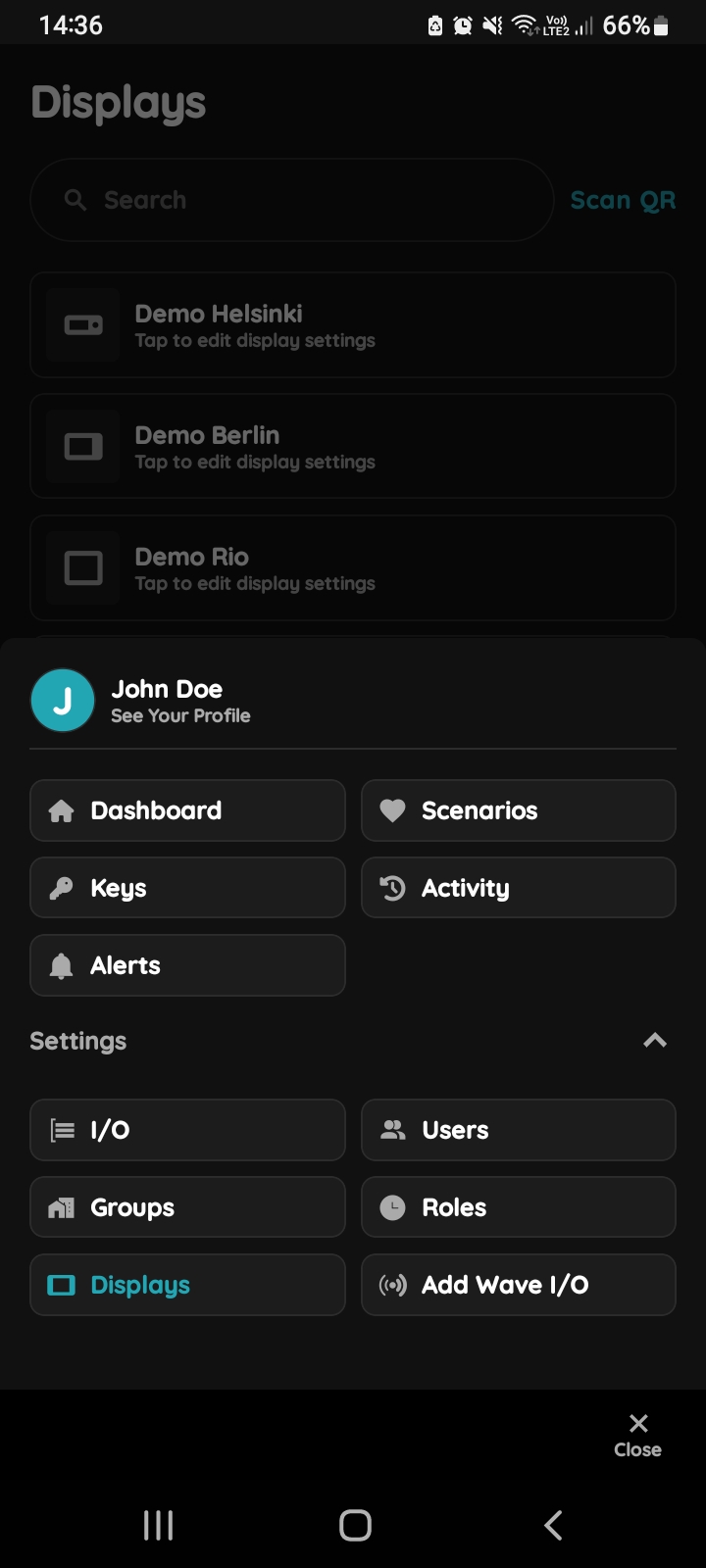
Open Displays
When you opened Menu, under Settings tap on Displays in order to add new Display.
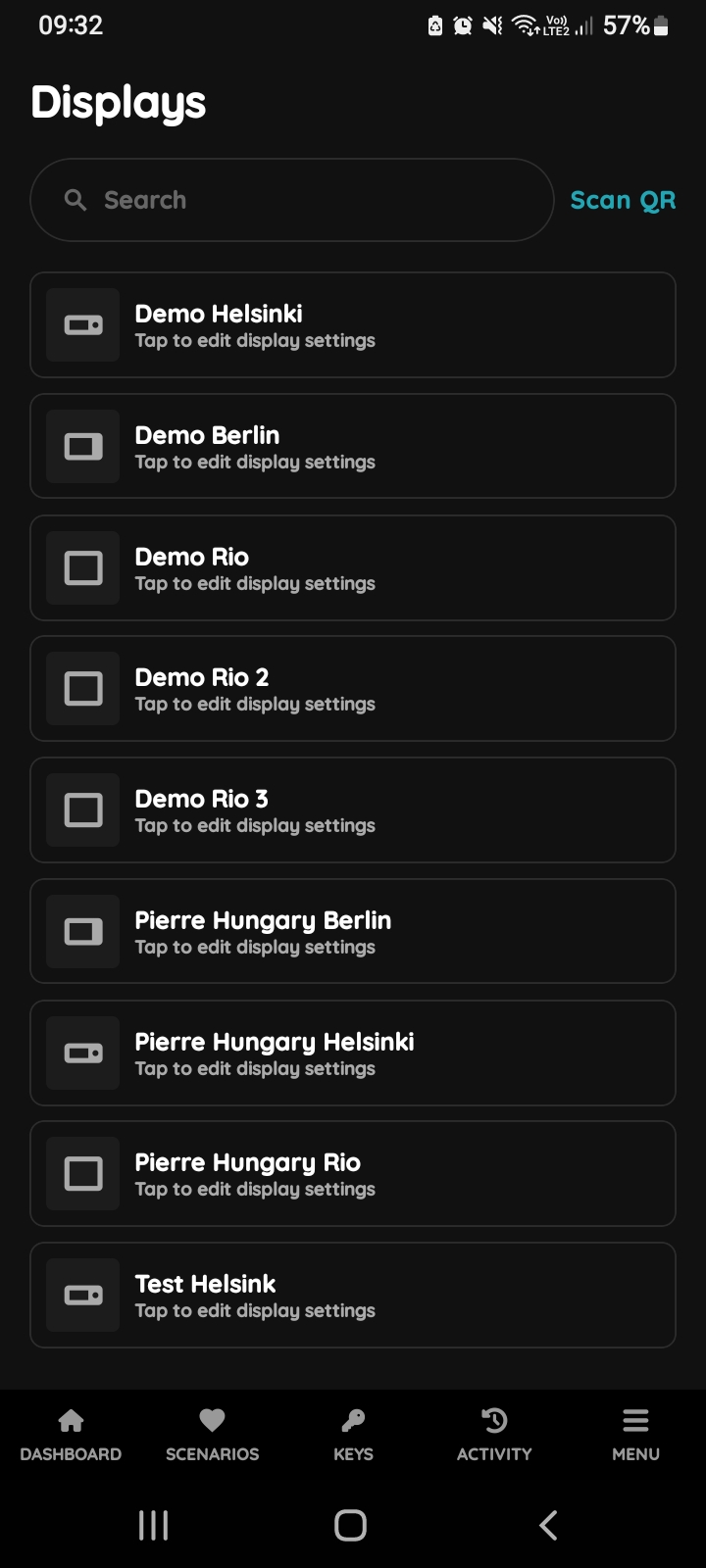
Choose Display Berlin
Choose Display Berlin from the list and tap on it.
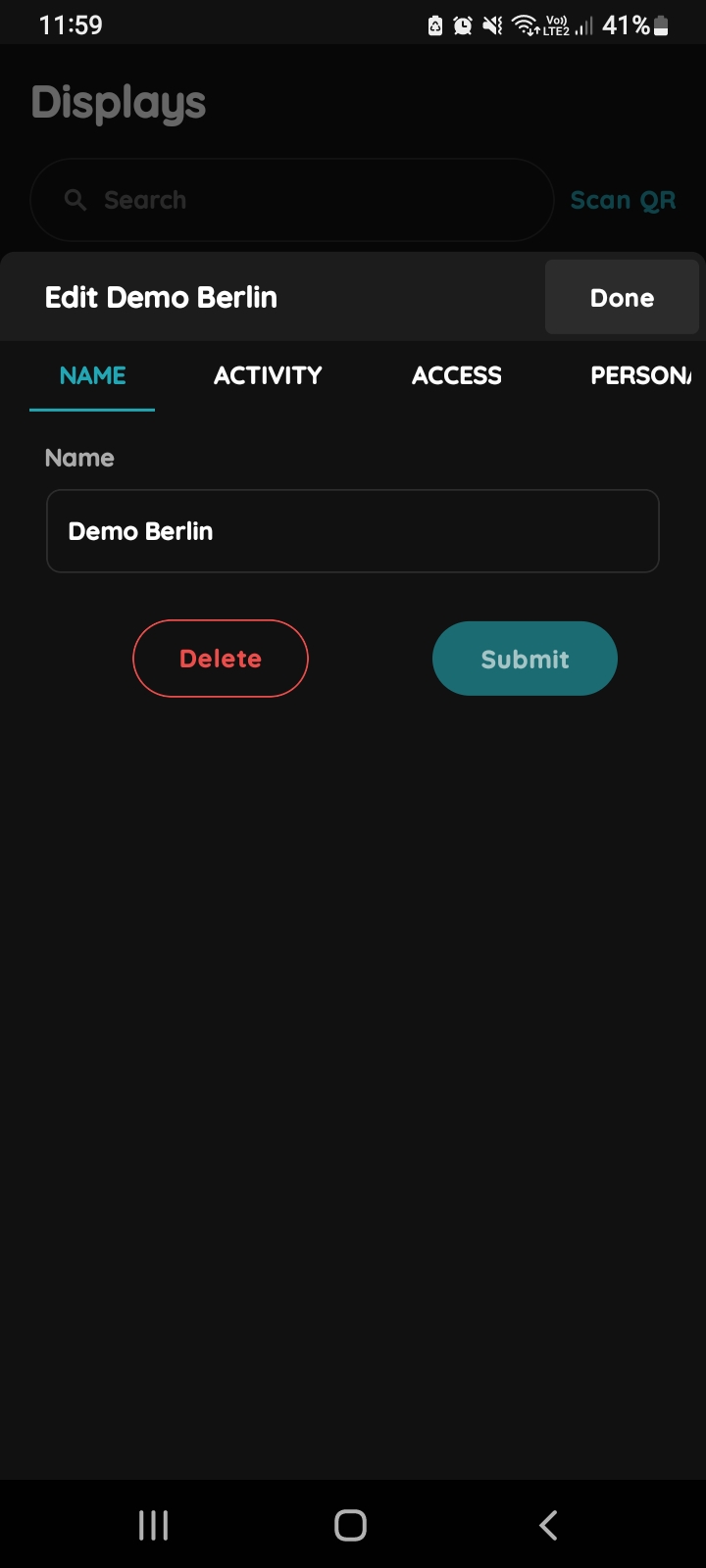
Edit - Display
Here are shown:
- Name - Edit name of the display.
- Activity - Shows all activities that occurred in the the smart home system (which device was activated by whom and when).
- Access - Shows the role access by the panel.
- Personalization - this section allows administrators to customize the user interface, available features, and access permissions for users and Displays.
- Sensors - It is shown list of integrated sensors.
- Buttons - There are four buttons for this display. They can be programmed to use I/Os or to activate scenarios. There are options for: Tap, Hold and Double tap programming.
- Relays - It is shown list of devices that are connected to the relays.
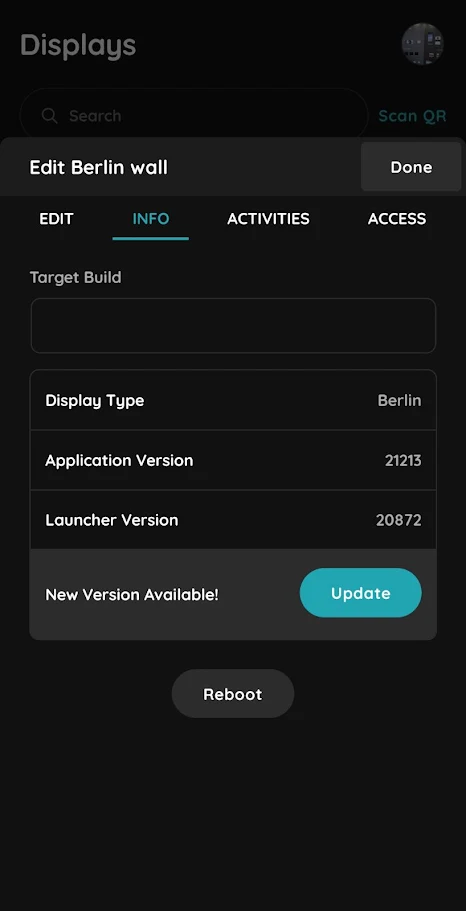
Info - Display
Basic informations about the display:
- Target build - certified PIERRE Partners can manually update displays to desired version.
- Display type - Model name of the display
- Application version - Installed application version
- Launcher version - Installed launcher version
- New Version Available! - Click the Update button to install the latest display firmware.
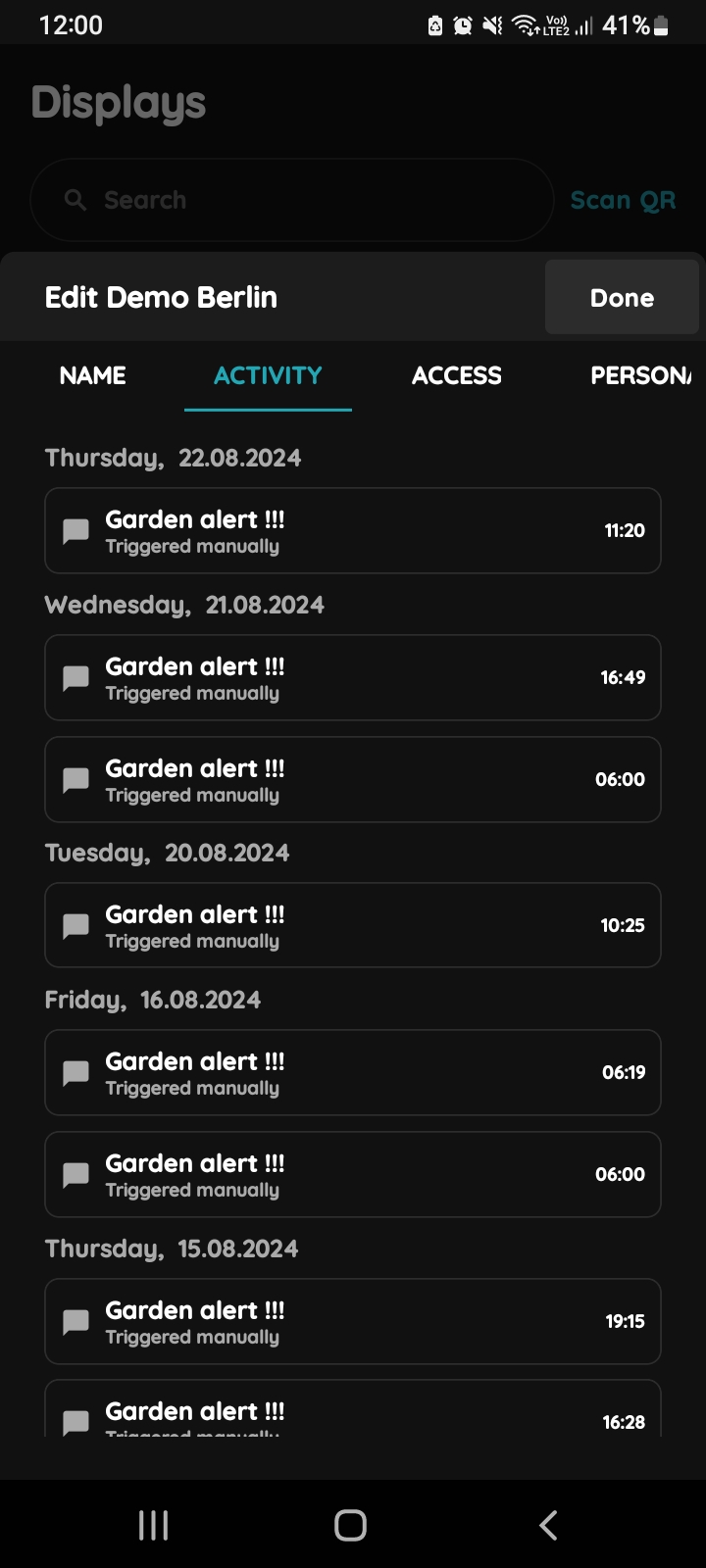
Activity Display Berlin
Here are shown all the activities that occurred during time in smart home system (it is shown who activated devices and when).
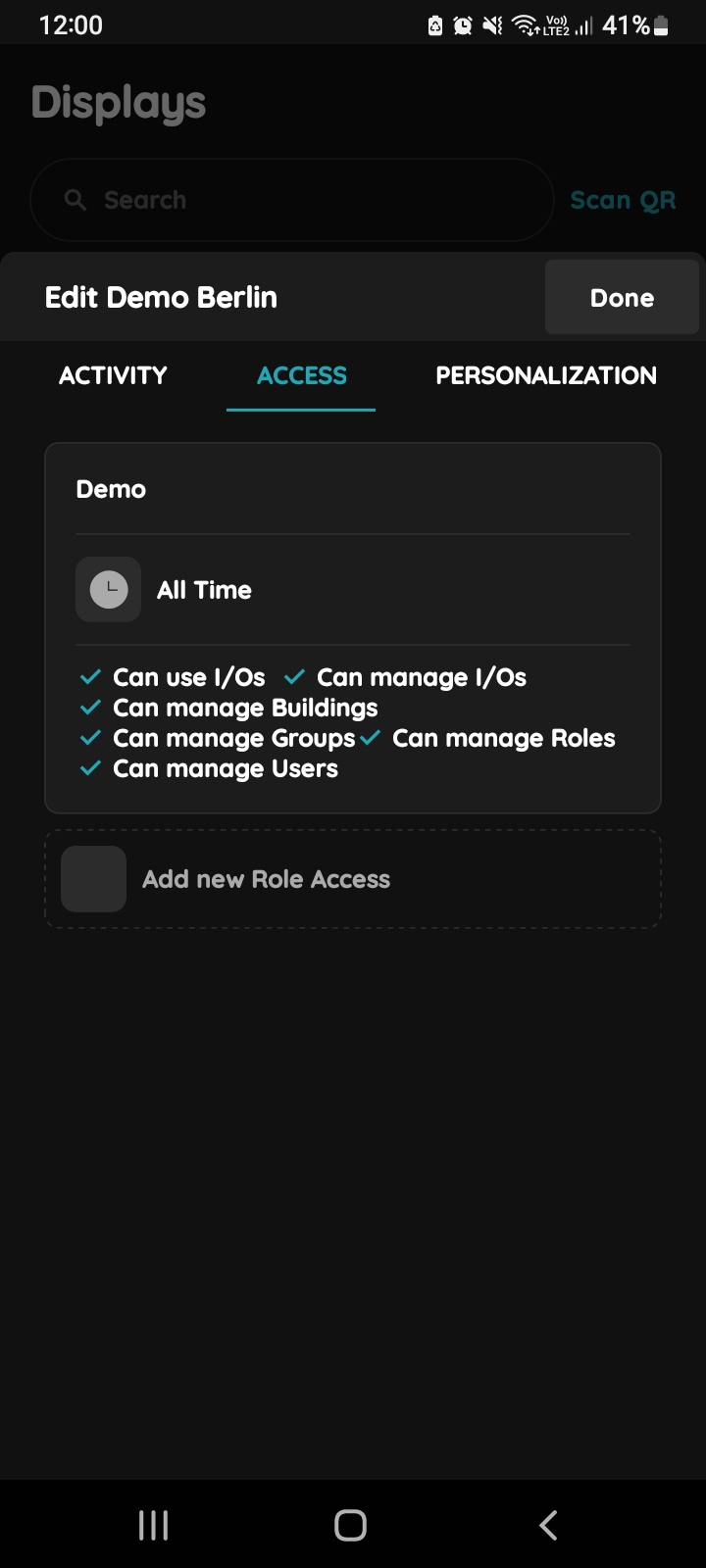
Access Display Berlin
You can set time-based access (ALL TIME and LIMITED TIME) and Add new Role Access.
Also, it is shown list of access permissions here.
For more details follow next steps.
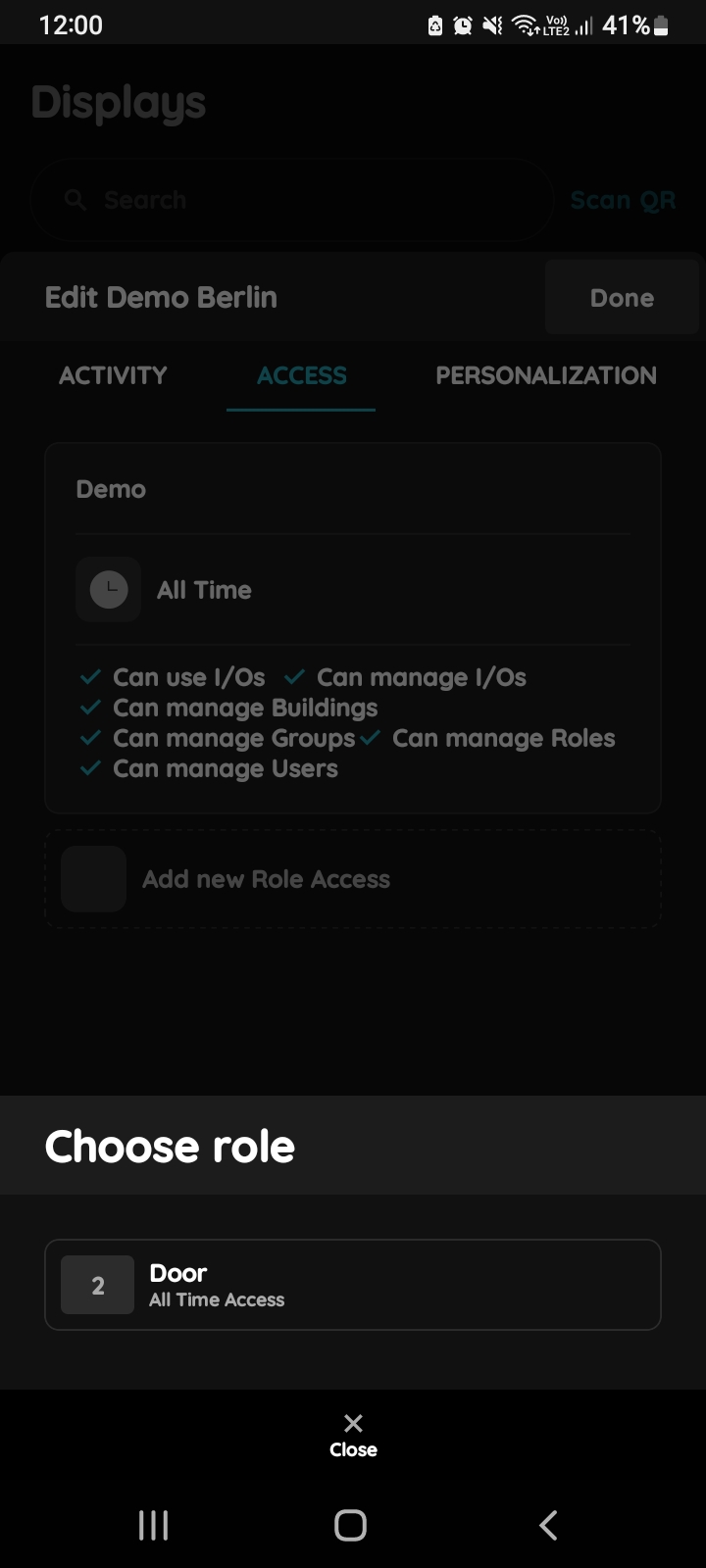
Add new Role Access - Display Berlin
Tap in the field next to Add new Role Access in order to add new role.
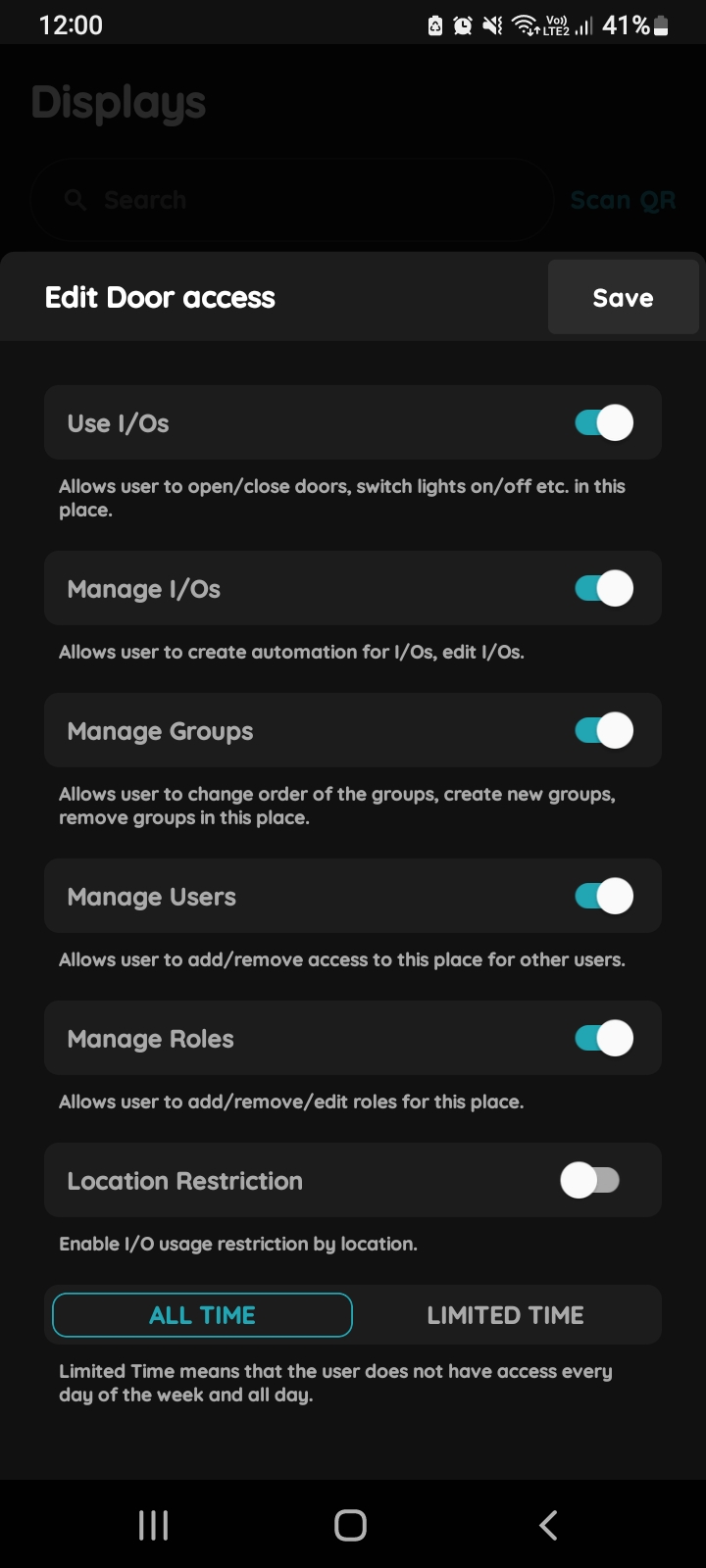
Edit Access - Display Berlin
Here are fields that define access.
You can activate or deactivate them by slider.
- Use I/O - Allow user to open/close doors, switch lights on/off etc in this place.
- Mange I/O - Allow user to create automation for I/Os, edit I/Os.
- Manage Groups - Allow user to change order of the groups, create new groups, remove groups in this place.
- Manage Users - Allows user to add/remove access to this place for other users.
- Mange Roles - Allow user to add/remove/edit roles for this place.
- Location Restriction - Enable I/O usage restriction by location (radius around the building in which I/O usage is allowed).
ALL TIME - User has access every day of the week and all day.
LIMITED TIME User does not have access every day of the week and all day.
For more details follow next seps.
To confirm your choice tap on the button Save or to delete it click on the button Delete.
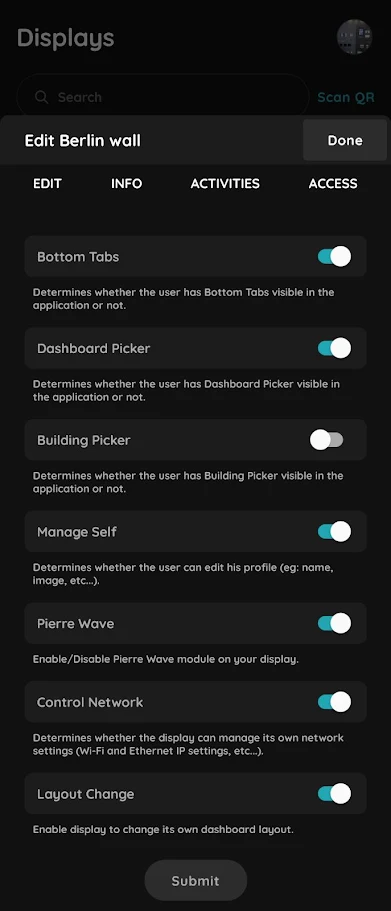
Personalization Berlin
Activate or deactivate these features:
- Bottom Tabs - Determines whether the user has Bottom Tabs visible in the application or not.
- Dashboard Picker - Determines whether the user has group Picker visible in the application or not.
- Building Picker - Determines whether the user has Building Picker visible in the application or not.
- Mange Self - Determines whether the user can edit his profile (eg: name, image, etc. ...)
- PIERRE Wave - Enable/Disable PIERRE Wave gateway on your display.
- Control Network - Determines whether the display can manage it's own network settings (Wi-Fi and Ethernet IP settings, etc...).
- Layout Change - Enable display to change it's own dashboard layout.
To confirm your choice tap on button Submit.
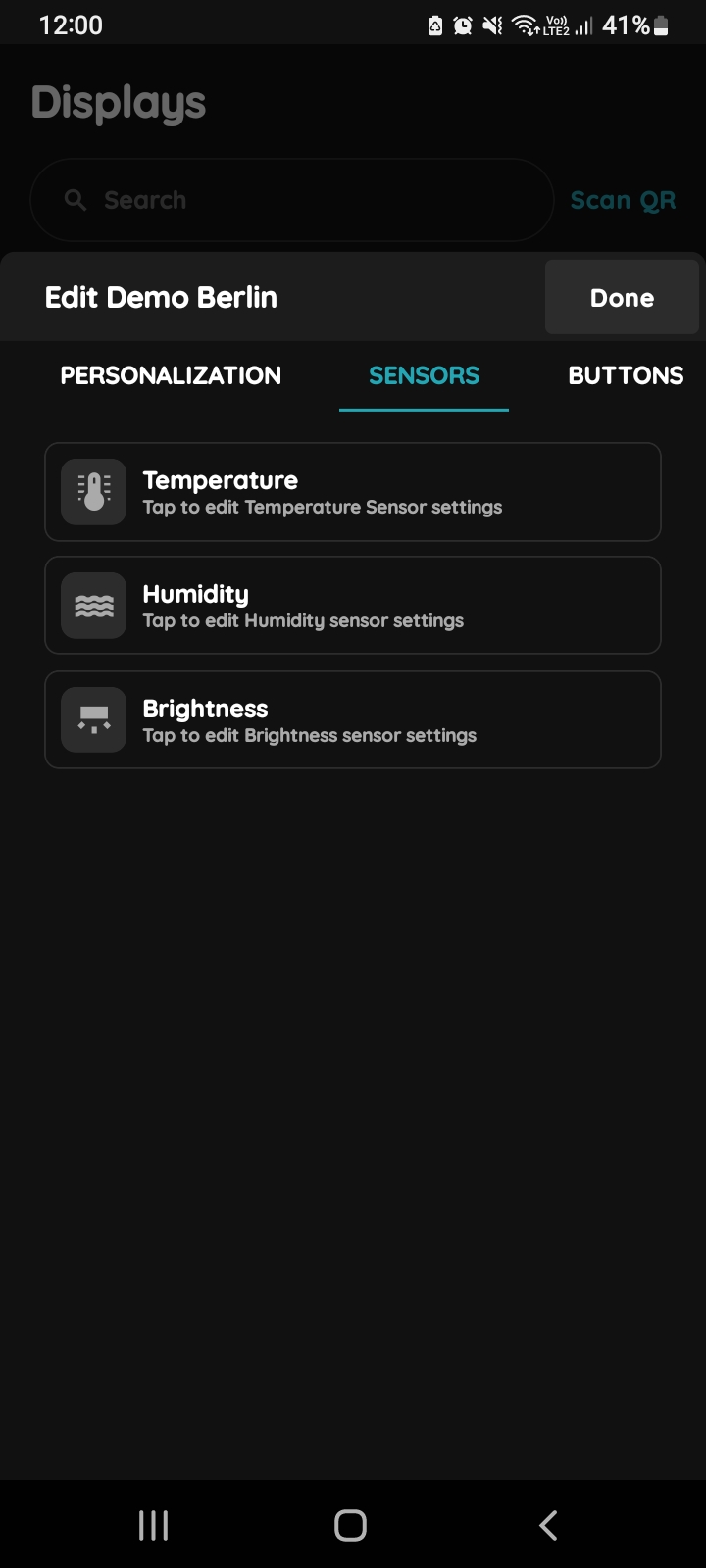
Sensors PIERRE Display Berlin
You can tap on any of these sensors and edit it.
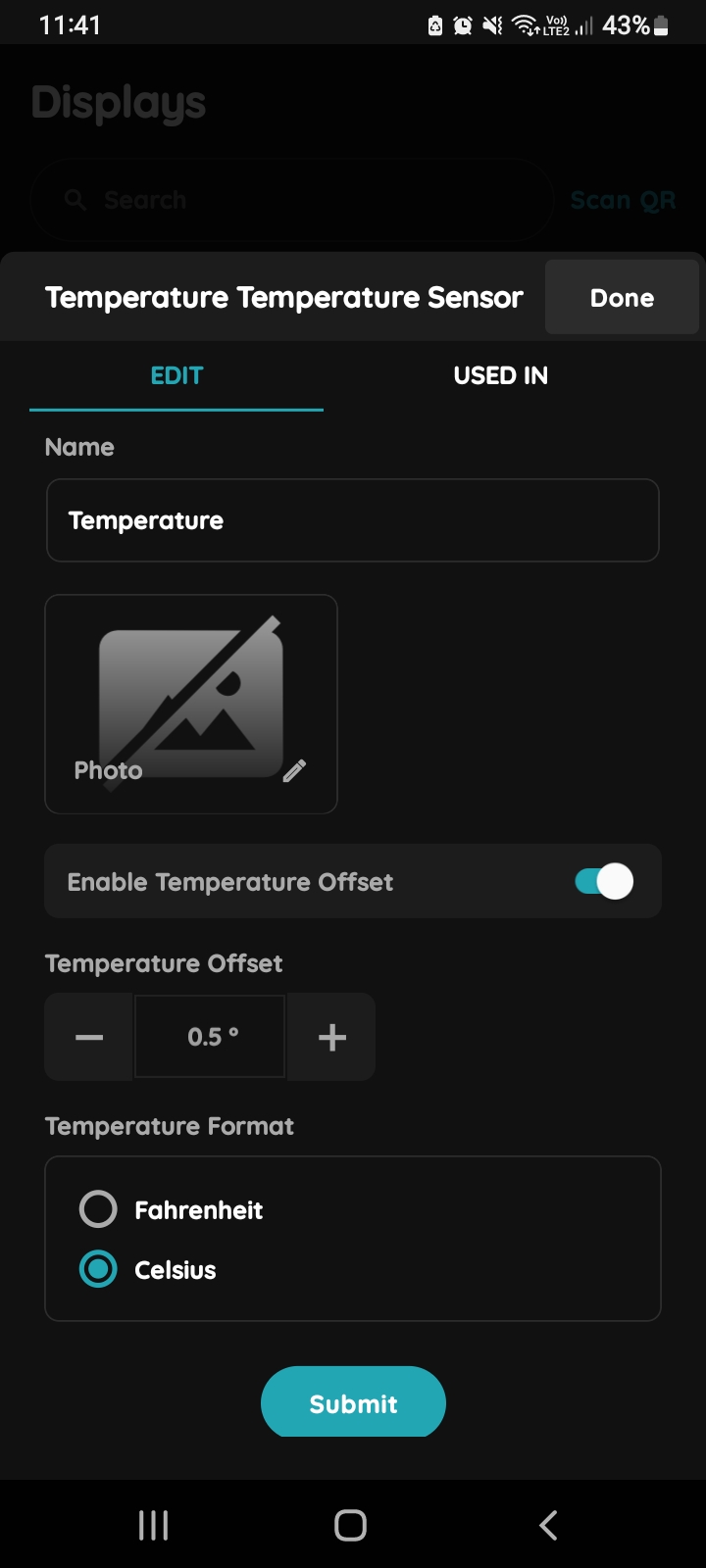
Edit Temperature sensor - Display
You can edit fields:
- Name - Edit name of the sensor.
- Photo - Choose the source of the photo.
- Temperature Offset - When it is enabled set it by clicking on +/-.
- Temperature Format - Choose Fahrenheit or Celsius by clicking on the radio button next to it.
When you want to confirm your choice tap on the button Submit and Done.
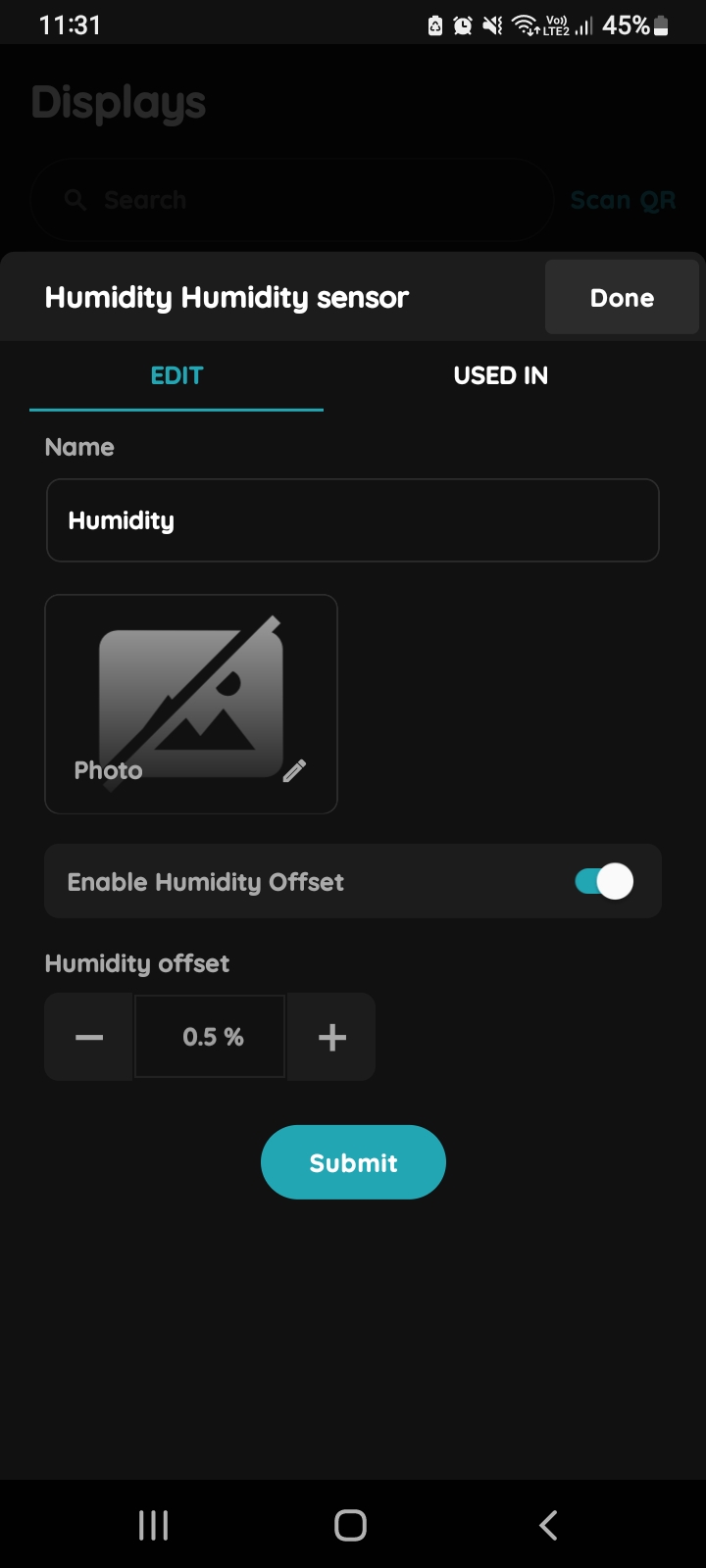
Edit Humidity sensor - Display
Edit fields:
- Name - Edit name of the Humidity sensor.
- Photo - Choose the source of the photo.
- Enable Humidity Offset - If it is enabled set it by clicki on +/-.
When you want to confirm your choice tap on Done and Submit.
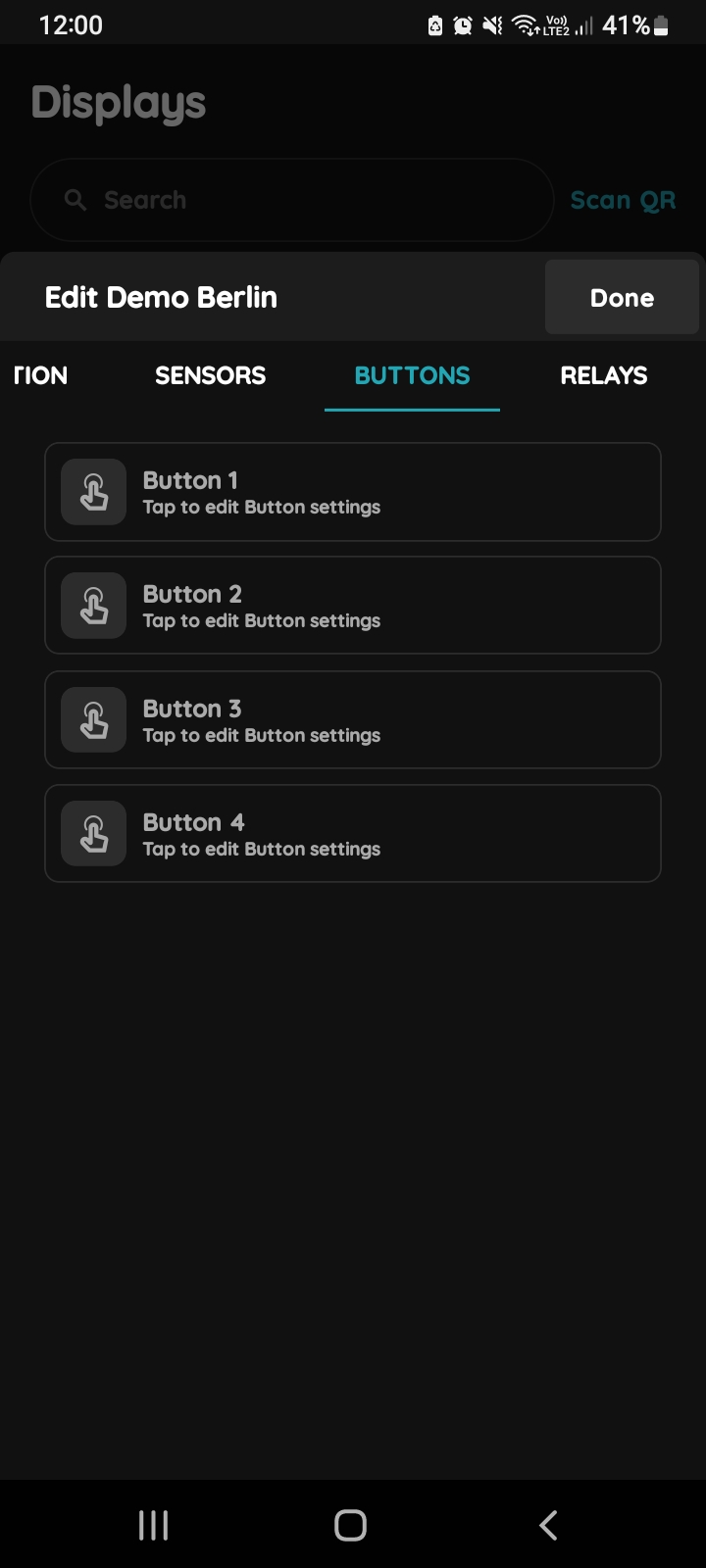
Buttons - Display PIERRE Berlin 10"
Here is displayed list of Buttons (four of them).
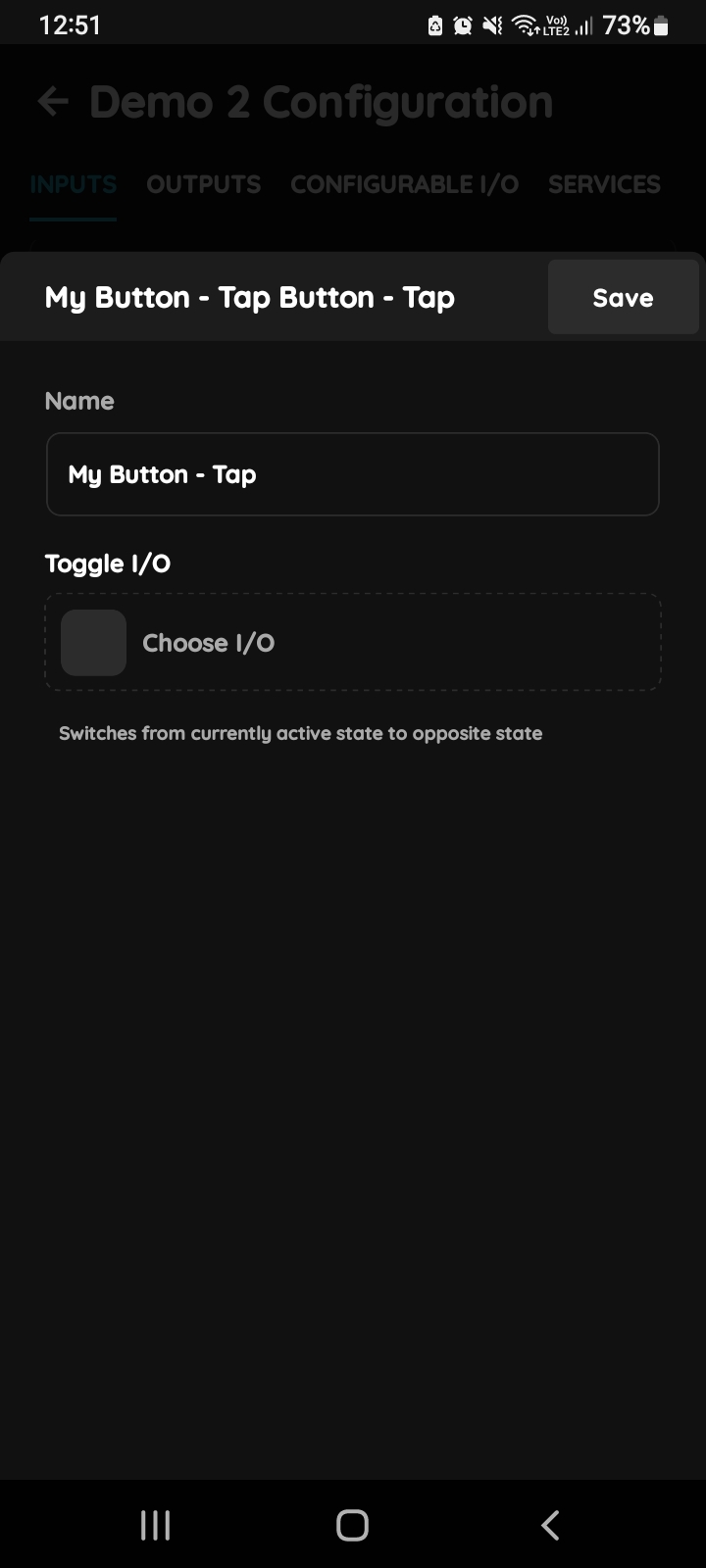
My Button - Tap
You can edit:
- Name - Edit name of the Button.
- Tap in the field Toggle I/O. Toggle - Switches from currently active to opposite state.
To confirm your choice tap the button Done.
Follow next steps for more details.
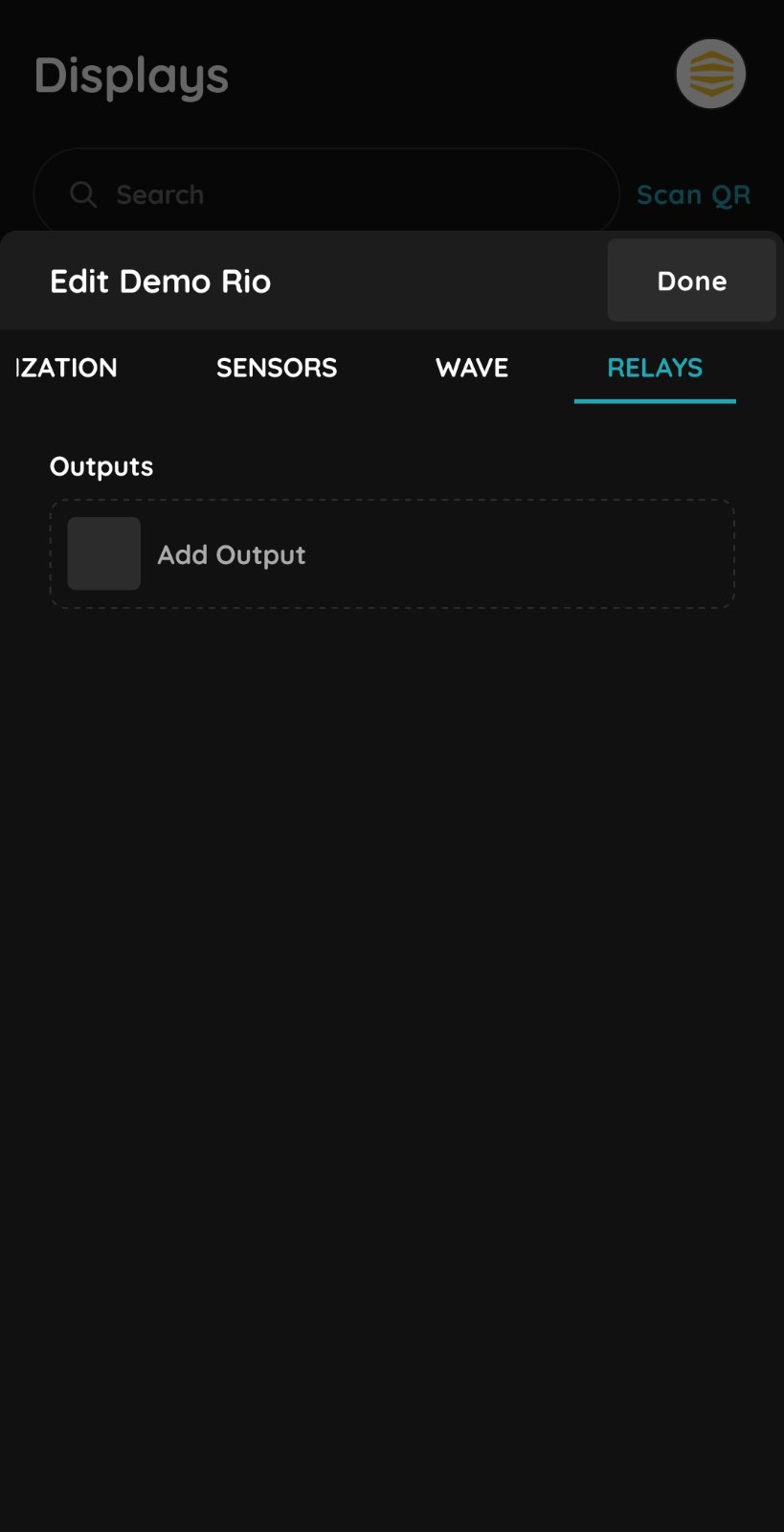
Relays - Display Berlin
Here is a list of outputs connected to the Relays.
You can edit any of them if you tap on them.
Also, you can add output by clicking on Add Output.
To confirm tap on the button Done.
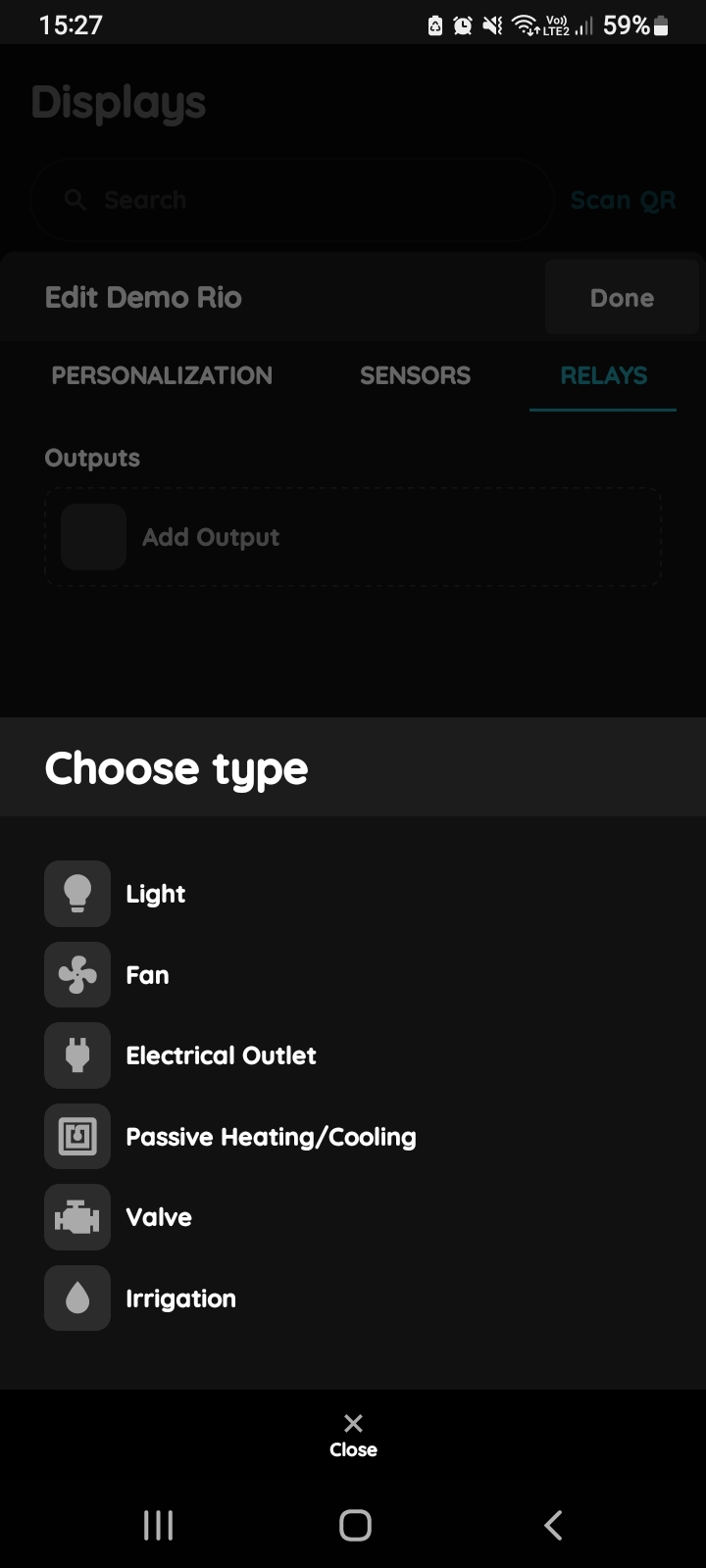
Add Output - Choose type
You can Chose type from the list:
- Light
- Fan
- Electrical Outlet
- Passive Heating/Cooling
- Valve
- Irrigation
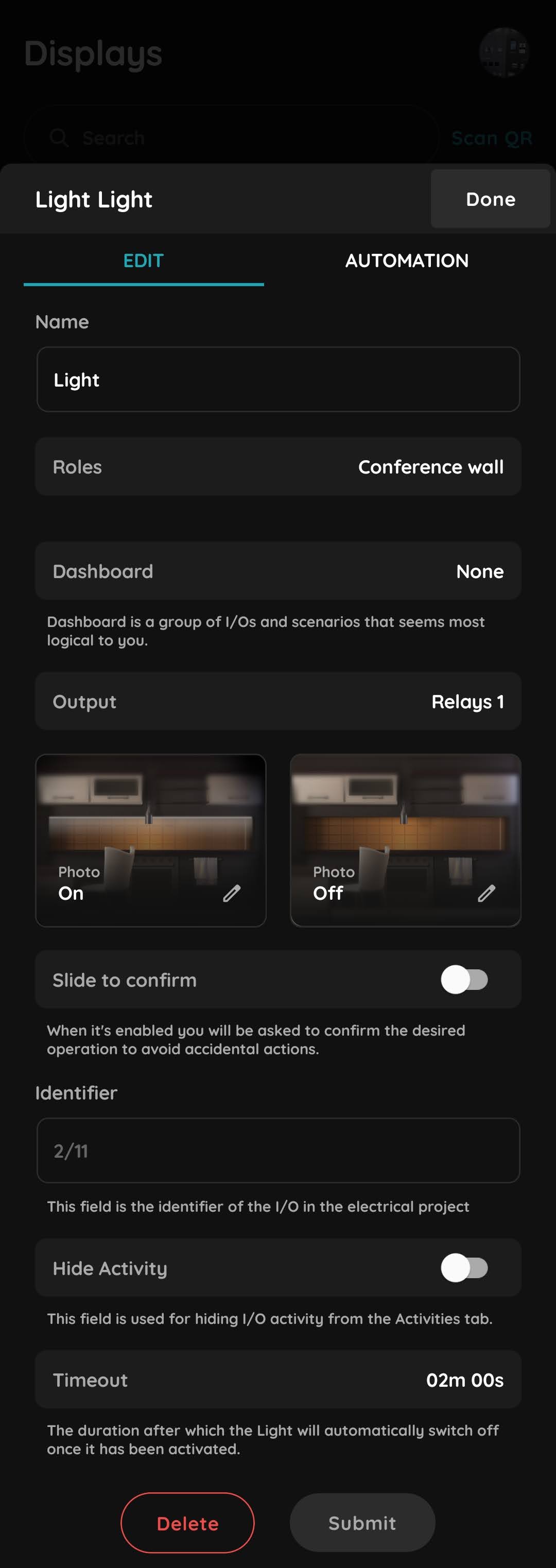
Output Settings
You can edit:
- Name - Add the Name of the output
- Roles - Select the correct Role for the output
- Dashboard - Select the Dashboard where you want the IO to be displayed
- Output - select the physical Relay 1 or Relay 2 where the consumer will be connected
- Photo - edit photo
- Slide to confirm - Enable or disable the “Slide to Confirm” option
- Identifier - Edit the identifier from the electrical plan
- Hide Activity - this option is used to hide IO activity from the Activities tab
- Timeout - defines the duration after which the IO will automatically switch off once it has been activated by automations or other IOs
Schemes
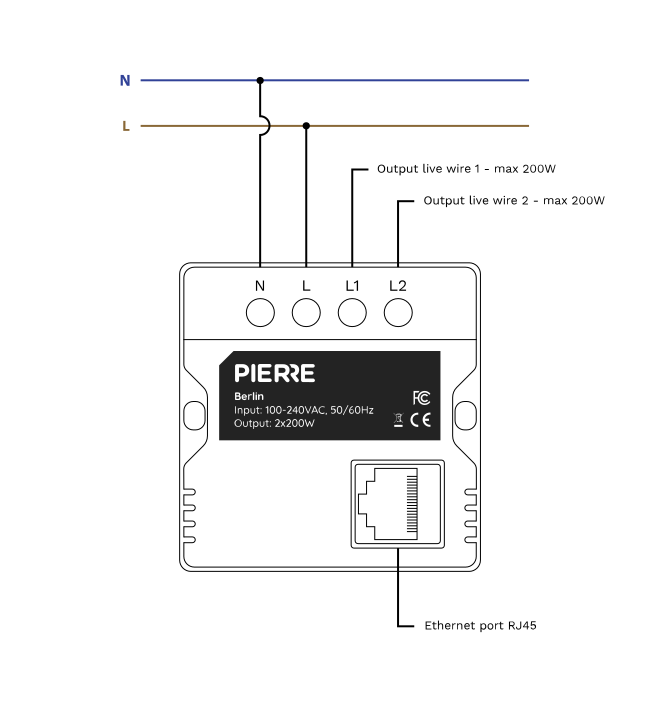
Cables
| Position | Wires | Diameter | Type | Comment | Category |
|---|---|---|---|---|---|
| From PIERRE Display to Electric box | 2 | 1.5 mm² | NYM-O | L, N | Required |
| From PIERRE Display to Consumer | 3 | 1.5 mm² | NYM-O | L1, L2, N | Optional |
| From PIERRE Display to Network Switch | 1 | - | Cat 5e U/UTP | - | Recommended |
FAQ
The system will continue to function locally without internet access, but remote access (such as controlling devices from a phone while away) will not be possible.
Displays connect to the system through the network, either wired or wireless, and do not require a direct connection to the Controller.
Yes, a display can be replaced by a larger model. Check the mounting: the larger display needs a matching back box or wall cut-out; the supply and network connection stay the same.
No. The displays are not waterproof and must not be installed where they are exposed to moisture or rain.
Yes, PIERRE offers its own smart thermostats, which can be found in the thermostat product category.
Yes, most PIERRE displays have built-in temperature sensors and can control heating/cooling systems just like a thermostat. All displays have relays that can send signals to heating/cooling devices to turn them on or off.
Yes, you can replace an old thermostat with a PIERRE display, as long as the display includes a temperature sensor for temperature monitoring.
Yes, the display can control underfloor heating valves as well as other heating and cooling systems.
You need at least one sensor for basic heating/cooling control. It’s practical to install sensors in each heating/cooling zone or room where you want individual temperature control.
A mains supply (L and N, 2 × 1.5 mm²) and a network connection — a UTP cable to the network switch is recommended; Wi-Fi is possible.
Heat meters with an M-Bus interface are read through an Intesis M-Bus to Modbus gateway connected to a PIERRE Pro controller. The meters are wired to the gateway's M-Bus (a shared two-wire bus) and the controller reads them over Modbus RTU.
Yes, you can control the temperature room by room.
Yes, the Berlin display does have a built-in temperature sensor and can manage the heating or cooling devices by controlling the power circuit.
The short answer is: it’s not always necessary, but it is often useful. Not necessary if: The sensor is factory-calibrated to a good accuracy (±0.5 °C or better). The application doesn’t require high precision (e.g. just comfort heating/cooling in a home). The installation location is good (away from direct sun, drafts, or heat sources). Useful/necessary if: You notice that the displayed temperature doesn’t match a reliable reference thermometer. The device is installed in a place where it can be affected by heat from electronics, sunlight, or poor airflow. The system requires precise control (e.g. smart HVAC, energy optimization, sensitive environments). In Smart PIERRE app, calibration is optional – the system will work fine without it. But having the ability to calibrate (adding or subtracting an offset value) ensures you can fine-tune the device for better comfort and efficiency.