
The One - Wave Gateway
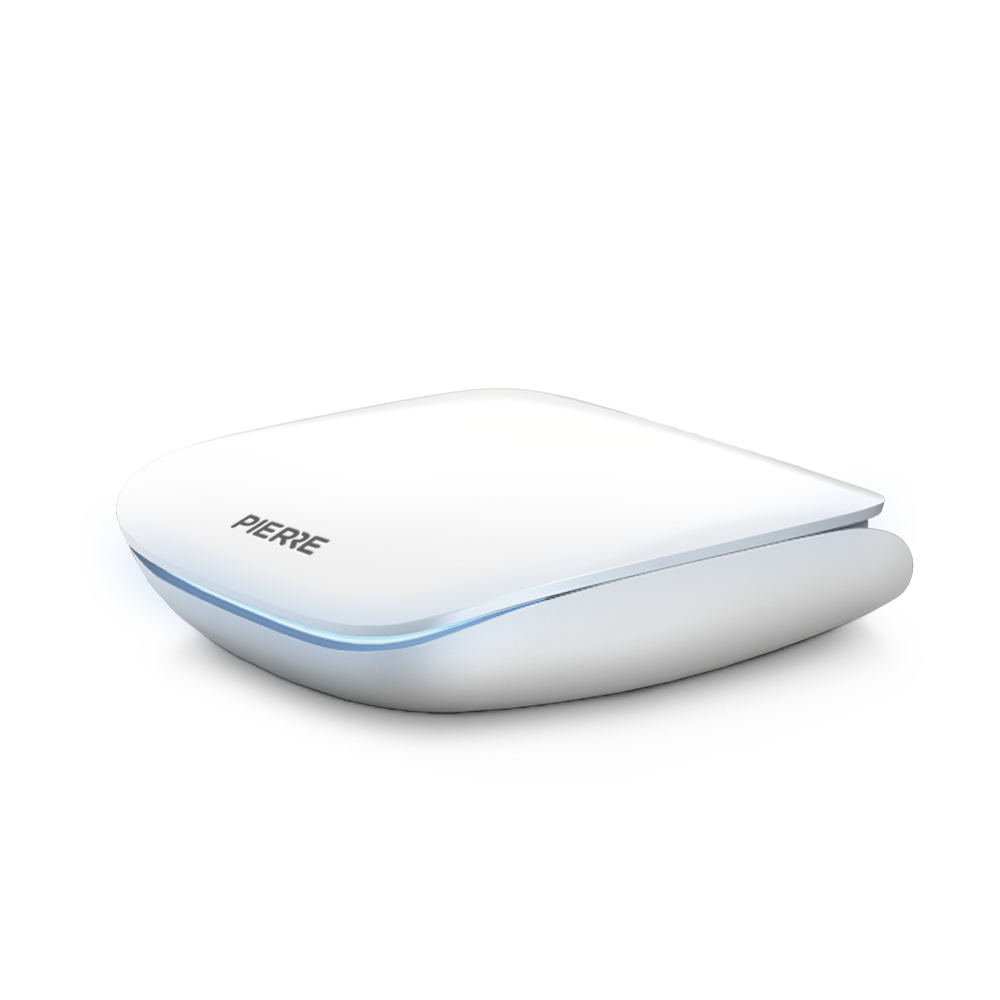
| SKU | PW-SZG |
|---|---|
| Product line | PIERRE Wave |
| Category | Gateways |
| Manufacturer | PIERRE |
| Manufacturer SKU | PZG-1 |
| GTIN / EAN | 8606034721281 |
| HS code | 8517610091 |
Overview
The PIERRE Zigbee Gateway is the bridge between PIERRE Wave (Zigbee) devices and the PIERRE system. It carries Zigbee, Wi-Fi and Bluetooth LE radios operating between 2400 and 2483.5 MHz, and joins the local network either over wired Ethernet through its RJ45 port or over 2.4 GHz Wi-Fi.
Power comes from a standard 5 V DC USB-C supply drawing 5 W. A CE-marked 5 V / 1 A adapter with over-voltage and short-circuit protection is recommended, using a shielded USB-C cable of 1 to 2 metres. The enclosure measures 100 × 85 × 23 mm, is rated IP20 for indoor use, and operates from 0 °C to +50 °C.
On first power-up, or after a factory reset, the gateway enters commissioning mode and activates Bluetooth Low Energy. Setup runs from the Smart PIERRE app, where the connection method is chosen — Wi-Fi with SSID and password, or plug-and-play Ethernet — with either DHCP or a static IP address. Once configured, the gateway stores its settings and moves into working mode, after which Zigbee devices can be scanned, named and linked to a dashboard.
A physical push button handles factory reset and commissioning through long-press actions. An RGB LED reports state continuously: green when fully operational, purple when connected to MQTT but without network access, white during Bluetooth commissioning, yellow while upgrading firmware, and red when offline.
Service personnel can retrieve logs, trigger status reports, restart the device and its Zigbee module, and receive malfunction alerts on critical failures — all over MQTT. Firmware updates are delivered over the air, triggered via MQTT and applied with automatic rollback should they fail. Cable and adapter are not included in the box.
Key features
- Zigbee, Wi-Fi and Bluetooth LE radios, 2400 to 2483.5 MHz
- Wired LAN via RJ45 Ethernet, or 2.4 GHz Wi-Fi
- 5 V DC power over USB-C, 5 W consumption
- Bluetooth LE commissioning from the Pierre Smart Home app
- Push button for factory reset and commissioning
- RGB status LED with five defined states
- Over-the-air firmware updates via MQTT, with automatic rollback
- Remote logs, status reports, restart and malfunction alerts over MQTT
- Hardware revision 4.0
- IP20, indoor use, 0 °C to +50 °C
- Enclosure 100 × 85 × 23 mm
Technical specifications
| Connectivity | |
|---|---|
| Communication Frequency | 2.4GHz - 2.484GHz |
| Protocol | Zigbee |
| Interface | RJ45 |
| Connectivity | 10M/100M Ethernet RJ45, 2.4GHz Wi-Fi (802.11 b/g/n), Zigbee, Bluetooth LE |
| Electrical | |
| Power Supply | DC 5V 1A |
| Power Consumption | 5 W |
| Environmental | |
| Operating Temperature (°C) | 0 - +50 |
| IP Rating | IP20 |
| Features | |
| LED Indicators | Yes |
| Physical | |
| Width | 100 mm |
| Height | 85 mm |
| Depth | 23 mm |
| Mounting Type | Freestanding |
Pin layout
| Pin | Label | Type | Position |
|---|---|---|---|
| 1 | ETH | ethernet_in | top |
| 2 | Power | pwr_plug | top |
Physical & packaging
| Dimensions (L × W × H) | 99 × 85 × 24 mm |
|---|---|
| Weight | 80 g |
| Box dimensions (L × W × H) | 134 × 29 × 119 mm |
| Box weight | 140 g |
User manual
- 1. Product Description
- 2. Product Size
- 3. What you need
- 4. System integration
- 5. Technical Specification
- 6. Required power supply
- 7. Safety Instructions
- 8. Installation and placement
- 9. Commissioning
- 10. LED indicator description
- 11. Operation and maintenance
- 12. Troubleshooting and FAQ
1. Product Description
The PIERRE Wave Gateway is the device that connects the wireless PIERRE Wave network to the rest of the PIERRE system. PIERRE Wave uses a Zigbee mesh, and the gateway is the coordinator of that mesh: it forms the network, admits devices to it and passes their traffic on to the PIERRE system and to the Smart PIERRE application.
The gateway is a freestanding unit. It is powered from a USB-C supply and reaches the network either over its Ethernet port or over Wi-Fi. A single RGB status LED on the top face reports what the device is doing, and a recessed push button on the rear edge starts the gateway in commissioning mode when it is held during power-up.
Where it is used
- Installations built with PIERRE Wave devices, where a wireless mesh replaces control cabling.
- Retrofit and rented properties, and interiors where walls cannot be opened.
- Extending an existing PIERRE installation with individual wireless devices.
A PIERRE display can also provide the gateway function. Where a display is already planned, a separate gateway may not be needed. Where no display is planned, or where the wireless coverage needs a coordinator in a different position, this gateway provides the function on its own.
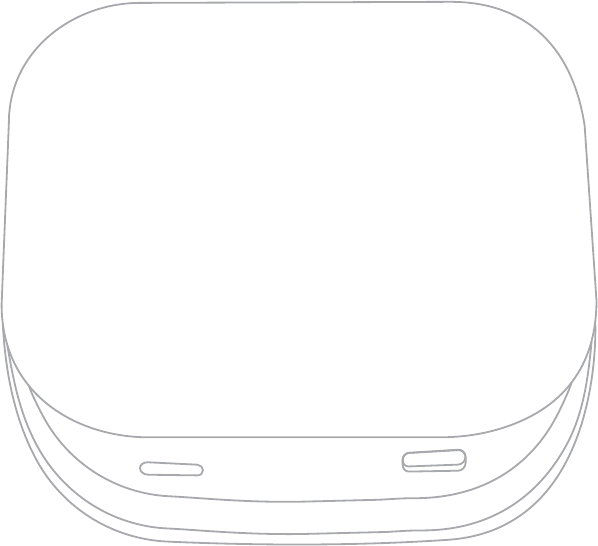
2. Product Size
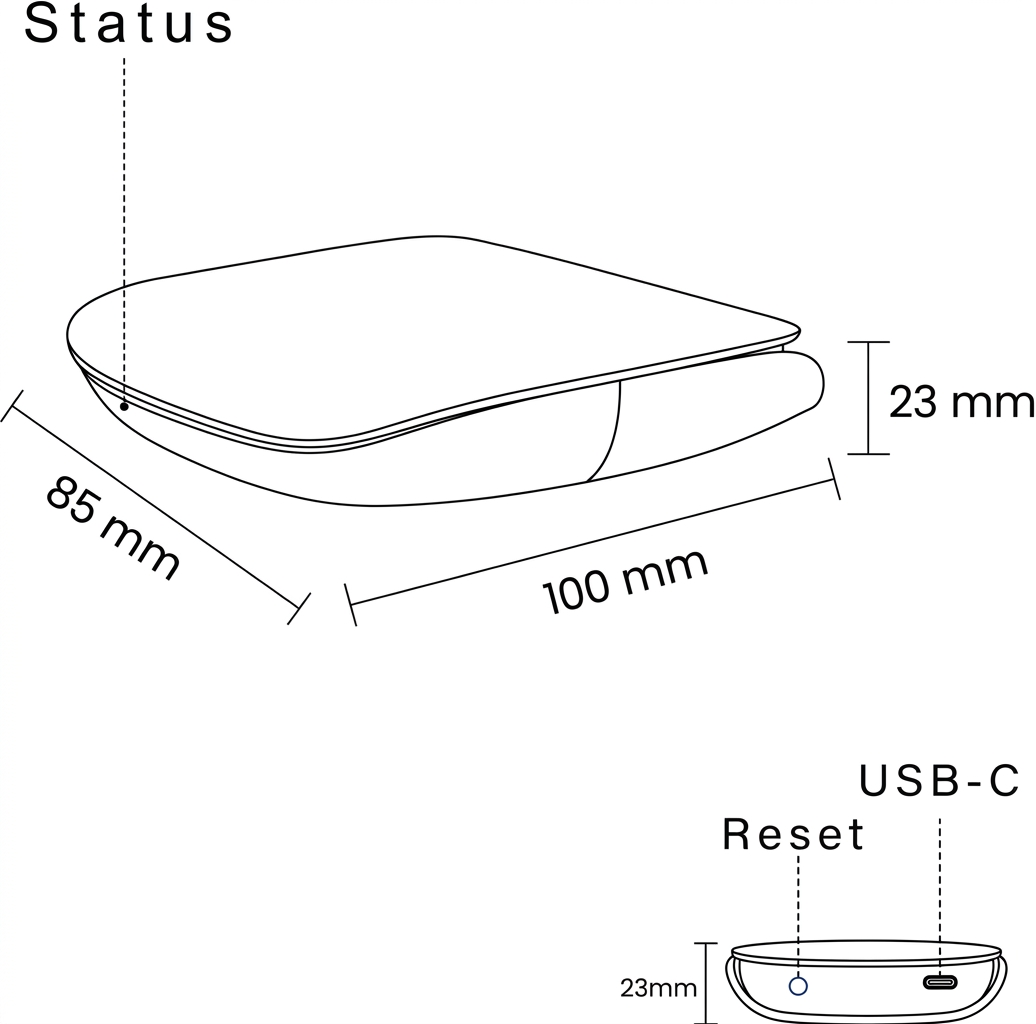
| Property | Value |
|---|---|
| Enclosure dimensions | 100 x 85 x 23 mm |
| Mounting type | Freestanding |
| PCB dimensions | 69.75 x 78.87 mm (W x H), overall extent |
| PCB thickness | 1.6 mm |
| PCB construction | 4 layer FR-4 |
| PCB mounting holes | 4 x 3.7 mm diameter, 33.03 x 54.00 mm pitch |
3. What you need
- A USB-C power supply, 5 V DC, 1 A minimum. See Required power supply.
- A network connection at the gateway position: either an Ethernet cable to the router or switch, or 2.4 GHz Wi-Fi coverage.
- A smartphone with the Smart PIERRE application installed, with Bluetooth enabled. The gateway is commissioned over Bluetooth.
- The Wi-Fi network name and password, if the gateway is to connect over Wi-Fi.
4. System integration
Device roles in a PIERRE Wave network
Every PIERRE Wave network has one coordinator, and the gateway is it. Around that coordinator the network is built from two other kinds of device.
| Role | Provided by | Function |
|---|---|---|
| Coordinator | PIERRE Wave Gateway, or a PIERRE display acting as gateway | Forms the Zigbee network, admits devices and assigns addresses. One per network. |
| Router | Permanently powered Wave devices: smart plugs, wall switches and relay or blind modules with L and N | Repeats traffic for other devices and extends the mesh. Must stay permanently powered. |
| End device | Battery powered sensors, scenario switches, radiator valves, modules without neutral | Communicates through the mesh but does not repeat traffic for others. |
Build the network in order
Install and pair in this sequence: gateway, then router devices, then end devices. The router infrastructure should already exist when end devices are paired. An end device paired before the routers around it are in place may attach through a distant or unsuitable path, and can become slow or unavailable later.
Interaction with Wi-Fi
PIERRE Wave uses the 2.4 GHz band, the same band as Wi-Fi. Where performance is inconsistent, separate the two: with Zigbee on channel 20, 25 or 26, use Wi-Fi channel 1 or 6.
5. Technical Specification
| Property | Value |
|---|---|
| Model | PZG-1 |
| Hardware revision | 4.0 |
| Radio | Zigbee, Wi-Fi, Bluetooth LE |
| Frequency band | 2400 to 2483.5 MHz |
| Power input voltage | 5 V DC, via USB-C |
| Recommended supply | 5 V DC / 1 A minimum |
| Power consumption | 5 W |
| Connector type | USB-C (power only) |
| Ethernet port | Standard RJ45 connector for wired LAN |
| Push button | Held while powering on, starts the gateway in commissioning mode. Pressed during normal operation, restarts the gateway. |
| Status indicator | Multi-colour RGB LED |
| Operating temperature range | 0 °C to +50 °C |
| Ingress protection | IP20, indoor only |
| Enclosure dimensions | 100 x 85 x 23 mm |
| Mounting type | Freestanding |
6. Required power supply
The gateway has no internal power supply and is not supplied with one in every package. Use a USB-C supply that meets the following specification.
| Property | Requirement |
|---|---|
| Output voltage | 5 V |
| Minimum output current | 1 A |
| Connector type | USB Type-C, standard plug |
| Power rating | At least 5 W, for example 5 V / 1 A |
| Certification | CE marked, with over-voltage and short-circuit protection |
| Cable length | 1 to 2 metres, shielded USB-C cable |
Recommended type. A standard 5 V / 1 A USB-C wall charger of the kind used for mobile devices.
7. Safety Instructions
- Before installing or powering the device, check that it is free from physical damage and moisture.
- Use only a certified power supply that meets the specification in Required power supply.
- The gateway is rated IP20 and is for indoor use only. Do not install it outdoors, in damp rooms or anywhere it can be splashed.
- Keep the device within its operating temperature range of 0 °C to +50 °C. Do not cover it and do not place it on or next to a heat source.
- The enclosure contains no user-serviceable parts. Do not open it.
- Disconnect the USB-C supply before moving the device or connecting the Ethernet cable.
8. Installation and placement
Where the gateway is placed decides how well the whole wireless installation works. It is the coordinator of the Zigbee mesh, so every device either talks to it directly or reaches it through a router.
Choosing the position
- Place the gateway in a central, open position in the building, not at one end of it.
- Keep it out of metal cabinets, distribution boards and other enclosed metal spaces. Metal around the antenna will reduce the range sharply.
- Keep a distance from strong sources of 2.4 GHz interference: Wi-Fi routers, microwave ovens and large televisions.
- The device is freestanding. Stand it on a shelf or similar surface where it is not covered and where air can move around it.
- Check that the position has what the gateway needs: a mains socket for the USB-C supply, and either an Ethernet outlet or good Wi-Fi coverage.
Connecting
- Place the gateway in the chosen position, near the router or the intended network outlet.
- If the installation uses a wired connection, plug the Ethernet cable into the RJ45 port.
- Connect the USB-C cable to the gateway and the supply to a mains socket. The gateway has no power switch and starts as soon as it is powered.
- Watch the status LED. It reports what the device is doing; see LED indicator description.
Planning the mesh around it
- Install the permanently powered Wave devices next. They act as routers and form the backbone of the mesh.
- Distribute routers through the building rather than clustering them in one area, so the network has more than one possible path.
- Keep battery powered end devices within reliable range of the gateway or a router, roughly 5 to 10 metres.
- Do not power routers through timers or wall switches that cut their supply. A router must stay powered for the mesh to stay stable.
The gateway can handle a limited number of direct connections. Build the network outward, gateway to router to router to end device, rather than letting every device attach straight to the gateway.
9. Commissioning
The gateway is commissioned over Bluetooth from the Smart PIERRE application. A new gateway enters commissioning mode on its own the first time it is powered, because it has no stored settings yet. Nothing needs to be pressed.
Before you begin
- Install the Smart PIERRE application on the phone and enable Bluetooth.
- Create the account and set up the building in the application first. That is done once per installation and is not part of the gateway setup.
- Have the Wi-Fi name and password to hand if the gateway will not use Ethernet, and the fixed address details if the installation uses a static IP.
Step 1. Connect power
Plug the gateway into a 5 V USB-C supply. It has no power switch and starts as soon as it is powered.
Step 2. Wait for the status LED to turn white
White means the gateway is in Bluetooth commissioning mode and is waiting for the phone. While it is in this mode it is visible over Bluetooth as Pierre Bridge.
A gateway that has already been set up will not enter this mode by itself; it will try to reconnect with its stored settings instead. To commission it again, hold the button on the rear edge while you connect the power.
Step 3. Add the gateway in the application
In Smart PIERRE go to Menu → Settings → Bridges and search for available devices. Gateways are listed as bridges. Select PIERRE Wave Gateway as the type and pick the gateway that is found.
Step 4. Choose how it connects to the network
The application then asks for the connection method.
- Ethernet. Plug the cable into the RJ45 port. Nothing further is needed.
- Wi-Fi. Enter the network name and the password. The gateway uses the 2.4 GHz band. The application can ask the gateway to scan and list the networks it can see; the LED blinks for a few seconds while it does.
Then choose DHCP, or enter a fixed address, subnet mask, default gateway and DNS server if the installation requires one. Give the gateway a name that identifies it later, which matters as soon as a building has more than one.
Step 5. Let it finish
The gateway stores the settings and restarts. After the restart it joins the network and connects to the PIERRE system, and the status LED turns green. If it stops at another colour, see LED indicator description.
Once the gateway is online it switches its Bluetooth radio off, so a working gateway will not appear in a Bluetooth search. That is normal. Use the button at power-on to bring it back into commissioning mode.
Step 6. Add the Wave devices
With the gateway online, the wireless devices are paired to it. In Smart PIERRE:
- Go to Menu → Settings → Add Wave I/O.
- Select the gateway that will manage the new device. If the building has several, pick the right one deliberately.
- Put the Wave device into pairing mode, following that device's own manual.
- Tap Find devices. The gateway opens its network to new devices for four minutes.
- Give the device a name, assign one or more roles, and choose the group it should appear in on the dashboard.
- Select the dashboards the device should appear on, and save.
Paired devices then appear in the I/O list under the Wave section, and can be used in dashboards, automations, scenes and roles.
Pair in the right order. Gateway first, then the permanently powered router devices, then the battery powered end devices. An end device paired before the routers around it exist may attach through a distant path and become slow or unavailable later. Allow five to ten minutes after adding each device for the mesh to update its routing.
10. LED indicator description
The gateway reports its state through one multi-colour RGB LED on the top face.
| Indication | Meaning |
|---|---|
| Green, steady | Fully operational. Connected to the PIERRE system through the cloud. |
| Green, slowly brightening and dimming | Operational, connected to a local broker on site rather than to the cloud. |
| White | Bluetooth commissioning mode. Waiting to be set up from the application. |
| Purple | The gateway has a network connection but has not yet reached the PIERRE system. |
| Yellow | Firmware update in progress. Do not disconnect the power. |
| Red | Shown at start-up, before the gateway has established any connection. |
While the gateway is in commissioning mode and the application asks it to scan for Wi-Fi networks, the LED blinks for about five seconds and then returns to steady.
There is one further state: while an installer is configuring the gateway remotely from the application, it shows a separate colour for as long as that lasts.
Adding Wave devices does not change the LED. The four minute pairing window is shown in the application, not on the gateway.
11. Operation and maintenance
Normal operation
Once commissioned the gateway runs unattended. It holds the Zigbee network together, passes device traffic to the PIERRE system and needs no routine intervention. Leave it powered. Taking the gateway off power takes the whole wireless installation down with it.
Firmware updates
The gateway is updated over the network, not from a file. To check it, go to Menu → Settings → Bridges in the Smart PIERRE application, select the gateway and open the Info tab. The tab shows the device type and the build version. If a newer version is available a blue Update button appears; press it to start.
The status LED turns yellow while the update runs and the gateway restarts when it finishes. Do not disconnect the power during an update. If an update cannot be installed, the gateway returns to the firmware it was running before.
The push button
The recessed button on the rear edge has two uses, and neither of them is a factory reset.
- Held while the power is connected — the gateway starts in Bluetooth commissioning mode instead of reconnecting with its stored settings. This is how a gateway that is already set up is commissioned again, for example when it moves to a different network.
- Pressed while the gateway is running — the gateway restarts immediately. There is no confirmation and no hold time, so do not press it to test it.
Clearing a gateway
The stored configuration is erased from the Smart PIERRE application, not from the device. Put the gateway into commissioning mode by holding the button as you power it up, connect to it from the application, and delete it there.
Clearing the gateway also drops the Zigbee network it coordinates. Every Wave device paired to it has to be paired again afterwards.
12. Troubleshooting and FAQ
| Symptom | Likely cause | What to do |
|---|---|---|
| The LED never turns green | No network, or the gateway cannot reach the PIERRE system | Purple means the network is up but the PIERRE system has not been reached: check the internet connection and any firewall. Red at start-up is normal until the first connection is made. |
| The gateway does not appear in a Bluetooth search | It is already commissioned, so its Bluetooth radio is switched off | Hold the button on the rear edge while connecting the power, then search again. |
| A device does not respond | Out of range, or no router nearby | Add a router, a smart plug or an L and N device, between the gateway and the device. |
| Status or automation is delayed | Poor mesh routing or 2.4 GHz interference | Reposition the router devices, or move the Wi-Fi to channel 1 or 6. |
| A battery device keeps going offline | No router within range, or a flat battery | Add a router within five to ten metres, or replace the battery. |
| Devices drop after a power cut | The mesh was disrupted and is rebuilding | Wait for the network to settle. Power cycling the router devices speeds it up. |
| A new device pairs but works poorly | The mesh has not optimised yet | Wait a few minutes, or add another router nearby. |
| The system is unstable after adding devices | Too many devices connected straight to the gateway | Make sure end devices reach the gateway through router devices instead. |
Q1: Do I need this gateway if the installation already has a PIERRE display?
Not necessarily. A PIERRE display can provide the gateway function. A separate gateway is used where no display is planned, or where the wireless coverage needs a coordinator in a position where no display will be installed.
Q2: Can I have more than one gateway in a building?
Yes. Each gateway coordinates its own Zigbee network, and each Wave device is paired to one of them. When adding a device, select the gateway that should manage it.
Q3: Does the gateway need a permanent internet connection?
It needs a network connection to reach the PIERRE system. Where the installation runs against a local broker on site, the LED shows green but brightens and dims slowly rather than staying steady.
Q4: Can the gateway be powered from a computer or a TV USB port?
Use a dedicated supply that can deliver 5 V at 1 A or more. A port that cannot hold that current will make the gateway unreliable in ways that are hard to diagnose.
Q5: What happens to the paired devices if the gateway is replaced?
They have to be paired again to the new gateway. The Zigbee network belongs to the gateway that created it.
Q6: Where should the gateway be installed?
Central and open. Not in a metal cabinet or a distribution board, and not right next to a Wi-Fi router, a microwave oven or a large television.
Q7: How is the firmware updated?
Over the network. Open Menu → Settings → Bridges in the application, select the gateway and open the Info tab. If an update is available a blue Update button appears there.