Smart PIERRE - Location Restriction
Description
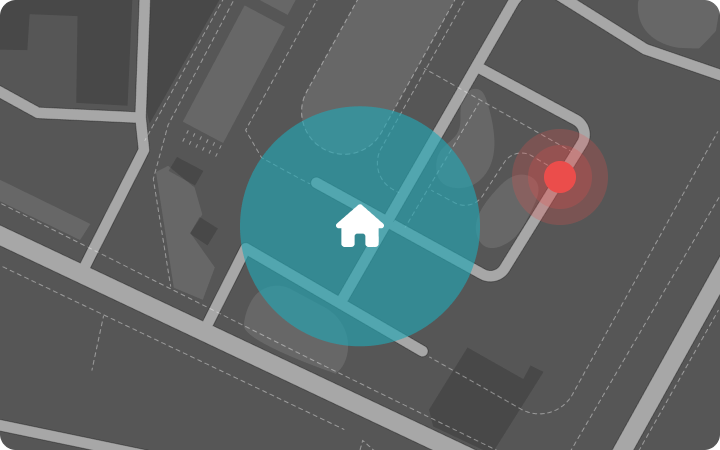
Location Restriction limits device control to a geographic area around a building. A restricted user can control I/Os from the Smart PIERRE app only while the phone is inside the chosen radius.
How It Works
- The building has one location point, set once in the building settings.
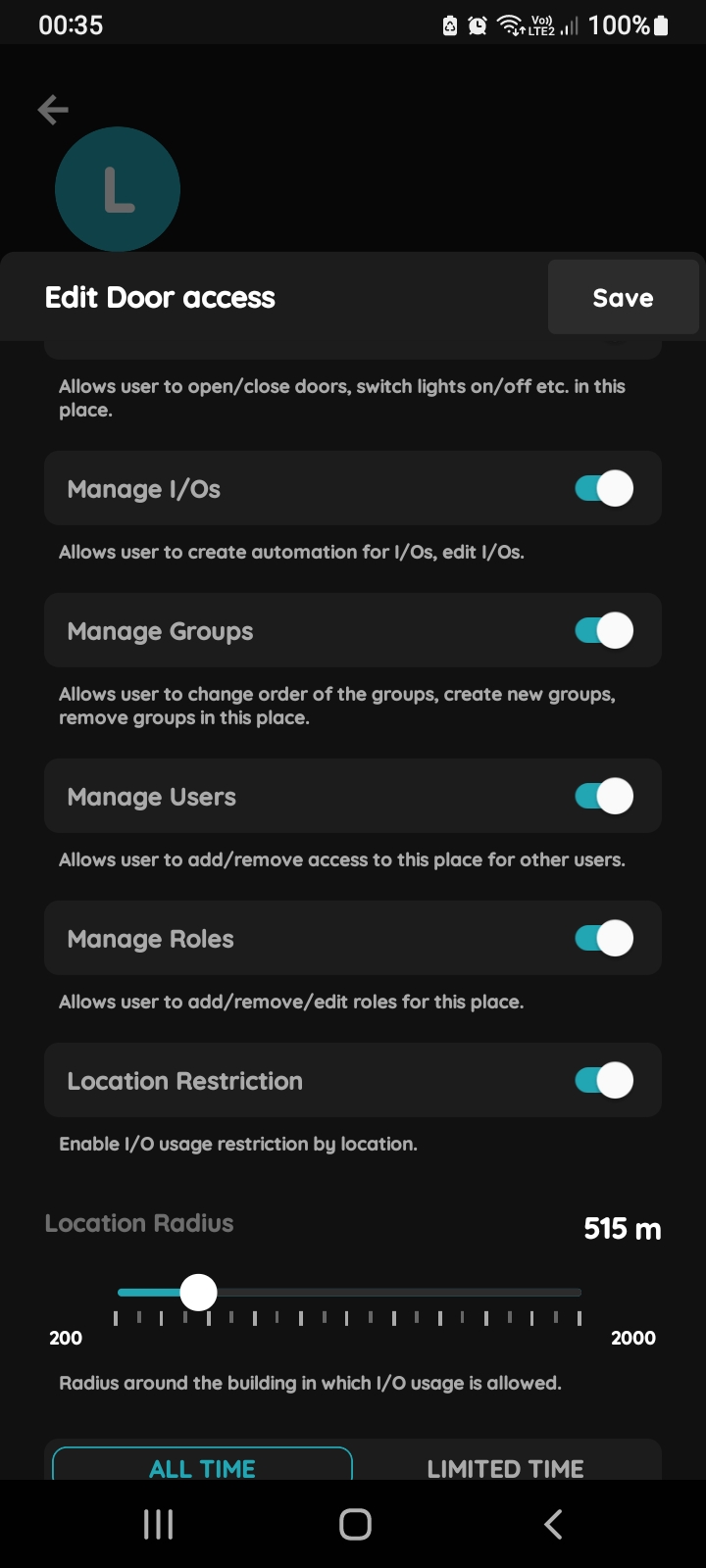
- The restriction and its radius are set per user, on each role access: switch Location Restriction on and choose a radius between 200 m and 2000 m (default 200 m).
- When the user tries to control an I/O, the app compares the phone's position with the building location. Inside the radius the command goes through. Outside, a map dialog shows the permitted radius and the current distance, and the command is not sent.
- The phone must have location permission granted for the app and a GPS position available. A faked (mocked) position is refused.
- Wall displays are never restricted.
Typical Use
Offices and workplaces, where employees should control lighting, thermostats and other devices while on site, but not from home or elsewhere.
Setting It Up
- Set the building location: Menu, Settings, Buildings, edit the building, Location. Without it the restriction cannot be switched on.
- For another user: Menu, Settings, Users, open the user, Access tab, tap the role card, switch Location Restriction on, set the radius, Save.
- For yourself: See Your Profile, Access tab, tap the role card, the same form.
- Ask the user to allow location for the Smart PIERRE app when the phone asks.
Technical Notes
- Set the radius to cover the building and its immediate surroundings. Too small a radius blocks users inside the building when the position reading drifts; indoors the drift is often 50 to 100 m.
- A user with several roles in the building is checked per role. Restrict every role that carries the I/Os in question.
- The check happens on the phone at the moment of use. The user still sees the states of the I/Os when outside.
- The restriction applies to the app only; a wall display in the building is not affected.
Set Location Restriction for another User
In order to set Location Radius for the User select Menu.
Location Radius is a defined circular area around the building in which I/O usage is allowed.
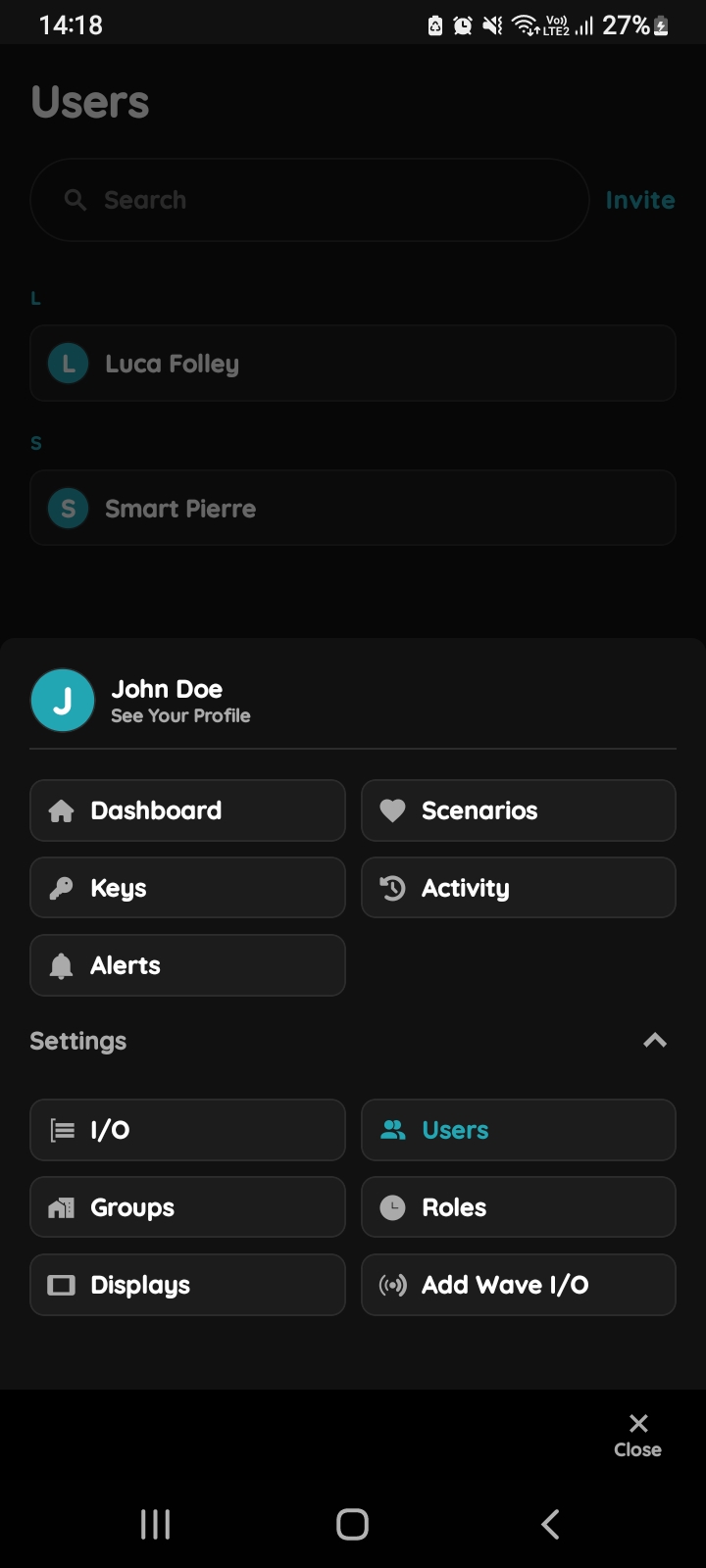
Open Users list
Tap on the Users under the Settings.
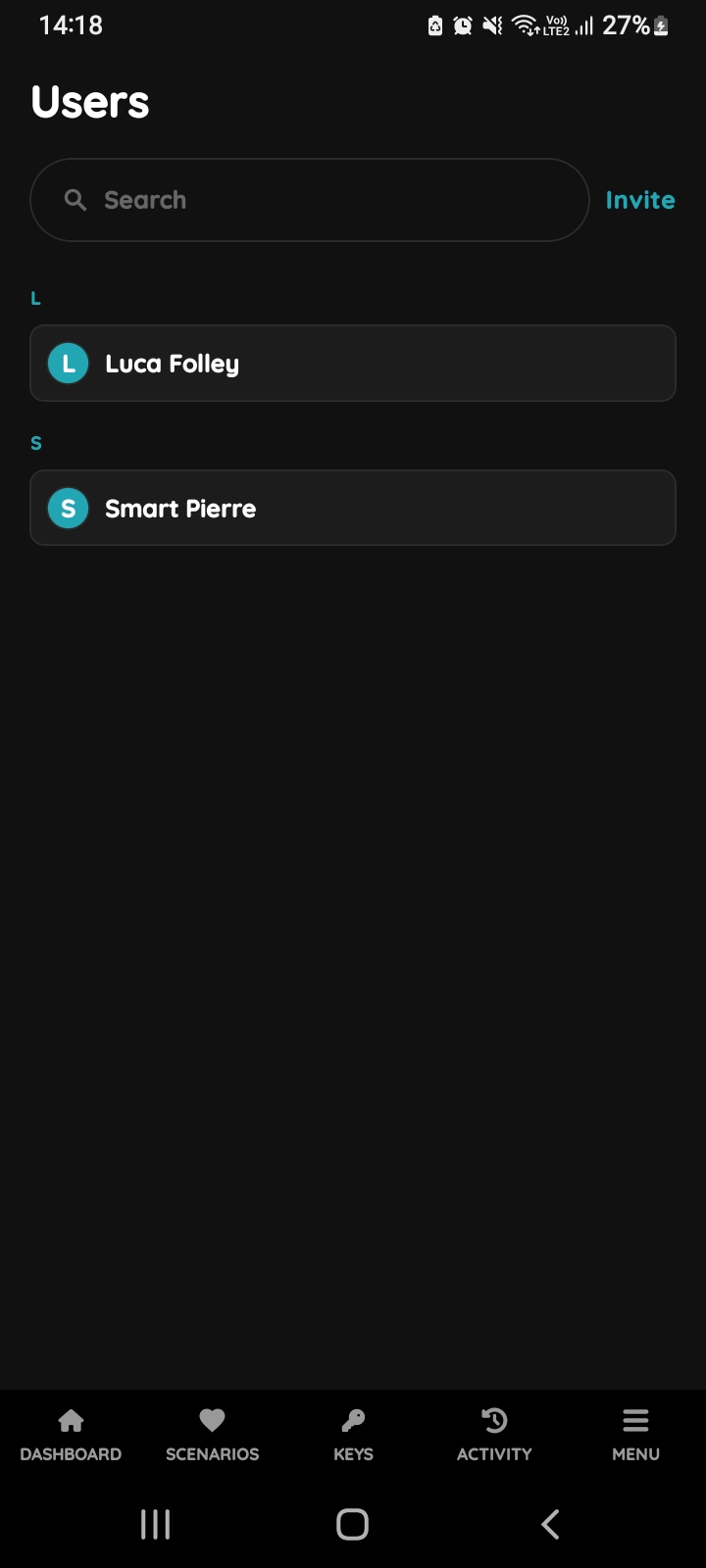
Users list
List of the Users is shown. Select the User from the list (tap on the name).
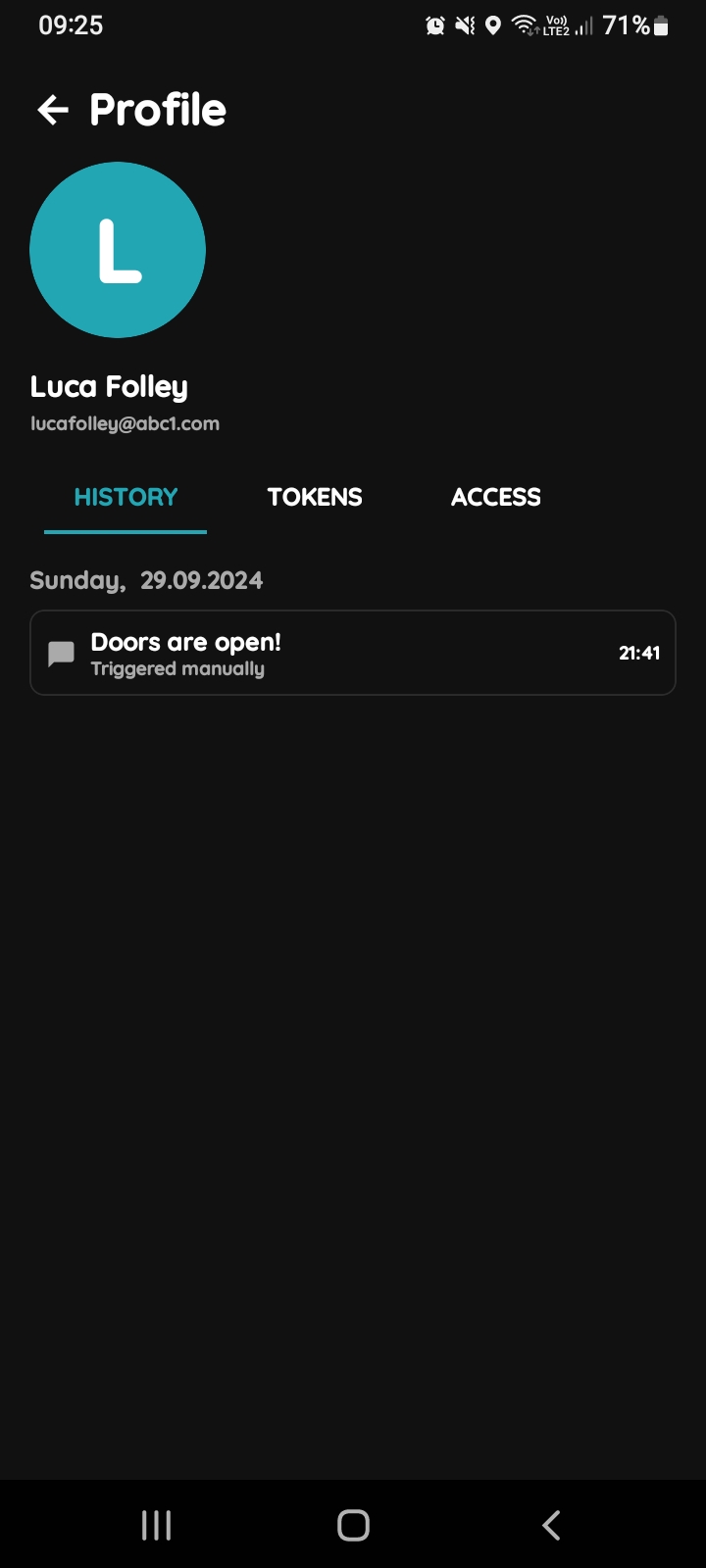
Profile of the User
Three tabs are shown:
- History - A record of all I/Os triggered by the User over time.
- Tokens - A list of all Tokens associated with the User.
- Access - A list of the User's role-based access permissions.
Tap on the Access tab.
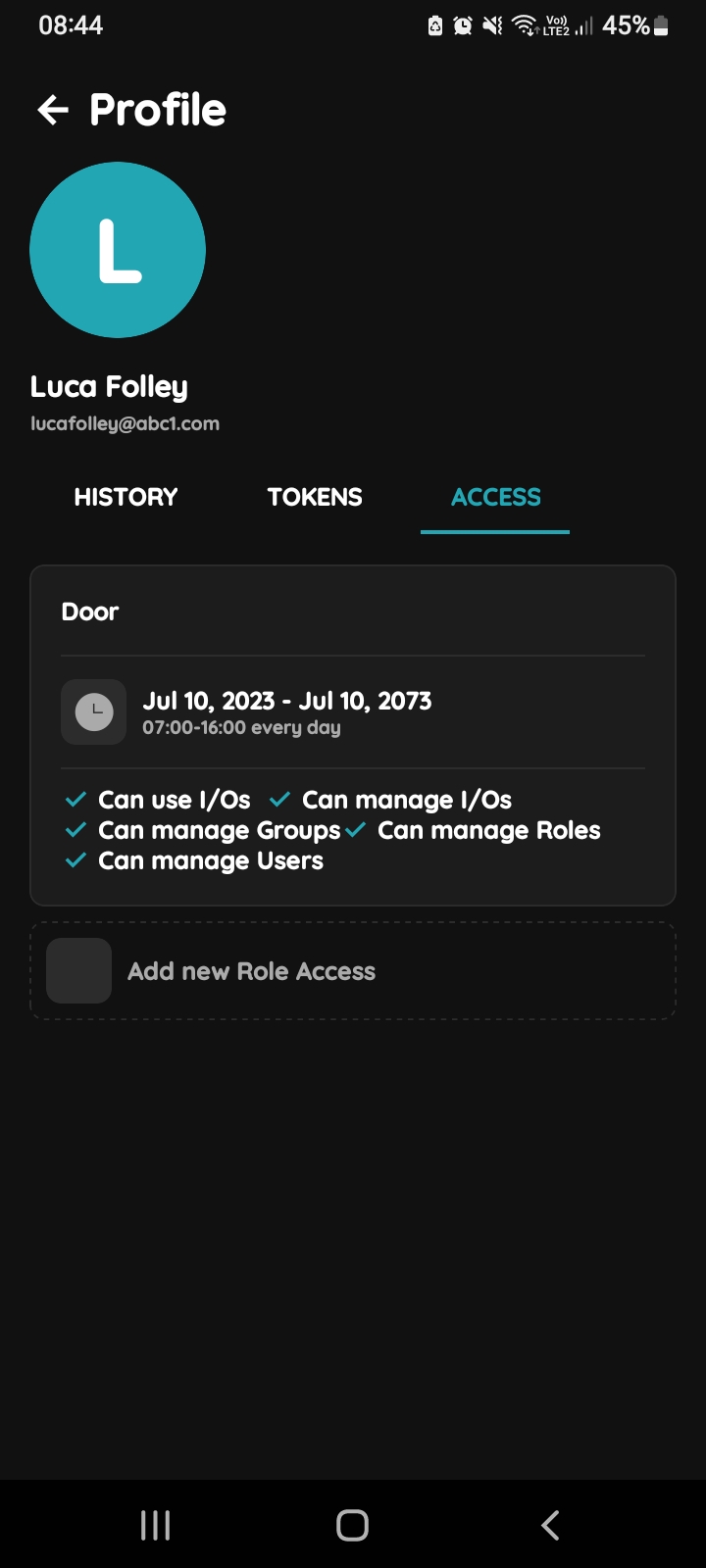
Role Access
Here is displayed list of Roles that is added to User with permissions. Also, there is ability to Add new Role Access.
When you tap on the Role from the list you can edit access of the Role.
In this example, Luca Folley has role with name Door.
Edit permissions
Tap the desired Role. In the Edit access form scroll to Location Restriction and switch it on. The Location Radius slider appears: set the radius around the building, between 200 m and 2000 m, in which the user may control I/Os. Tap Save.
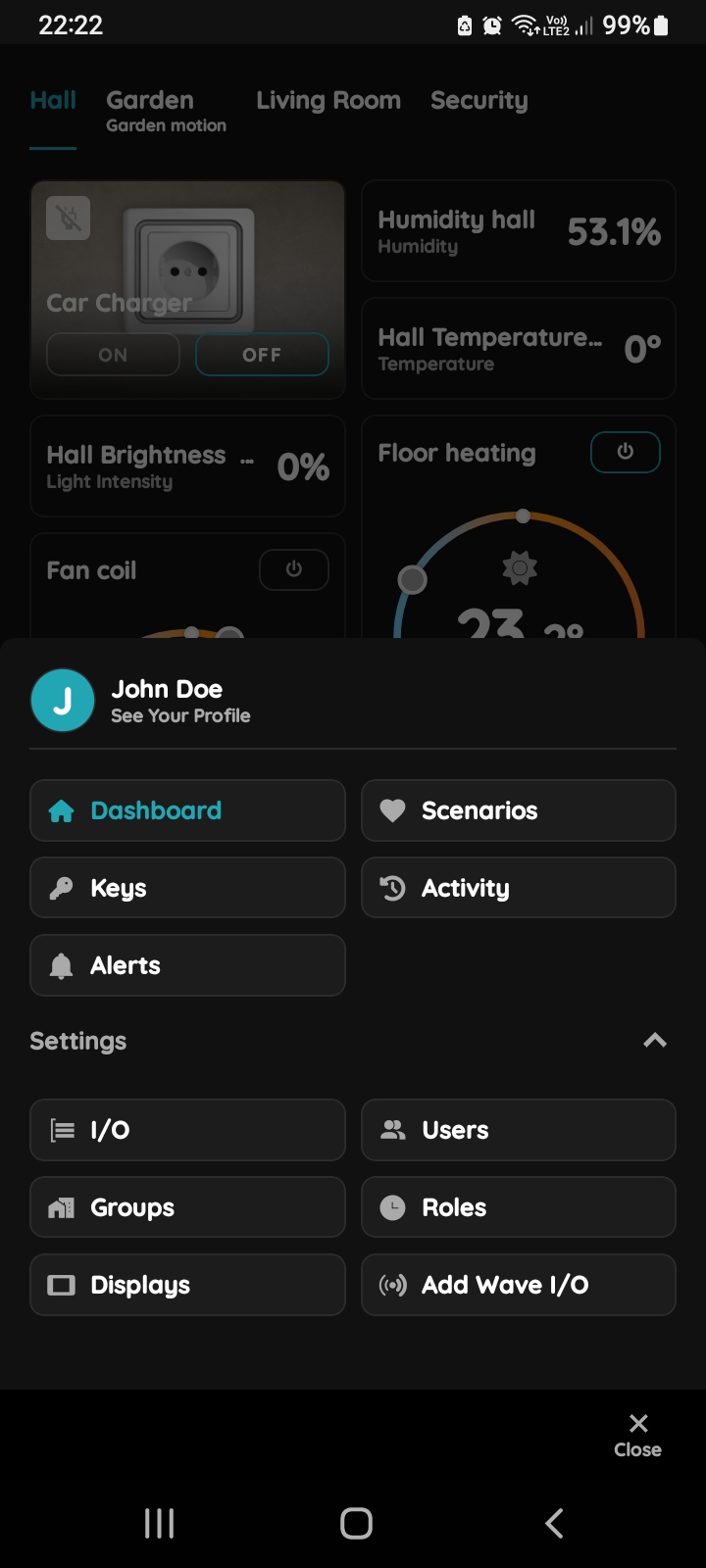
See Your Profile
You can set a Location Restriction for yourself directly from your profile.
Under your name is written See Your Profile.
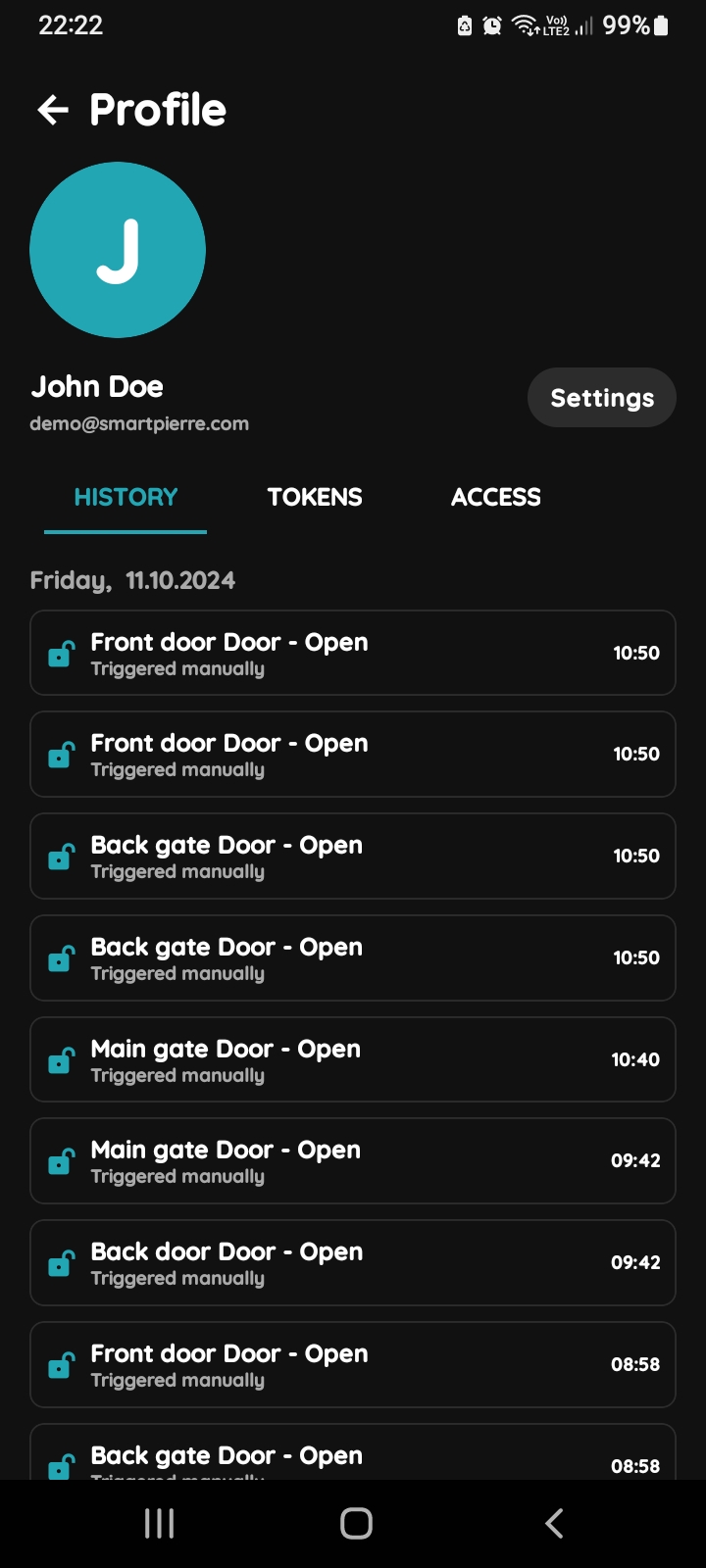
Your profile - History, Tokens, Access
Three tabs are shown:
- History - A record of all I/Os triggered by the you over time.
- Tokens - A list of all Tokens associated with you.
- Access - A list of the your role-based access permissions.
Tap on the Access tab.
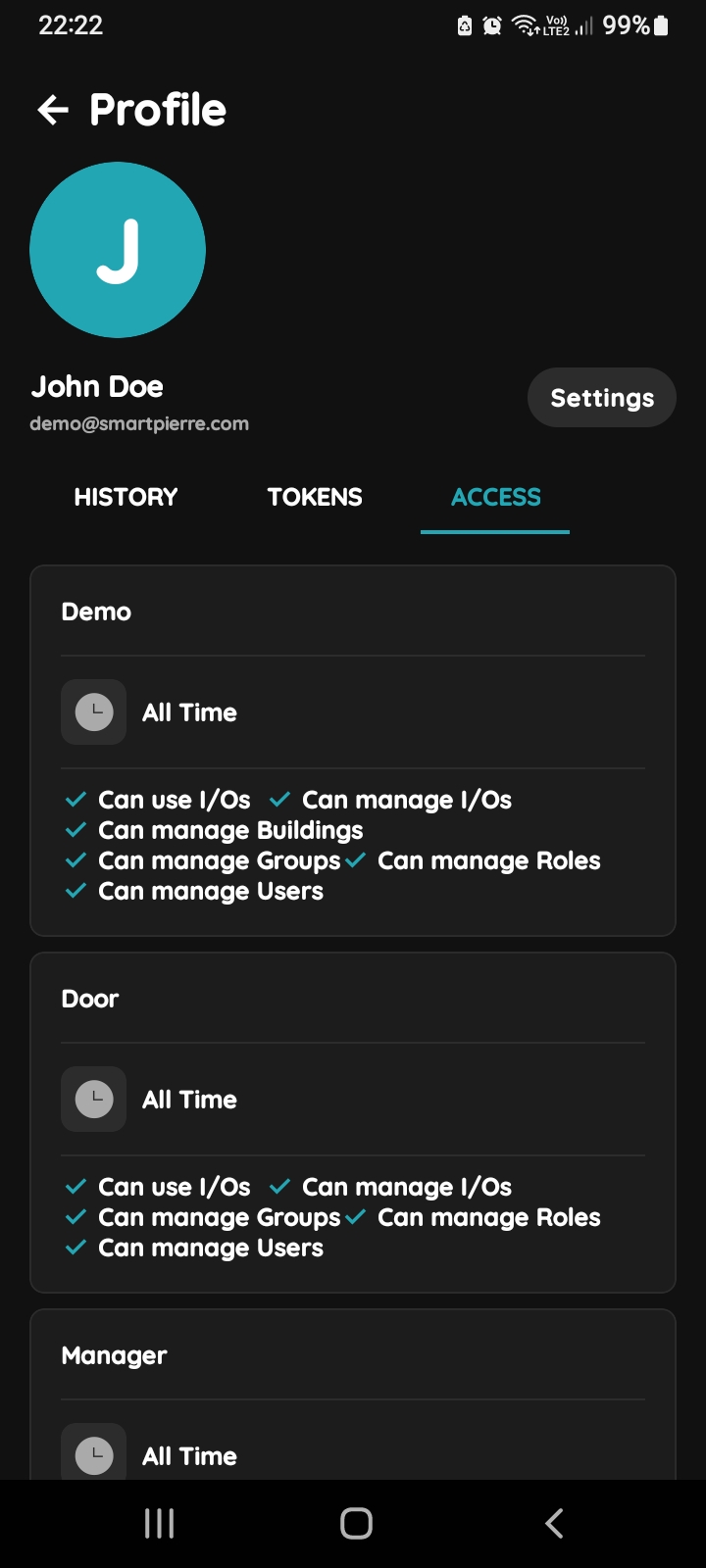
Edit Role access
Here is displayed list of Roles that are added to you with permissions. Also, there is ability to Add new Role Access.
Select the Role from the list that you want to edit its access permissions.
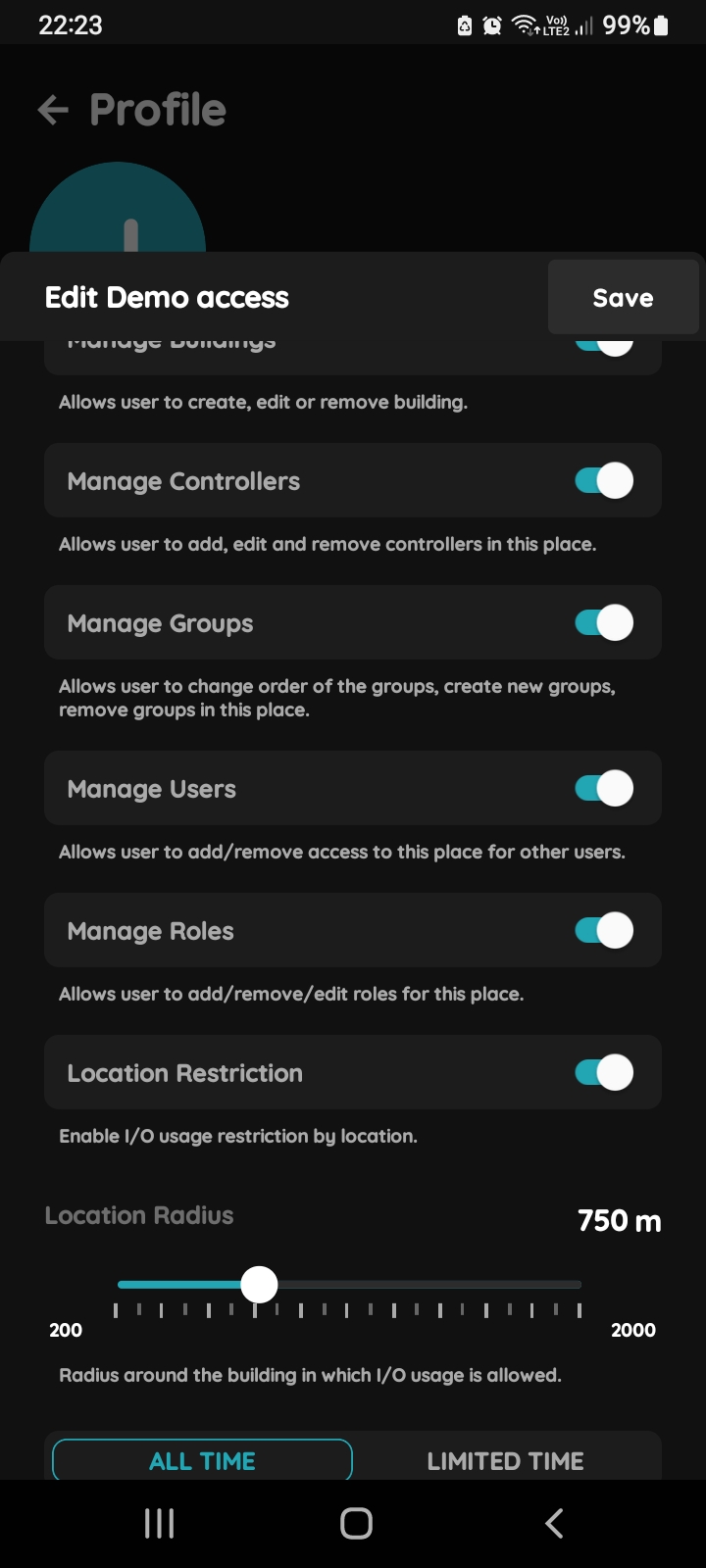
Set Location Restriction for yourself
Tap the desired Role. In the Edit access form switch Location Restriction on and set the Location Radius slider, between 200 m and 2000 m. Tap Save. The restriction now applies to you for that role.