PIERRE Partner - Brightness Sensor
Description
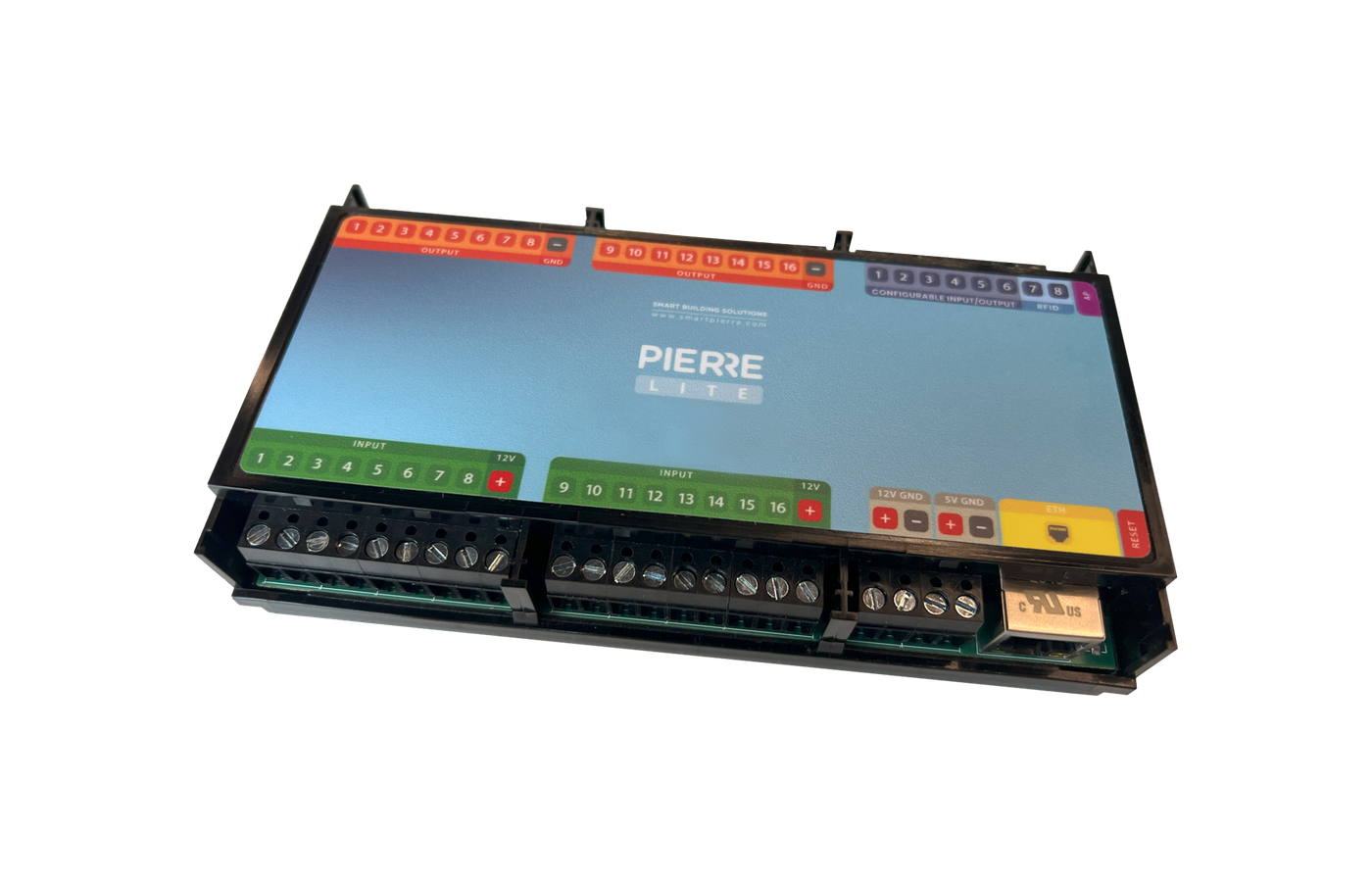
The PIERRE system supports integration of BH1750 digital brightness sensors through the controller's I²C interface. The sensor measures ambient light levels and provides real-time illumination data for automation, monitoring, and energy management functions.
Purpose
The Brightness Sensor measures ambient illumination and provides lux values for monitoring, visualization, and automation functions.
Configuration
To add a Brightness Sensor:
-
Open the desired Controller.
-
Navigate to Configurable I/O.
-
Select Add I/O.
-
Choose Brightness Sensor (BH1750).
-
Configure the required parameters:
-
Name
-
Role
-
Identifier
-
SDA pin
-
SCL pin
-
I²C Address - Default is 0
-
-
Save the configuration.
Communication Interface
The BH1750 communicates using the I²C protocol.
| Parameter | Description |
|---|---|
| SDA | Serial Data Line used for data transmission |
| SCL | Serial Clock Line used for bus synchronization |
| Address | I²C device address used for communication - Default is 0 |
Multiple sensors can be connected to the same I²C bus if unique addresses are configured.
Automation Integration
Brightness values can be used as conditions or triggers within automation logic.
Examples:
Lighting Control
-
Turn lights ON when brightness falls below a defined threshold.
-
Turn lights OFF when sufficient daylight is available.
Blind and Shading Control
-
Lower blinds when brightness exceeds a configured value.
-
Raise blinds when brightness decreases.
Energy Management
-
Optimize artificial lighting based on available natural daylight.
-
Reduce unnecessary energy consumption.
Editing a Brightness Sensor
To modify an existing sensor:
-
Open the corresponding Controller.
-
Navigate to Configurable I/O.
-
Select the desired Brightness Sensor.
-
Modify the required parameters.
-
Save the changes.
The sensor can also be removed from the system if it is no longer required.
Technical Notes
-
Sensor type: BH1750
-
Communication protocol: I²C
-
Requires SDA and SCL connections
-
Supports configurable I²C addressing
-
Measured values are available for dashboards, logic functions, and automation rules
-
Available functionality may depend on the controller model and firmware version
Add Brightness sensor - BH1750
New Brightness sensor can be added in a few steps.
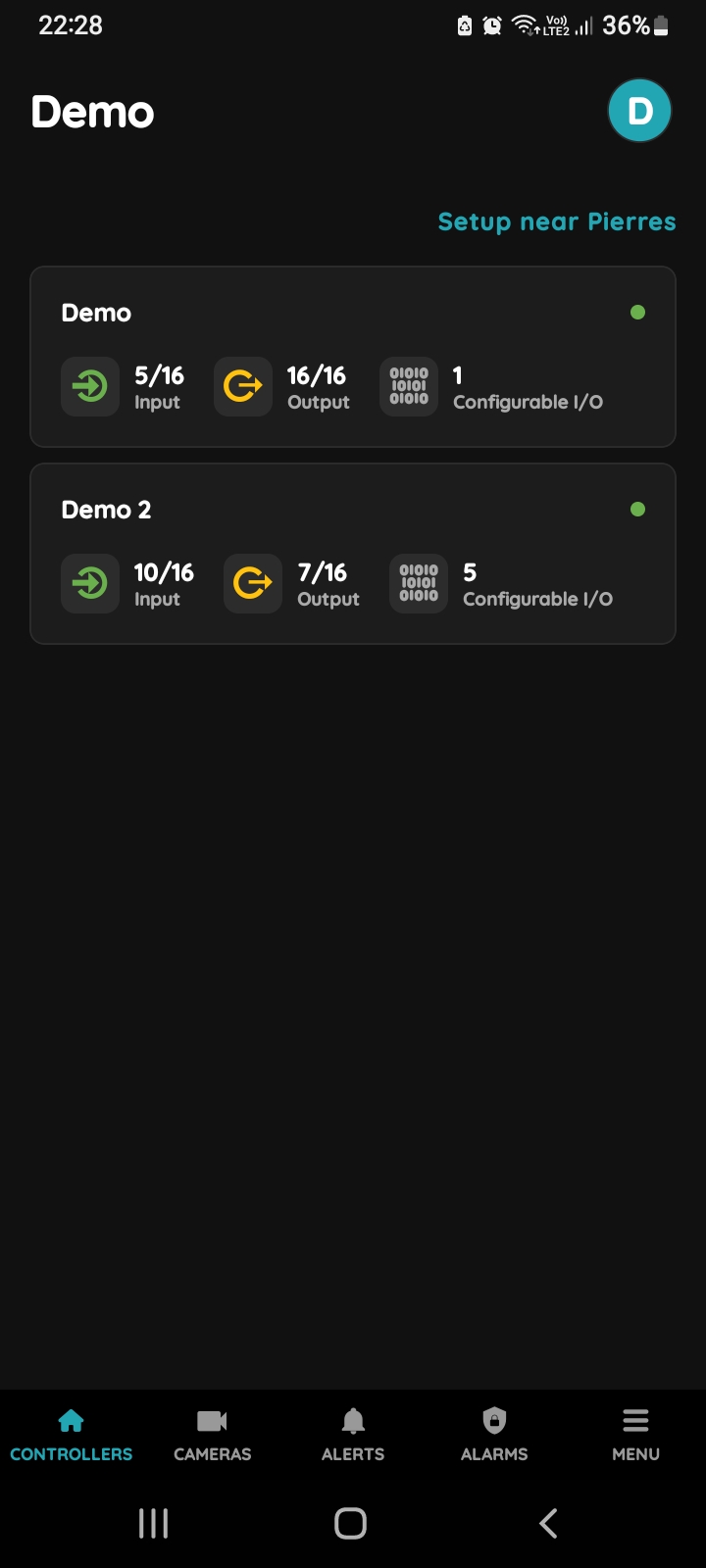
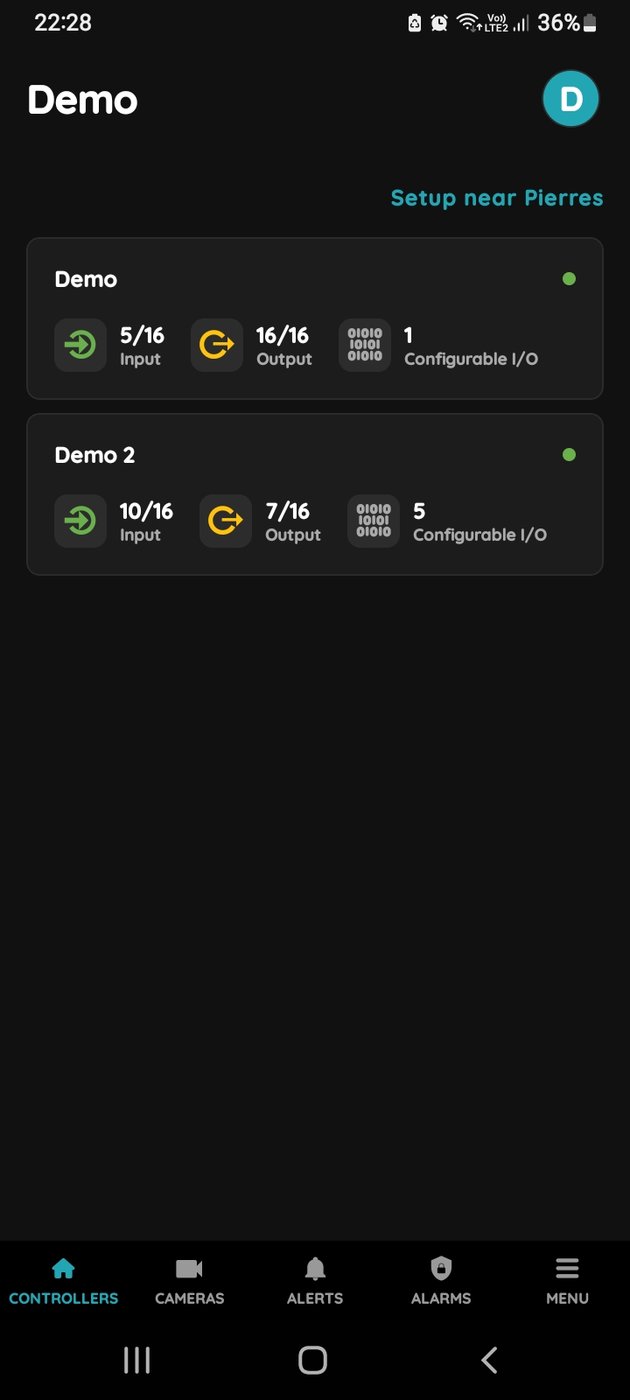
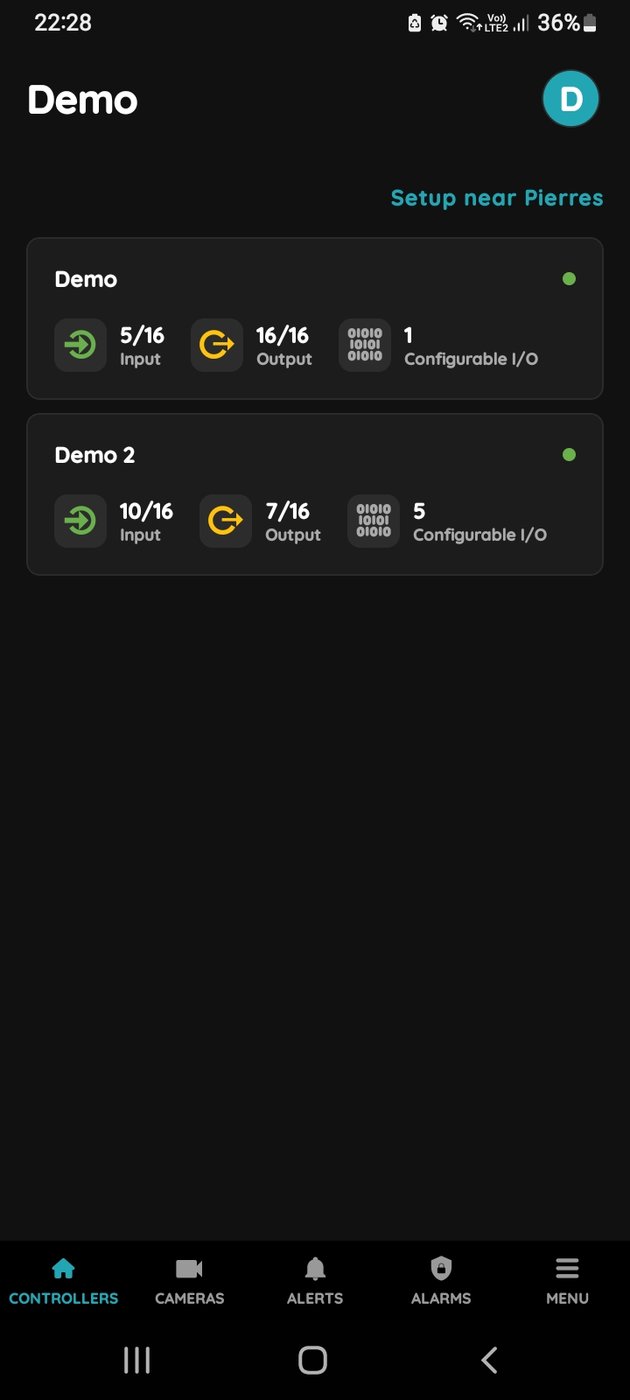
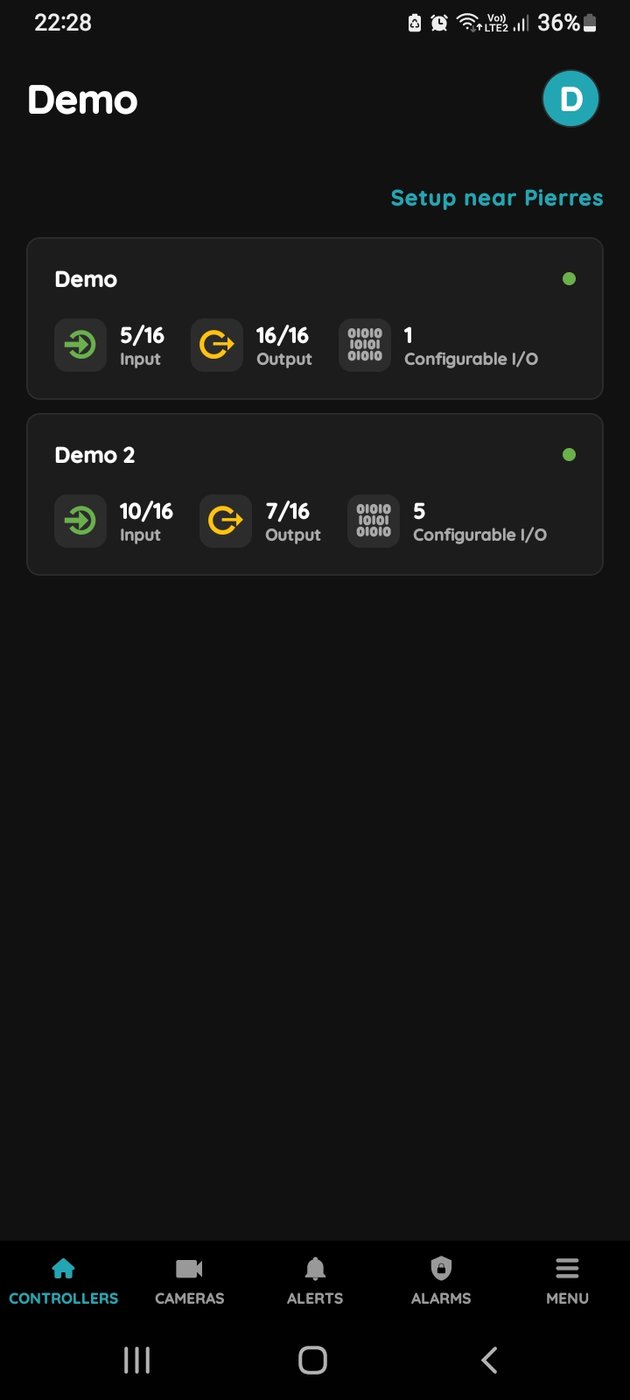
Select Controller
Select the Controller from the list to add a new I/O.
To edit an existing I/O, select the Controller to which the I/O is assigned.
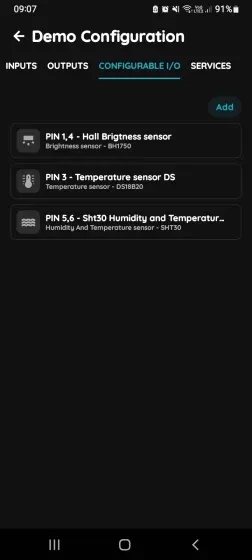
Configurable I/O
In the Configurable I/O tab, tap Add to create a new I/O or select an existing I/O from the list to edit it.
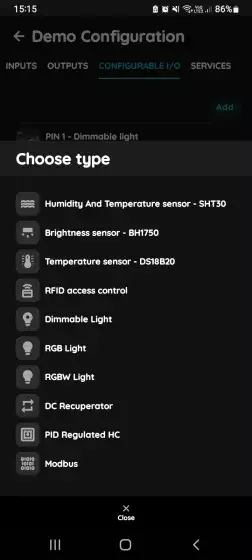
Choose type - Configurable I/O list
Select the I/O device type from the list.
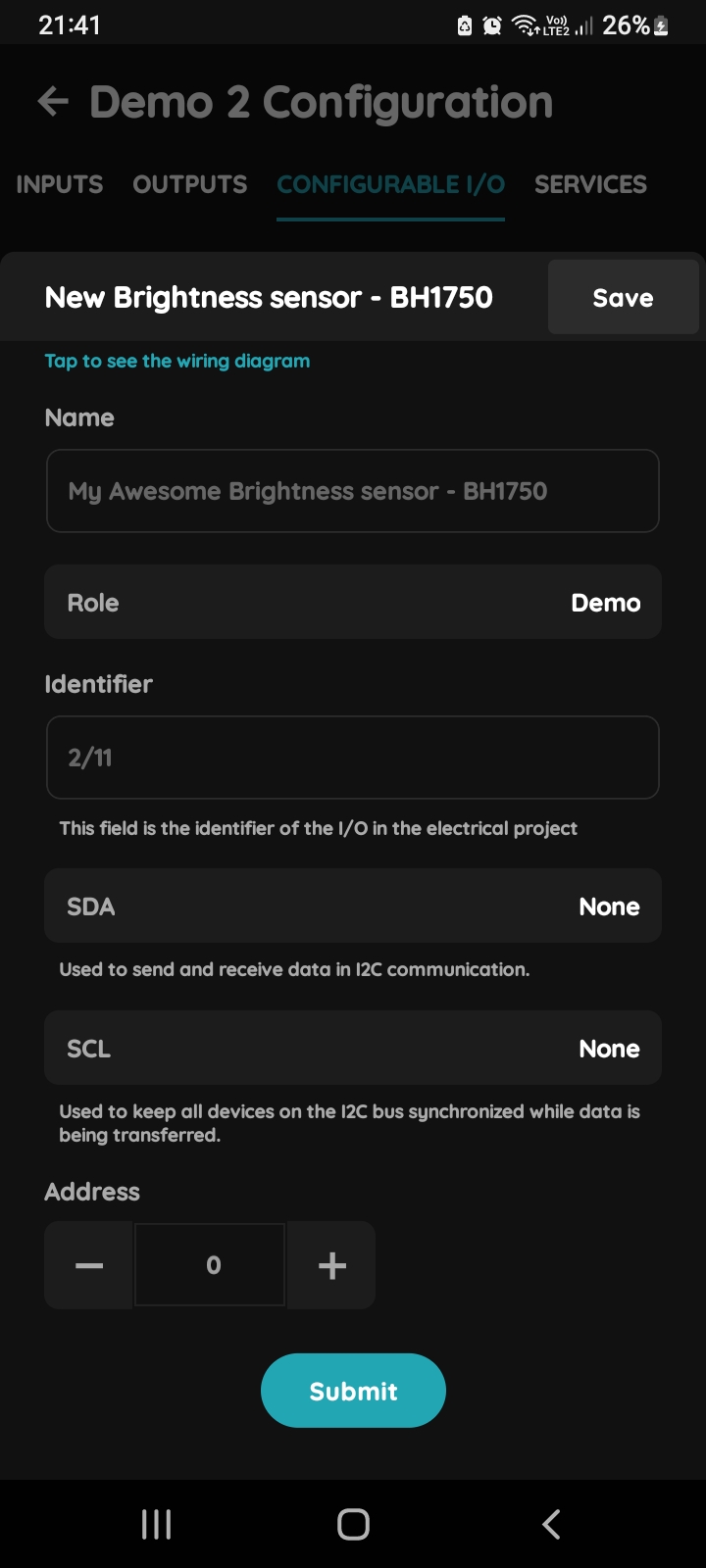
New or existing Brightness sensor - BH1750
Fill the following form:
- Name - Define the name of the Brightness sensor.
- Role - Select the Role from the list.
- Identifier - This field is the identifier of the I/O in the electrical project.
- SDA - Used to send and receive data in I²C serial bus communication.
- SCL - Used to keep all devices on the I²C bus synchronized while data is being transferred.
- Address - Use -/+ to set it.
For more details follow next steps.
To confirm your choice tap Submit or Save.
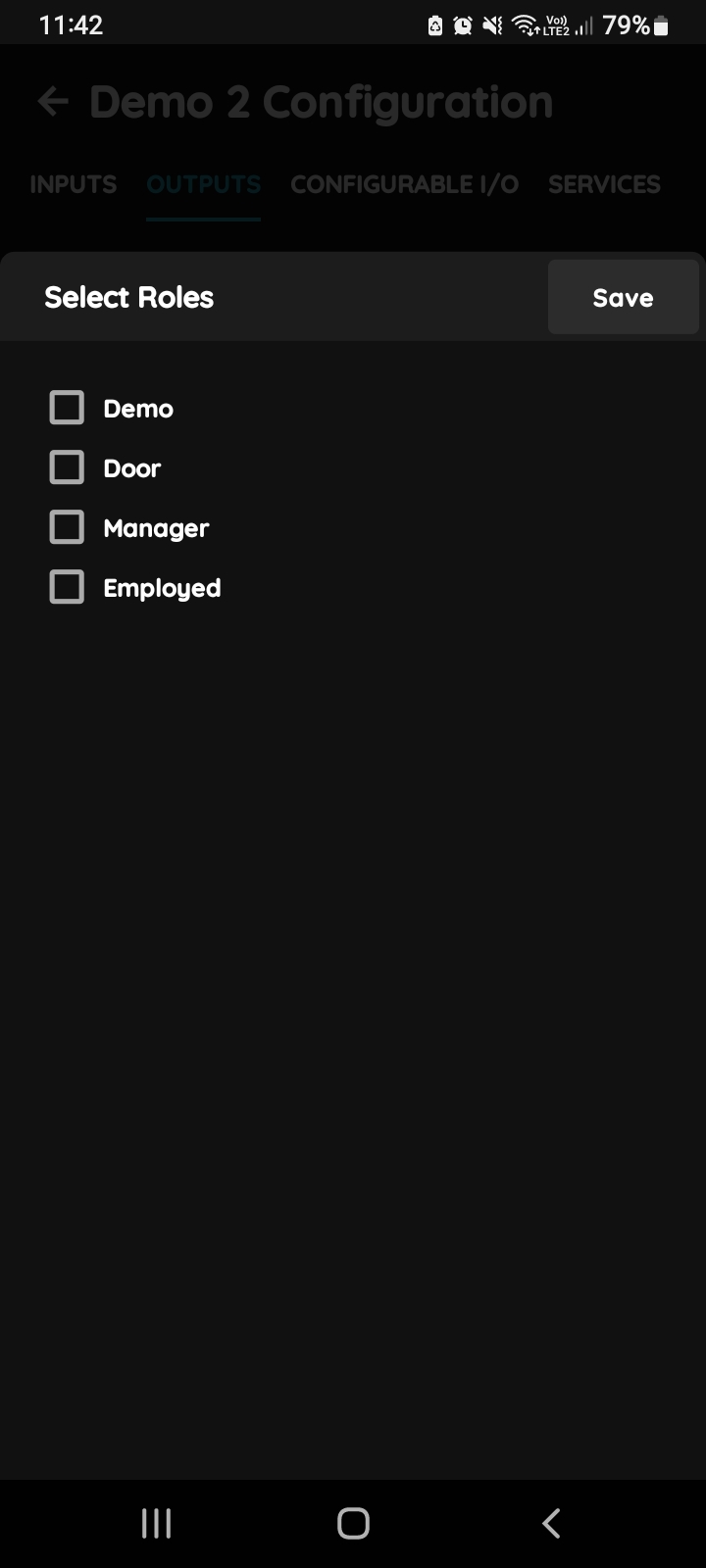
Select Roles
Select one or more Roles by using the checkboxes.
Tap Done/Save to confirm your selection.
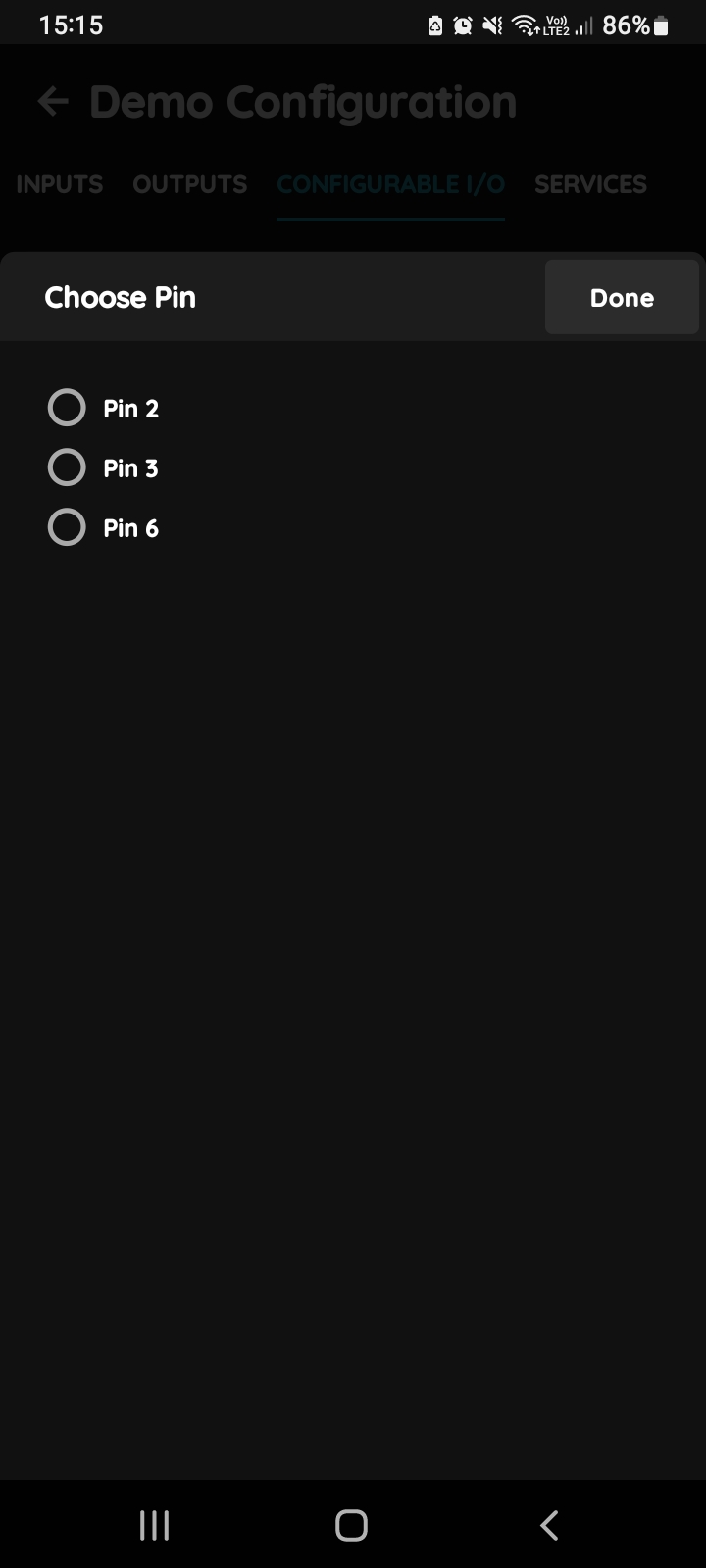
SDA - Serial Data Line
In this step, select the Pin connected to the end device SDA line.
Tap the radio button next to the desired Pin, then tap Done/Save to confirm.
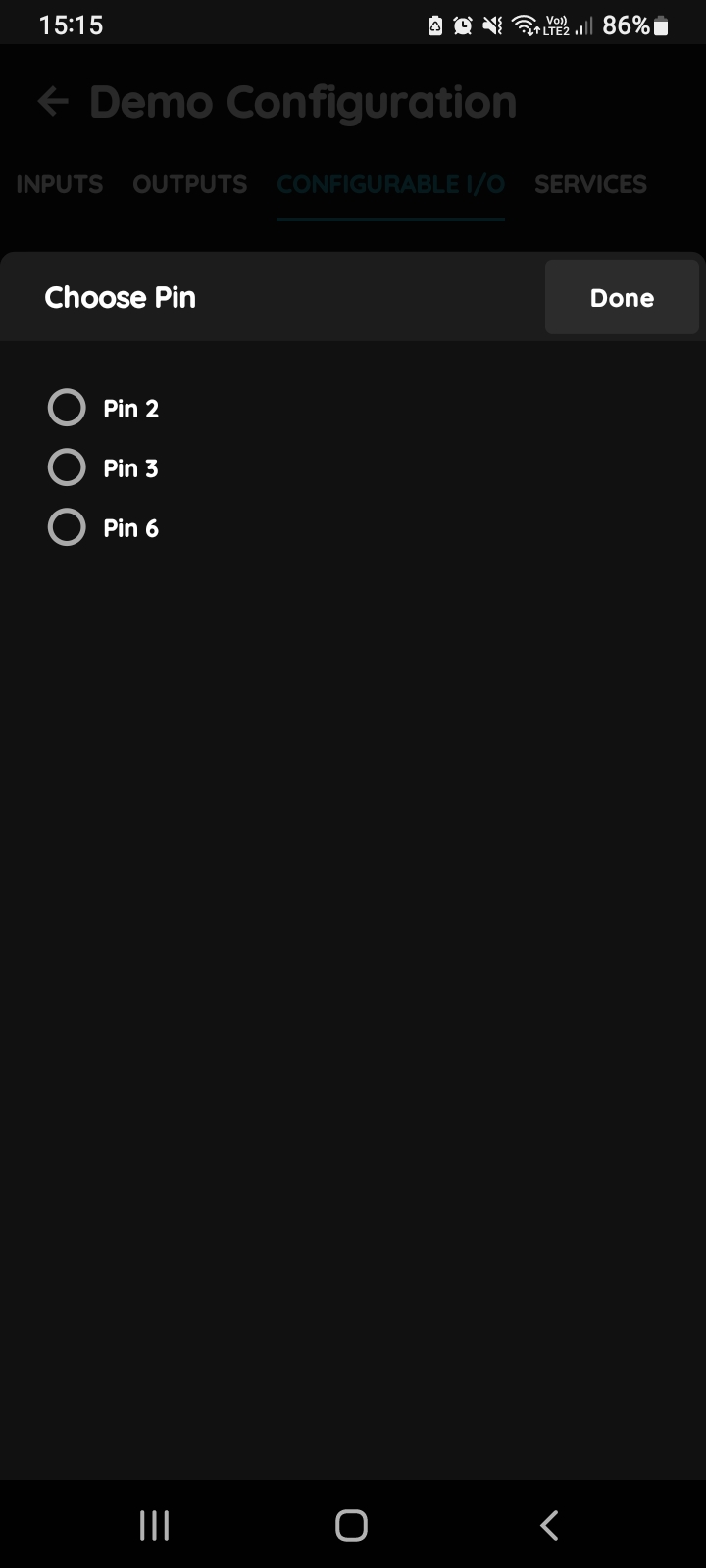
SCL - Serial Clock Line
In this step, select the Pin connected to the end device SCL line.
Tap the radio button next to the desired Pin, then tap Done/Save to confirm.