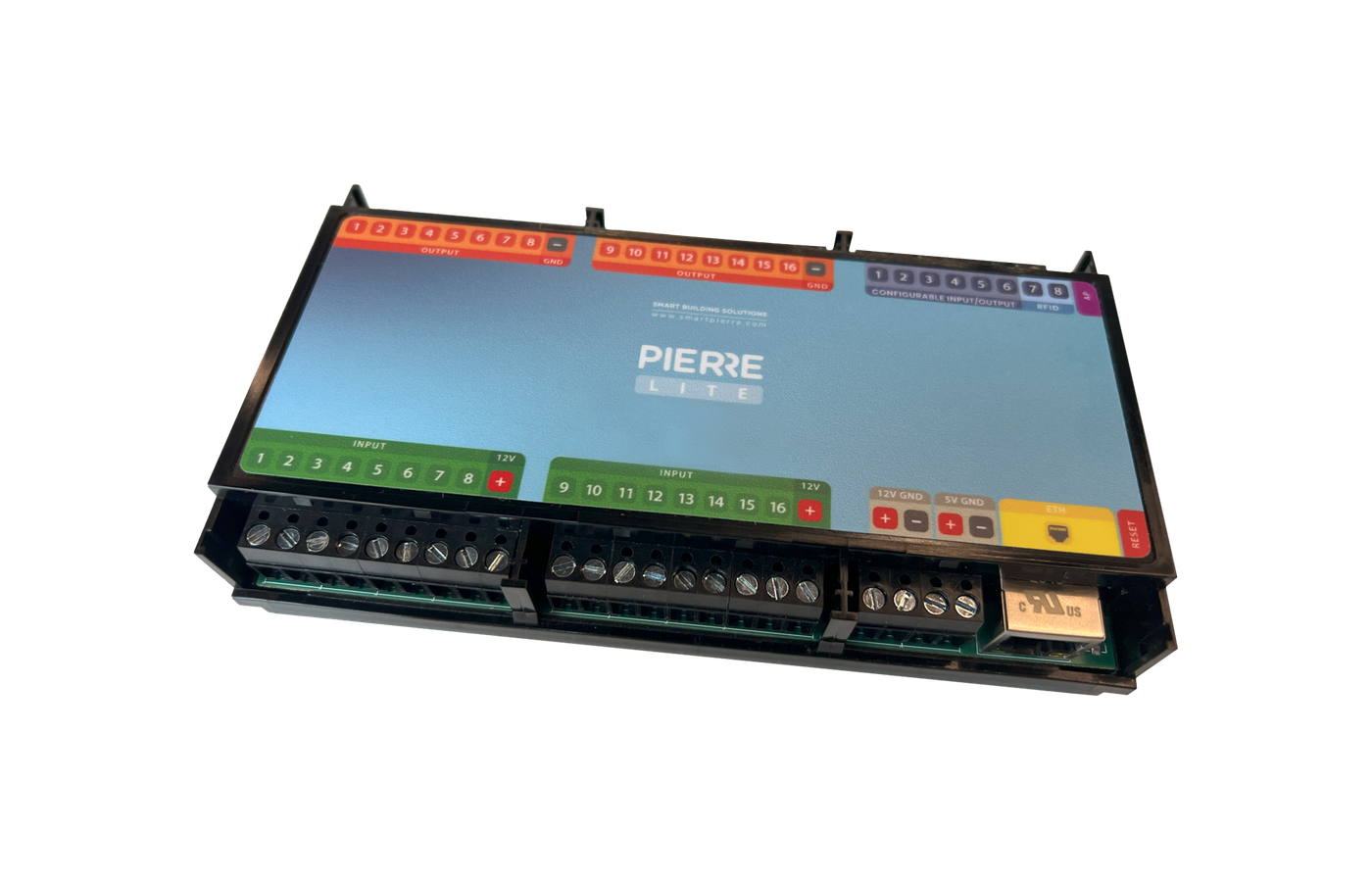
PIERRE Partner - 0–10V Controlled Heat Recovery Unit - (DC Recuperator)
Description
The DC Heat Recovery Unit function in the PIERRE Partner Application is used to configure compatible heat recovery ventilation units with 0–10 V fan speed control.
The PIERRE system controls the ventilation level through an appropriate 0–10 V analog output, allowing the fan speed to be adjusted continuously instead of using only fixed speed stages.
Once configured, the DC Heat Recovery Unit can be controlled manually and can also be used in Scenes, schedules and Automations.
Configuration
When adding or editing a DC Heat Recovery Unit in the PIERRE Partner Application, the appropriate 0–10 V analog output must be assigned to the ventilation unit.
The control output can then regulate the requested ventilation level according to the configuration of the connected heat recovery unit.
The exact relationship between the 0–10 V signal and the ventilation level depends on the connected unit and must correspond to the manufacturer's control specifications.
Available Control
Depending on the project configuration and the capabilities of the connected heat recovery unit, the PIERRE system can provide functions such as:
- Ventilation On/Off
- Fan speed / ventilation level adjustment
- Automatic ventilation control
- Scenes
- Schedules
- Automations
Automation
The configured DC Heat Recovery Unit can be used in PIERRE Automations together with other I/Os and sensors.
Typical applications include:
- CO₂-based ventilation control
- humidity-based ventilation control
- air quality-based ventilation
- occupancy-based ventilation
- time-based ventilation
- integration with other HVAC functions
For example, the ventilation level can automatically increase when the measured CO₂ or humidity level rises and decrease again when the measured value returns to the required range.
Technical Notes
- The connected heat recovery unit must provide a compatible 0–10 V control input.
- The DC Heat Recovery Unit must be assigned to an appropriate PIERRE 0–10 V analog output.
- The relationship between the 0–10 V signal and fan speed or ventilation level depends on the connected unit and must be verified in the manufacturer's documentation.
- The 0–10 V output controls the requested ventilation level; the heat recovery unit remains responsible for its own internal operation and factory protection functions.
- The control signal and reference/GND must be connected according to the PIERRE wiring documentation and the heat recovery unit manufacturer's requirements.
- Sensors used for automatic control, such as CO₂, humidity or air-quality sensors, must be configured separately in the PIERRE system.
DC Recuperator setup
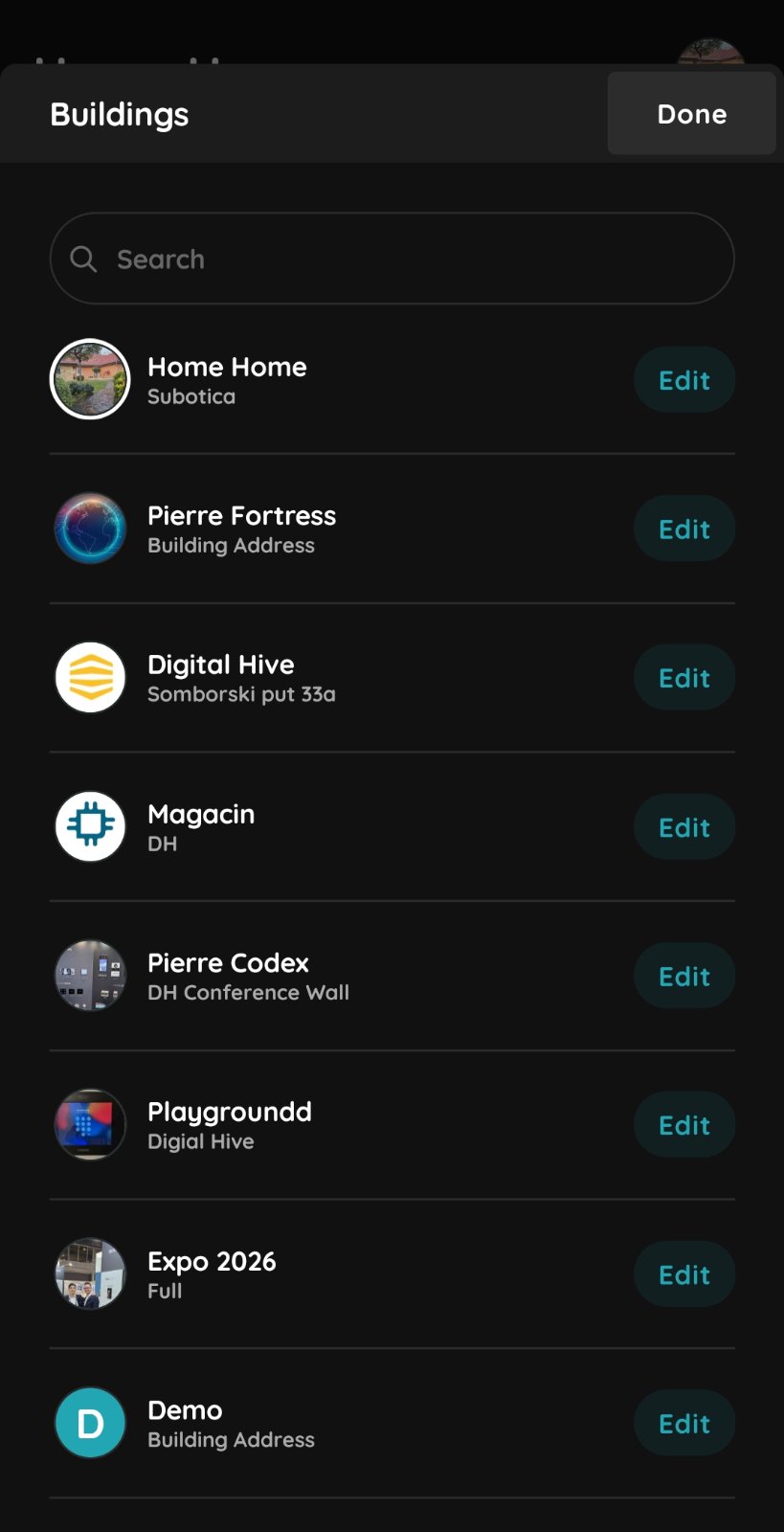
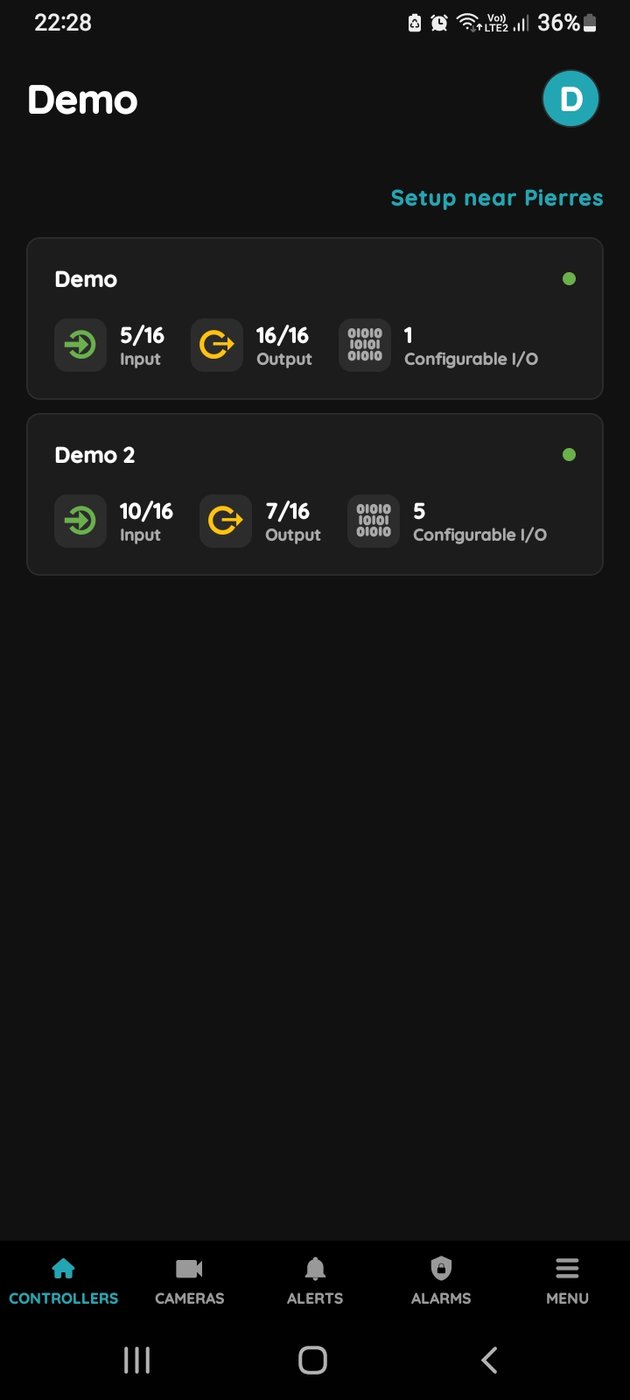
Select Building
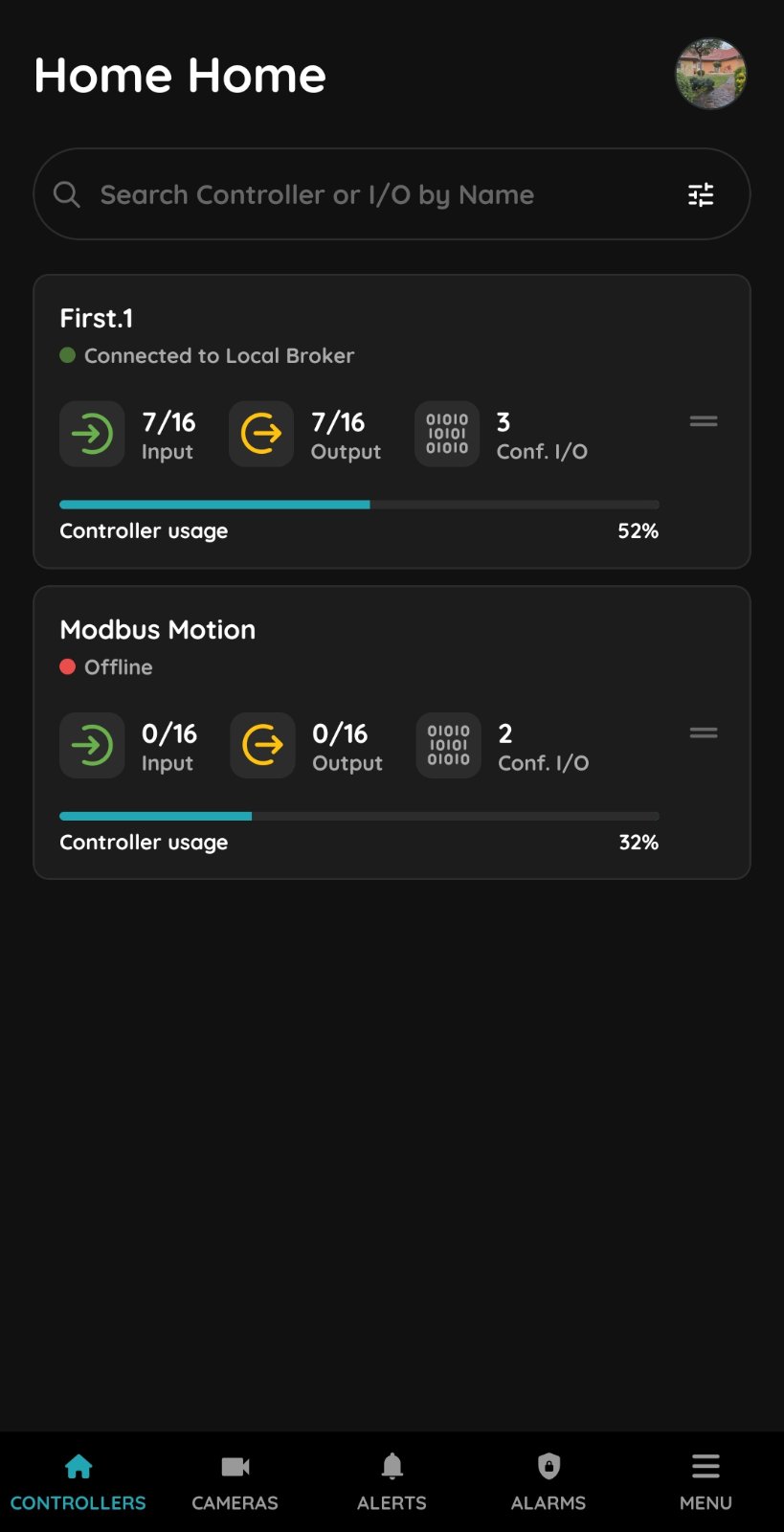
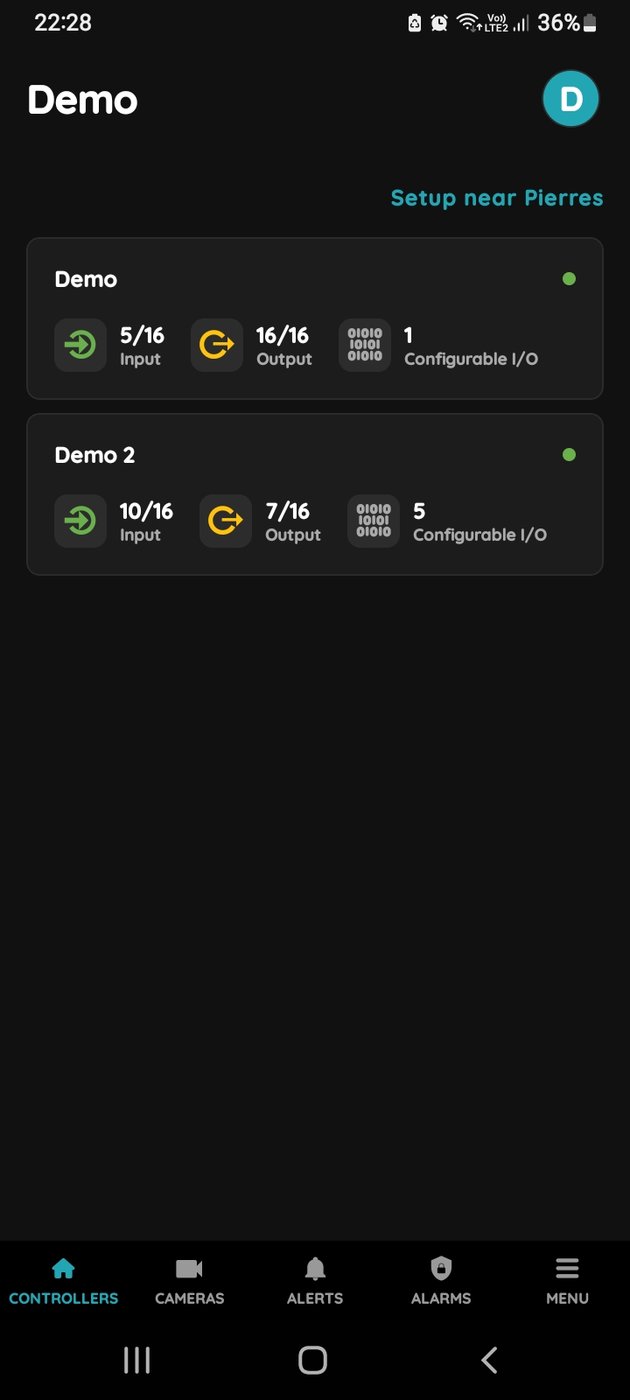
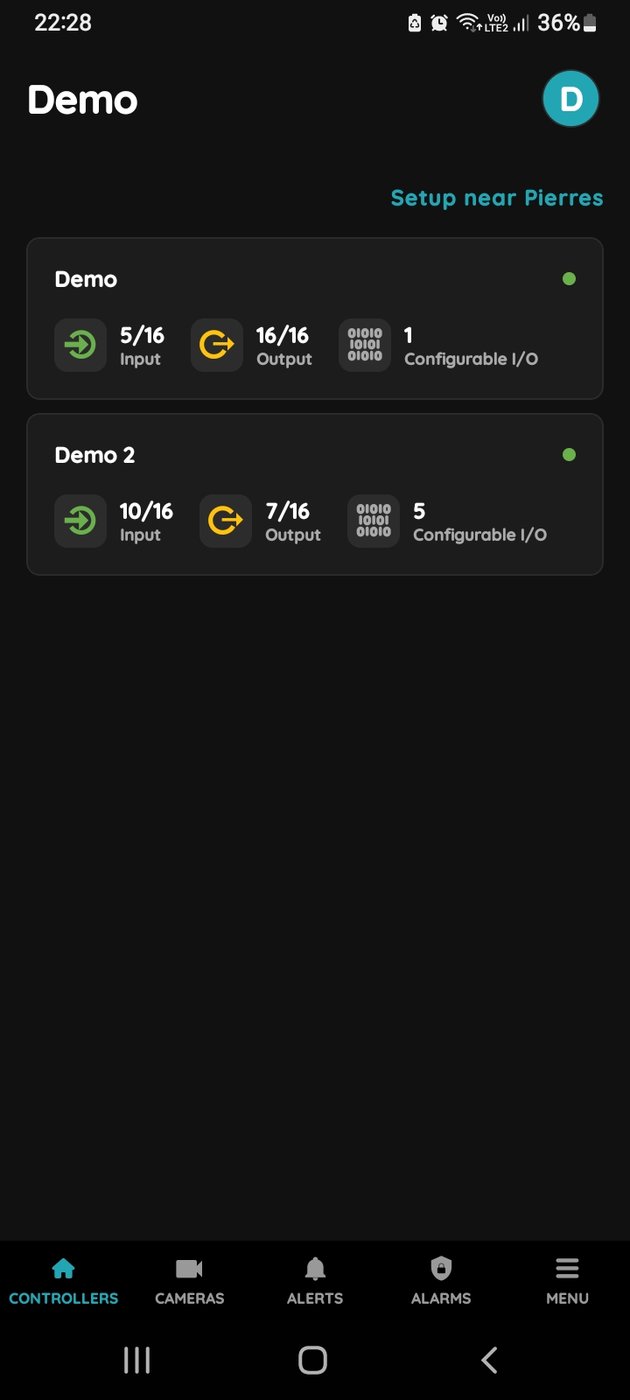
Select Controller
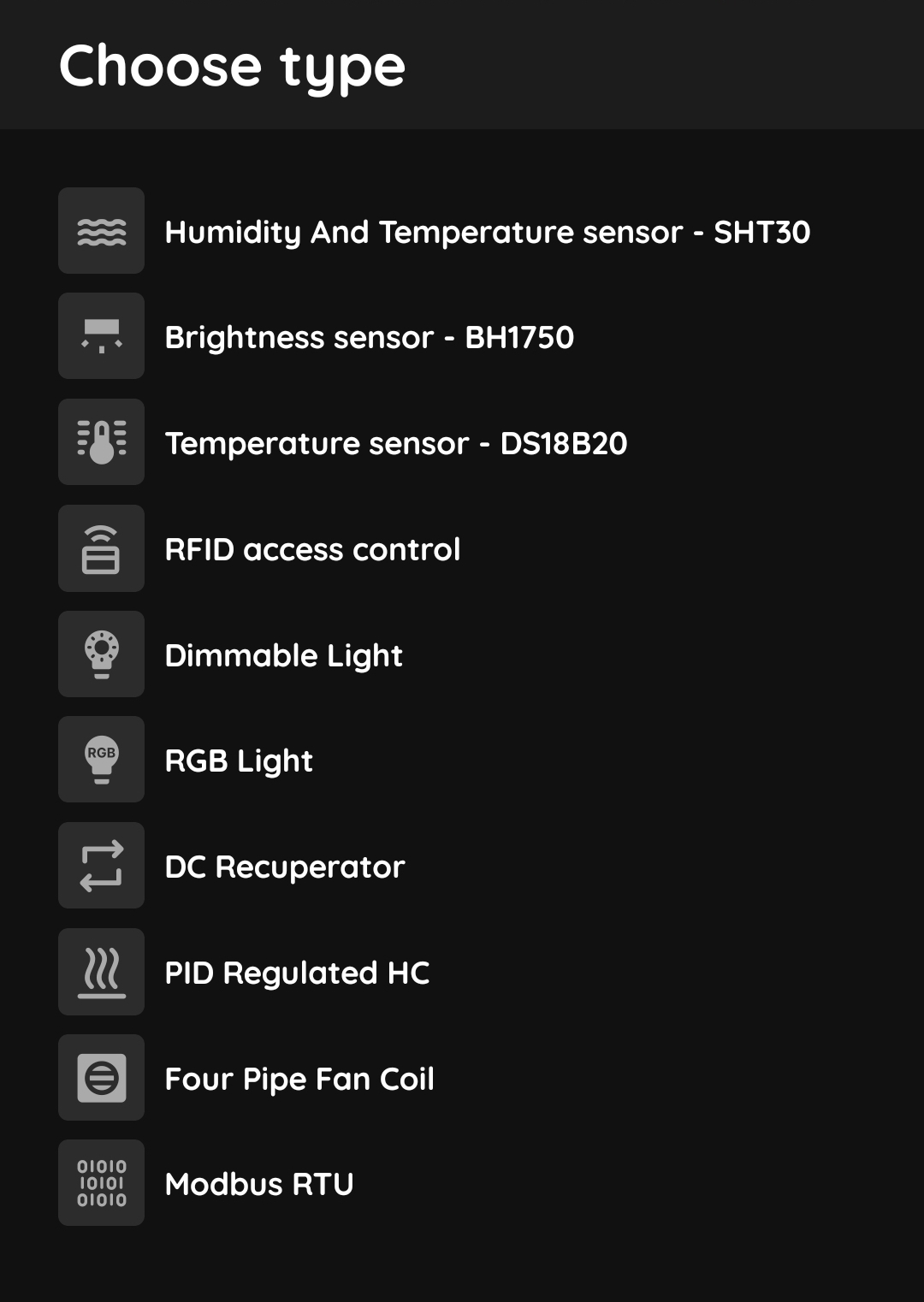
Choose Configurable I/O type
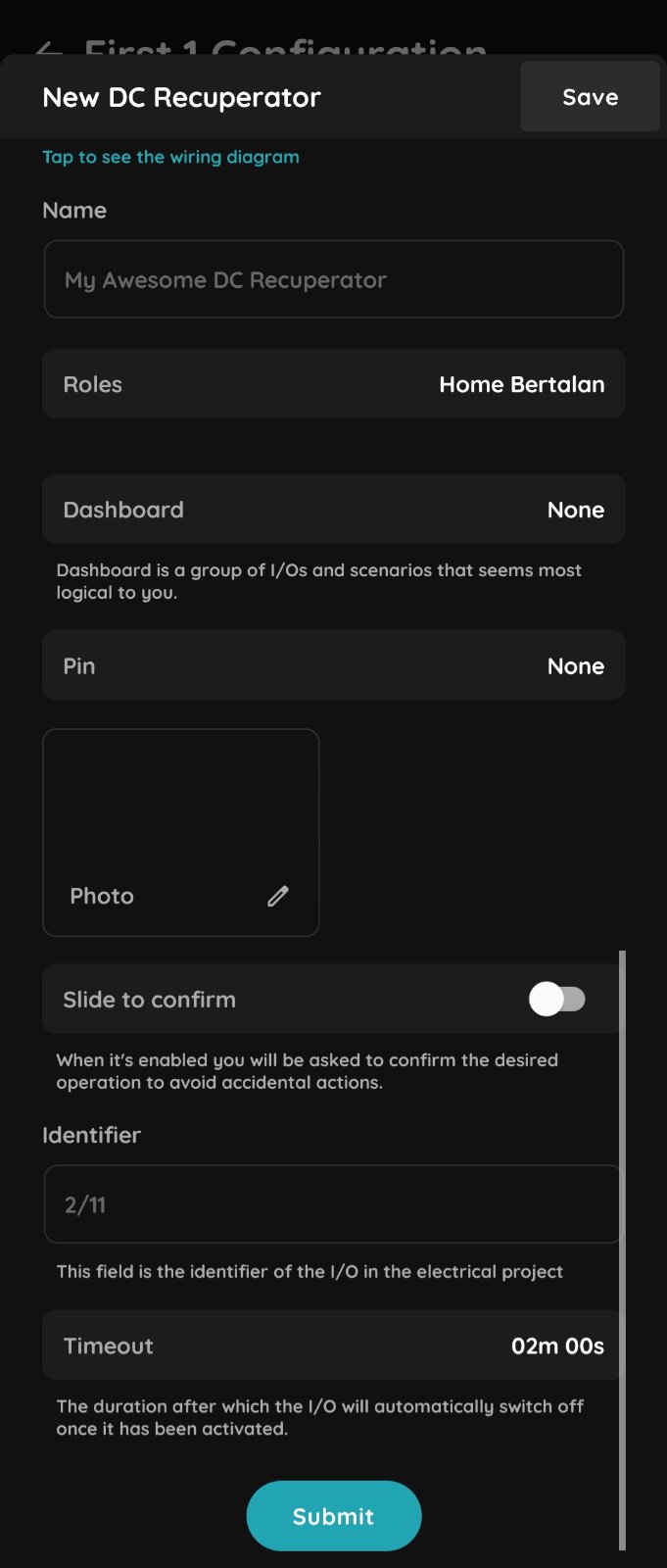
Set up the DC Recuperator
Fill in the following form to add the DC Recuperator.
- Name – Enter the name of the I/O.
- Role – Choose the Role from the list.
- Dashboard – Select the Dashboard where the I/O will be displayed.
- Pin – Choose the Pin from the list. The Pin represents the physical connection point on the Controller where the I/O is connected.
- Photo – Choose a photo for the I/O.
- Slide to Confirm – When enabled, you will be asked to confirm the desired operation to prevent accidental actions.
- Identifier – Enter the identifier of the I/O used in the electrical project.
-
Timeout – Set the duration after which the I/O will automatically switch off once it has been activated.
Once you have finished, tap Save.