PIERRE Partner - Fan Coil
Description
A Fan Coil is a controller output that drives a fan coil unit through relays: one output opens the valve or enables the unit, and one further output per fan speed selects the speed. The controller regulates the room temperature from a measured value, works in heating or cooling mode, and the user chooses the fan speed in the Smart PIERRE app.
Before You Start
- The unit's valve or enable input is wired through a relay to a free controller output, and each fan speed (typically low, medium, high) is wired through its own relay to a further free output. A three-speed unit therefore needs four outputs. See the Fan Coil solution lesson for the cable table.
- A temperature sensor for the room is already configured on the same controller, or delivered to it from a PIERRE display, a Modbus thermostat or a Wave sensor in the same building. The form cannot be saved without one.
- Units with Modbus or a 0–10 V input are added as Modbus devices or as the 0–10 V fan coil type, not as this Fan Coil.
Step by Step: Add the Fan Coil
- Open the PIERRE Partner app and tap the Controller.
- Open the Outputs tab and tap Add.
- Choose Fan Coil as the type.
- Fill in the common fields: Name, Role, Dashboard (the display or displays the unit is shown on), Pin (the output that opens the valve or enables the unit), Photo for the on and off states, Slide to confirm, Identifier and Hide Activity.
- Season – choose Heating or Cooling. This decides which way the regulation works and can be changed from the Smart PIERRE app when the season changes.
- Min temperature and Max temperature – the range within which the user may set the target. Defaults 15 °C and 30 °C.
- Regulation hysteresis – default 0.4 °C. How far the room may drift from the target before the unit switches on.
- Turn-off hysteresis – default 0 °C. How far past the target the room must go before the unit switches off.
- Target step – default 0.5 °C. The step of the plus and minus buttons on the card.
- Temperature Sensor – tap Add temperature sensor and pick the sensor of the room the unit serves.
- Intensity Levels – tap it and tick the controller outputs wired to the fan speeds, in order from the lowest speed to the highest. The number of outputs ticked is the number of speeds the user gets. The Pin chosen in step 4 is not offered here.
- Temperature Format – Celsius or Fahrenheit for this card.
- Tap Submit and then Save. The unit appears as a thermostat card with a fan speed selector in the Smart PIERRE app.
Step by Step: Edit
- Open the Controller, then the Outputs tab, and tap the fan coil in the list.
- The same form opens with the regulation fields. Change what is needed and tap Done.
How the Regulation Works
The two hysteresis values are set independently and together define a band around the target temperature.
- In heating mode, with a target of 22 °C, a regulation hysteresis of 0.4 °C and a turn-off hysteresis of 0 °C, the unit starts when the room falls to 21.6 °C and stops when it reaches 22.0 °C.
- In cooling mode the logic is mirrored: the unit starts when the temperature rises past the target by the regulation hysteresis, and stops when it falls back past the target by the turn-off hysteresis.
- Setting both values to zero makes the unit switch exactly at the target, which causes frequent short cycling. Increasing the regulation hysteresis widens the band and reduces switching, at the cost of a larger temperature swing in the room.
- While the regulation calls for heating or cooling, the Pin output is on and the output of the selected speed is on; the other speed outputs are off, so two speeds are never energised together.
Operation
- The card in the Smart PIERRE app shows the measured temperature and the target, plus and minus buttons, a mode switch and the fan speed selector with as many steps as there are Intensity Levels.
- Off keeps the unit off. On forces it on at the selected speed. Auto regulates to the target.
- Season can be switched from the card between heating and cooling.
- If the sensor reading becomes invalid, the unit is switched off and the card shows an error until a valid reading returns.
- The regulation runs on the controller and keeps working without an internet connection.
Automation
The Automation tab in the Smart PIERRE app is used to create rules for the fan coil, for example running only within a time window, stopping while a window contact is open, or reacting to another sensor. In Auto the unit then runs only while the rule is true and the temperature calls for it.
Technical Notes
- Occupies one controller output for the valve or enable plus one per fan speed. A controller has 16 outputs.
- Requires a temperature sensor; without one the form cannot be saved.
- The number of fan speed steps follows the configured Intensity Levels. Regulation is on/off against the target; it does not modulate the fan continuously.
- Check the fan motor and valve current against the relay ratings; fan motors have a high starting current.
- Place the sensor away from the unit's air stream and out of direct sun, otherwise the band is never reached correctly.
Add the Fan Coil in PIERRE Partner
The screens below are the PIERRE Partner output flow for a fan coil.
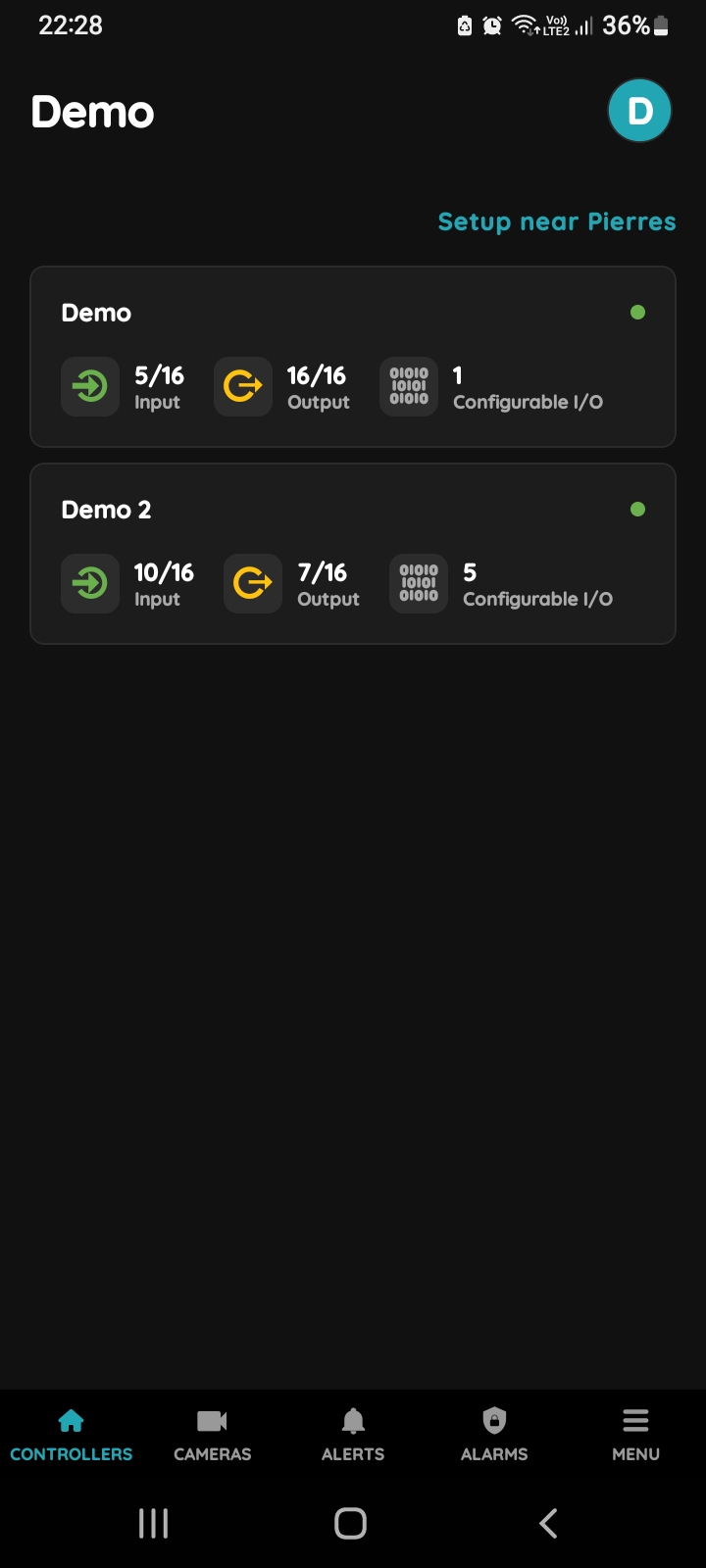
Choose Controller
In the PIERRE Partner app, tap the Controller the fan coil is wired to.
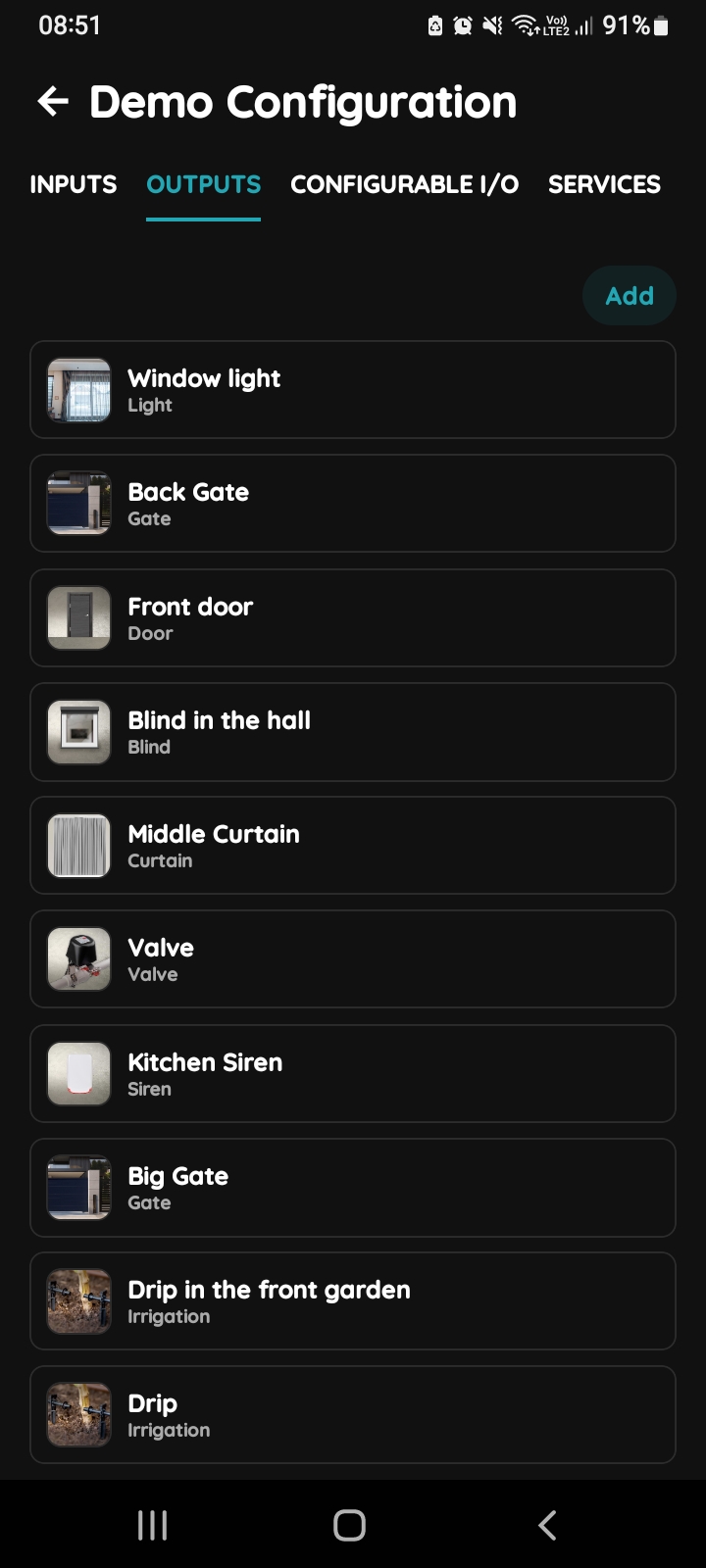
Outputs - Add button
Open the Outputs tab and tap Add.
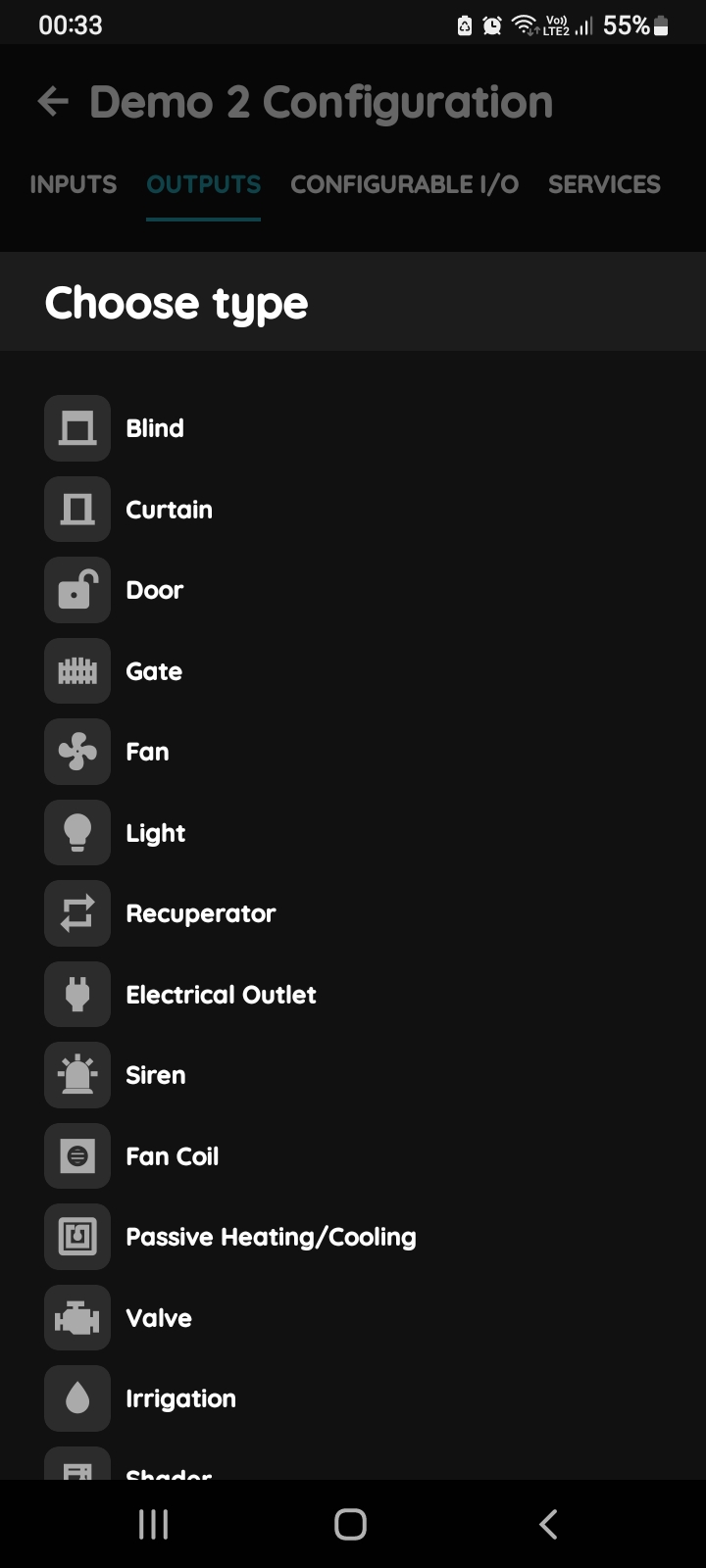
Choose type - Fan Coil
Pick Fan Coil from the list of types.

Fill in the form
The form carries the common fields (Name, Roles, Dashboard, Pin, Photo, Slide to confirm, Identifier, Hide Activity) and the regulation fields: Season, Minimum and Maximum temperature, Regulation hysteresis, Turn off hysteresis, Target step, Temperature Sensor, Intensity Levels and Temperature Format. They are explained in the text above.
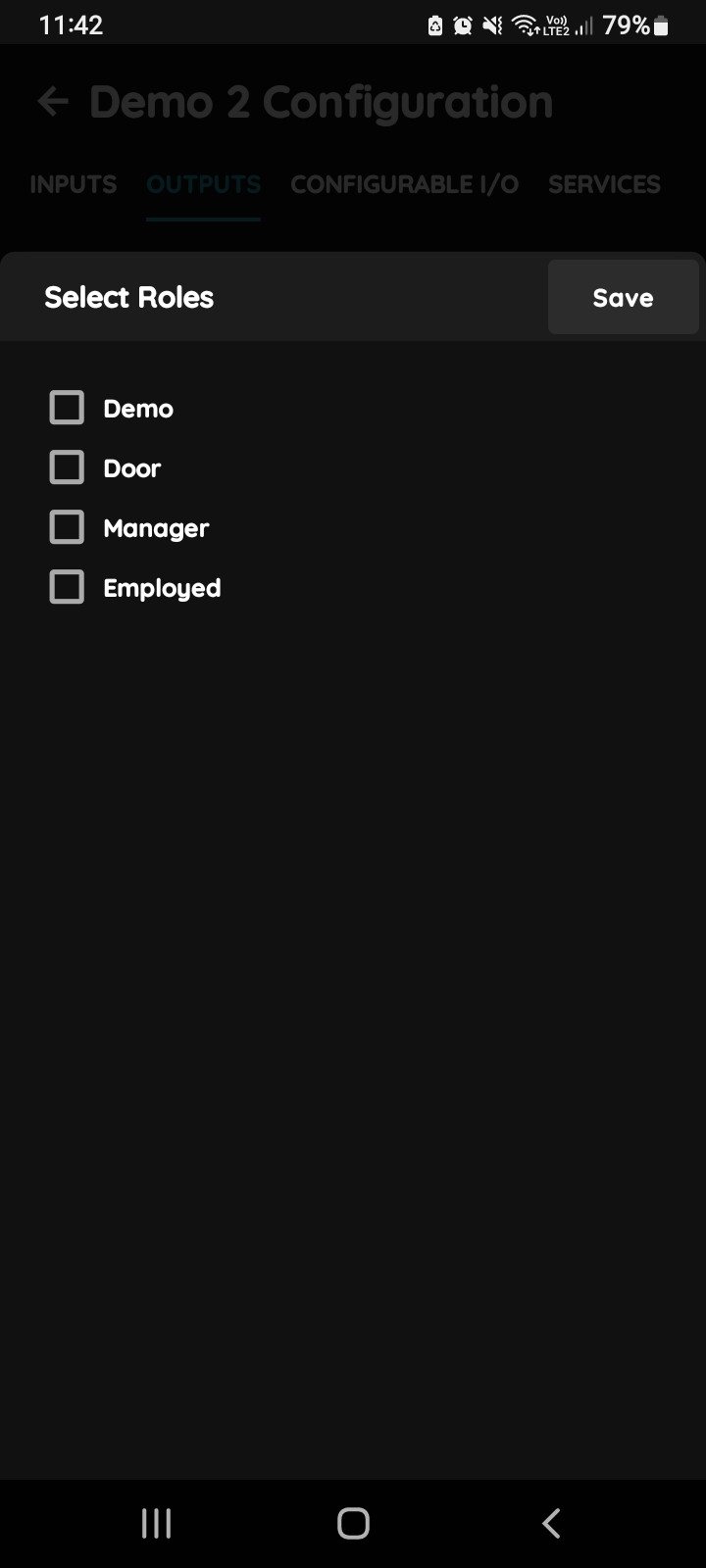
Select Roles
Tick the Role or roles whose users may see and use the unit, then confirm.
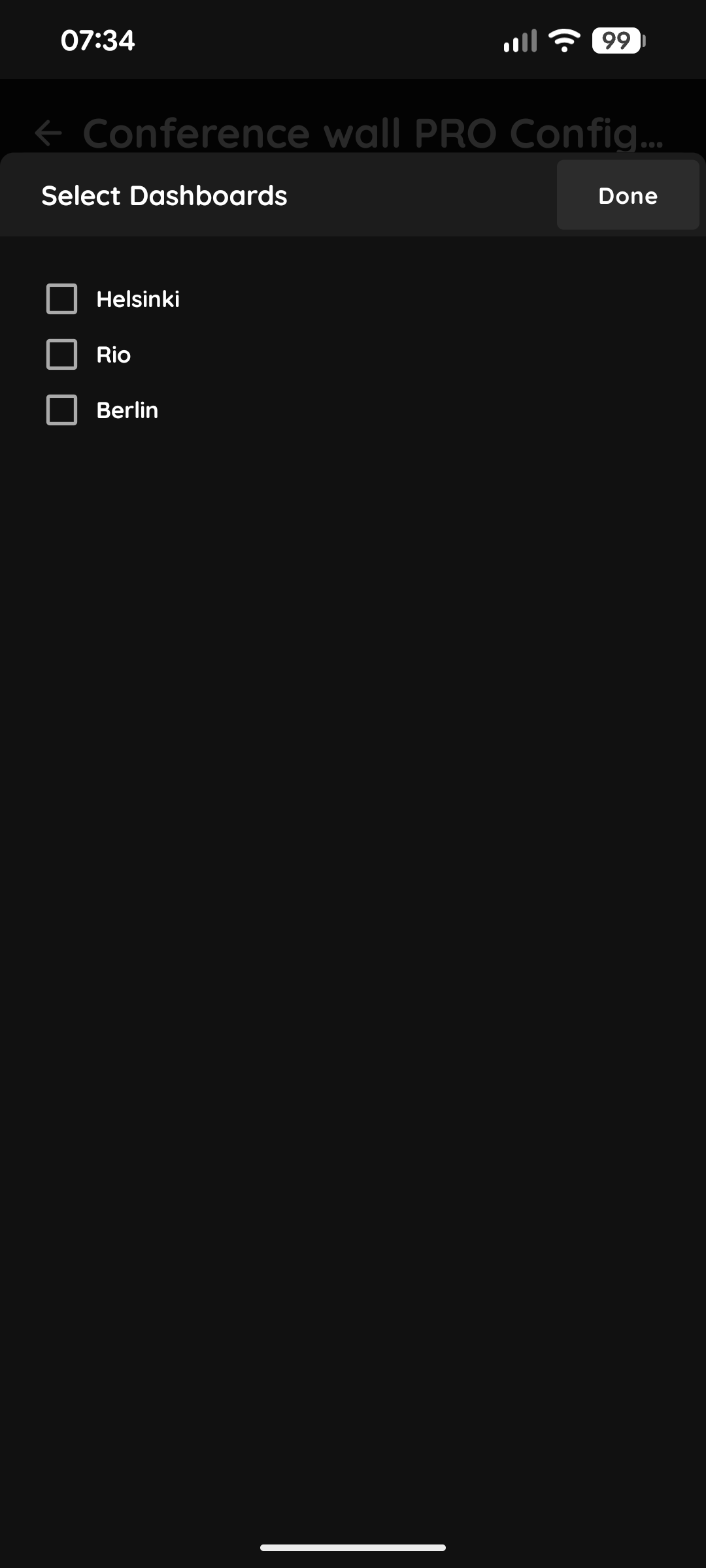
Select Dashboards
Select the Dashboard: the PIERRE display or displays the unit appears on.
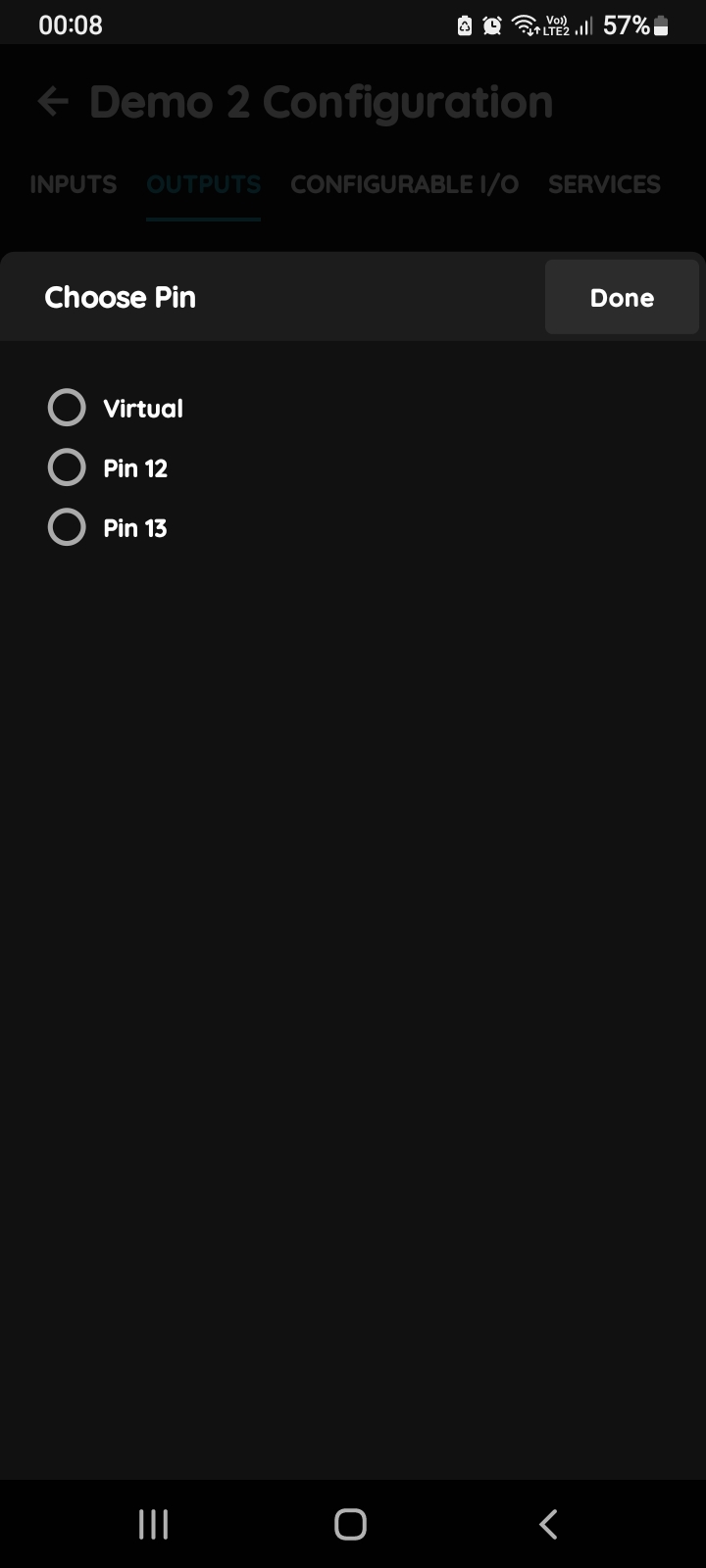
Choose Pin
Assign the Pin that opens the valve or enables the unit. Each fan speed is then added under Intensity Levels with its own output.
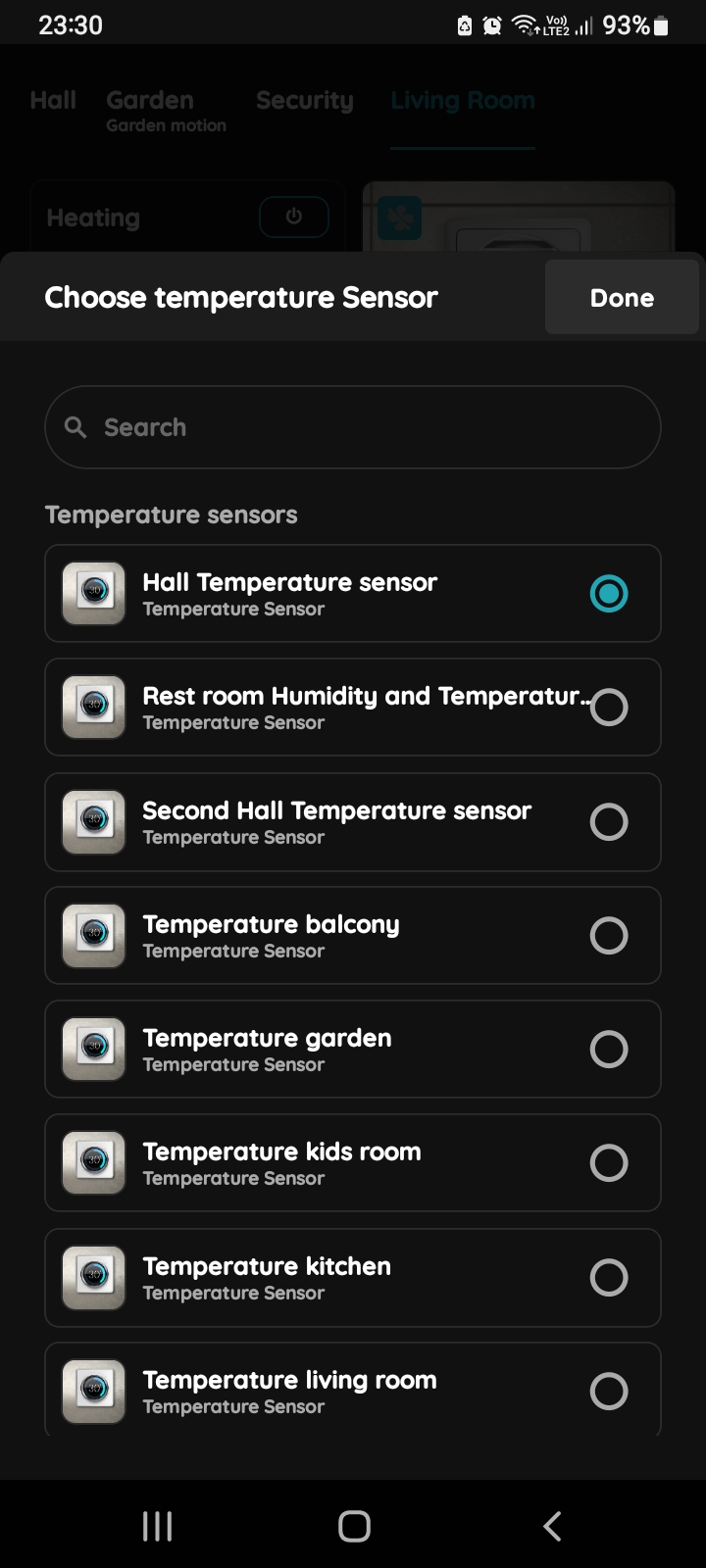
Choose Temperature sensor
Pick the sensor of the room the unit serves. The form cannot be saved without one.
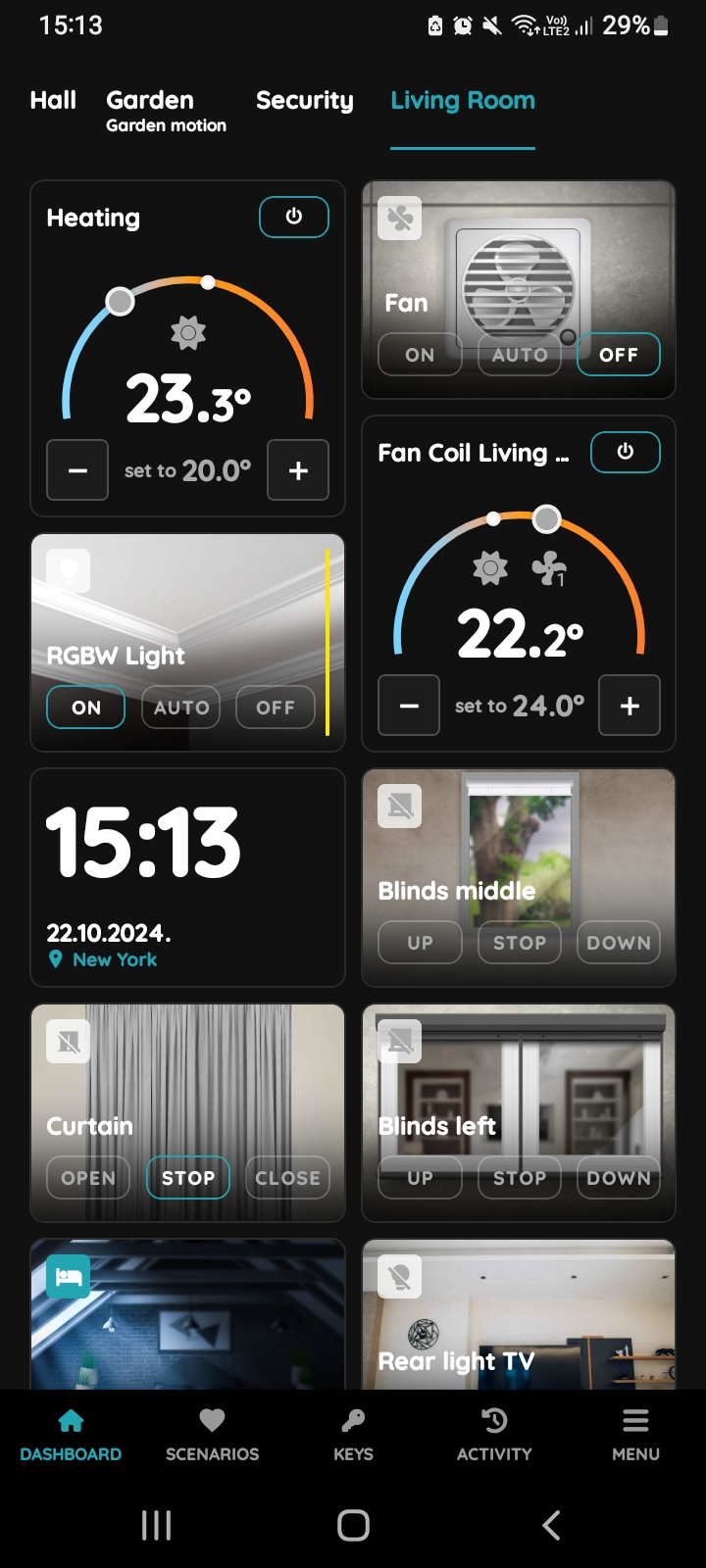
The result in the Smart PIERRE app
After Submit and Save, the unit appears as a card with the target temperature and the heating or cooling mode.
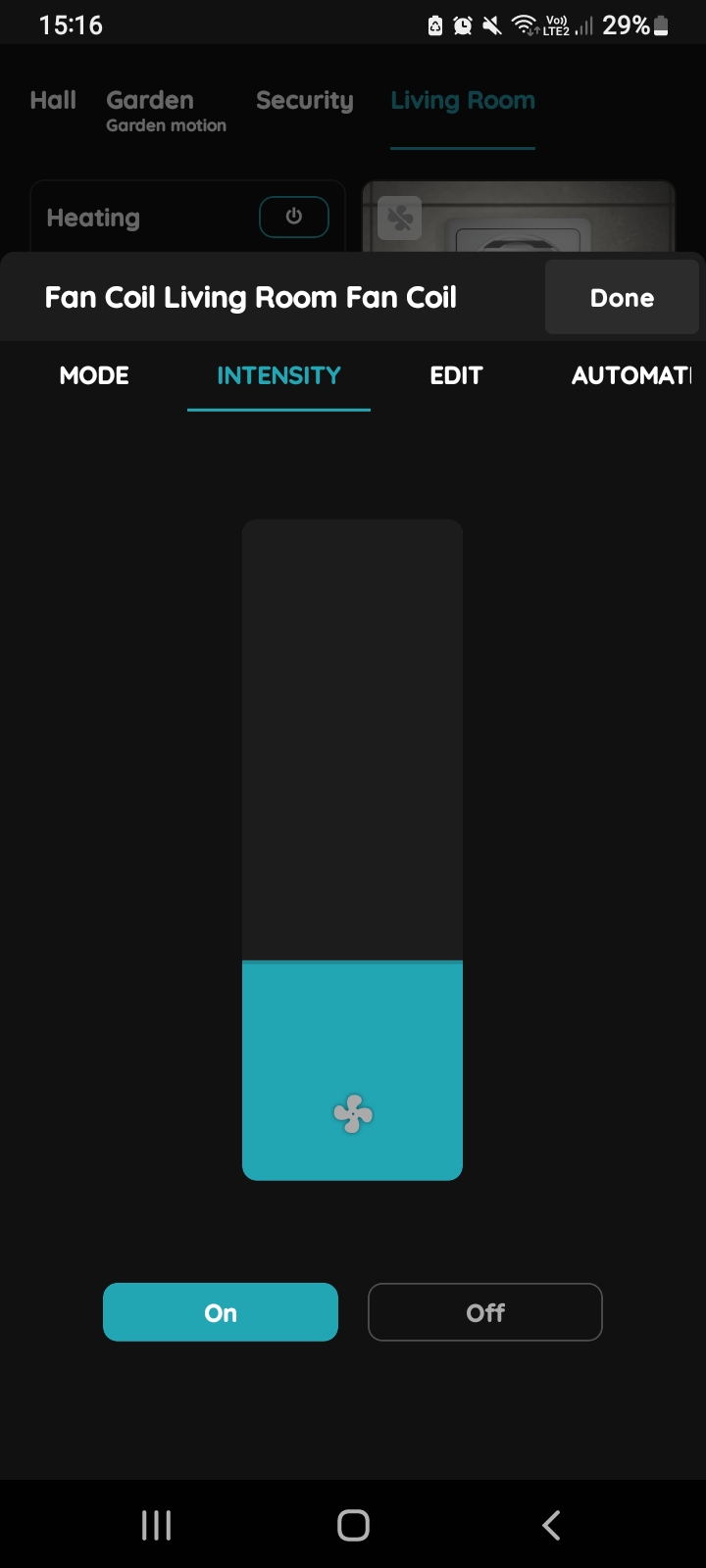
Fan speed in the app
The Intensity bar selects the fan speed. Each level is one of the outputs added under Intensity Levels. See the lesson Smart PIERRE - Fan Coil for the app side.