PIERRE Partner - Fan
Description
A Fan is a controller output that switches an on/off fan through a relay. Once configured it can be operated from the Smart PIERRE app and driven by sensors, schedules or delays.
Configuration
To add a fan:
- Open the desired Controller.
- Navigate to Outputs.
- Select Add and choose Fan as the type.
- Configure: Name, Roles, Dashboard and Pin. Add Photo On and Photo Off, Slide to confirm and the Identifier from the electrical project if used.
- Set Timeout for auto mode.
- Submit and save the configuration.
Fields
- Pin – the controller output that drives the relay switching the fan.
- Timeout – in minutes and seconds. In auto mode, once the fan has been switched on by its condition, it keeps running for this time after the condition ends, then switches off. With 0 the fan follows the condition exactly: on while the condition is true, off when it becomes false.
Operation
The fan card in the Smart PIERRE app has three states: Off, On and Auto. Off and On are manual. In Auto the fan follows the automation rules configured on it, with the timeout applied. The rules run on the controller, so they keep working without an internet connection.
Automation
Rules are added in the Smart PIERRE app: hold the fan card, open the Automation tab, switch Automation active on and tap Add. Three kinds of condition are available: New Time Condition, New Delay and Existing I/O. Typical uses:
- Starting the fan when a motion sensor detects movement in the bathroom, and stopping it after the timeout once the movement has ended.
- Running the fan on a schedule, for example weekdays 07:00 to 09:00.
- Starting the fan from a humidity sensor with the condition "larger than", for example above 65 %.
- Starting the fan a few minutes after the light was switched on, using a delay on the light as the condition.
Conditions can be combined with And and Or. The fan can also be included in scenarios and in IO Sync groups with other fans or outlets.
Technical Notes
- Occupies one controller output.
- On/off switching only – this configuration does not control fan speed. A multi-speed fan needs one output per speed, interlocked so two speeds are never on together; see the Fan/Motor solution lesson. A recuperator with speed steps is added as a Recuperator, not as a Fan.
- Check that the fan's starting current is within the rating of the relay used. Motor loads draw several times their running current at start.
- Give the Timeout a value where the fan is driven by a motion sensor. Without it the fan stops the moment the sensor no longer sees movement, which for a bathroom fan is usually too early.
Add the Fan in PIERRE Partner
The screens below are the standard PIERRE Partner output flow. The fields of the form are described in the text above.
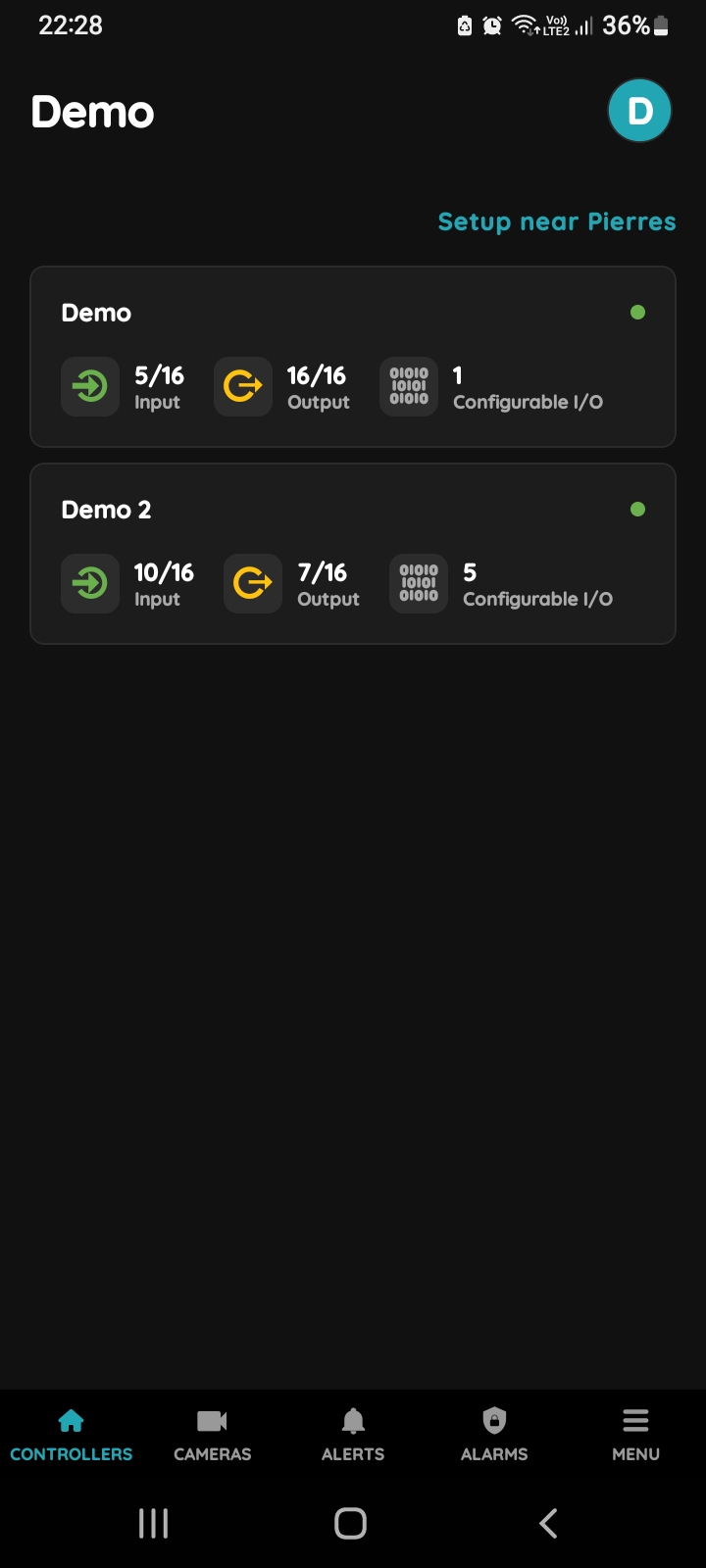
Choose Controller
In the PIERRE Partner app, tap the Controller the fan relay is wired to.
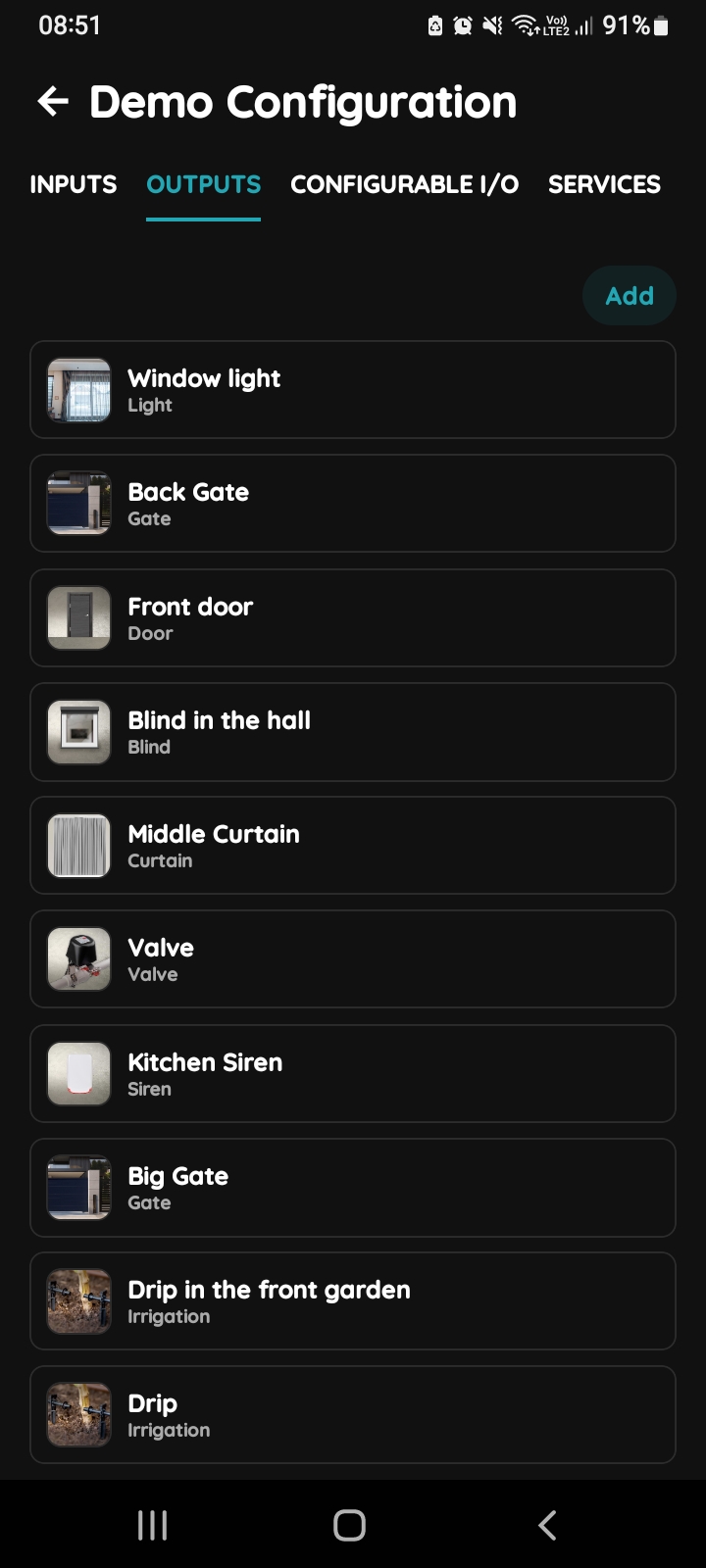
Outputs - Add button
Open the Outputs tab and tap Add.
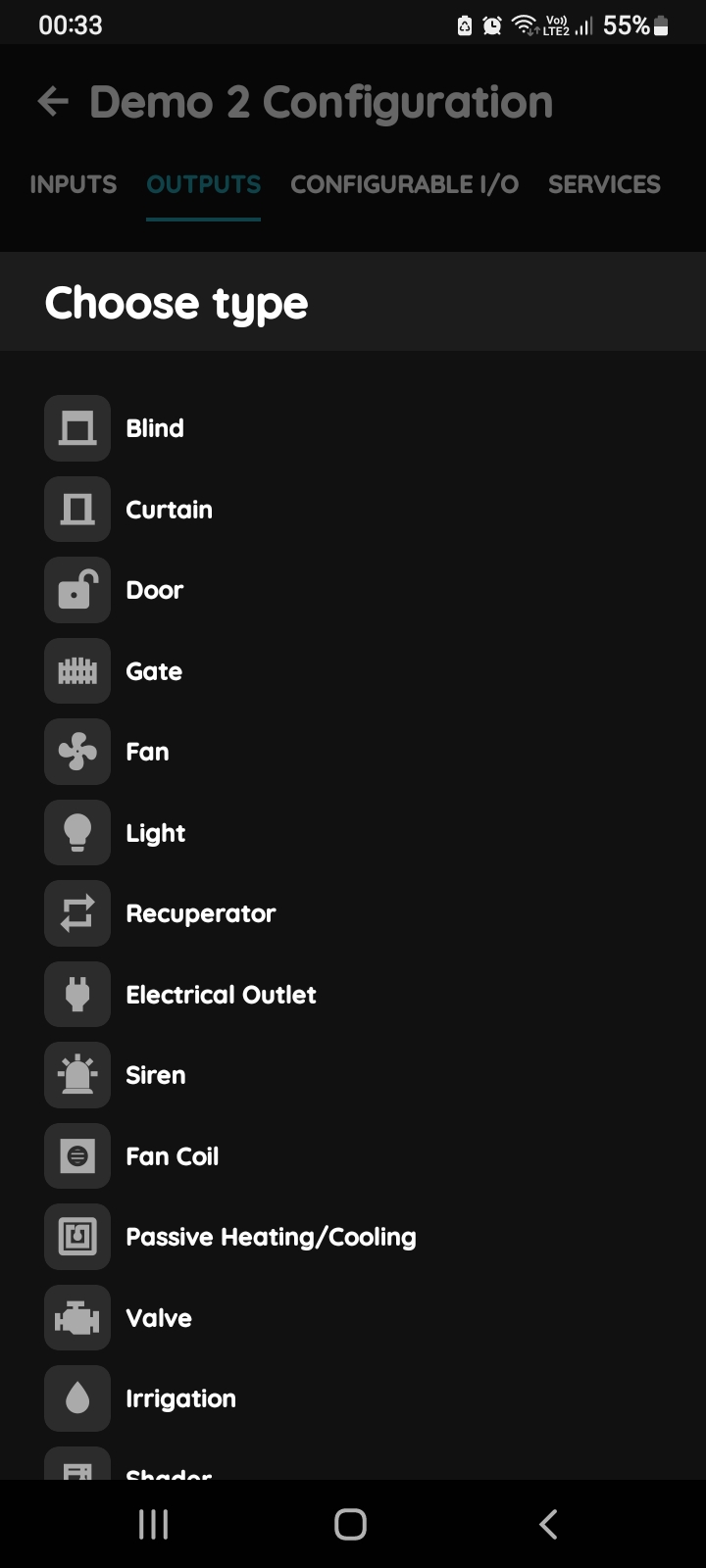
Choose type - Fan
Pick Fan from the list of types. A fan with several speeds is a Fan Coil or a Recuperator and has its own lesson.
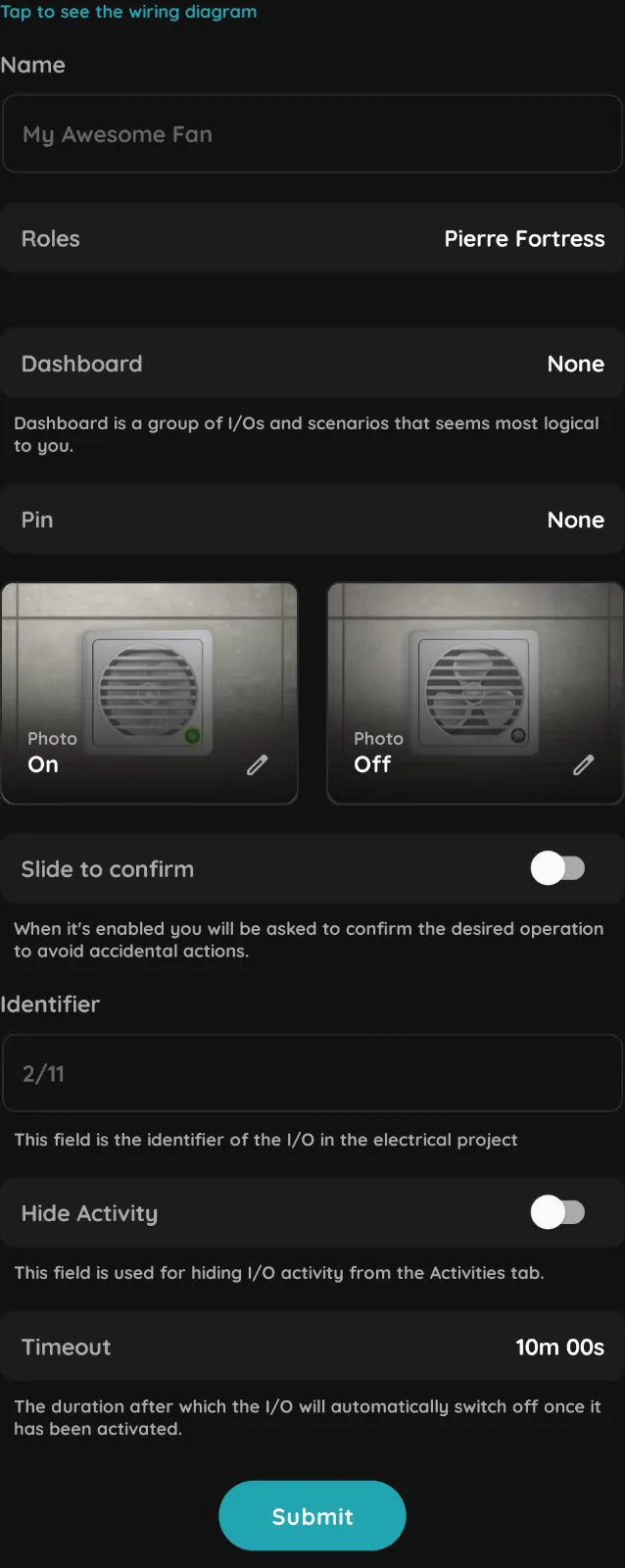
Fill in the form
Tap Tap to see the wiring diagram at the top if you need the wiring. Then fill in:
- Name – as it will appear on the dashboard.
- Roles – the roles whose users may see and use the fan.
- Dashboard – the group of I/Os and scenarios the card is listed under.
- Pin – the controller output that drives the relay.
- Photo On and Photo Off – optional images for the two states of the card.
- Slide to confirm – ask for confirmation before switching.
- Identifier – the reference of the fan in the electrical project.
- Hide Activity – keep the fan’s events out of the Activities tab.
- Timeout – in minutes and seconds, used in Auto mode.
Tap Submit, then Save.
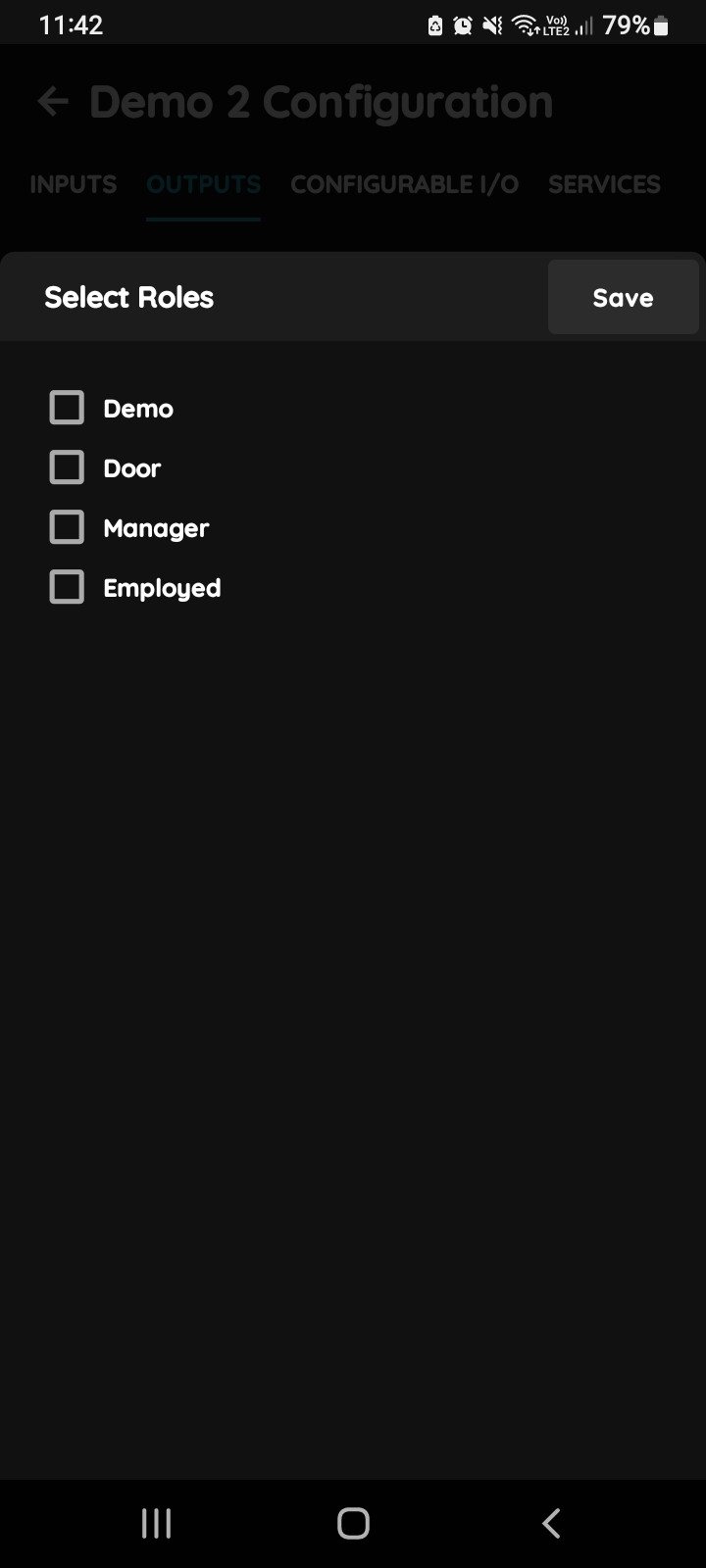
Select Roles
Tick the Role or roles whose users may see and use the fan, then confirm.
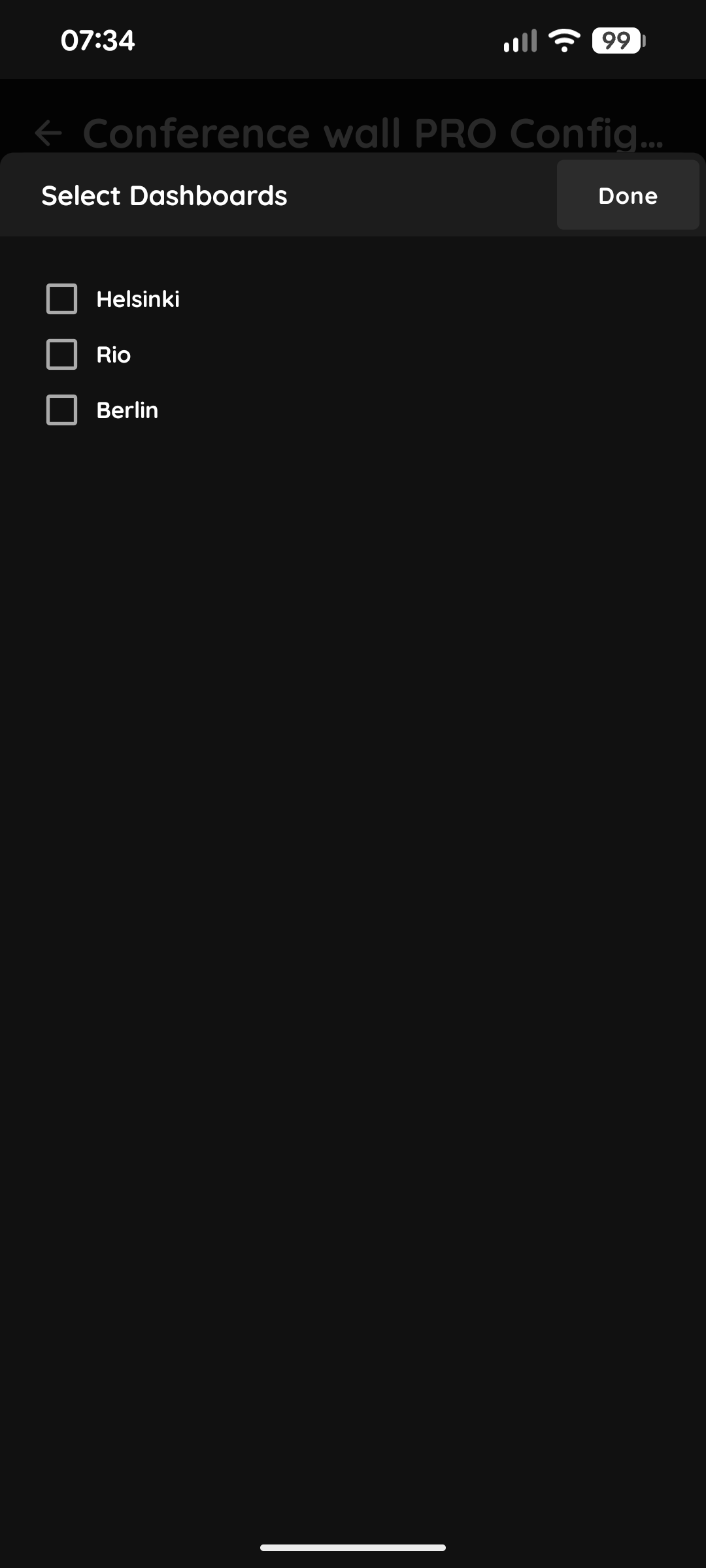
Select Dashboards
Select the Dashboard: the PIERRE display or displays the fan appears on.
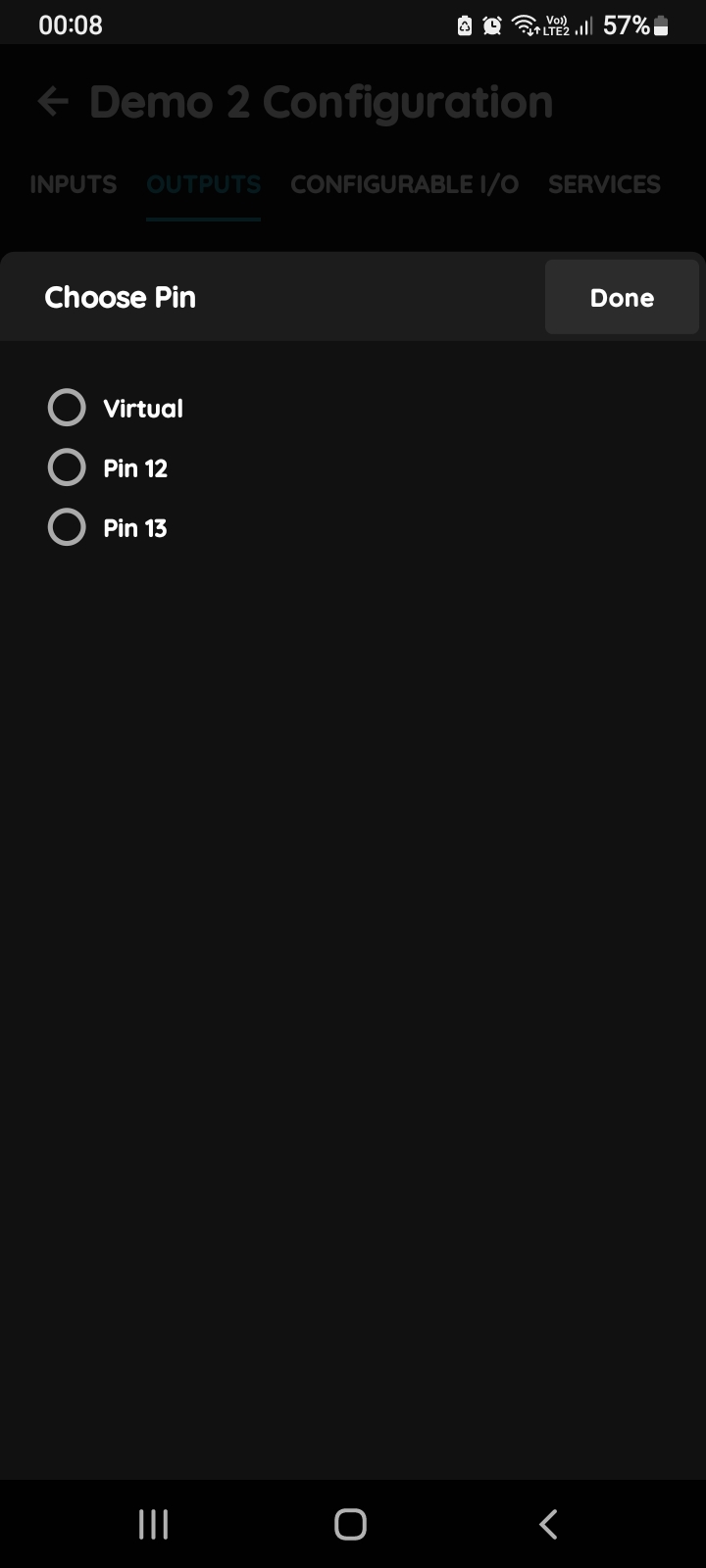
Choose Pin
Tap the radio button next to the controller output that drives the relay switching the fan, then confirm.
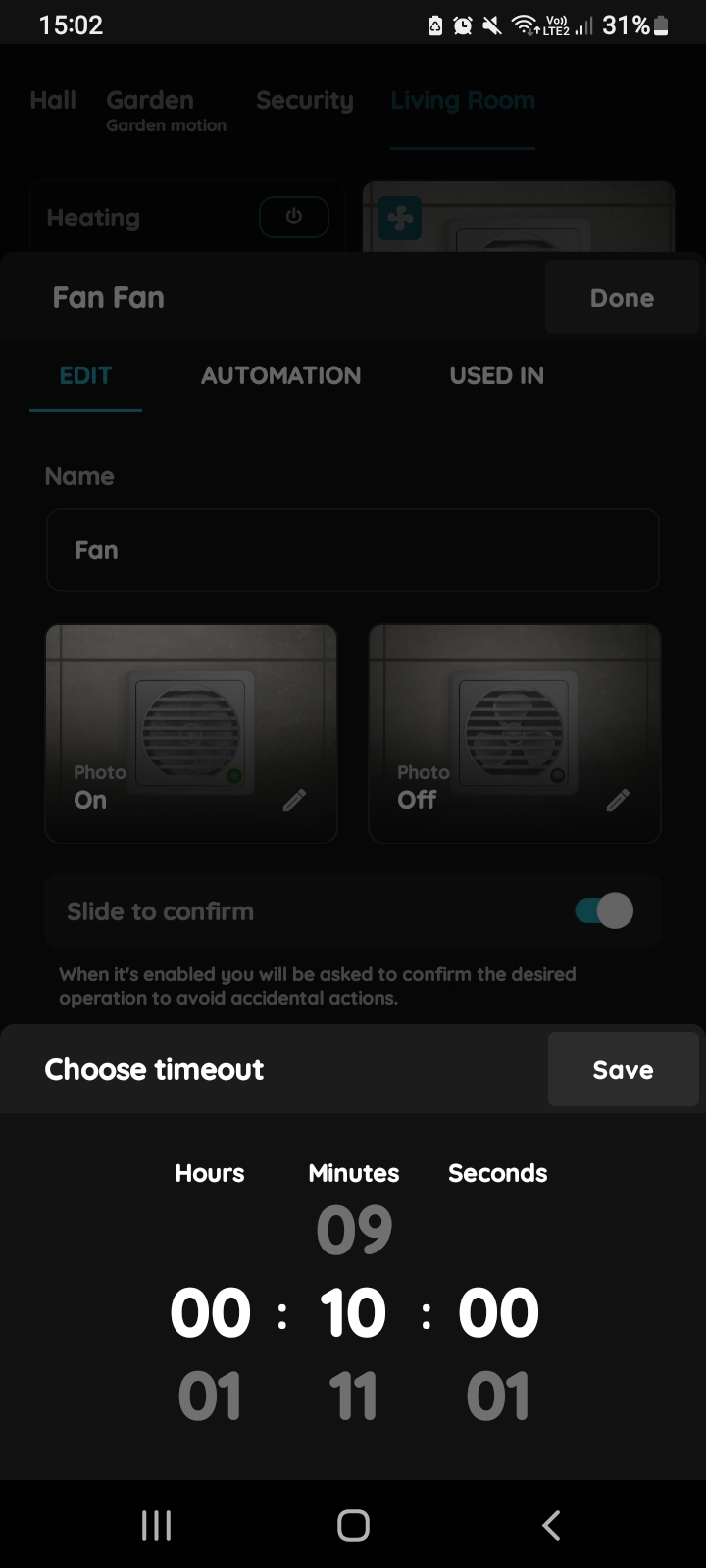
Timeout
Set the Timeout used in Auto mode: once the fan has been switched on by its condition it keeps running for this time after the condition ends, then switches off. At zero the fan follows the condition exactly.
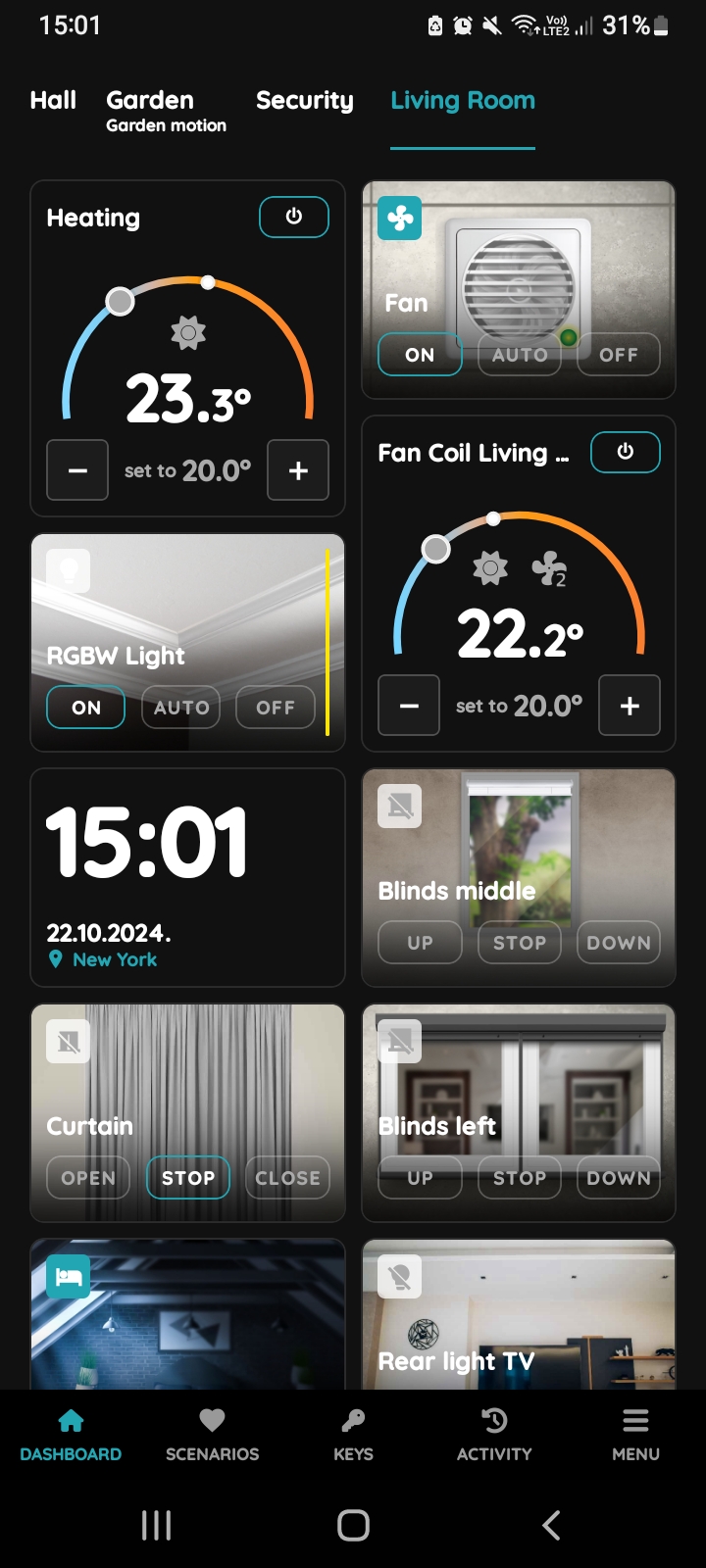
The result in the Smart PIERRE app
After Submit and Save, the fan appears on the dashboard with Off, On and Auto. See the lesson Smart PIERRE - Fan for the app side.