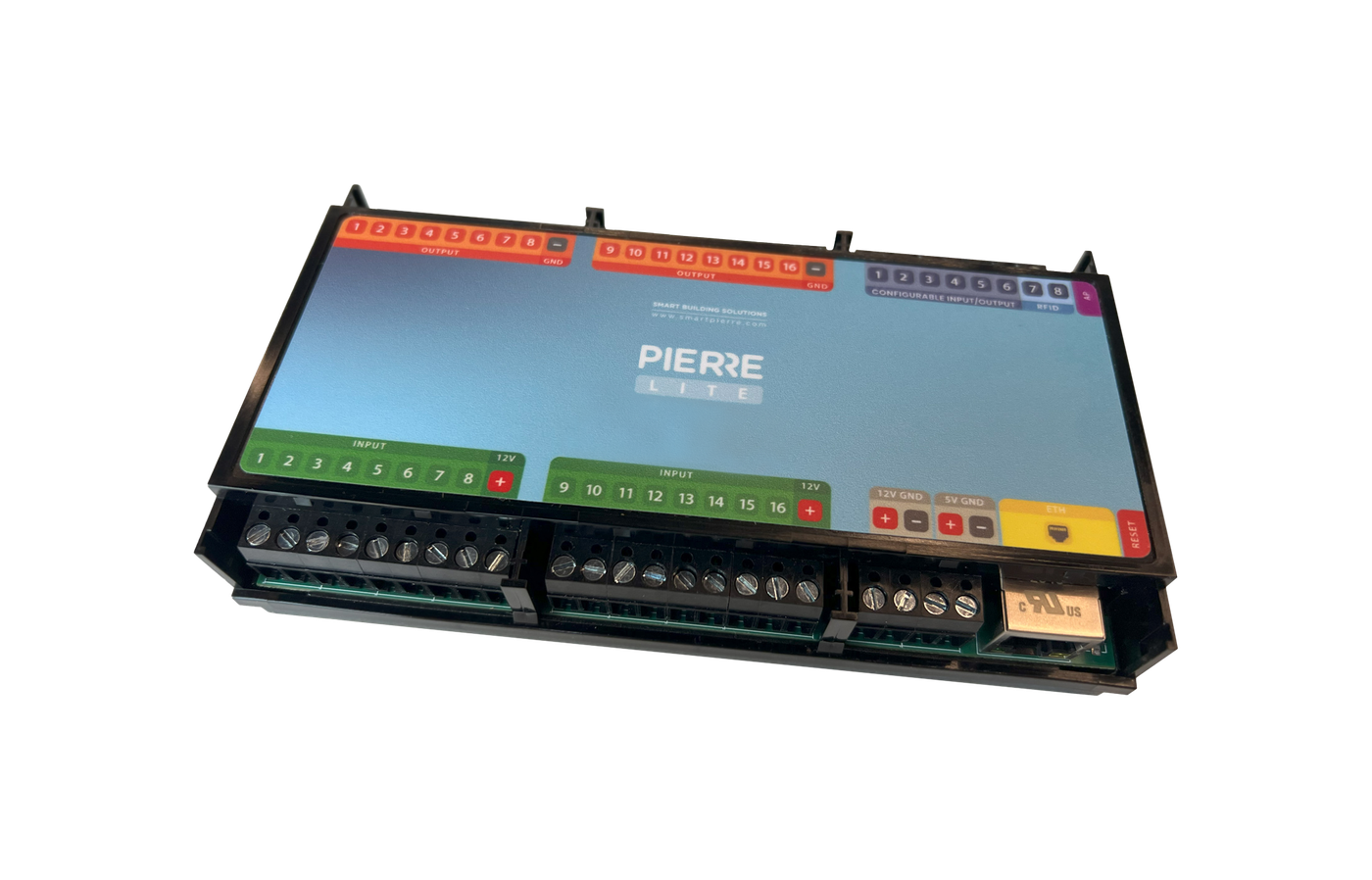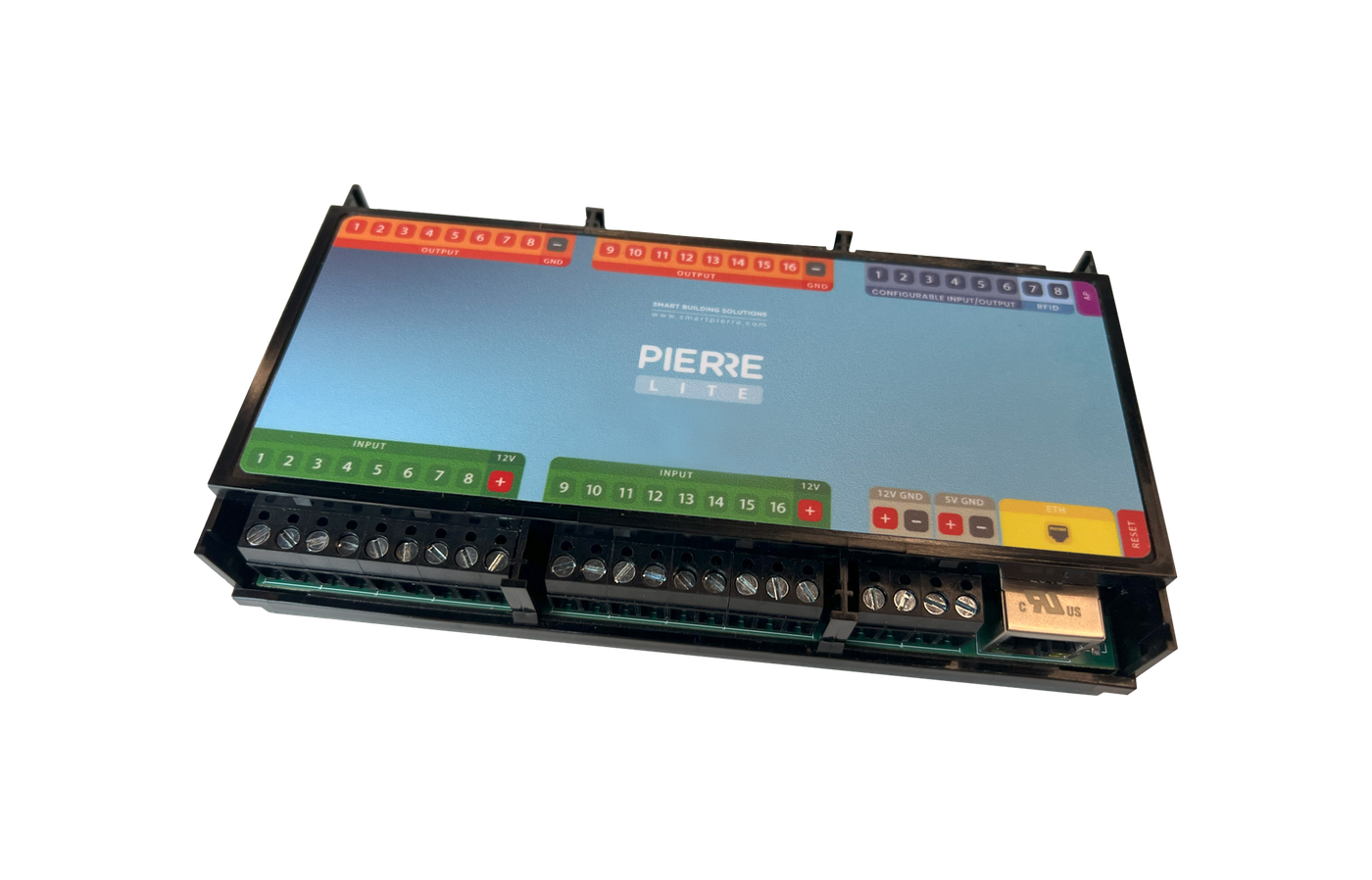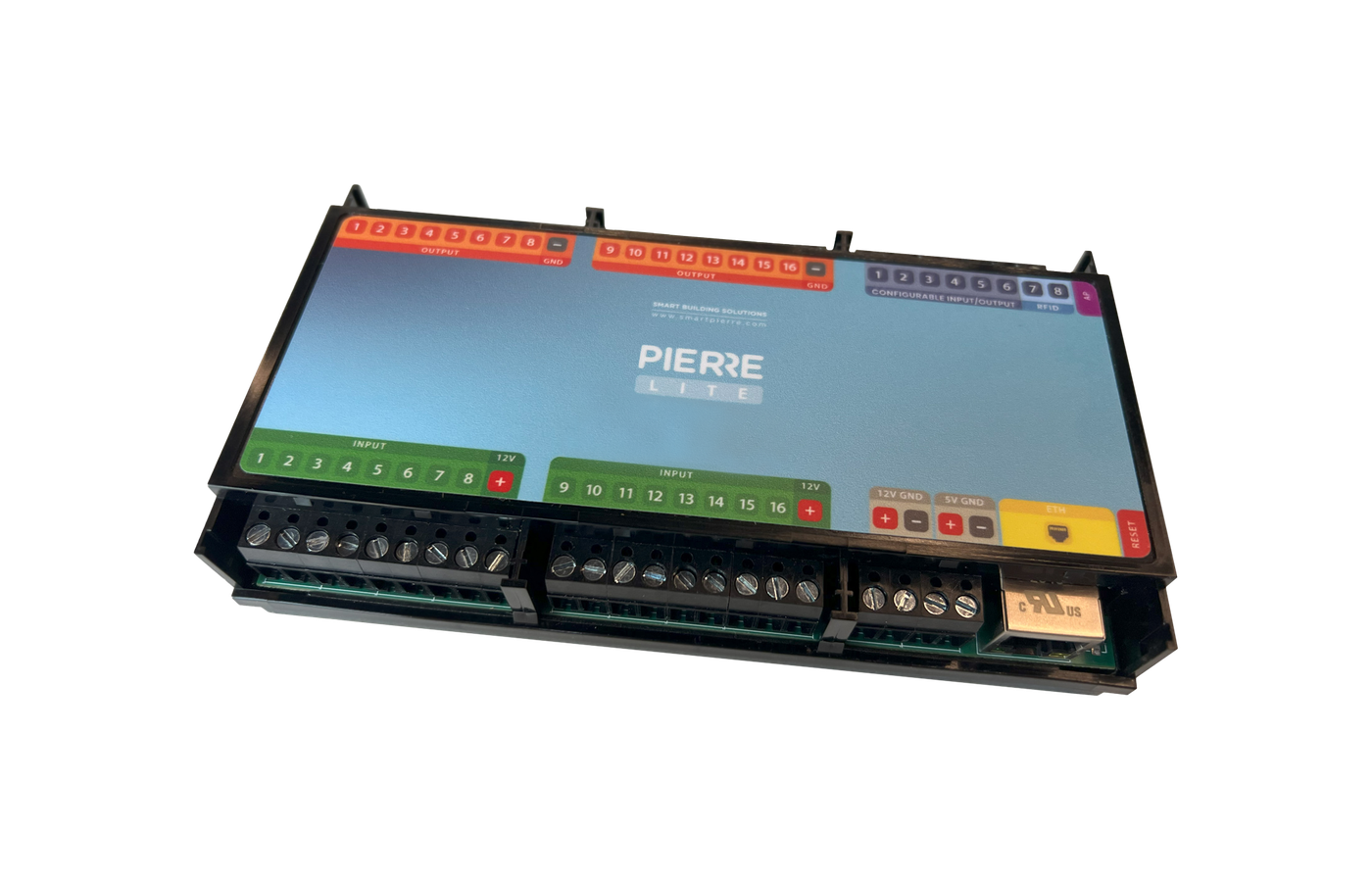
PIERRE Partner - Heat Recovery Unit (Recuperator)
Description
A Recuperator is a heat recovery ventilation unit controlled from the PIERRE system. The controller switches the unit on and off and selects the fan speed.
Configuration
To add a recuperator:
- Open the desired Controller.
- Navigate to Outputs.
- Select Add and choose Recuperator as the type.
- Fill in Name, Roles and Dashboard, and optionally Photo, Slide to confirm, Identifier, Hide Activity and Timeout.
- Under Intensity Levels, tap Add new Intensity Level once for every fan speed the unit supports, and give each level the controller output that drives that speed.
- Submit and save the configuration.
Fan Speeds
Each speed level of the unit needs its own controller output, added in the form as an Intensity Level. A three-speed recuperator therefore has three intensity levels. The number of levels to add depends on how many speed levels the unit has.
Automation Applications
- Raising the fan speed from a humidity reading.
- Running on a schedule.
- Reducing the speed at night.
Technical Notes
- Occupies one output for on/off plus one per fan speed.
- Only one speed output should be active at a time — check the unit's documentation.
- The unit's own control panel may need to be set to external control.
Add the Recuperator in PIERRE Partner
The screens below are the standard PIERRE Partner output flow. The fields of the form are described in the text above.
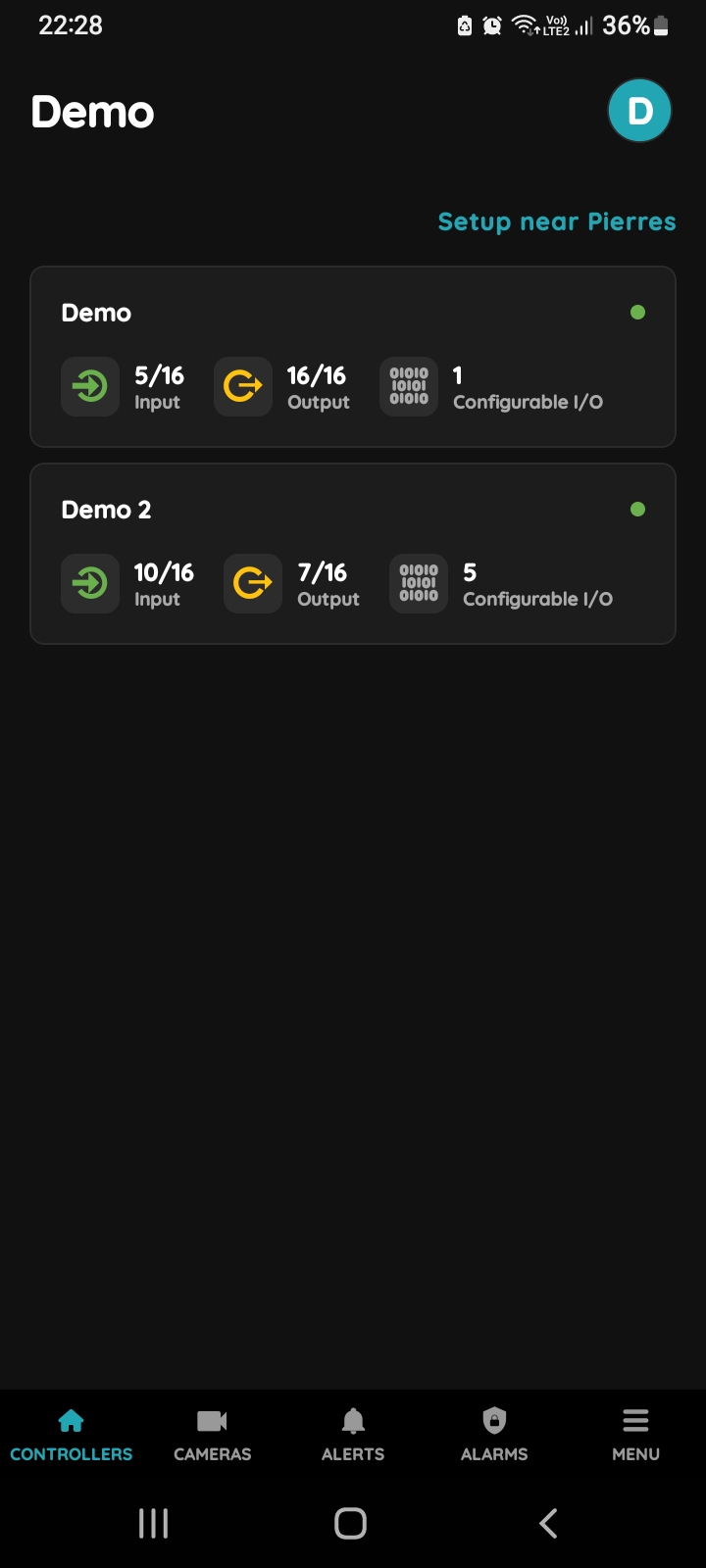
Choose Controller
In the PIERRE Partner app, tap the Controller the recuperator is wired to.
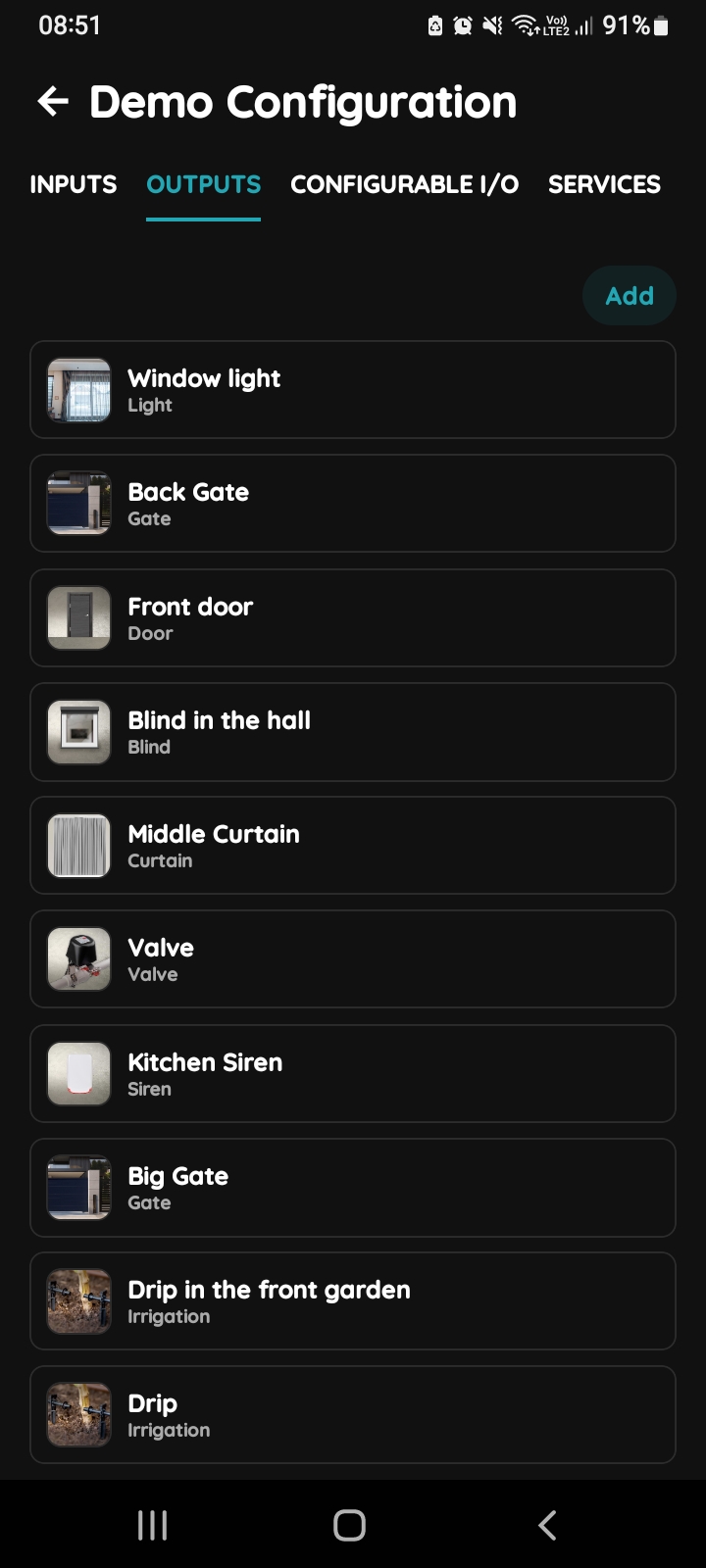
Outputs - Add button
Open the Outputs tab and tap Add.
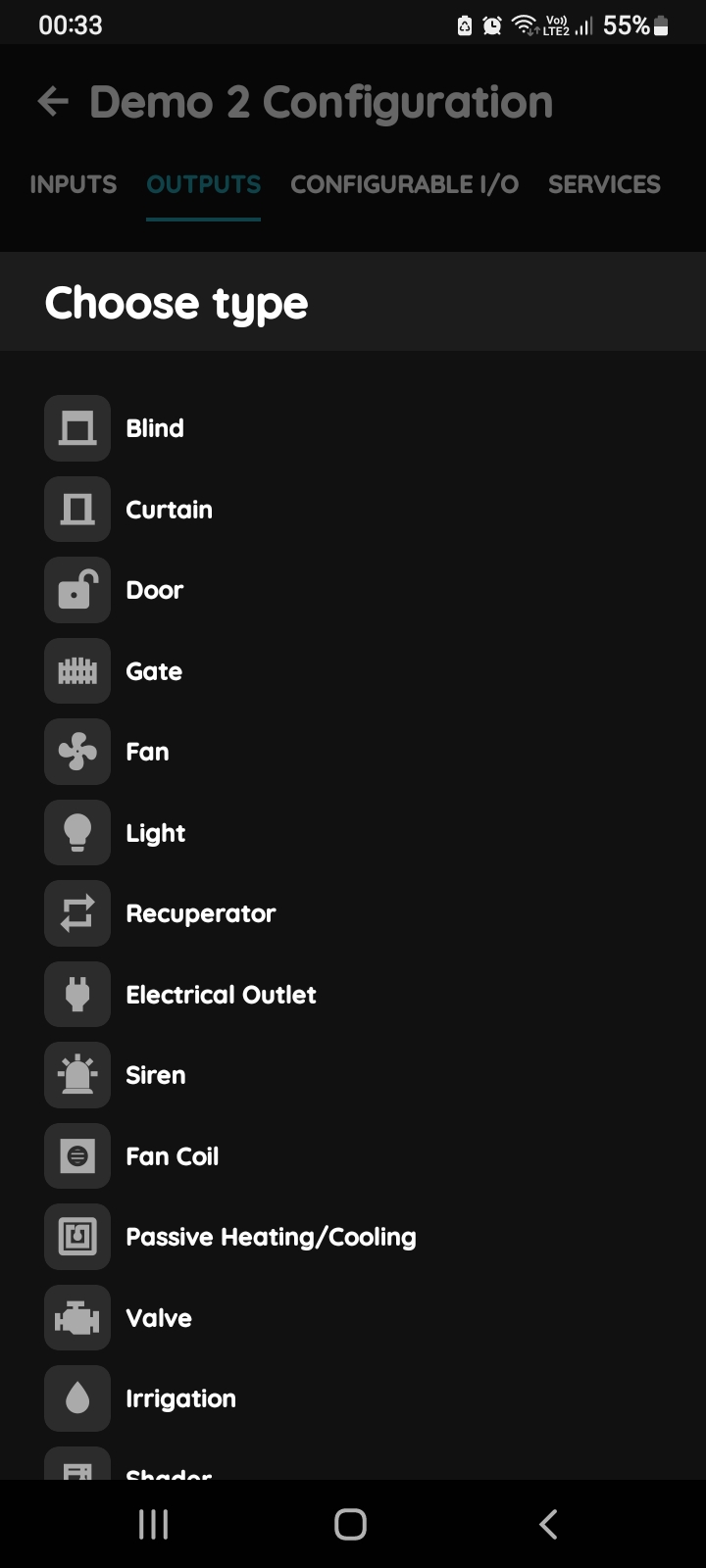
Choose type - Recuperator
Pick Recuperator from the list of types.
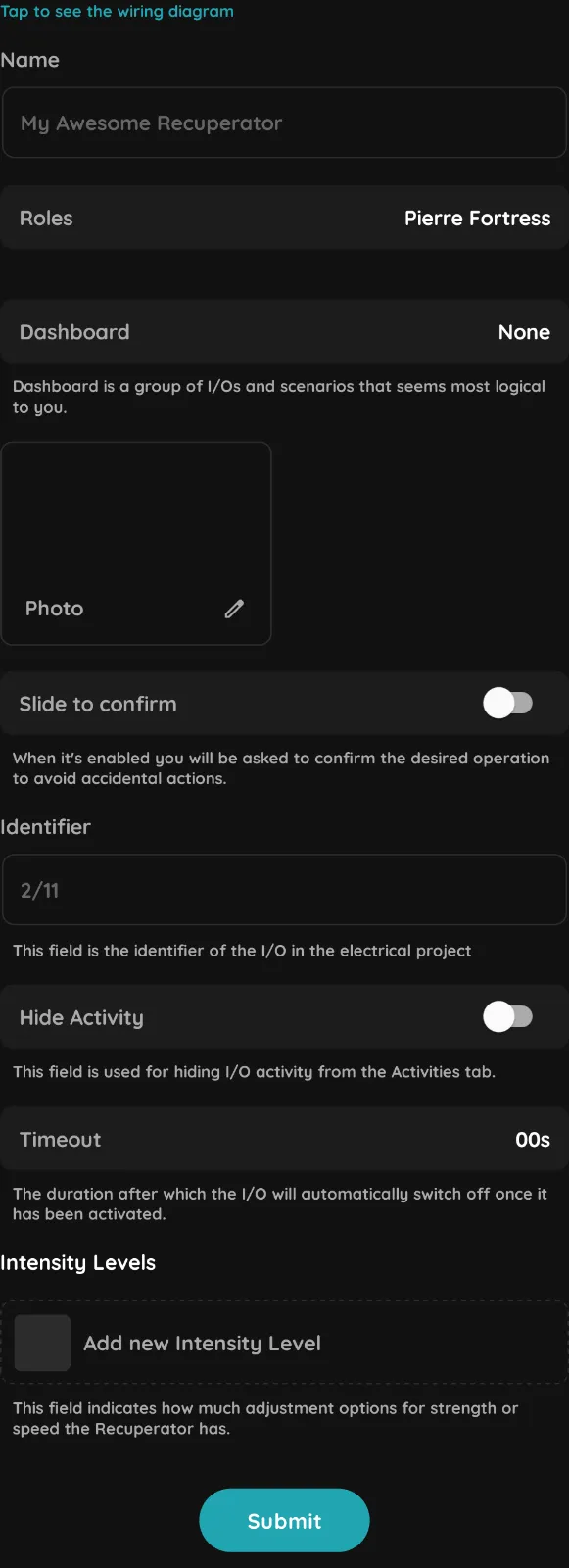
Fill in the form
Tap Tap to see the wiring diagram at the top if you need the wiring. Then fill in:
- Name – as it will appear on the dashboard.
- Roles – the roles whose users may see and use the unit.
- Dashboard – the group of I/Os and scenarios the card is listed under.
- Photo – optional image for the card.
- Slide to confirm – ask for confirmation before switching.
- Identifier – the reference of the unit in the electrical project.
- Hide Activity – keep the unit’s events out of the Activities tab.
- Timeout – the time after which the unit switches off automatically once it has been activated.
- Intensity Levels – one level per fan speed the unit supports. See the next step.
Tap Submit, then Save.
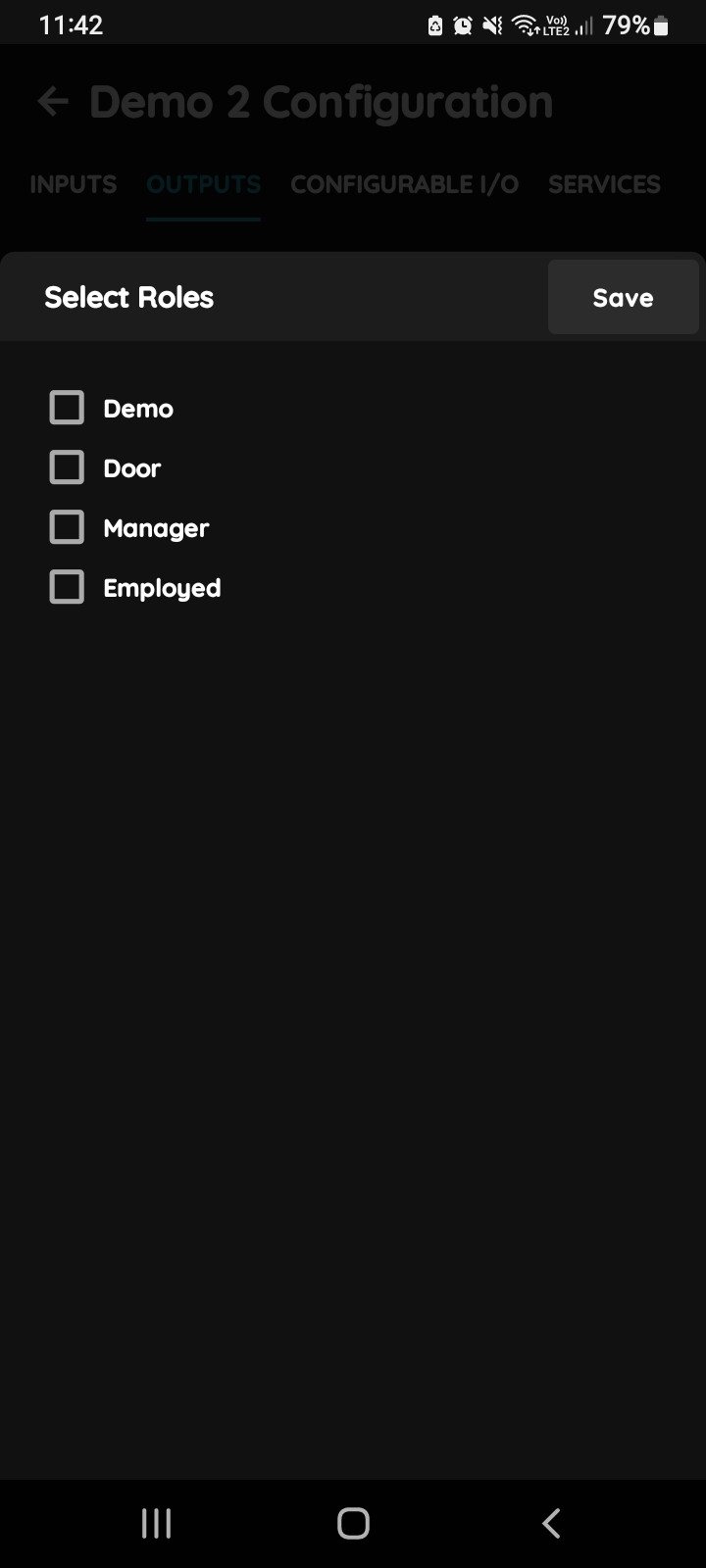
Select Roles
Tick the Role or roles whose users may see and use the unit, then confirm.
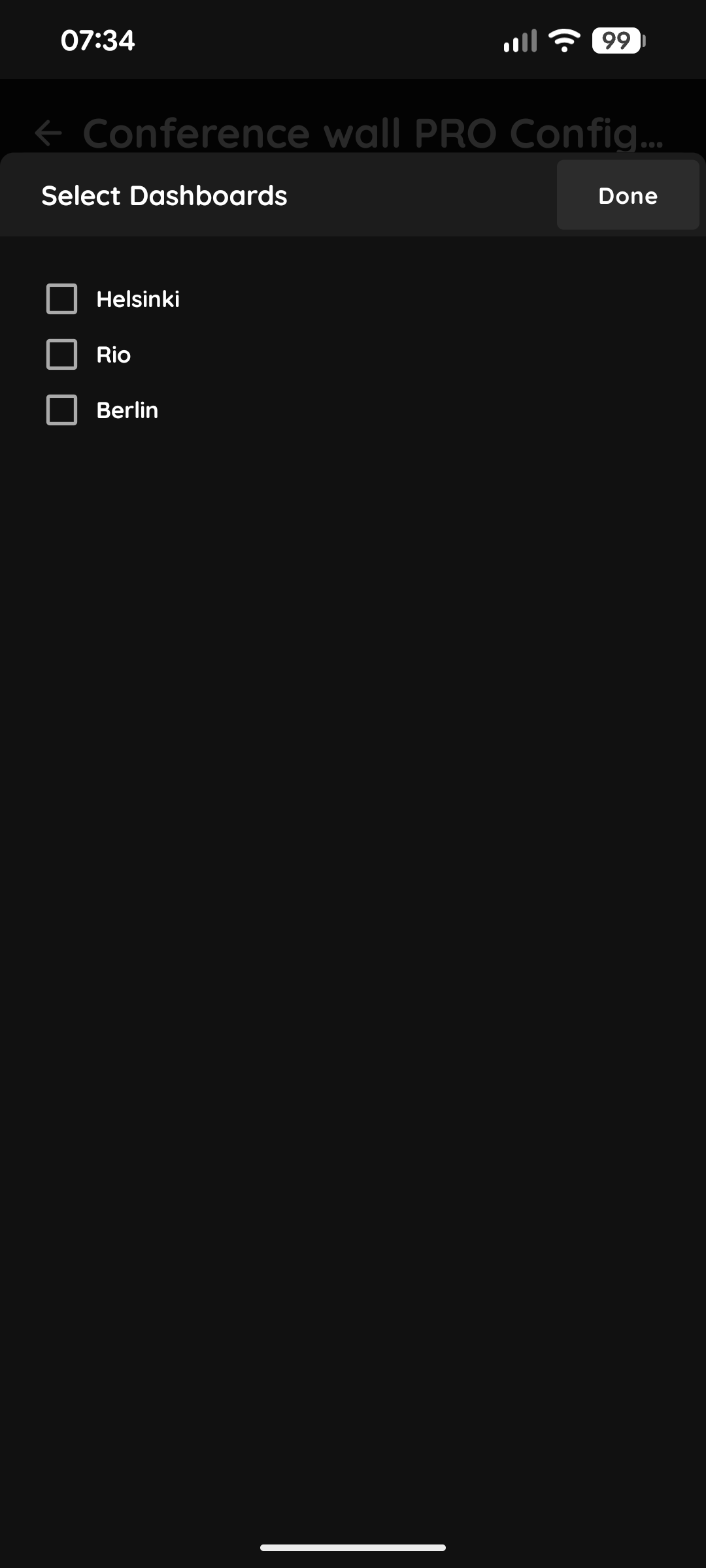
Select Dashboards
Select the Dashboard: the PIERRE display or displays the unit appears on.
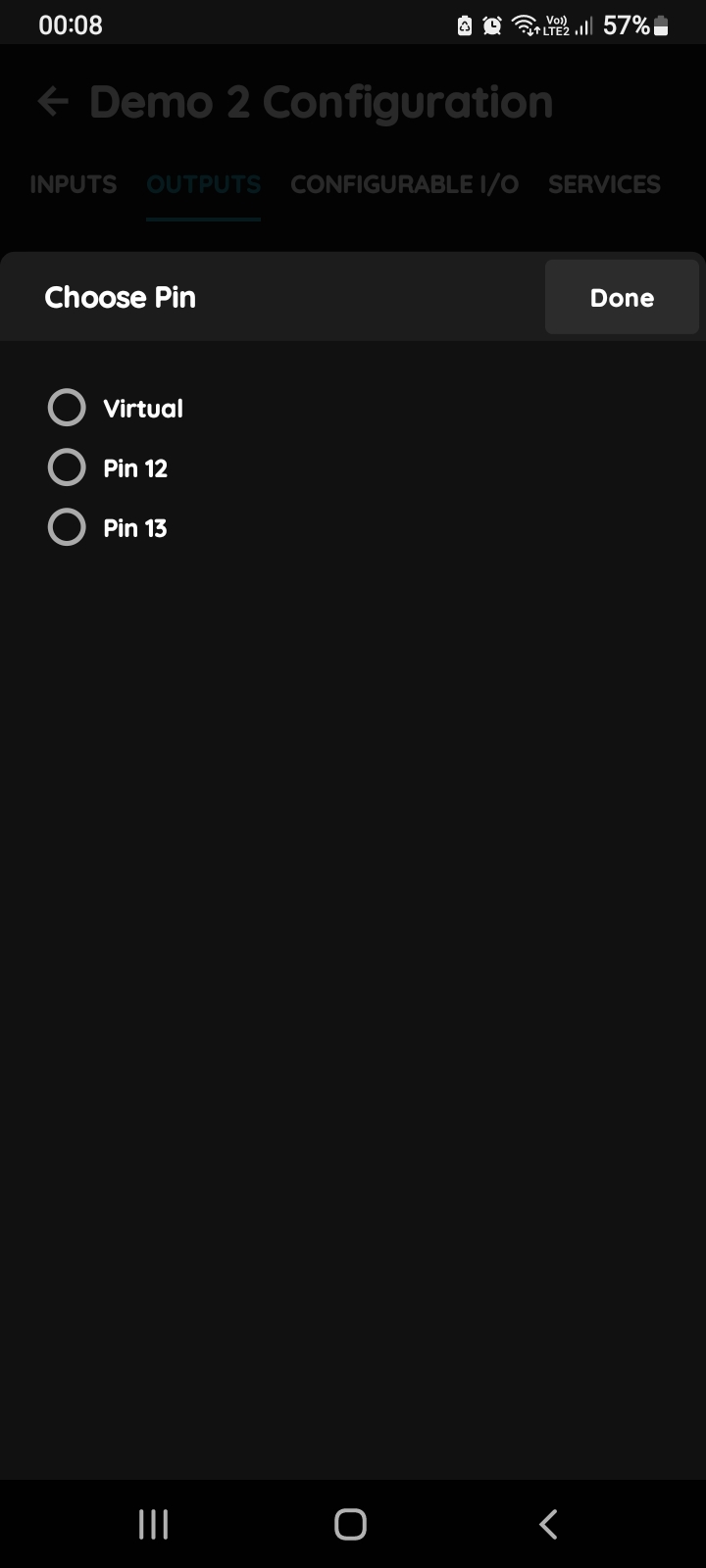
Intensity Levels - one output per fan speed
Tap Add new Intensity Level once for every fan speed the unit supports, and give each level the controller output that drives that speed. A three-speed recuperator therefore uses three levels. The unit is switched on and off from the same output set, so plan the outputs accordingly.
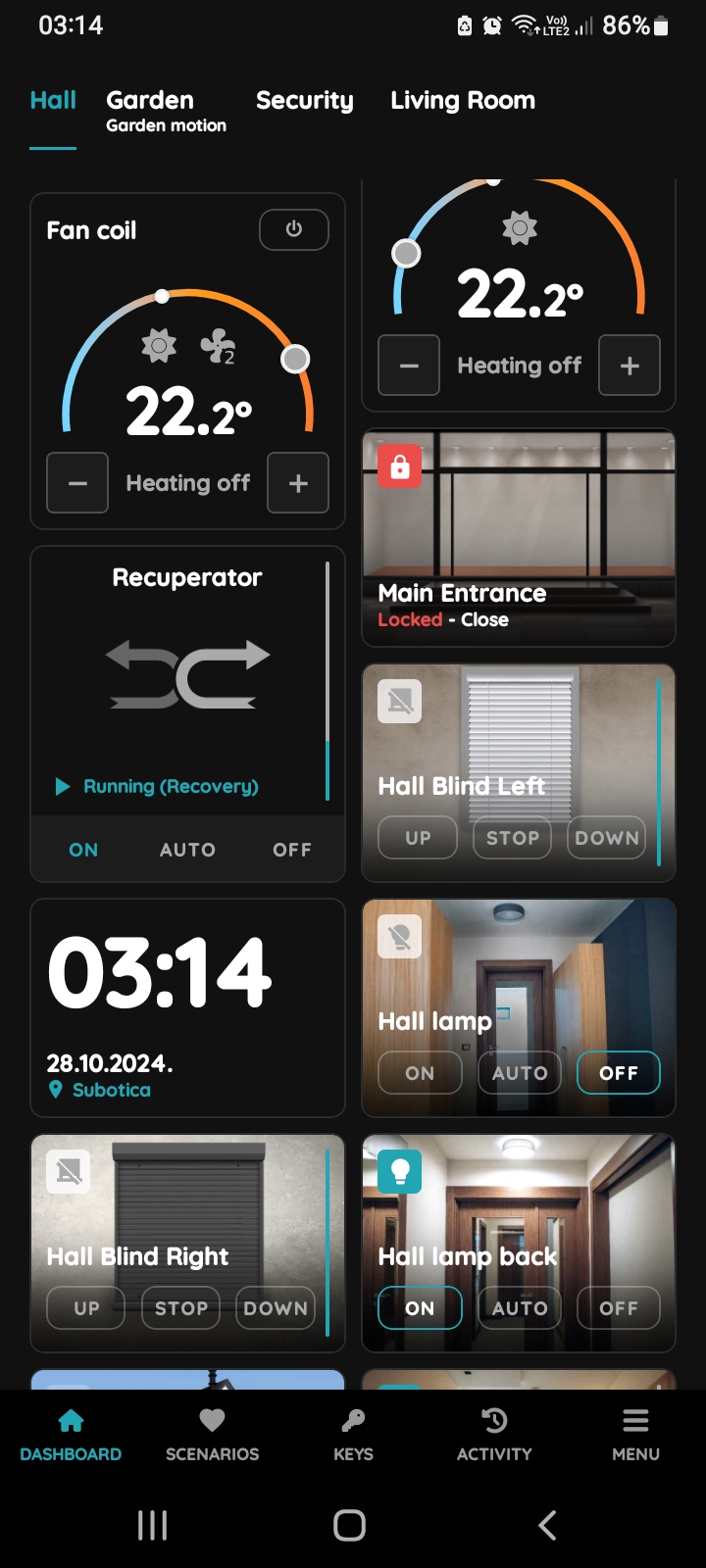
The result in the Smart PIERRE app
After Submit and Save, the recuperator appears on the dashboard with On, Auto and Off.
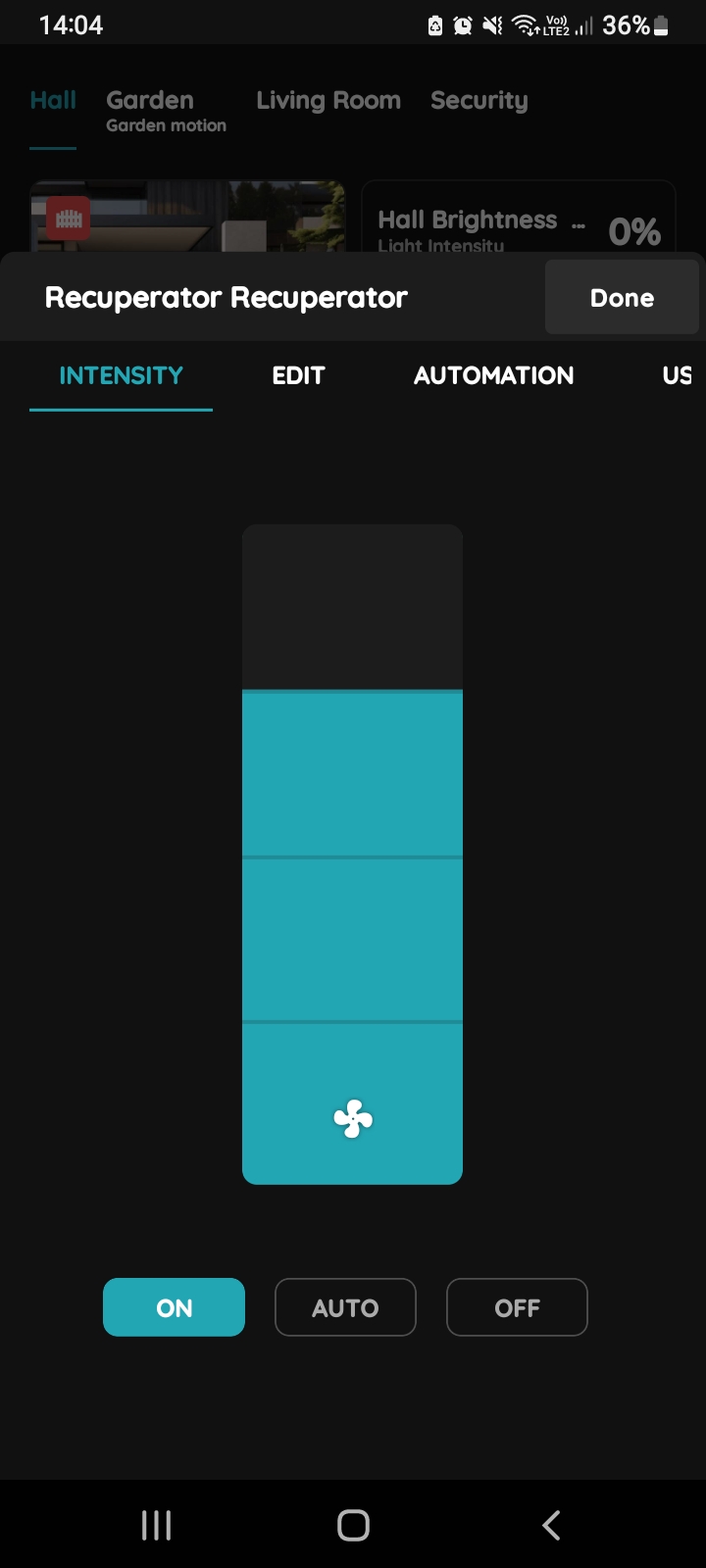
Fan speed in the app
Opening the card shows the Intensity bar. Each level is one of the outputs assigned in step 6. See the lesson Smart PIERRE - Heat Recovery Unit (Recuperator) for the app side.