
PIERRE Partner - Services
Description
The Services tab configures network-based services and integrations. Unlike physical inputs and outputs wired to a Controller, Services work over network communication and need no dedicated cabling — but they do need an active network connection.
Configuration
- Select the Controller.
- Open the Services tab.
- Press Add.
- Select the service type.
- Configure the required parameters.
- Press Submit and Save.
Supported Services
Do Not Disturb (DND)
Lets a guest indicate that they do not wish to be disturbed. The status becomes visible in the system and can notify staff.
Cleaning Service
Lets a guest request room or apartment cleaning. The status becomes visible in the system and can notify staff.
Modbus TCP
Allows communication with third-party devices over the Modbus TCP protocol, across the local network. Compatible devices exchange measurements, statuses, commands and control values over Ethernet. Typical applications:
- Energy meters
- HVAC systems
- Heat pumps
- Ventilation systems
- Building management systems (BMS)
Once configured, Modbus TCP devices are available for monitoring, control, automations and integrations.
Note: Modbus TCP runs over the local network. Modbus RTU requires a physical RS485 connection and is configured separately.
Client Application
Configured services appear in the Smart PIERRE application, where guests can activate and deactivate them directly. Service requests can generate notifications for hotel or property management staff.
Hospitality RFID Reader Integration
With a compatible hospitality RFID reader, the service status is shown outside the room — typically Do Not Disturb or Cleaning Requested. The reader's background illumination changes with the selected status, so staff can read the room state without entering.
Technical Notes
- Services are intended for hospitality projects.
- Several services can be configured on the same Controller.
- The available service types depend on the project configuration.
- Because Services depend on the network, agree with the operator what should happen during a network outage before going live.
Services
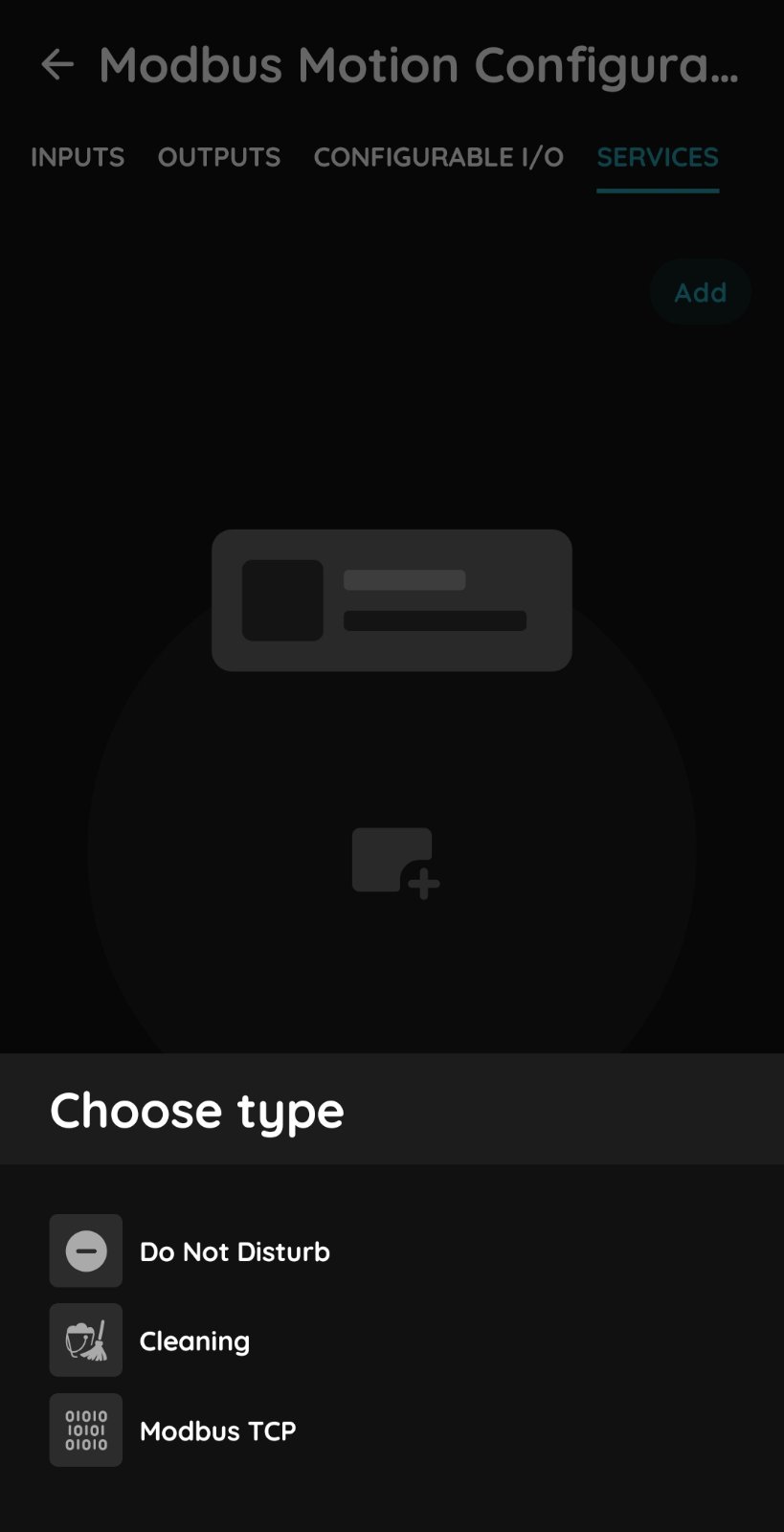
Add new Service
Select the Controller.
Select the Services tab.
Tap Add and select Service type.
Available options:
- Cleaning
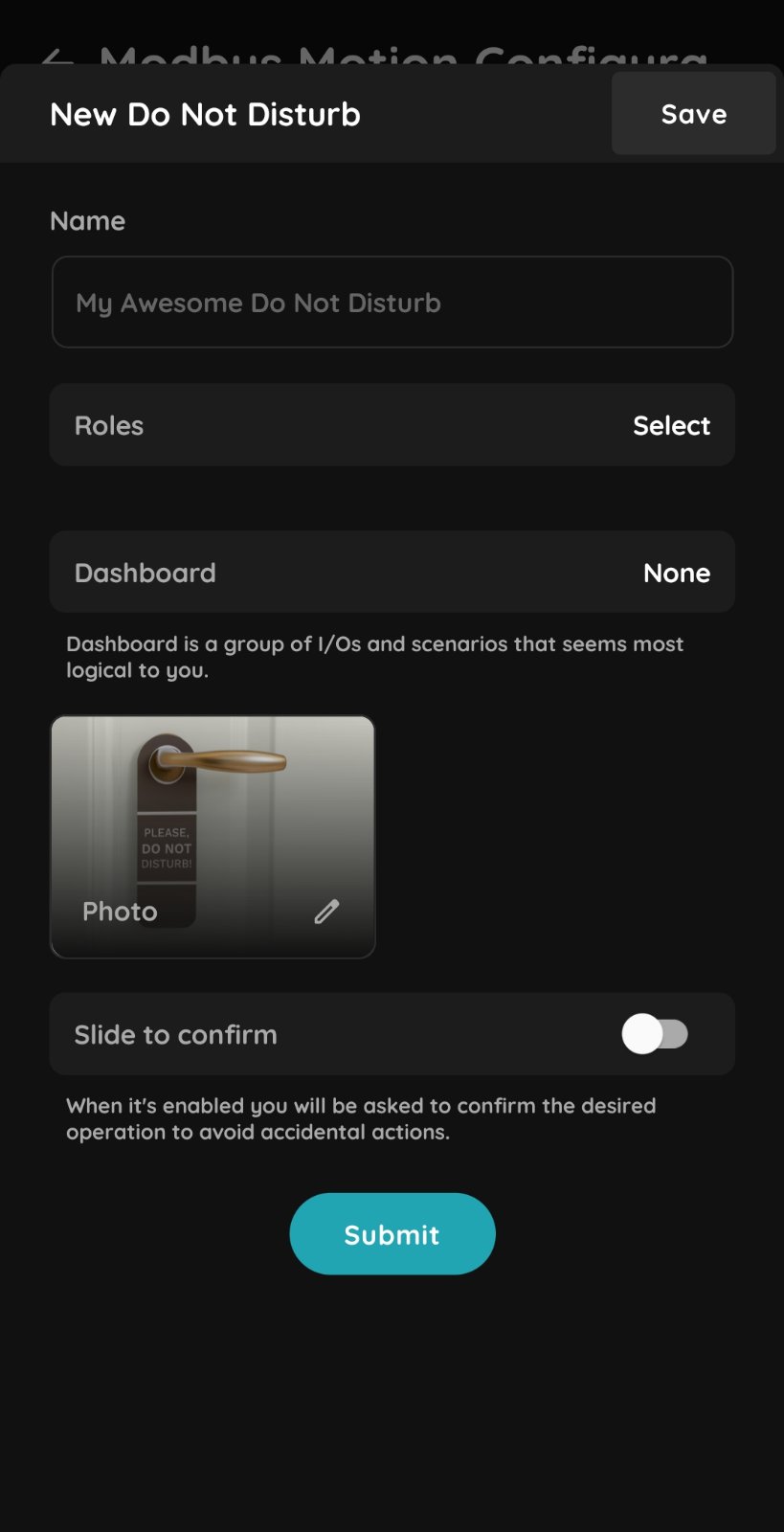
Do Not Disturb
Fill the following form:
- Name - Write the name of the Do Not Disturb service.
- Role - Choose role from the list.
- Dashboards - Choose Dashboards from the list.
Dashboards are group of I/O and scenarios that seems most logical to you. - Photo - Choose photo for the Do Not Disturb.
- Slide to confirm - When it is enabled you will be asked to confirm the desired operation to avoid accidental actions.
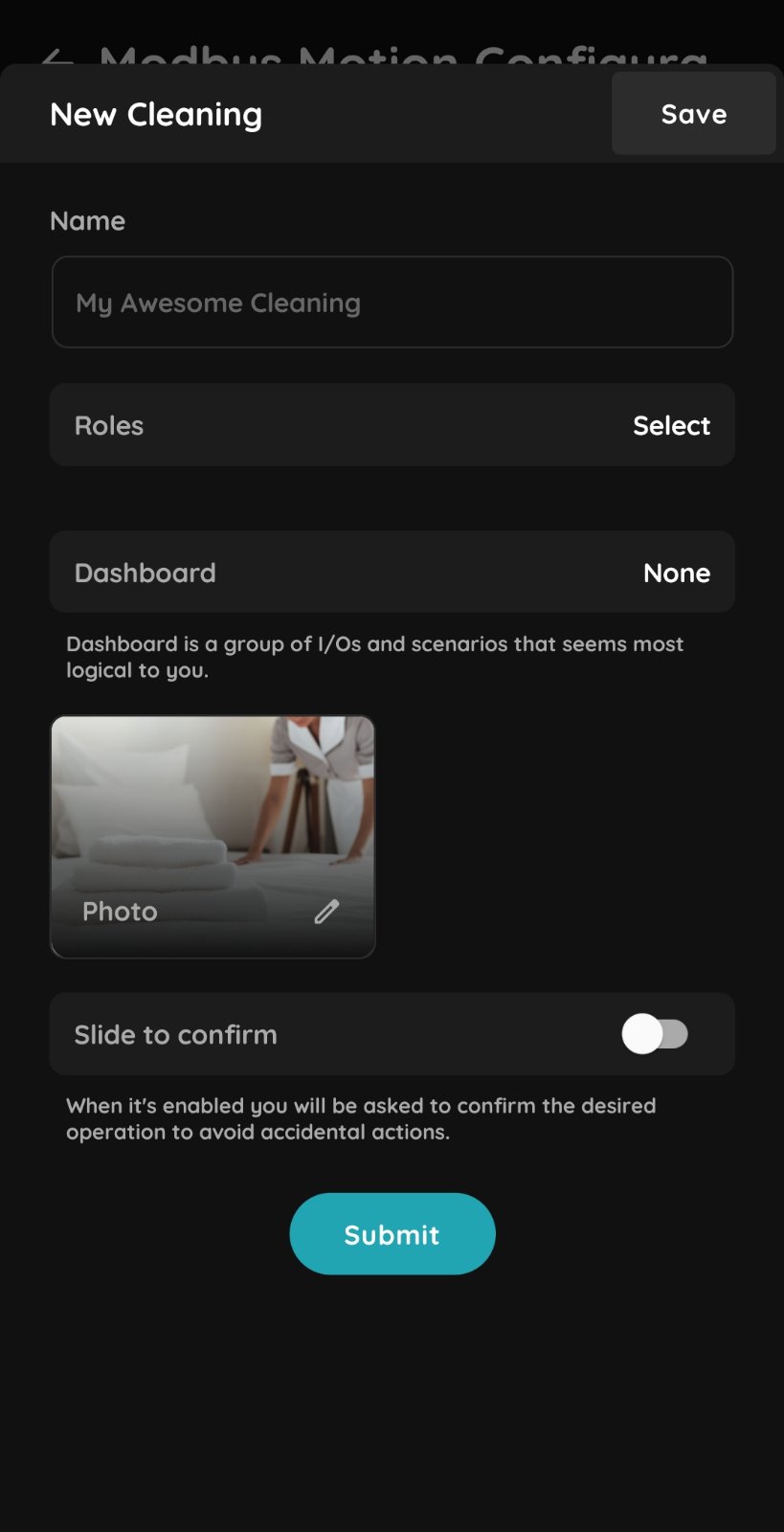
Cleaning
Fill the following form:
- Name - Write the name of the Cleaning service.
- Role - Choose role from the list.
- Dashboards - Choose Dashboards from the list.
Dashboards are group of I/O and scenarios that seems most logical to you. - Photo - Choose photo for the Cleaning.
- Slide to confirm - When it is enabled you will be asked to confirm the desired operation to avoid accidental actions.
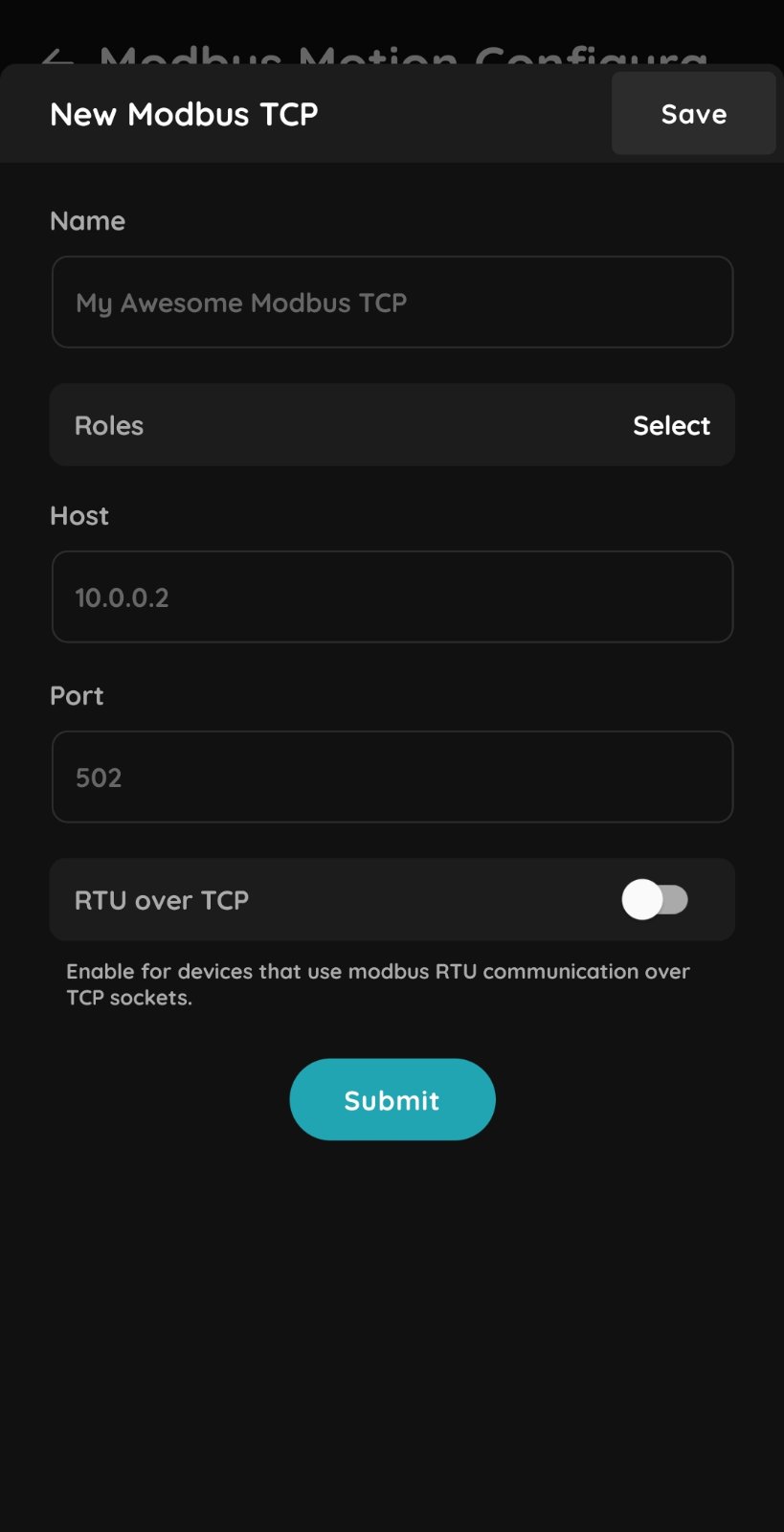
Modbus TCP
Required fields:
Name – Enter a name for the Modbus device.
Role – Select the appropriate Role.
Host – Enter the IP address or hostname of the Modbus TCP device.
Port – Enter the TCP port used by the Modbus device.
RTU over TCP – Enable this option for devices that use Modbus RTU communication over a TCP socket.
After creating a Modbus TCP device on the controller, you can add a Modbus Generic I/O from the Devices tab.
The Modbus Generic I/O allows you to configure the required Modbus registers and use them within the PIERRE system.
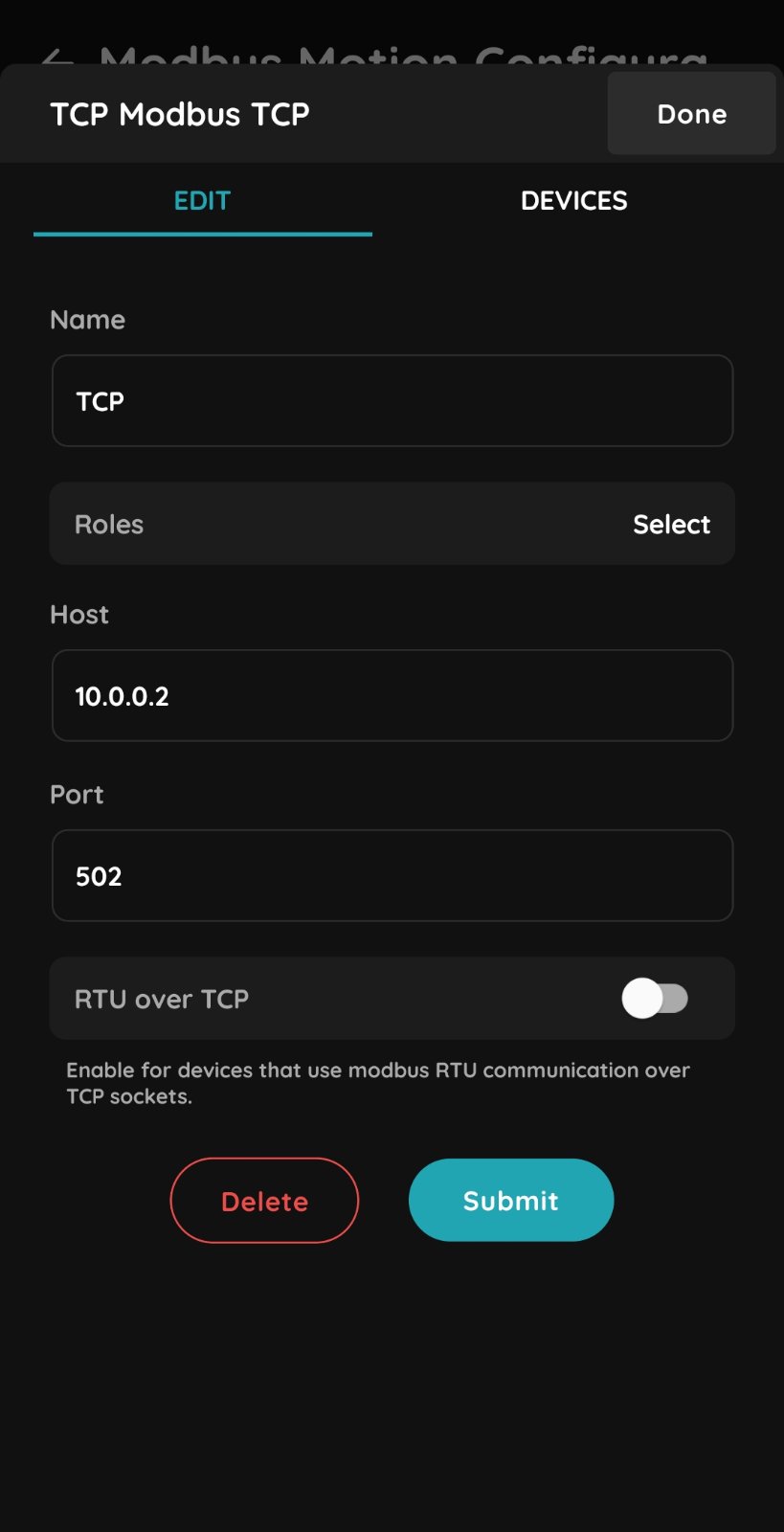
Add new Modbus device
Once the Modbus TCP connection has been created, you can add a specific Modbus TCP device.
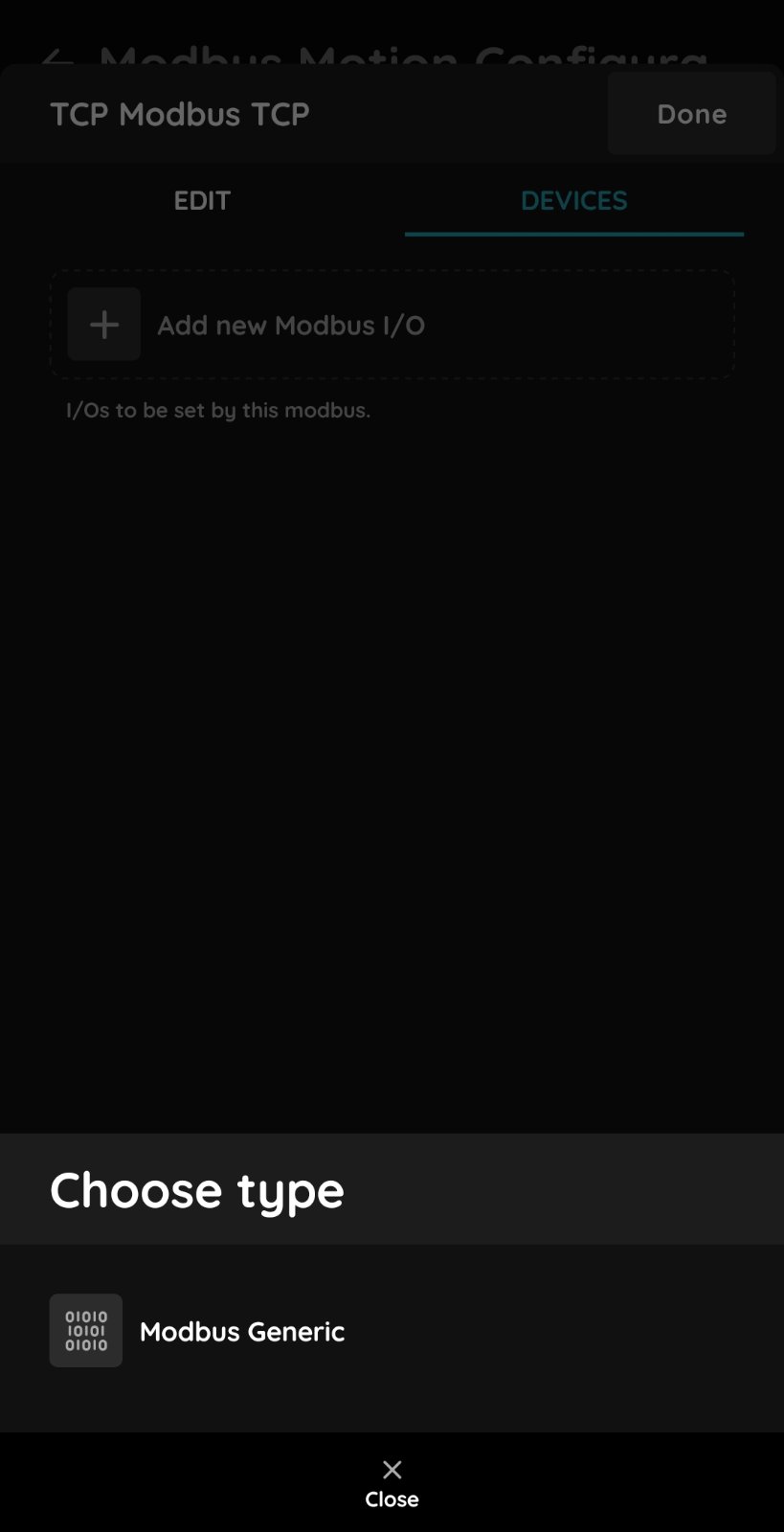
Modbus TCP
To add a Generic Modbus device, please refer to the PIERRE Partner – Generic Modbus section for the step-by-step configuration instructions.