Smart PIERRE - Key Sharing
Description
Key sharing gives someone access without them installing the app. The key is sent as a link or a QR code, and it opens in the recipient's browser.
Why It Is Worth Having
- No app, no account, no onboarding. The recipient taps a link and sees a door button. A guest, a cleaner or a courier gets in within a minute of being sent the key, on any phone.
- Nothing physical changes hands. No key to copy, lose or return, no code to forget or pass on. When the period ends, the access ends by itself.
- Access is scoped. The key carries only the doors chosen for it and only the period set for it, so the customer never gives away more than intended.
- It is traceable. Every opening with a shared key is logged as a shared-key access, separate from app users, so the customer can see who came in and when.
- It fits rental and hotel use without staff. Once a booking is confirmed the key can be issued automatically for the stay, so check-in needs nobody at the desk.
- The customer stays in control. A key can be created in seconds and removed just as quickly if plans change.
When to Use It
- Guest access – someone expected at a home or office who should not have to install an app.
- Hospitality – hotels and apartments, where the key is issued automatically once a booking is confirmed and works for the reservation period.
- Temporary access – deliveries and service providers, given the right level of access for a defined duration.
- Family and long-term access – a relative or flatmate who does not want the app can be given a key with a long validity instead of a copy of the physical key.
How It Works
- The key is shared as a link or a QR code.
- The recipient opens it in a browser; no app installation and no account are needed.
- The access is limited to what was shared and to the period it was issued for.
- Only entrances can be shared: doors, gates and similar. Lights, heating and other devices are never part of a shared key.
Step by Step: Sharing a Key
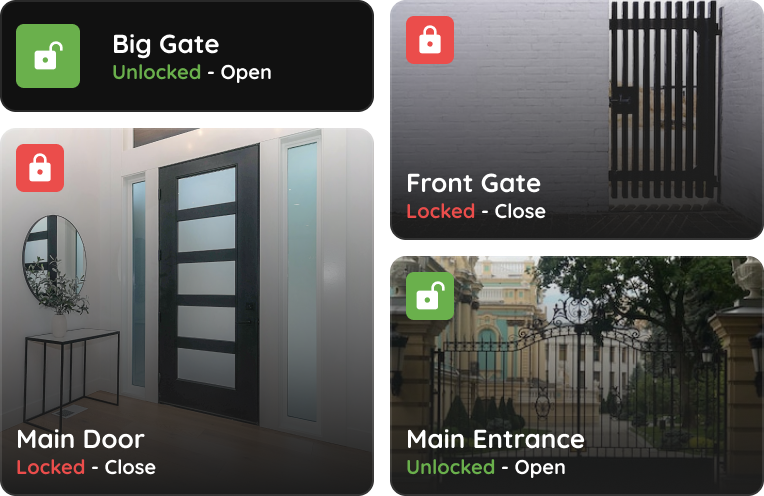
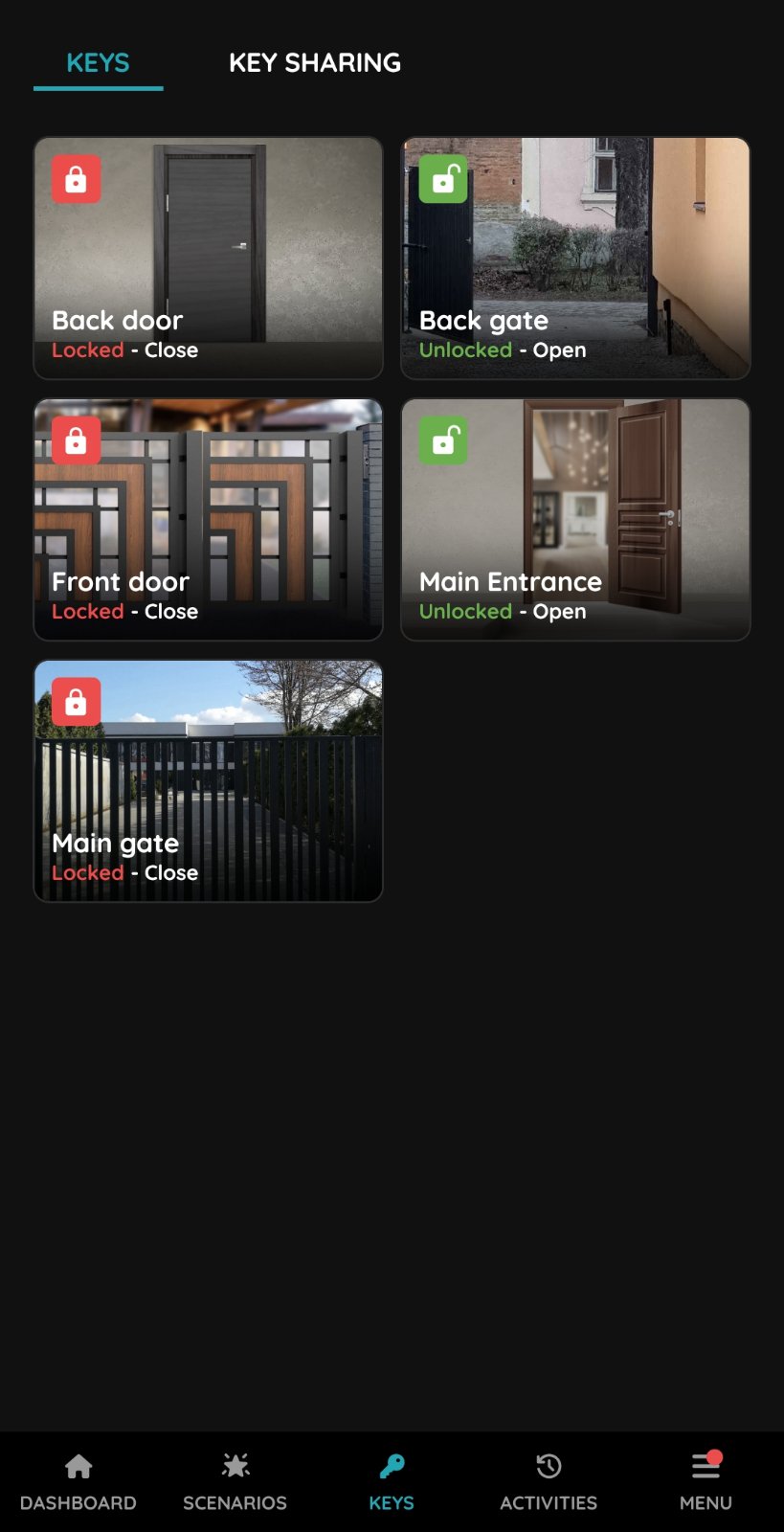
- Open the Smart PIERRE app and tap Keys. All entrances of the building are listed.
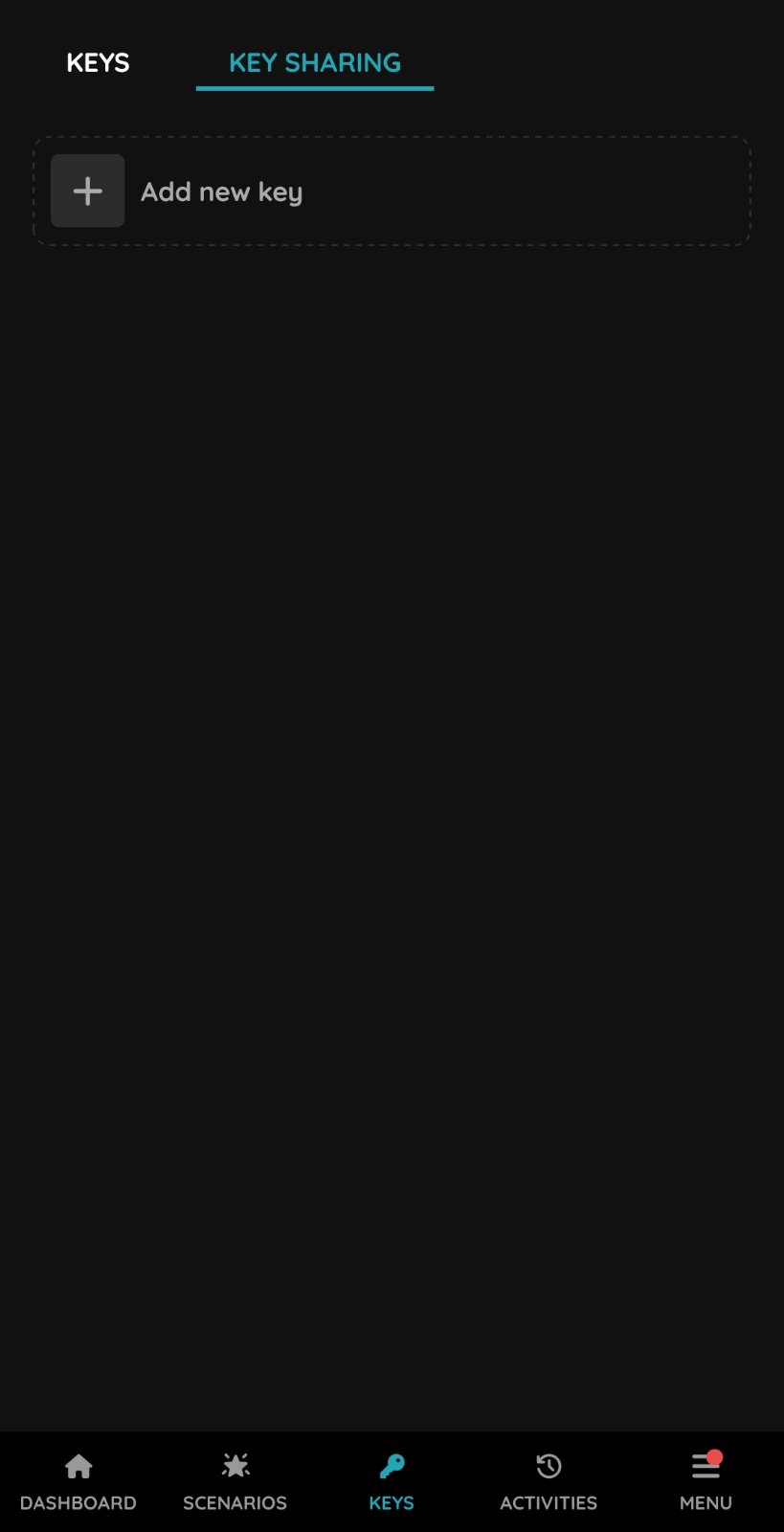
- Open the Key Sharing tab and tap Add New Key.
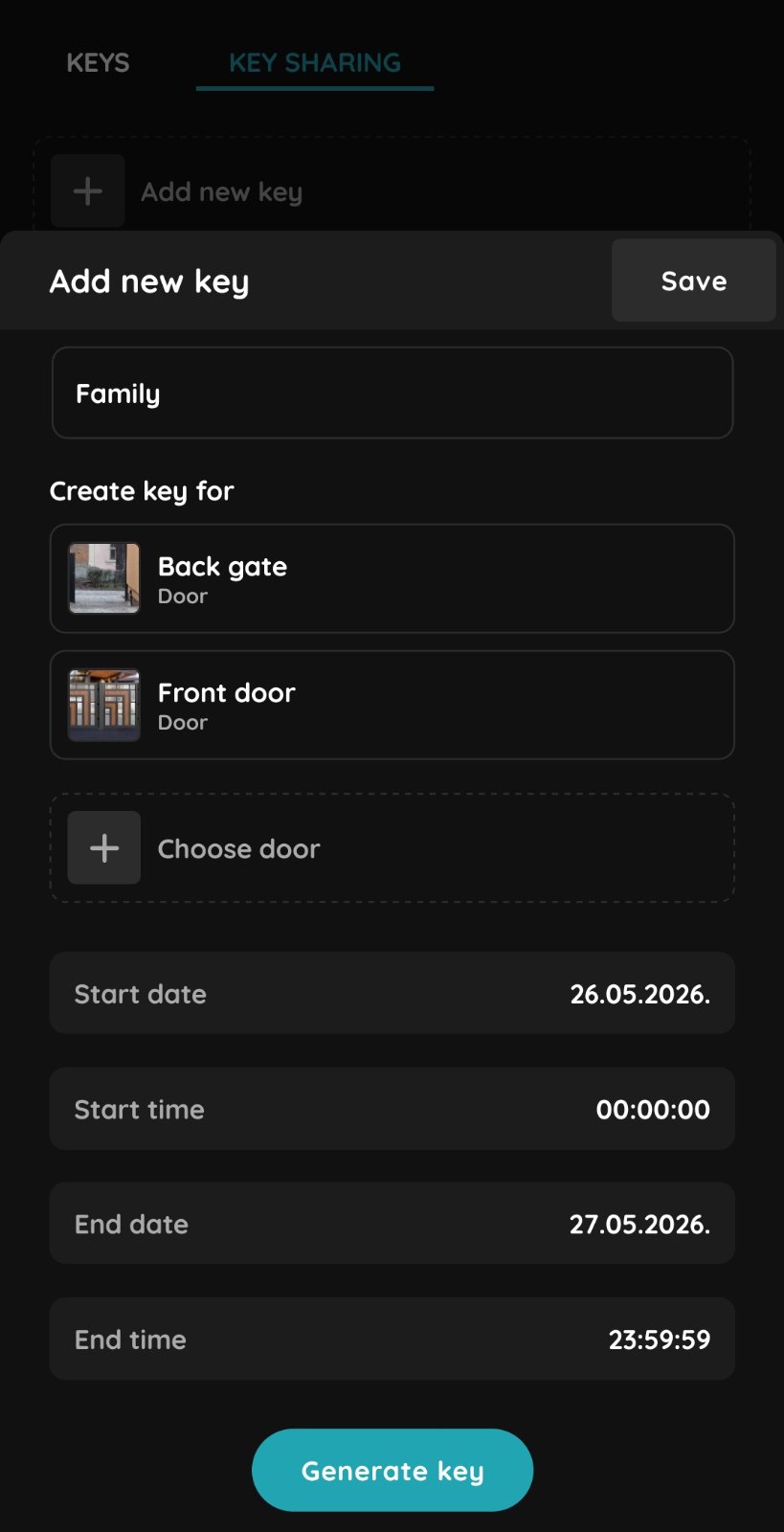
- Fill in the form:
- Key name – so the key is easy to recognise later, for example "Cleaner Tuesday" or "Guest Novak".
- Create key for – tick the entrances the person needs. Leave out every door they do not need.
- Start date and time and end date and time – the key does not work outside this window.
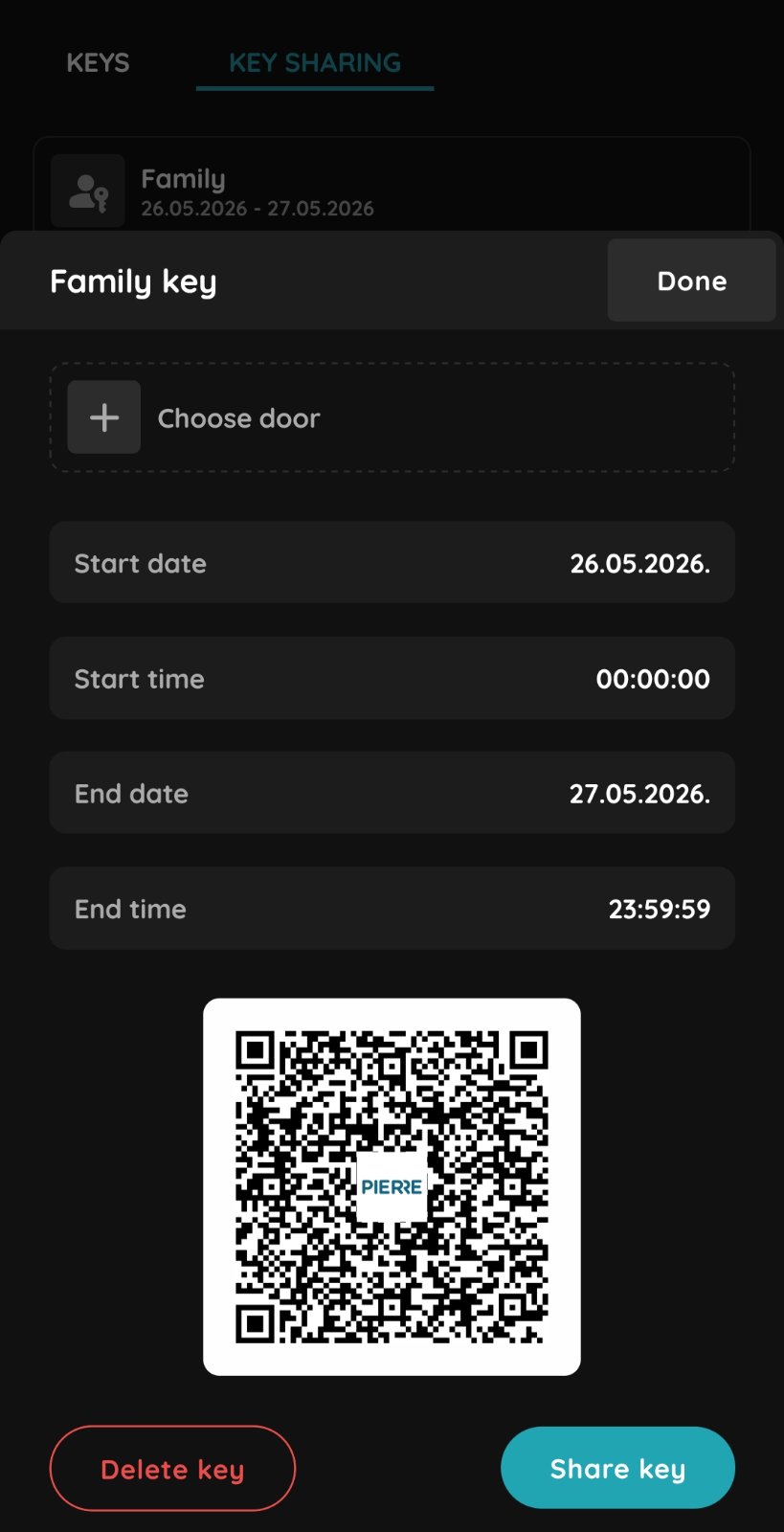
- Save. The app shows a QR code for the new key.
- Hand it over in one of two ways:
- Let the person scan the QR code with their phone camera, for example at reception or on your own screen.
- Tap Share Key and send the link through the phone's normal sharing options: SMS, e-mail or a messaging app.
- The key now appears in the Key Sharing list with its name and validity. To end access early, delete the key from the list.
Step by Step: Using a Shared Key
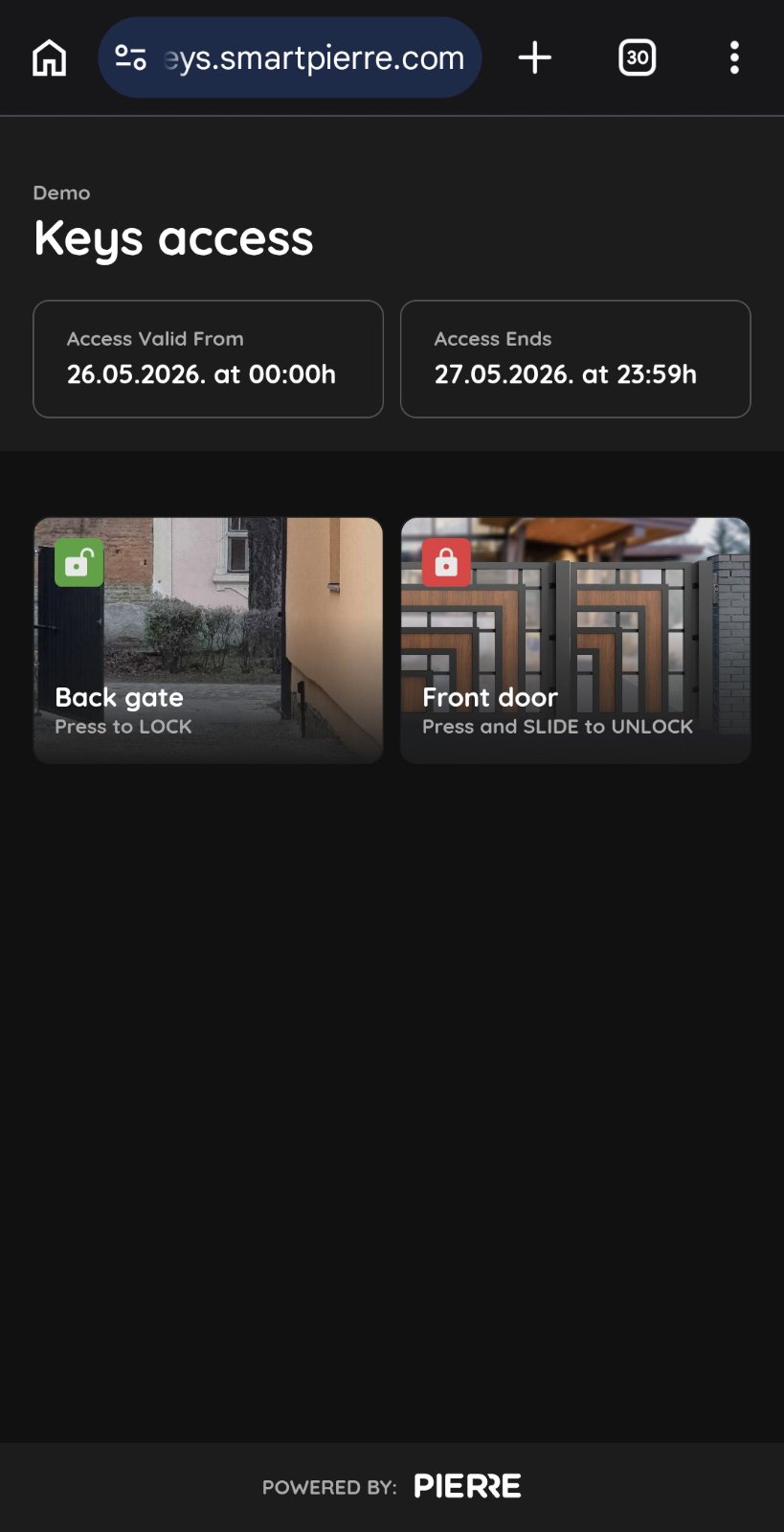
- The recipient taps the link, or scans the QR code. It opens in the phone's browser.
- The page shows the validity period and the doors that were shared.
- The recipient taps the door icon to open the door. The page can be kept open or bookmarked for the rest of the period.
- After the end time the page no longer opens any door.
Hospitality Setup
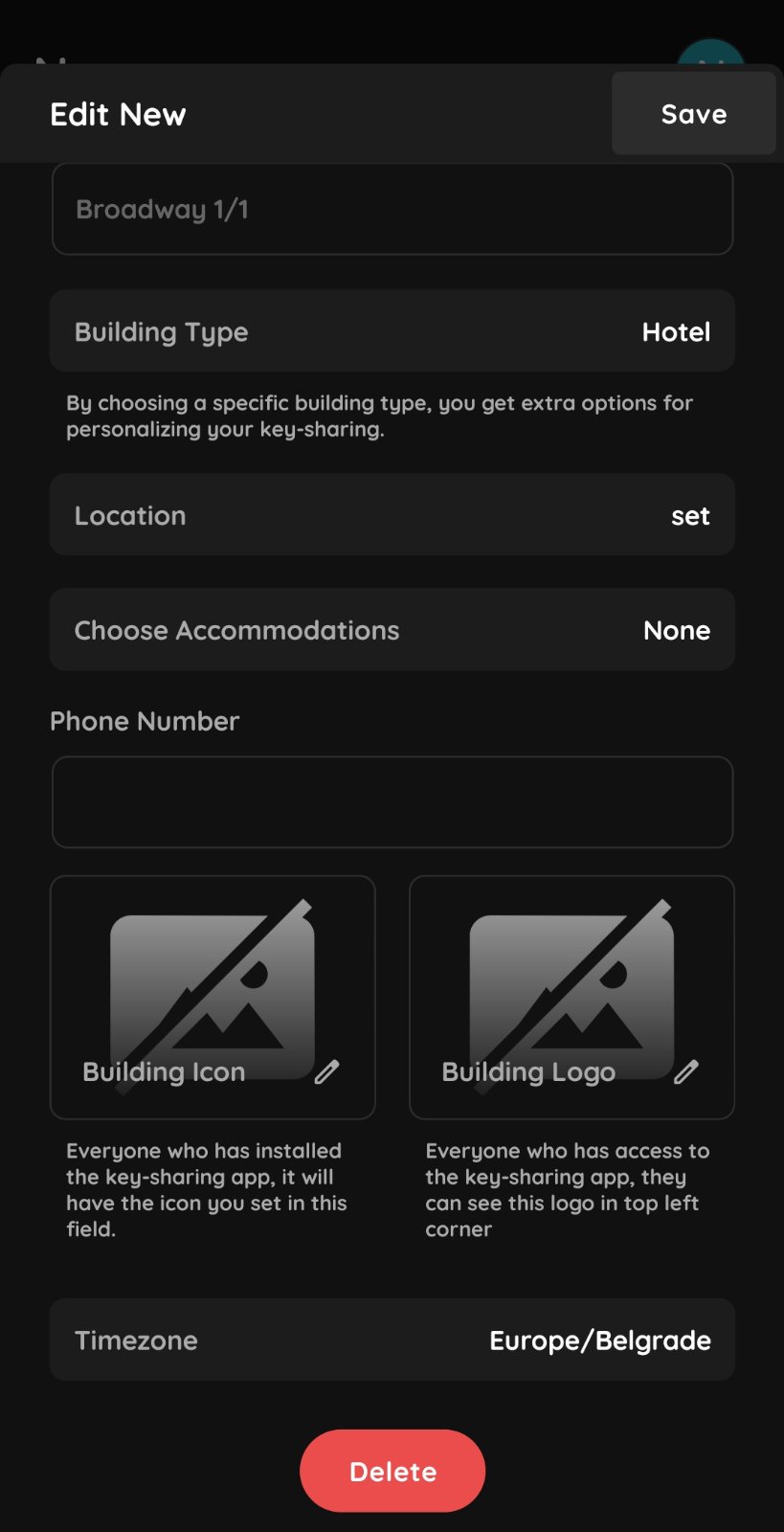
- In the app, open the building settings and set the building type to Accommodation or Hotel.
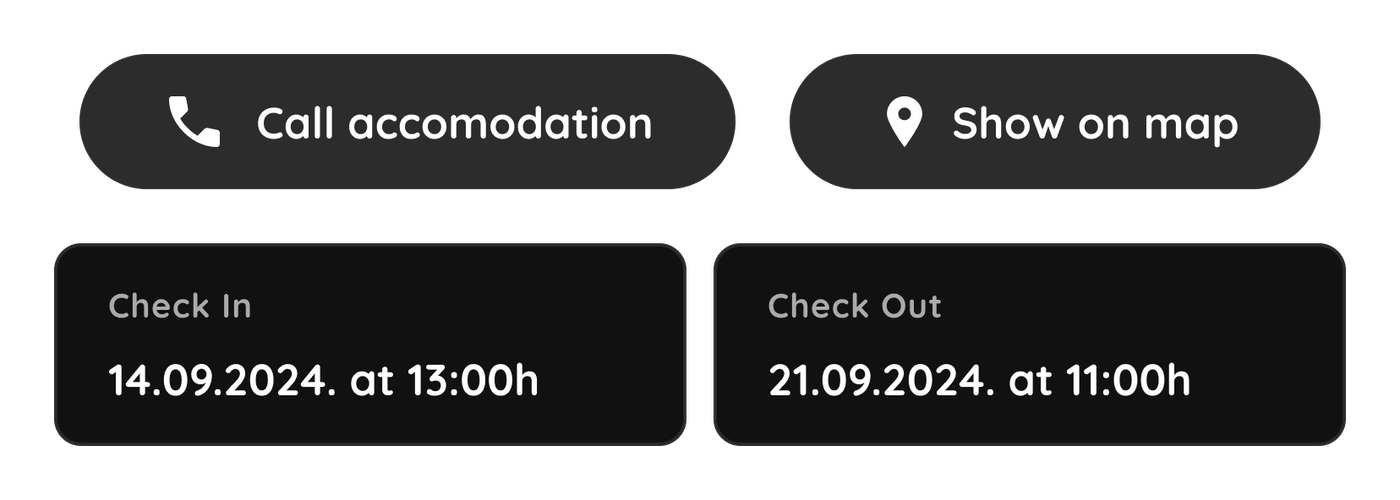
- Fill in the extra fields that appear: phone number, room number and building icon. These are shown on the key page, so the guest sees the property name, the room and a number to call.
- Where a booking system is connected, keys are issued automatically for each confirmed reservation, valid from check-in to check-out.
Testing Before Handover
- Create a key for one door with a short validity, for example the next 15 minutes.
- Send it to a second phone that has no PIERRE app installed and open the door with it.
- Wait until the end time and confirm the page no longer opens the door.
- Where a booking system issues the keys, run a full cycle: key working at the start of the stay, and confirmed as gone after the end.
Technical Notes
- Share only the door the person actually needs. A shared key is as wide as the access behind it.
- Set the validity period when the key is created, rather than relying on revoking it later.
- A shared link is only as private as the channel it was sent through. Tell the customer to send it directly to the person, not to a group.
- The phone needs an internet connection to open the door through the key page. There is no offline mode for shared keys.
- Where a booking system issues the keys, test a full cycle before handover: key working at the start of the stay, and confirmed as gone after the end.
Create shared key
Step 1
Clicking on Keys allows you to view all entrances to the Building.
Step 2
Click on the Key Sharing tab.
Then click Add New Key.
Step 3
Fill in the required fields:
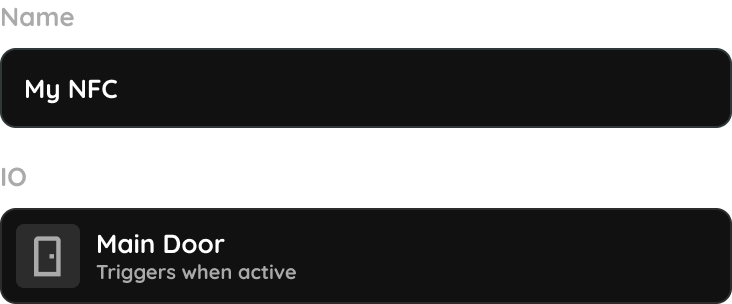
- Key name – enter a name to make the key easier to recognize later.
- Create key for – select the entrances you want to include in the shared key.
- Define the start date and time, as well as the end date and time.
When everything is set, click Generate Key.
Step 4
Step 5
By clicking on the shared link, it will open in your mobile phone’s browser.
You will be able to see the validity period of the shared key, as well as which doors are shared with you.
Simply click on the door icon to open or close the doors.
Customize the Key-Sharing appearance
The PIERRE Partner application offers customization options for personalized branding.
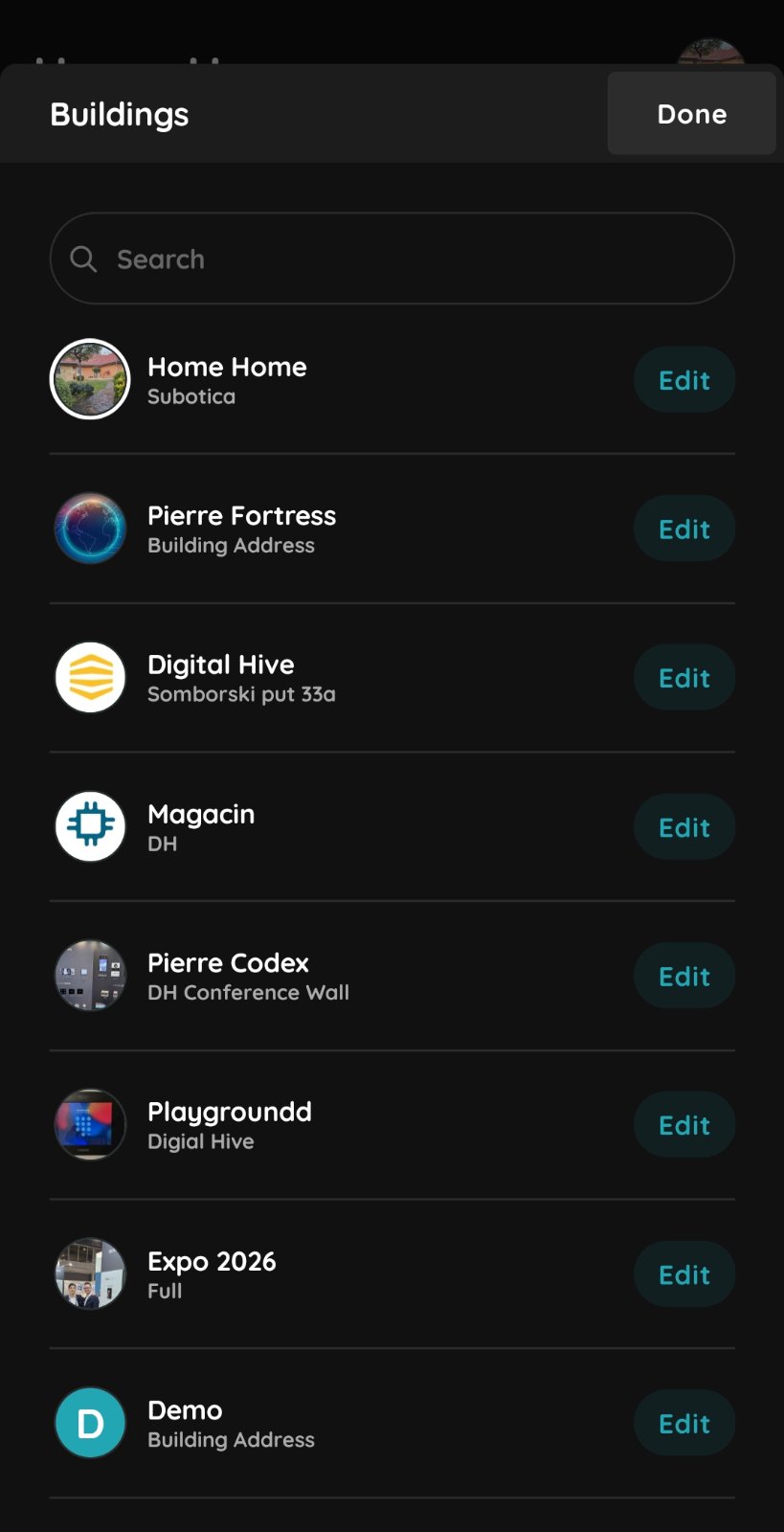
Select the building
New step
When selecting Accommodation or Hotel as the building type, additional options are available to customize the appearance of key sharing.
- Phone – Enter the phone number.
- Room Number – Enter the room number.
- Building Icon – Select an icon for the building.
- Logo – Select a logo for more personalized branding.