Smart PIERRE - Open Doors/Gates via Smartphone
Description
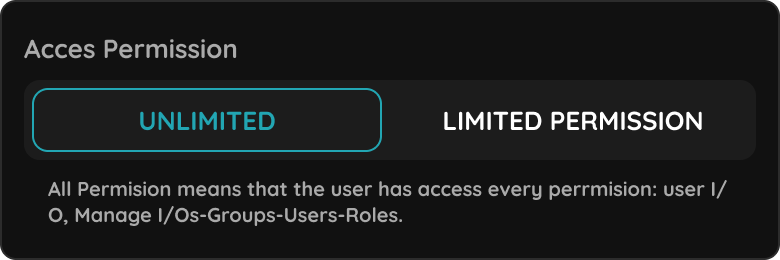
The Smart PIERRE application opens doors and gates from the phone, so no physical key is needed. Each user has predefined permissions, and the system checks them before the door is released.
How to Open a Door
- Open the app.
- Go to Keys, from the taskbar or from the Menu.
- Select the door or gate to open or close.
Status Indication
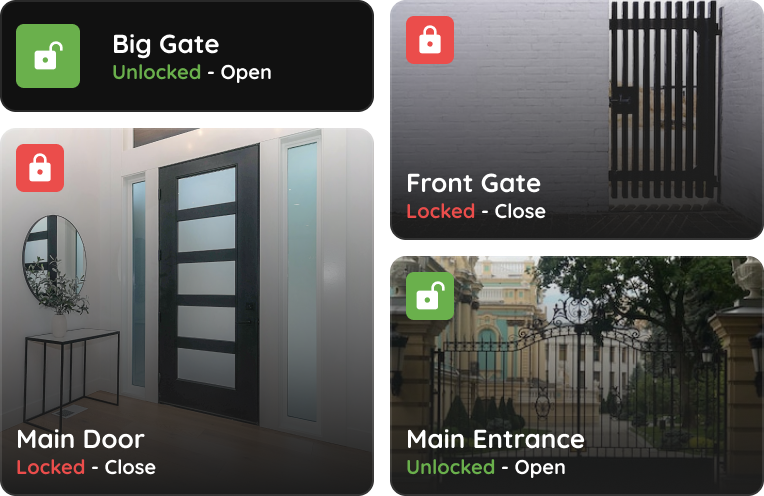
Each door and gate shows its current state with a picture — for example Locked–Closed or Unlocked–Closed — so the state is readable before acting.
Magnetic Sensor
A magnetic contact sensor should be fitted so the system knows whether the door or gate is physically open or closed. Without it, the app can only show what was commanded, not what actually happened.
Technical Notes
- Set up the permissions before handover. The permission decides who can open which door, and it is checked on every attempt.
- Fit the contact sensor wherever the real state matters — a gate that has been commanded to open but was blocked is otherwise indistinguishable from one that opened.
- Keep a mechanical key available for a power or network failure.
- Show the customer at handover where the Keys section is and what the status pictures mean.
Open Keys from the taskbar
This is a shortcut to open Keys, if you use taskbar. Keys can be open from Menu, too.
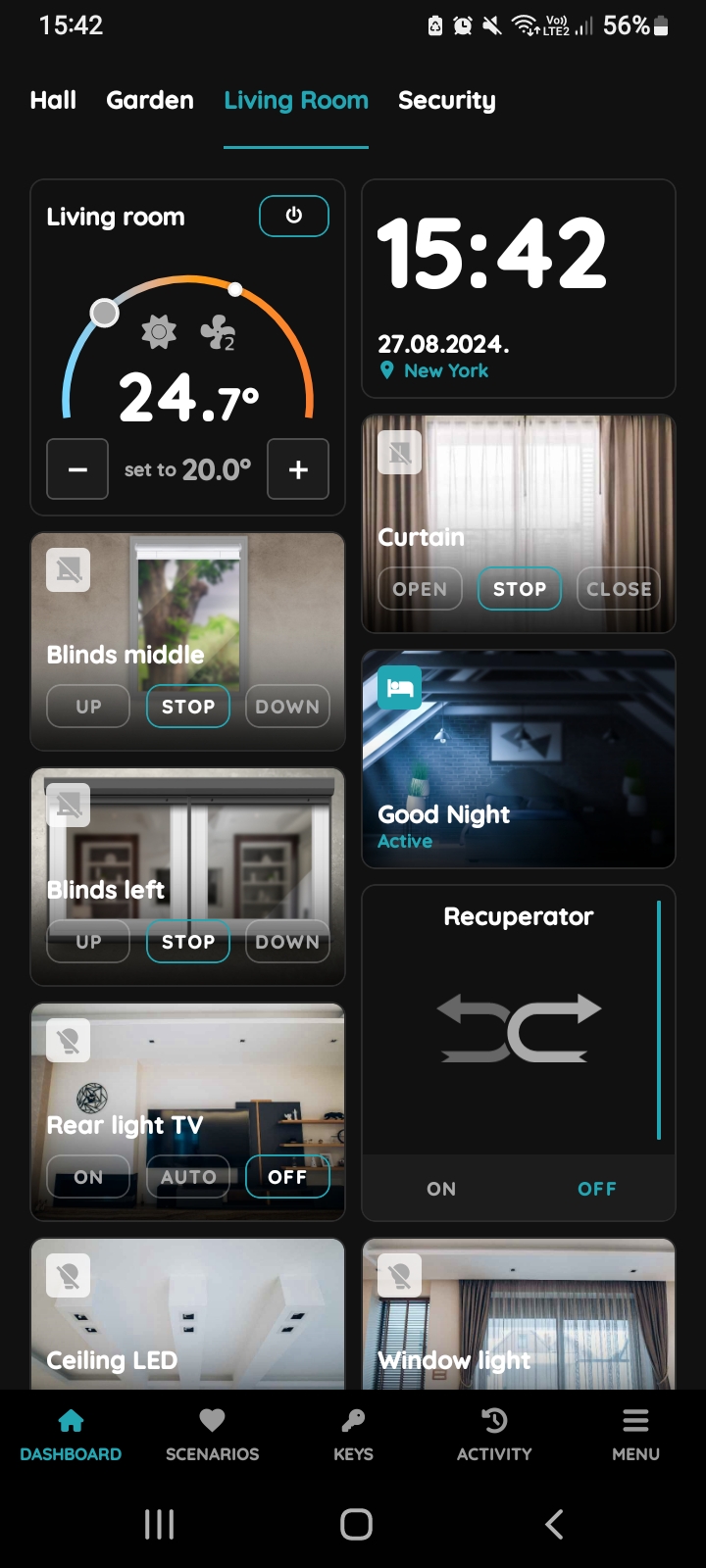
Find Keys
Tap on the Keys.
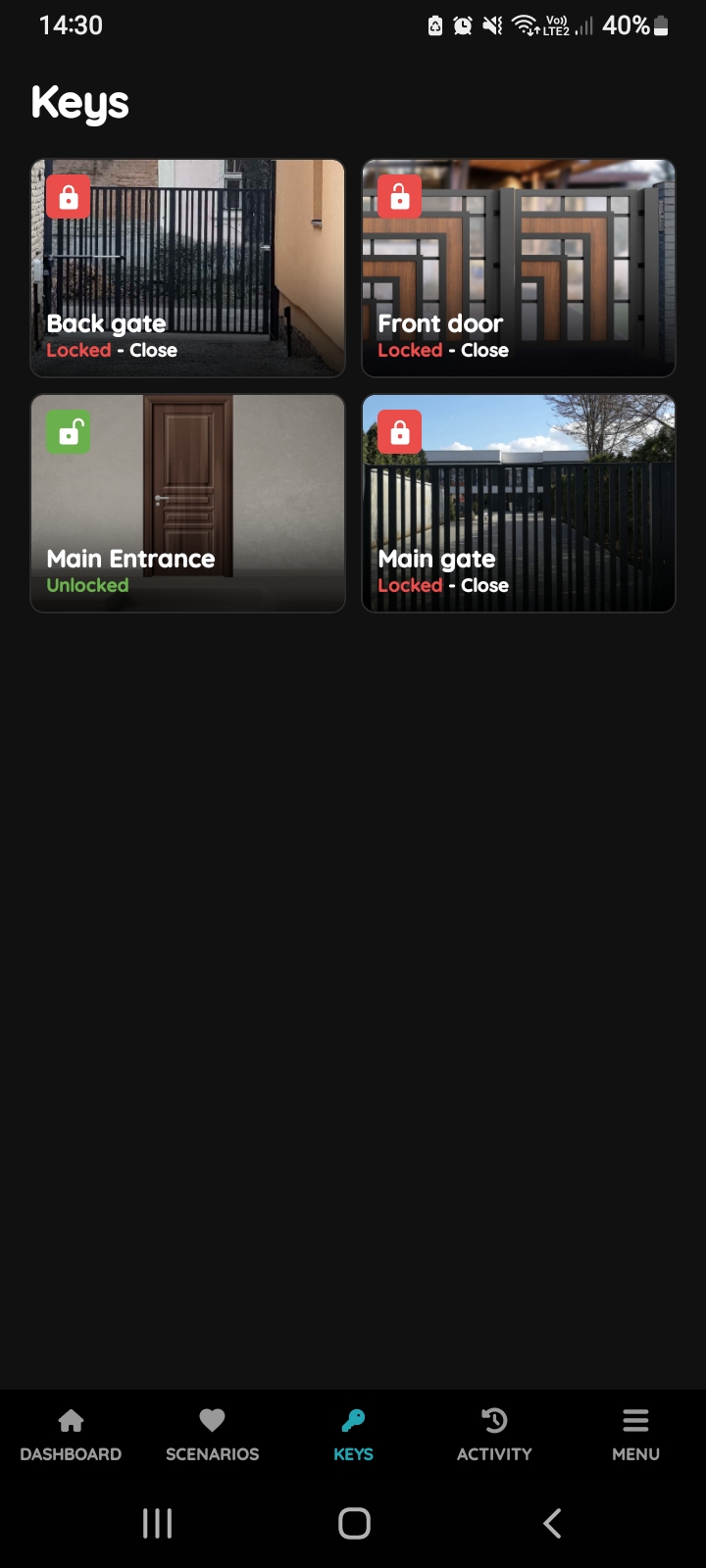
Keys Menu
Keys Menu can be open from the Taskbar and from the Menu list.
Tap on the picture of the desired Doors or Gate in order to open it or close it.
If it is enabled, Slide to Confirm, as additional layer of the security will be shown, before change of the Door's/Gate's status.
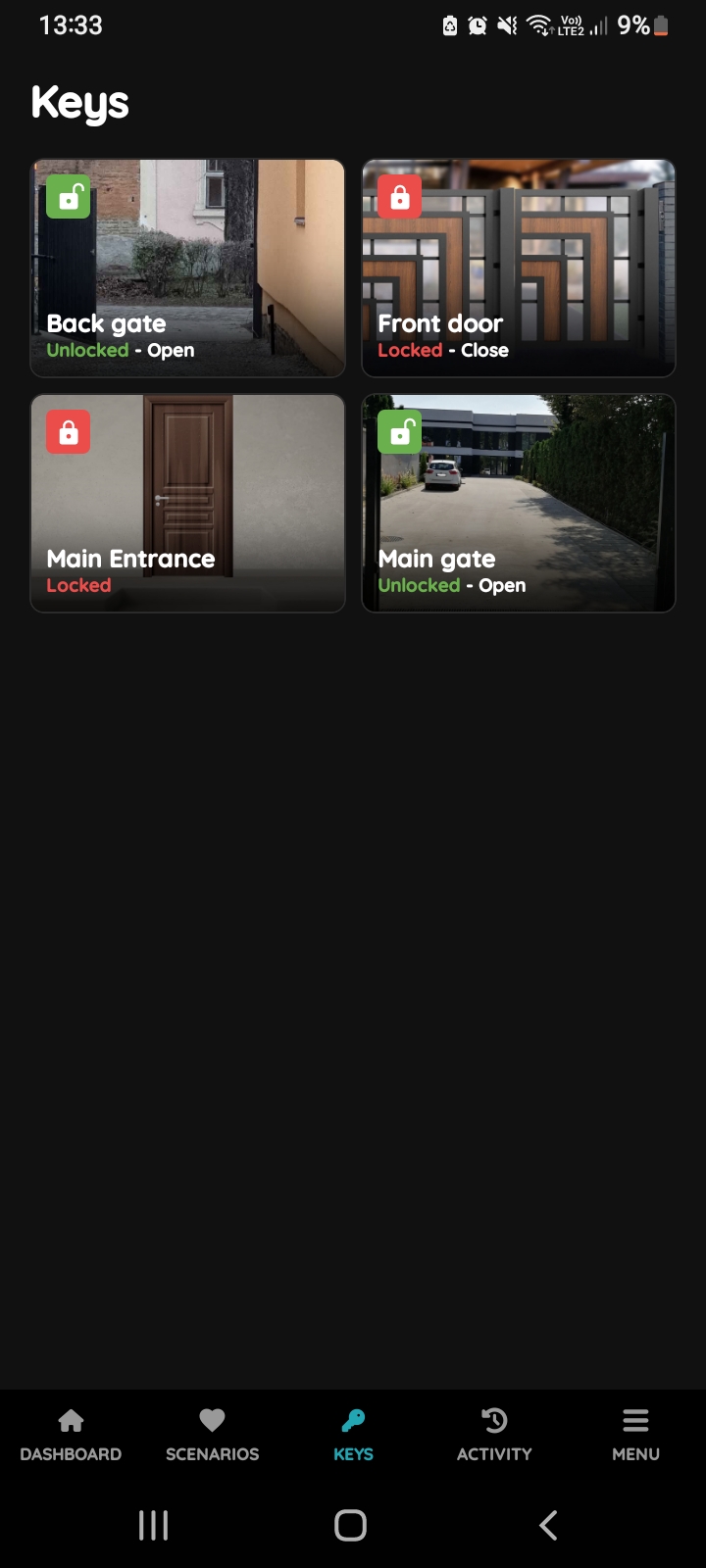
Locked - Closed, Unlocked - Open
Door control is quick and simple, managed directly from the Keys.
Follow the example of the Front door.
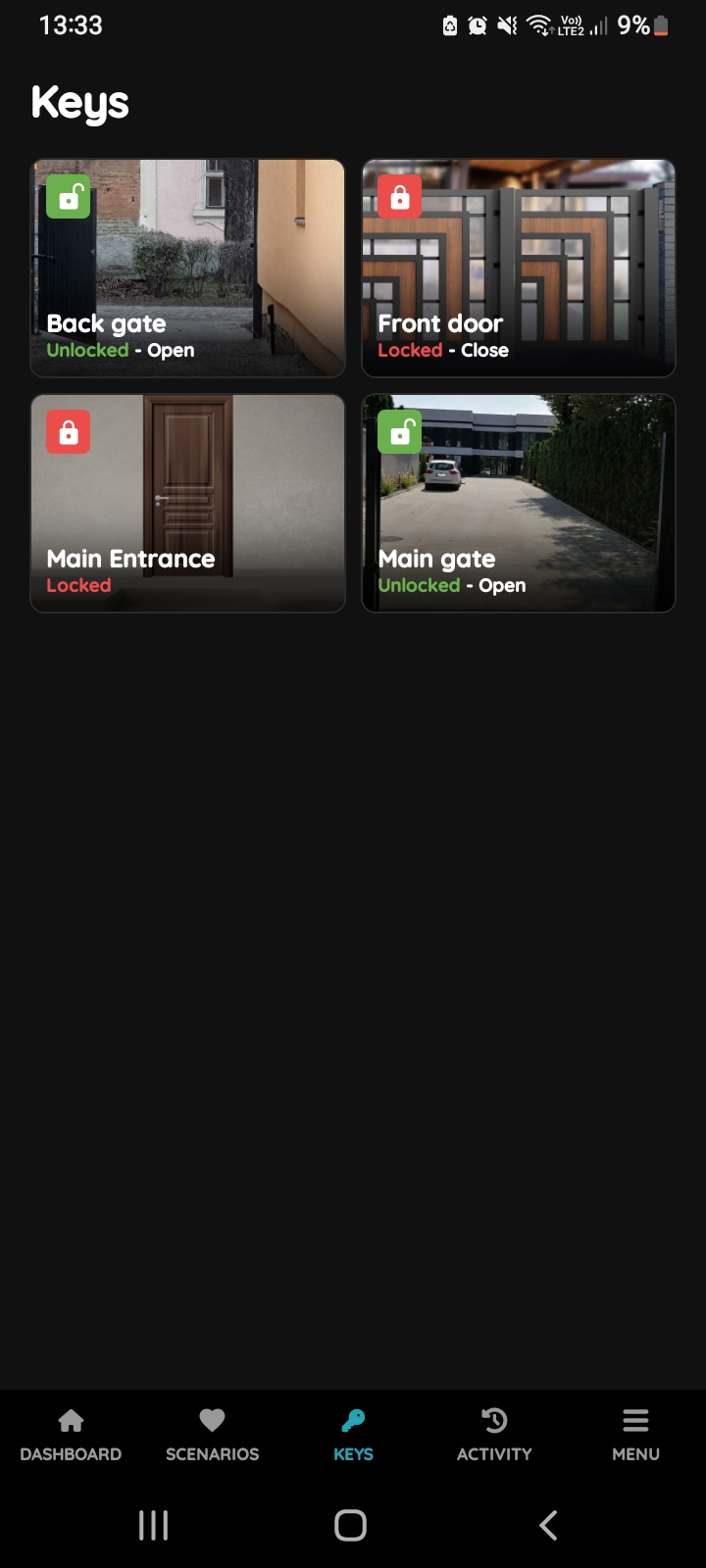
Locked - Close
In order to change status of the Doors from the Unlocked-Open to Locked-Close tap on the picture of the desired Doors and status will be changed.
Icon of the Doors and picture will be changed according to status Locked-Close.
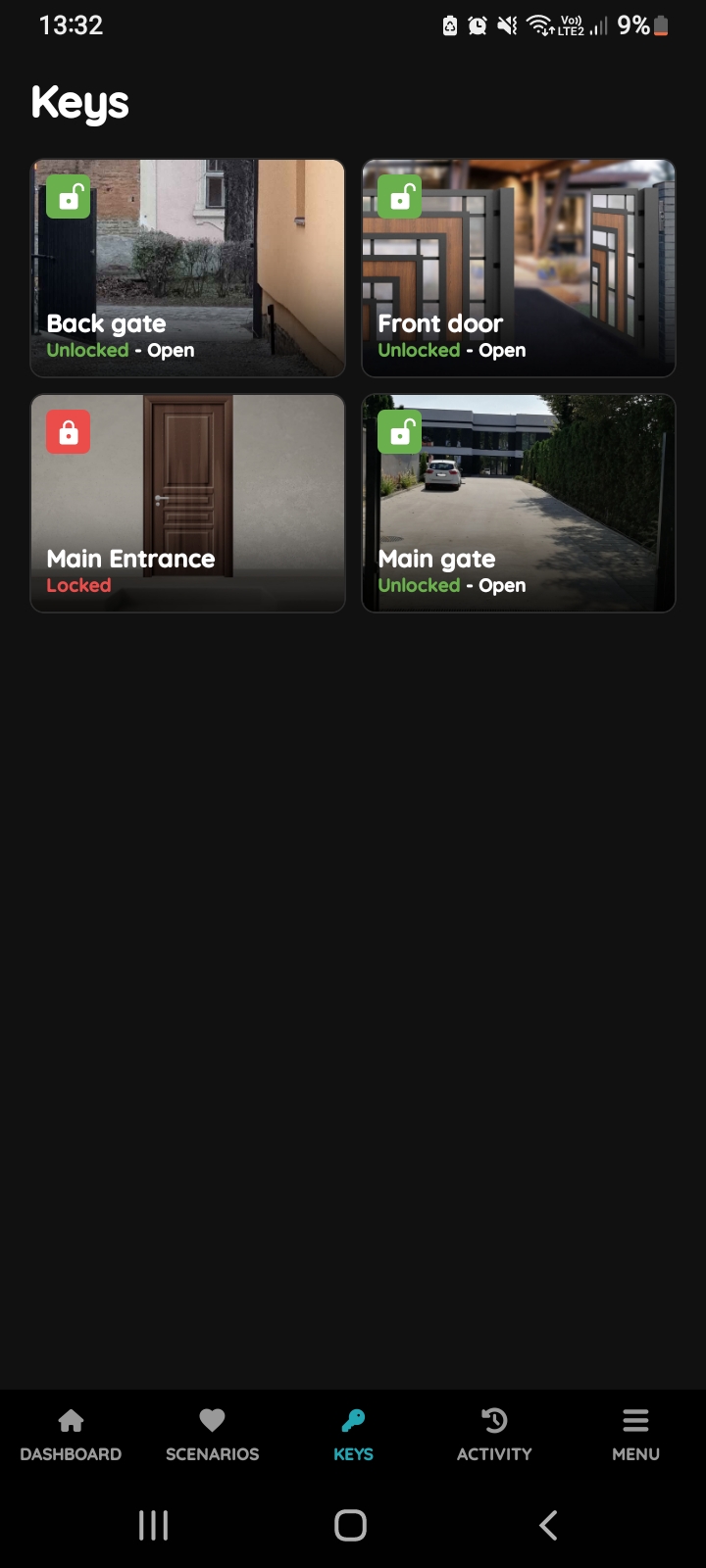
Unlocked - Open
In order to change status of the Doors from the Locked-Closed to Unlocked-Open tap on the picture of the desired Doors and status will be changed.
Icon of the Doors and picture will be changed according to the new status Unlocked-Open.
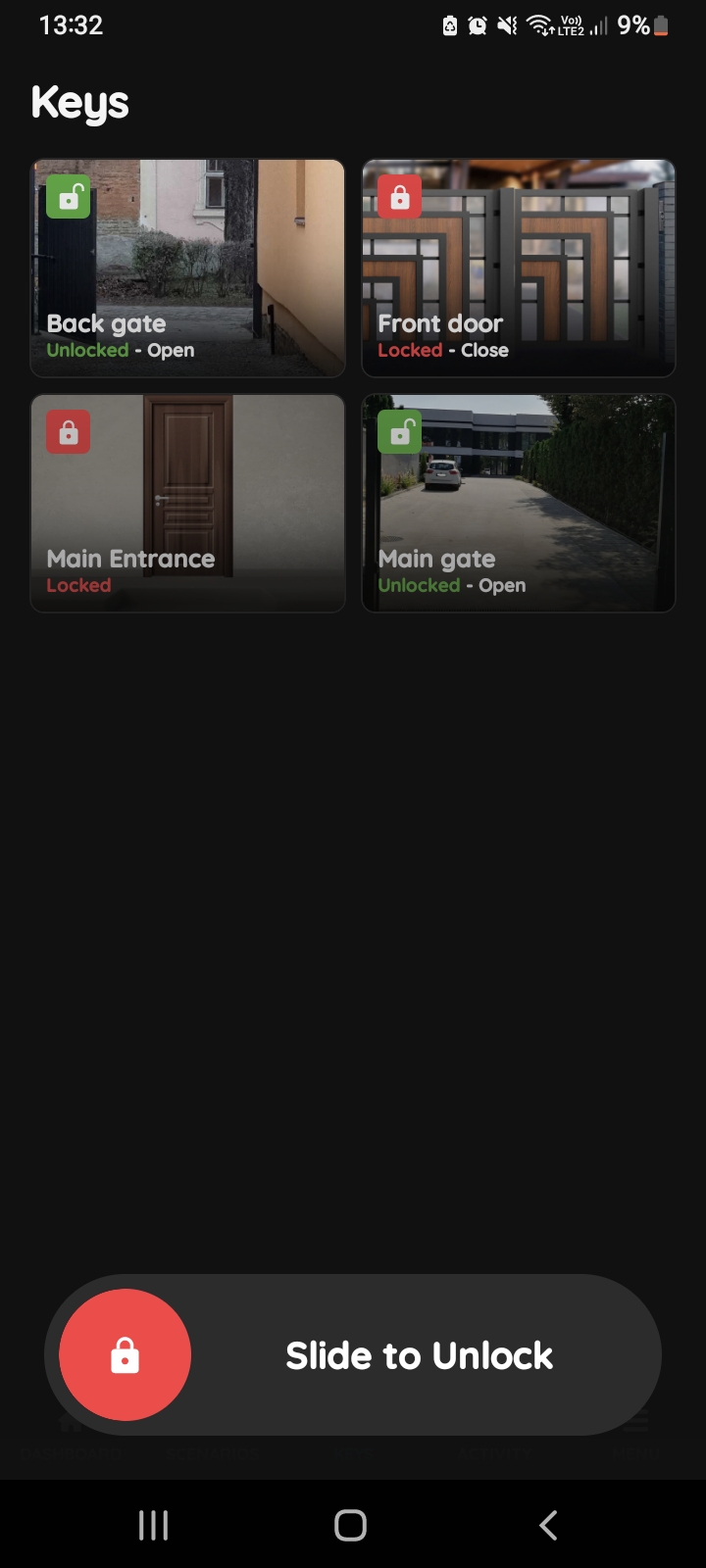
Slide to confirm - Doors
Slide to confirm feature adds an extra layer of security, preventing accidental actions.
It asks you to confirm your choice once more.
Here's an example of how Slide to confirm feature is applied.
If you want Door to Unlock click on the button Slide to Unlock and slide from the left to the right side.
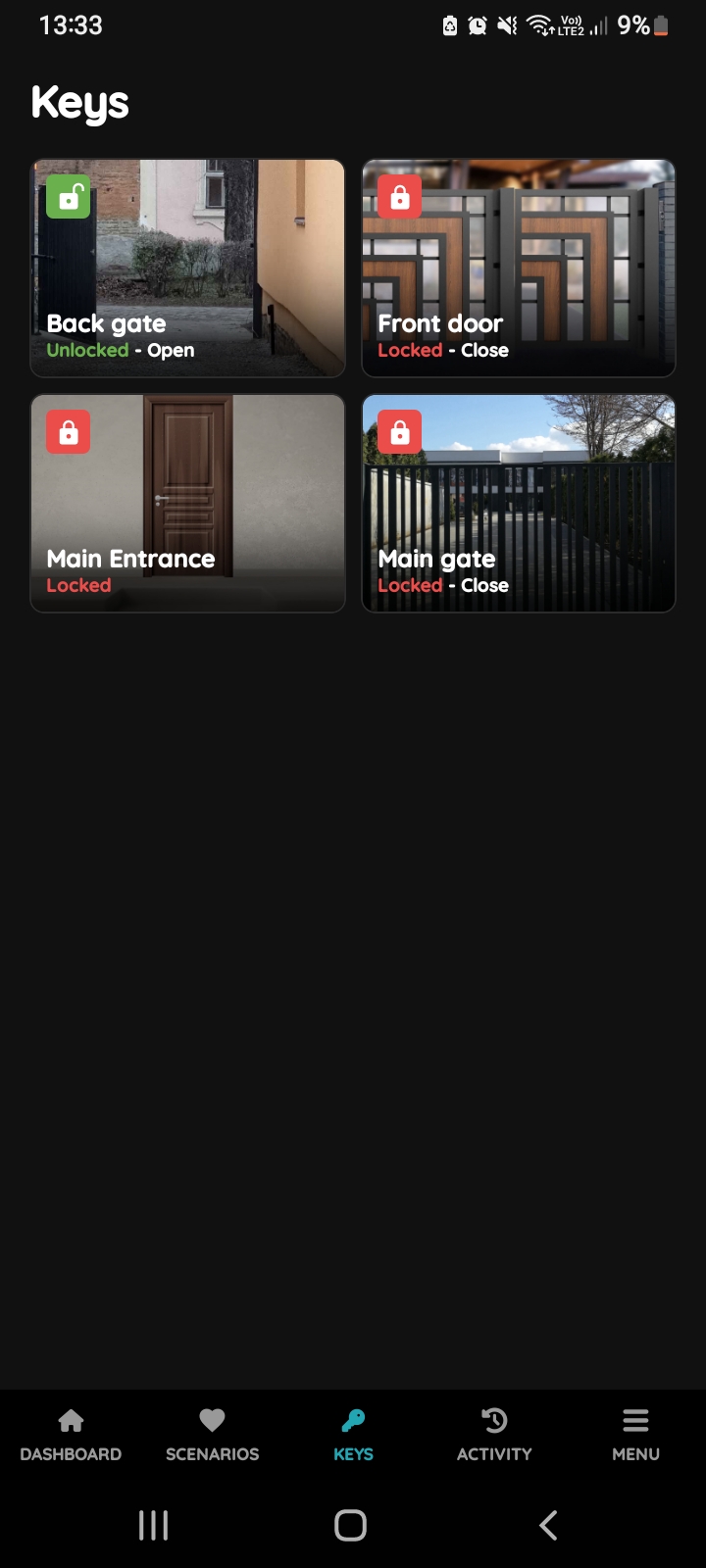
Locked - Close Unlocked - Open
Gate control is quick and simple, managed directly from the Keys.
Follow the example of the Main Gate.
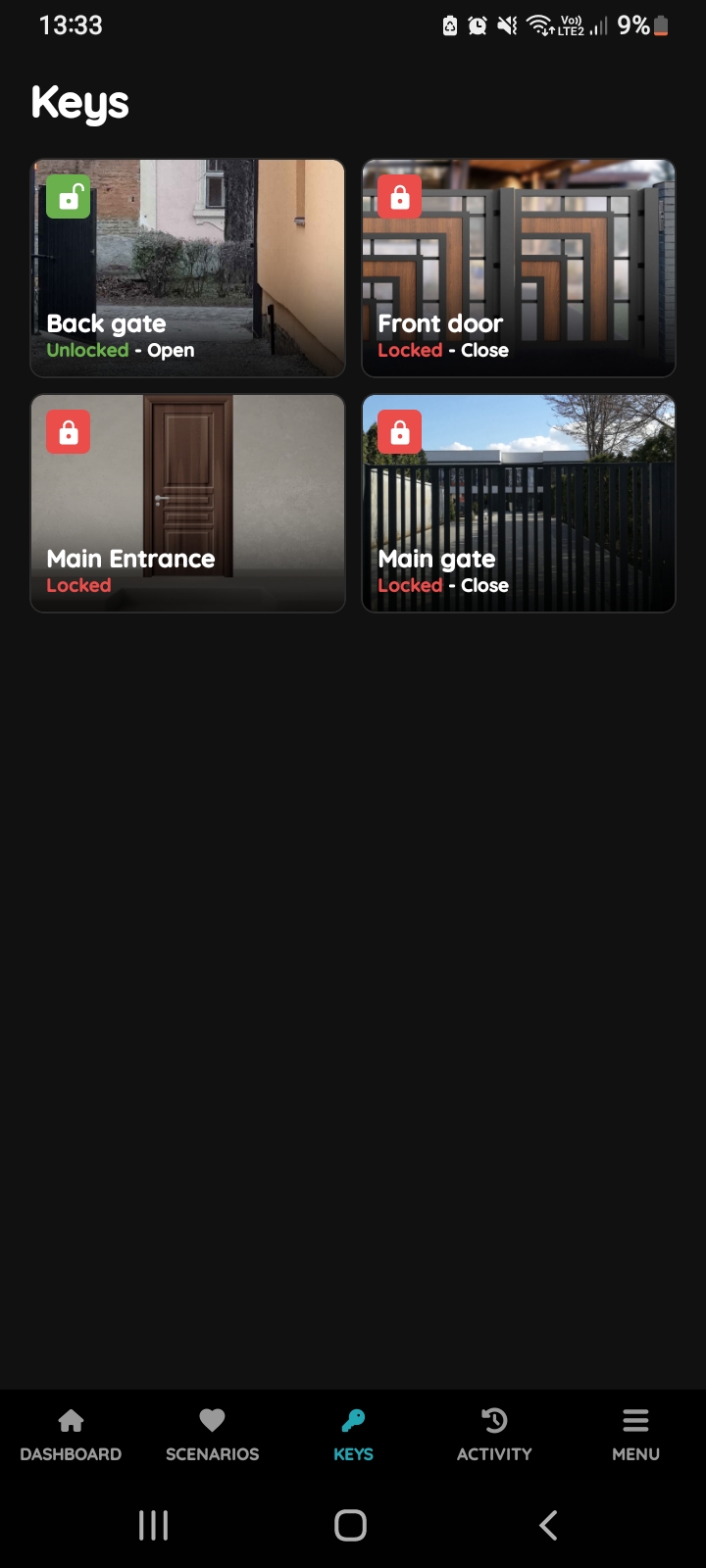
Locked - Close Gate
In order to change status of the Gate from the Unlocked-Open to Locked-Close tap on the picture of the desired Gate and status will be changed.
Icon of the Gate and picture will be changed according to status Locked-Close.
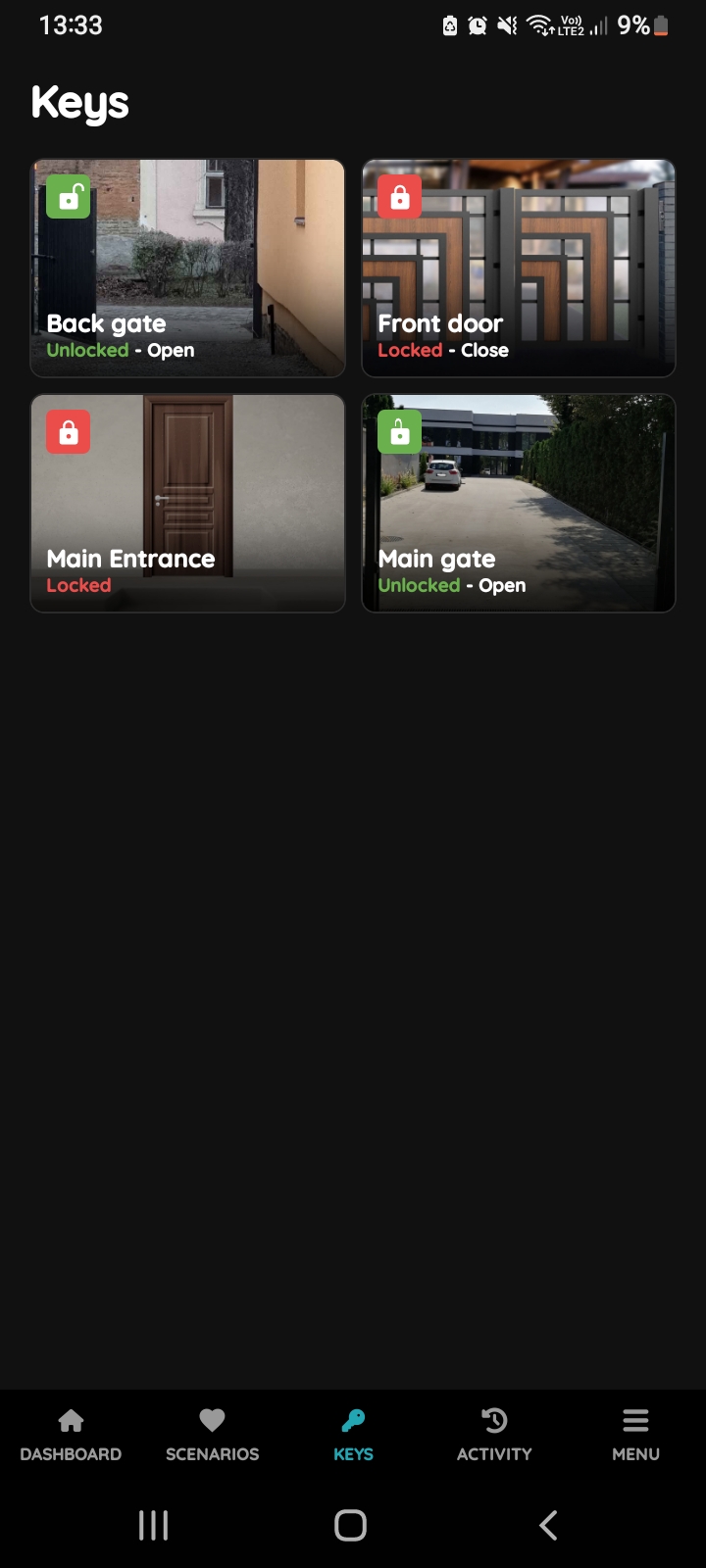
Unlocked - Open - Gates
In order to change status of the Gate from the Locked-Closed to Unlocked-Open to tap on the picture of the desired Gate and status will be changed.
Icon of the Gate and picture will be changed according to the new status Unlocked-Open.
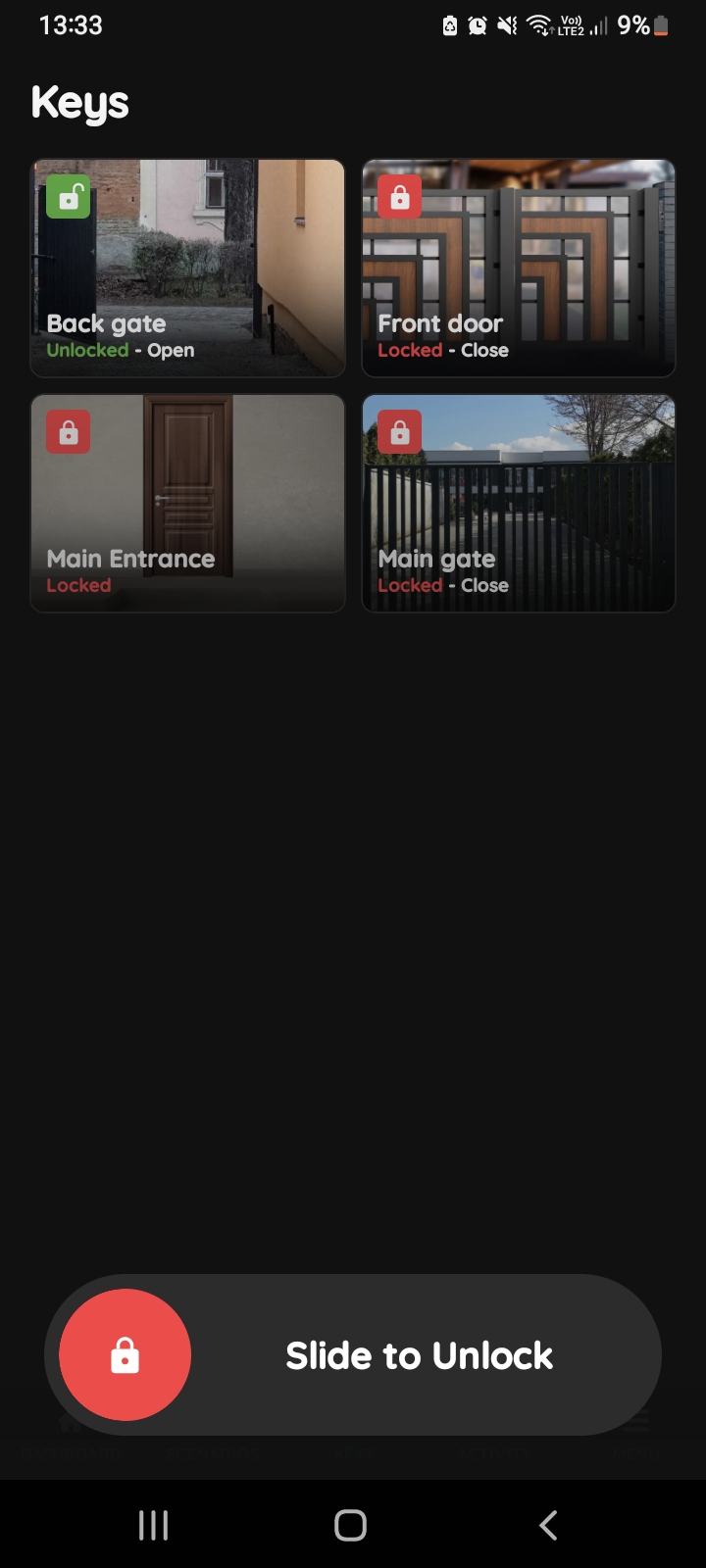
Slide to confirm - Gate
Slide to confirm feature adds an extra layer of security, preventing accidental actions.
It asks you to confirm your choice once more.
Here's an example of how Slide to confirm feature is applied.
If you want Gate to Unlock tap on the button Slide to Unlock and slide from the left to the right side.