Smart PIERRE - Permission Management
Description
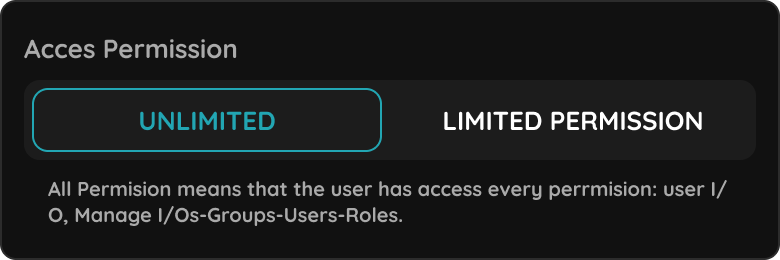
Permission management controls who may enter the property and when. Permissions are managed per user in the Smart PIERRE application.
Where to Find It
Menu → Settings → Users → select the user → Access. From there, access permissions can be viewed, added and removed.
Time Frames
Access can be granted as continuous, or limited to a defined period. A limited permission is defined by:
- Start date
- End date
- Specific days
- Designated hours
Time zones are taken into account, so the permission behaves correctly regardless of where the user is.
Typical Use
- Temporary access for a guest, valid only for the length of their stay.
- Recurring access for a cleaner, limited to specific days and hours.
- Revoking access for someone who is no longer authorised. The change takes effect immediately.
Technical Notes
- Prefer a time-limited permission over creating and later deleting a user. It is less work and leaves a cleaner history.
- Review the permission list at handover and remove any access created for commissioning.
- Check the time zone when the property and the person granting access are in different countries.
Manage Users Access through Menu
In order to regulate access for the Users, select the Menu.
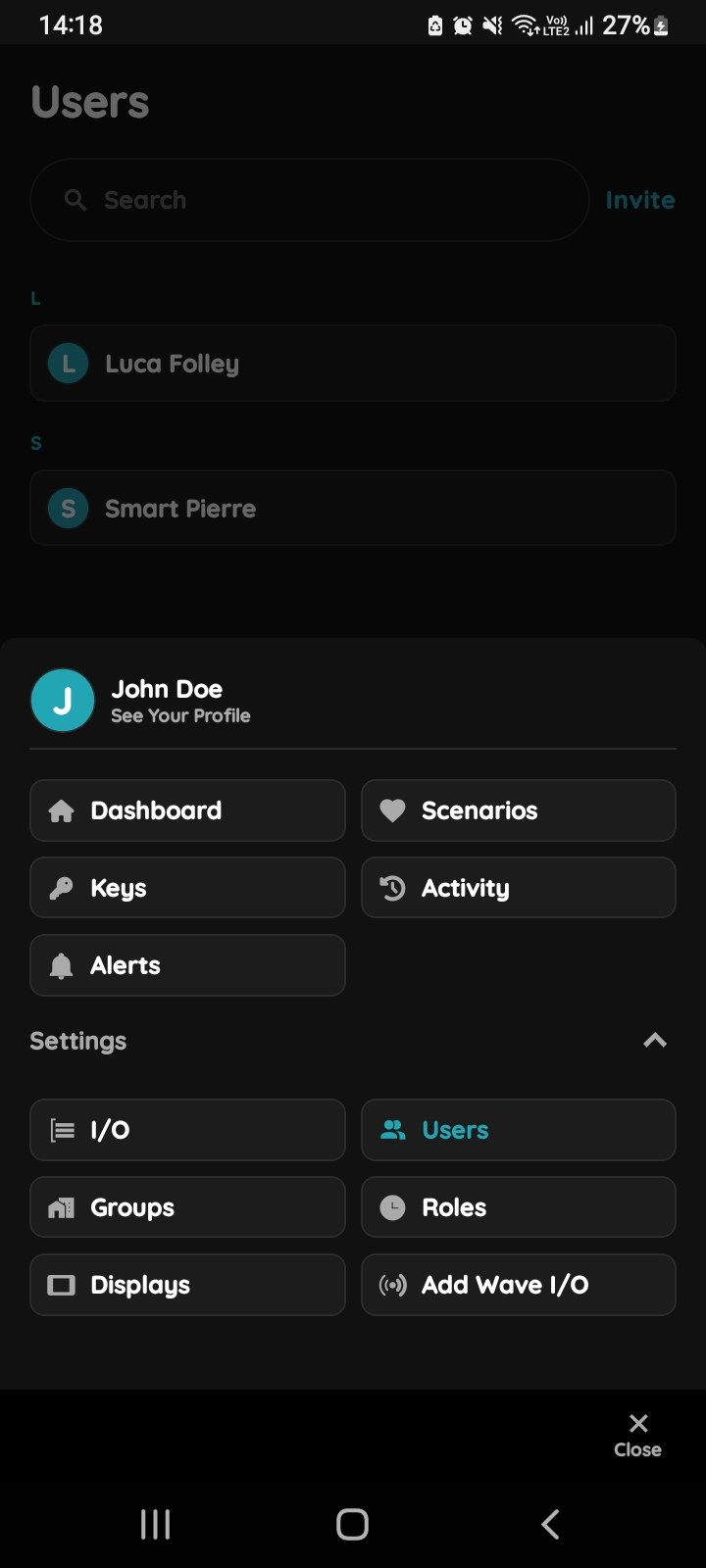
Open Users list
Tap on the Users under the Settings.
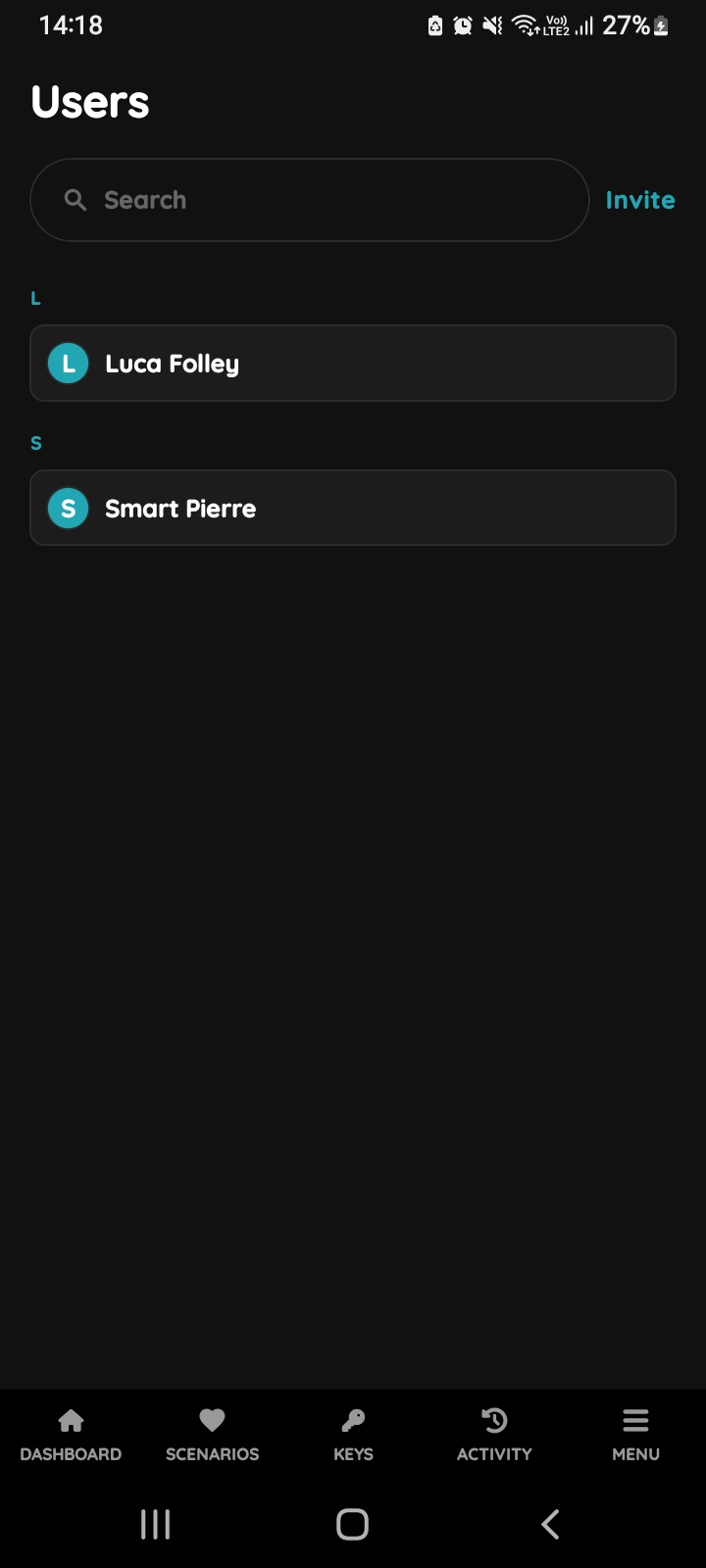
Users list
List of the Users is shown. Select the User from the list (tap on the name).
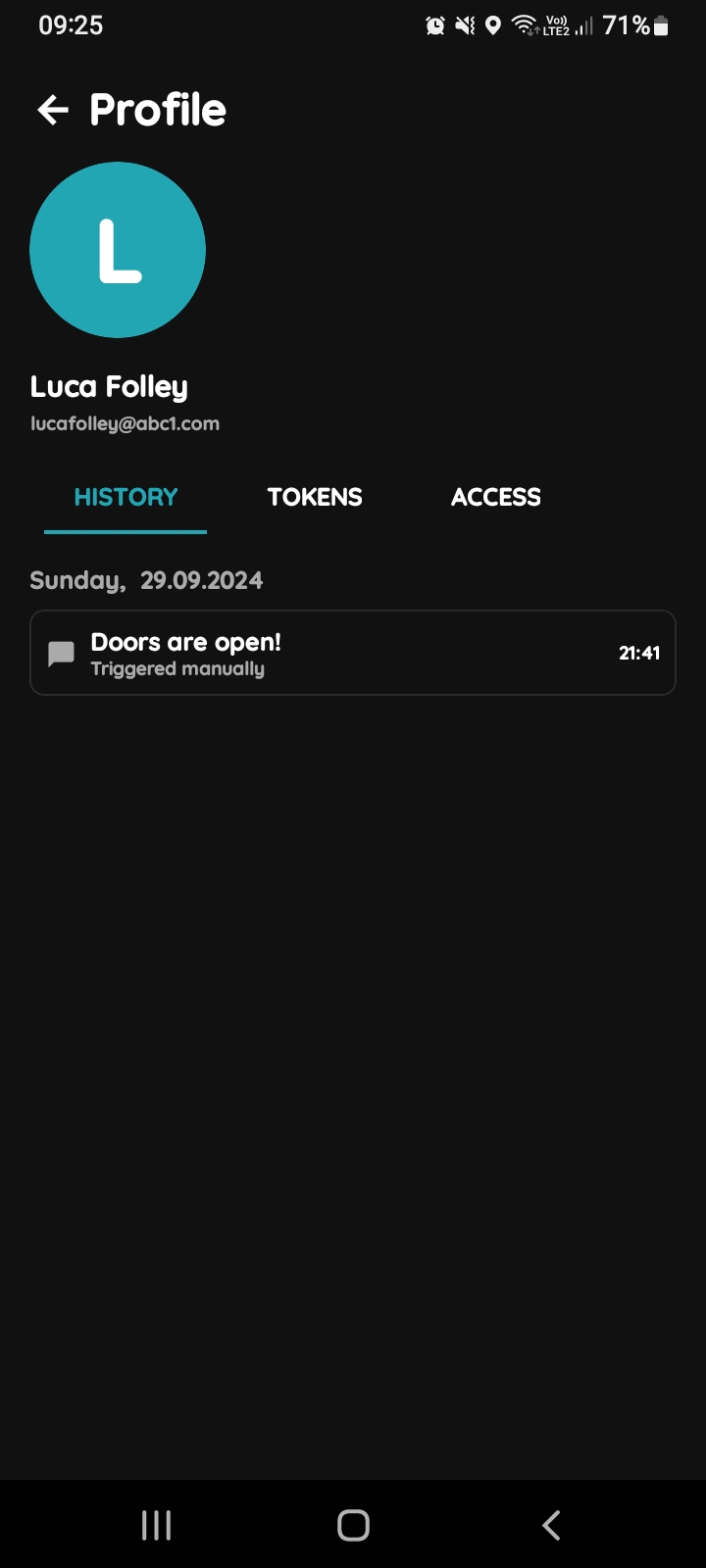
Profile of the User
Three tabs are shown:
- History - A record of all I/Os triggered by the User over time.
- Tokens - A list of all Tokens associated with the User.
- Access - A list of the User's role-based access permissions.
Tap on the Access tab.
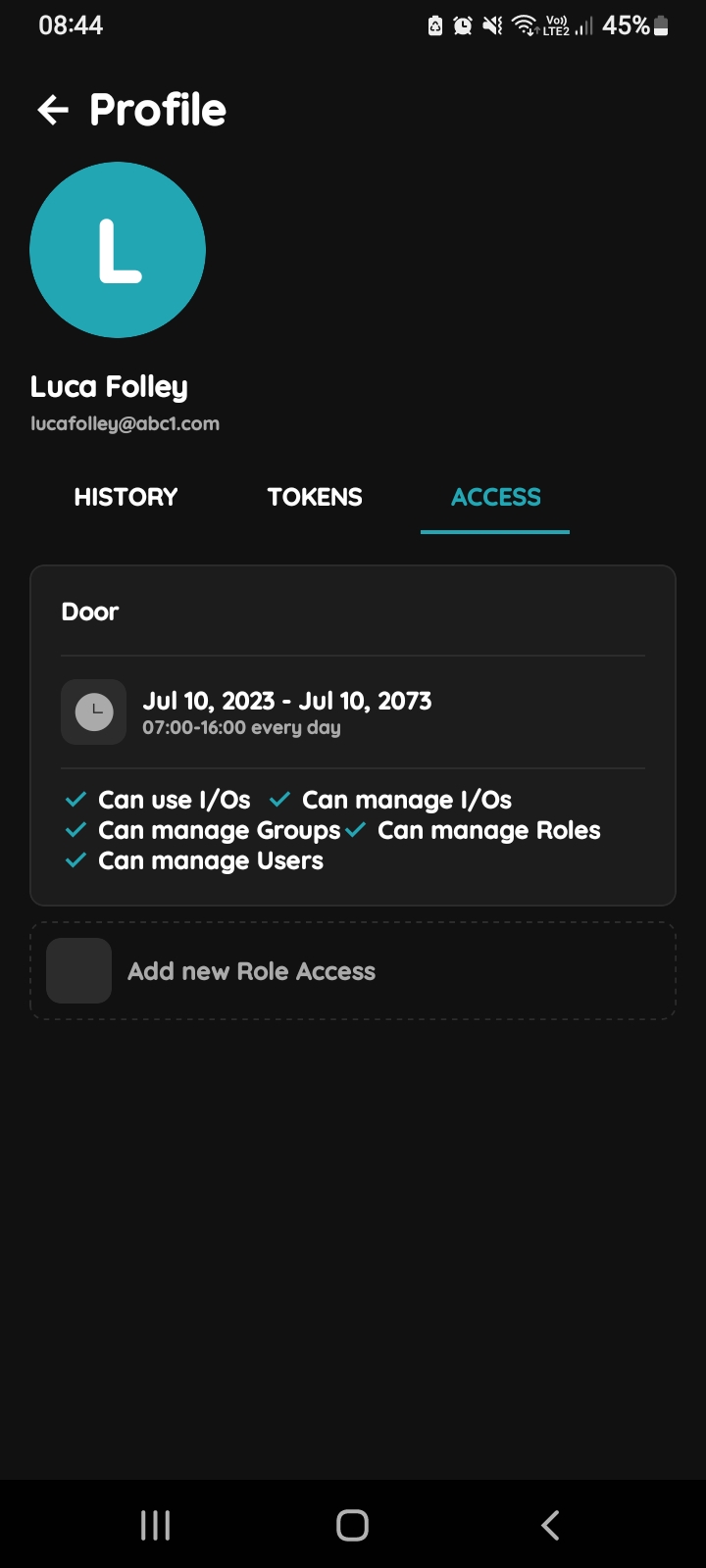
Role Access
Here is displayed list of Roles that is added to User with permissions. Also, there is ability to Add new Role Access.
When you tap on the Role from the list you can edit access of the Role.
In this example, Luca Folley has role with name Door.
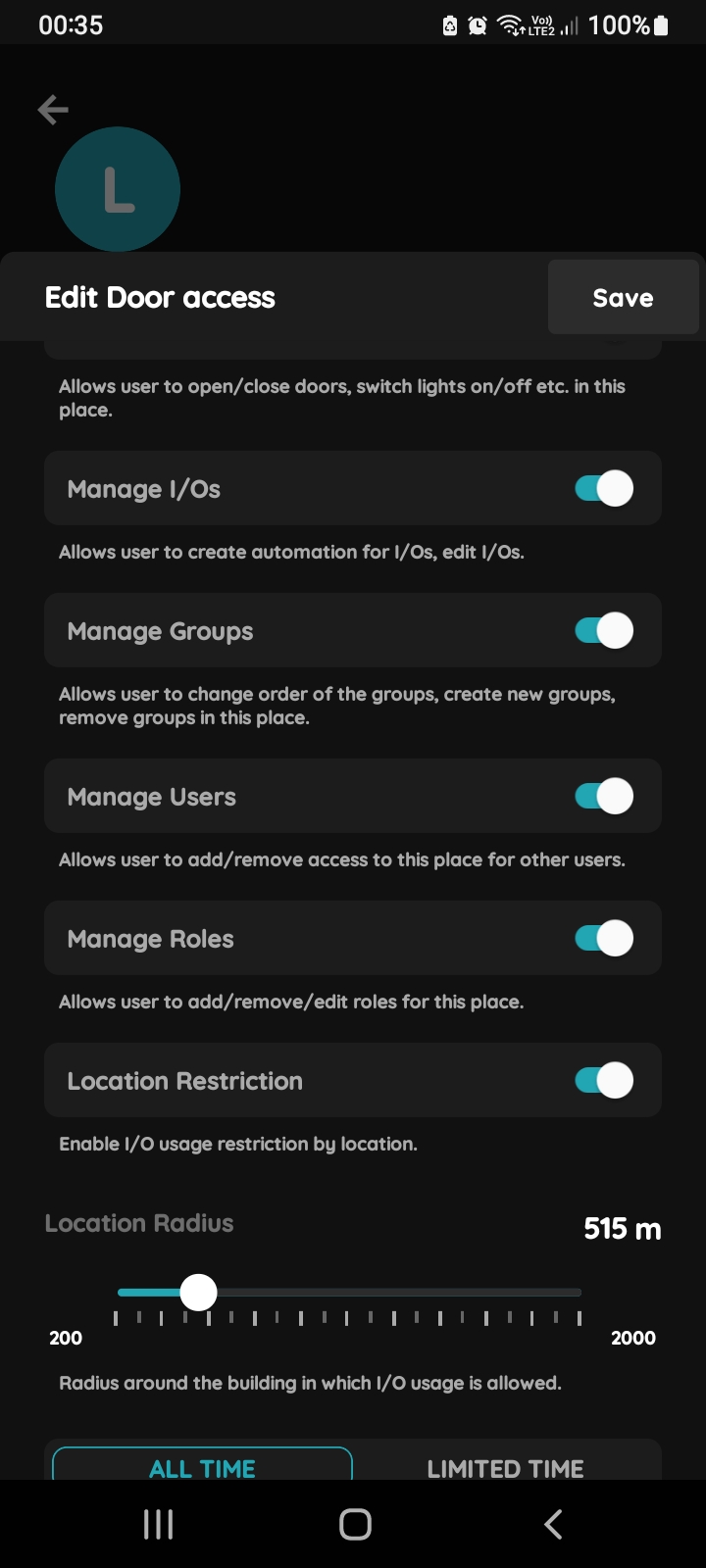
Edit permissions
Tap on he desired Role and edit following form:
Use I/Os - Allows user to open/close doors, switch lights on/off etc. in this place.
Manage I/Os - Allows user to create automation for I/Os, edit I/Os.
Manage Groups - Allows user to change order of the groups, crate new groups, remove groups in this place.
Manage Users - Allows user to add/remove access tot his place for other users.
Manage Roles - Allows user to add/remove/edit roles for this place.
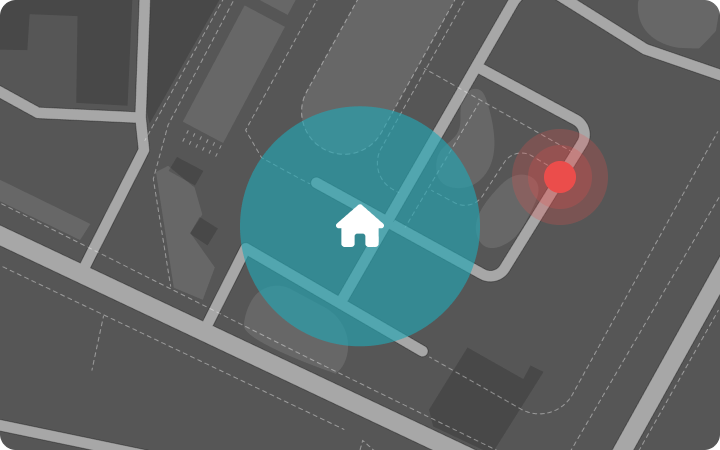
Location Restriction - Enable I/O usage restriction by location.
You can set radius around the building in which I/O usage is allowed.
In this case Location Radius for the User is set to 515 m.
(Use slider button to activate any of this functionalities.)
ALL TIME - Permissions are valid all the time.
LIMITED TIME - It means that the user does not have access every day of the week and all day.
Start date - The date when given permission start to be valid.
End date - The date when given permissions stop to be valid.
Days - Days during which given permissions are valid.
When 0-24 is enabled (slider should be moved to the right) permissions are valid
0-24.
When 0-24 period is not enabled, you should set Start time and End time.
Timezone - Choose timezone region from the list.
To confirm your choices tap on a button Save or if you would like to delete it tap on Delete.
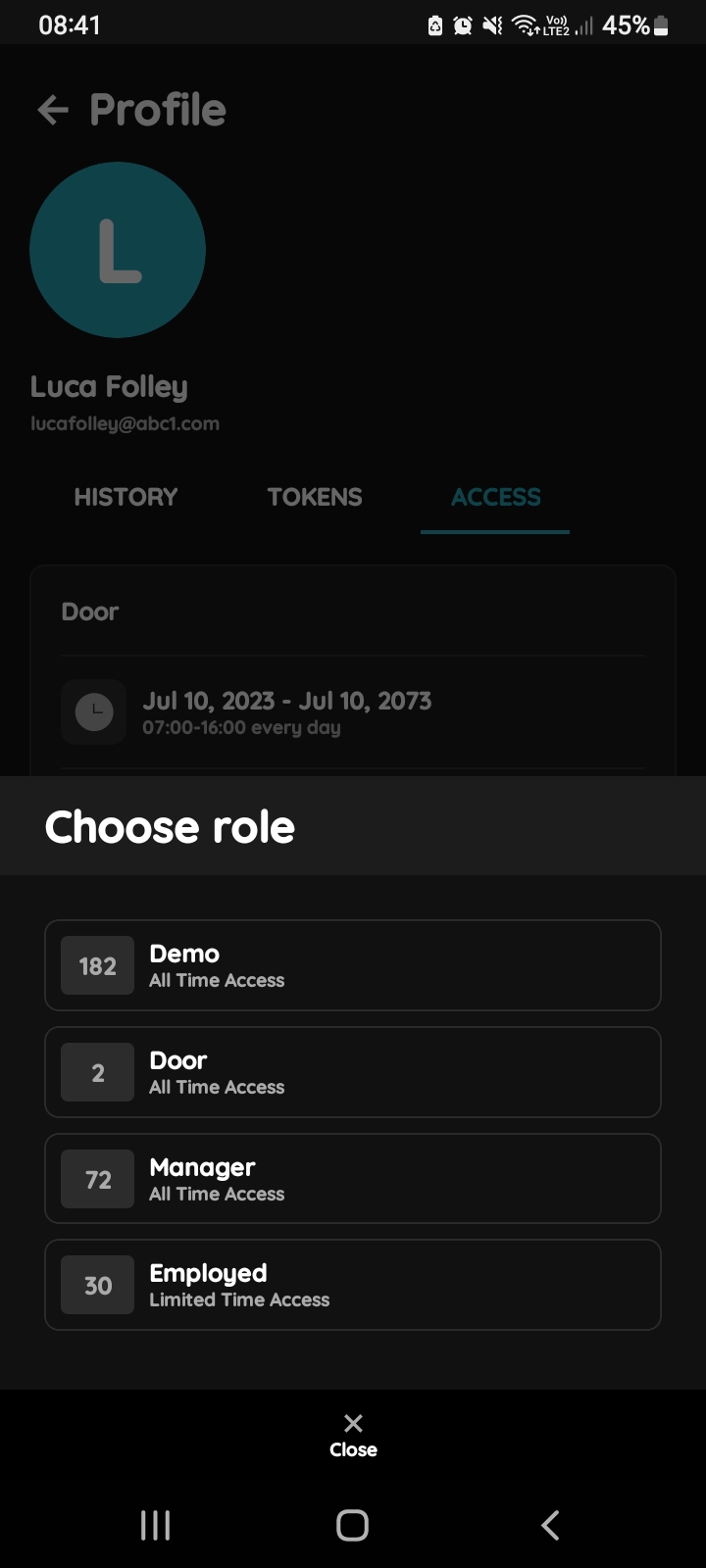
Add new Role Access
Click on the Add new Role Access and tap on the Role from the list that you would like to add to the User.
Tap on the Role Employed from the list.
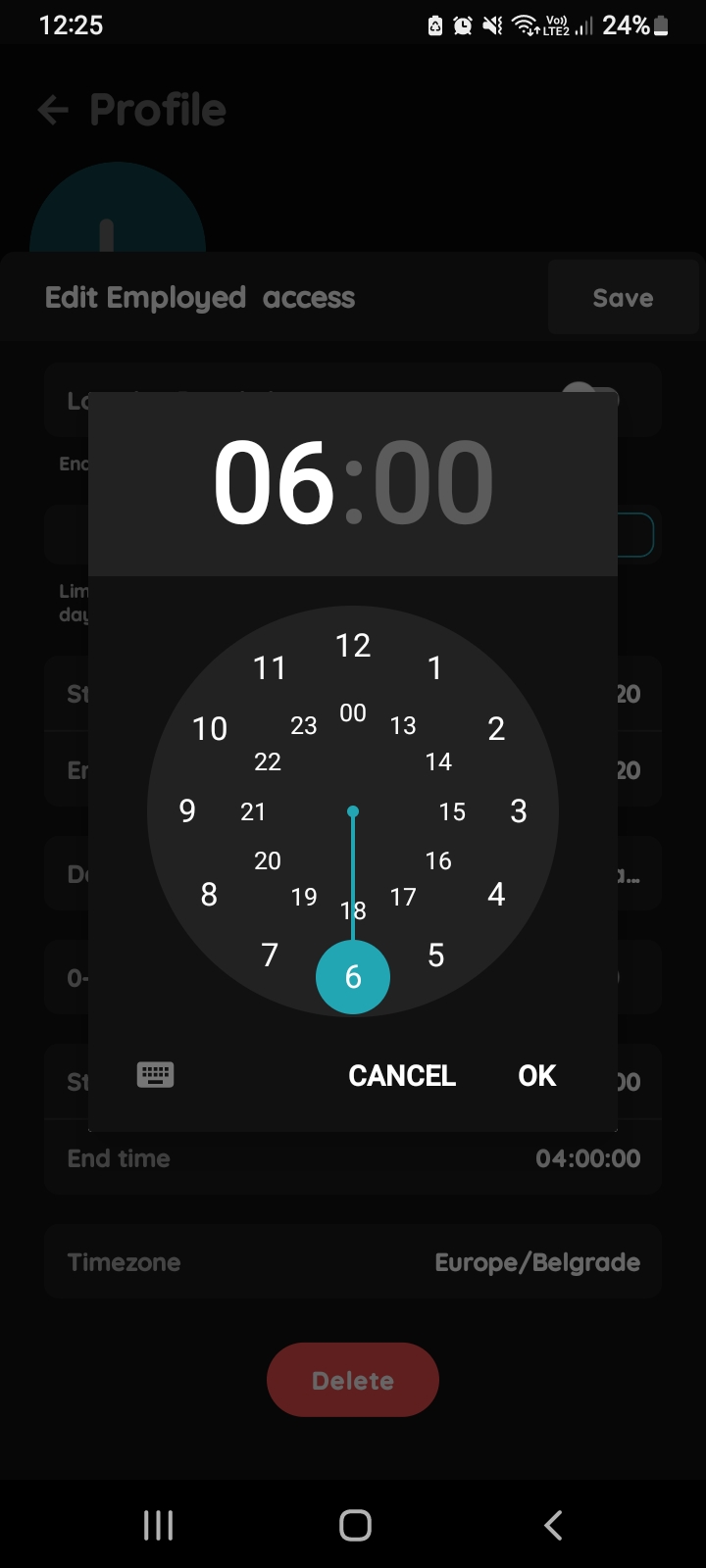
Set Start and End time
Set Start and End time, tap in each of these fields.
Star time is 6 AM and End time is 4 AM.
To confirm time click on OK.
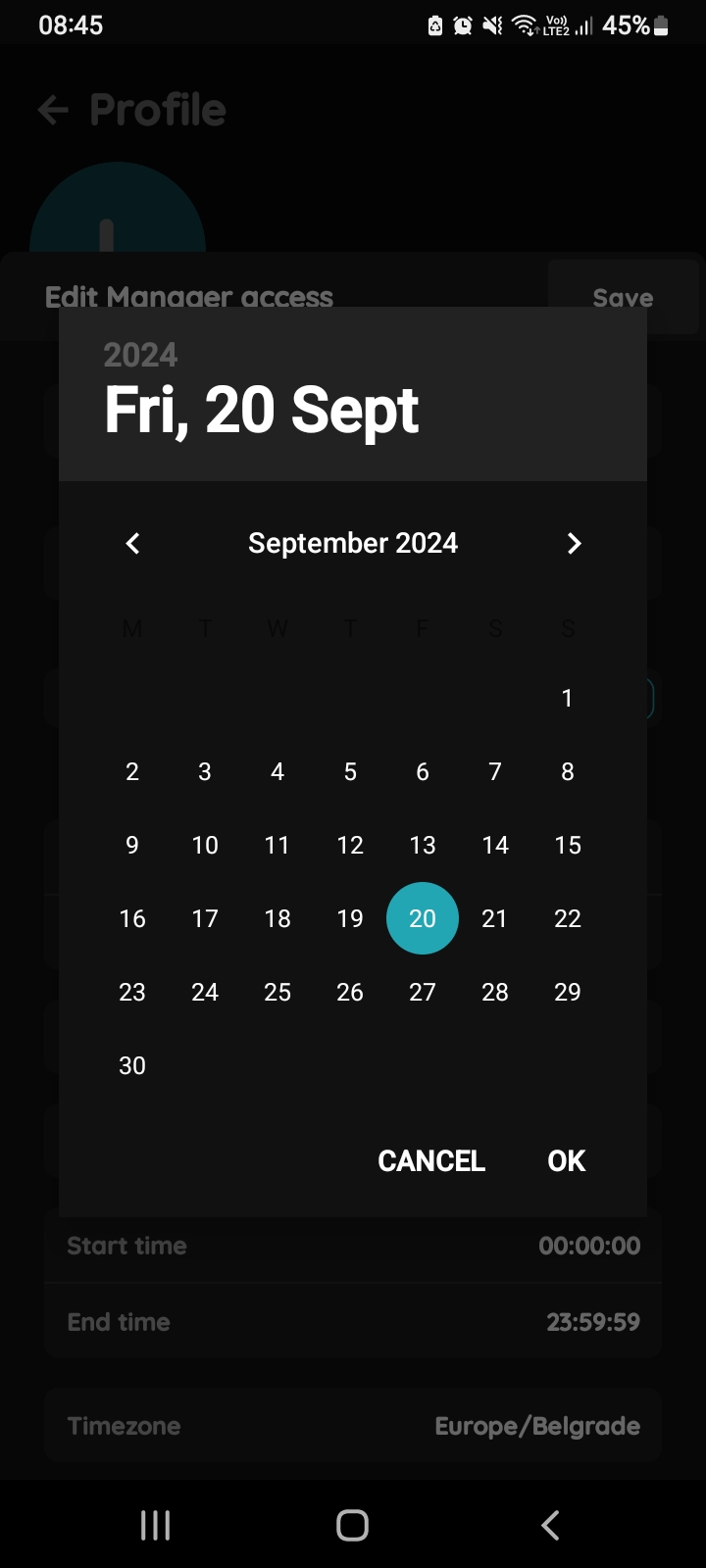
Limited time - Start and End date
In case that your access permissions are valid during limited time, you should set Start date and End date by click in these fields, and set them on the Calendar.
Start date, in this case is 20th September 2024 and End date is 30th December 2024.
When you want to confirm your choice tap on OK.
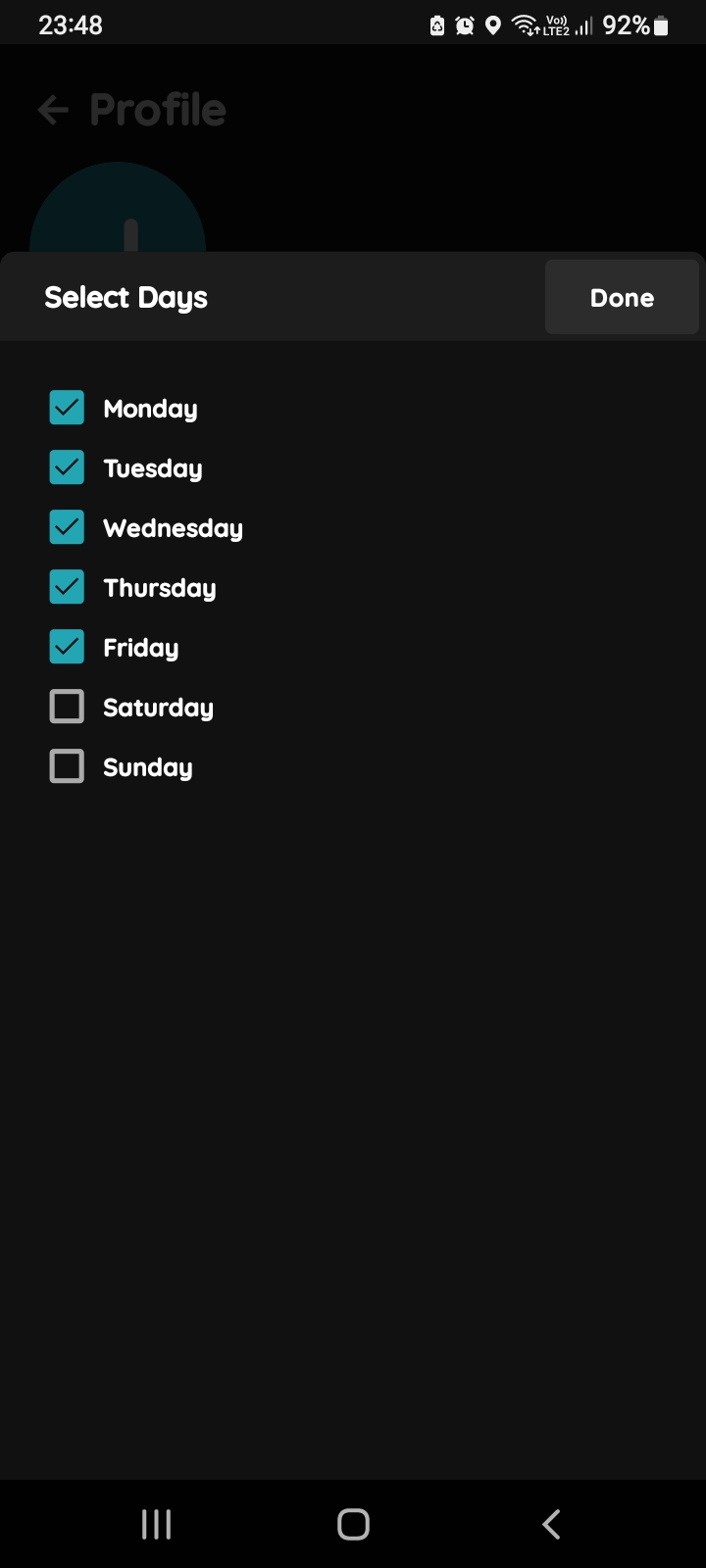
Days
Choose Days when the given permissions will be valid by clicking on the check box/boxes next to the day/days and tap button Done.
In this case permissions are valid on days from Monday to Friday.
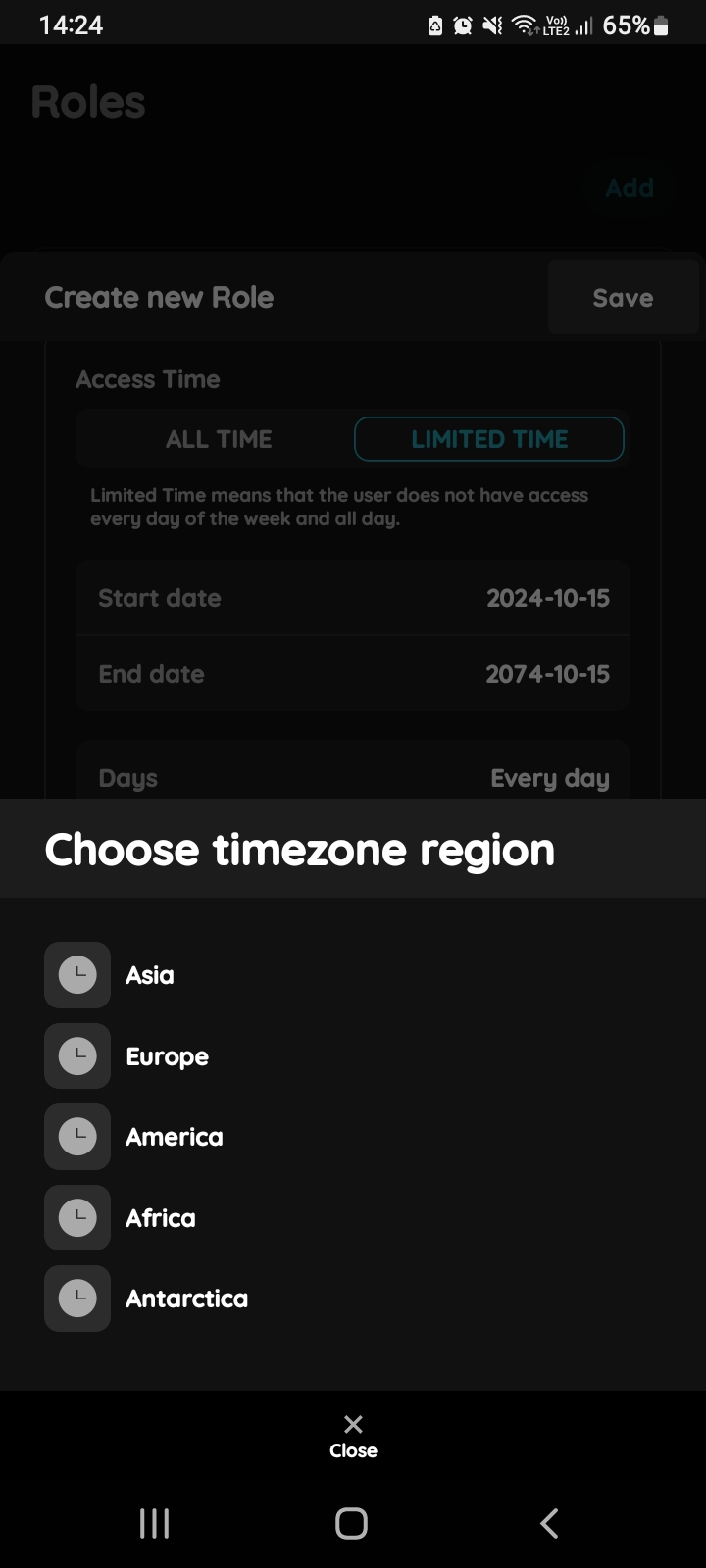
Timezone region
Choose Timezone region from the list.
(Tap on the desired zone.)
In this case tap on Europe.
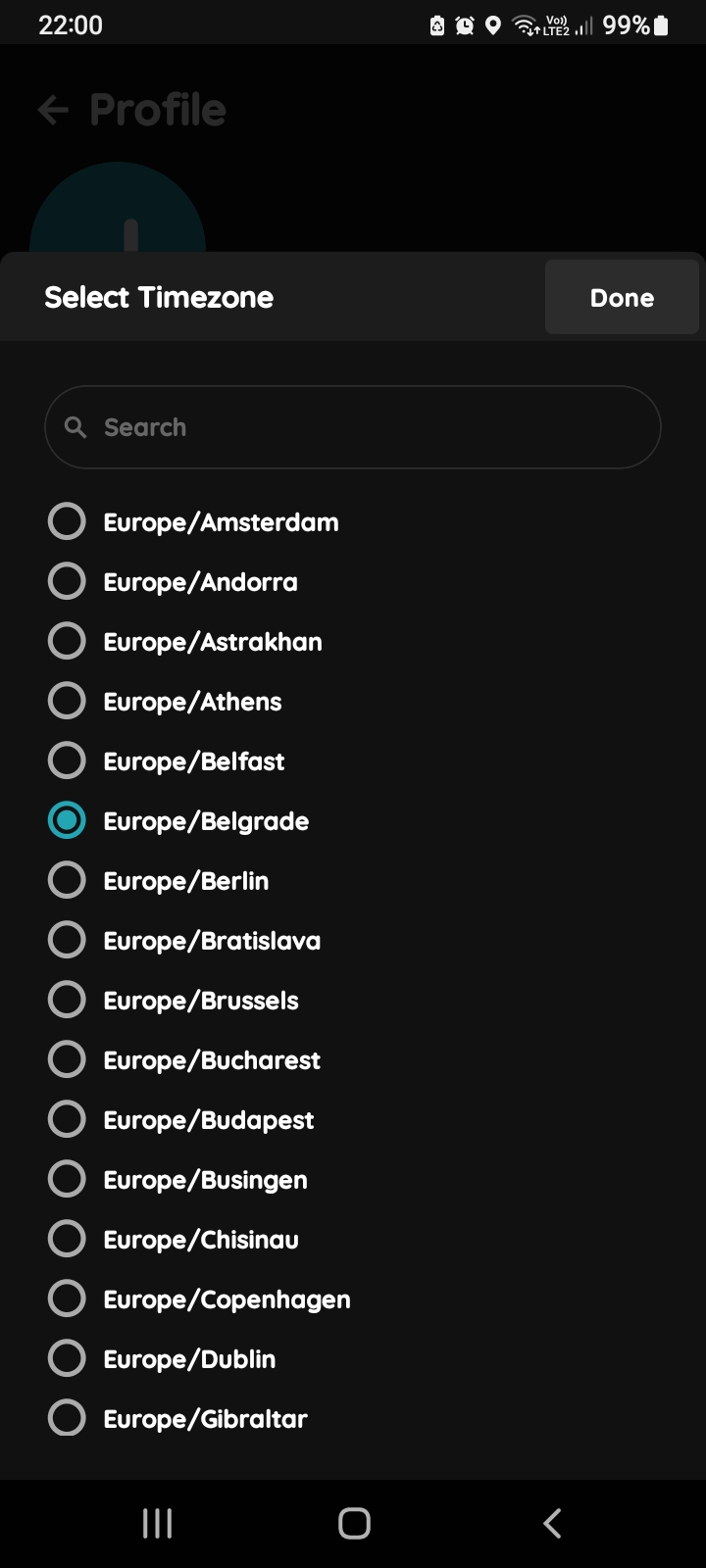
Select Timezone
Select Timezone (click on the radio button next to it) and confirm it by clicking on button Done.
In this case, Europe/Belgrade Timezone is selected.
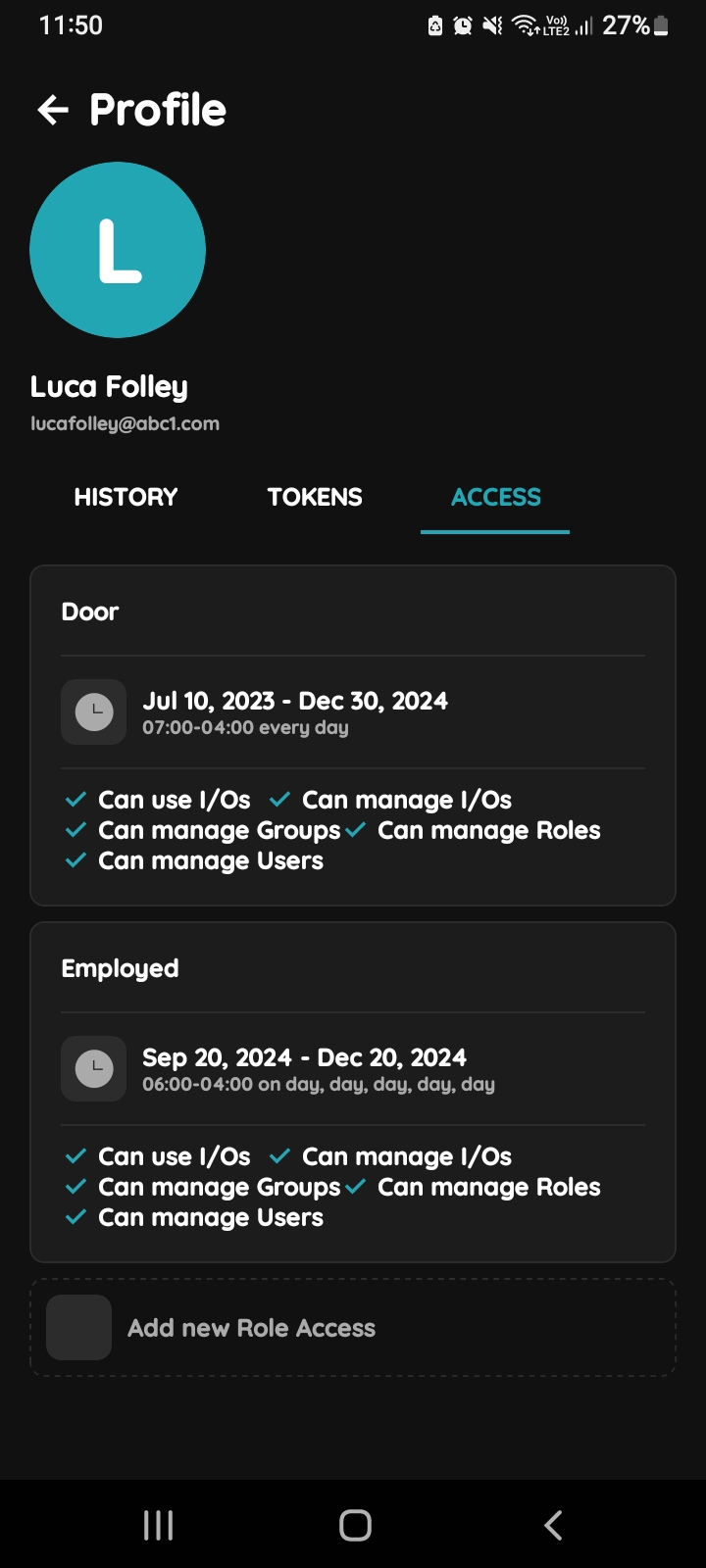
User gets new Role permission
In this case, new Role permission is added to the User.
User Luca Follye got role Employed, wit access permissions from September 20th 2024 to December 20th 2024, from 6 AM to 4 PM, from Monday to Friday. Here is shown list of permissions: Can use I/Os, Can manage I/Os, Can manage Groups, Can manage Roles, Can manage Users.