
Smart PIERRE - Mass Management
Description
Mass Management controls the same function across many rooms at once — heating, windows and doors — instead of opening each room individually. It is intended for buildings with a large number of similar rooms, such as hotels and apartment blocks.
What It Is For
- Setting a heating or cooling state for a whole floor or building at once.
- Checking which rooms have an open window or an unlocked door.
- Applying the same change to a group of rooms after a season change or a schedule change.
Technical Notes
- The grouping is what makes this useful, so agree the room grouping with the operator during commissioning — by floor, by wing, or by room type.
- Name the rooms consistently. A mass operation is only safe when it is obvious which rooms it will affect.
- Restrict this function to a role that should hold it. A single action here changes many rooms at once.
Key Features
- Heating Management: Allows managers to view and adjust temperature settings, heating or cooling modes, and fan speeds across multiple rooms. Bulk adjustments save time and ensure consistent settings throughout the property.
- Window and Door Monitoring: Displays the open or closed status of all windows and doors, enabling quick actions like locking or closing multiple entries for enhanced security and energy efficiency.
- Bulk Control Options: Managers can select specific rooms or floors to apply changes simultaneously, such as adjusting heating settings or locking all windows and doors in one step.
Why It’s Ideal for Property Managers
- Operational Efficiency: Simplifies managing multiple rooms by enabling bulk adjustments, saving time and reducing repetitive tasks.
- Enhanced Security: Centralized monitoring ensures that all windows and doors are secure with minimal effort.
- Improved Guest Experience: Real-time control of heating and cooling ensures optimal comfort for guests while maintaining energy efficiency.
- User-Friendly Interface: An intuitive layout with easy-to-use controls makes the system accessible and efficient for staff at all experience levels.
This system offers a seamless way to manage essential room functions, improving workflows, security, and guest satisfaction, while saving valuable time for property managers.
Mass Management in Smart PIERRE application
The Mass Management module allows you to control multiple rooms or areas at once, streamlining adjustments and saving time. You can quickly switch between managing heating, windows, and doors, and apply changes to several rooms simultaneously. This feature helps ensure consistent settings, improves efficiency, and simplifies large-scale adjustments across the property.
Step 1
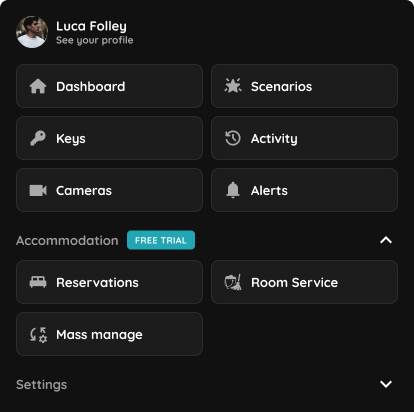
Open the Menu, then under the Accommodation section, select Mass Management.
Step 2
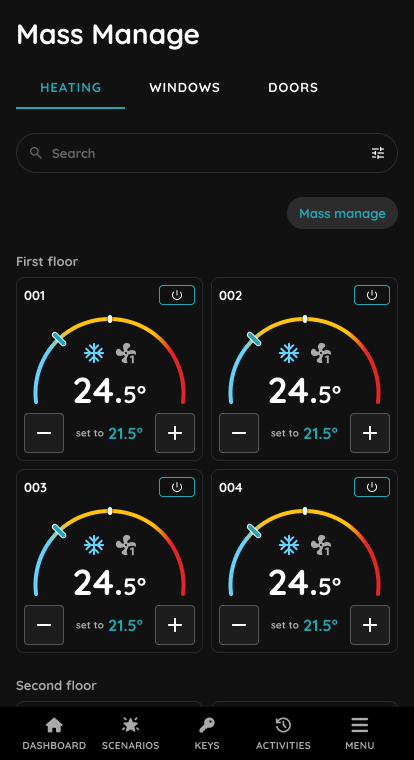
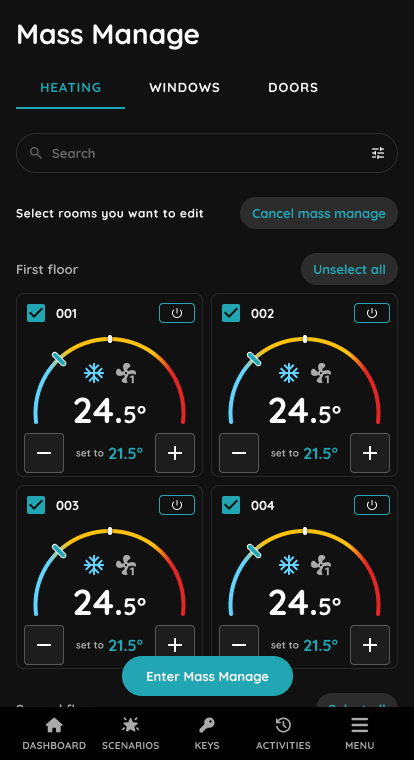
In the Heating tab of the Mass Manage module, you can view the current and target temperatures for each room, along with controls to increase or decrease the set temperature. Each card also includes a power button to turn the heating or cooling on or off. You can make quick adjustments to individual rooms or tap Mass manage to select multiple rooms for bulk updates.
Step 3
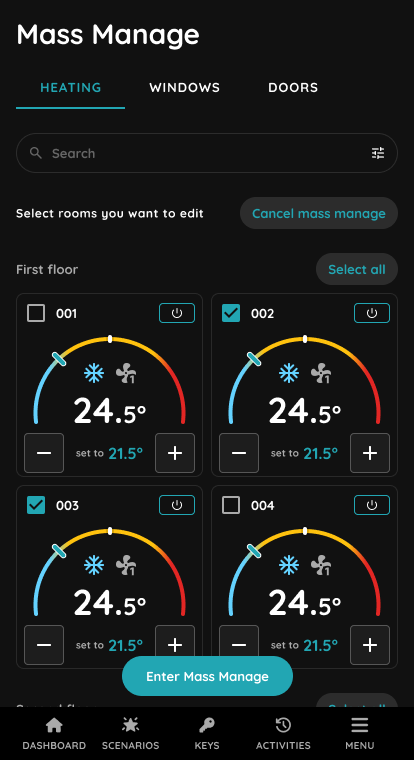
In the Heating tab of the Mass Manage module, select the rooms you want to edit by tapping the checkboxes on each card. Use Select all to quickly choose every room on the list or Cancel mass manage to exit the selection mode. Once your rooms are selected, tap Enter Mass Manage to proceed with making bulk adjustments.
Step 4
In the Heating tab of the Mass Manage module, use Select all to quickly choose every room in the list for editing. All selected rooms are marked with a check in the top-left corner of each card. From here, you can tap Unselect all to clear your selection or proceed by tapping Enter Mass Manage to apply bulk changes to all chosen rooms.
Step 5
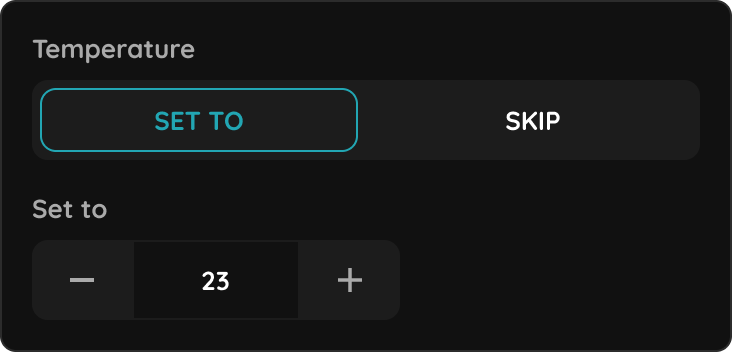
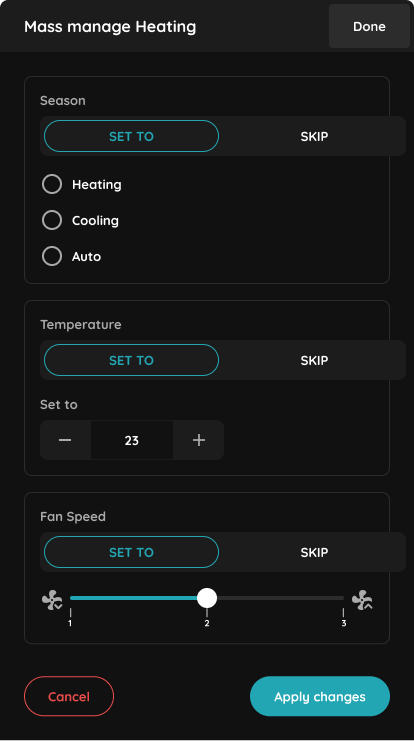
In the Mass manage Heating view, choose the settings you want to apply to all selected rooms. You can set the Season mode to Heating, Cooling, or Auto, adjust the Temperature to the desired value, and select the Fan Speed using the slider. Options can be skipped if no change is needed. Once configured, tap Apply changes to update all rooms, or Cancel to discard adjustments.
Step 6
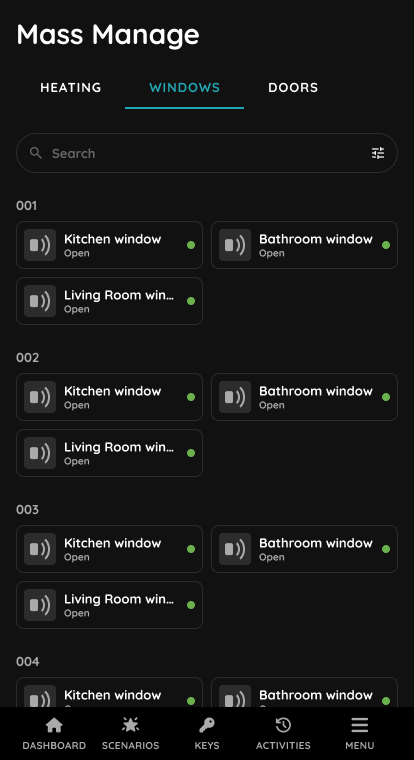
In the Windows tab of the Mass Manage module, you can see the status of all windows in each room, such as Kitchen, Bathroom, and Living Room windows. Each window card shows whether it is open or closed, indicated by the label and green status dot. This overview helps monitor window states across the property and ensure security and comfort.
Step 7
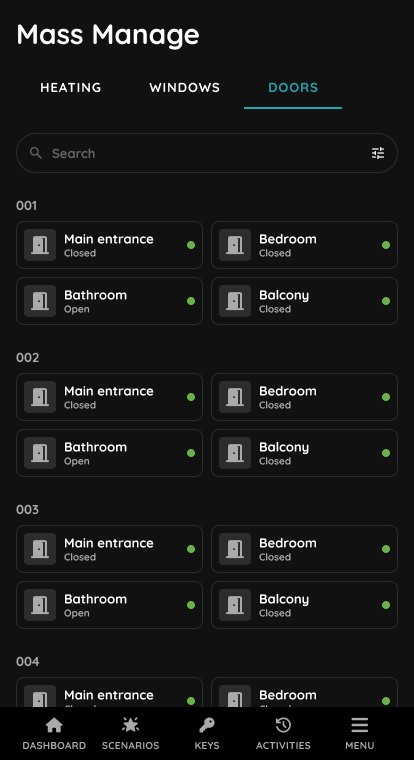
In the Doors tab of the Mass Manage module, you can view the status of all doors in each room, including main entrances, bathrooms, bedrooms, and balconies. Each door card displays whether it is open or closed, with a green status dot for quick reference. This overview allows staff to easily monitor access points across the property and maintain both security and privacy.

