Smart PIERRE - Reservation
Description
Reservation is a booking management function for properties that are rented out — hotels, vacation rentals, serviced apartments and similar accommodation. It links a stay to the access the guest receives, so a booking and the door credentials are managed in one place instead of two.
What It Covers
- Reservations, with guest details and the reservation period.
- Property services, alongside the bookings.
- A central overview of all bookings and property statuses.
- Filtering, for example by property status or by upcoming bookings.
Why It Matters for the Installation
Guest access is tied to the reservation period, so credentials become valid at check-in and stop working at check-out without anyone having to remove them by hand. This is what makes unattended check-in workable.
Technical Notes
- Agree the property and room numbering with the operator before commissioning; the reservations are configured against it.
- Decide who administers the reservations after handover, and give that person a role with only the access they need.
- Test a full cycle before handover — a booking created, access granted at the start, and access verified as gone after the end date.
Key Features:
- Streamlined Navigation: Easily access essential tools like Reservations and Property Services through a clean and intuitive menu, suitable for managing one or multiple properties.
- Centralized Dashboard: View and manage all bookings at a glance, with key details like guest information, reservation times, and property statuses readily available.
- Smart Filtering: Narrow down reservations based on custom criteria, such as property status or upcoming bookings, for faster decision-making and task prioritization.
- Detailed Booking View: Dive into reservation specifics, including guest contacts, cleaning history, and access tools like digital QR keys or RFID tokens for secure, hassle-free property entry.
Why It’s Ideal for All Property Hosts:
- Efficient Property Management: A centralized system allows for easy updates and automation of tasks like check-ins, cleaning, or cancellations, reducing repetitive work for hosts.
- Improved Guest Experience: Contactless check-ins, secure digital keys, and fast access to guest preferences create a seamless stay, whether it's for short-term vacationers or extended guests.
- Scalability for Multiple Rentals: Manage everything from a single property to a portfolio with ease, using tools designed to handle varying levels of complexity.
- Secure and Reliable Operations: Enhanced security features, such as logged activities and automated access control, ensure both hosts and guests feel protected.
This system is more than just a booking tool; it’s an all-in-one solution for simplifying operations, whether you’re renting out a single apartment or managing multiple accommodations.
Reservations in the PIERRE App
The Reservations module is the central hub for viewing and managing all bookings from connected OTA in real time. Reservation statuses are easy to track, and key actions are quickly accessible. The following step-by-step guide will show you how to use it in daily operations.
Step 1
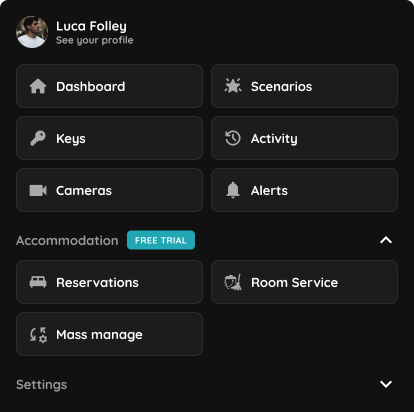
Open the Menu, then under the Accommodation section, select Reservations.
Step 2
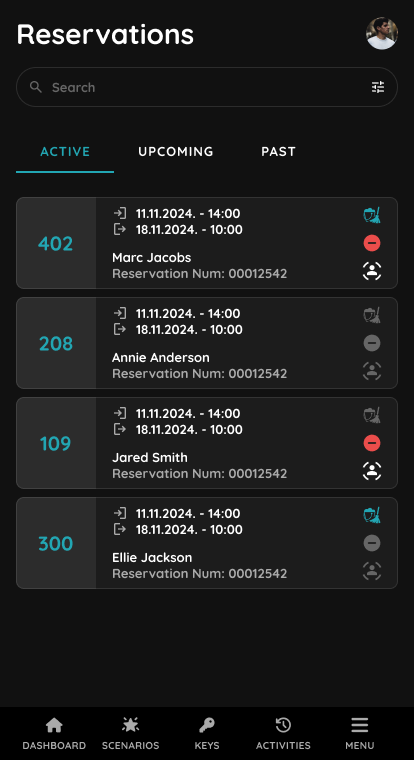
This screen shows the Active tab of the Reservations module.
It lists all guests who are currently checked in, along with their room numbers, stay dates, guest names, and reservation numbers. From here, you can quickly check the room status — the broom icon indicates that the room needs cleaning, while the Do Not Disturb icon signals that staff should not enter. This view helps the team coordinate housekeeping and respect guest preferences in real time.
Step 3
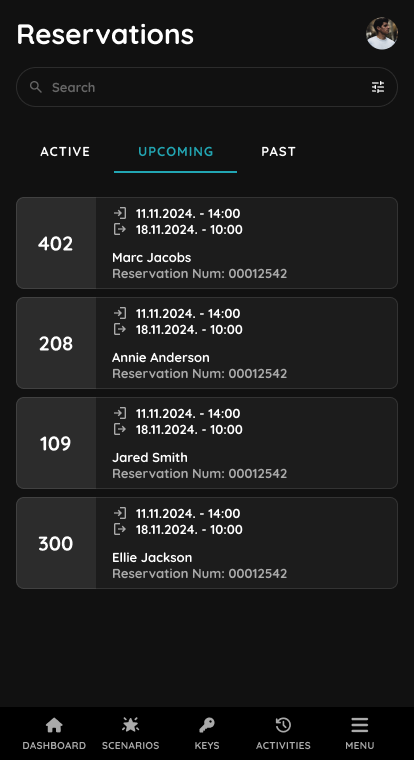
This screen shows the Upcoming tab of the Reservations module.
It lists all guests with future bookings, along with their room numbers, stay dates, guest names, and reservation numbers. This view helps staff prepare rooms, arrange check-in details, and ensure everything is ready before the guest’s arrival.
Step 4
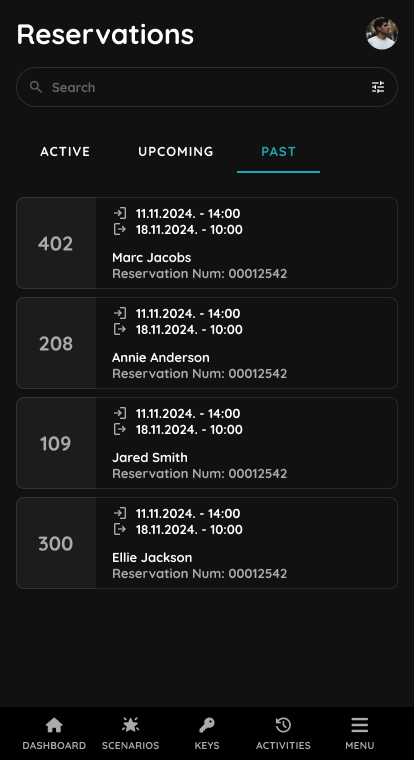
This screen shows the Past tab of the Reservations module.
It displays all completed stays, with room numbers, stay dates, guest names, and reservation numbers. This view allows staff to review guest history and maintain accurate records after guests have checked out. It serves as an archive for past reservations and helps with reporting and analytics.
Step 5
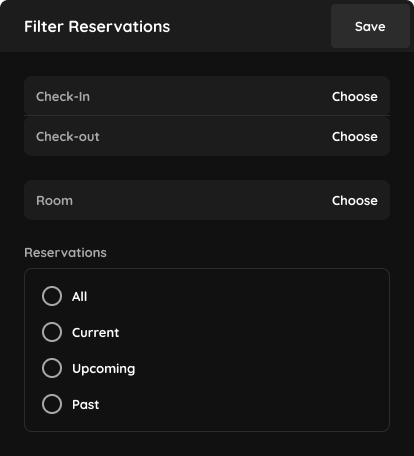
This screen displays the Filter Reservations modal.
It allows you to narrow down the reservation list based on specific criteria:
- Check-In: Filter by the check-in date.
- Check-Out: Filter by the check-out date.
- Room: Filter by room number.
- Reservations: Choose to view all, current, upcoming, or past reservations.
After selecting your desired filters, click Save to apply them and update the reservation view accordingly.
Step 6
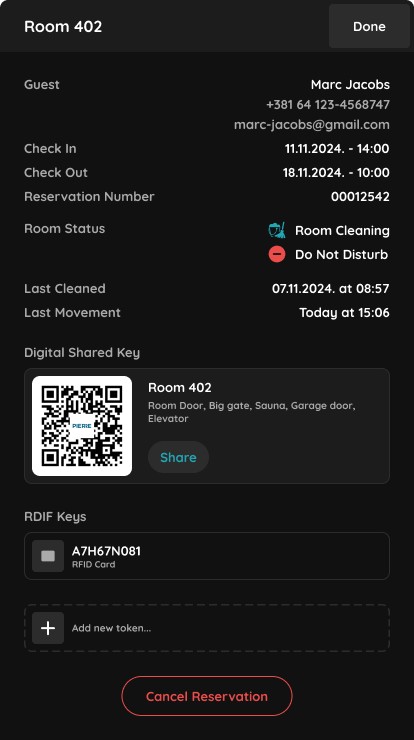
This screen shows the Reservation Details for Room 402.
It displays the following information:
- Guest Details: Name, contact number, and email of the guest.
- Check-In/Check-Out: The guest's check-in and check-out dates and times.
- Reservation Number: Unique ID for the booking.
- Room Status: The status of the room, including Room Cleaning and Do Not Disturb (both of which can be updated from this screen).
- Last Cleaned and Last Movement: The date and time when the room was last cleaned and when the guest last moved (entered/exited).
- Digital Shared Key: A QR code that allows the guest to access the room, as well as the option to Share the key.
- RDIF Keys: The RFID card number linked to the room, along with an option to add a new key token.
At the bottom, there’s an option to Cancel the Reservation if necessary.
Step 7
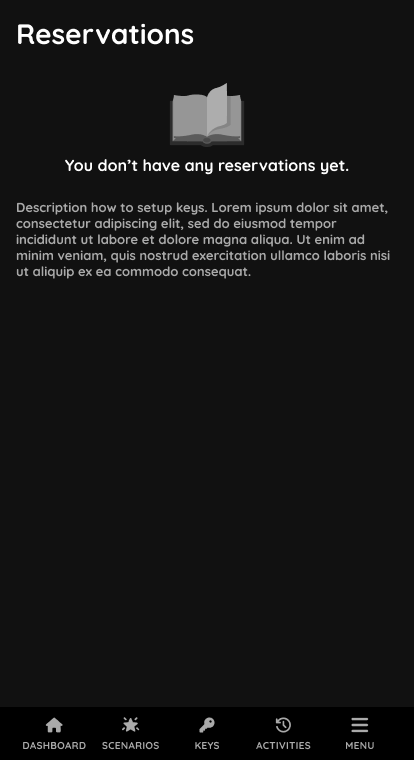
This screen shows the Empty State for the Reservations section.
It indicates that there are currently no reservations in the system. Below the message "You don’t have any reservations yet," there is a placeholder description, likely a guide or instructions, explaining how to set up keys or other related information.