Smart PIERRE - Light Automation
Description
Light automation in the Smart PIERRE app switches lighting from sensors and time conditions instead of manual operation. A light set to Auto follows the rules defined for it in the Automation tab; in On or Off the rules are ignored.
What Can Trigger a Light
- Motion sensors – condition "detects motion". Suitable for hallways, stairs and storerooms. Give the light a Timeout so it stays on for a while after the last movement.
- Presence sensors – the same condition, but the sensor keeps reporting while someone is in the room even when they are still, so the light does not drop out at a desk.
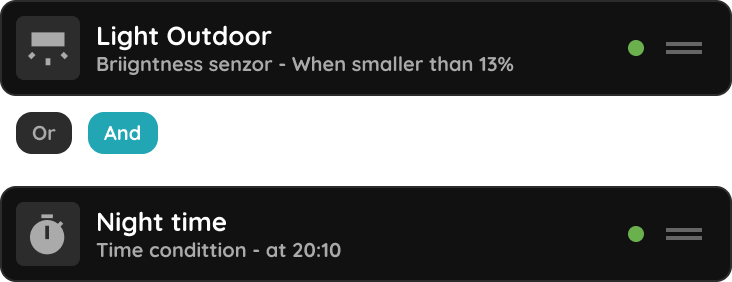
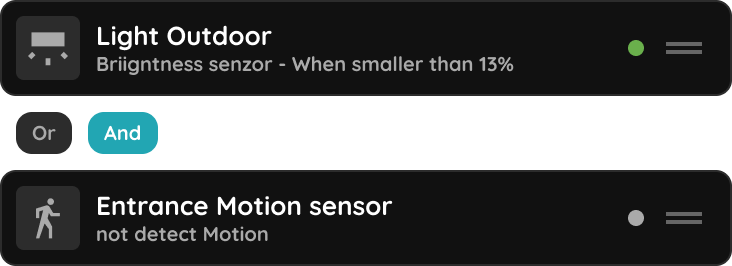
- Brightness sensors – condition "smaller than" a chosen level, so the light comes on only when it is dark enough.
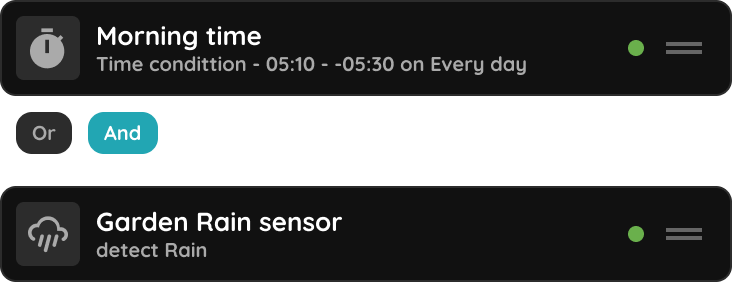
- Time conditions – weekdays with a start and end time, or a single switching time. Times are fixed clock times; there is no sunrise or sunset option, so use a brightness sensor where the light should follow daylight.
- Door and window contacts, wall buttons, other I/Os – open or closed, pressed, held or double-pressed, active or not active.
- Delays – a countdown after another condition changes, for example off 10 minutes after the door closed.
Combining Conditions
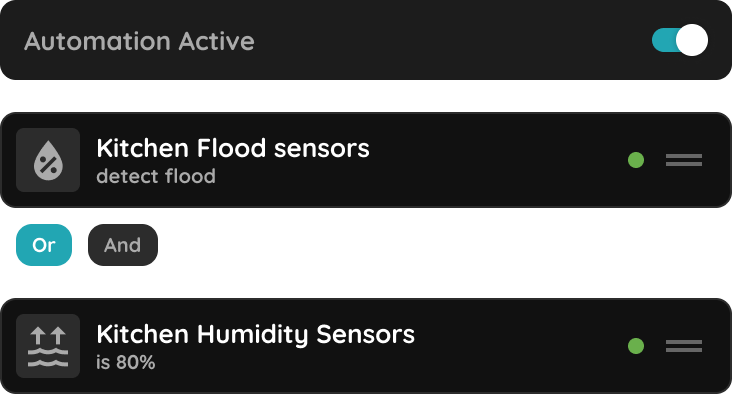
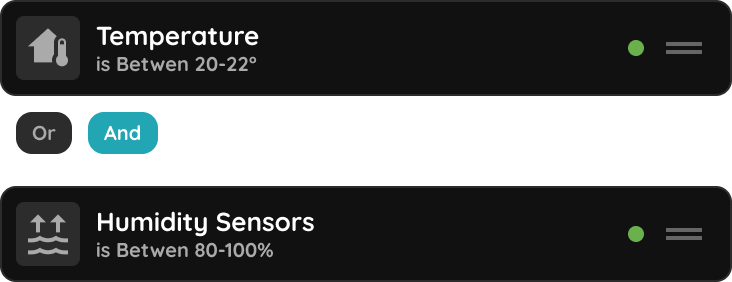
Conditions are joined with Or and And, and grouped with Add new Logical Brackets. A hallway light can run from a motion sensor alone. A living room light can use a brightness sensor and a motion sensor joined with And, so it comes on only when it is both dark and occupied. Add a time condition with And to limit the rule to certain hours.
Brightness and Colour
An automation switches the light on and off; it turns the light on at its current brightness and colour. To set a level at a time of day, for example dim at night, create a scenario with the wanted brightness and give the scenario the time condition instead.
Timeout
In the Edit tab of the light, Timeout sets how long the light stays on after the condition that switched it on has ended. It is what keeps a hallway light on for two or three minutes after the sensor last saw movement. With 0 the light goes off the moment the condition ends.
Technical Notes
- A motion sensor times out; where people sit still for long periods use a presence sensor, or a long Timeout on the light.
- Place the brightness sensor where it sees daylight but not the light it controls, otherwise the light switches itself off.
- The rules run on the controller or gateway, so they keep working without an internet connection. Editing them needs the connection.
- Manual On or Off from the app or a wall button takes the light out of Auto. Tap Auto again to hand it back to the rules.
- Check the Used In tab before removing a sensor that lights depend on.
Automate a hallway light with a motion sensor and a time condition
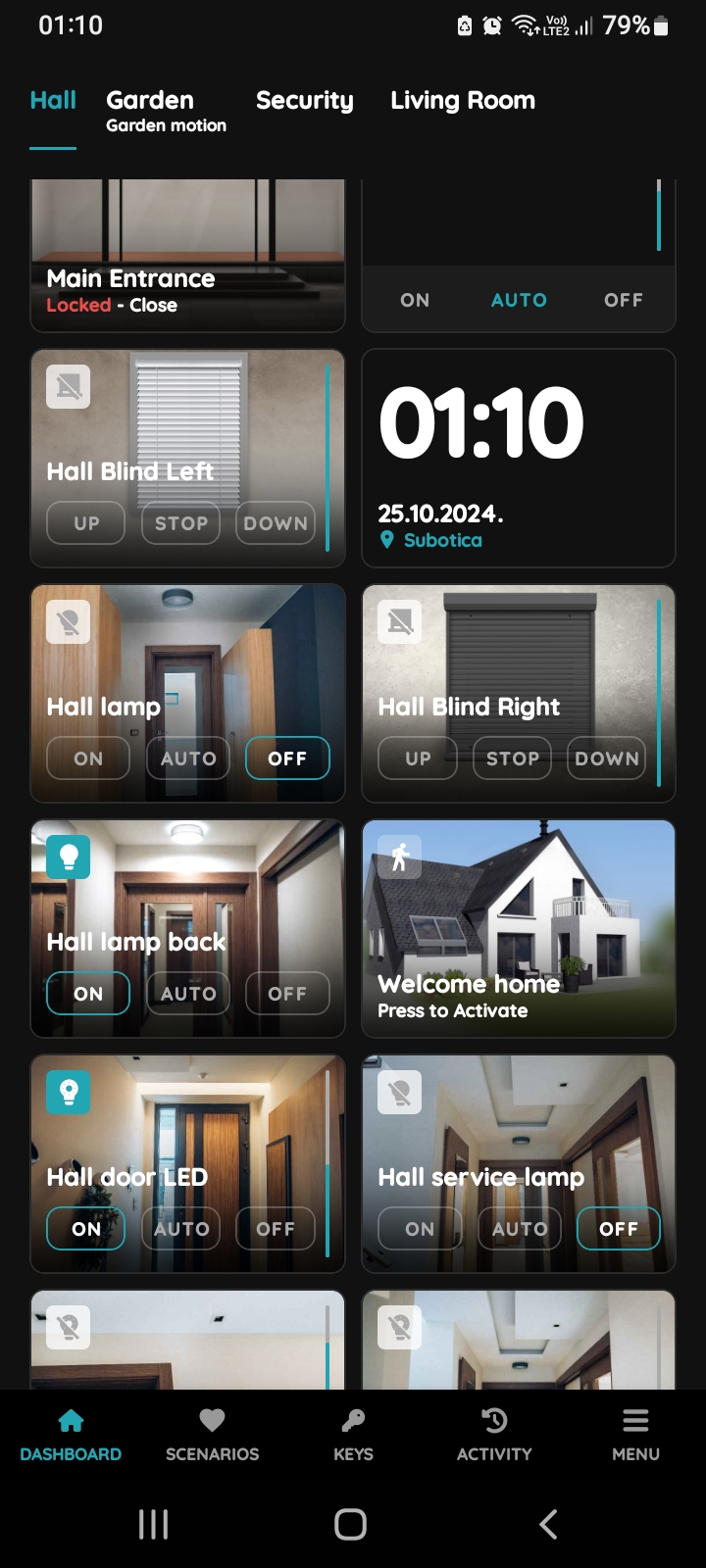
Find the light on the Dashboard
Open the Dashboard, find the light card and press and hold it. In this example the light in the hallway is automated by a motion sensor and a time condition.
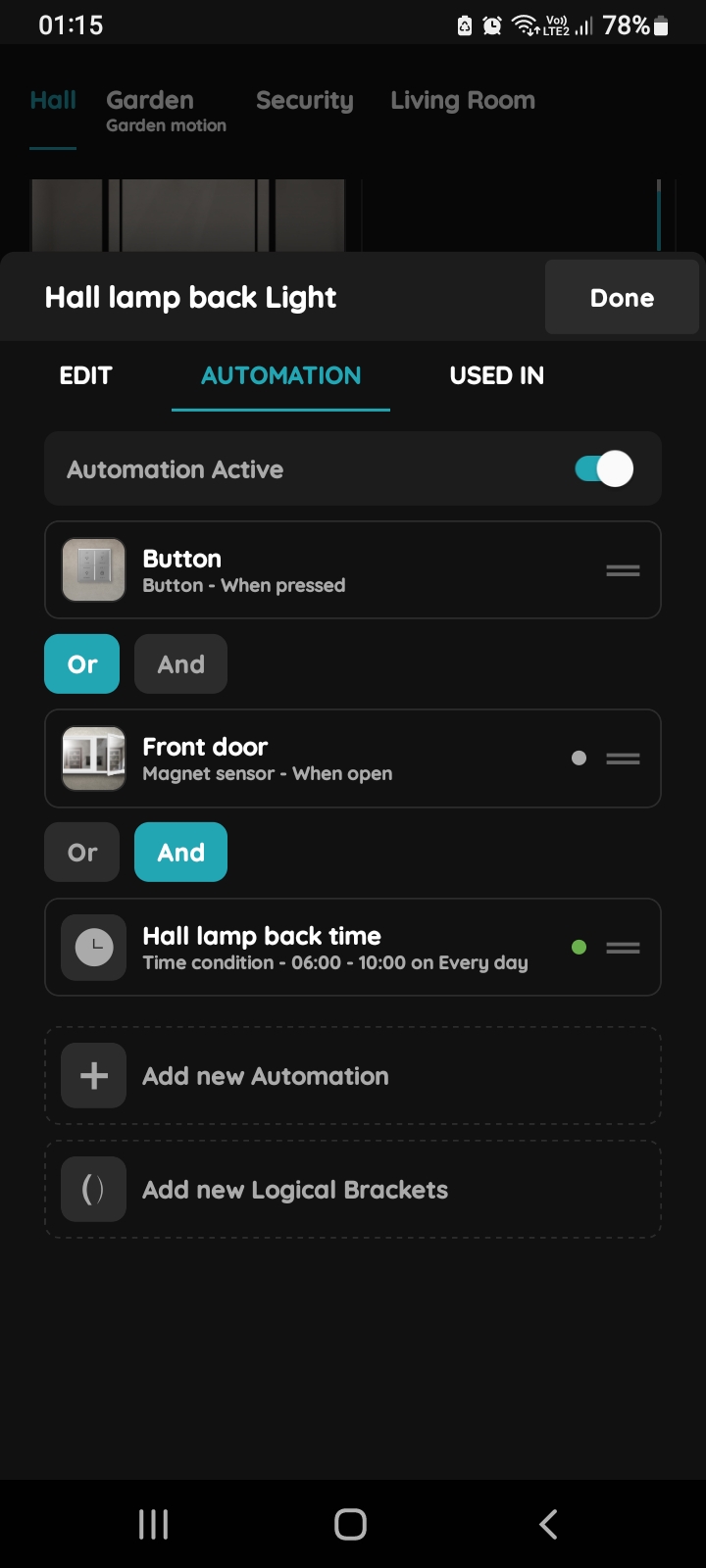
Open the Automation tab
Tap the Automation tab and switch Automation Active on. Existing rules are listed here; a new light has none.
Add a time condition
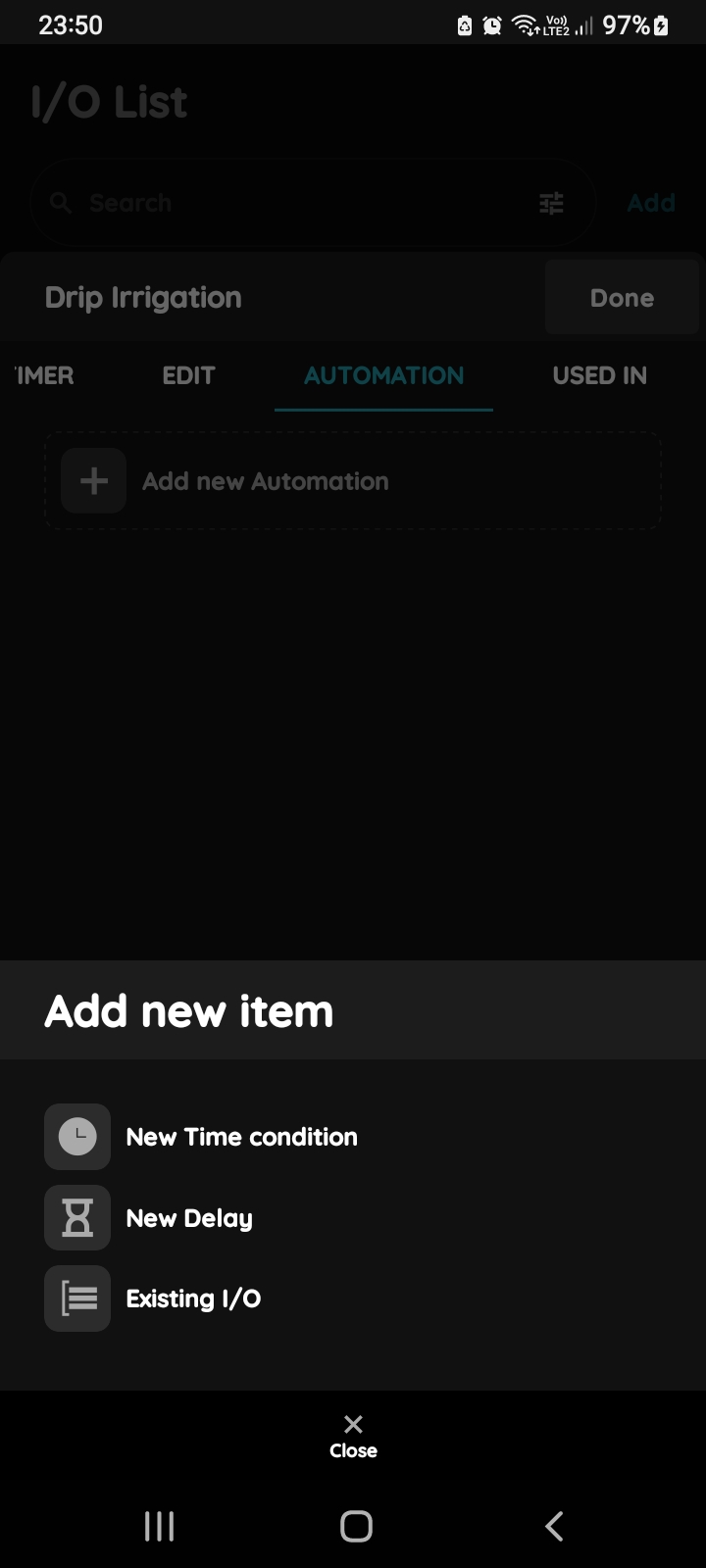
Tap Add new Automation and choose New Time Condition. The screen is the same for every I/O type.
Select the days
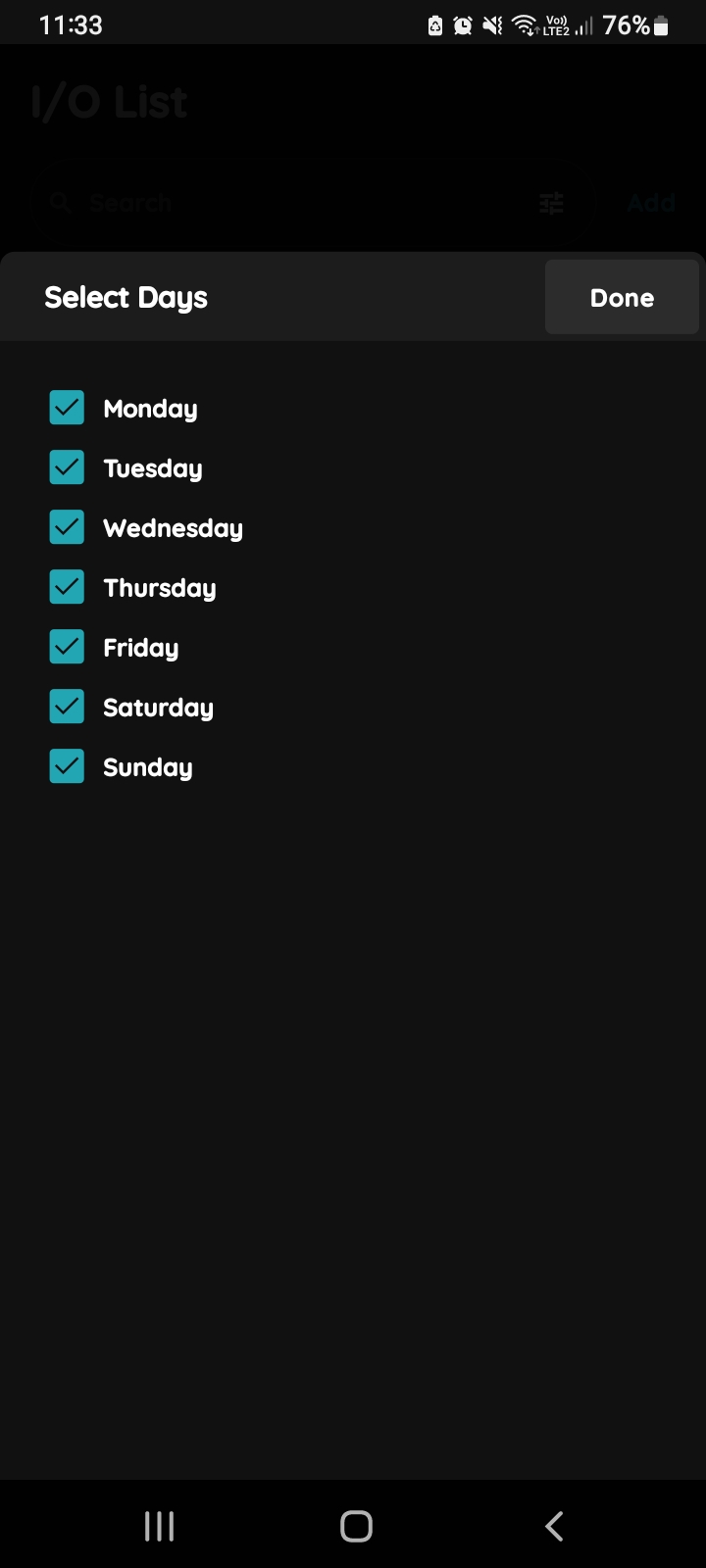
Tick the days on which the rule applies, for example every day, and confirm.
Set the start and end time
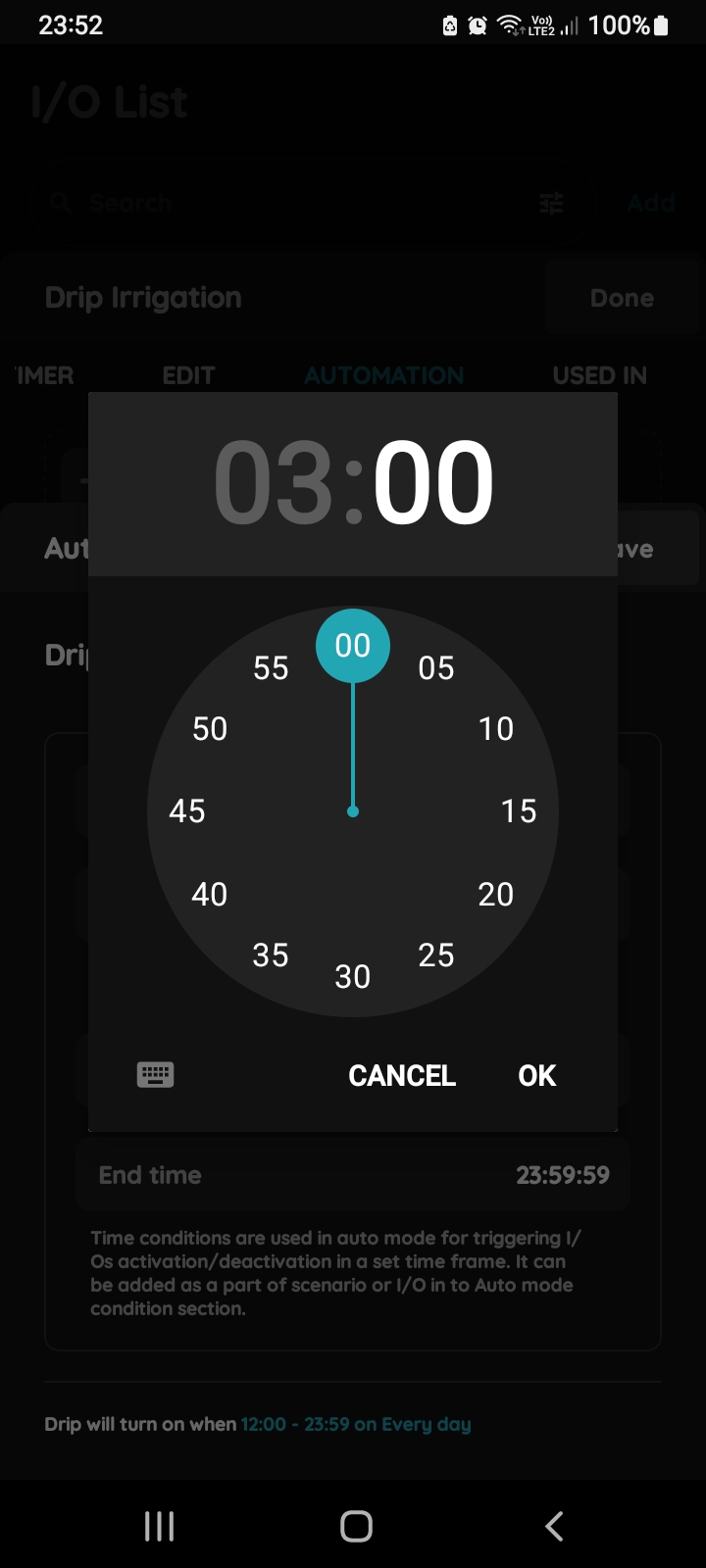
Set the start time and the end time of the window in which the light may switch on, for example 18:00 to 23:00. Tap Save.
Add the sensor
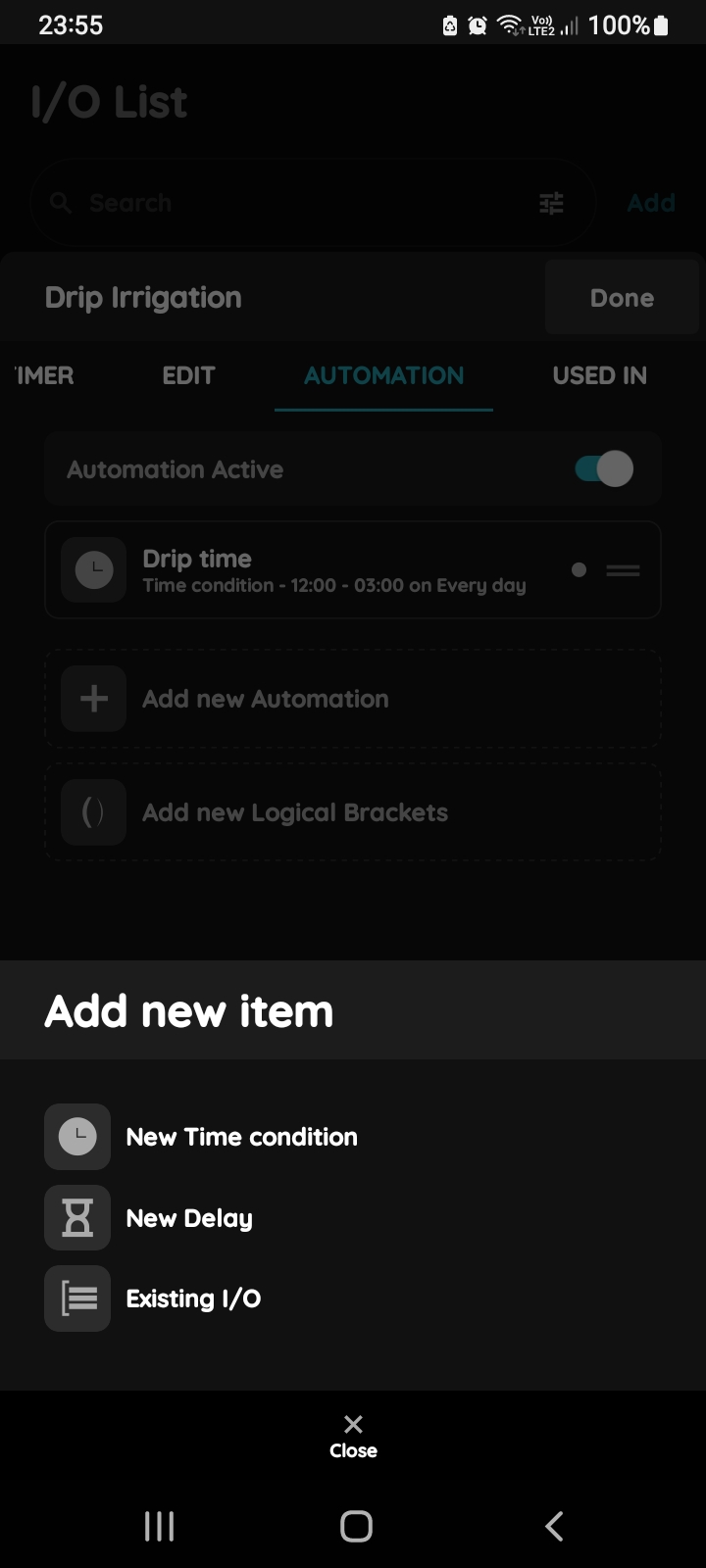
Tap Add new Automation again and choose Existing I/O.
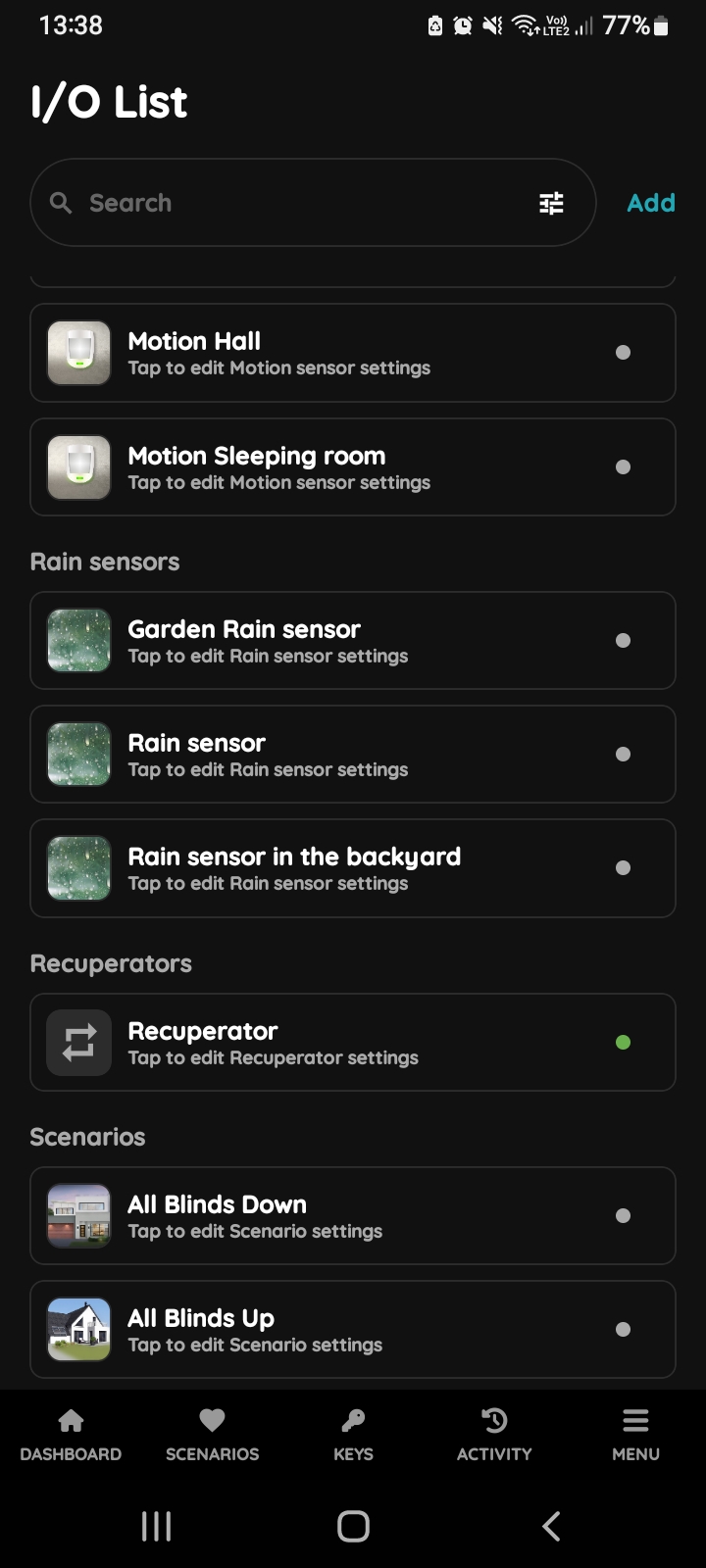
Pick the motion sensor
Scroll the I/O list and tap the motion or presence sensor of that room.
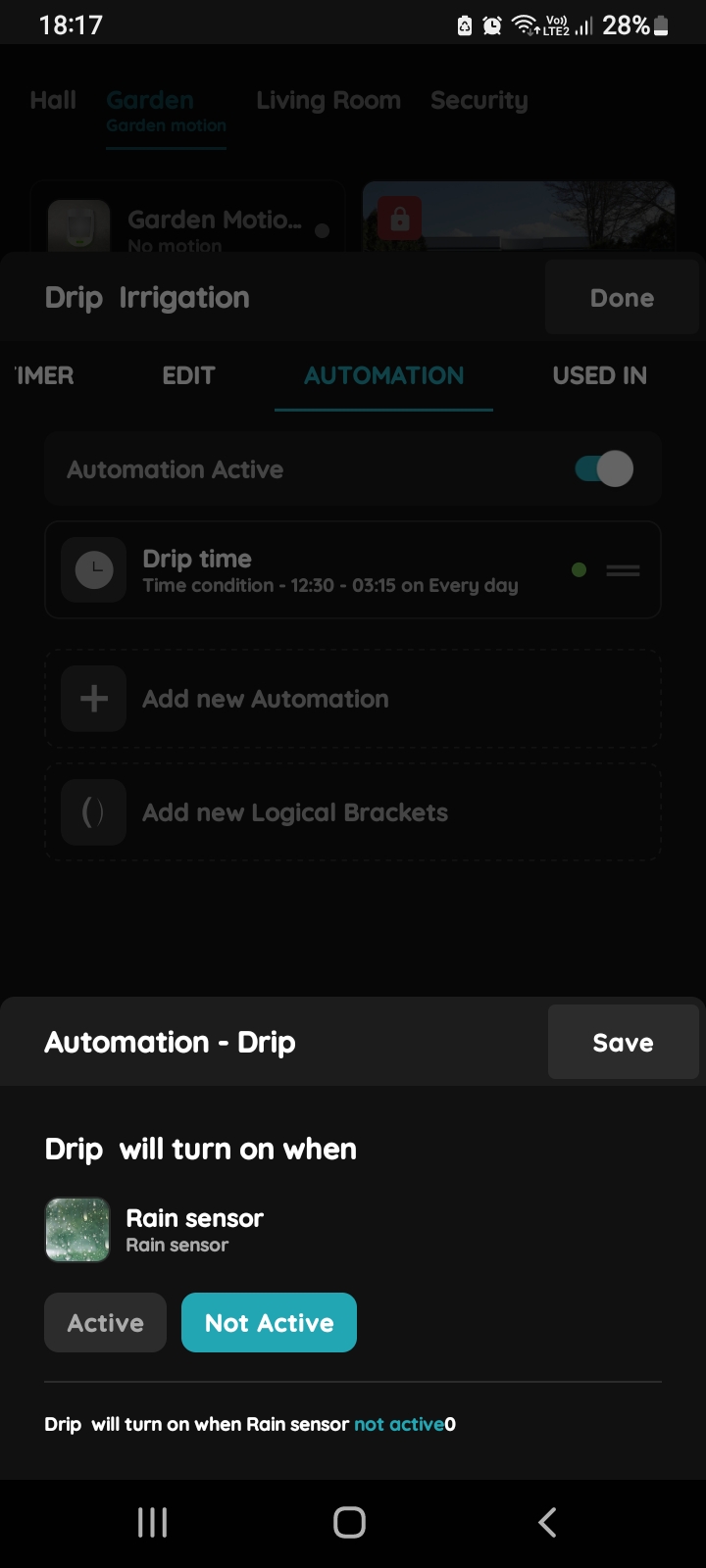
Choose the state
Choose detects motion. The light will be on while the sensor reports movement. Tap Save.
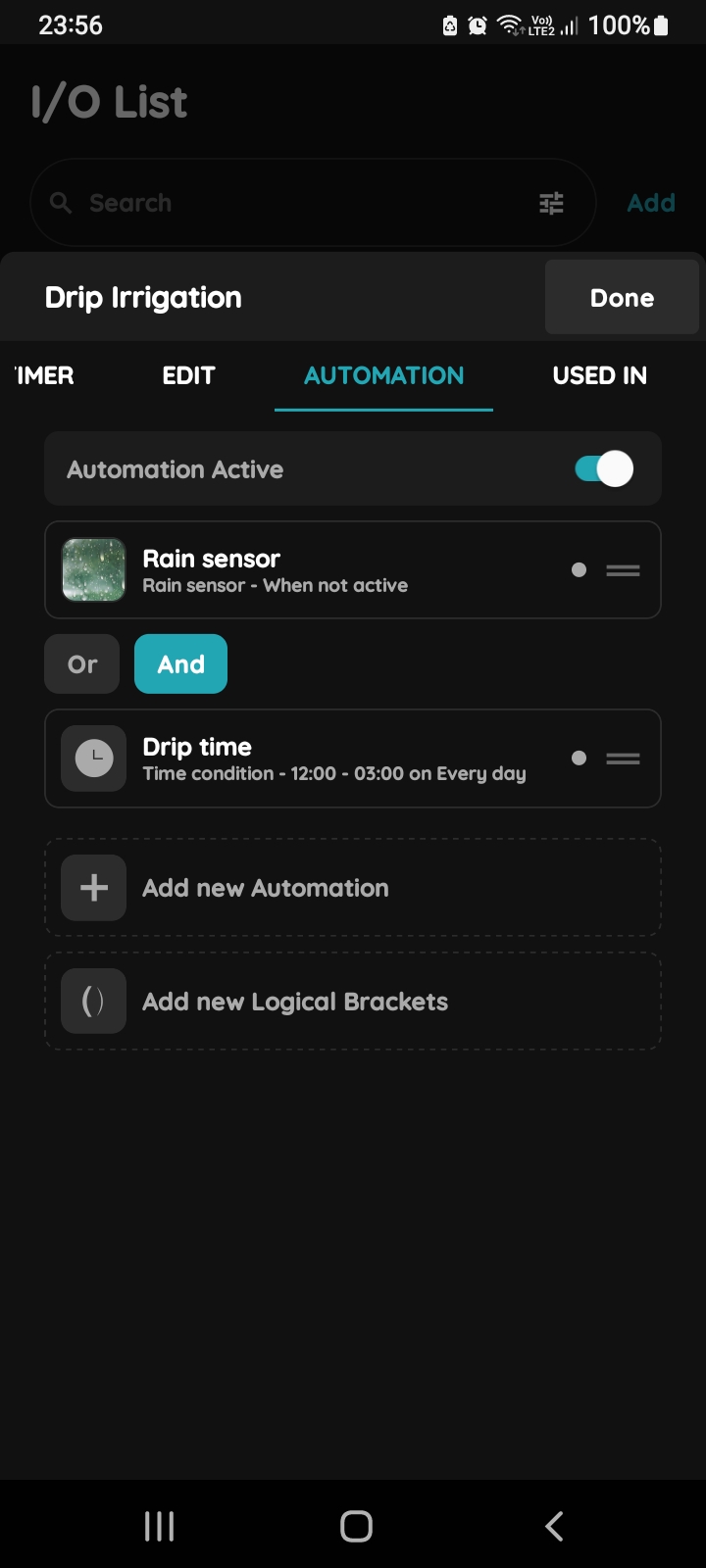
Join the conditions with And
Between the two conditions tap And, so the light comes on only when there is movement within the time window. Or would switch it on for either condition alone.
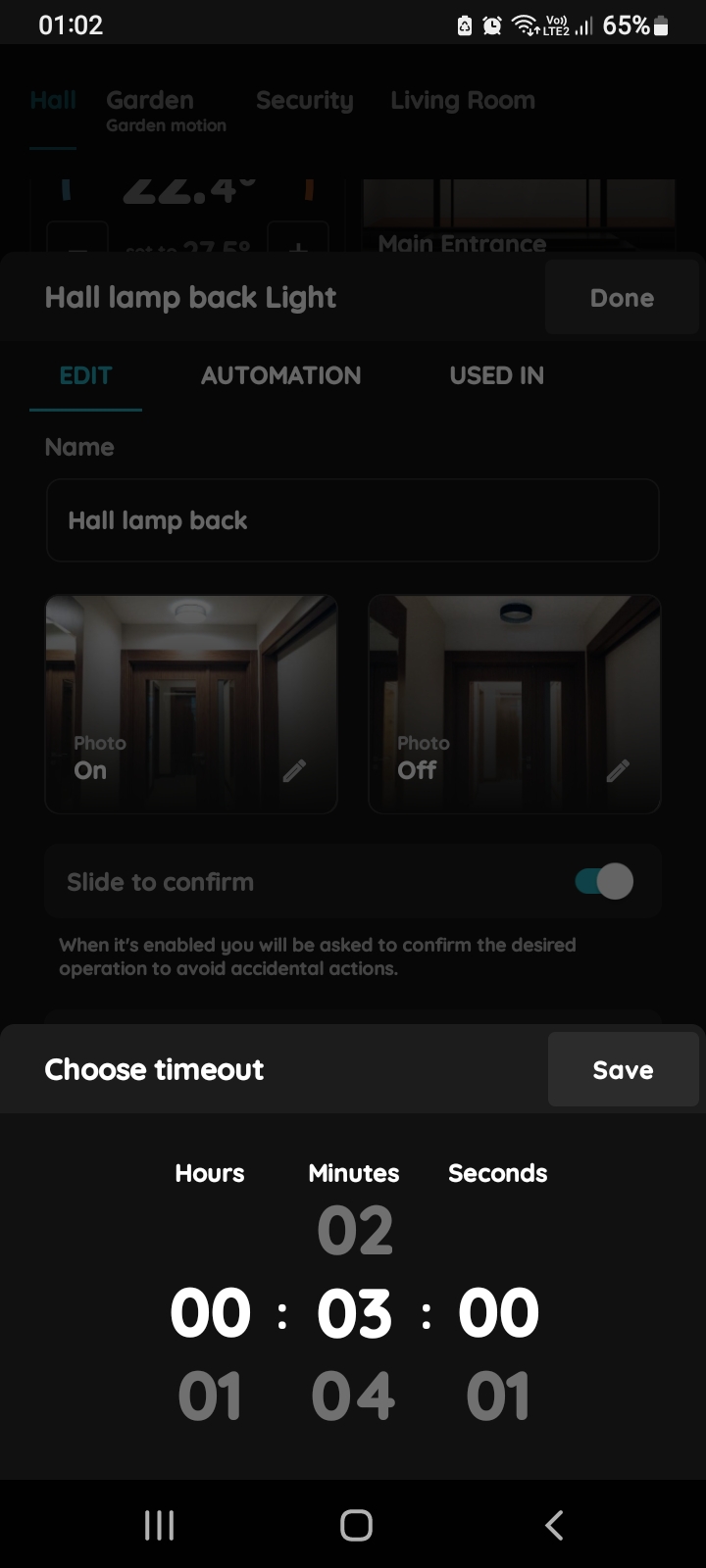
Set the Timeout
Open the Edit tab, tap Timeout and choose how long the light stays on after the last movement, for example 3 minutes. Tap Save and Submit.
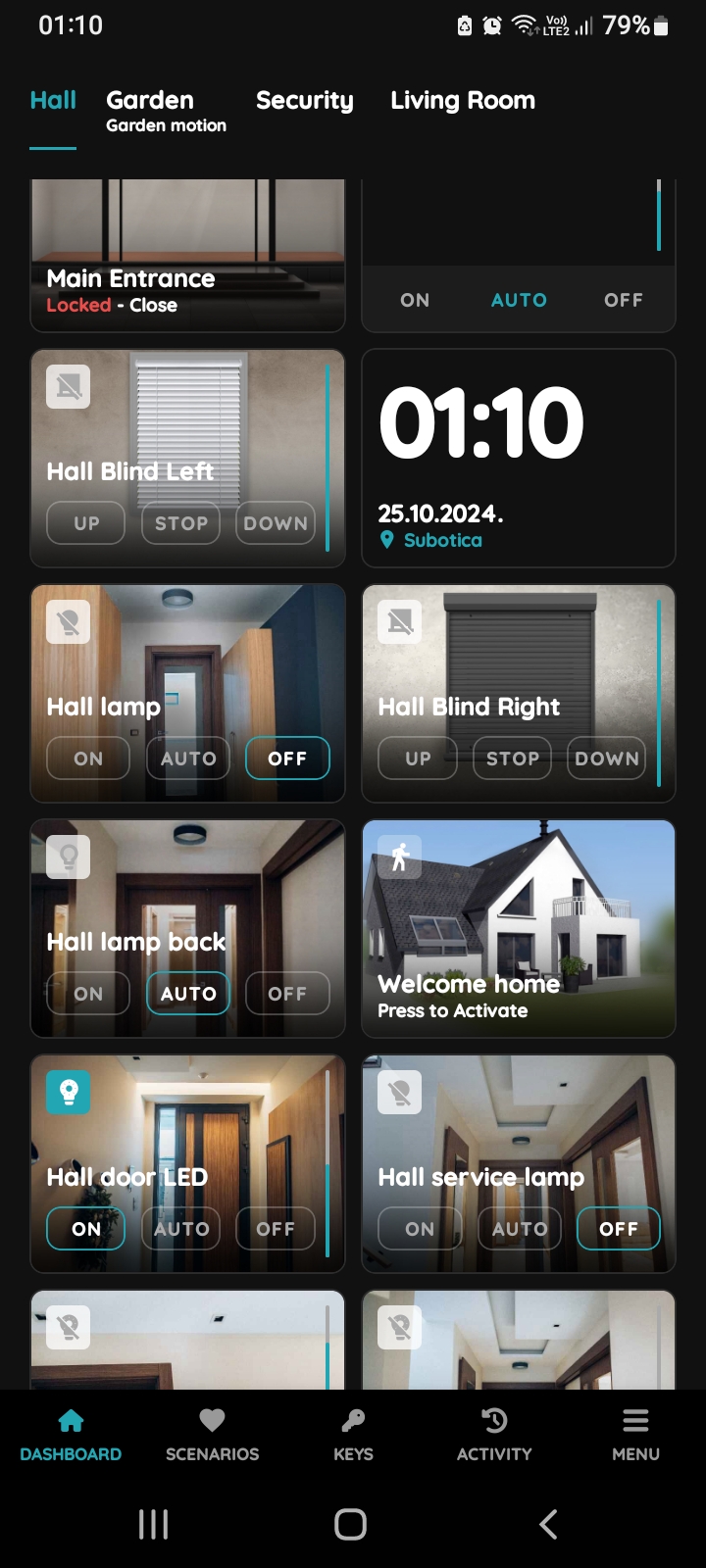
Set the light to Auto
Back on the Dashboard tap Auto on the light card. The rules are now in charge. Tap On or Off to override, and Auto to hand control back.