
PIERRE Partner - Building Management
Description
A Building is the primary logical container within the PIERRE system. All controllers, displays, gateways, devices, inputs, outputs, and automation functions are assigned to a Building.
The Building structure provides a clear organizational hierarchy and allows multiple projects, facilities, or properties to be managed from a single PIERRE account.
Purpose
The Building object is used to:
- Organize system devices and infrastructure
- Separate independent projects or properties
- Manage user access and permissions
- Structure automation and visualization components
- Simplify navigation within large installations
Building Types
Different Building types can be used depending on the project requirements.
Examples include:
- Home
- Accommodation
- Condominium
- Hotel
- Industrial Building
- Office
- Public Facility
- Residential Building
- Retail Building
- Warehouse
The Building type is used for organizational purposes and may affect the available system templates, dashboards, and project structure.
Main Building and Sub-Building Structure
The PIERRE platform supports hierarchical Building organization.
Main Building
The Main Building represents the top-level project structure and serves as the primary container for all related system components.
Sub-Building
Sub-Buildings can be created under a Main Building to represent individual areas or independent units within the project.
Examples:
| Main Building | Sub-Buildings |
|---|---|
| Hotel | Hotel Rooms, Reception, Restaurant, Spa |
| Residential Complex | Building A, Building B, Building C |
| Office Facility | Office Areas, Meeting Rooms, Technical Rooms |
| Apartment Development | Individual Apartments |
This structure allows large projects to be divided into manageable sections while maintaining centralized administration.
Building Selection
Users with access to multiple Buildings can switch between them using the Building Selector available within the application.
The selector displays all Buildings assigned to the user account and allows quick navigation between projects.
Technical Notes
- Every device must belong to a Building.
- Controllers, displays, gateways, inputs, outputs, and automation objects inherit the Building structure.
- Buildings can contain multiple Sub-Buildings.
- User permissions can be assigned at Building or Sub-Building level.
- Building separation provides logical isolation between independent projects while allowing centralized management through a single platform.
Create a New Building
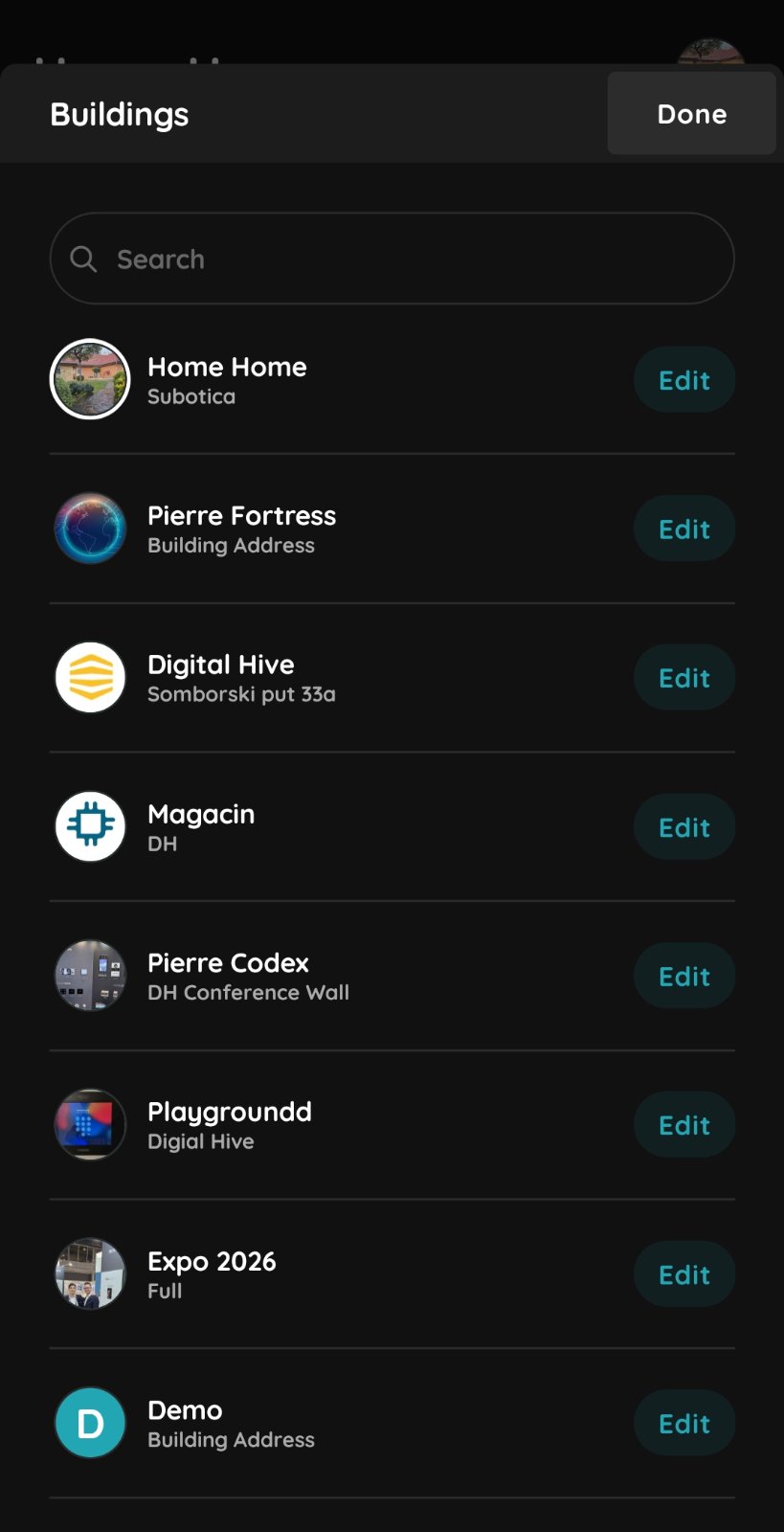
List of the Buildings
Click Edit to modify the settings of an existing building.
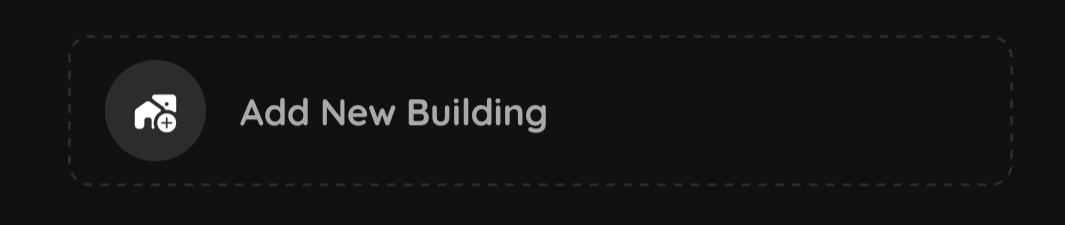
Add New Building
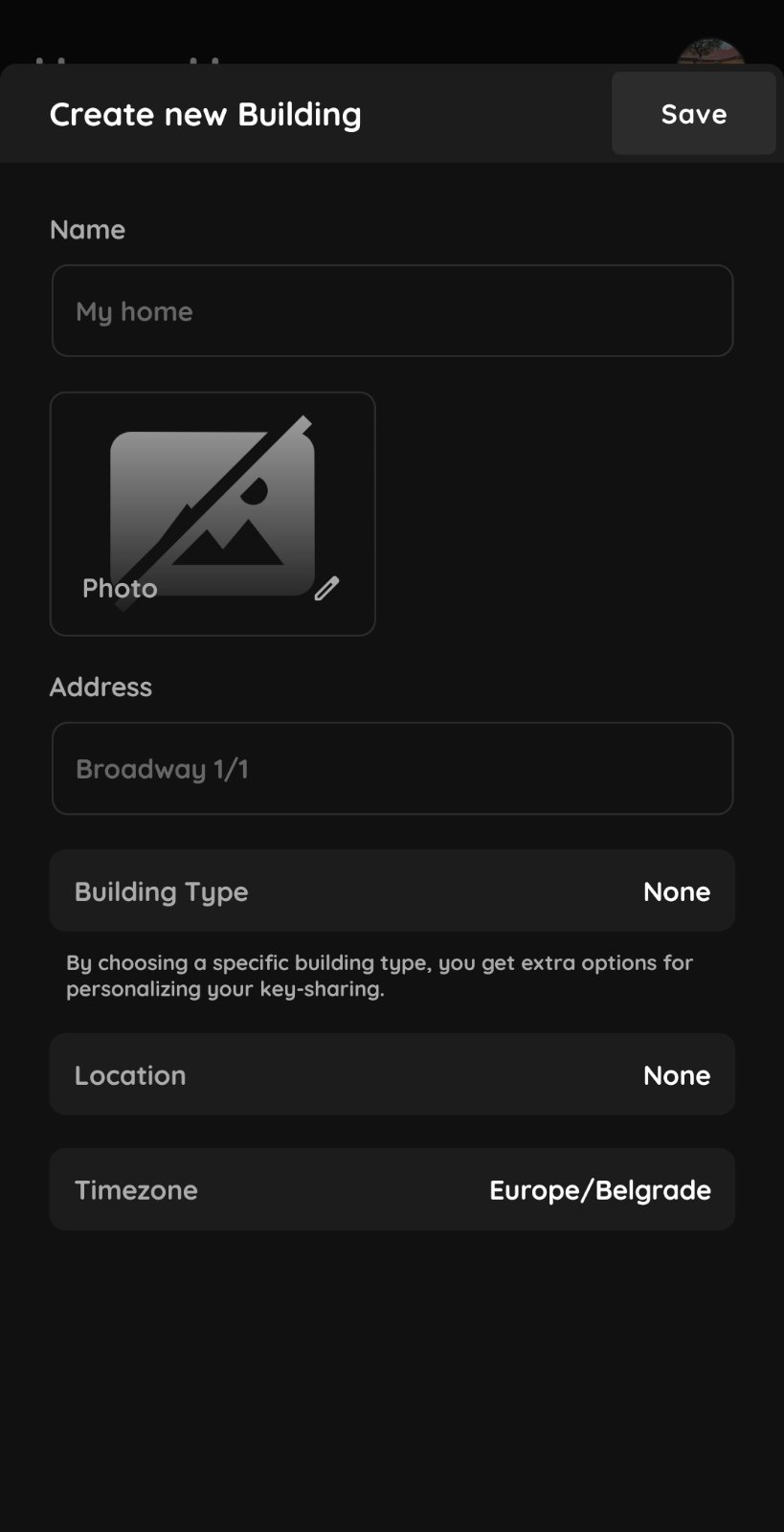
Building Informations
- Home
- Accommodation
- Condominium
- Hotel
- Industrial Building
- Office
- Public Facility
- Residential Building
- Retail Building
- Warehouse
Location – Select the building's location on the map.
Timezone – Select the building's time zone.
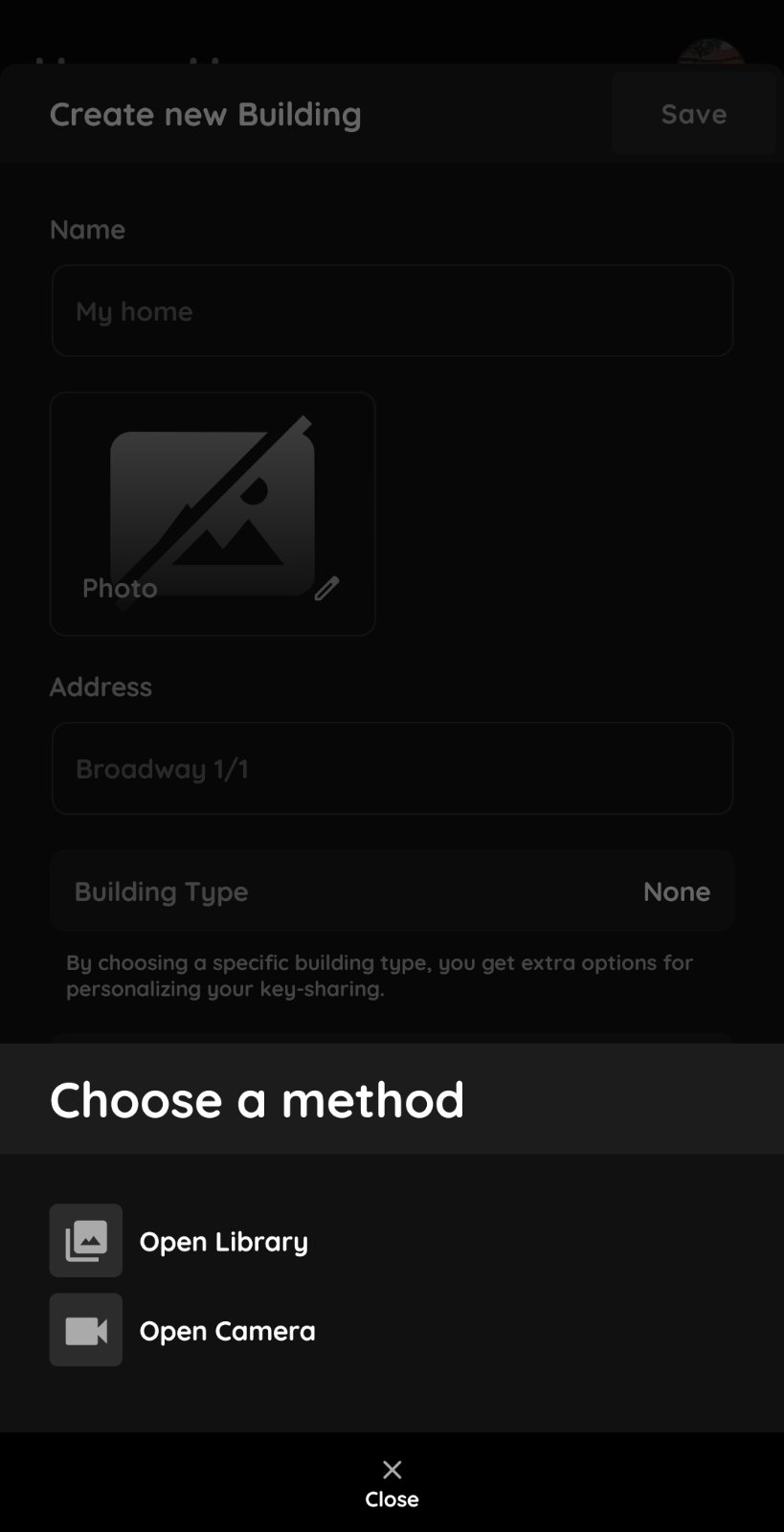
Building Photo
Select a photo from the gallery or open the camera to take a new photo.
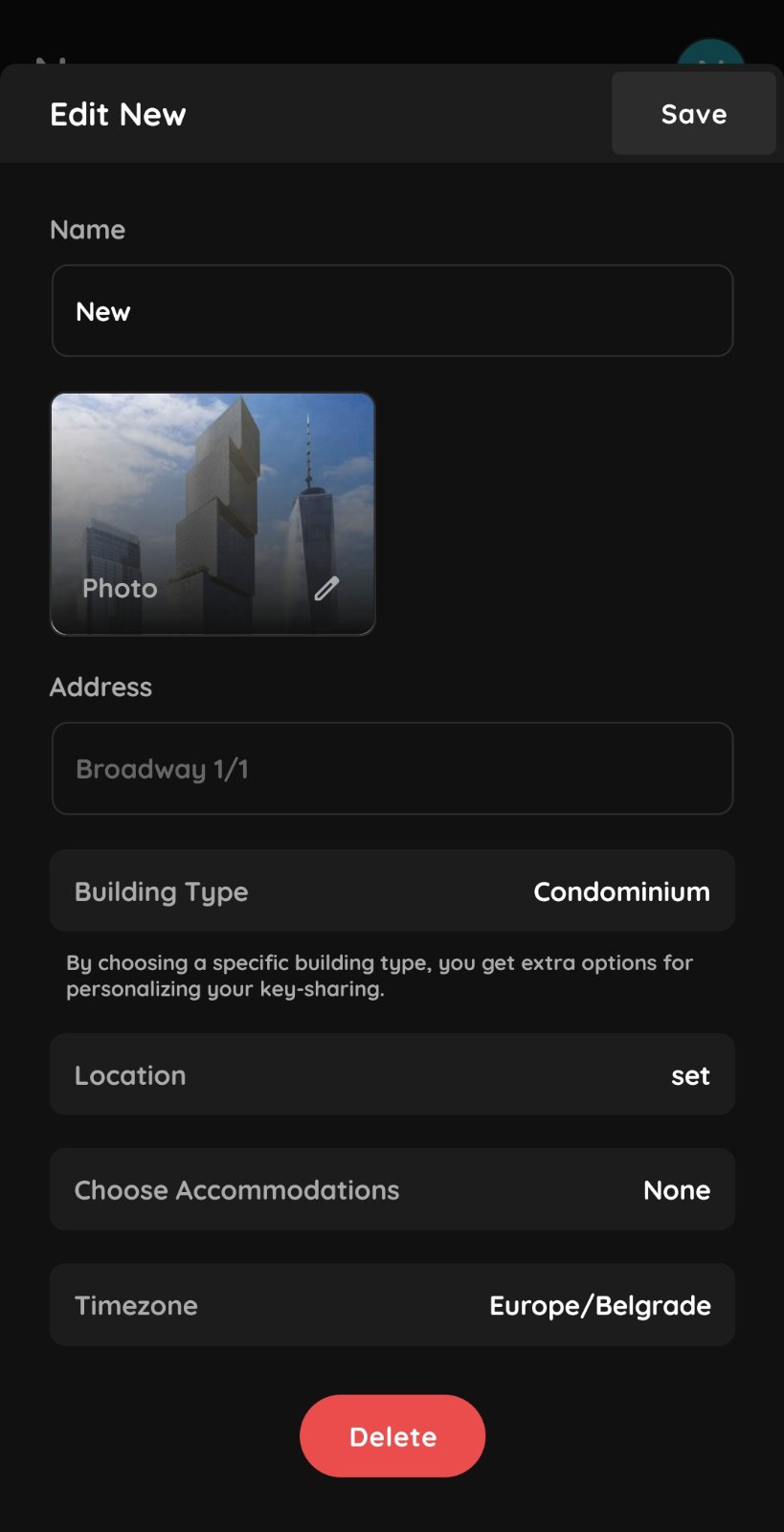
Building Types
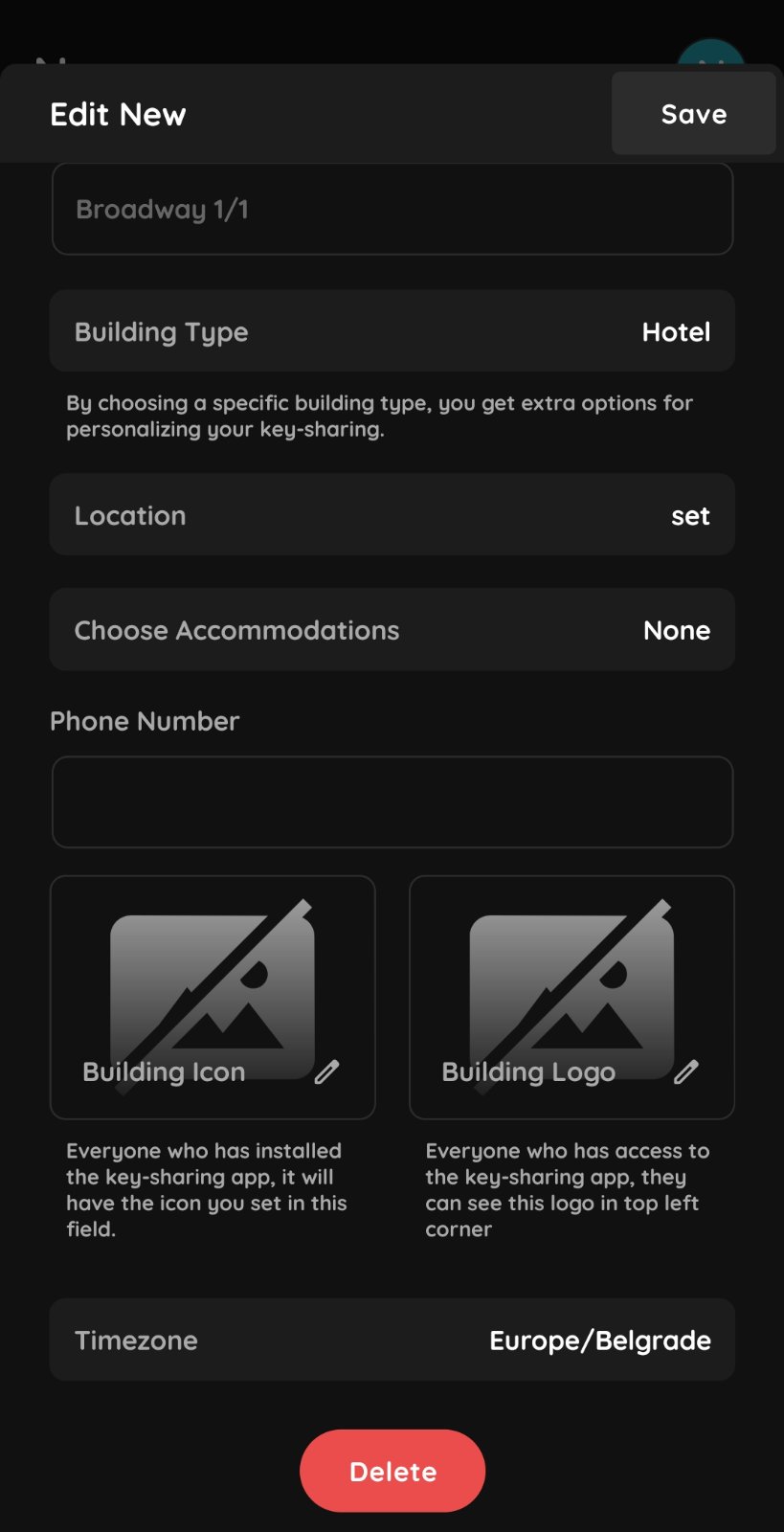
Accommodation and Hotel settings
When selecting Accommodation or Hotel as the building type, additional options are available to customize the appearance of key-sharing.
- Phone – Enter the phone number.
- Room Number – Enter the room number.
- Building Icon – Select an icon for the building.
- Logo – Select a logo for more personalized branding.
Choose Accommodations – Select buildings with the Accommodation building type. These buildings will be added as sub-buildings under the main building.