Smart PIERRE - Clock
Description
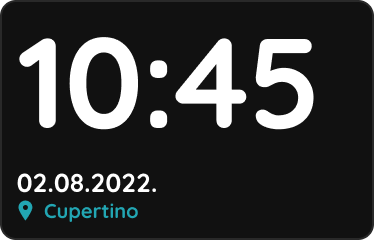
The Clock is a dashboard element that displays the current time within the PIERRE application.
Key Features
Adding a Clock
- A Clock can be added from the I/O list in the Settings menu.
- During creation, users can assign a name and a role to the Clock.
- A city can be selected to determine the displayed time.
Dashboard Integration
- The Clock can be placed in any Dashboard group.
- It is displayed alongside other I/Os and system controls.
- This is particularly useful for wall-mounted displays and touch panels where the current time should always be visible.
User Experience
The Clock provides a simple and convenient way to display the current time directly on the Dashboard. By placing it within a group, users can keep time information readily available alongside their most frequently used devices and controls.
Clock - Dashboard integration
Clock can be added into any Group on the Dashboard.
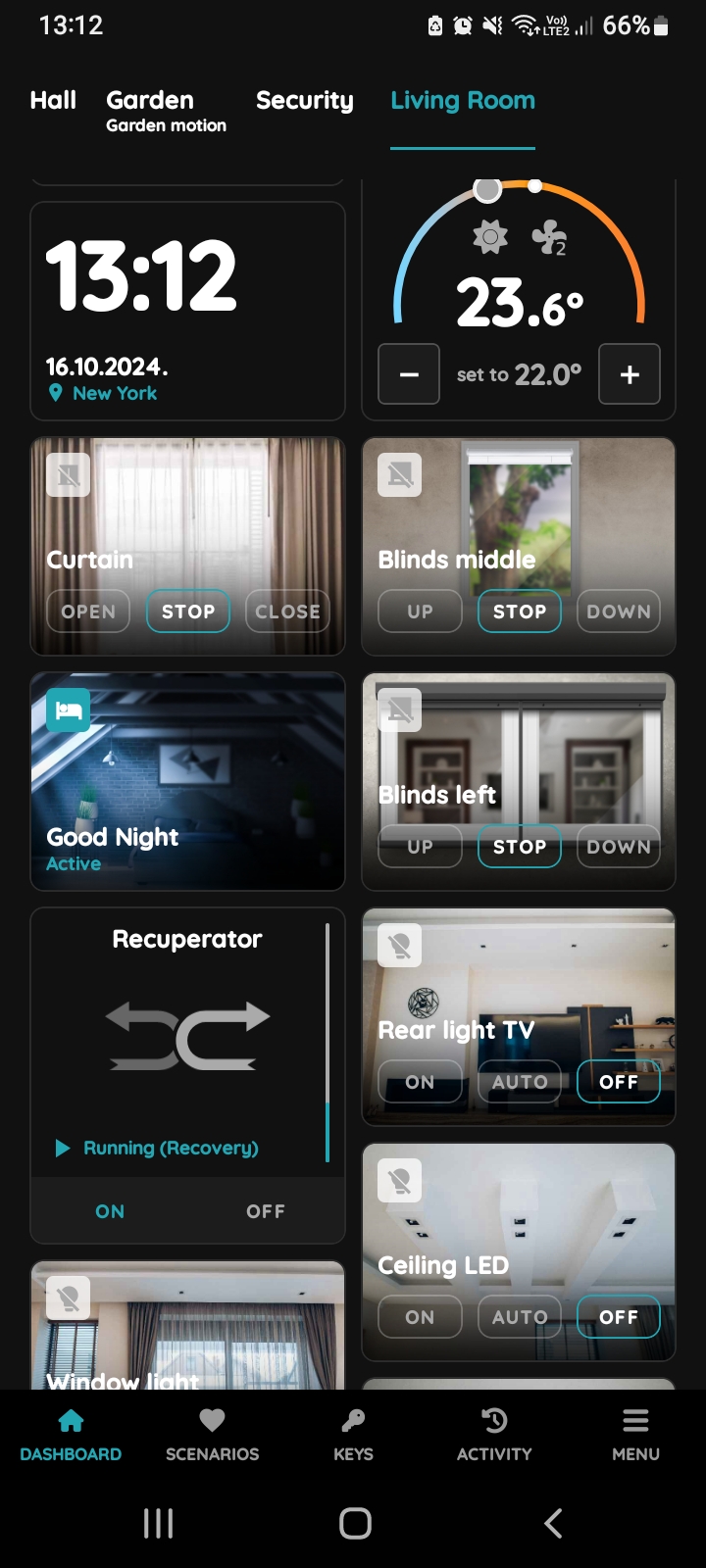
Clock on the Dashboard
In this case Clock is added to the Living room.
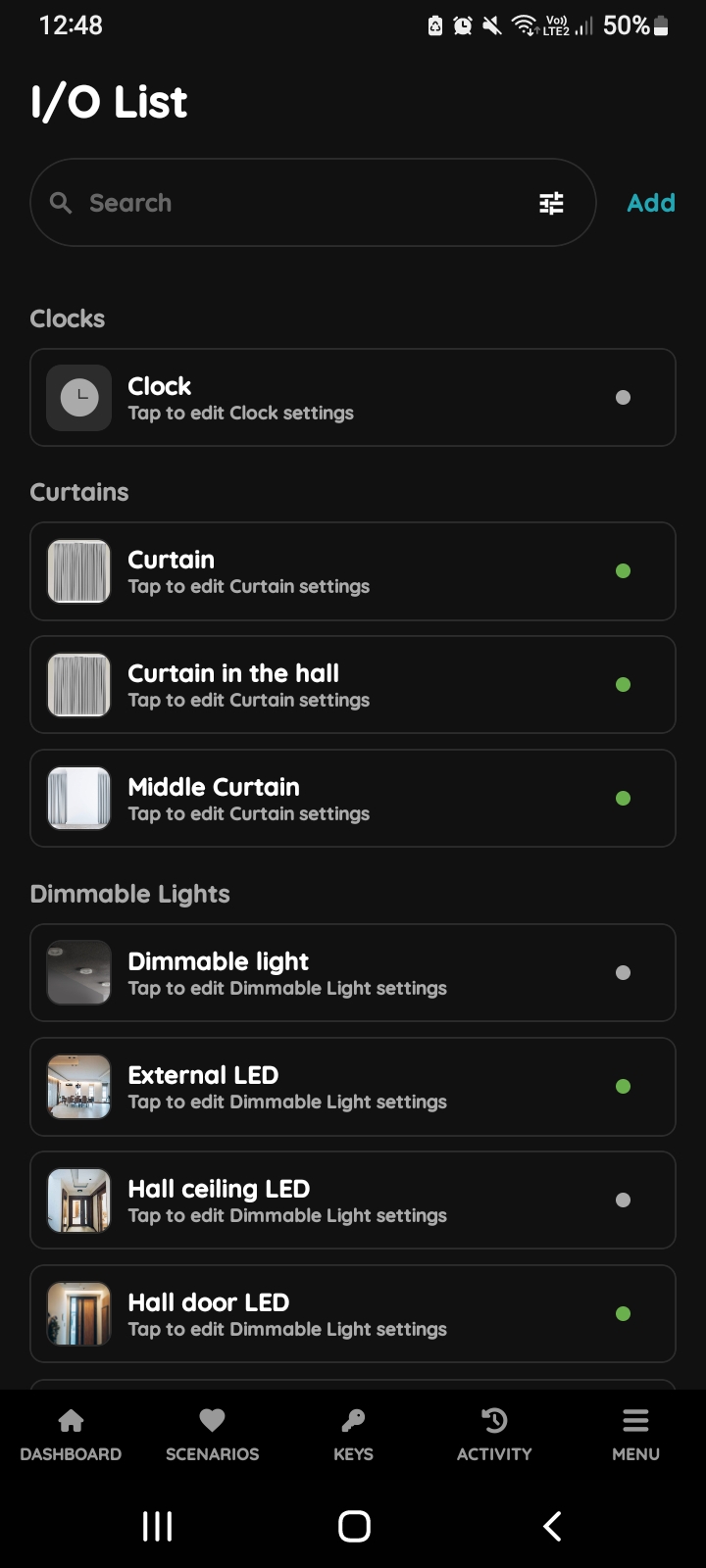
Add Clock - I/O List
Open I/O list from the Menu, under Settings and use Add button to add new Clock.
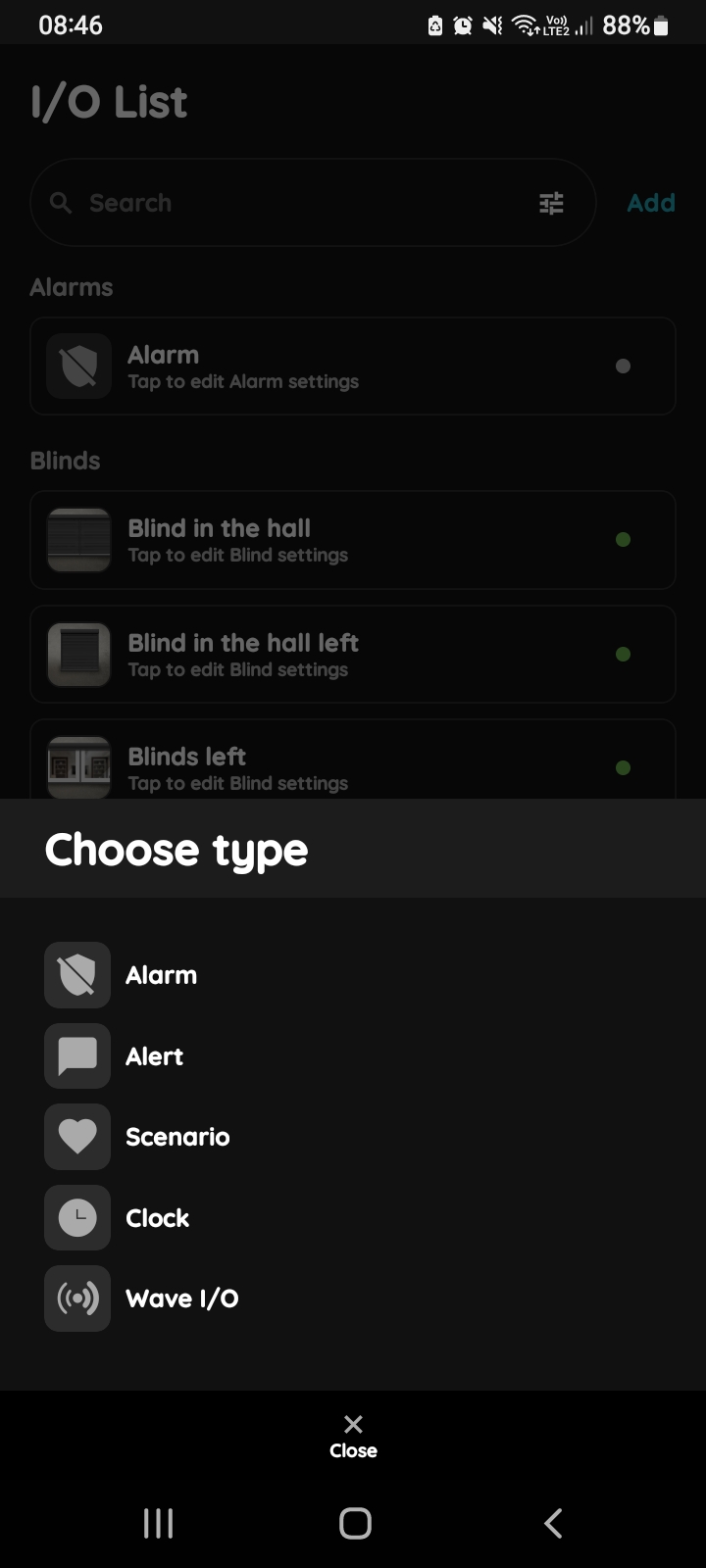
Choose type - I/O List
Tap on the type of the I/O that you would like to add, from the list.
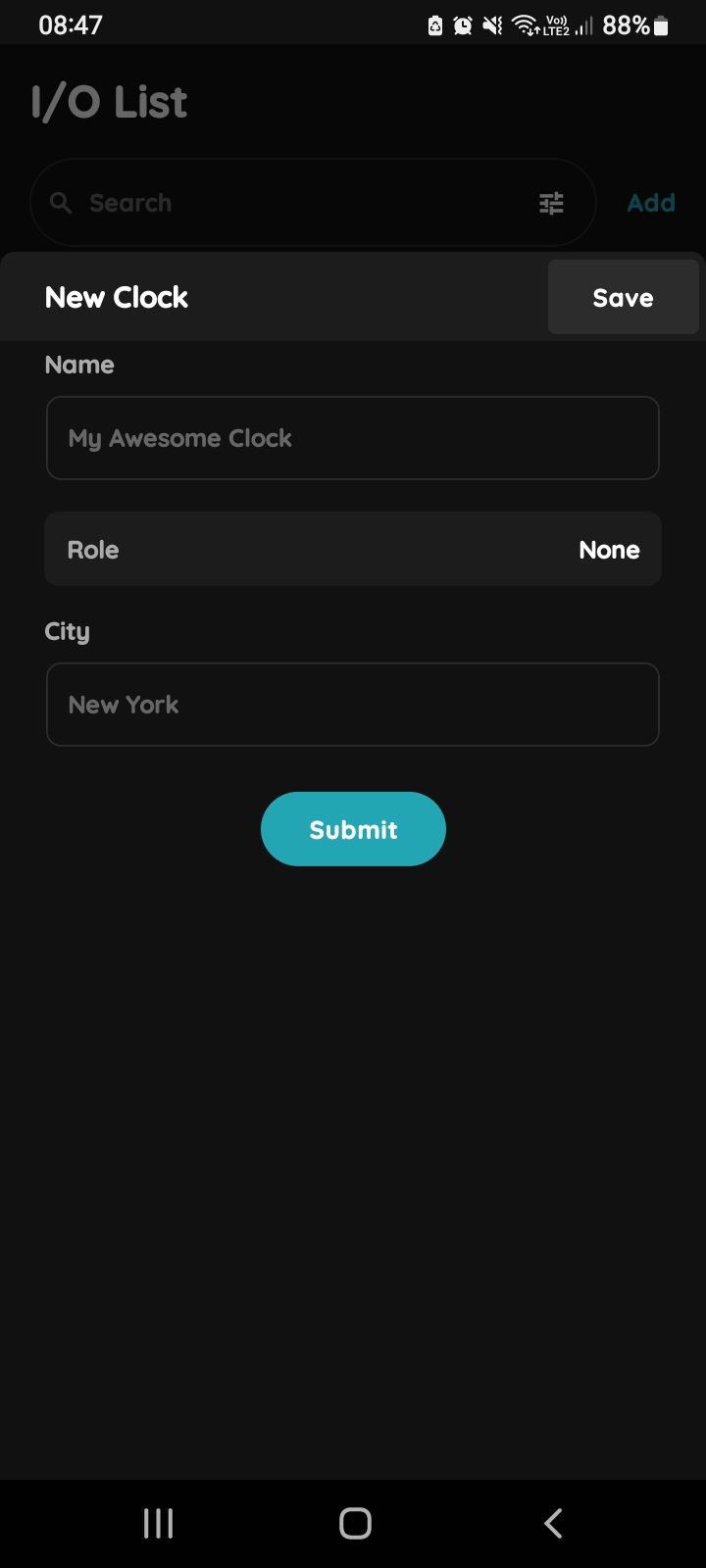
New Clock
Fill the following form:
- Name - Enter the name of the Clock.
- Role - Select the Role from the list.
- City - Enter the City.
To confirm tap Submit and Save.
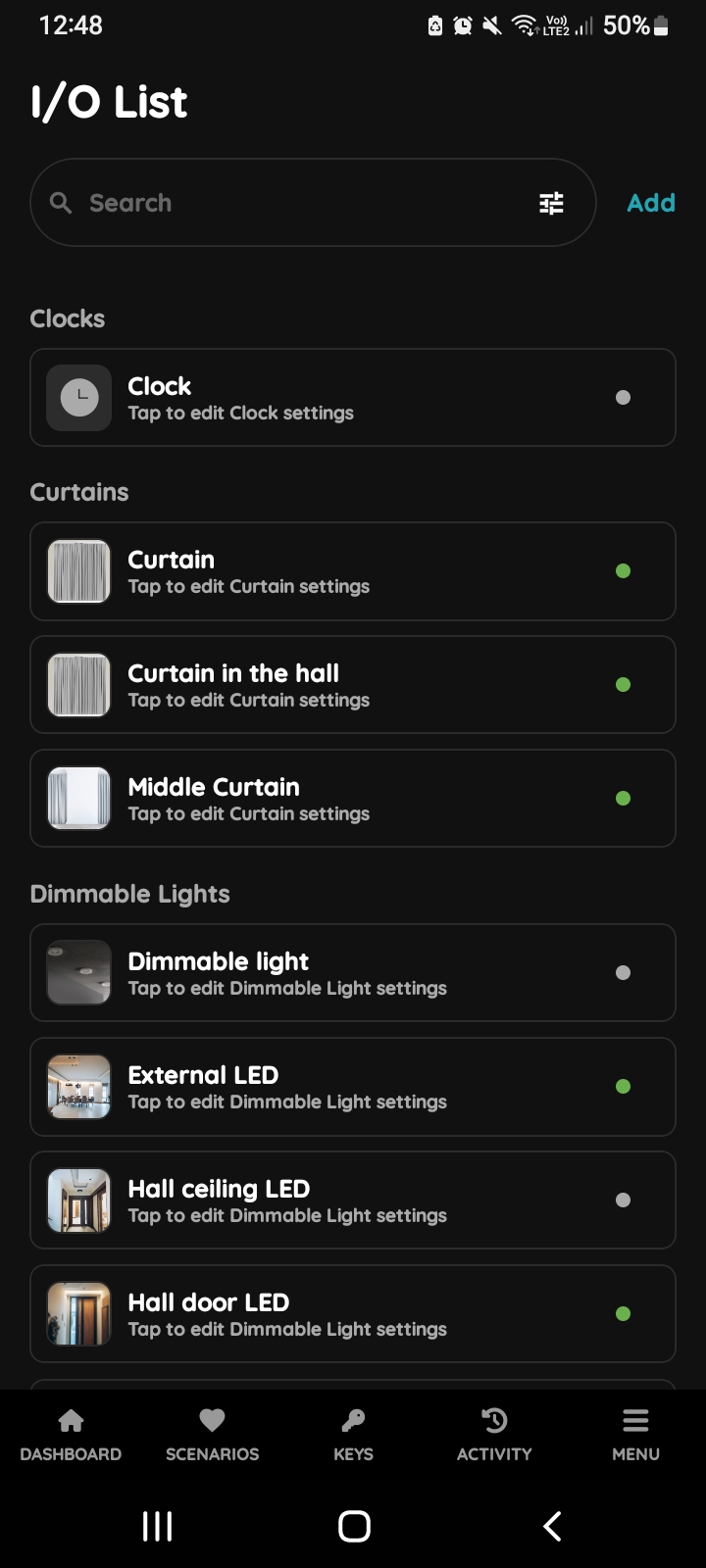
Clock - I/O List Menu
Clock can be edited from in a few steps.
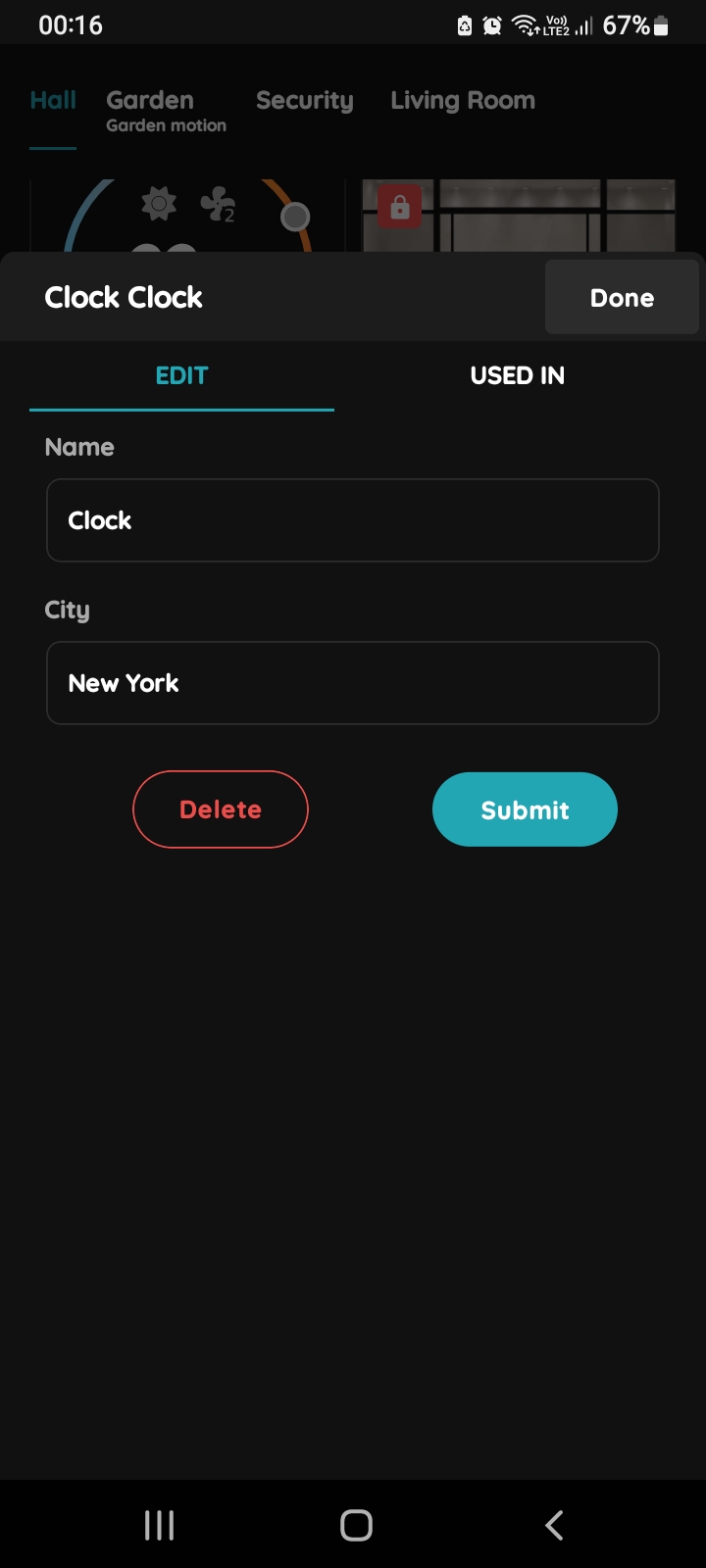
Edit Clock - I/O List Menu
Edit following form:
- Name - Enter the name of the Clock.
- City - Enter the City.
To confirm tap Submit and Save, or if you want to delete Clock tap button Delete.
GOOD TO KNOW:
Clock can be edited by long-press the Clock card on the Dashboard or tapping it in the I/O list.