Smart PIERRE - Push Button
Description
In the Smart PIERRE application a push button can be assigned to functions, automations and scenarios. One button event can execute several actions at once, so a single button can control more than one thing.
What a Push Button Can Control
- Lighting.
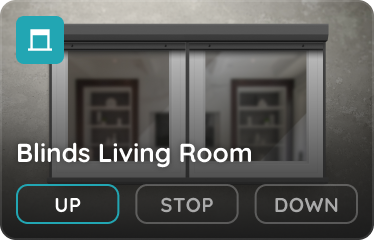
- Blinds and shutters.
- Gates and garage doors.
- Door unlocking.
- Scenes and scenarios.
- Automation workflows.
- Heating and cooling functions.
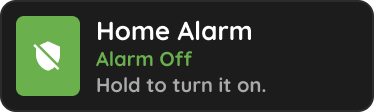
- Arming or disarming alarm-related automations.
Button Events
Each push button supports three independent events, and each is configured separately in the Smart PIERRE application:
| Event | Example function |
|---|---|
| Tap | Toggle a light |
| Double Tap | Activate a scene |
| Hold | Open blinds or unlock a door |
An event can trigger a single action, several actions, or a complete scenario.
Technical Notes
- Keep Tap on the function the user needs most often. Double Tap and Hold are less discoverable and are better used for secondary actions.
- Write down what each event does at handover; a button with three different functions is not self-explanatory.
- Avoid assigning a door unlock to Tap on a button that is reachable from outside.
Edit Button - I/O list Menu
You can edit Button from the I/O list Menu.
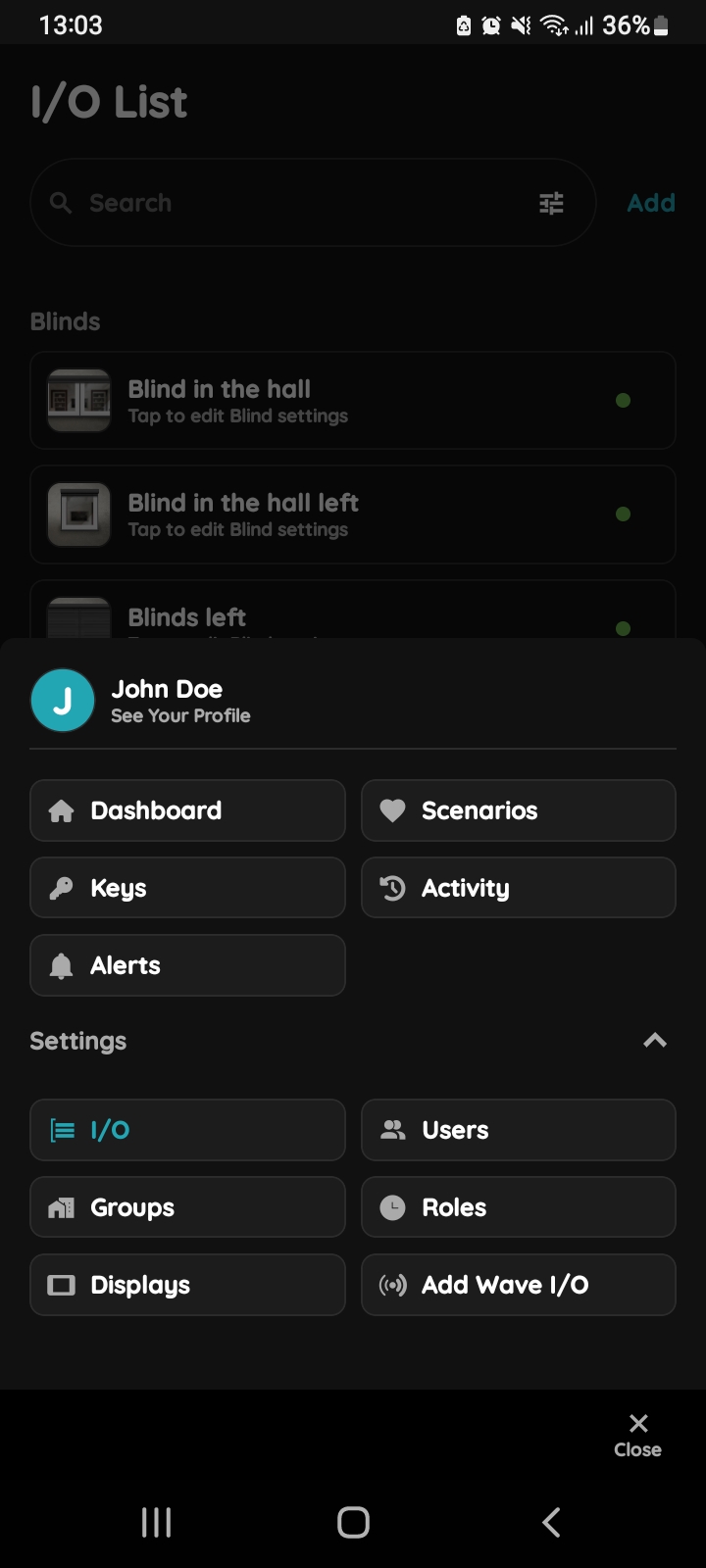
Open I/O
Open Menu, under Settings, tap on I/O.
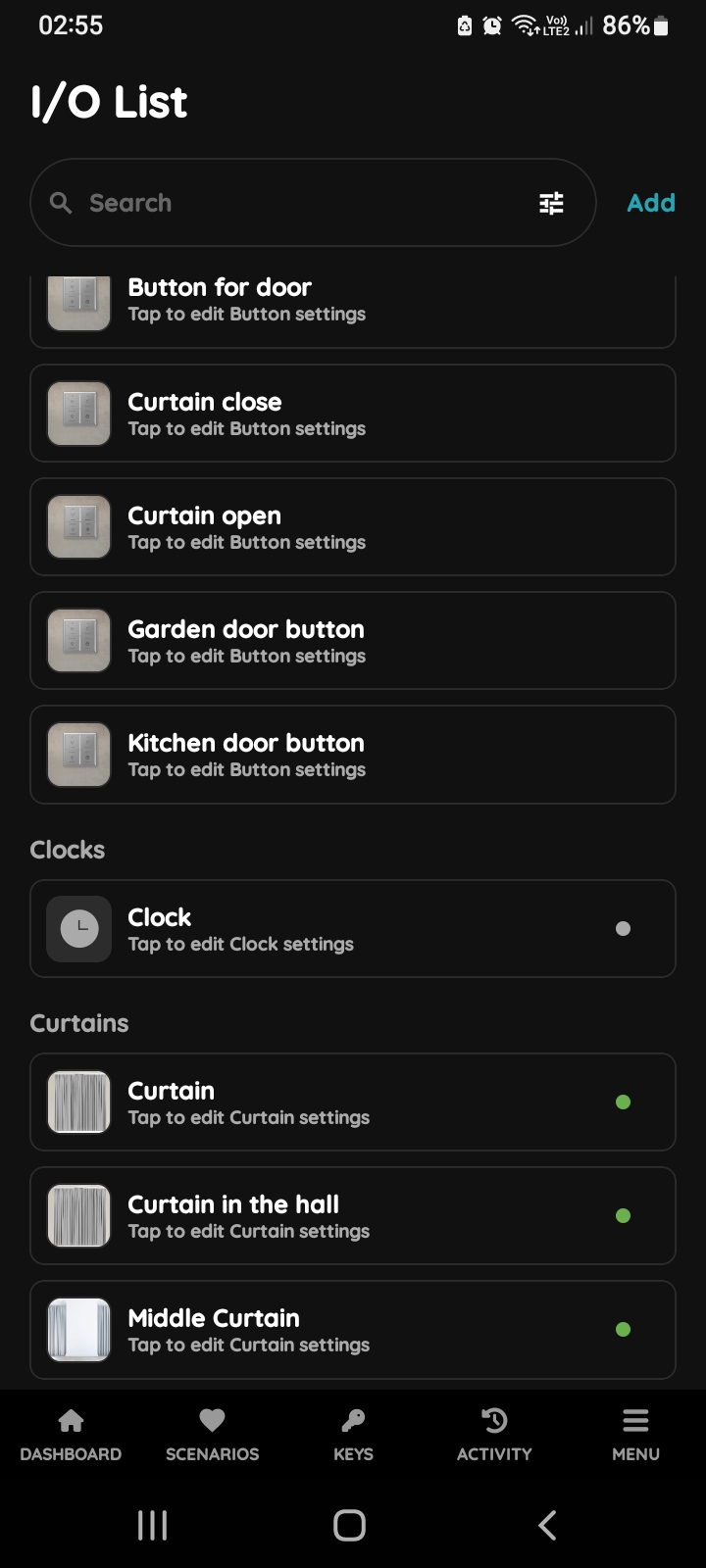
Open I/O List - Button
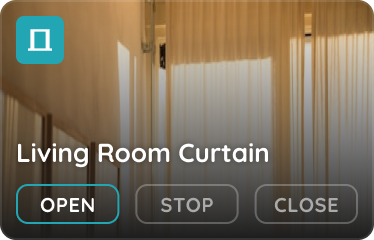
Open I/O list, scroll to Buttons and tap the desired Button, in this case tap on Curtain open.
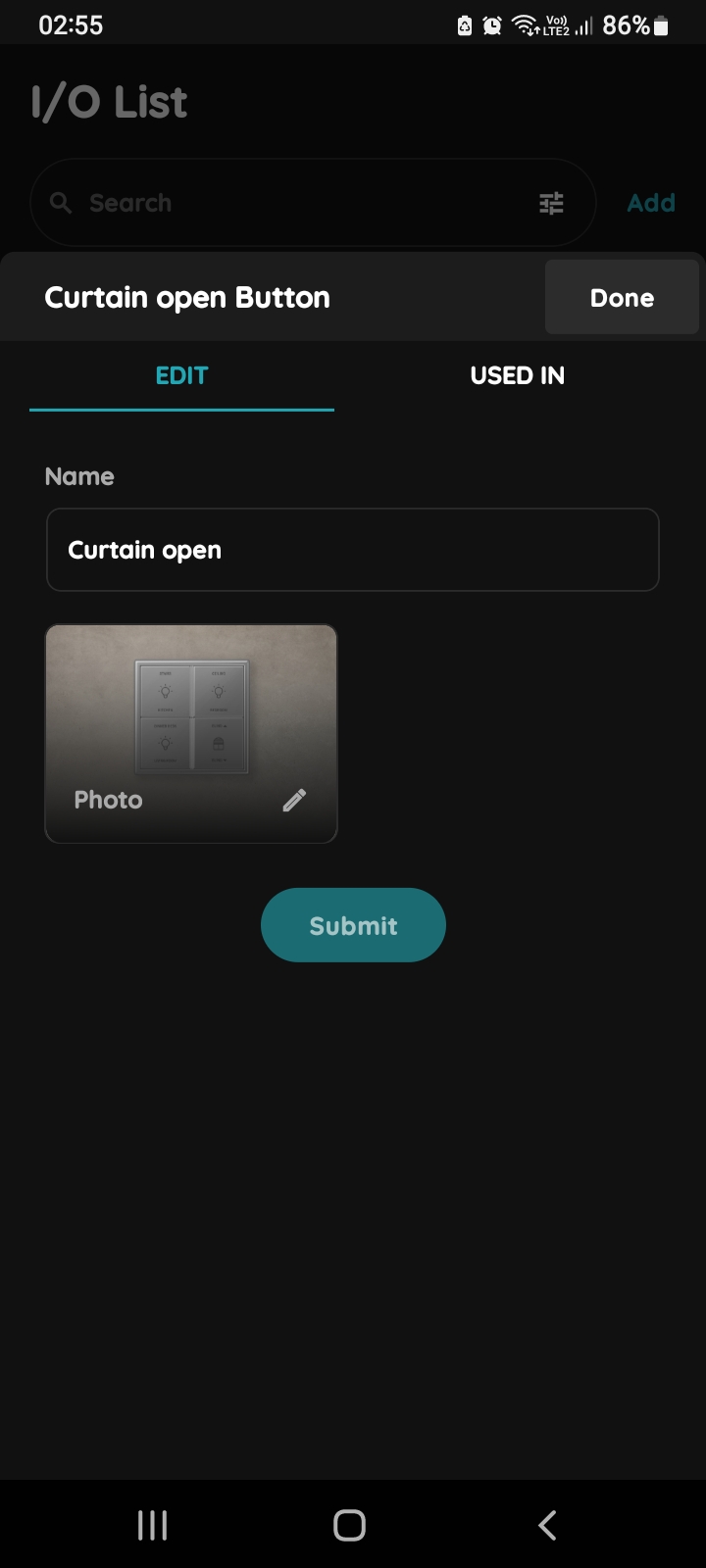
Edit Button
Edit the following fields:
- Name - Change the Button's name.
Tap Submit/Done.
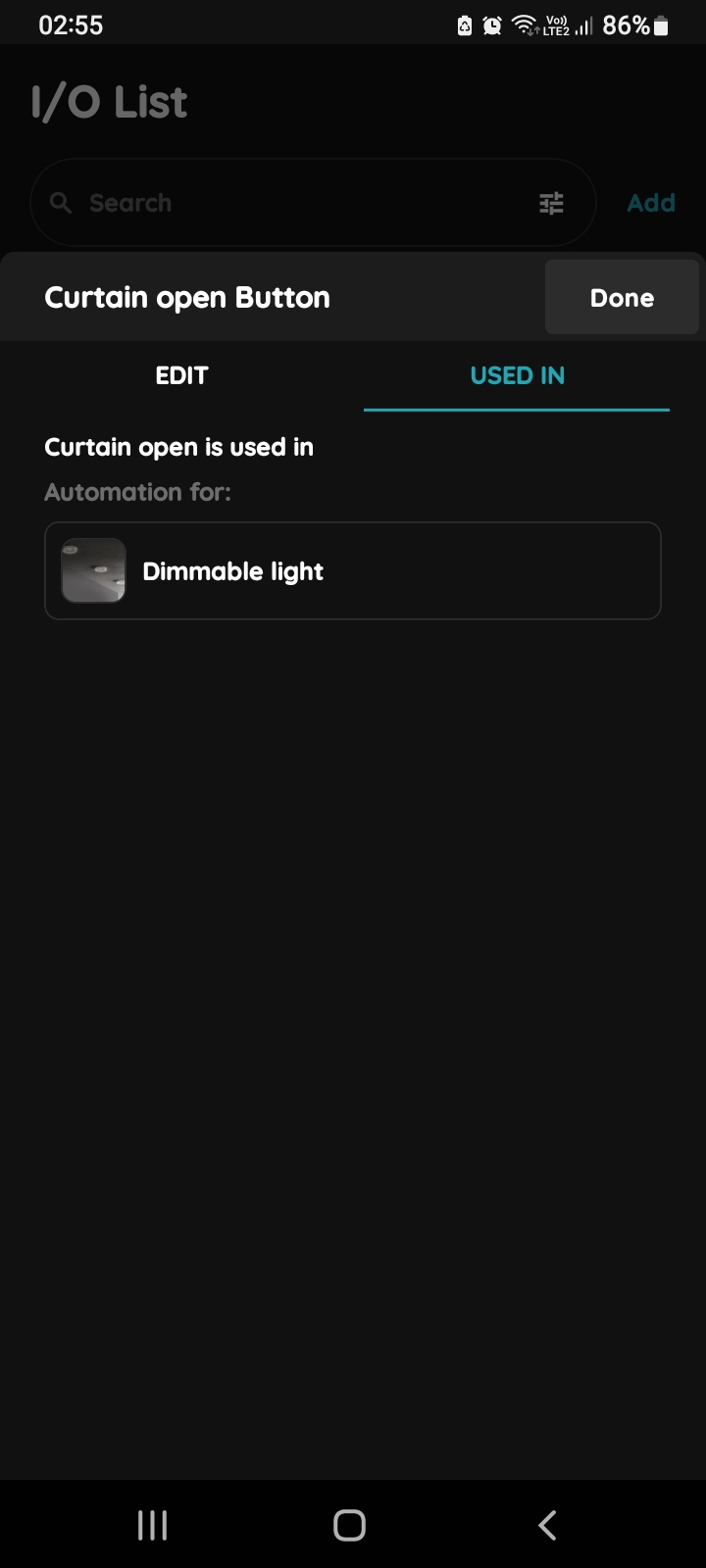
Used In - Button
This section displays all scenarios and automations where the Button is used. If unused, a message will read: "This I/O is not in use anywhere." This feature consolidates all relevant information in one place.
Use a Button to activate a scenario
A frequently used feature that allows you to trigger predefined scenarios directly from a wall switch or button.
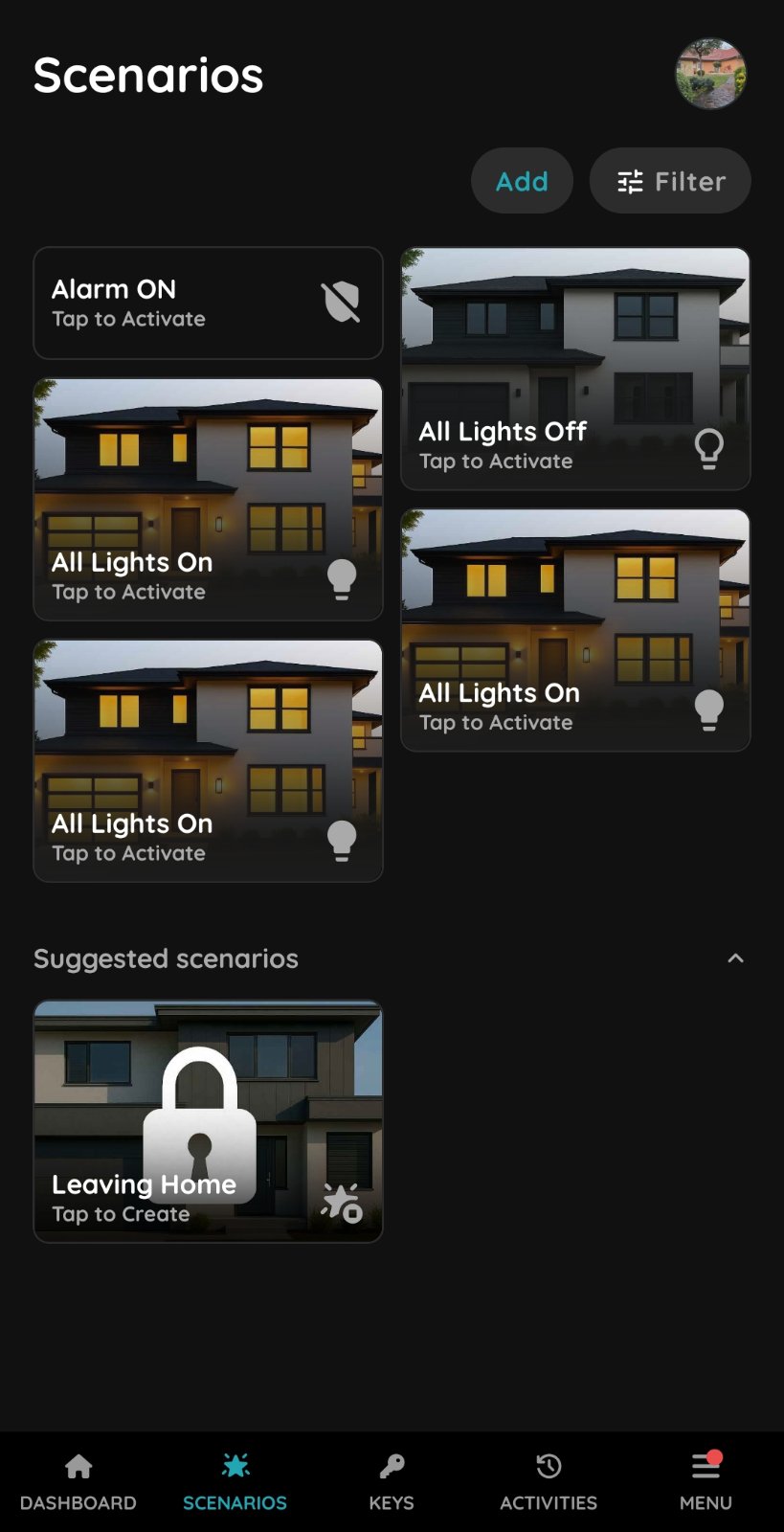
Open Scenarios
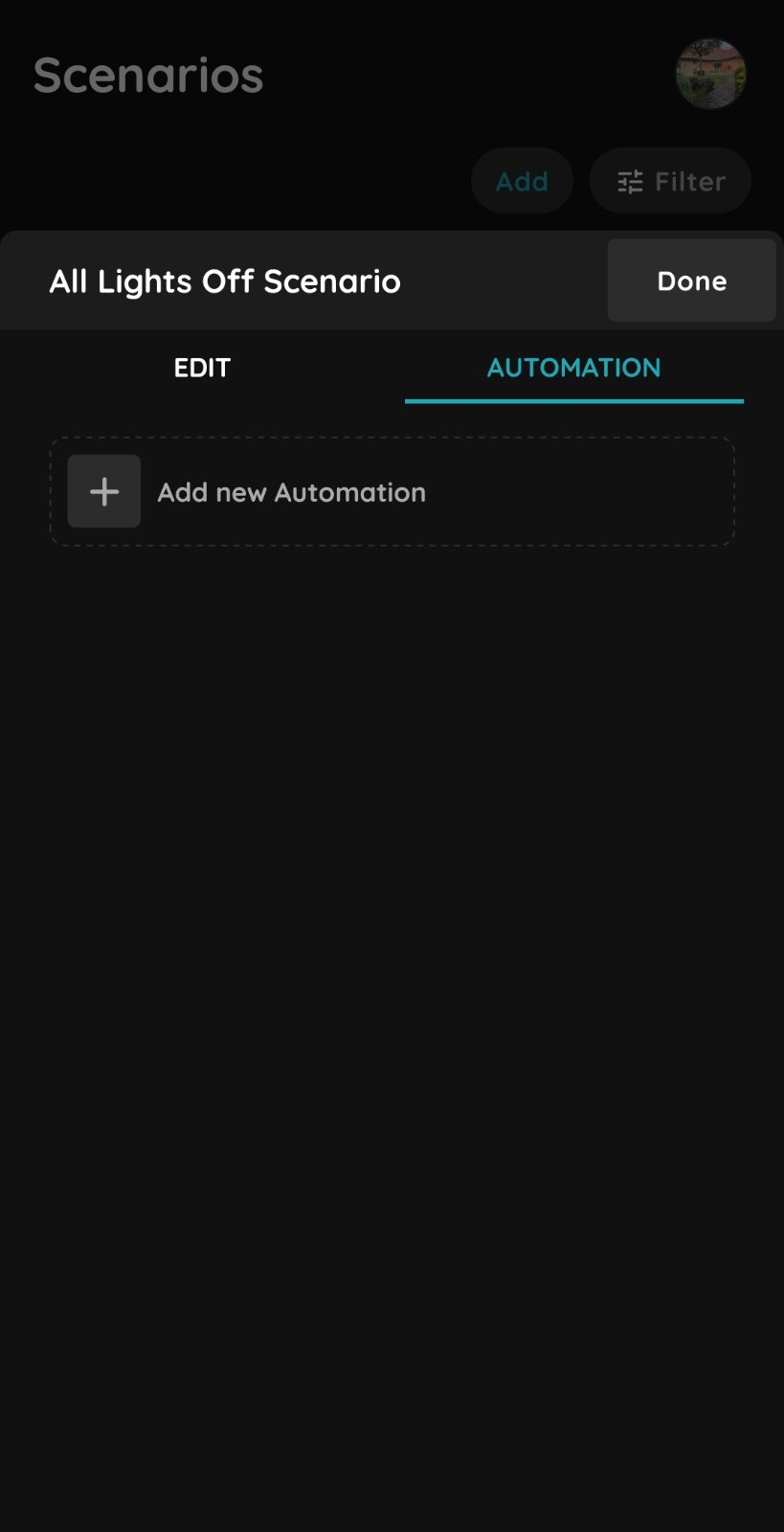
Automation
Select the scenario and press and hold it to open the scenario settings.
Select the Automation tab.
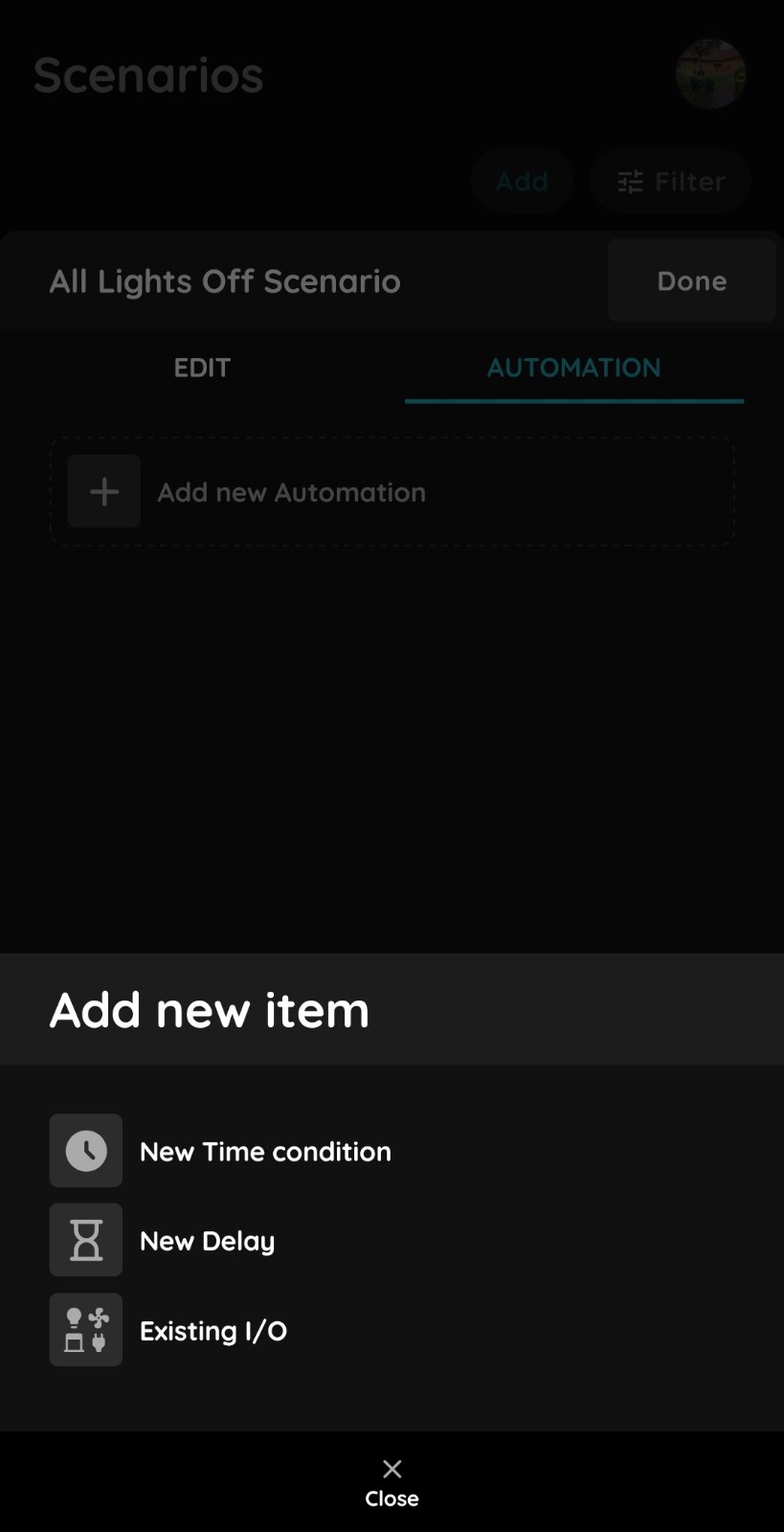
Add existing I/O - button
Select Add new automation → Existing I/O, then select the Button from the list.
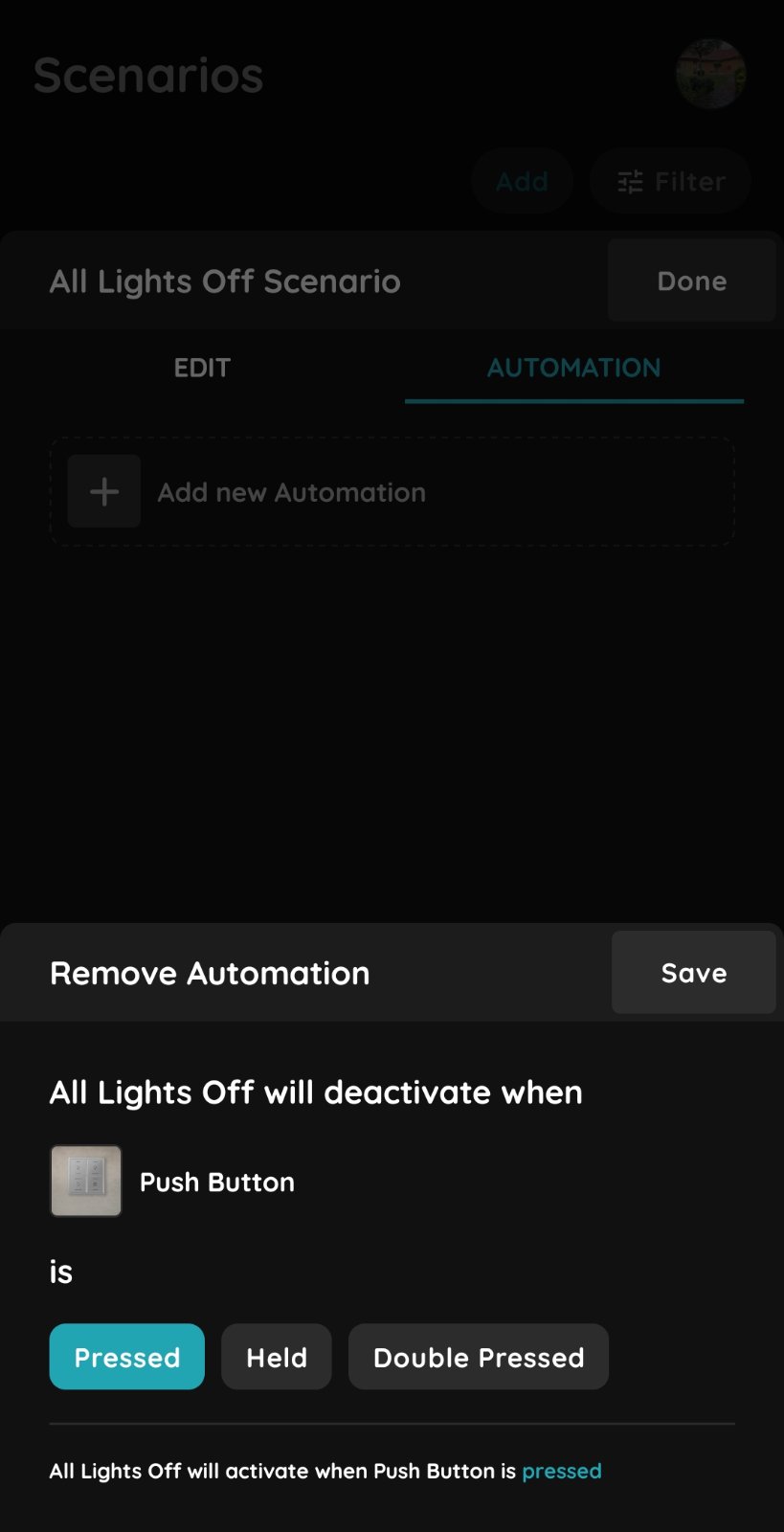
Button functions
Select which fuction of the Push Button you want to use.
Pressed - Tap once to activate the scenario.
Hold - Press and hold the Push Button for 800 ms to activate the scenario.
Double Pressed - Tap twice to activate the scenario.