Smart PIERRE - Heat Recovery Unit (Recuperator)
Description
The Recuperator function is used to control and display the status of a heat recovery ventilation unit integrated into the PIERRE system.
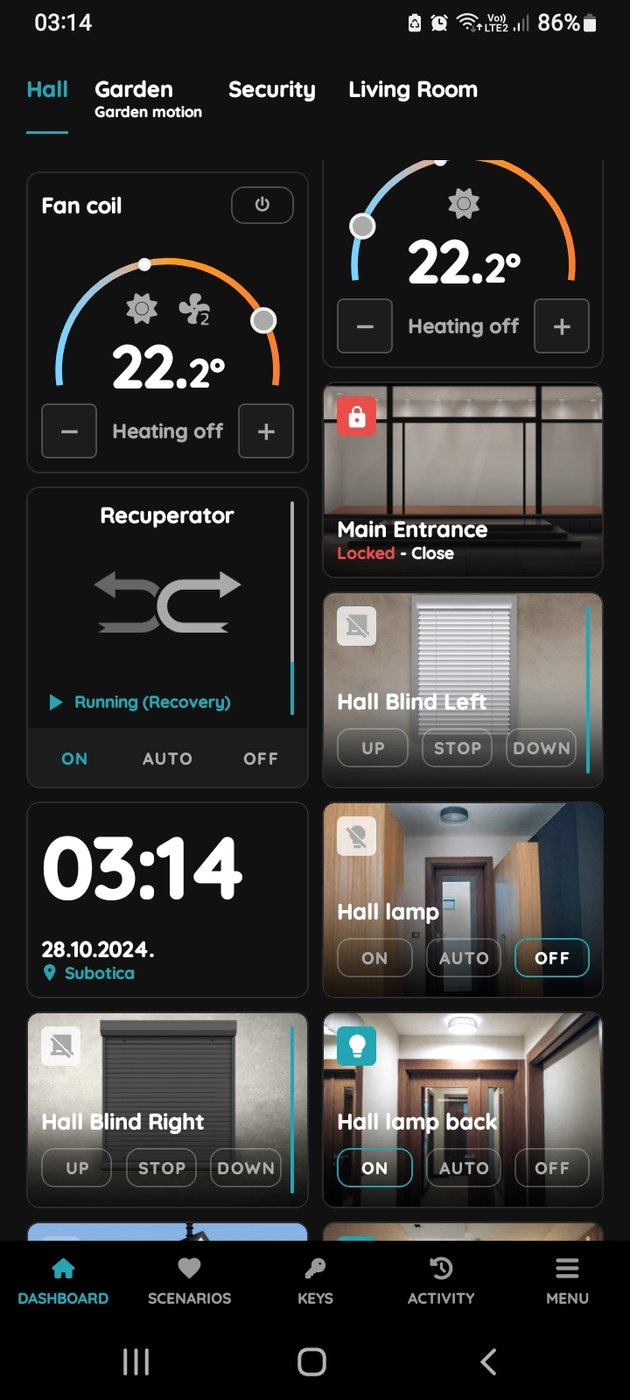
Configured recuperators are available on the Dashboard and in the I/O List of the Smart PIERRE application.
The available control functions depend on the type of ventilation unit, its own control electronics, and the communication or control interface used for integration with the PIERRE system.
Dashboard Control
The recuperator can be controlled directly from the Dashboard:
-
On – Turns the recuperator on.
-
Off – Turns the recuperator off.
-
Auto – Enables automatic operation according to the configured system logic and automations.
During operation, the current status may be displayed, for example, as Running (recovery).
Advanced Settings
Press and hold the Recuperator card to access additional functions.
Intensity
The Intensity function allows the ventilation intensity or fan speed to be adjusted, provided that the connected recuperator and its PIERRE integration support this function.
Automation
The Automation section allows automations related to the operation of the recuperator to be created and managed.
Edit
The Edit section allows the available settings of the recuperator to be modified.
Used In
The Used In section displays the Scenes and Automations in which the selected recuperator is used.
Automations
The operation of the recuperator can be automated based on different sensors, schedules, and system conditions.
For example:
-
switching on when presence is detected,
-
modifying operation when an open window is detected,
-
scheduled operation, for example during a specified time period from Monday to Friday,
-
adjusting ventilation intensity based on humidity or air quality values, provided that the integration supports intensity control.
The available automation options depend on the control functions supported by the connected recuperator and the sensors integrated into the PIERRE system.
Technical Notes
-
Frost protection, motor protection, thermal protection, and other factory safety functions provided by the recuperator's own control electronics remain the responsibility of the unit itself. These functions must not be replaced or bypassed by the PIERRE system.
-
Depending on the integration, the PIERRE system can provide operating commands, control operating modes or ventilation intensity, and display available status information.
-
The available functions always depend on the communication and control capabilities of the specific recuperator.
-
Filter inspection, cleaning, and replacement are part of the regular maintenance of the ventilation unit. Maintenance intervals must be followed according to the manufacturer's instructions.
-
Integration into the PIERRE system and commissioning of the recuperator must be carried out according to the equipment manufacturer's documentation, the PIERRE technical documentation, and the project's mechanical and electrical design.
Control of the Recuperator
Recuperator control is quick and simple, managed directly from the Dashboard.
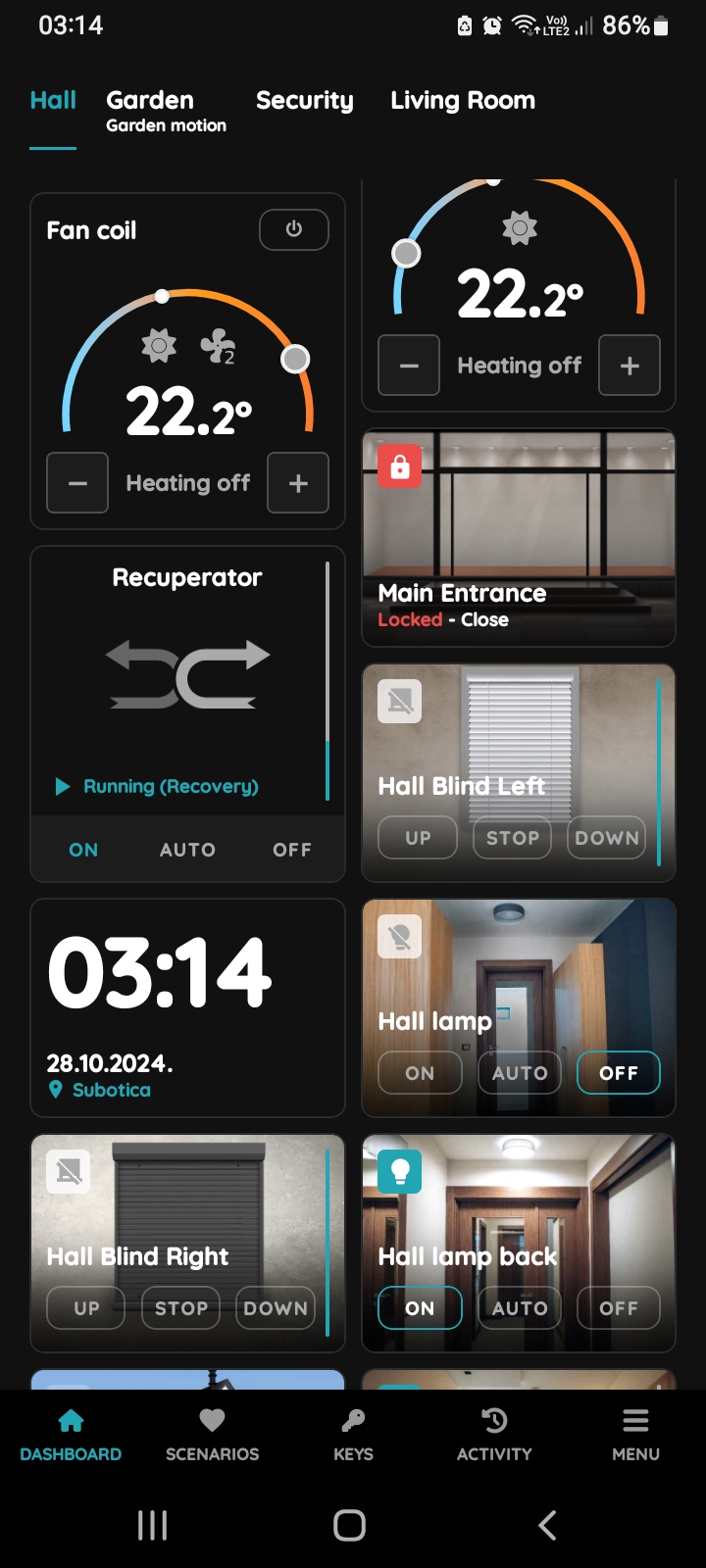
On, Off, Auto
There are three buttons for control of the Recuperator:
- On - Tap this button to turn On the Recuperator.
- Off - Tap this button to turn Off the Recuperator.
- Auto - If you tap the Auto button, the automation will activate when the conditions are met.
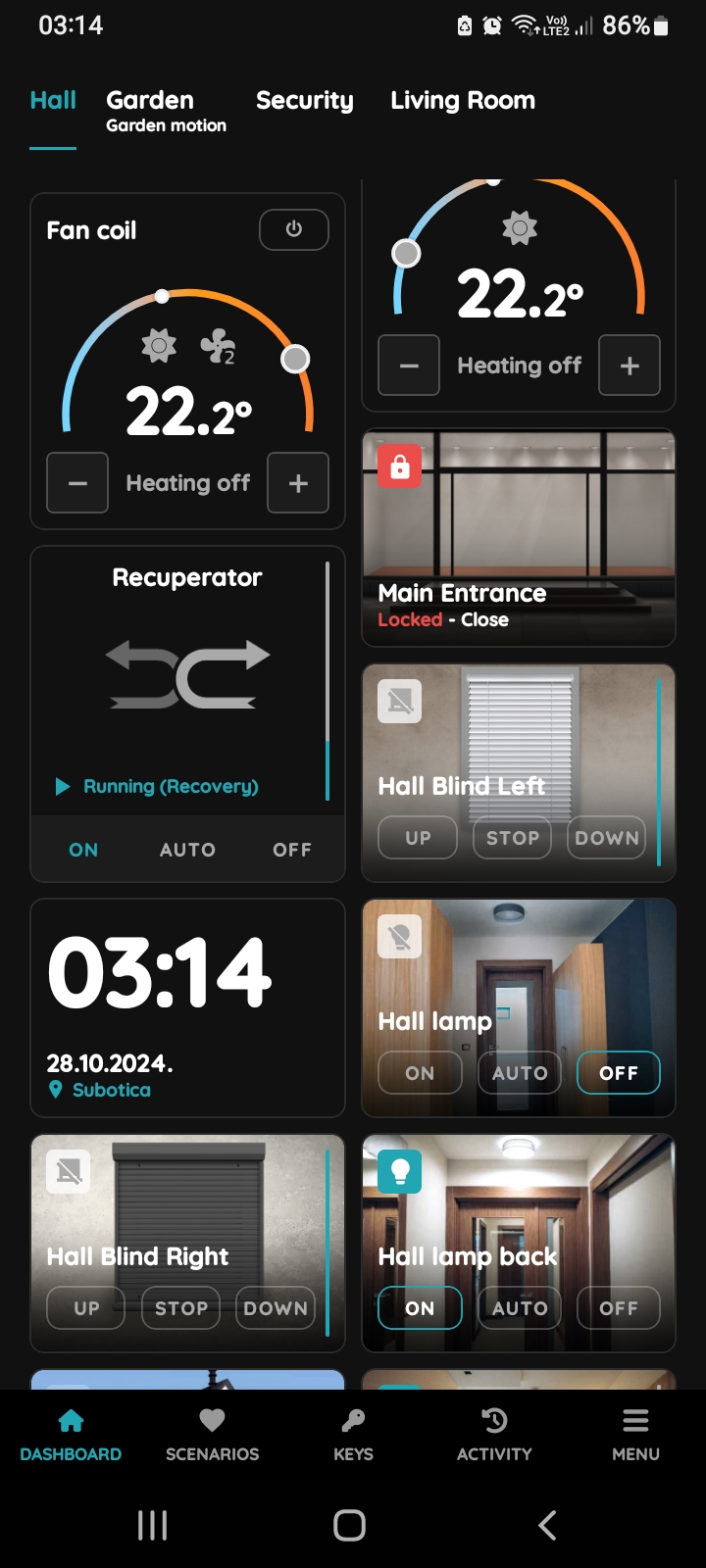
Turn On the Recuperator
To turn On the Recuperator, tap the On button. The button will turn from grey to blue color.
On the Recuperator card is written Running (Recovery).
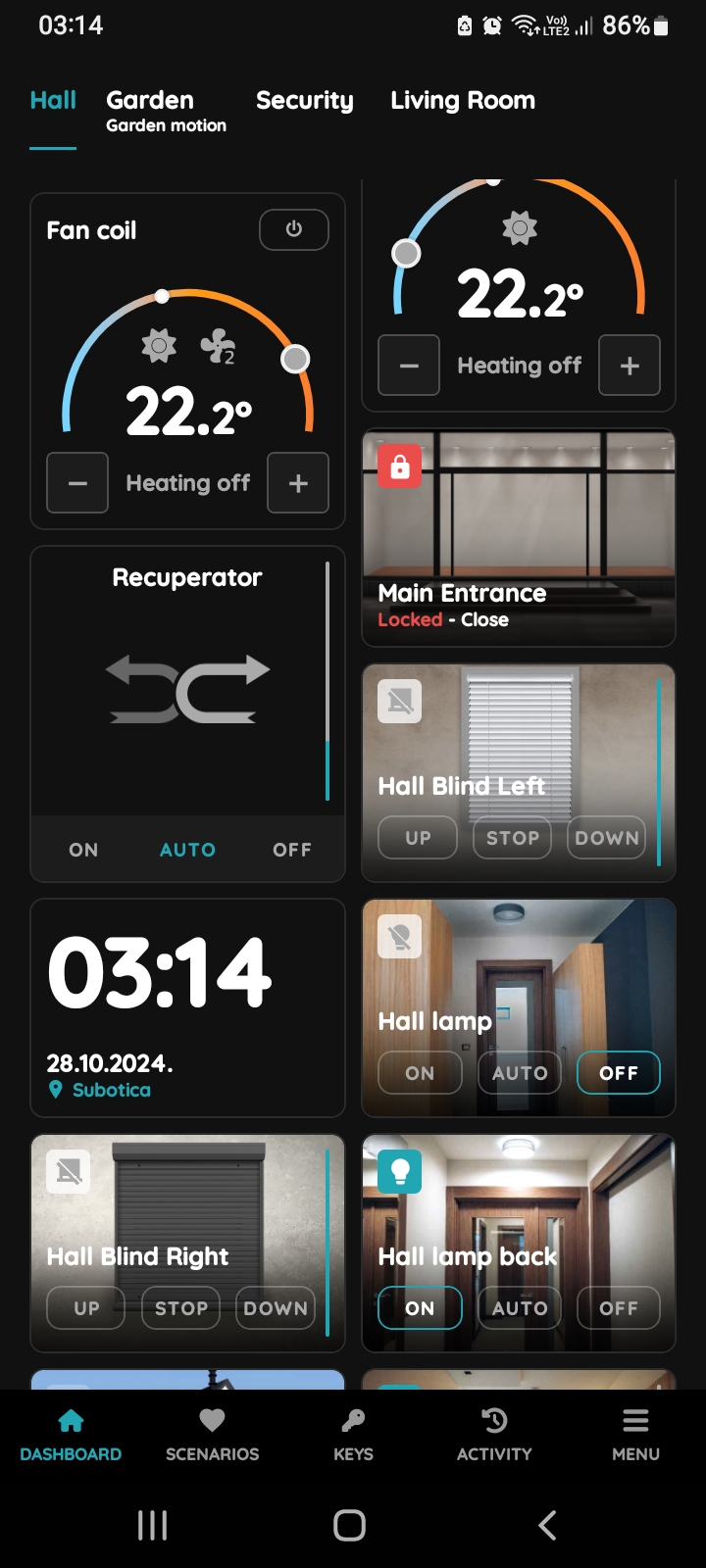
Set Recuperator to auto mode
If you tap the Auto button, the previously created automation for the Recuperator will be activated if all conditions from the automation are fulfilled.
If you tap the Auto button and some of the conditions from the automation are not fulfilled, the automation will not be activated.
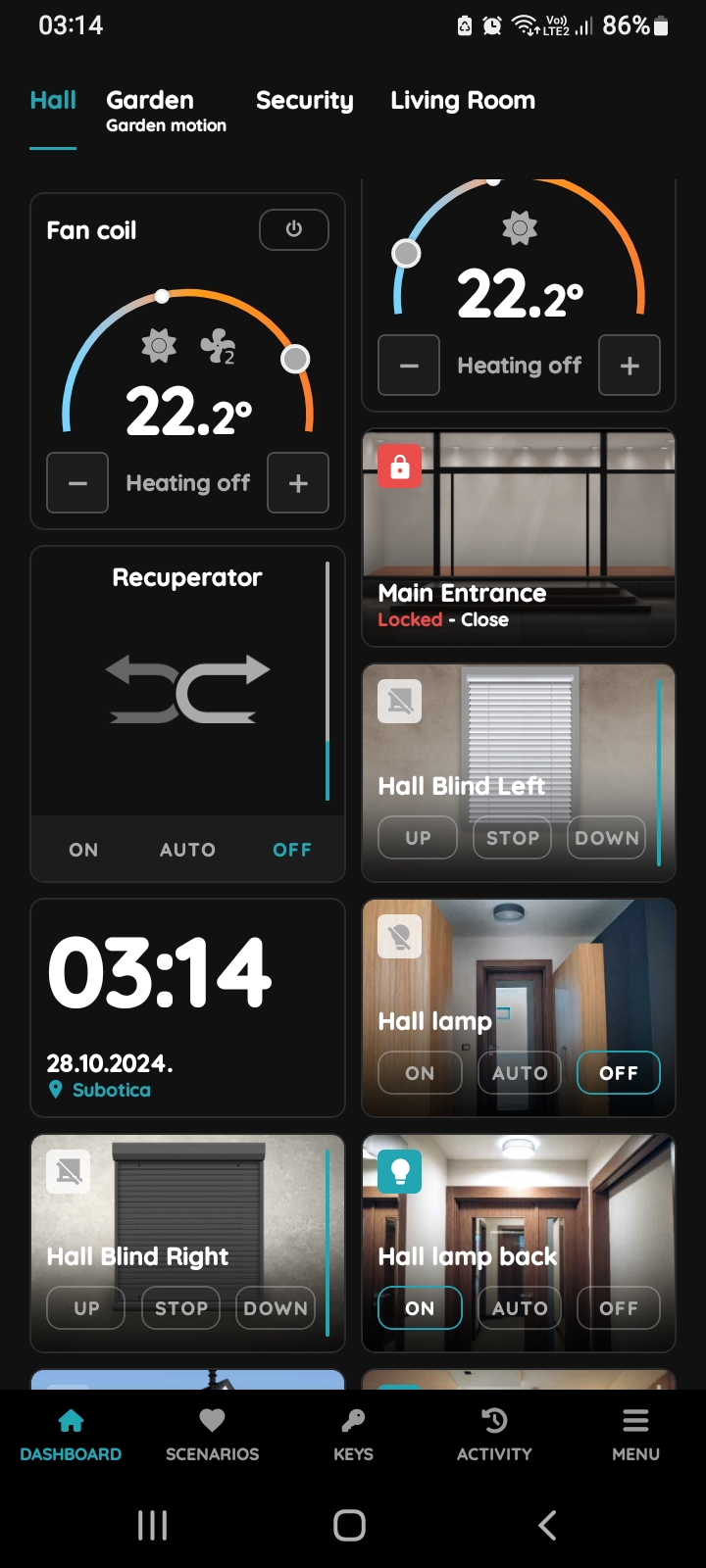
Turn Off the Recuperator
To turn Off the Recuperator, tap the Off button. The button will turn from grey to blue color.
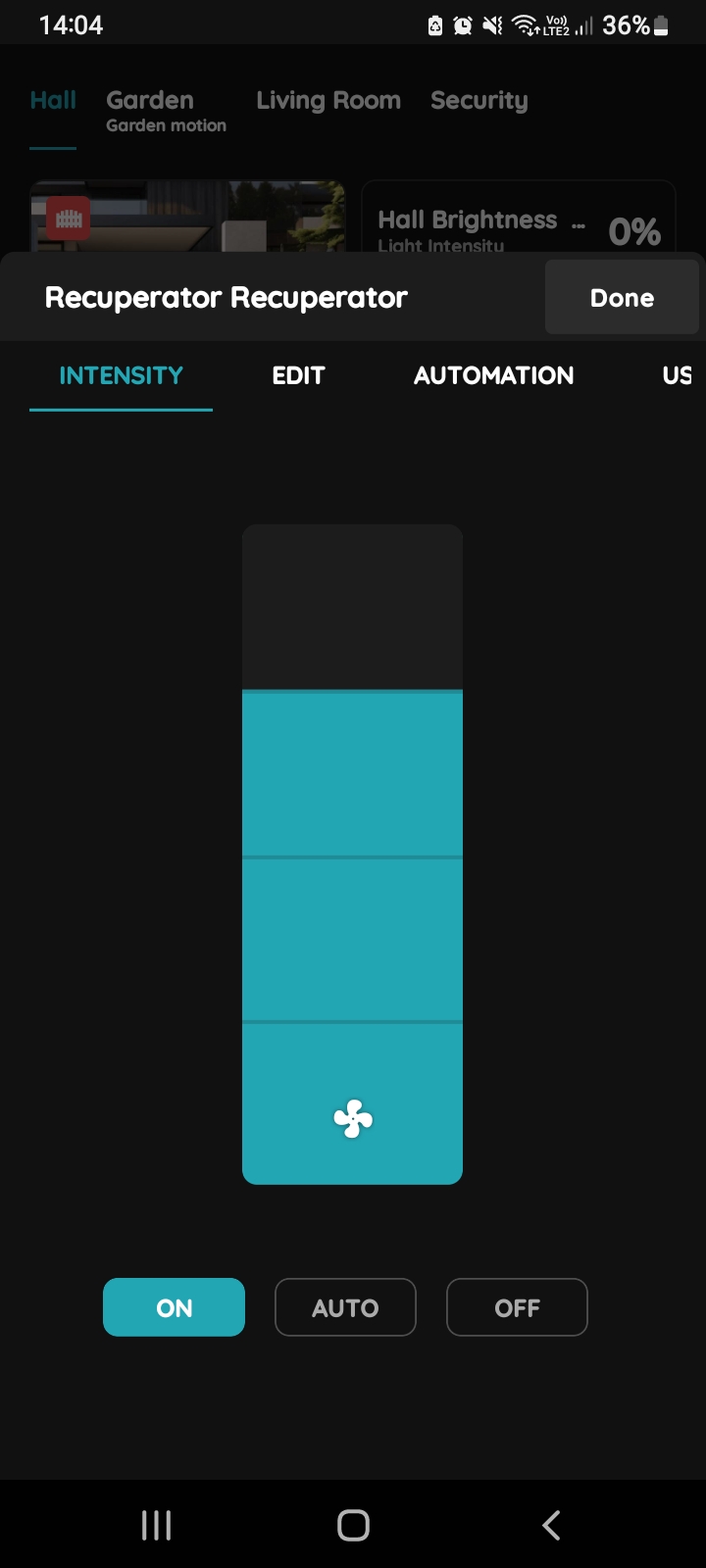
Intensity - Recuperator
By holding down the card of the Recuperator, a modal opens where we can adjust the Intensity.
Tab Intensity is already selected.
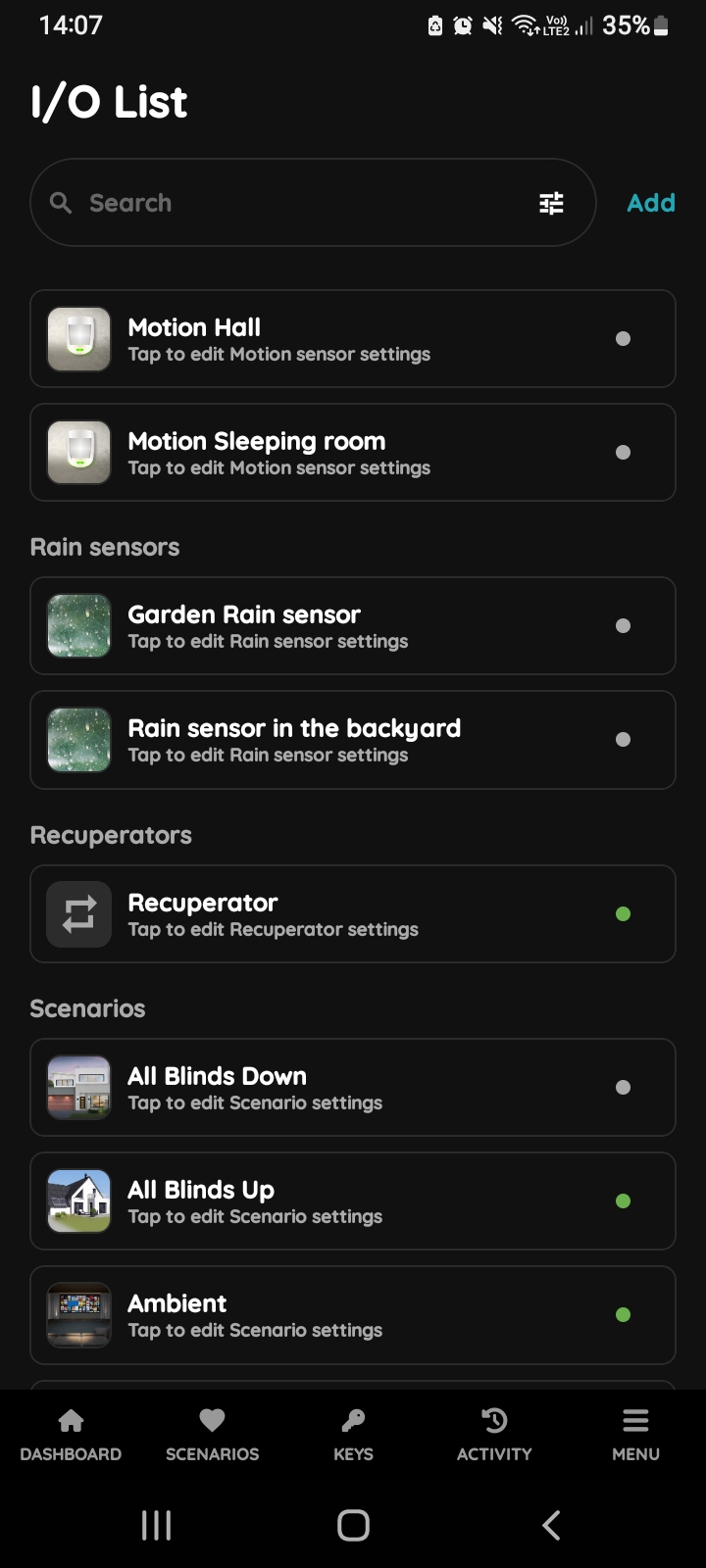
Open I/O list - Recuperator
To edit the Recuperator settings, scroll and tap on it in the I/O list.
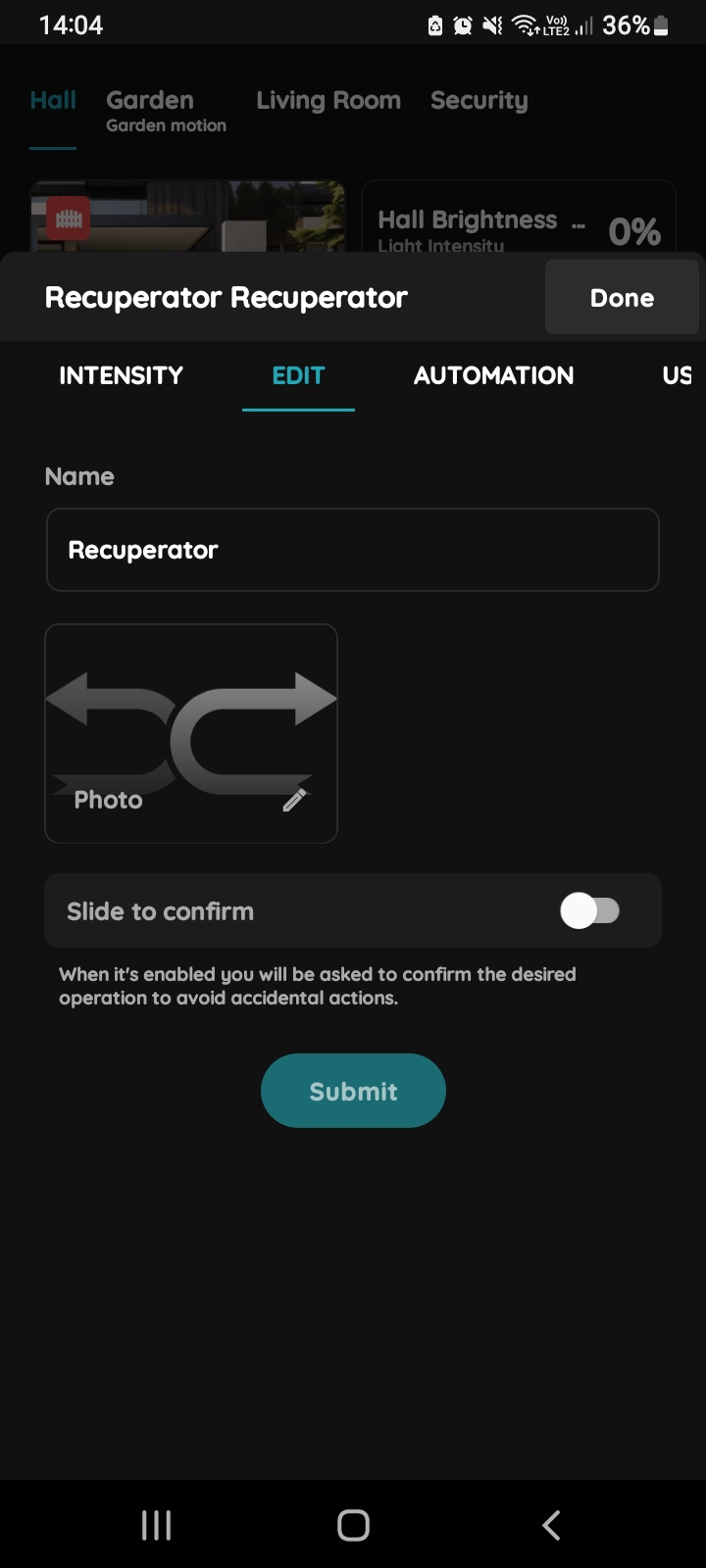
Edit Recuperator
Edit following form:
- Name - Edit the name of the Recuperator.
- Photo - Choose the source of the photo.
- Slide to confirm - When enabled, you will be asked to confirm the desired operation to avoid accidental actions.
Tap Submit/Done.
GOOD TO KNOW:
The Recuperator can be edited by long-pressing the Recuperator card on the Dashboard or by tapping it in the I/O list.
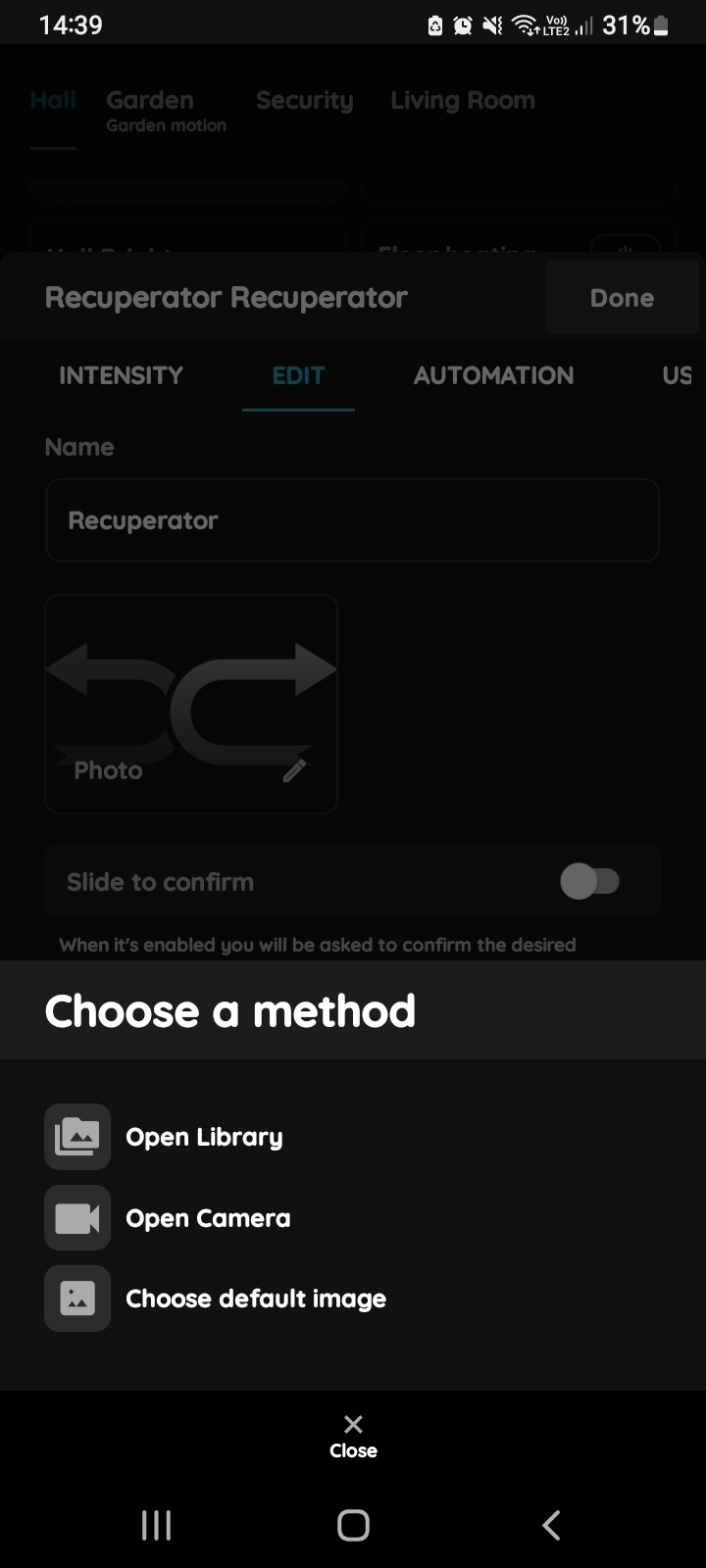
Change a photo - Recuperator
There are three sources for the photo:
- Open Library - The phone’s Library will open.
- Open Camera - You can take a picture using your smartphone.
- Choose default image - These images are prepared in advance in order to provide a complete and seamless experience.
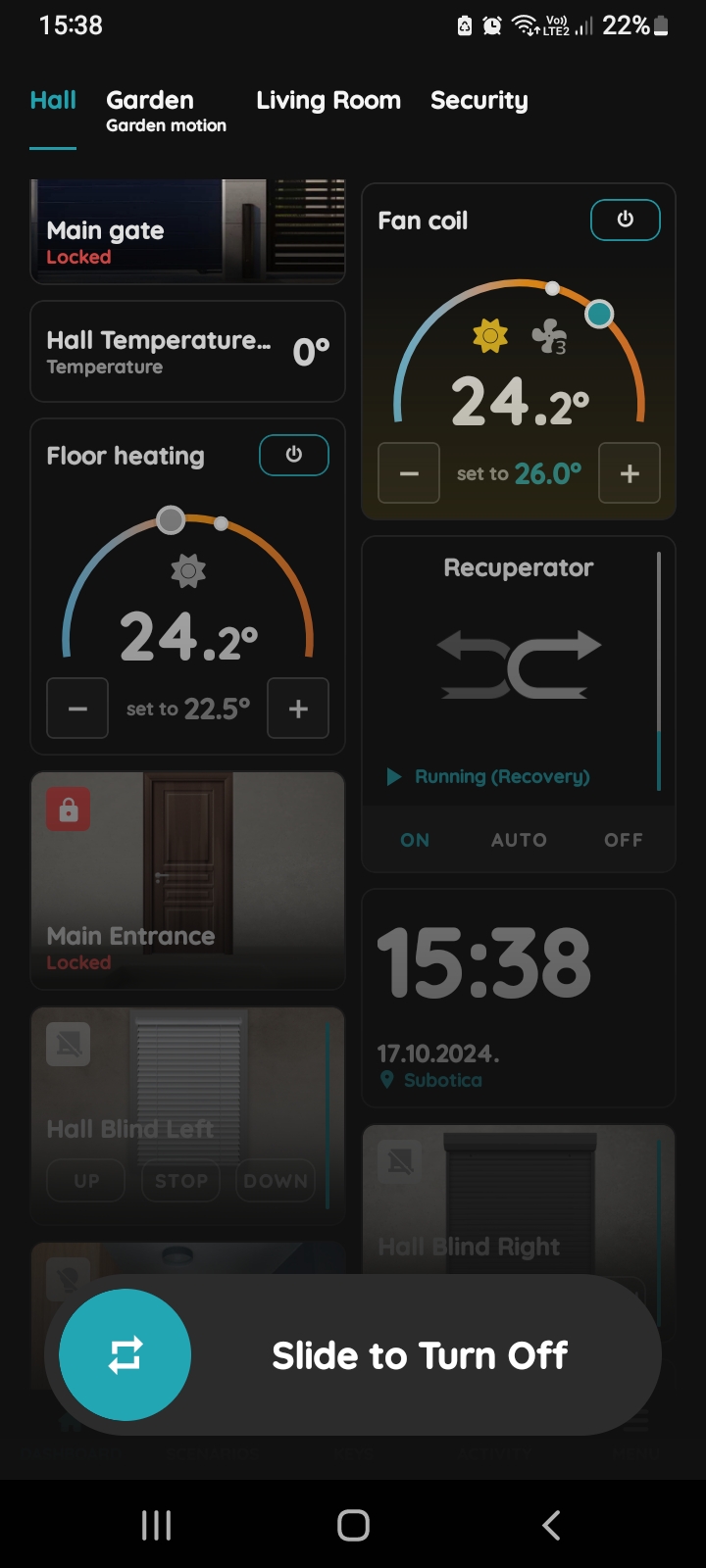
Slide to confirm - Recuperator
The Slide to confirm feature adds an extra layer of security, preventing accidental actions.
It asks you to confirm your choice once more.
Here's an example of how the Slide to confirm feature is applied:
If you want the Recuperator to turn Off, tap the Off button and Slide to Turn Off from left to right.
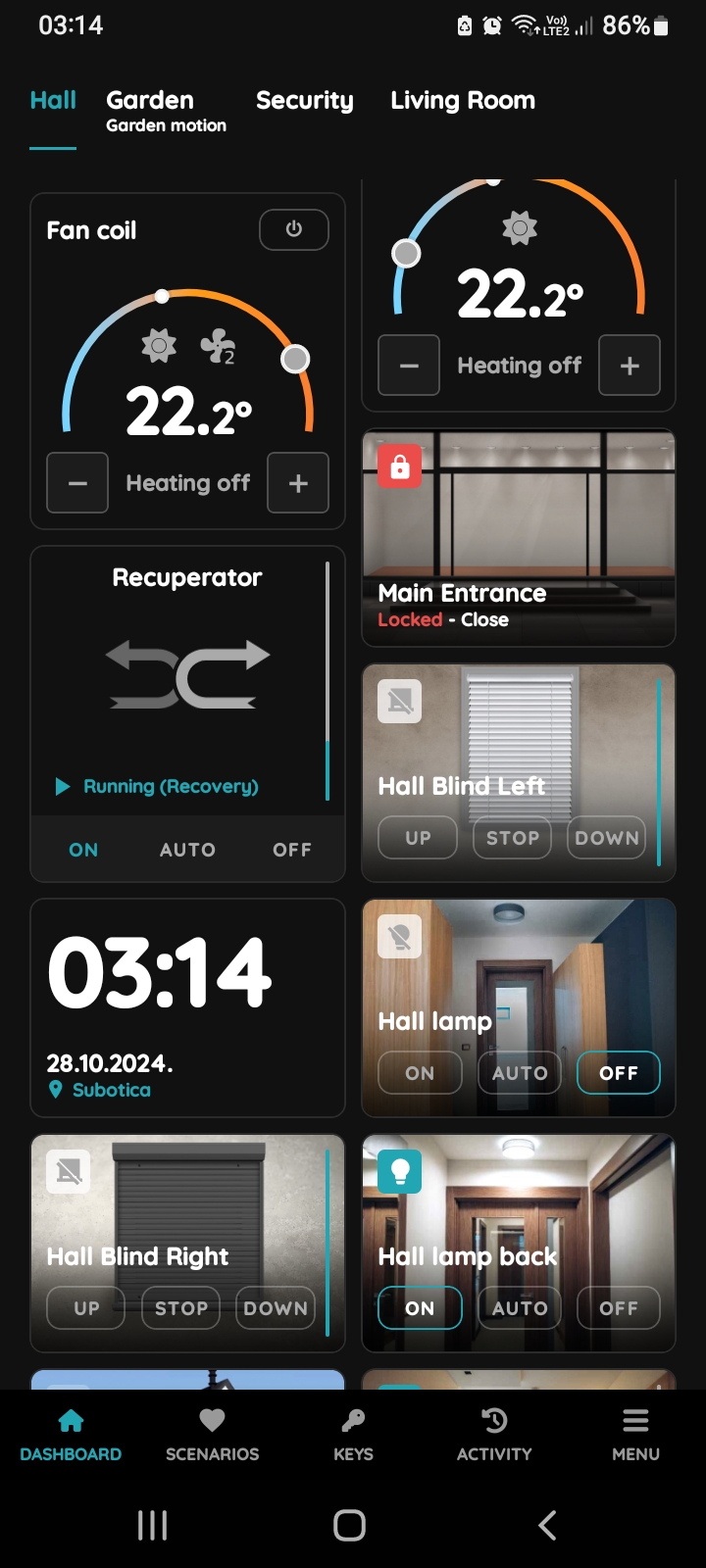
Find the Recuperator on the Dashboard
Automate your Recuperator in the PIERRE app by setting conditions based on the door and window magnet sensors and a specific time range. This ensures the Recuperator activates only when both the door and window are closed, and within a designated time period, such as from Monday to Sunday, from 8 AM to 4 PM.
This helps maintain efficient air circulation while avoiding energy waste when windows or doors are open.
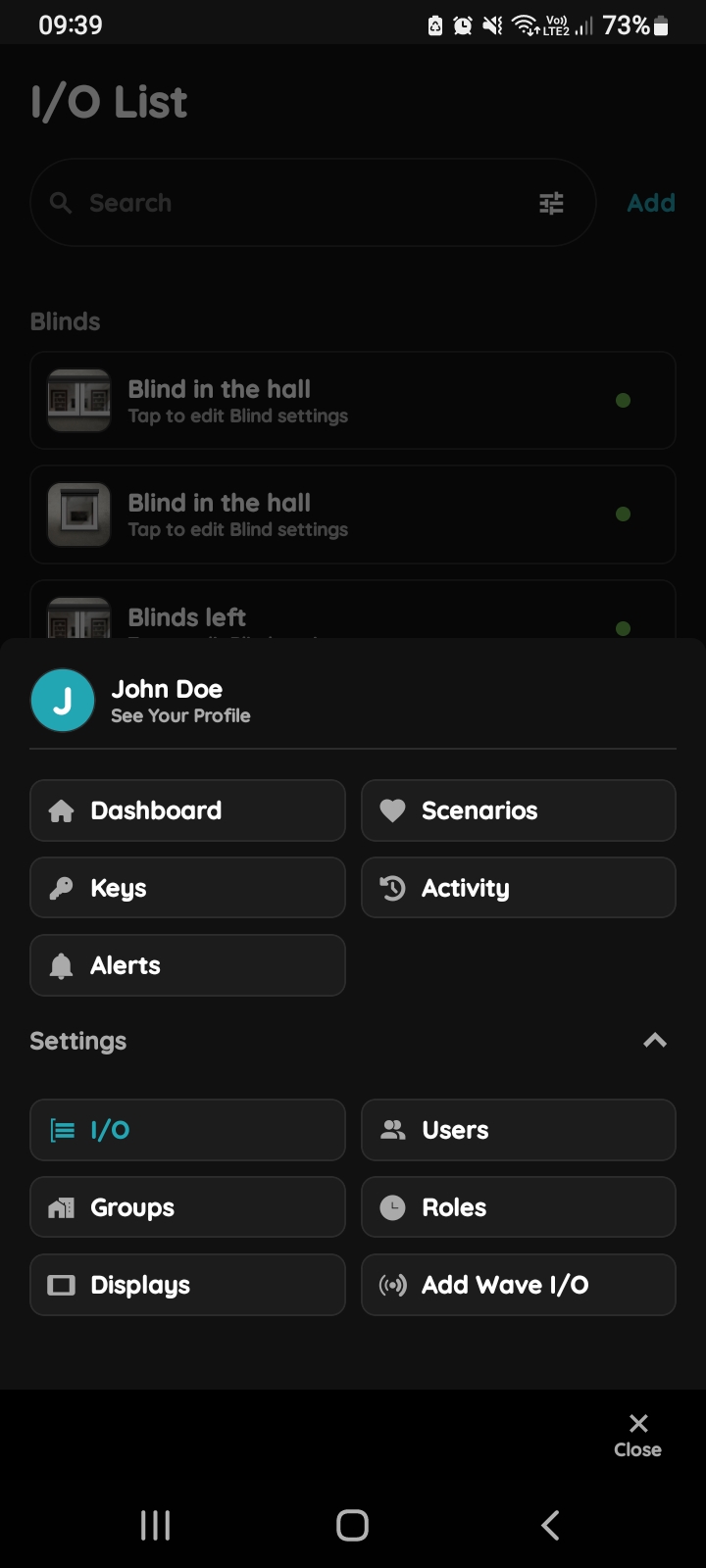
Open I/O
In the Menu, under Settings, tap on the I/O.
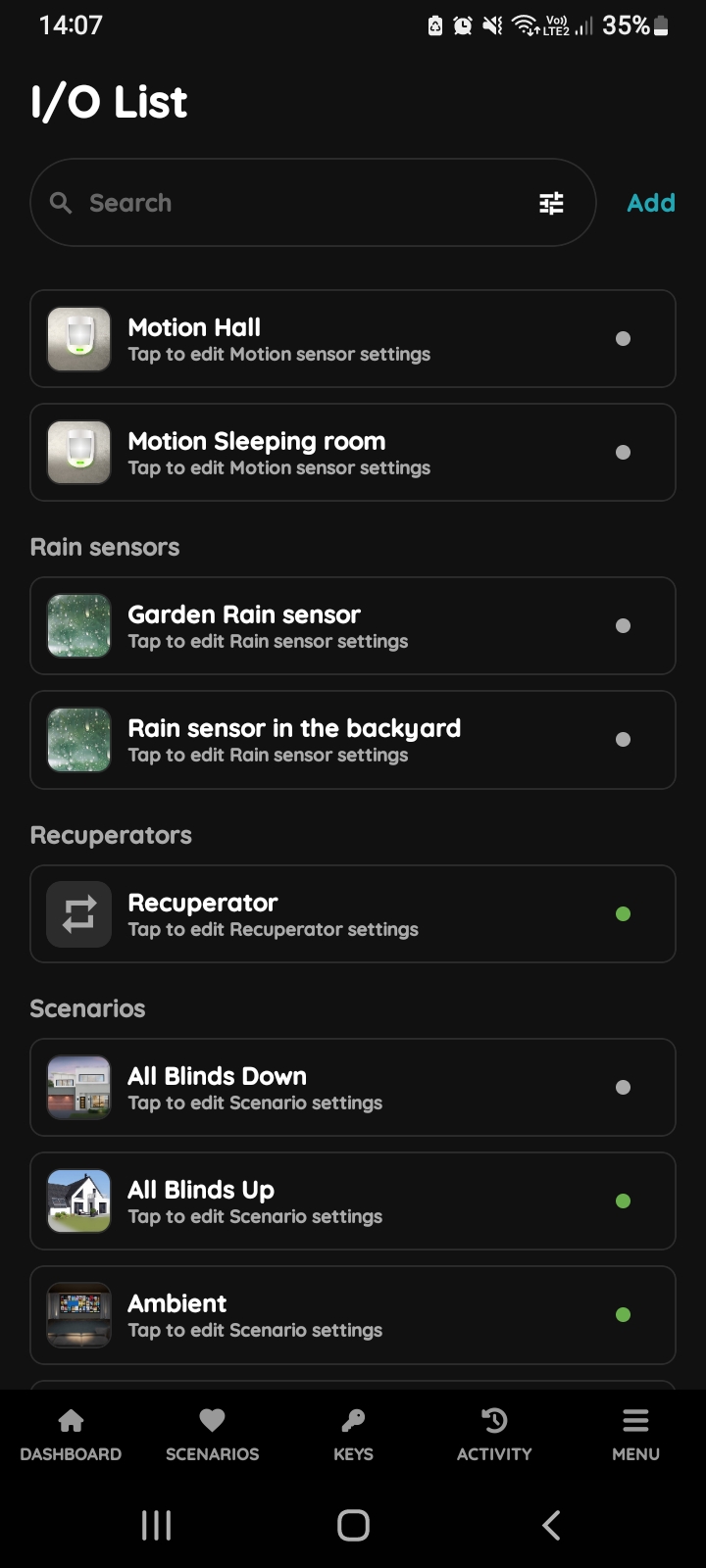
Open I/O list - Recuperator
Scroll to the Recuperators and tap on the card of the Recuperator that you would like to edit.
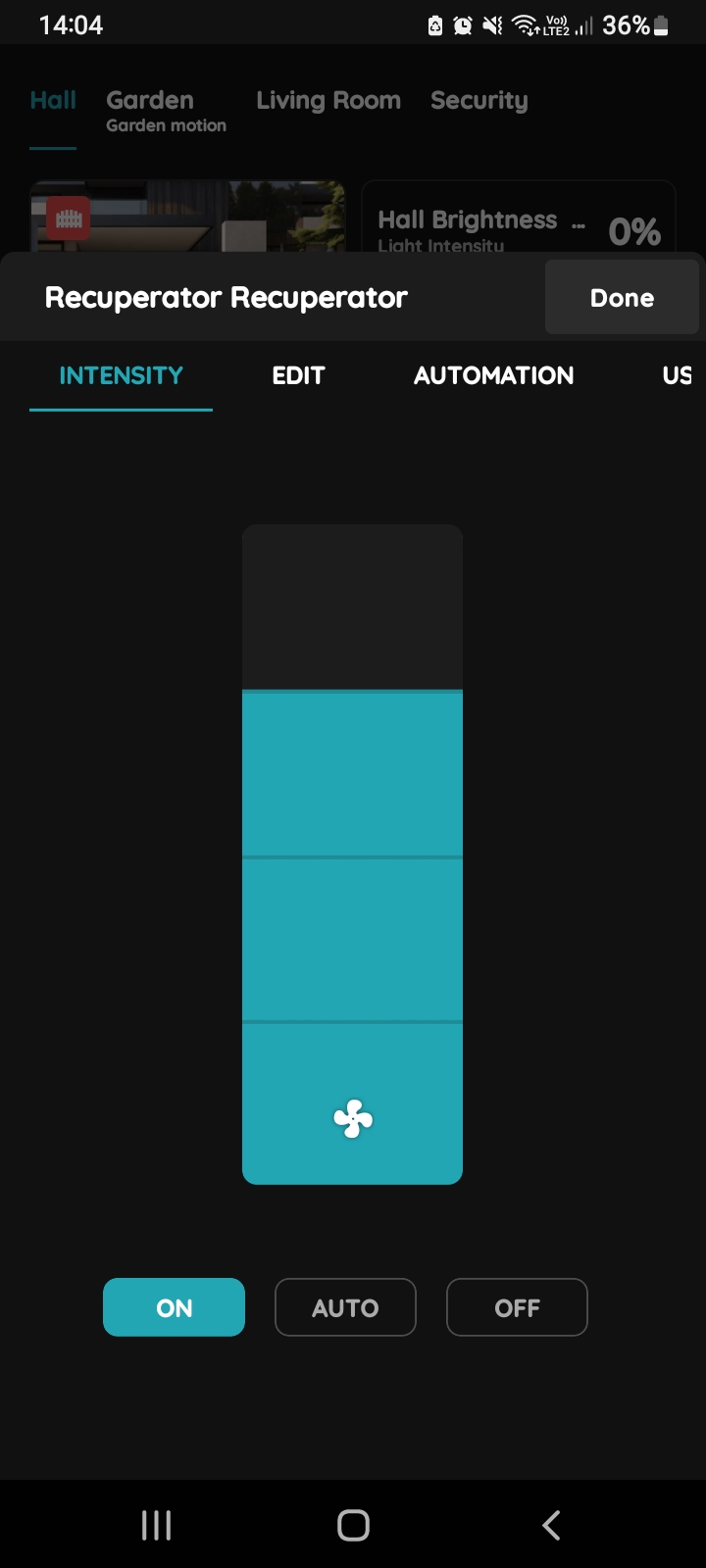
Intensity, Edit, Automation, Used In - Recuperator
Tap on the tab Automation.
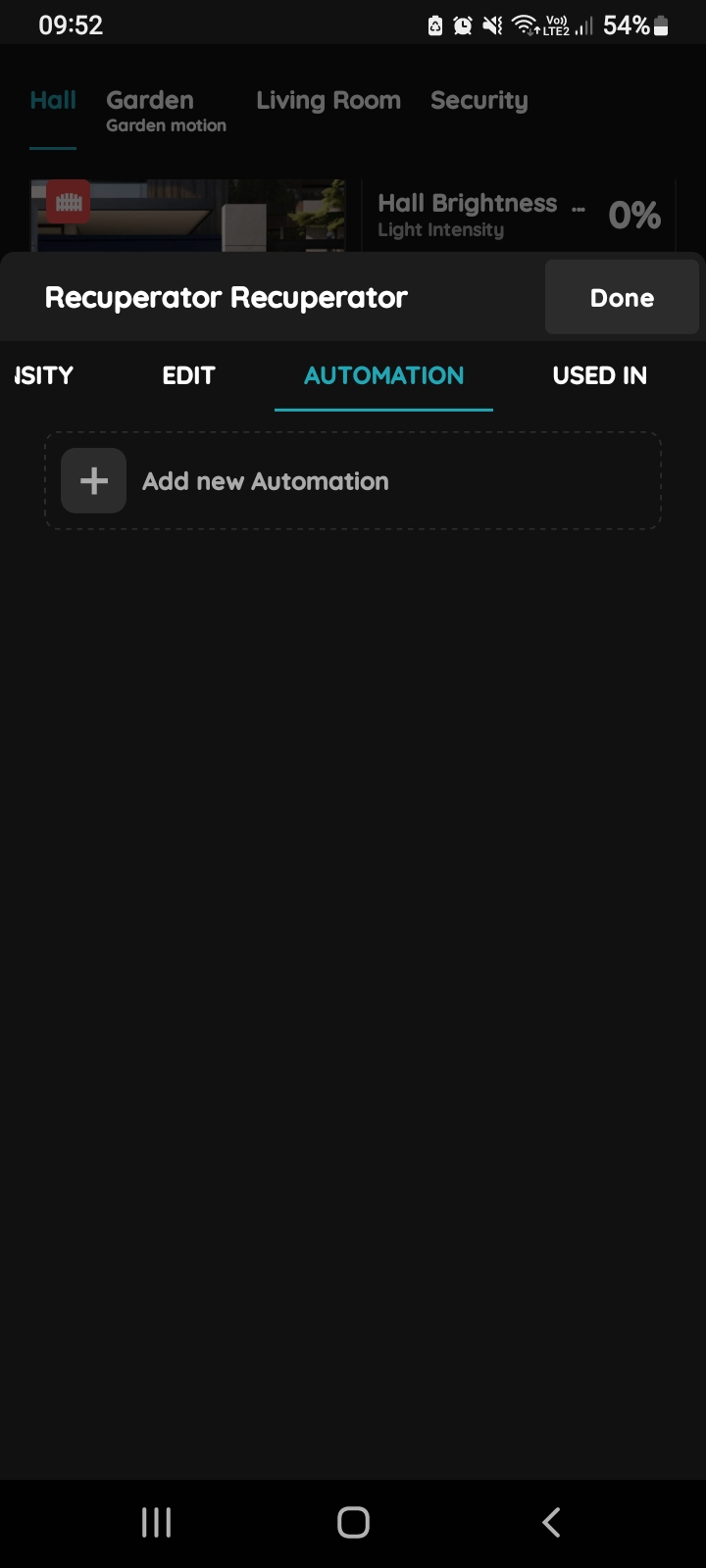
+ Add new Automation - Recuperator
If you want to add new automation tap + Add new Automation.
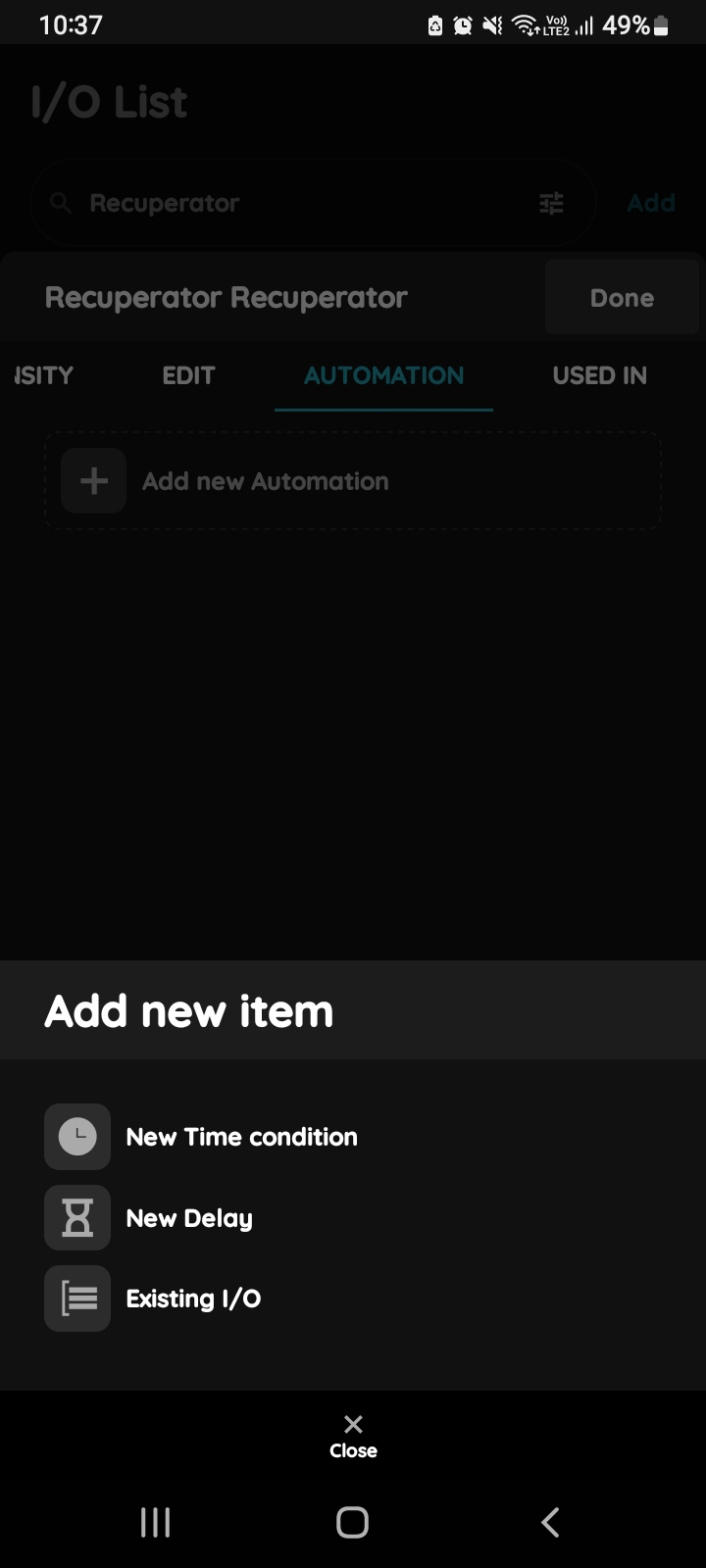
Add new item - Recuperator
There is possibility to add:
- New Time condition,
- New Delay
- Existing I/O.
Tap the New Time condition.Tap on the Existing I/O.
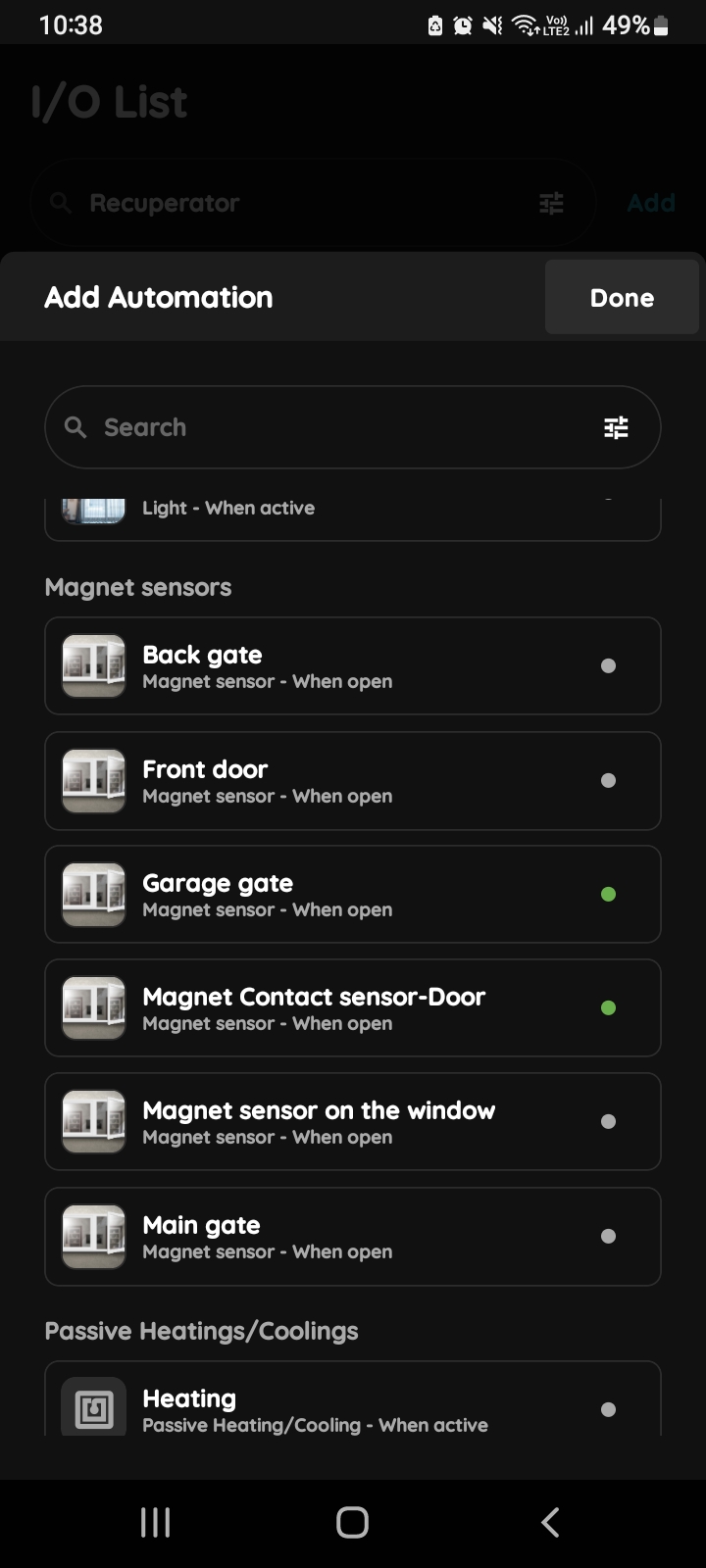
Add existing I/O - I/O list - Motion sensor - window
Tap on the I/O from the list that you want to add into the automation. In this case Magnet sensor on the window.
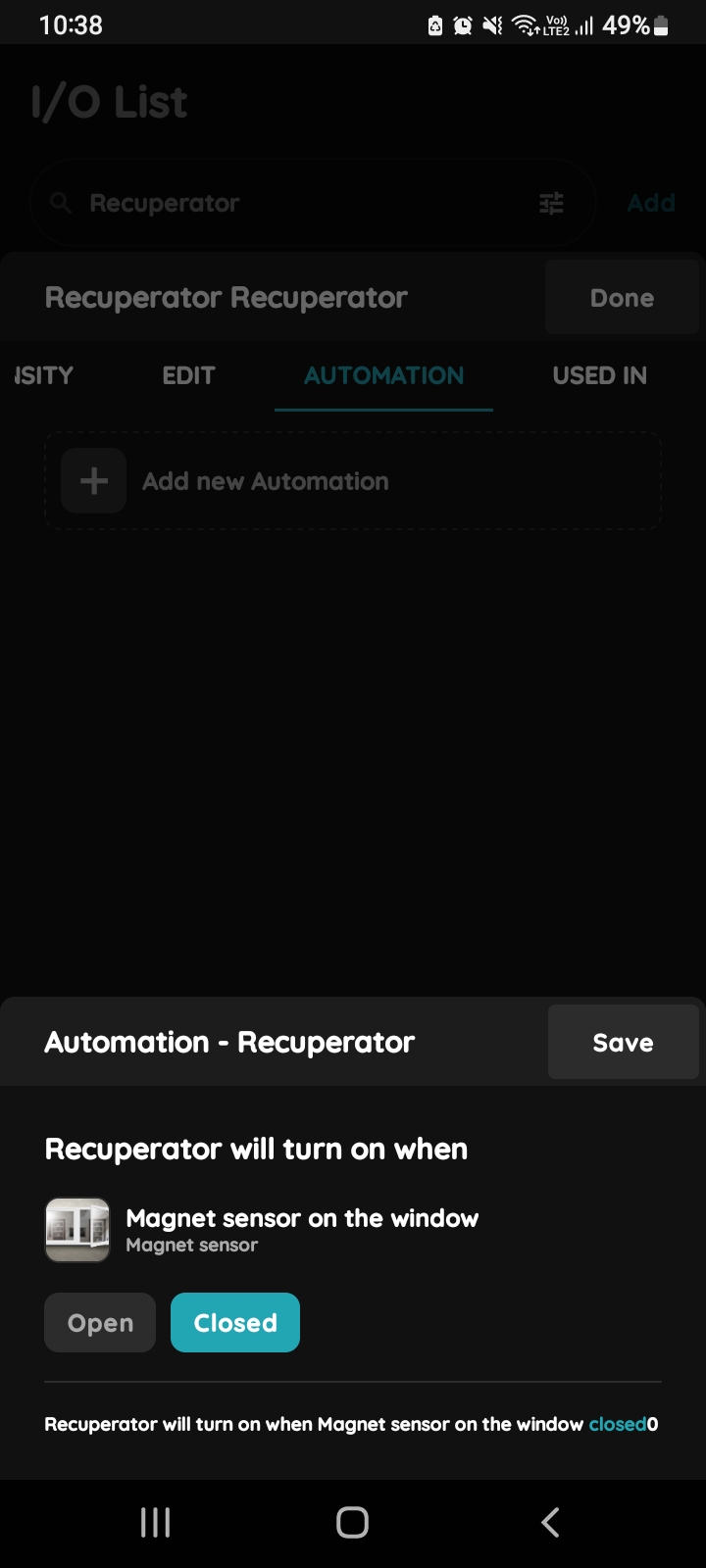
Existing I/O - Recuperators - status of added I/O
Tap on the button Closed.
Recuperator will turn on when Magnet sensor on the window is closed.
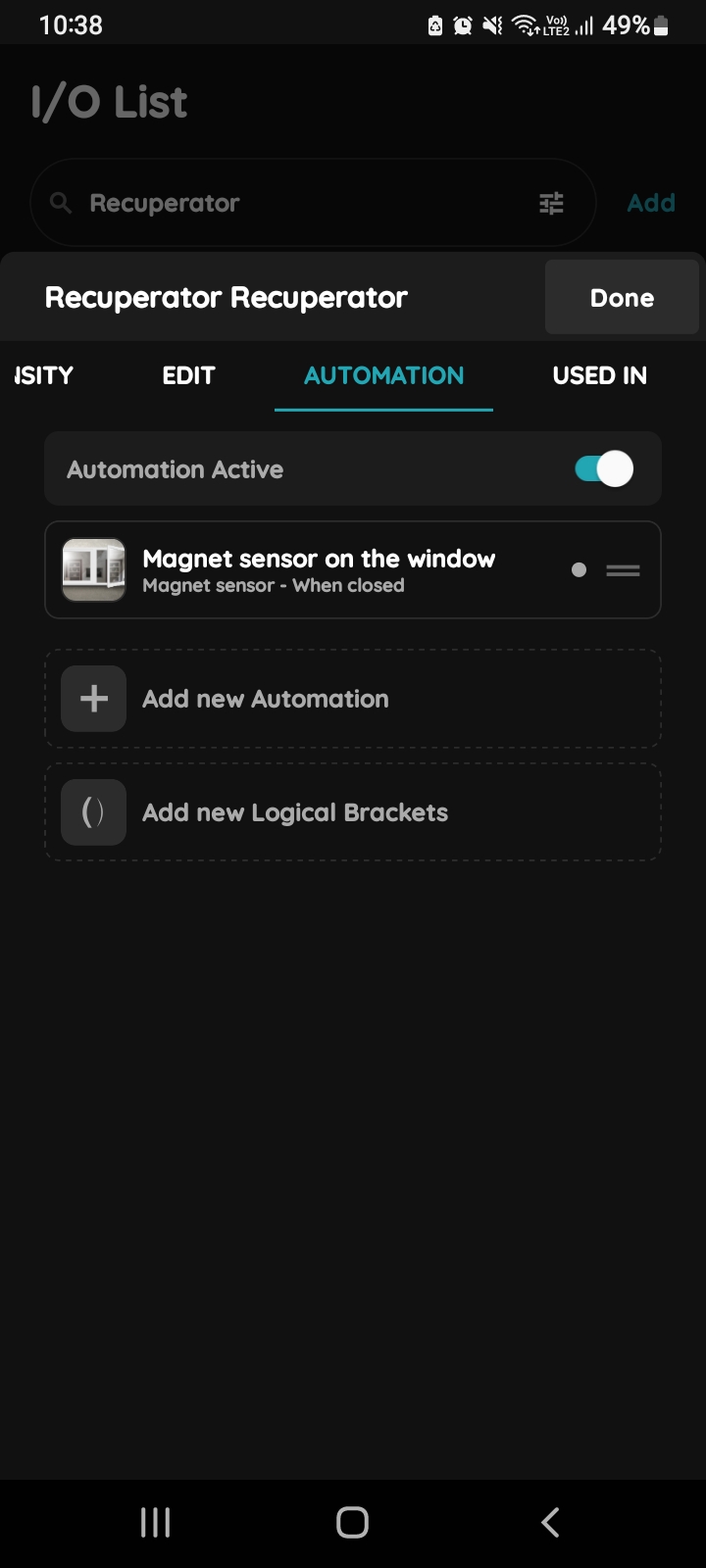
Add new Automation for the Recuperator
To add new automation tap Add new Automation.
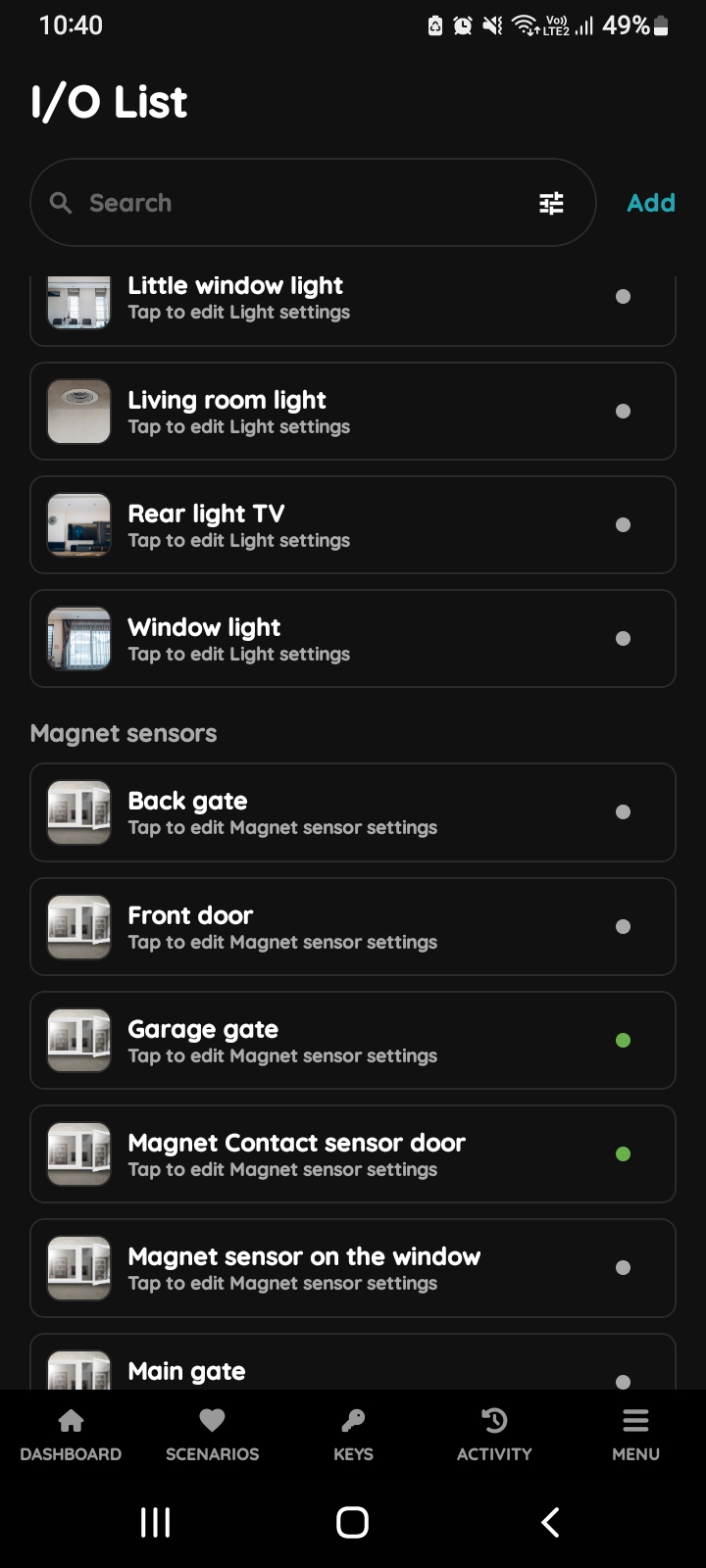
Add existing I/O - I/O list - Motion sensor - door
Tap on the I/O from the list that you would like to add to the automation.
In this case tap on the Magnet sensor door.
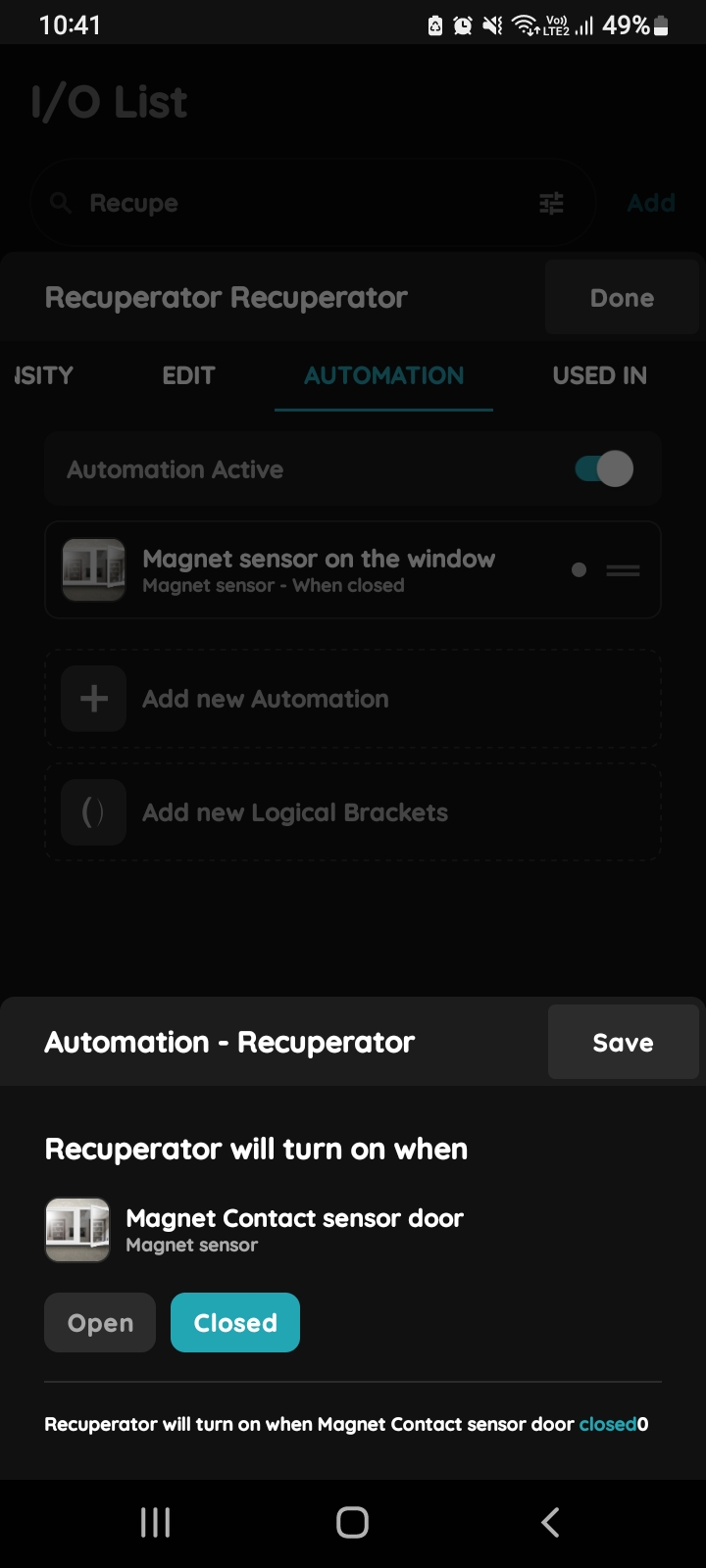
Existing I/O - Recuperators - status of added second I/O
Tao on the button Closed.
Recuperator will turn on then Magnet sensor door is closed.
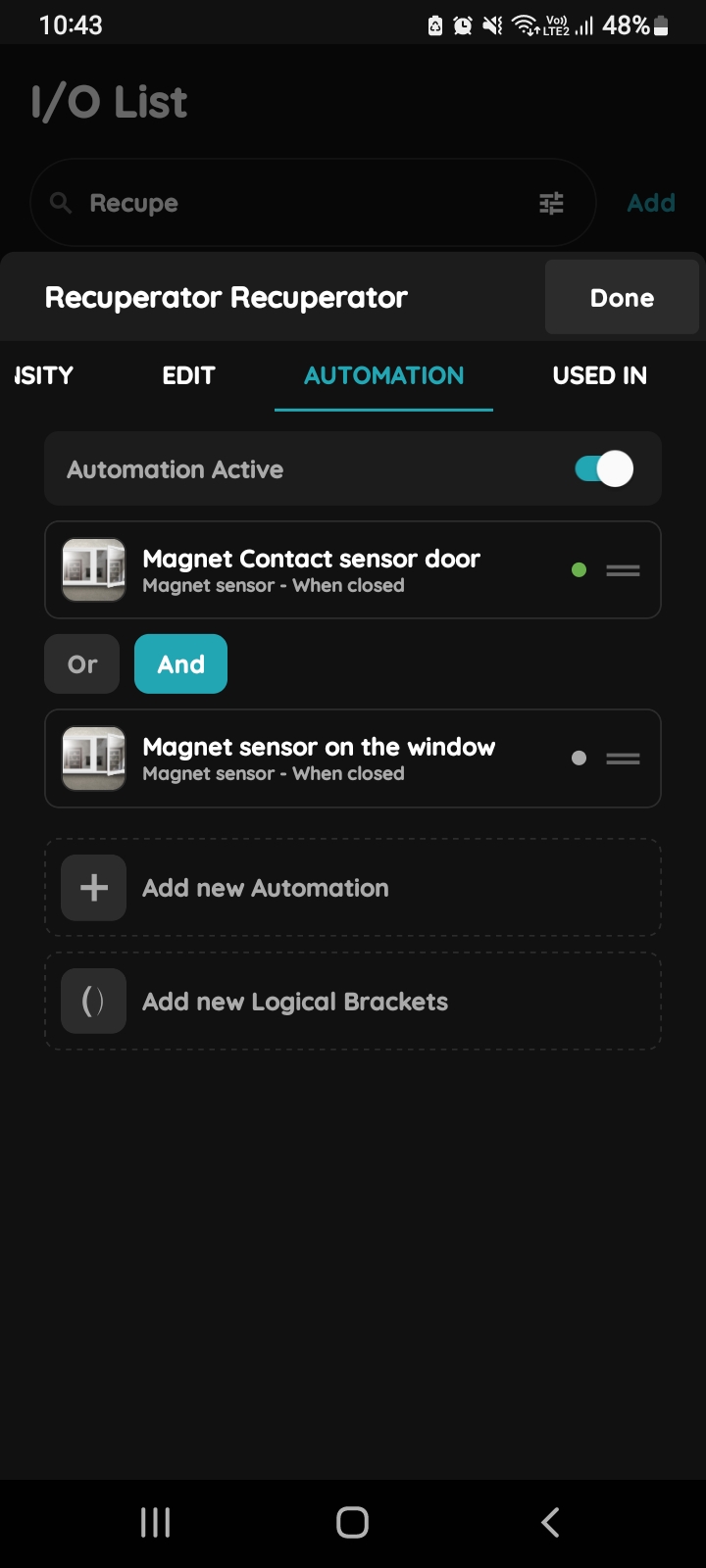
+ Add new Automation - Recuperator
Tap on the button Add between these two automations.
Recuperator will turn on when both conditions are met - when both Magnet sensors (for window and door) are closed.
If you want to add new automation, tap +Add new Automation.
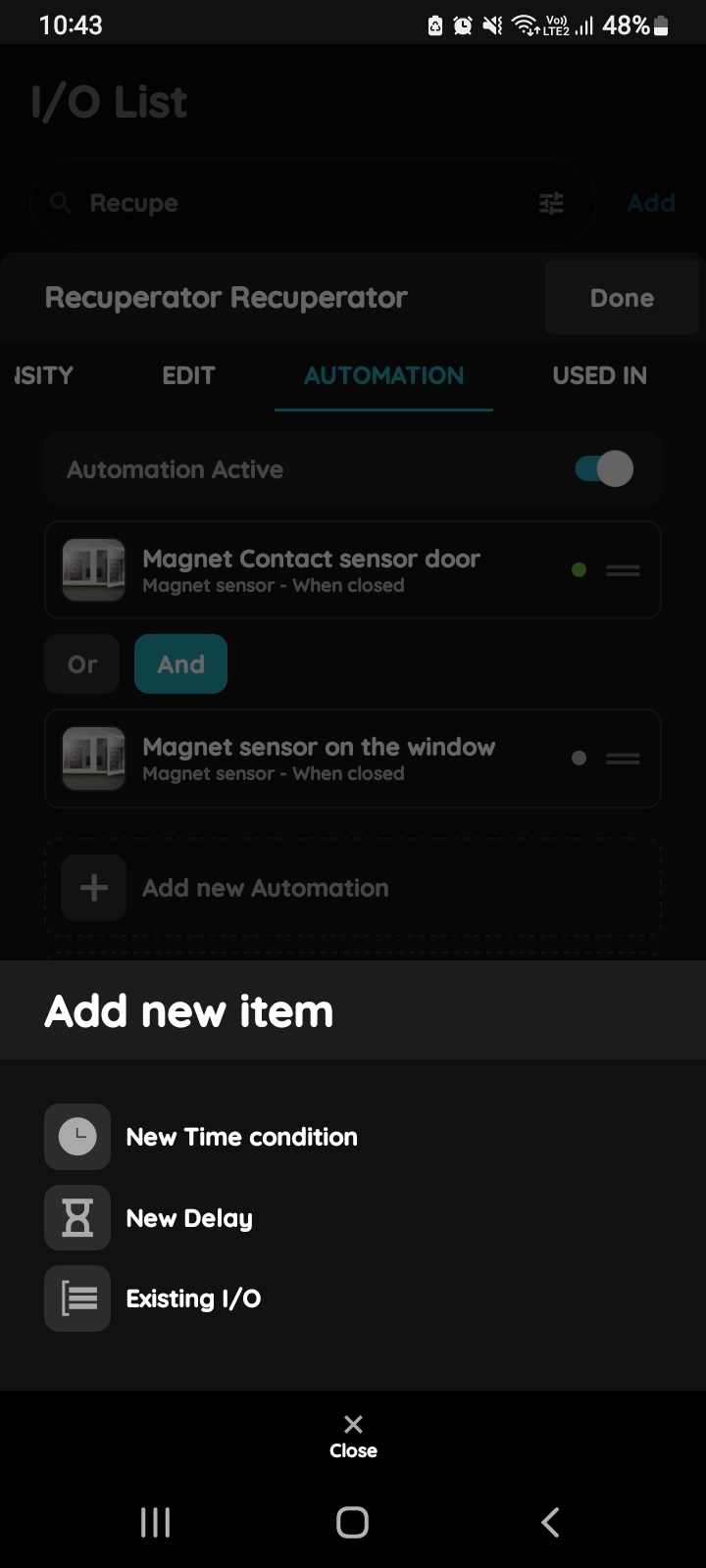
Add new item - Recuperator
There is possibility to add:
- New Time condition,
- New Delay
- Existing I/O.
Tap the New Time condition.
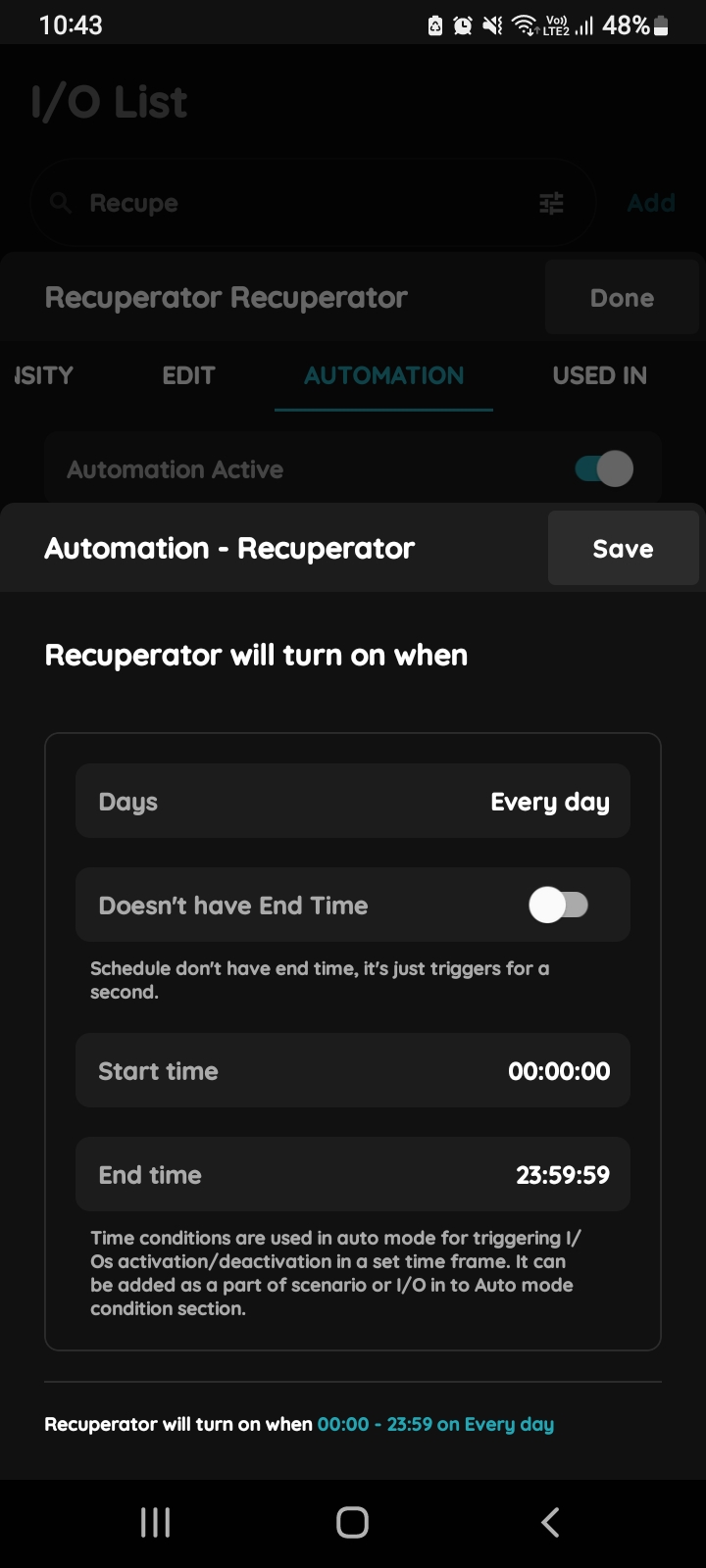
New Time condition - Recuperator
You should set Days, Start time and End time in this step.
Tap in the field of each of them to set them.
For more details follow next steps.
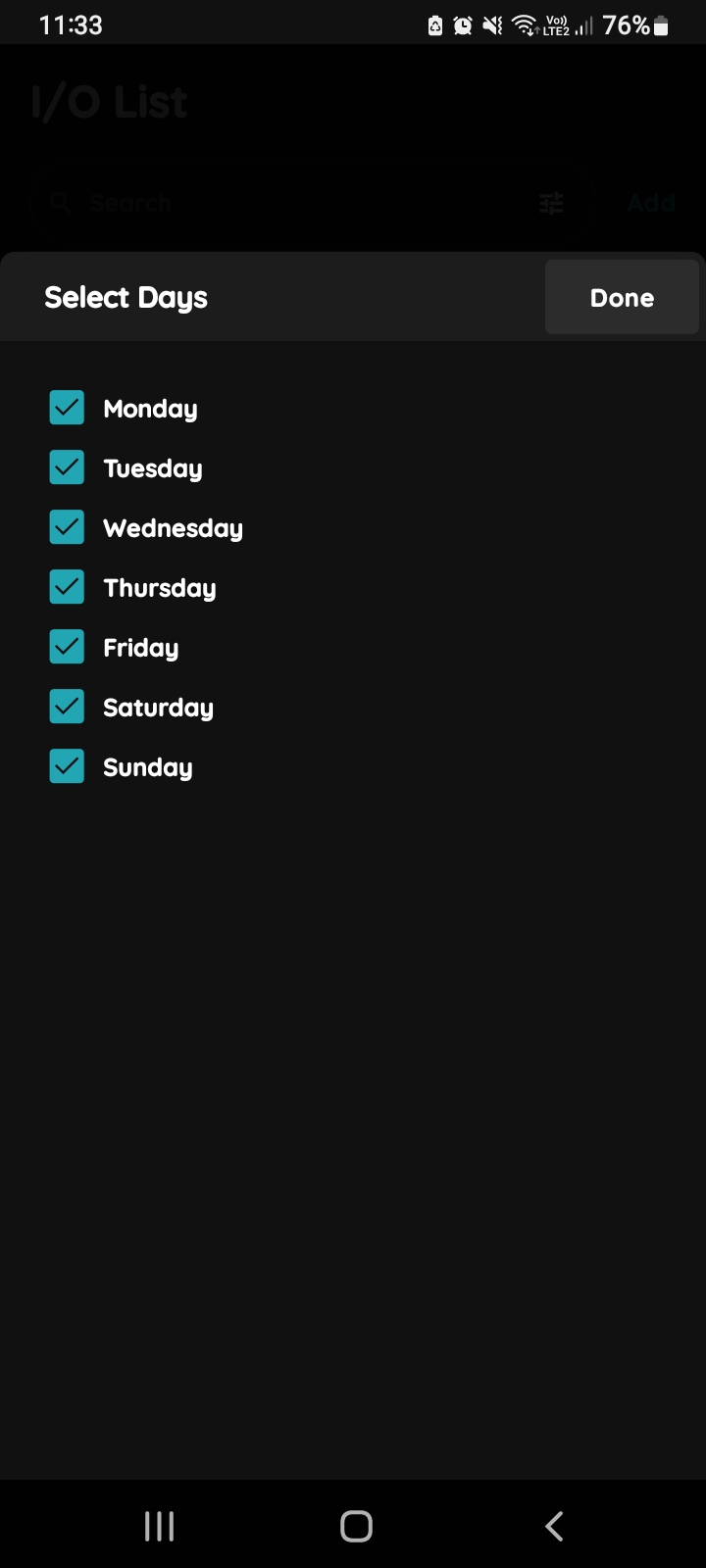
Select Days
Select Days when the I/O will be active by clicking on the check box/check boxes next to the days from the list.
In this case select all days from Monday to Sunday.
Tap button Done.
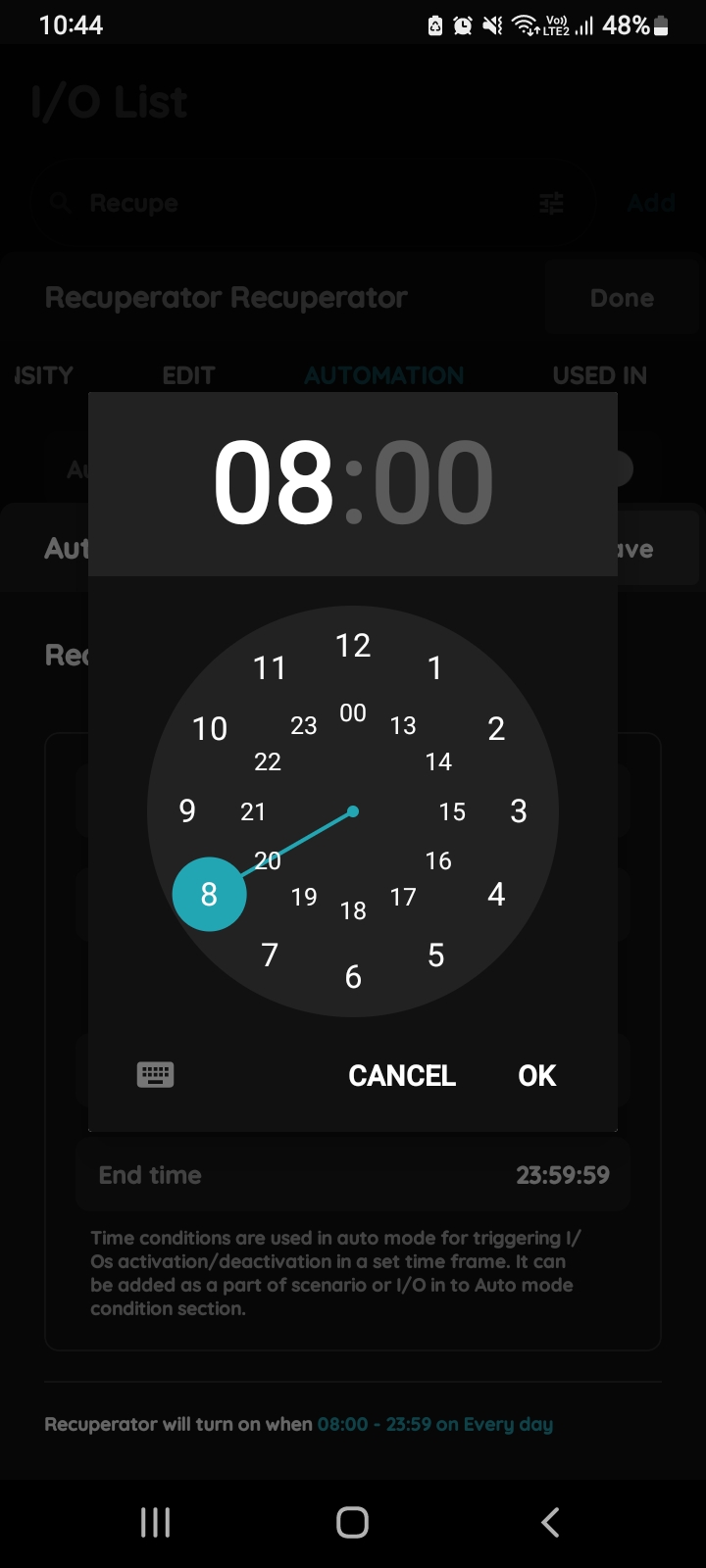
Start and End time - automation Recuperator
Tap in the Start time and End time fields and set time by clock or by keyboard.
In this case start time is 8 o' clock and end time is 4 o'clock.
To confirm tap OK button, to cancel, tap Cancel button.
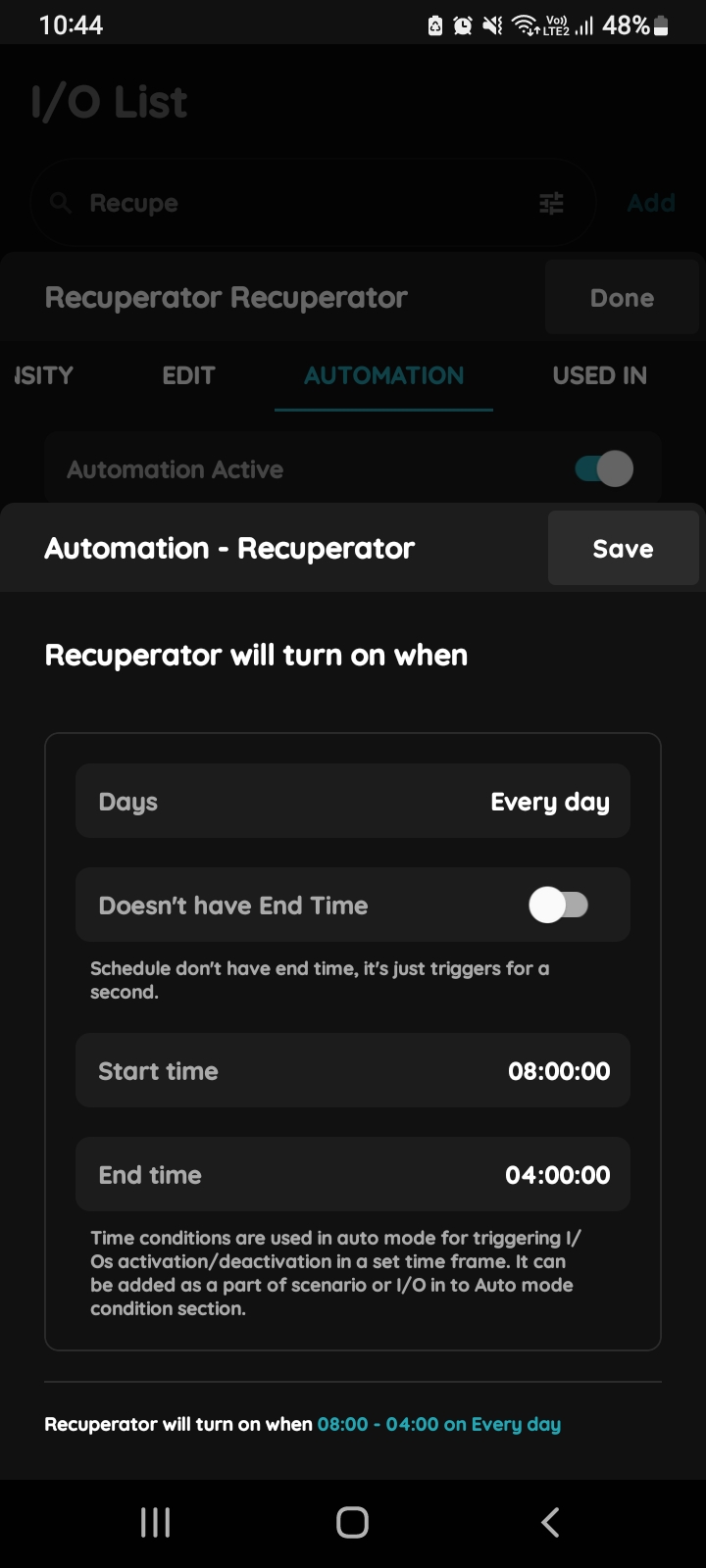
Confirm new Time conditions
To confirm new Time conditions tap button Save.
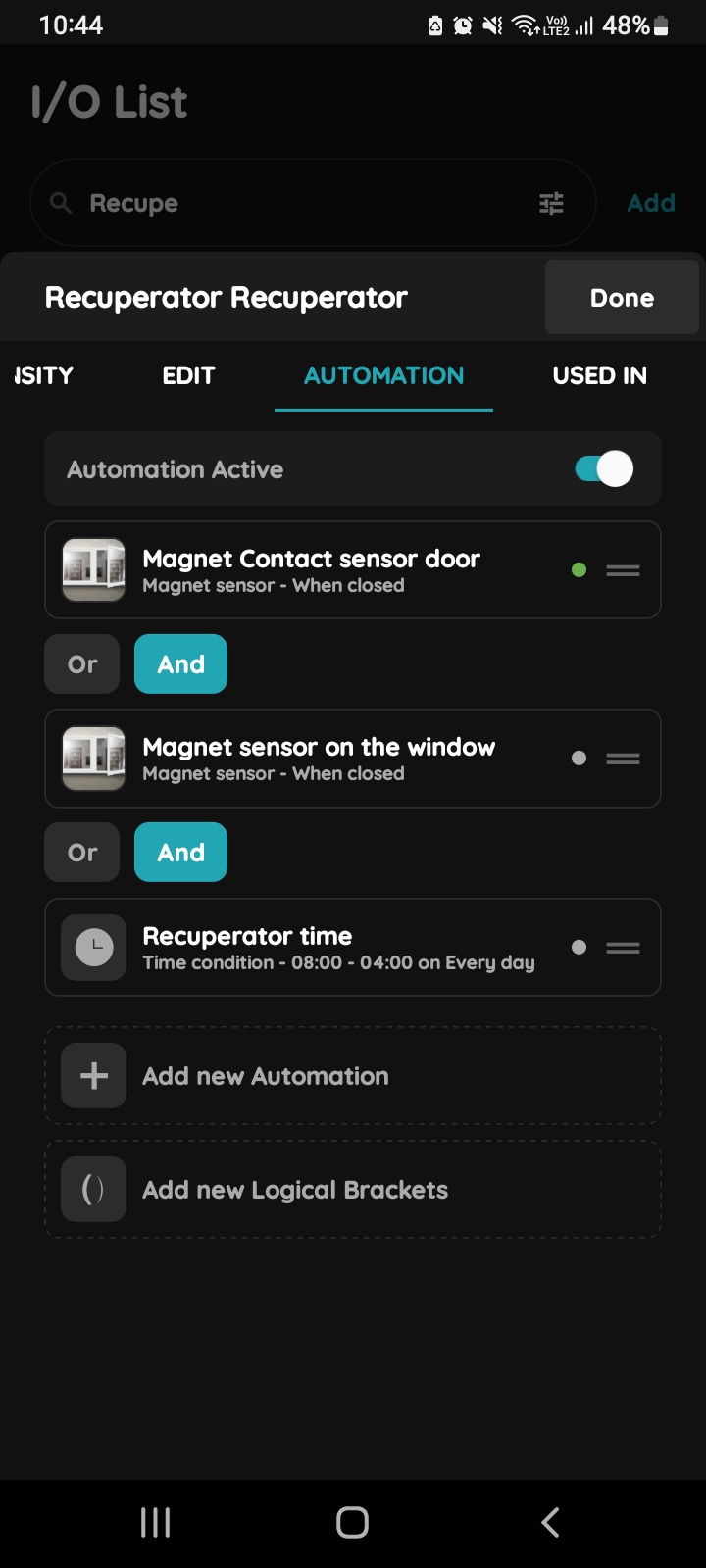
Confirm all conditions in automation - Recuperator
Tap button And.
The Recuperator will turn on when all conditions are met: both the window and door magnet sensors must be closed, and it must be within the specified time frame of Monday to Sunday, from 8 AM to 4 PM.
Tap button Done to confirm.
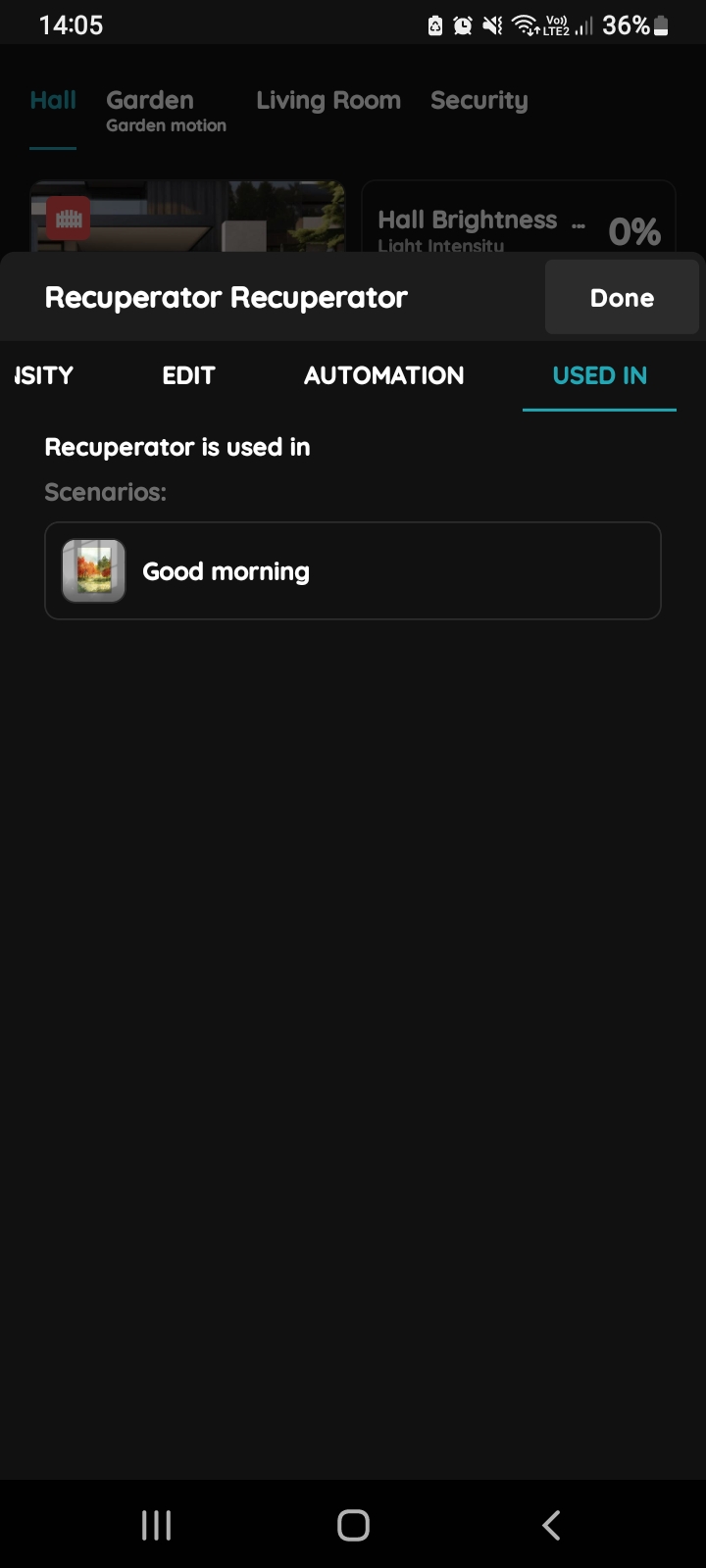
Used In - Recuperator
The Used In tab shows all the scenarios and automations where the Recuperator is applied, making it easy to see where this I/O is used without the need to search manually. If it isn't used in any, the list will be empty, and a message will display: "This I/O is not in use anywhere." This feature is particularly useful as it consolidates all relevant information in one place.