Smart PIERRE - Sirens
Description
The Siren function allows sirens connected to the PIERRE system to be controlled and their current status to be displayed. Sirens can be operated manually or linked to various system events and automations.
Configured sirens are available on the Dashboard and in the I/O List of the Smart PIERRE application.
Control
The siren can be controlled directly from the Dashboard using the following modes:
-
ON – Manually activates the siren.
-
OFF – Manually deactivates the siren.
-
AUTO – Enables automatic operation based on configured system events and automations.
The current status of the siren is displayed in the application. The icon and associated image change according to the current state, providing clear visual feedback.
Configuration
To open the siren configuration, press and hold the Siren card.
The following parameters can be configured:
-
Name – Enter a name for the siren.
-
Image – Select an image for the siren.
-
Slide to Confirm – Defines whether manual activation or deactivation requires additional confirmation.
Slide to Confirm
When Slide to Confirm is enabled, the user must confirm the manual action with a slide gesture. This helps prevent accidental activation or deactivation of the siren.
Used In
The Used In tab displays all Scenes and Automations in which the selected siren is used.
This provides a quick overview of the functions and automations associated with the siren within the PIERRE system.
Automation Applications
The siren can be linked to different sensor states, system events, scenes, and automations.
Examples include:
-
Activating the siren when smoke is detected.
-
Activating the siren when a gas detector enters an alarm state.
-
Activating the siren when a water leak is detected.
-
Generating an audible warning when motion is detected.
Siren operation can also be combined with other PIERRE functions, such as notifications, lighting control, and other automation actions.
Technical Notes
-
Indoor and outdoor sirens can be used, provided they are technically compatible with the installed system.
-
Multiple sirens can be configured to operate simultaneously.
-
Sirens can be controlled manually or through automations.
-
Available functions and control options depend on the PIERRE system configuration and the connected devices.
Important Notice
PIERRE is a building automation and smart home control system. Siren control is an additional automation function of the system and does not replace a certified fire alarm, gas detection, intrusion alarm, security, life-safety, or emergency warning system.
The PIERRE system can monitor sensor states, process events, control sirens, and send notifications. However, these functions must not be used as a substitute for certified safety or life-safety systems required by applicable regulations, insurance requirements, or project specifications.
The operation of certain system functions may depend on factors including power availability, network infrastructure, internet connectivity, cloud service availability, and the proper operation and configuration of connected devices and user devices.
PIERRE shall not be liable for damages resulting from system or connected-device failure, interruption of operation, or improper installation, configuration, maintenance, or use.
Control of the Siren
Controlling the Siren is easy and efficient, all managed directly from the Dashboard.
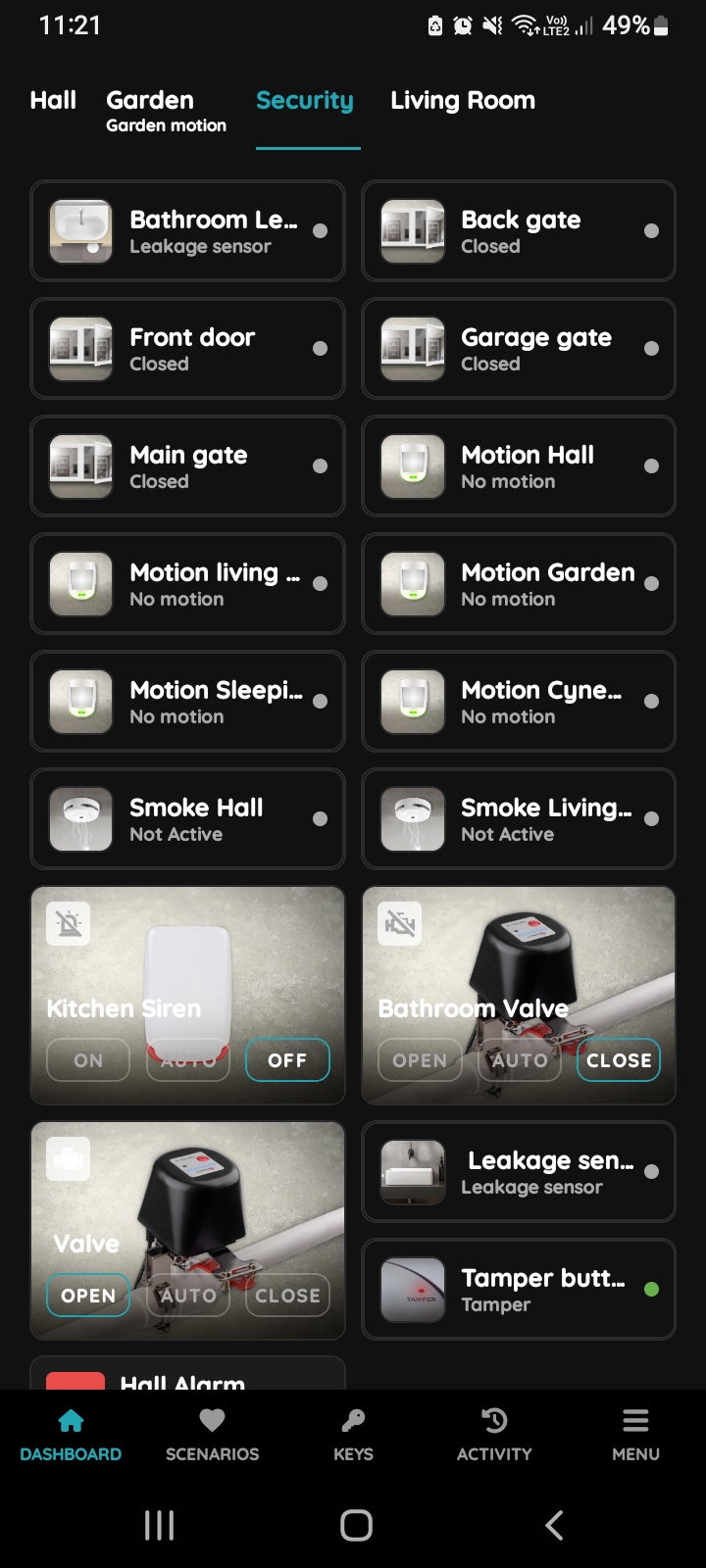
On, Off, Auto - Siren
There are three buttons for controlling the Siren:
- On - Tap this button to turn On the Siren.
- Off - Tap this button to turn Off the Siren.
- Auto - If you tap the Auto button, the automation will activate when the conditions are met.
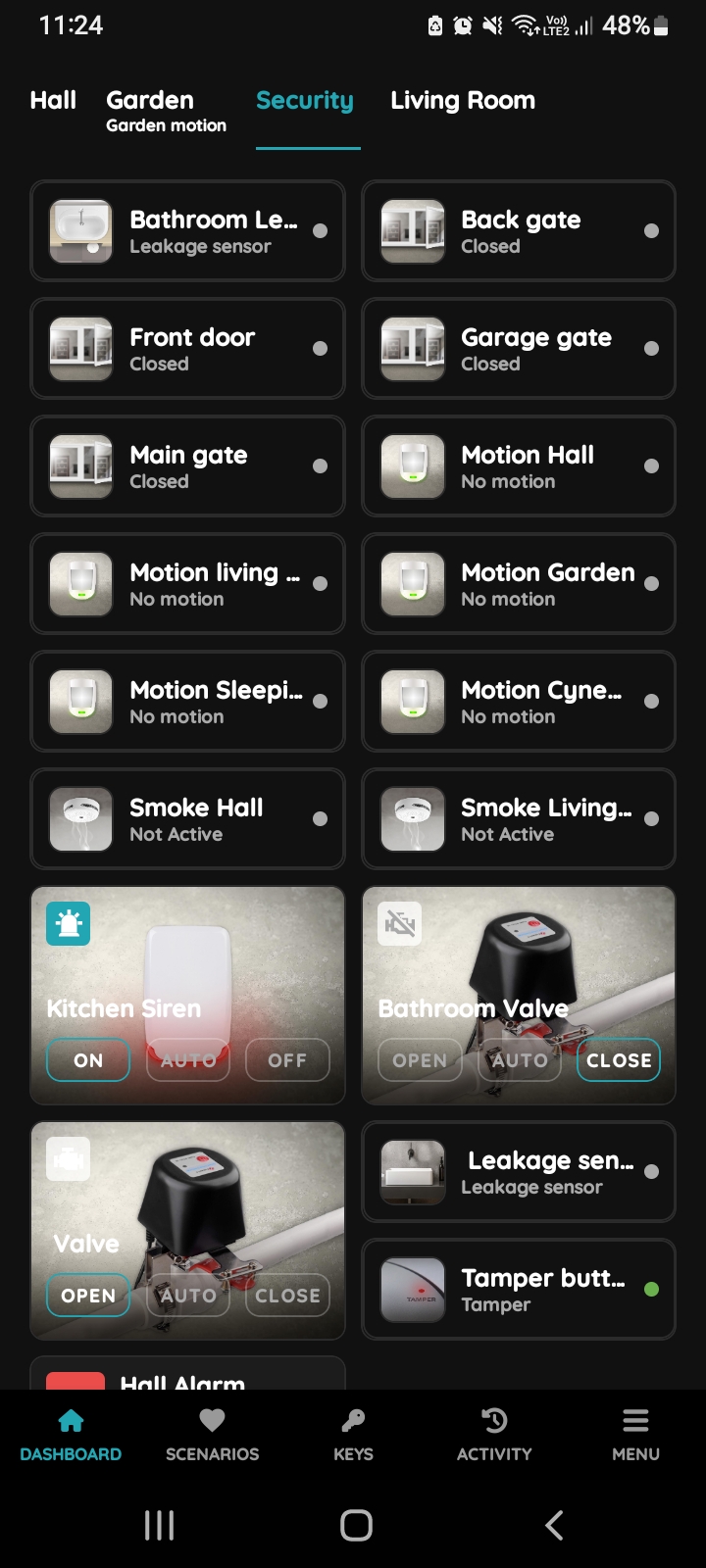
Turn the Siren On
To turn the Siren On, tap the On button.
The icon of the Siren turns blue and picture is changed, indicating it has been turned On.
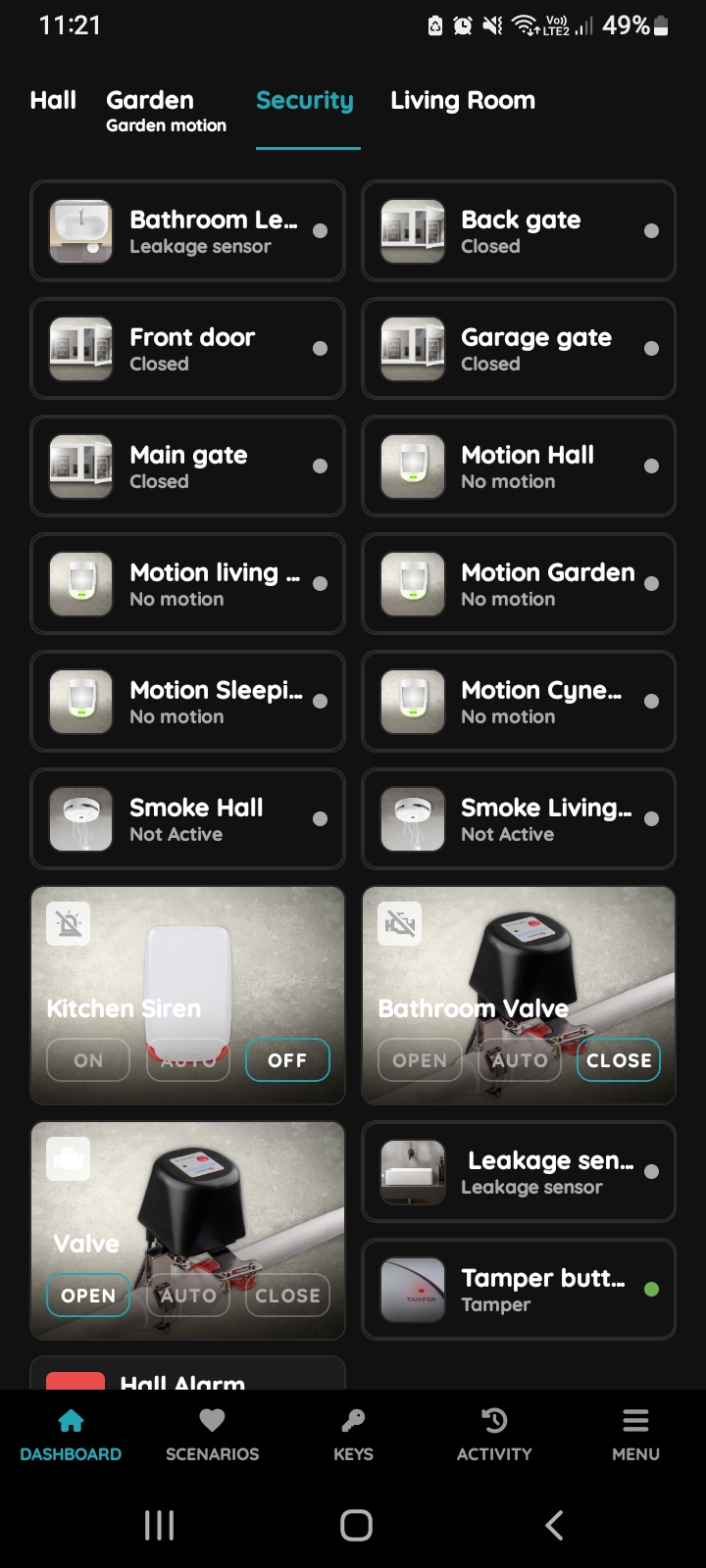
Turn the Siren Off
To turn the Siren Off, tap the Off button.
The icon of the Siren turns grey and picture is changed, indicating it has been turned Off.
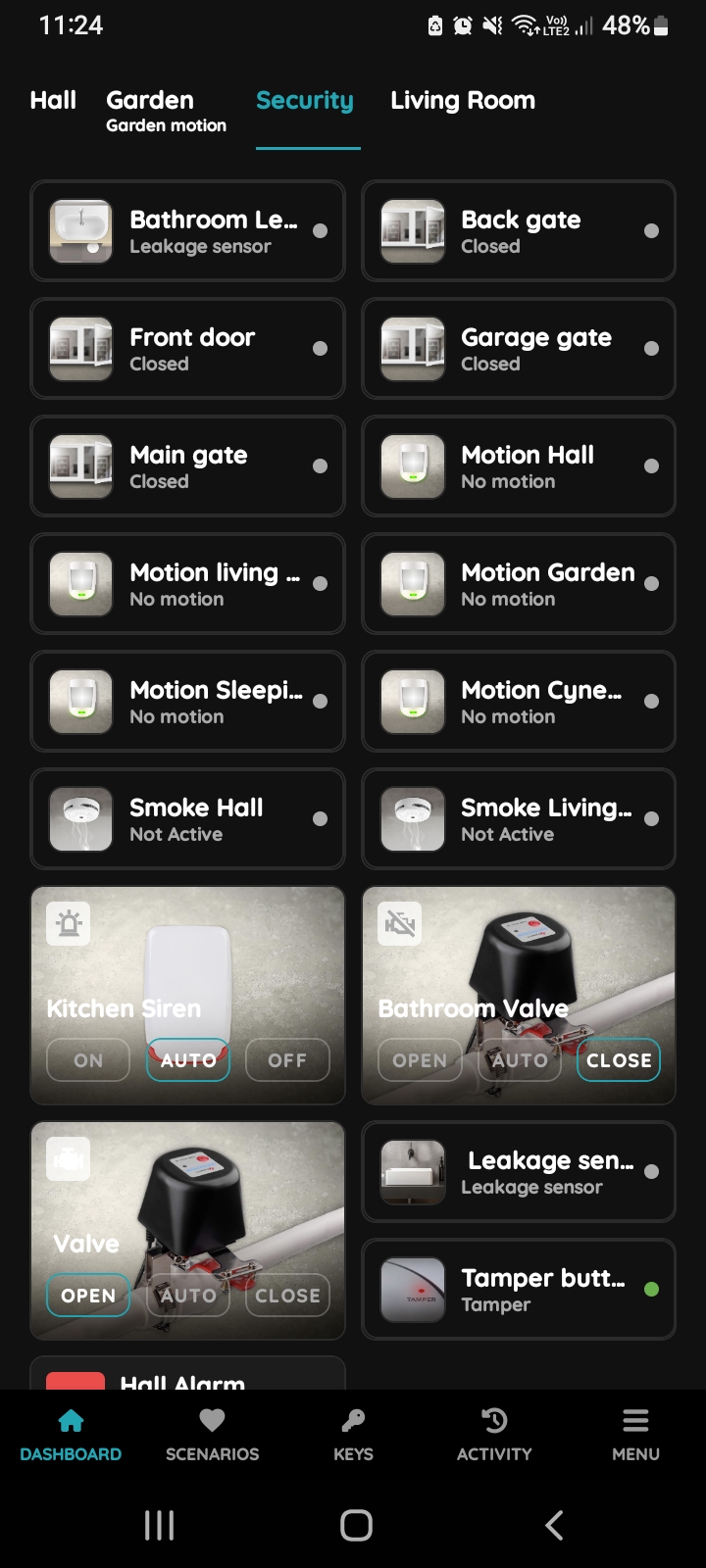
Set Siren to auto mode
If you click on the Auto button, the previously created automation for the Siren will be activated if all conditions from the automation are fulfilled. The icon of the Siren will turn blue, and the picture of the Siren will update to reflect the On status.
If you click the Auto button and some of the conditions from the automation are not fulfilled, the Siren will not be activated. The icon of the Siren will turn grey, and the picture will show the Siren in the Off status. All conditions must be met for the automation to activate.
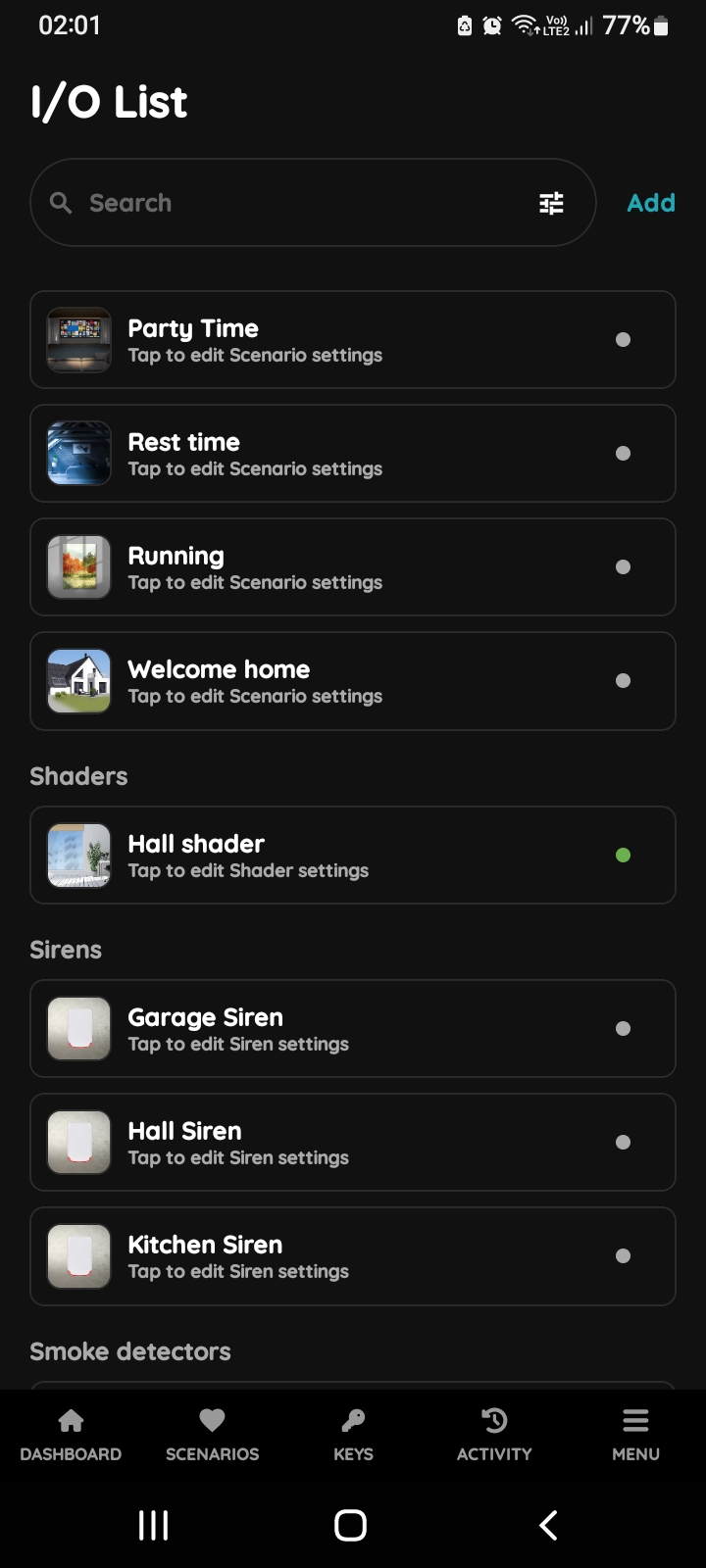
Open I/O list - Siren
Edit Siren in a few steps.
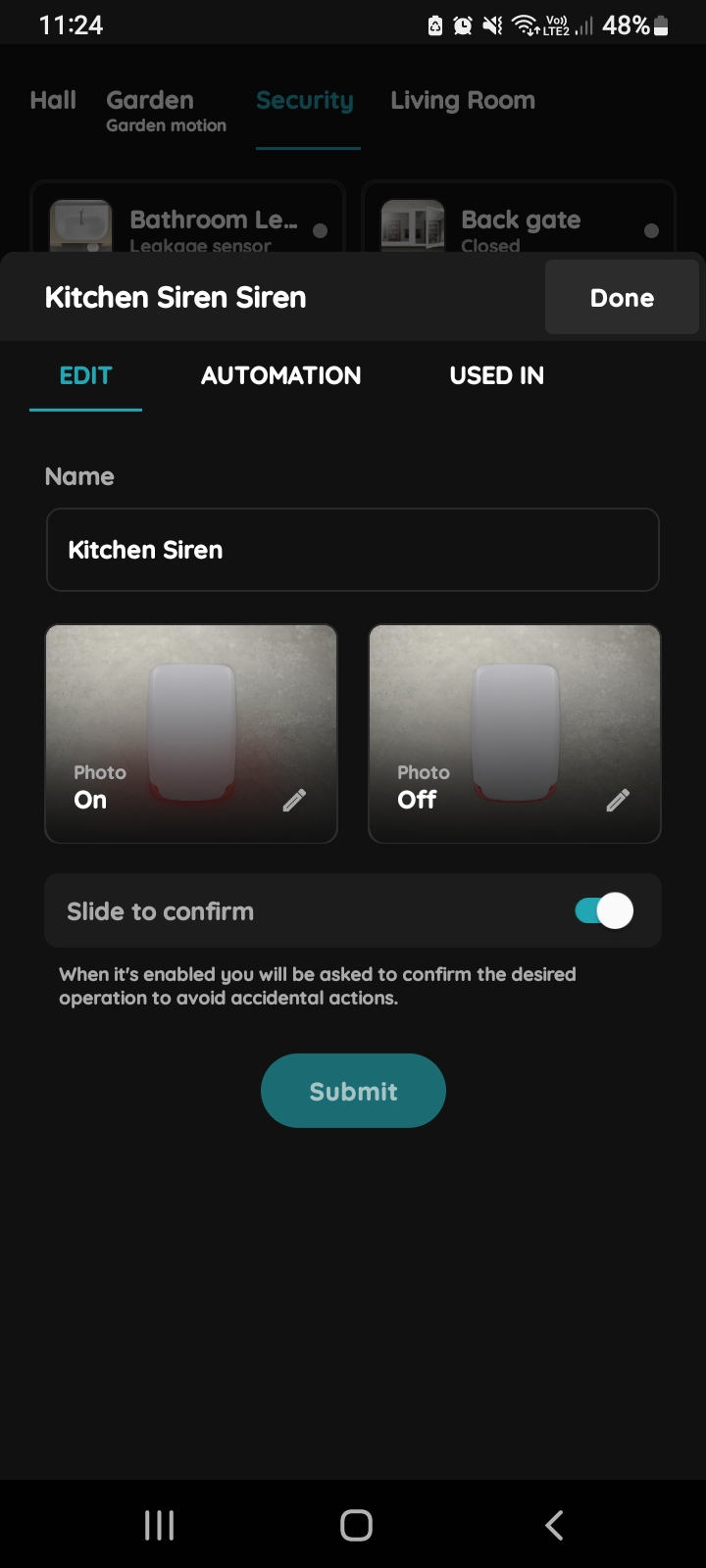
Edit Siren
Edit the following form:
- Name - Edit the name of the Siren.
- Change photo - Select the source of the photo for the Siren.
- Slide to confirm - When enabled, you'll be asked to confirm the action to prevent accidental actions.
Tap on Submit/Done.
GOOD TO KNOW:
The Siren can be edited by long-pressing the Siren card on the Dashboard or tapping it in the I/O list.
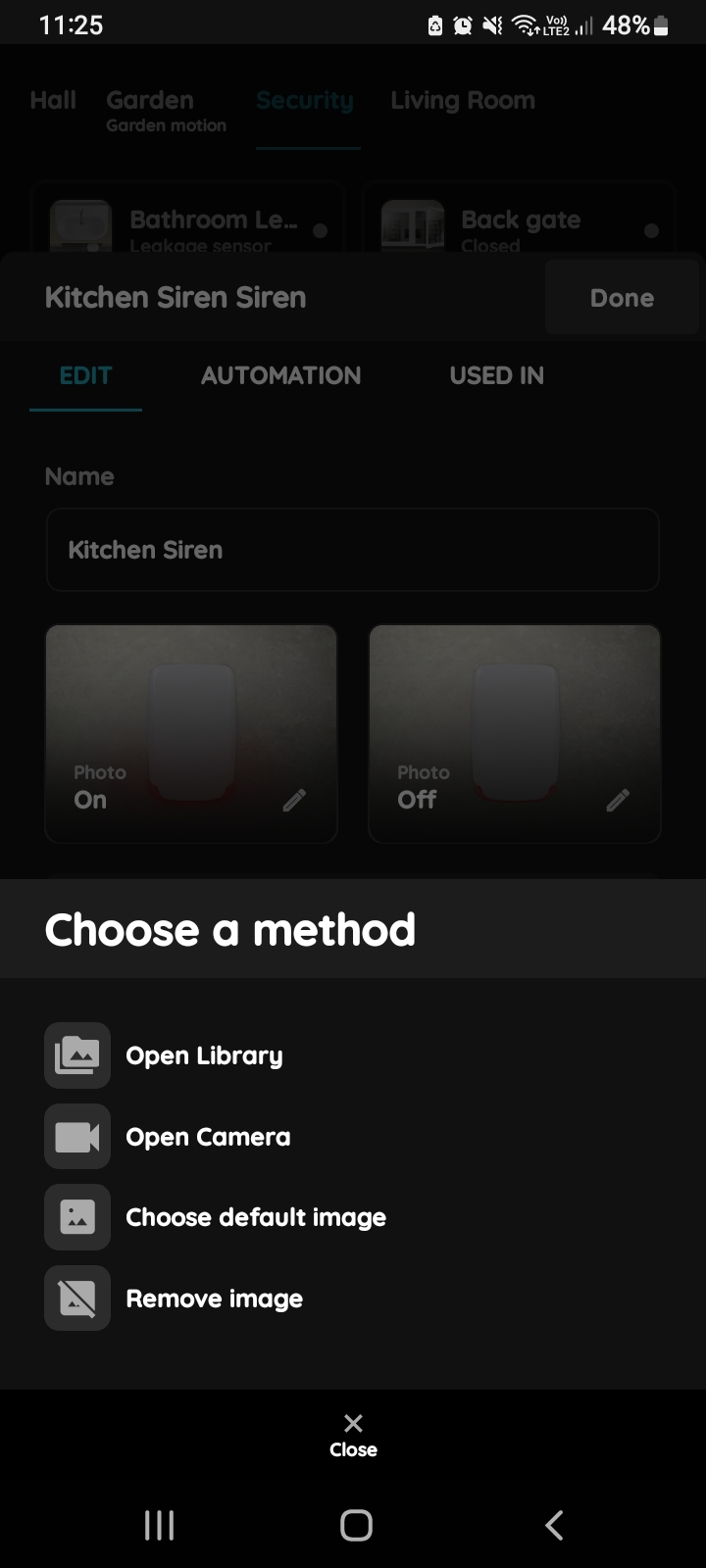
Change photo - Siren
Press the photo of the Siren. You have four options:
- Open Library: The phone’s Library will open. It is recommended to take pictures from the same angle for both Siren statuses to achieve a complete and consistent view.
- Open Camera: You can take a picture using your smartphone. For a consistent view, it’s recommended to capture both Siren statuses from the same angle.
- Choose default image: These images are prepared in advance to provide a complete and seamless experience.
- Remove image: Removes the existing image.
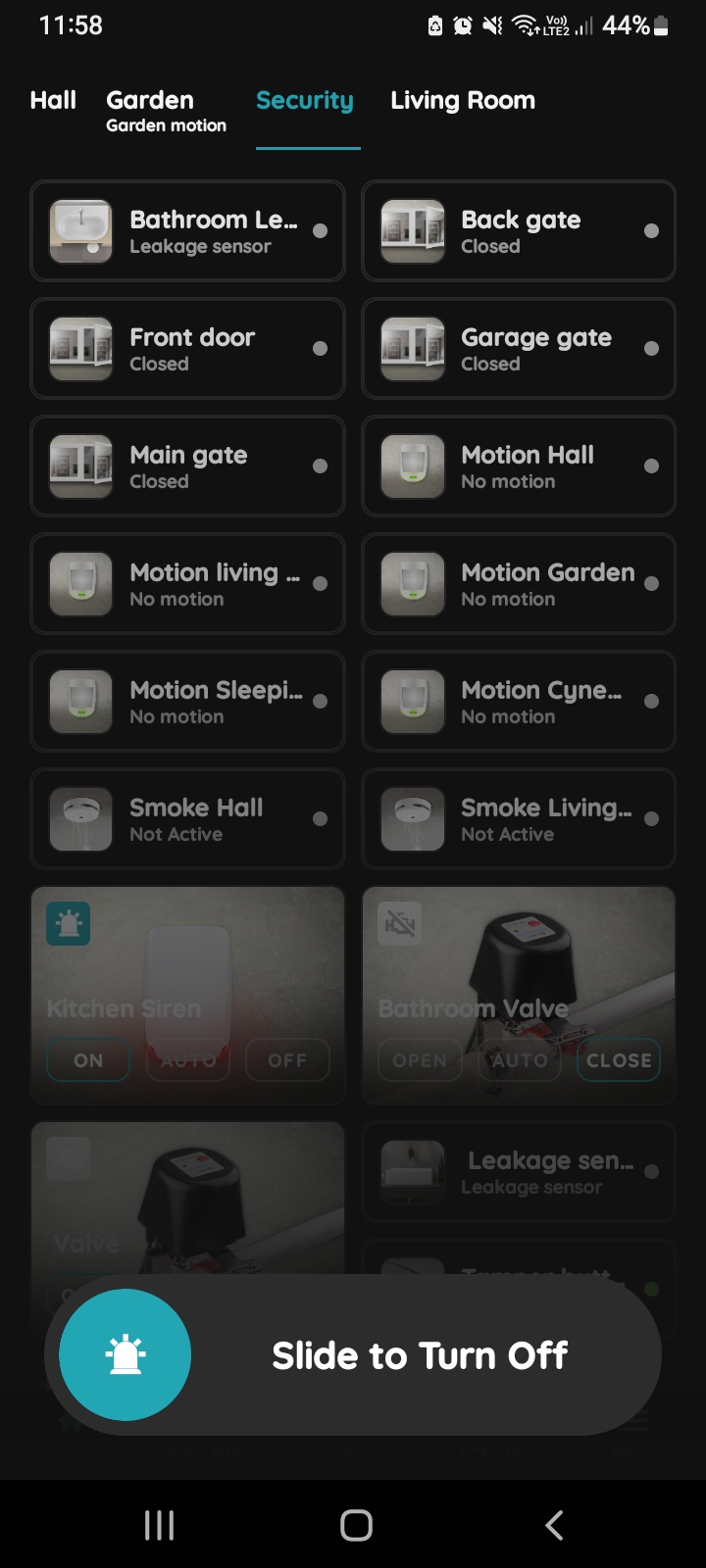
Slide to confirm - Siren
The Slide to confirm feature adds an extra layer of security, preventing accidental actions.
It prompts you to confirm your choice once more.
If you want to turn the Siren off, tap the Off button and Slide to Turn Off from left to right side to confirm the action.
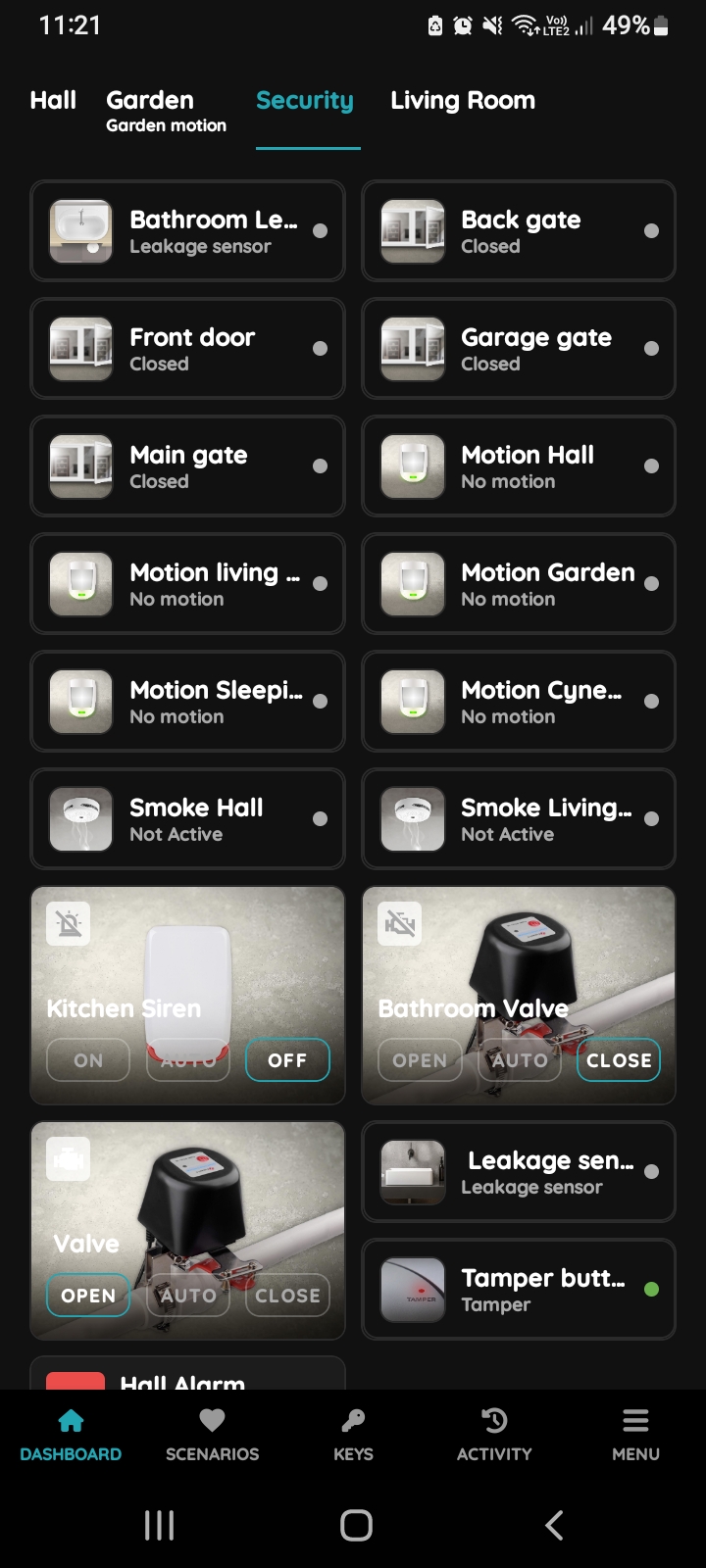
Find Siren on the Dashboard
An example of automation for the Siren could involve triggering it when a Motion sensor detects movement. When the Motion sensor in the hall detects any motion in period of time from 9 AM to midnight, the Siren in the kitchen will automatically sound to alert you of any potential intruders. The Siren in the kitchen will remain On for a predefined period, such as 2 minutes, and will then automatically turn Off. This setup ensures a quick response to any unexpected activity.
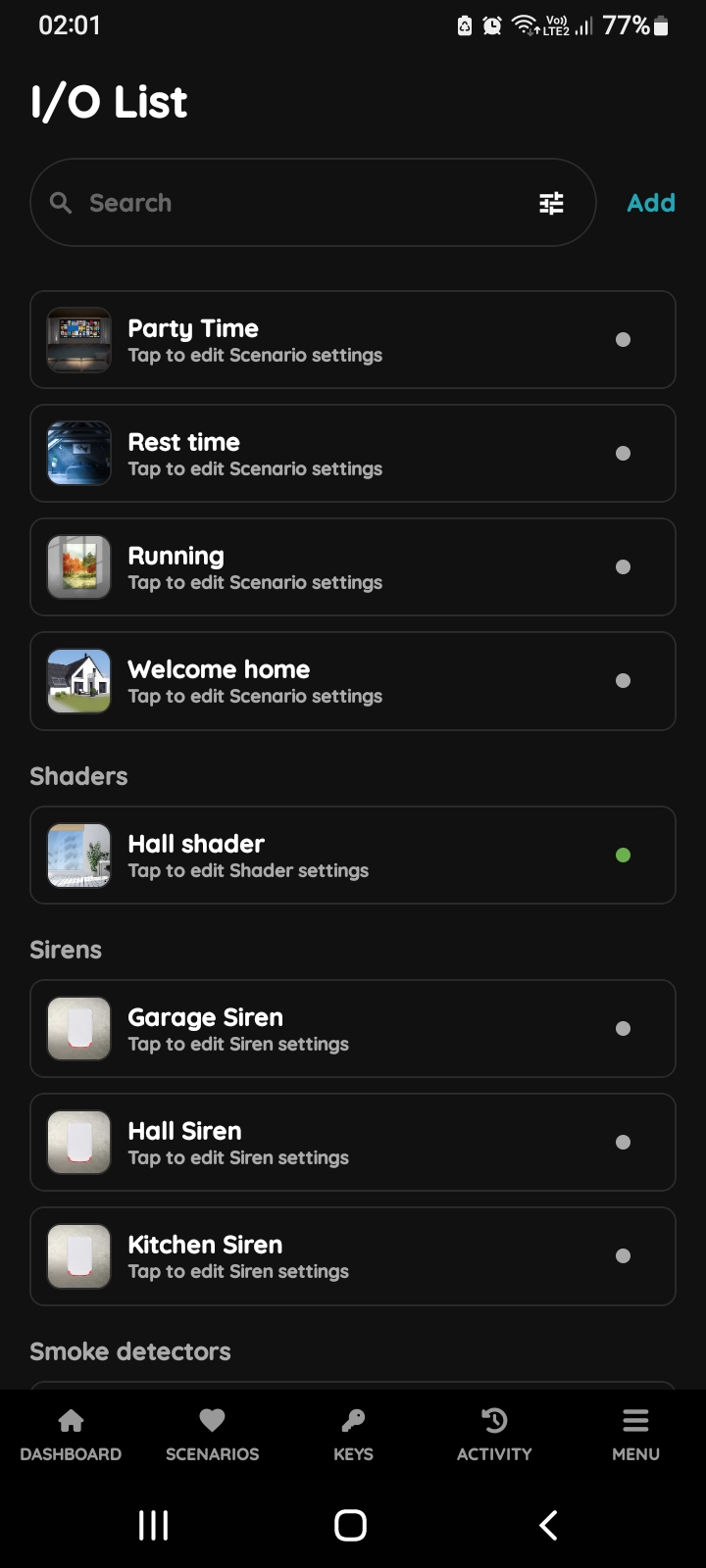
Open I/O list - Siren
Open I/O list, scroll to the Sirens and tap on the desired Siren from the list.
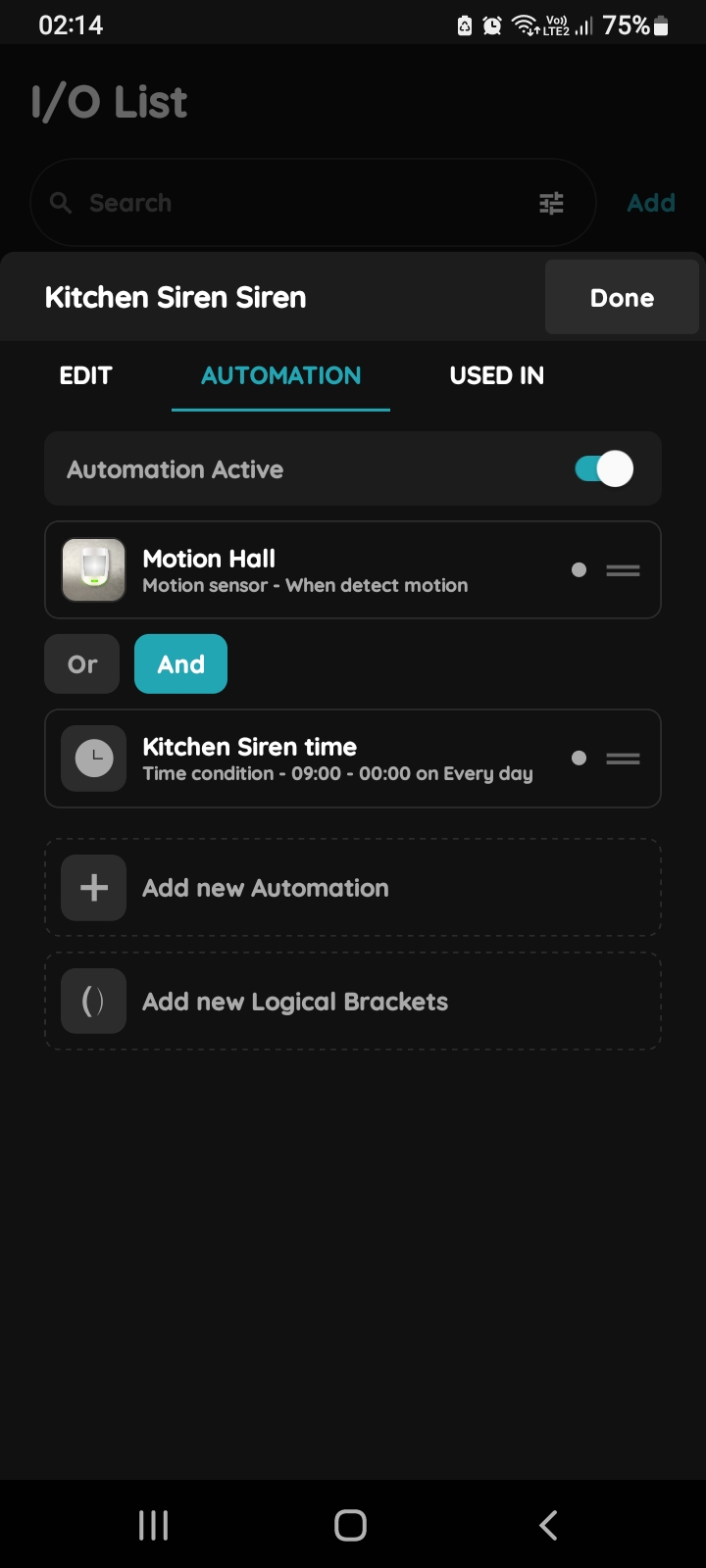
+Add new Automation - Siren
Tap on the tab Automation and then on the +Add new Automation.
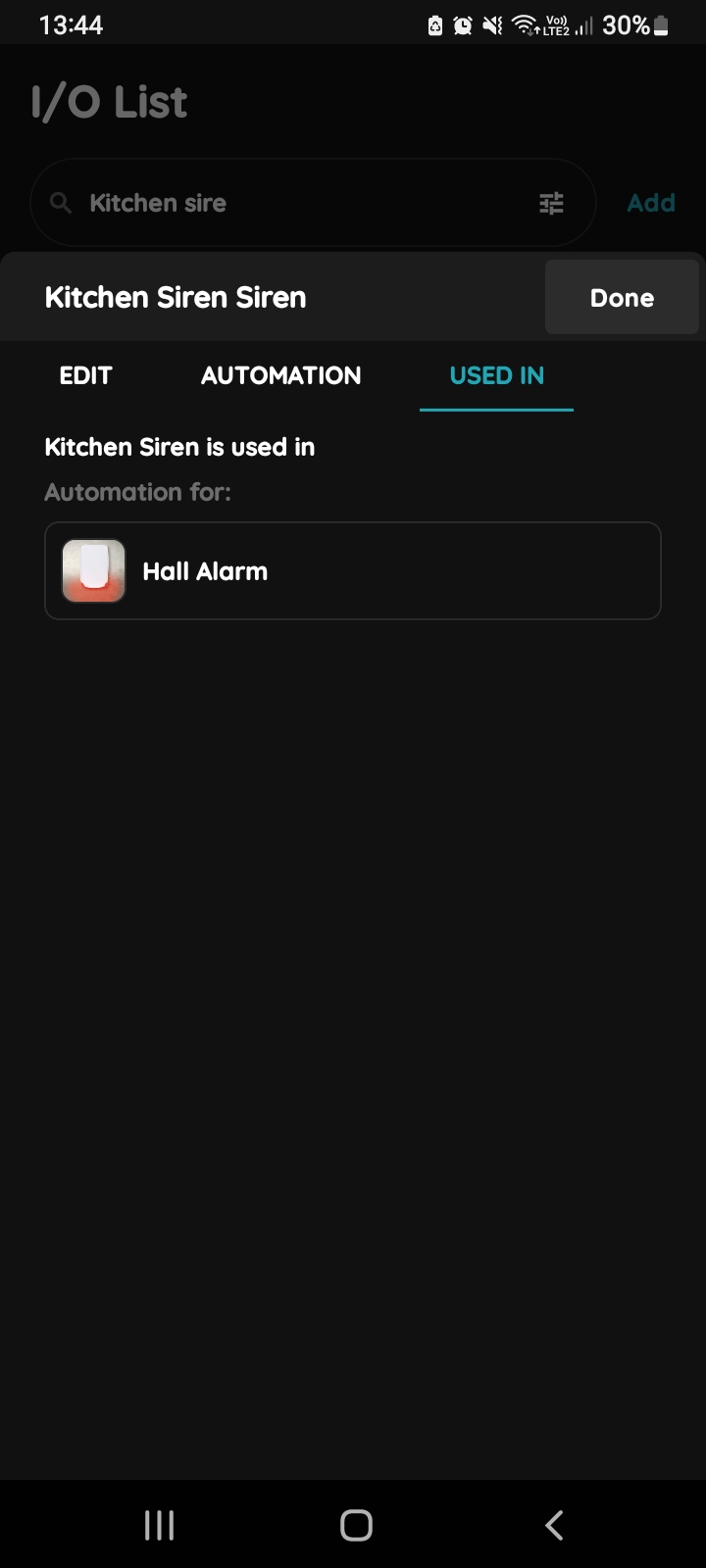
Used In - Siren
The Used In tab shows all the scenarios and automations where the Siren is applied, making it easy to see where this I/O is used without the need to search manually.
If it isn't used in any, the list will be empty, and a message will display: "This I/O is not in use anywhere." This feature is particularly useful as it consolidates all relevant information in one place.