Smart PIERRE - Temperature Sensor
Description
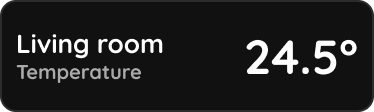
A temperature sensor reports the measured temperature to the system. The value is shown in the Smart PIERRE application on the Dashboard and in the I/O list, and updates automatically.
Configuration
A long press on the temperature sensor card opens its configuration page:
- Name
- Sensor image
- Temperature Offset
- Temperature Format
- Used In
Temperature Offset
The offset compensates for the installation position of the sensor. It can be enabled or disabled, and a correction value is entered when it is enabled. Compare the sensor against a reference meter placed in the middle of the room and enter the difference. Where the deviation is large, move the sensor rather than correcting it with a large offset.
Temperature Format
- Celsius (°C)
- Fahrenheit (°F)
Used In
The Used In tab lists every automation, scene and system function that uses this sensor. Check it before renaming or removing the sensor.
Automation
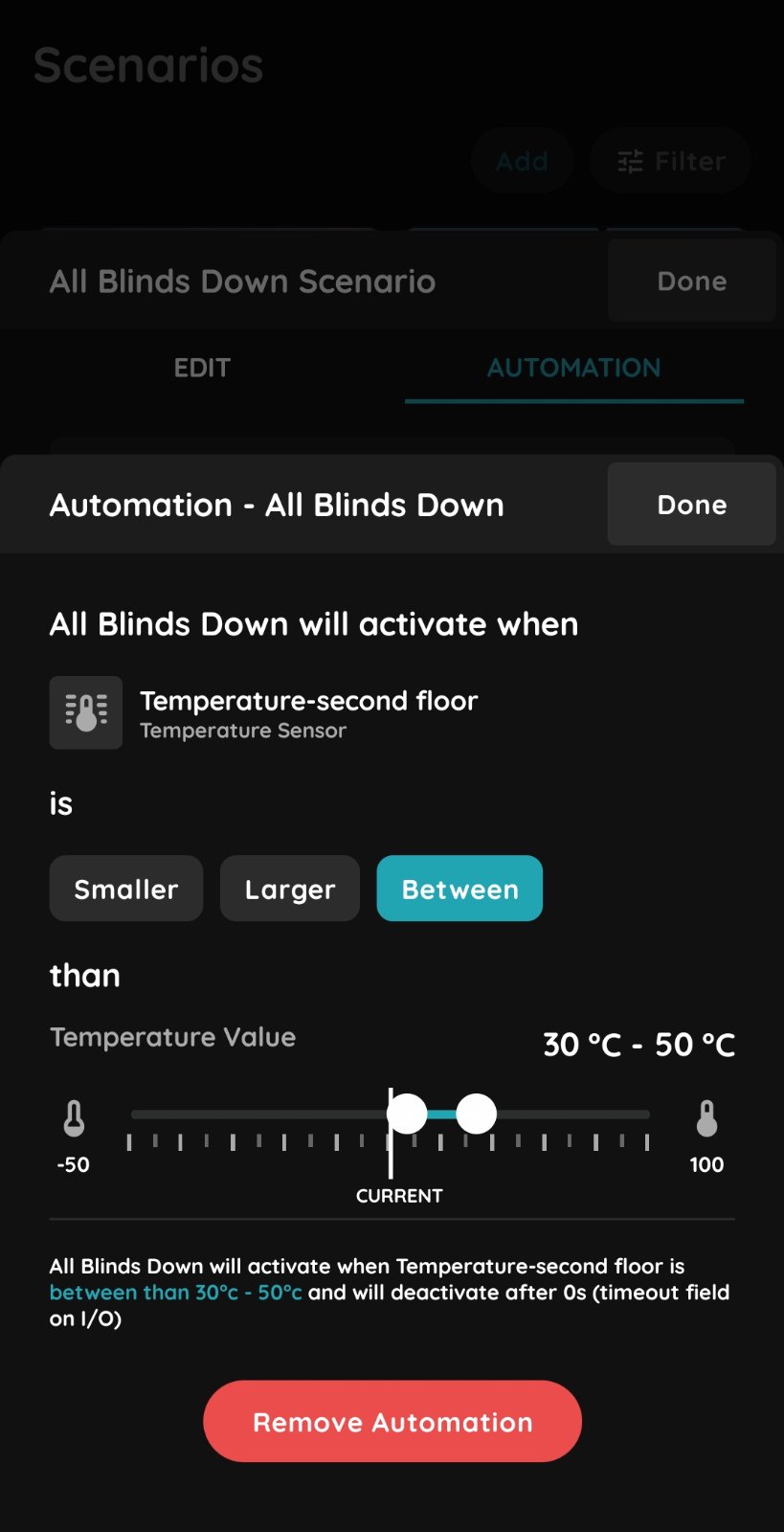
A temperature sensor can be a trigger or a condition. Typical uses:
- Start heating when the temperature falls below a threshold.
- Start cooling when it rises above a threshold.
- Control ventilation from the room temperature.
- Reduce the target while a room is unoccupied.
Technical Notes
- Mount the sensor at head height, out of direct sunlight and away from radiators, doors and draughts.
- A sensor on an external wall reads lower than the room; either move it or correct it with the offset.
- Allow the sensor to settle after installation before judging its accuracy.
Use of the Temperature sensor
This sensor shows temperature.
Usage of the Temperature sensor
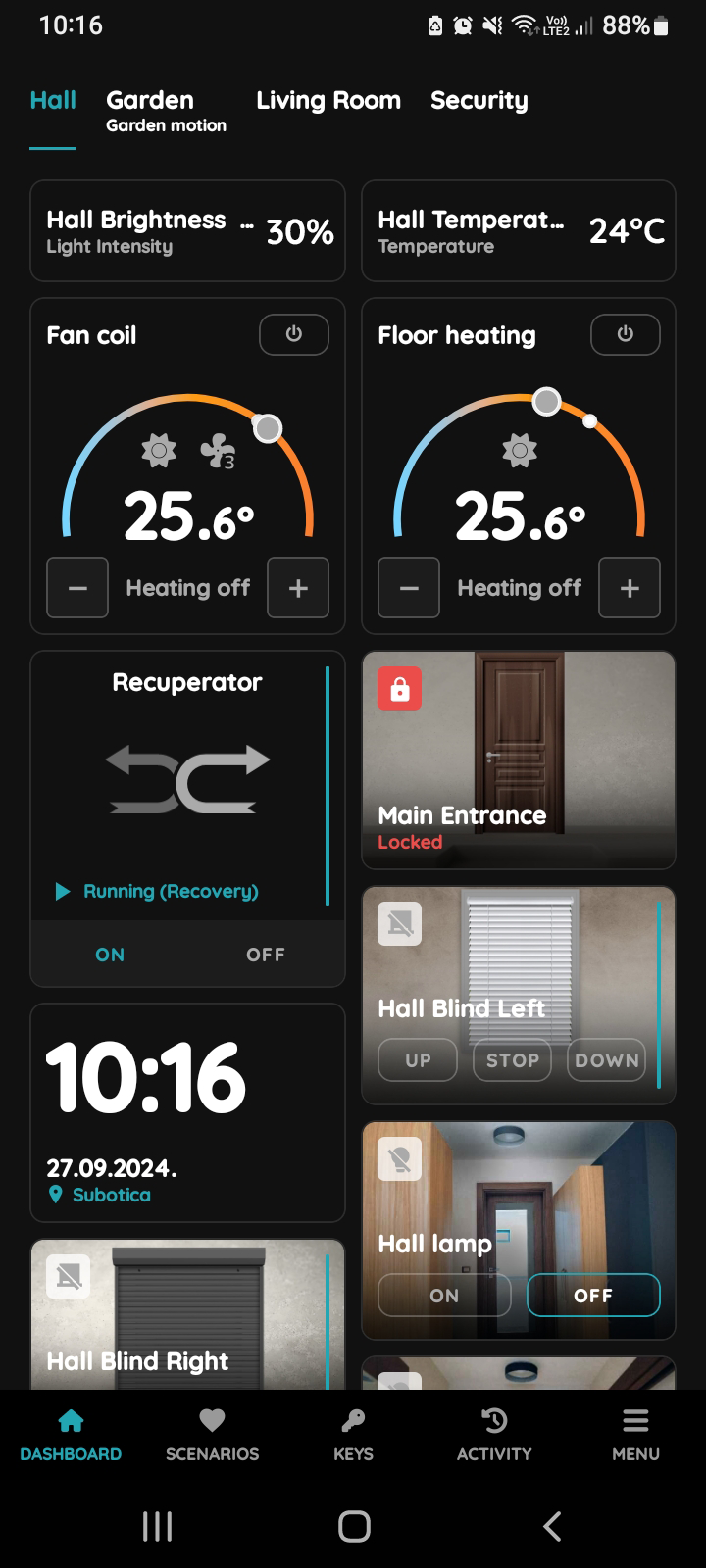
Follow Hall Temperature sensor. It shows current temperature 24 °C.
I/O List - Temperature sensor
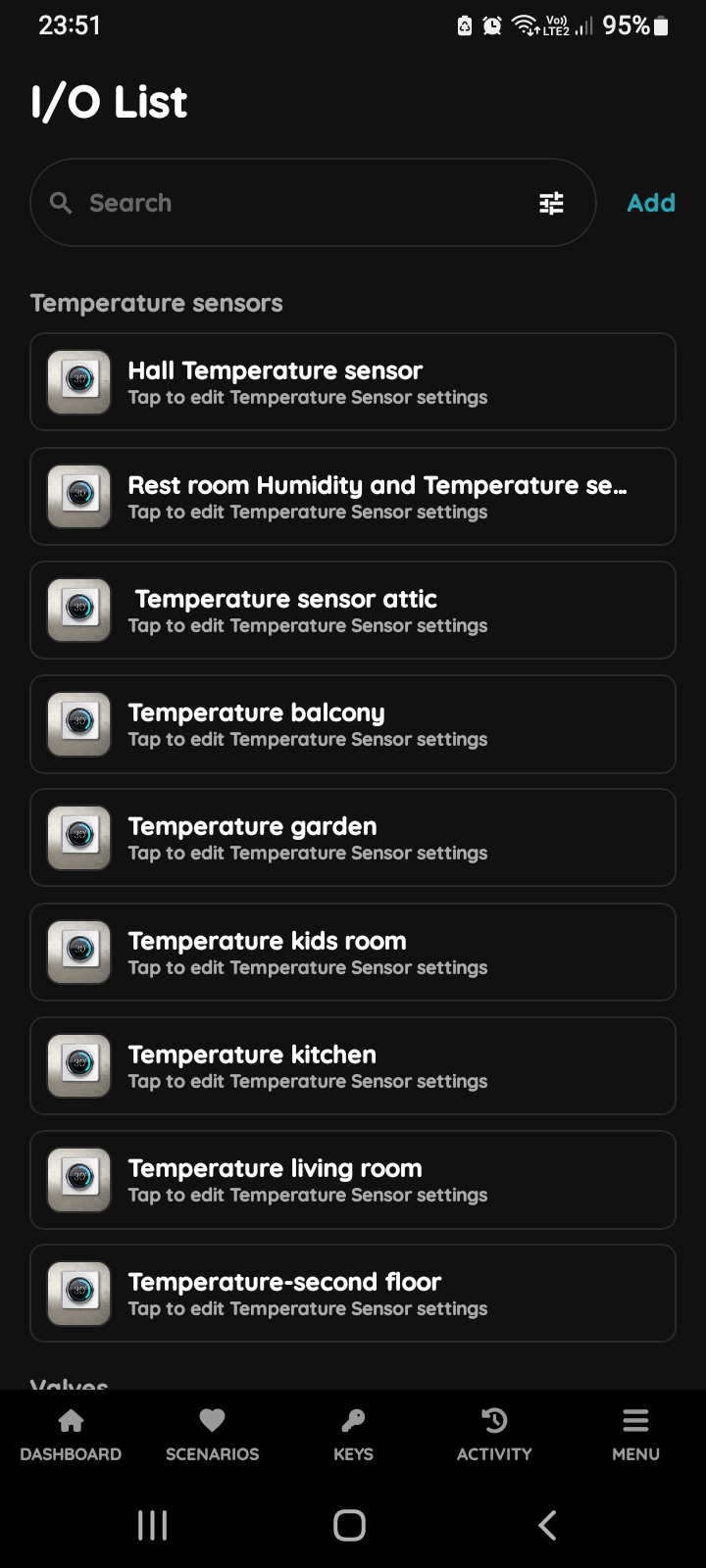
To edit the Temperature sensor settings, follow next steps.
Edit Temperature sensor
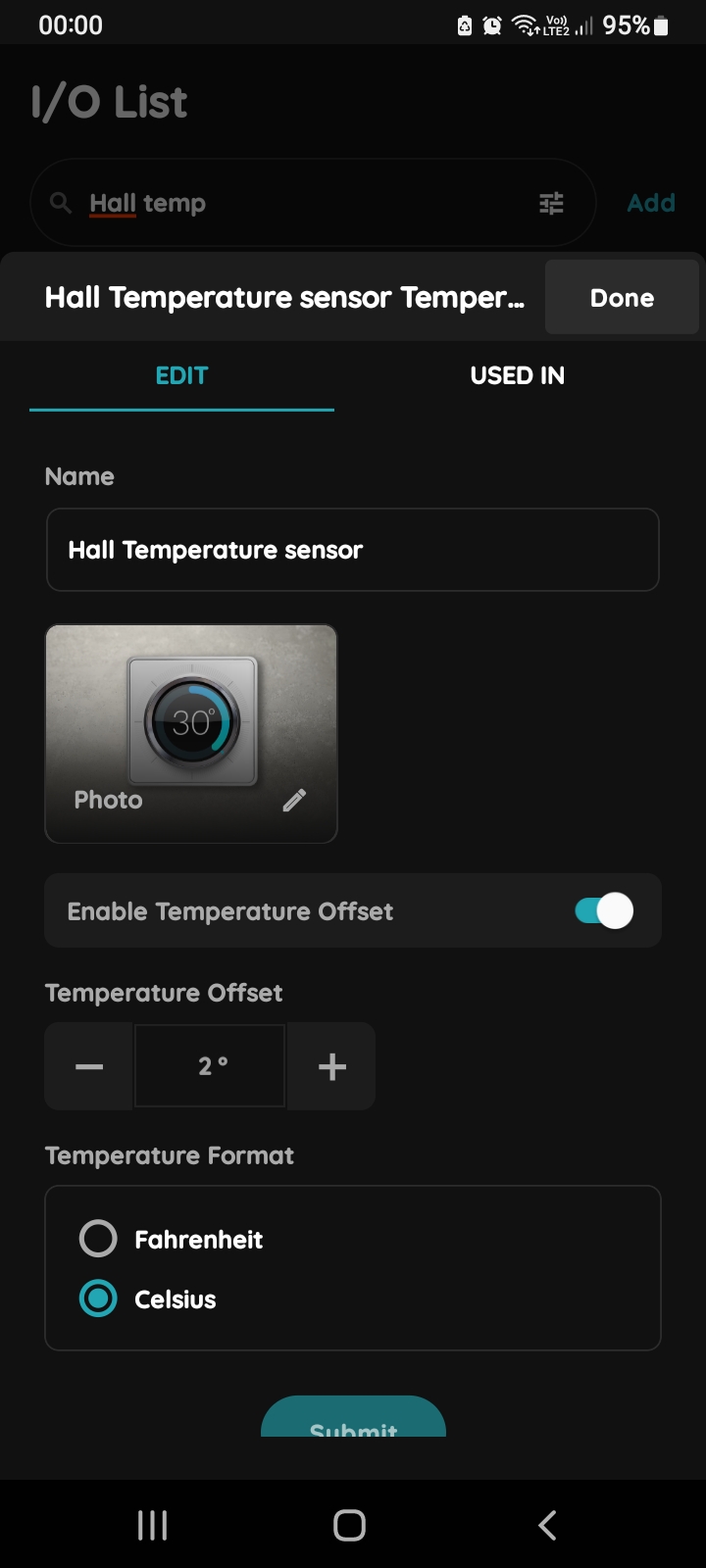
Edit the following form:
- Name - Edit the Temperature sensor's name.
- Photo - Select the source for the photo.
- Enable Temperature Offset - Enable this option to adjust the Temperature Offset using the +/- controls.
- Temperature Format - Choose between Fahrenheit and Celsius by selecting the corresponding radio button.
Tap Submit and Done to save your changes or Delete button in order to delete the Temperature sensor.
Follow next steps.
GOOD TO KNOW:
Temperature sensor can be edited by long-press the Temperature sensor card on the Dashboard or tapping it in the I/O list.
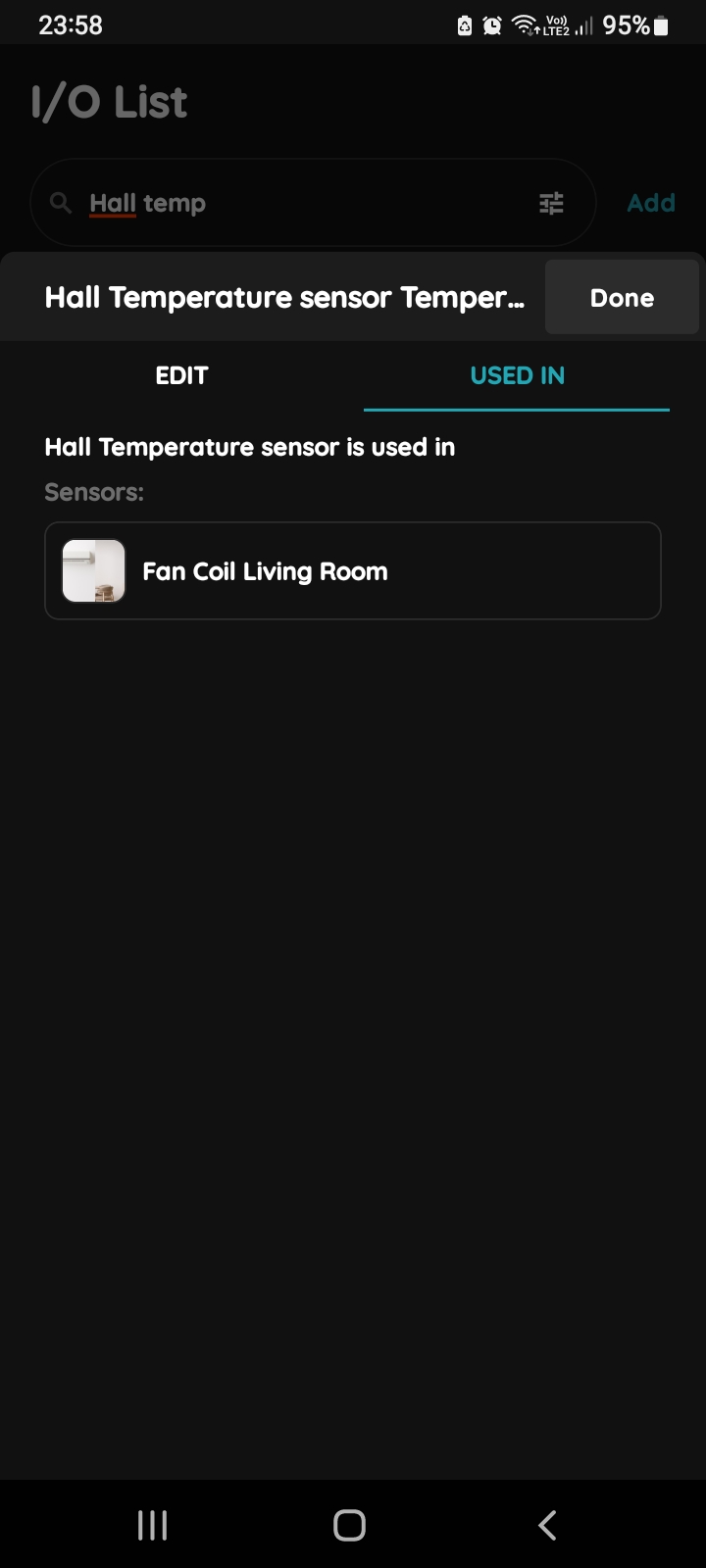
Used In - Temperature sensor
The Used In tab shows all the scenarios and automations where Temperature sensor is applied, making it easy to see where this I/O is used without the need to search manually. If it isn't used in any, the list will be empty, and a message will display: "This I/O is not in use anywhere." This feature is particularly useful as it consolidates all relevant information in one place.
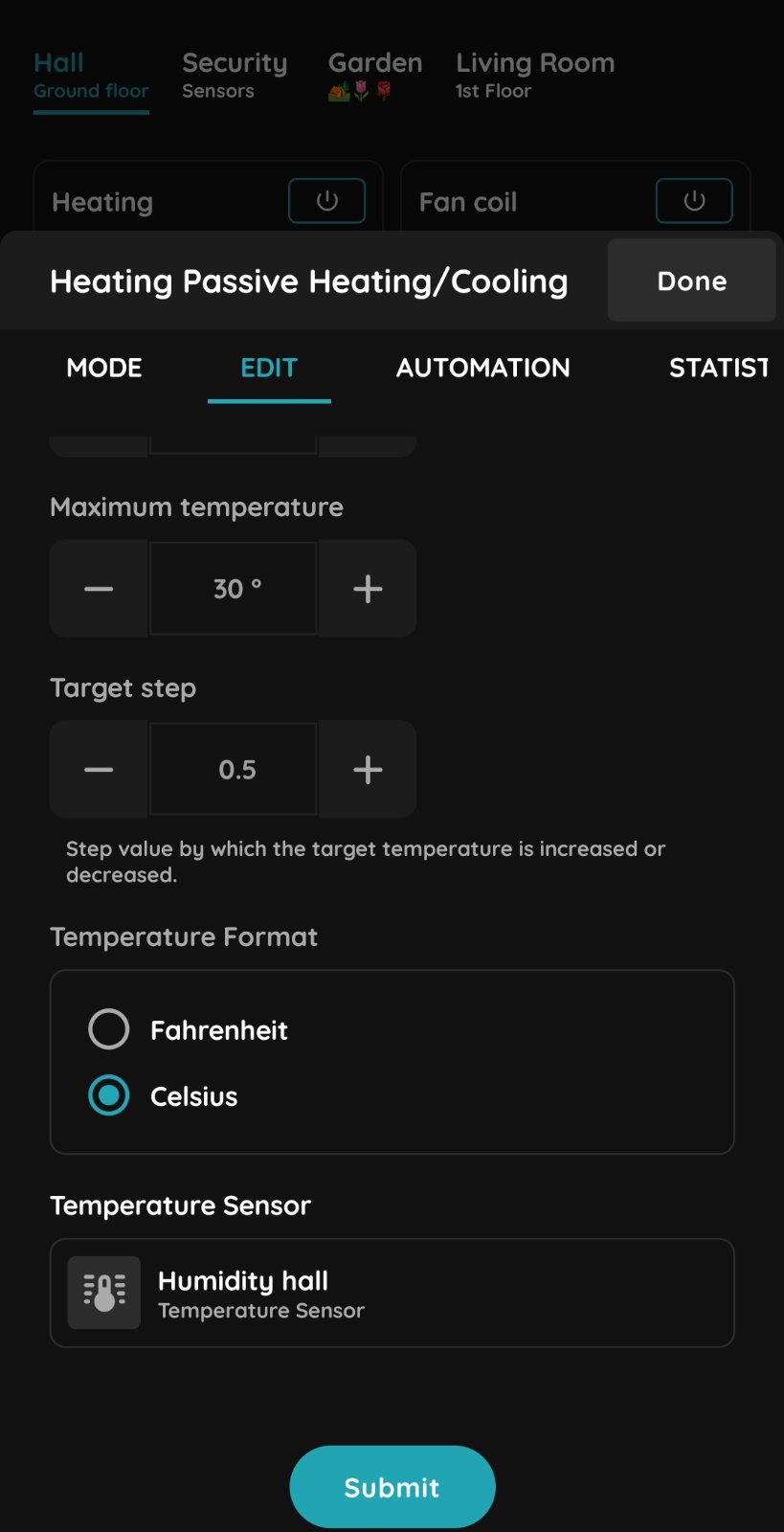
Usage of temperature sensor
Each thermostat can be assigned a temperature sensor. The thermostat uses the temperature measured by the assigned sensor to control when the heating or cooling is turned on or off.