Smart PIERRE - Pairing Wave Devices
Description
The Add Wave I/O function allows new Wave devices to be paired and added to the PIERRE Wave system through the Smart PIERRE application.
Adding a Wave Device
To add a new Wave device:
- Open the Smart PIERRE application.
- Navigate to Add Wave I/O.
- Select the desired Gateway.
- Put the Wave device into pairing mode.
- Wait for the device discovery process to complete.
- Configure the required parameters.
- Save the configuration.
Gateway Selection
If multiple Gateways are available within the system, select the Gateway that will manage the new Wave device.
Device Discovery
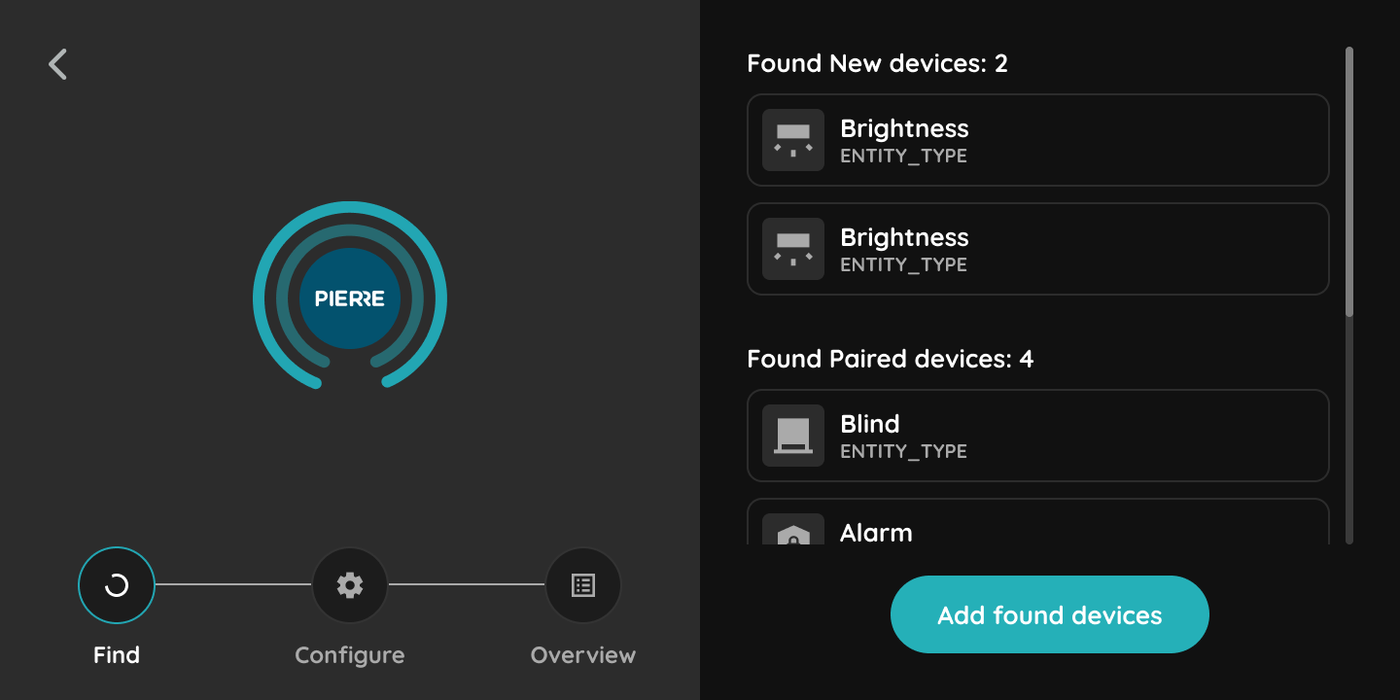
After selecting a Gateway, the system automatically scans for compatible Wave devices in pairing mode.
Only devices that support the PIERRE Wave ecosystem can be discovered and paired.
Configuration
The following parameters can be assigned during the pairing process:
- Name
- Group
- Role
Additional configuration options may be available depending on the device type.
Device Management
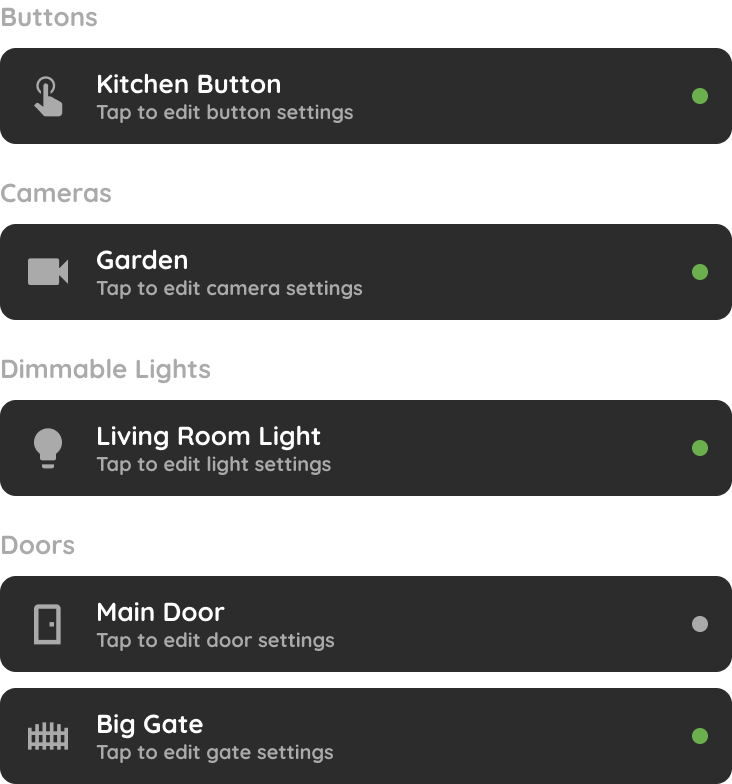
After successful pairing, the device becomes available within the system and can be managed through the I/O List.
Wave devices are displayed under the Wave section and can be used in:
- Dashboards
- Automations
- Scenes
- Roles
- System monitoring
Benefits
- Simplified device onboarding.
- Automatic device discovery.
- Centralized Wave device management.
- Seamless integration with the PIERRE Wave ecosystem.
Add Wave I/O
In this step you will add new Wave I/O. First, open Menu.
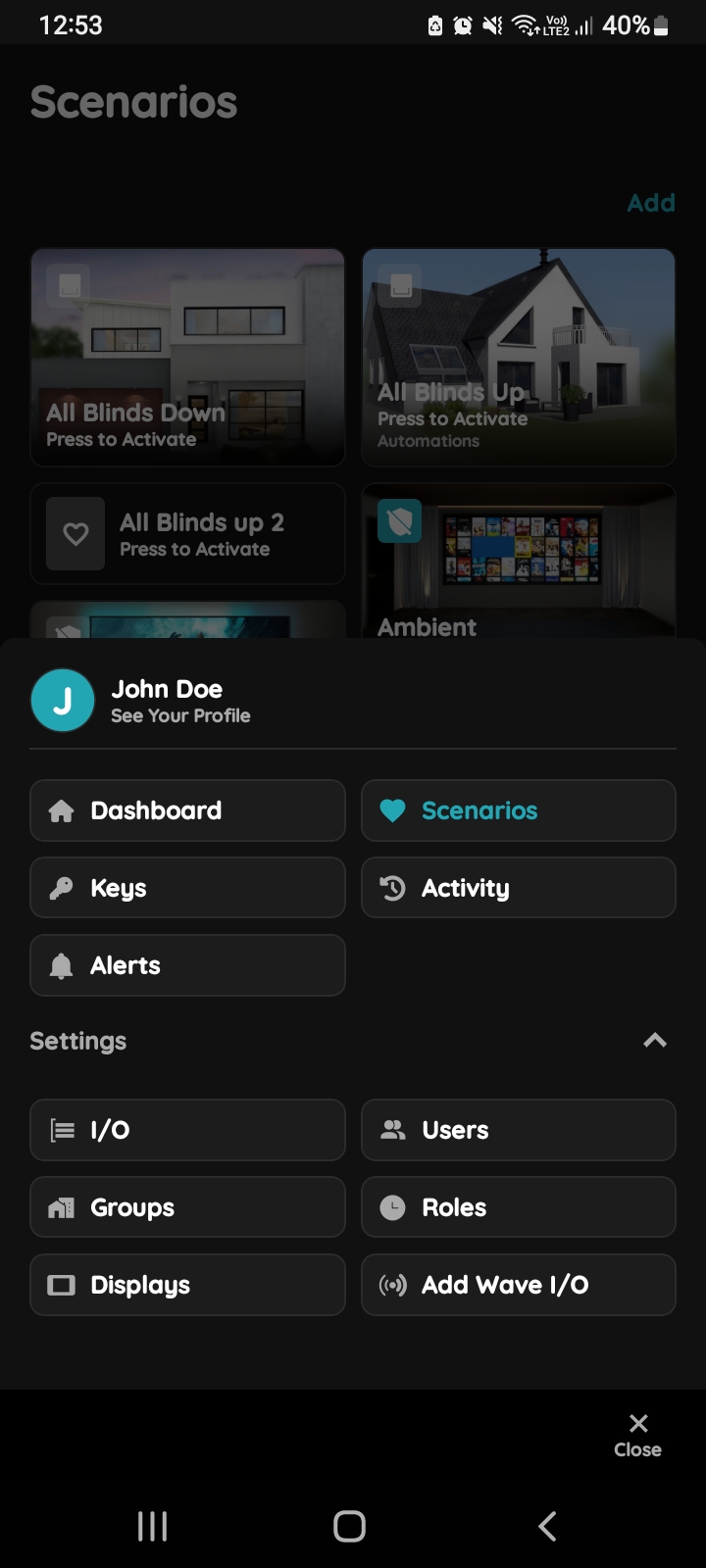
Menu list - Add Wave I/O
Open Menu list and under Settings tap on the Add Wave I/O in order to add it.
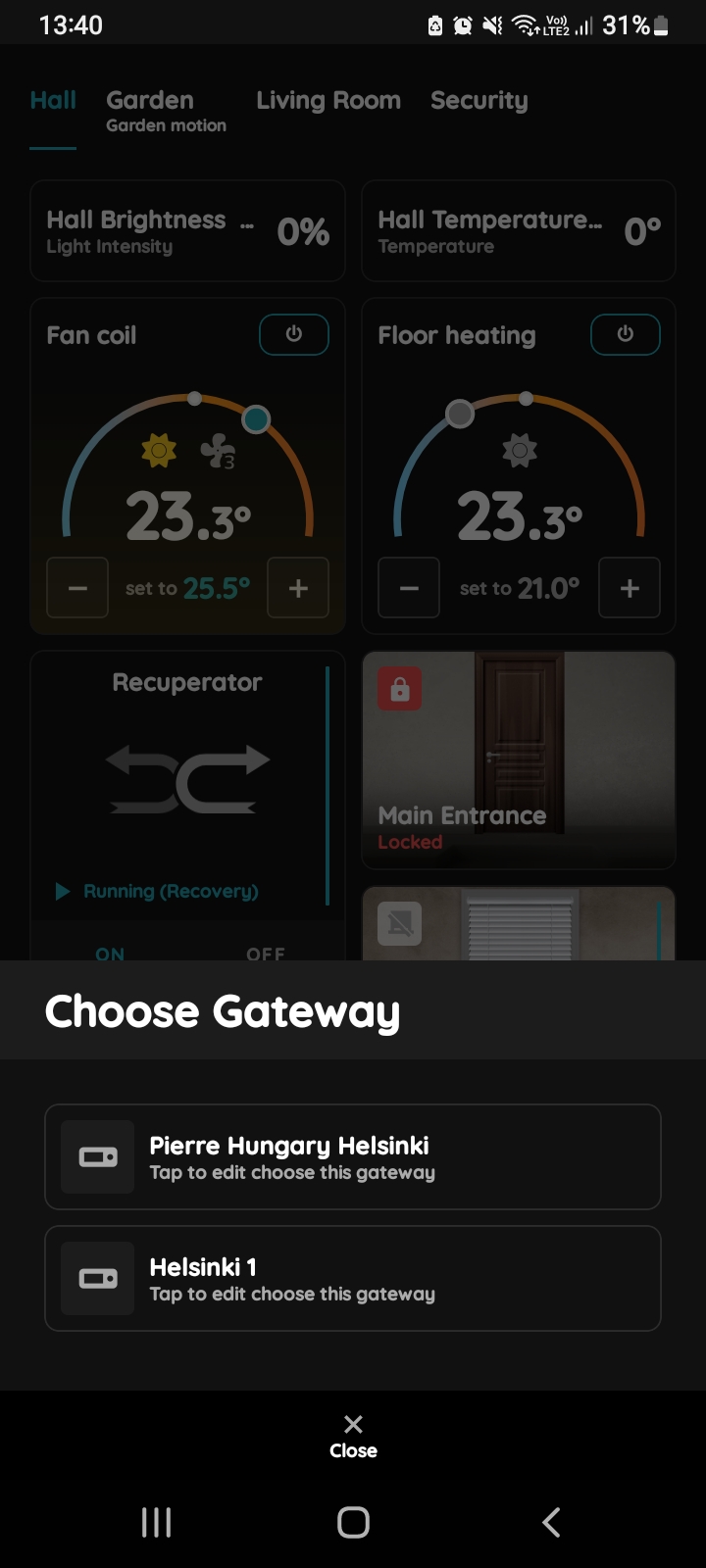
Choose Gateway
Tap on the Display Gateway that you would like to add Wave I/O to it.
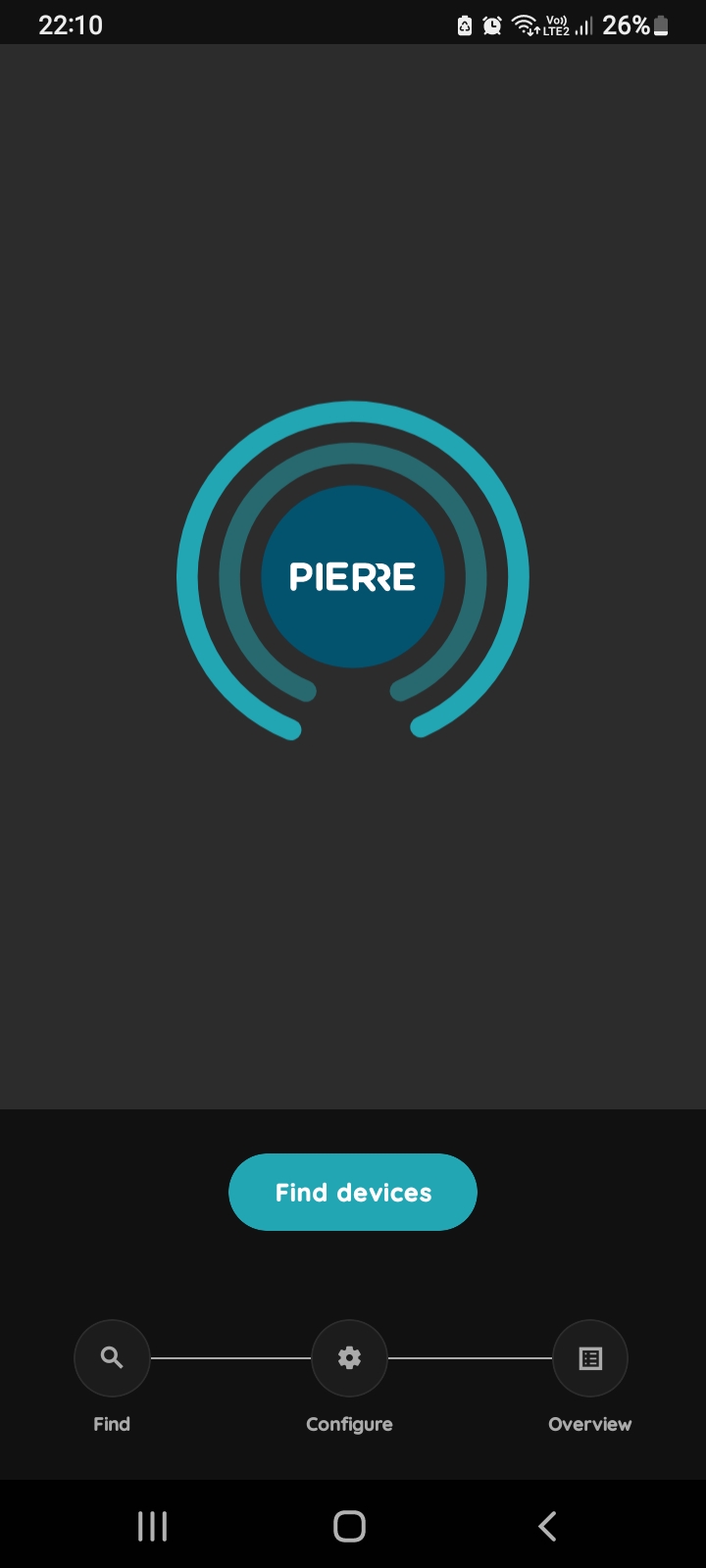
Find New Device
Put a PIERRE Wave device into pairing mode.
Click on the Find devices.
In this step system will search for new devices.
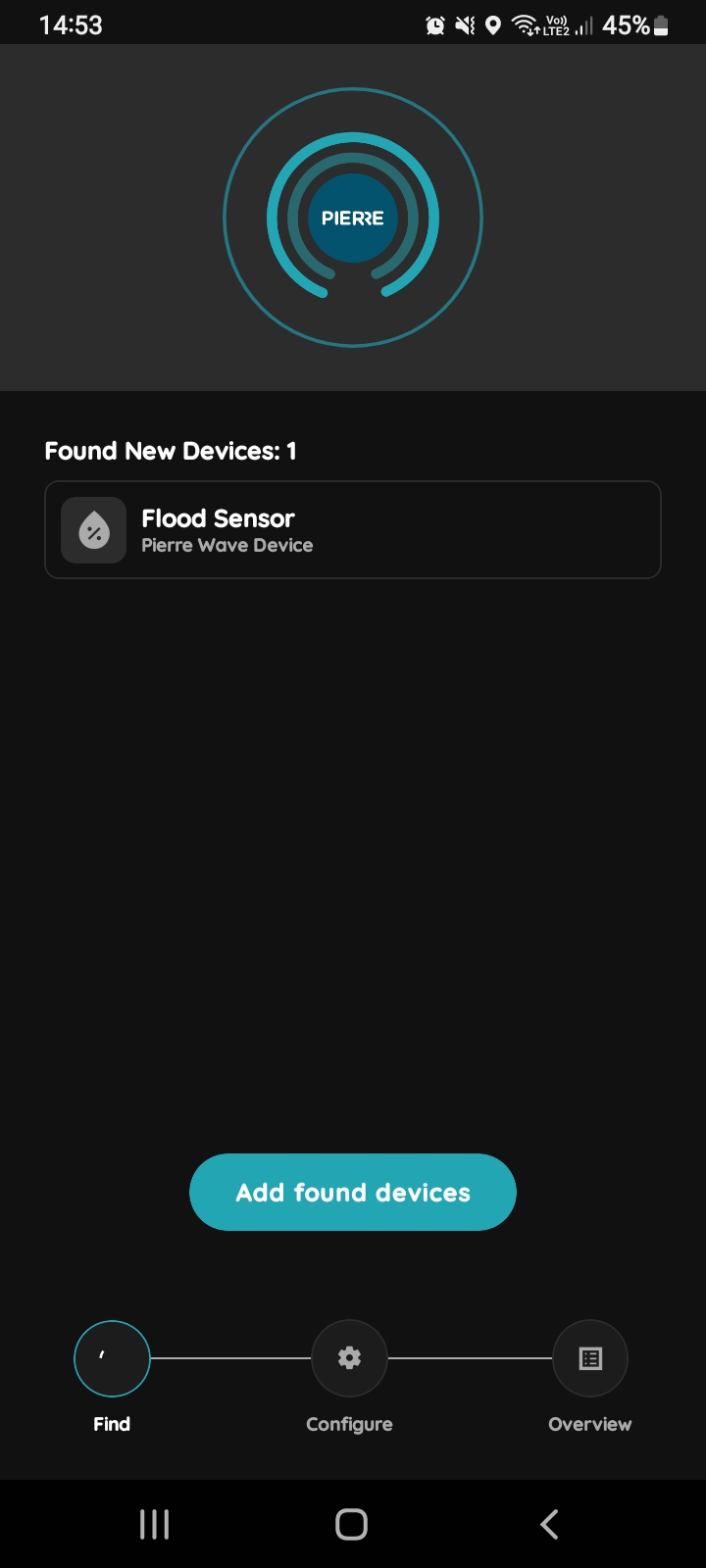
Add Found Devices
There will be shown which device is found and can be added.
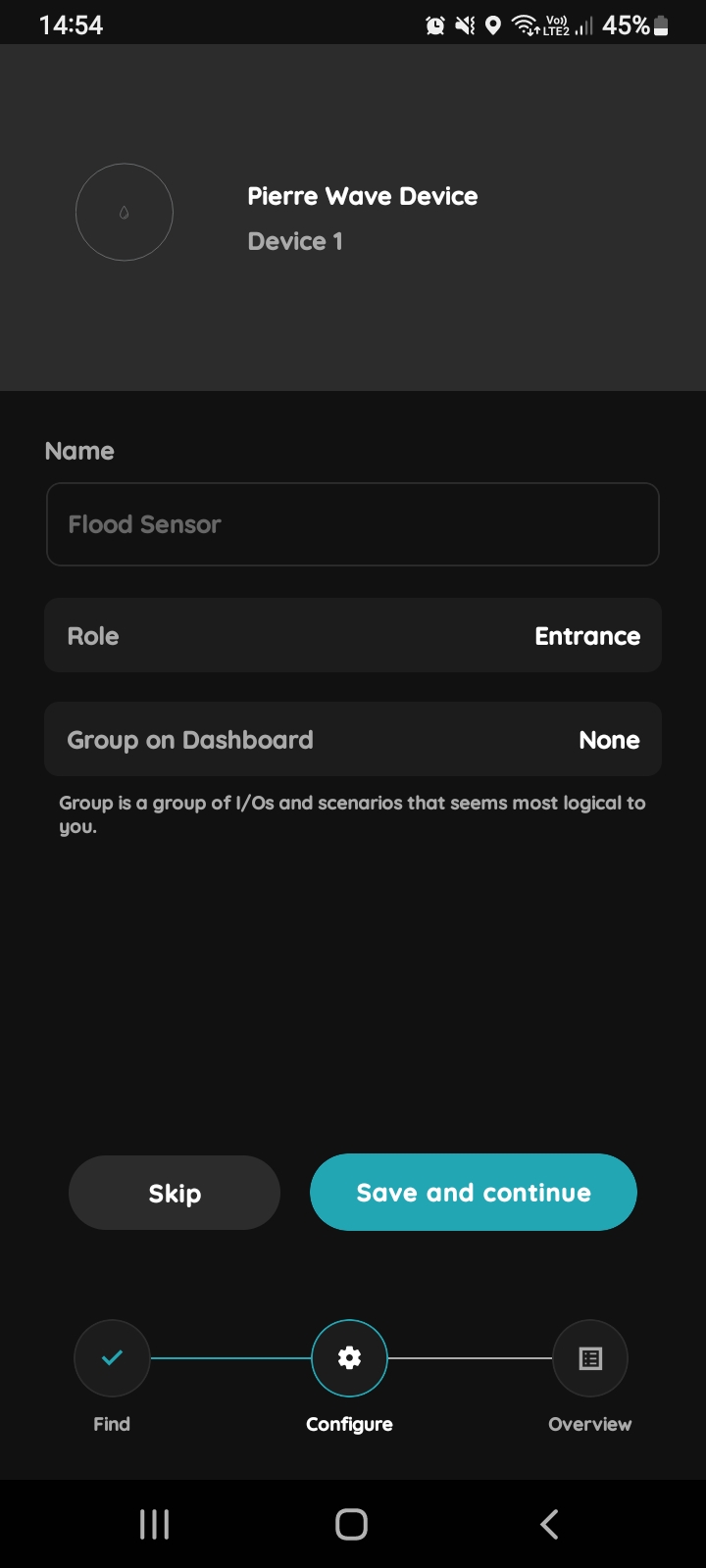
Name, Role, Group for Wave device
Fill following form:
Name - Write name of the device.
Role - Select Role from the list.
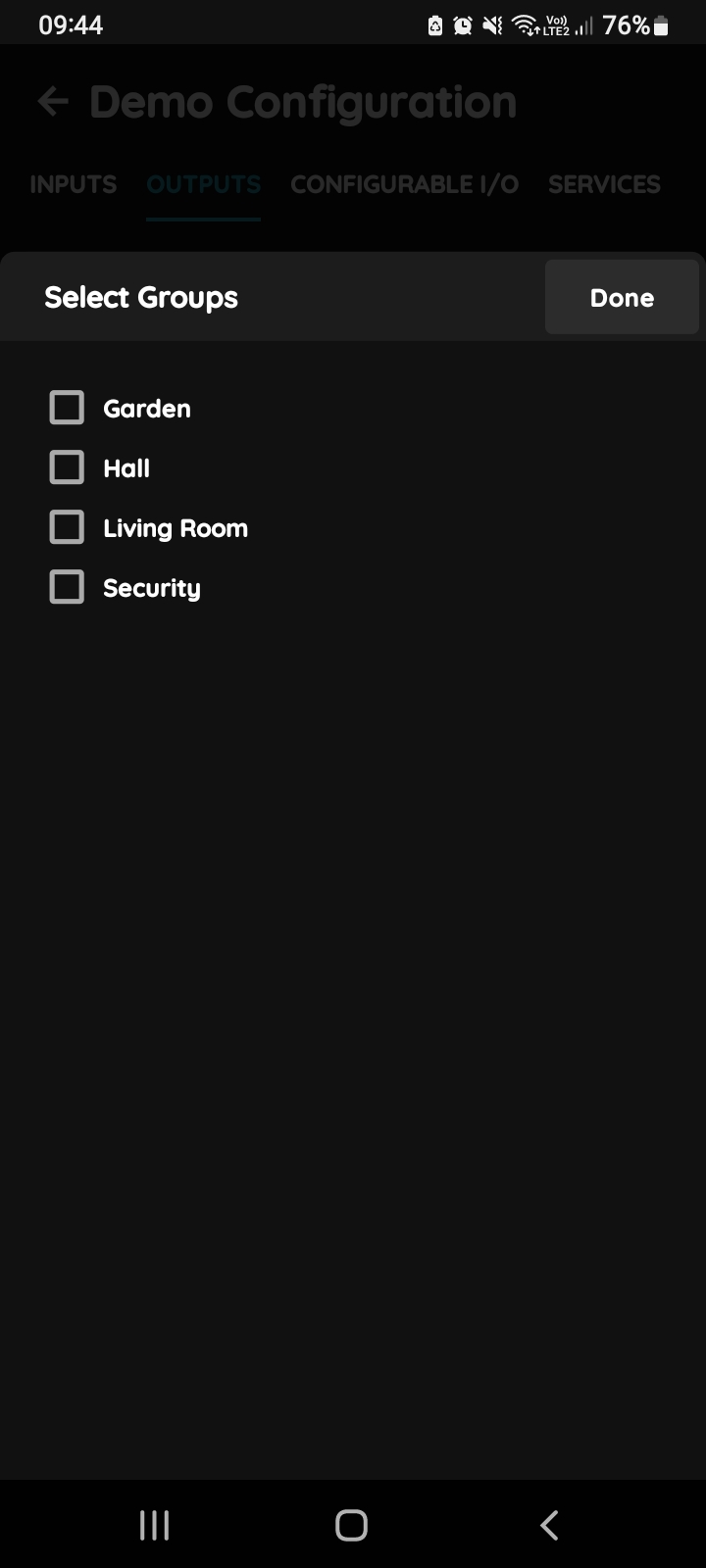
Group - Choose Group on Dashboard.
Group is a group of I/Os and scenario that seems most logical to you.
Tap Save and continue or Skip.
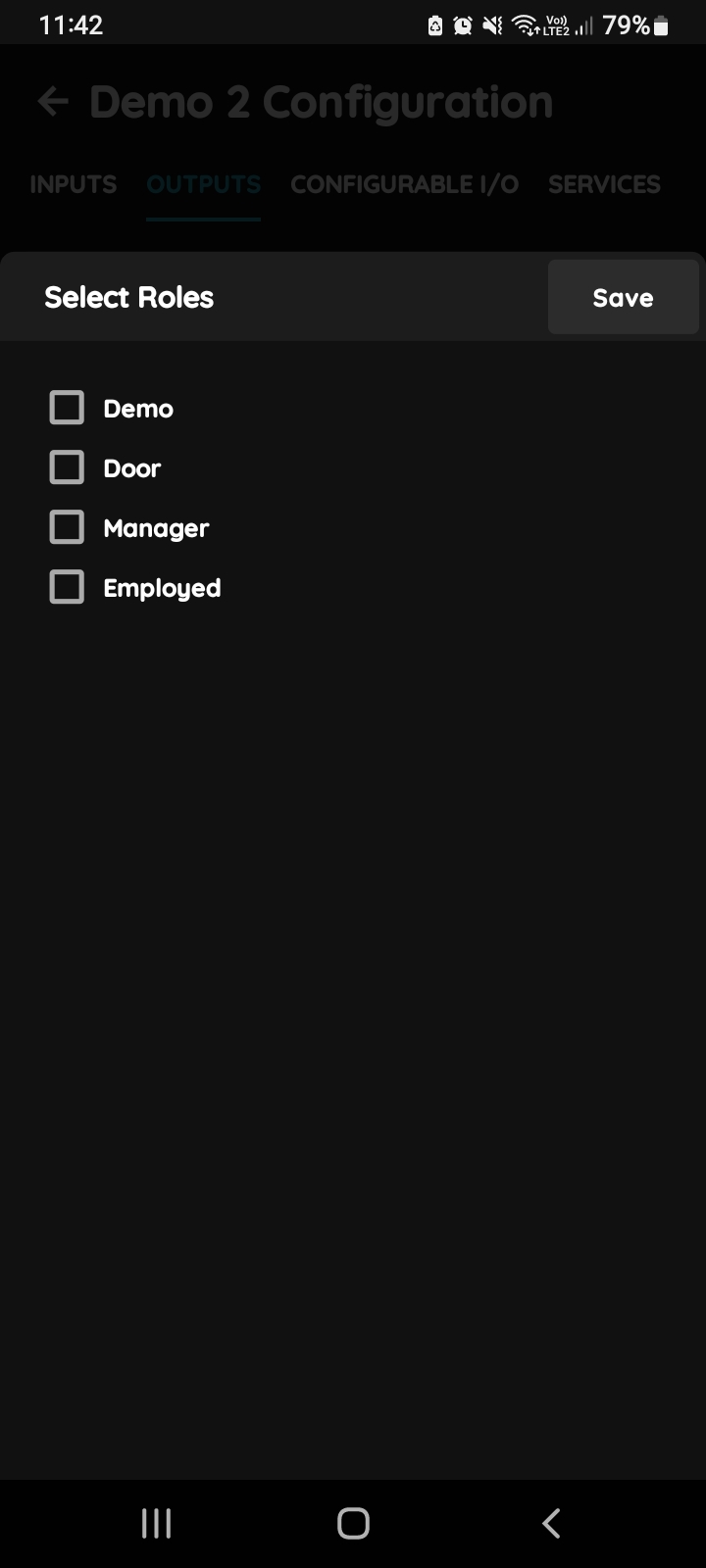
Select Roles
You can select desired Role or Roles - multiple choice if you tap on the checkboxes next to them.
Tap on Save/Done.
Select Dashboards
In this step, you need to select one or more Dashboards.
Select the checkbox/checkboxes next to the Dashboard that you want to associate with the I/O.
Once selected, the I/O will appear in the chosen Dashboards.
Tap Save/Done to confirm your selection.