Tokens - Add PIN
Description
In the Smart PIERRE app, managing PINs for RFID readers is designed to enhance security and access control.
Key Features:
1. Adding RFID PINs
To add a new PIN:
-
Open the Smart PIERRE application.
-
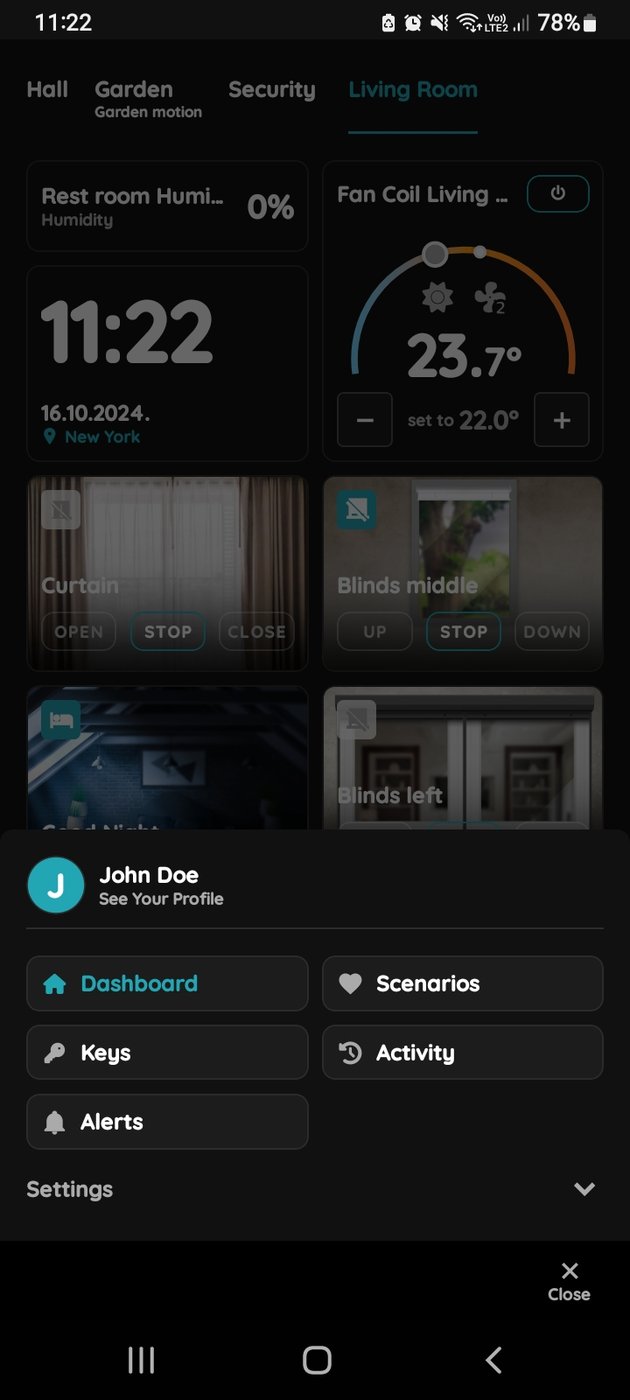
Navigate to Menu → See Your Profile.
-
Select the Tokens tab.
-
Tap Add a New Token.
-
Select New PIN as the token type.
-
Complete the required fields and click Save.
PIN can also be added through Menu → User List.
2. Time-Based Access Permissions:
Access schedules are assigned at the user profile level. Once time-based access is configured for a user profile, the assigned RFID PIN will automatically follow those access permissions (for example, access only during working hours).
3. Comprehensive Access Control:
RFID readers can be installed at entry points such as doors, gates, or garages, providing complete control over property access.
The RFID PIN management system provides centralized and secure access control throughout the smart home.
Add PIN to other User
You can add PIN to other User. First step is to open Menu list.
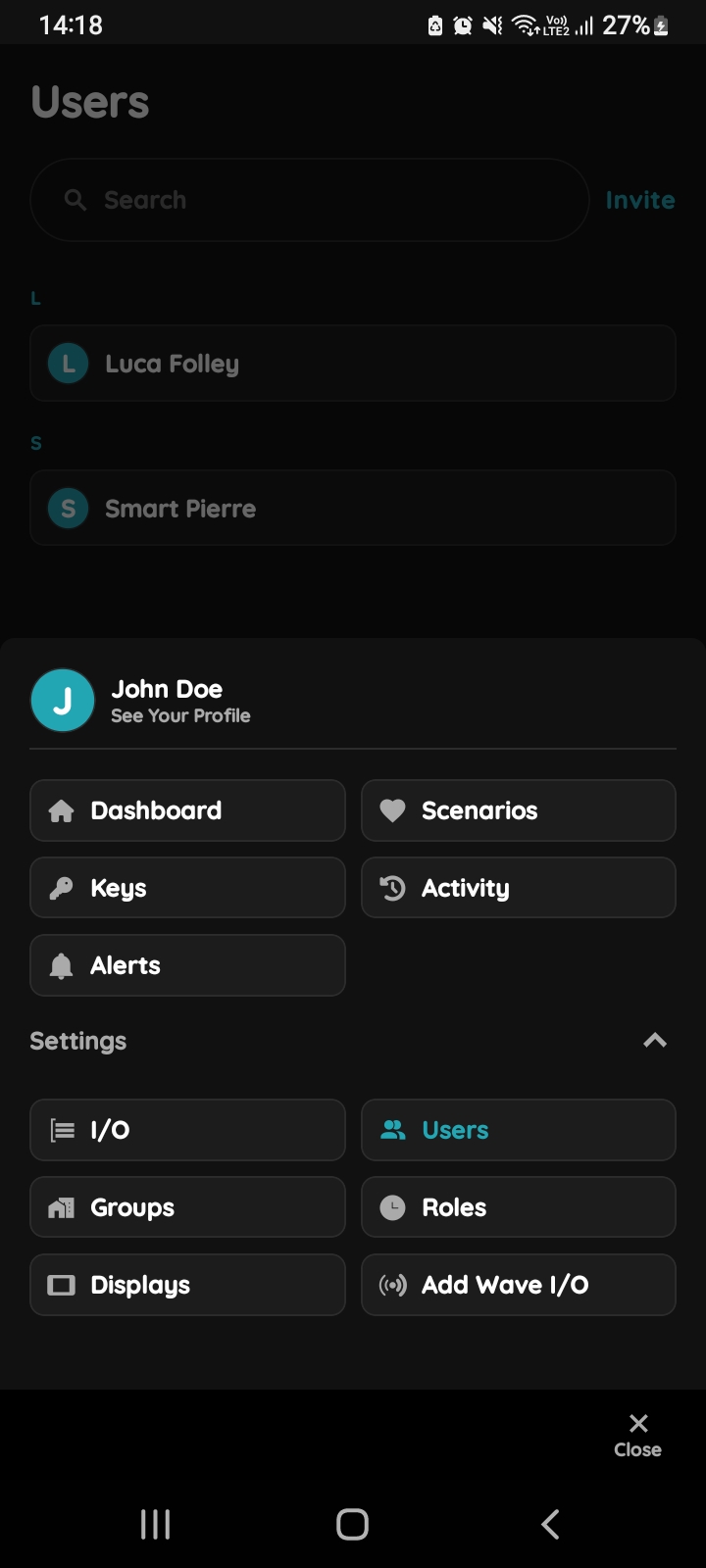
Open Users list
Tap on the Users under the Settings.
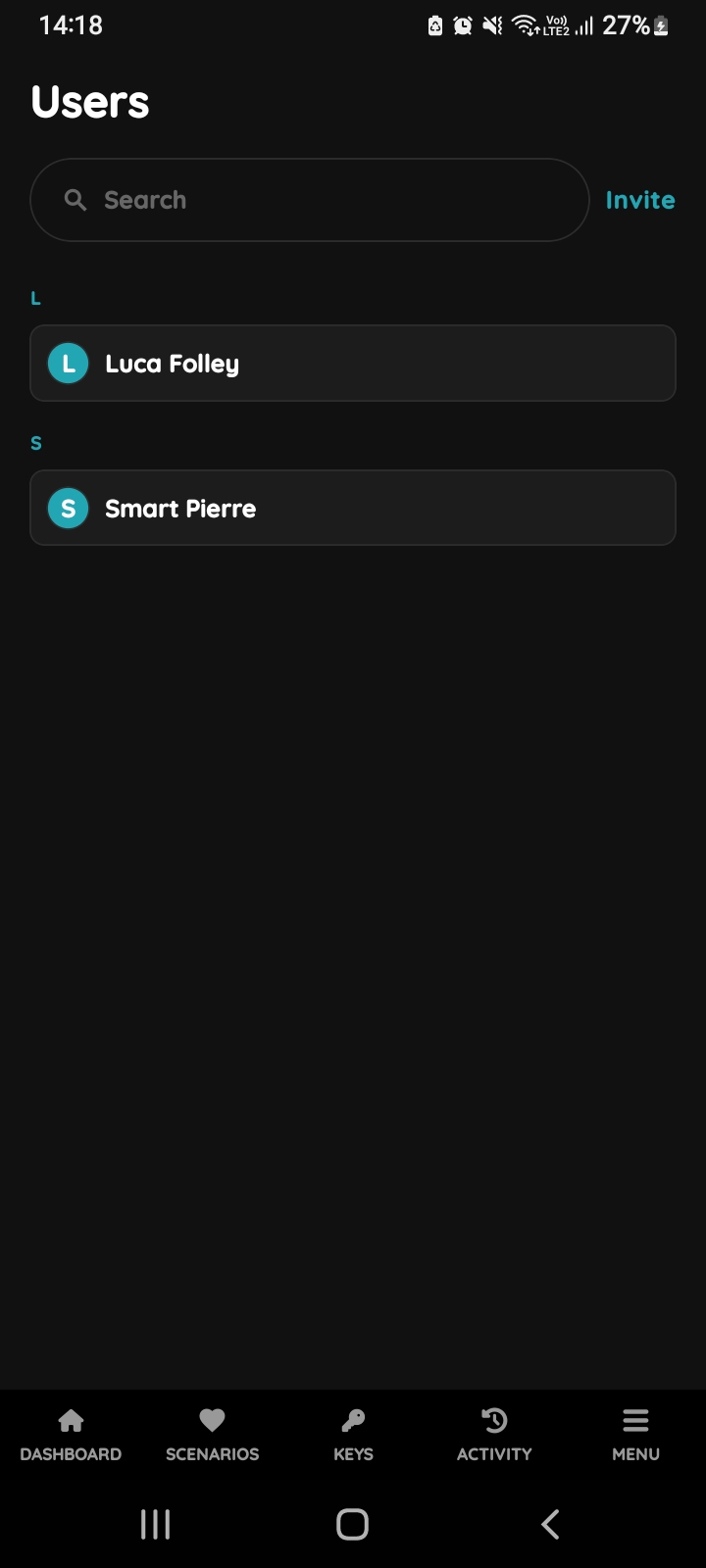
Users list
List of the Users is shown. Select the User from the list (tap on the name).
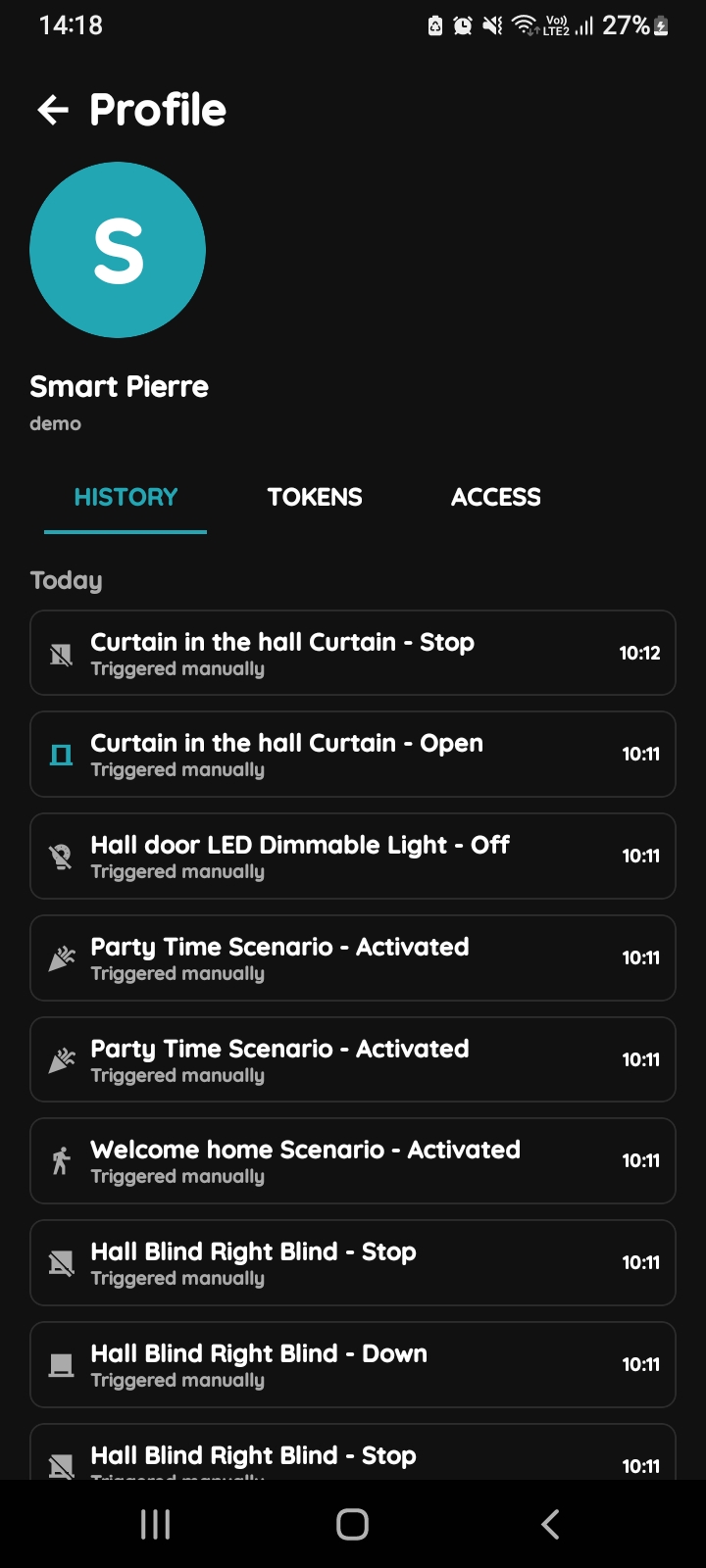
Open Profile, History, Tokens, Access
- History is displayed - It shows a list of all the I/Os that are activated during time by this User.
- Tokens are used to add a new token (New RFID card, New Licence Plate, New PIN).
- Access - Here are displayed details about the Role of the selected User. Also here can be added new role to the selected User.
To change the User's picture, tap on the current picture. To add Tokens, tap on the Tokens tab. To set the User's access permissions, tap on the Access tab.
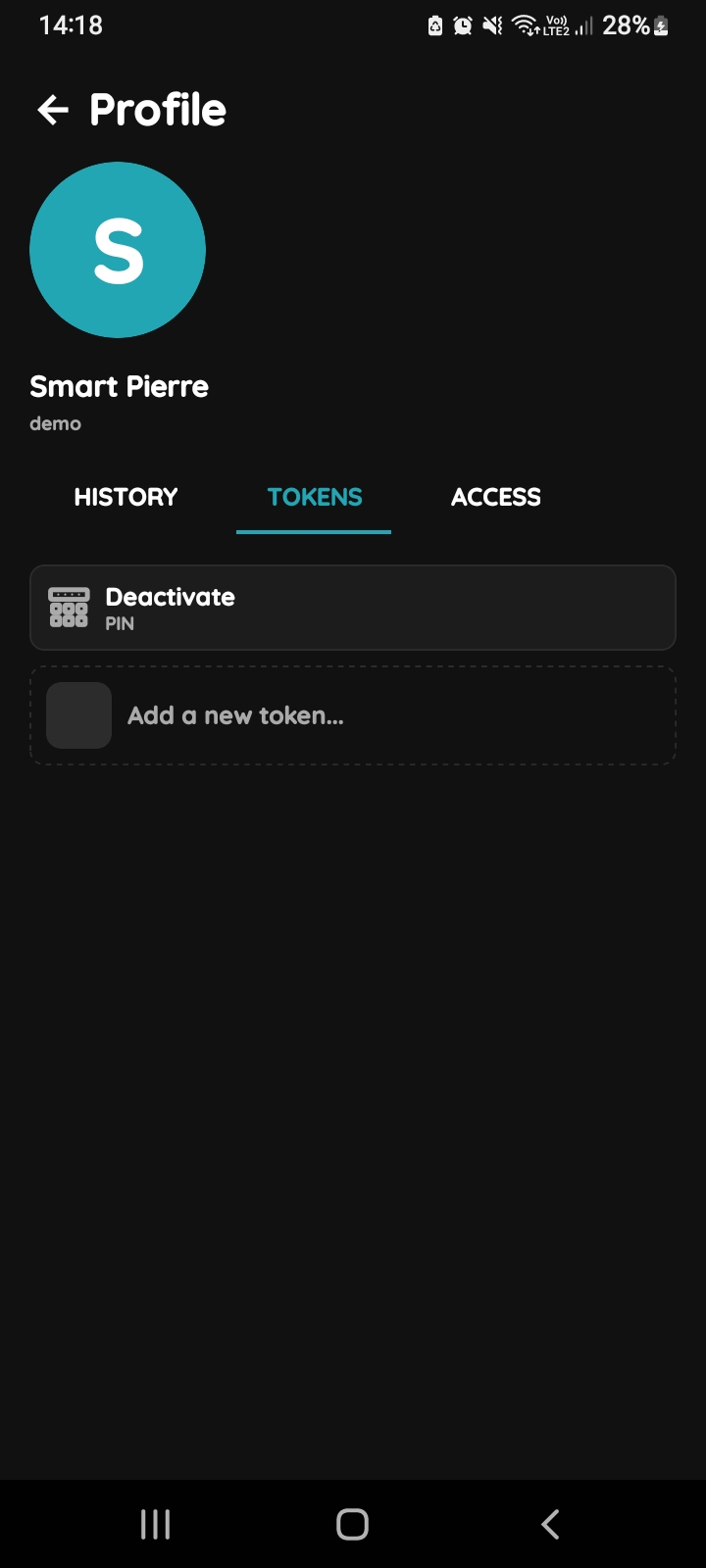
Add Tokens
Tap on the Tokens tab and tap on the Add a new token.
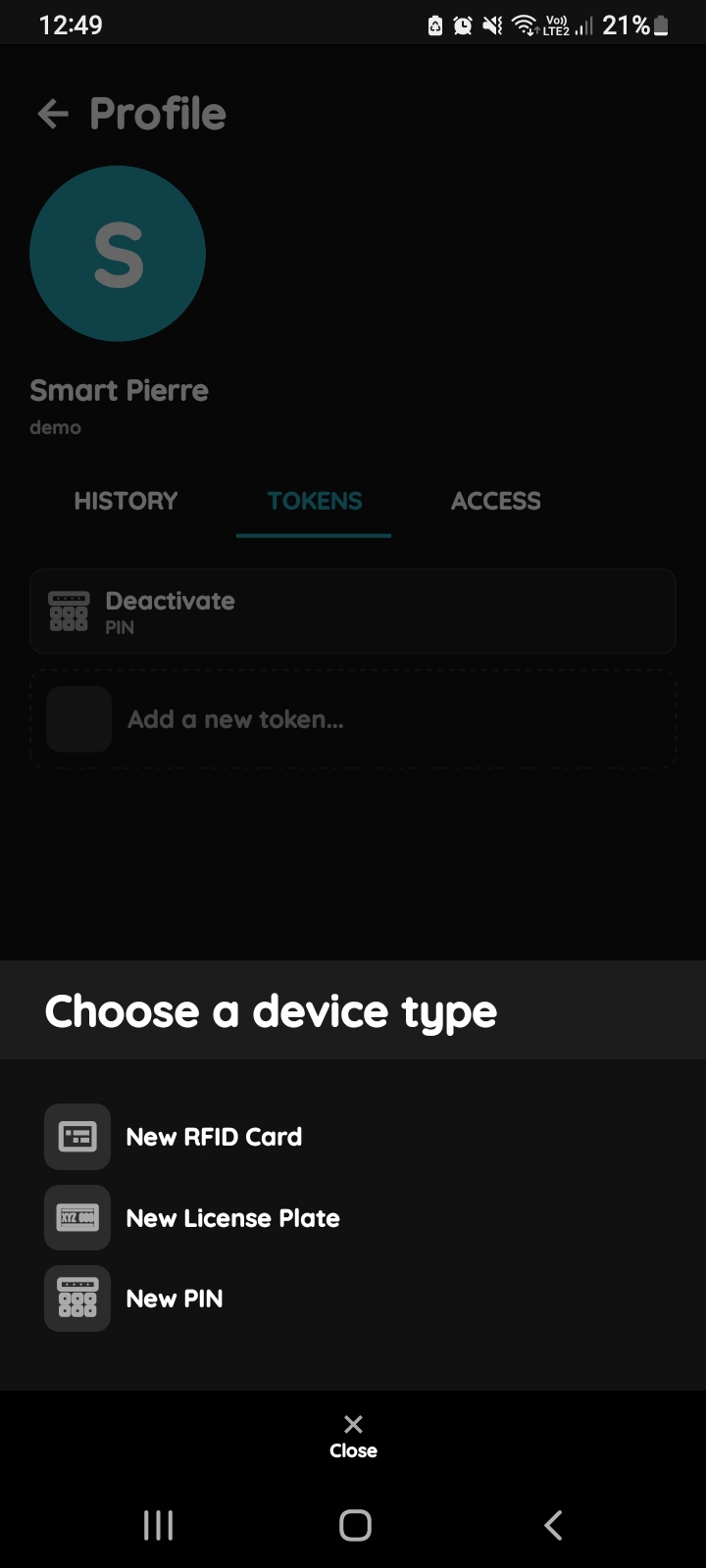
Choose a device type - PIN
Choose a device type - Tap on a New PIN.
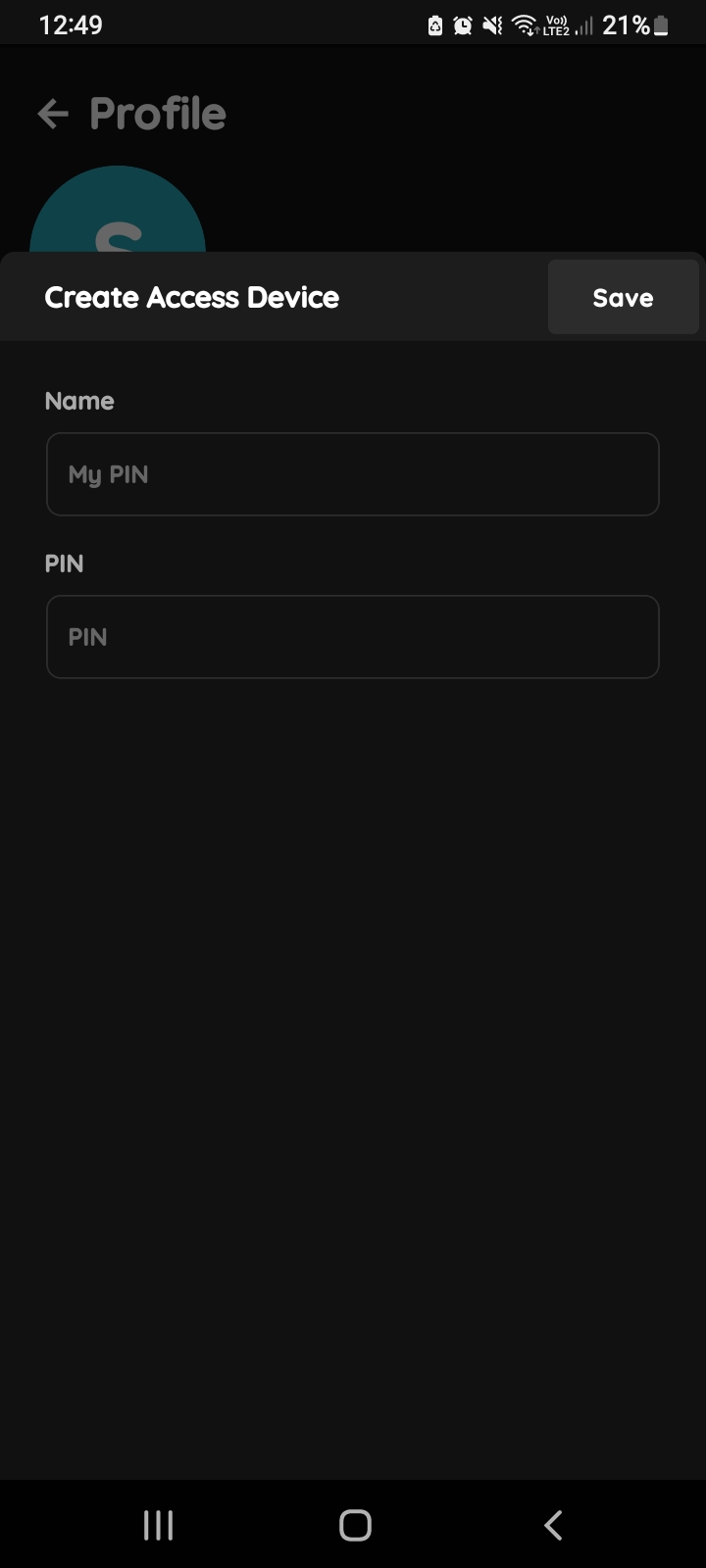
Create Access Device - PIN
Fill the form:
Name - Write name of the PIN.
PIN - Write the number of your PIN in this field.
Tap on button Save.