Tokens - Add RFID card or RFID tag
Description
RFID cards provide secure and convenient access control within the PIERRE system. RFID credentials are managed through the Smart PIERRE application and can be assigned to users for use with compatible RFID readers.
Adding an RFID Card
To add a new RFID card:
-
Open the Smart PIERRE application.
-
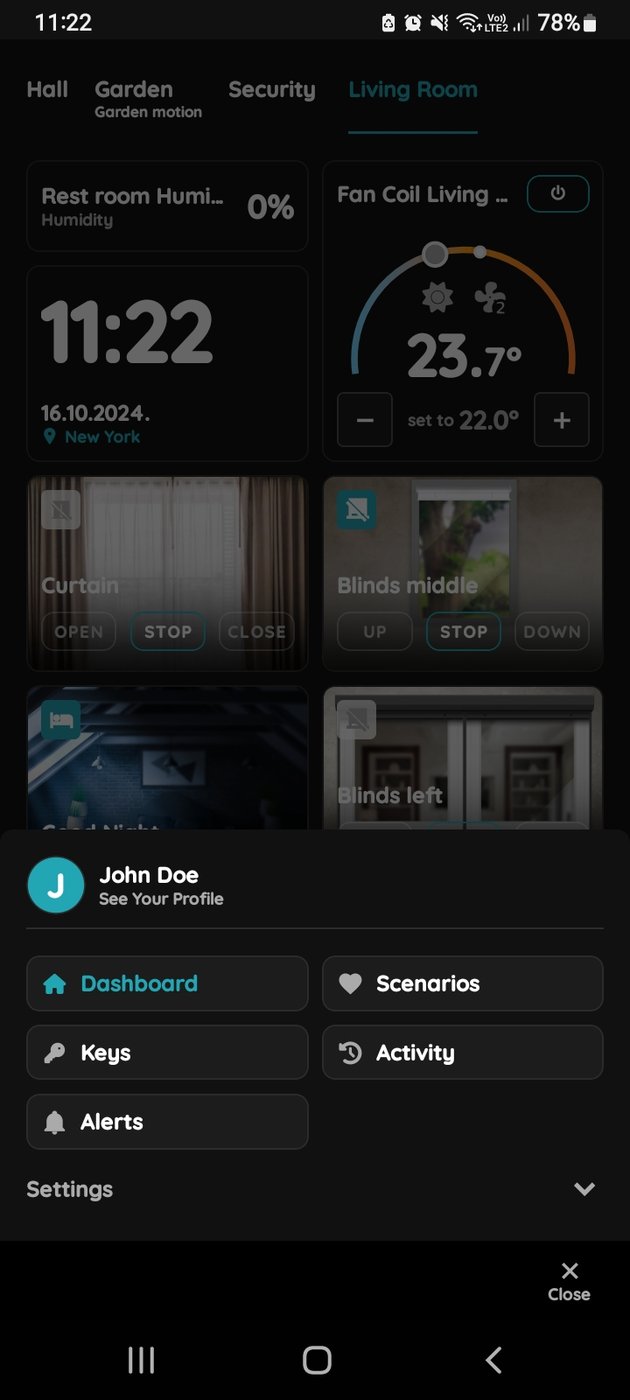
Navigate to Menu → See Your Profile.
-
Select the Tokens tab.
-
Tap Add a New Token.
-
Select New RFID Card as the token type.
-
Complete the required fields.
-
Place the RFID card near your smartphone to read and register the credential.
Alternatively, RFID cards can be added through:
Menu → User List
Access Permissions
Access permissions are assigned at the user profile level.
When time-based access restrictions are configured for a user, all assigned RFID credentials automatically inherit those permissions.
Examples:
-
Access allowed only during working hours.
-
Access limited to specific days of the week.
-
Access restricted to selected time periods.
Access Control
RFID cards can be used with compatible RFID readers installed at:
-
Doors
-
Gates
-
Garage entrances
-
Other controlled access points
Access events are logged within the PIERRE system and can be used in automation workflows where applicable.
Technical Specifications
The PIERRE access control system supports:
-
Wiegand 34 communication protocol
-
MIFARE RFID cards and tags
-
13.56 MHz operating frequency
Compatible PIERRE and third-party RFID readers can be integrated provided they meet these requirements.
Benefits
-
Centralized credential management.
-
User-based access control.
-
Time-based access permissions.
-
Easy credential assignment and removal.
-
Integration with the PIERRE access control system.
Add RFID card to other User
You can add RFID card to other User. First step is to open Menu list.
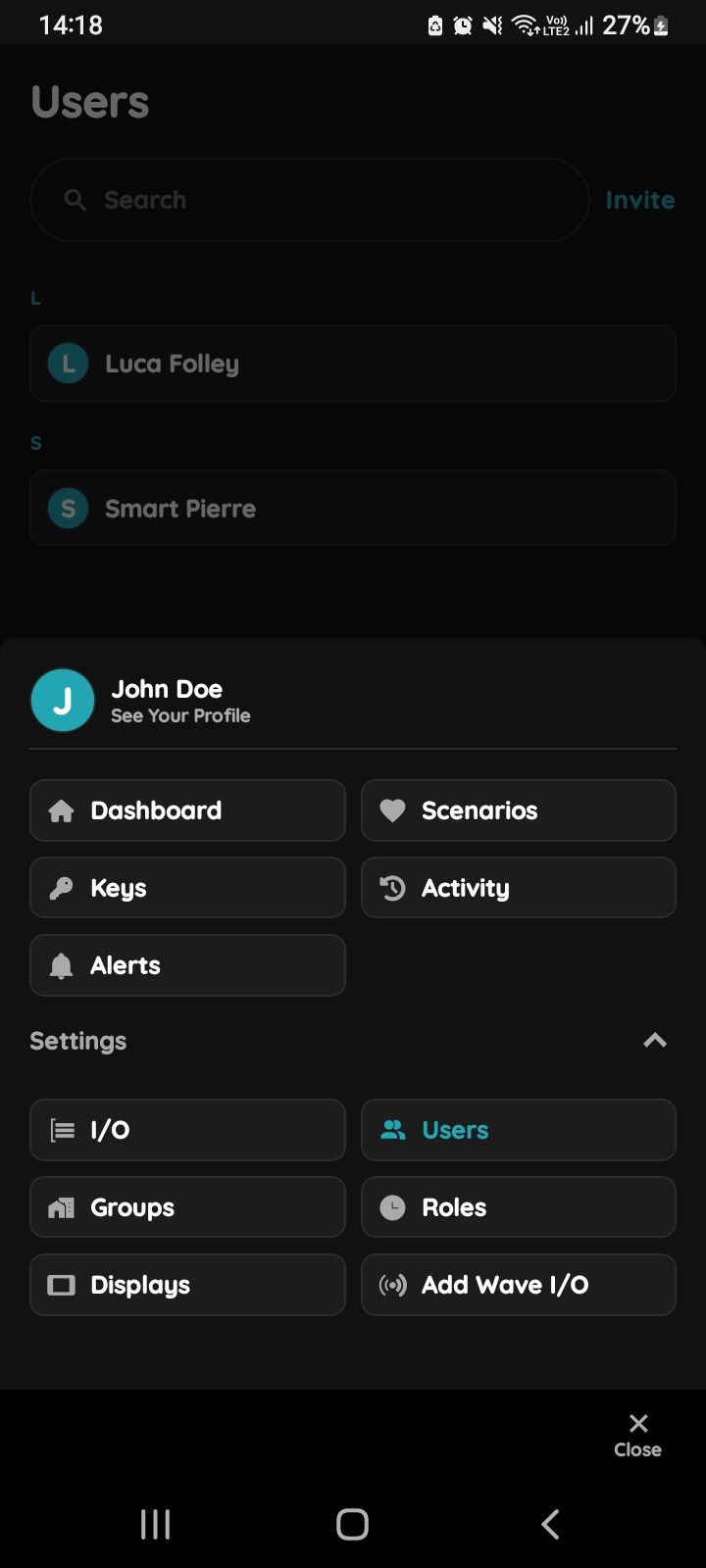
Open Users list
Tap on the Users under the Settings.
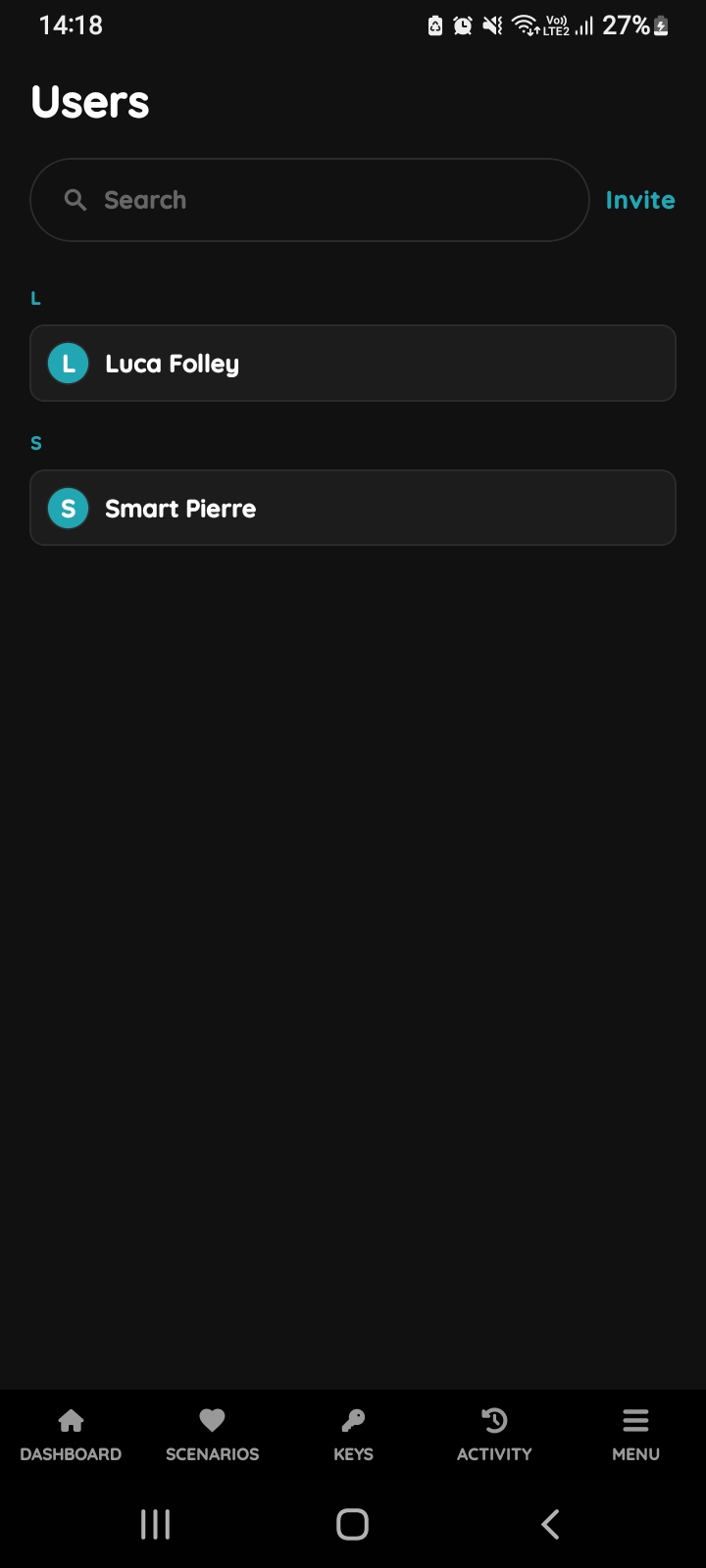
Users list
List of the Users is shown. Select the User from the list (tap on the name).
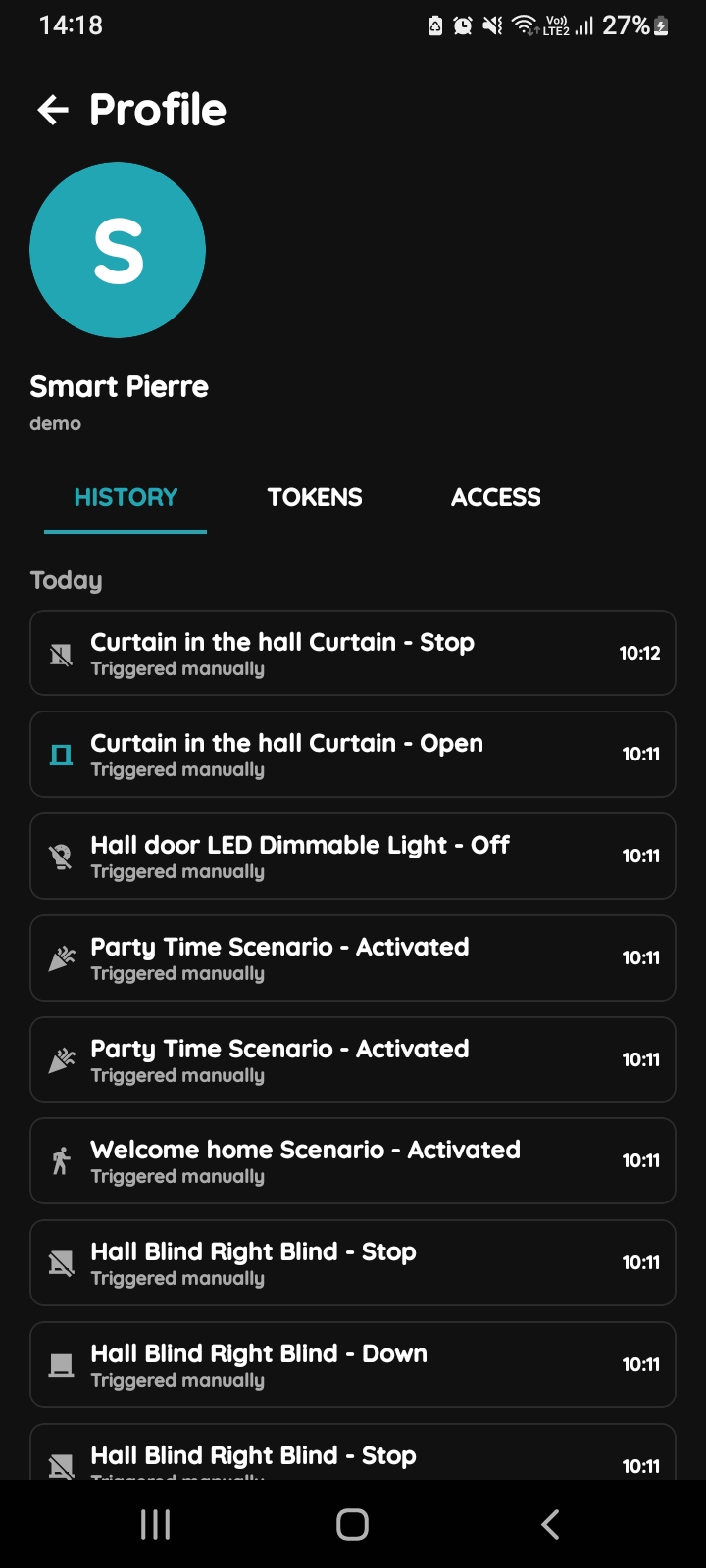
Open Profile, History, Tokens, Access
- History is displayed - It shows a list of all the I/Os that are activated during time by this User.
- Tokens are used to add a new token (New RFID card, New Licence Plate, New PIN).
- Access - Here are displayed details about the Role of the selected User. Also here can be added new role to the selected User.
To change the User's picture, tap on the current picture. To add Tokens, tap on the Tokens tab. To set the User's access permissions, tap on the Access tab.
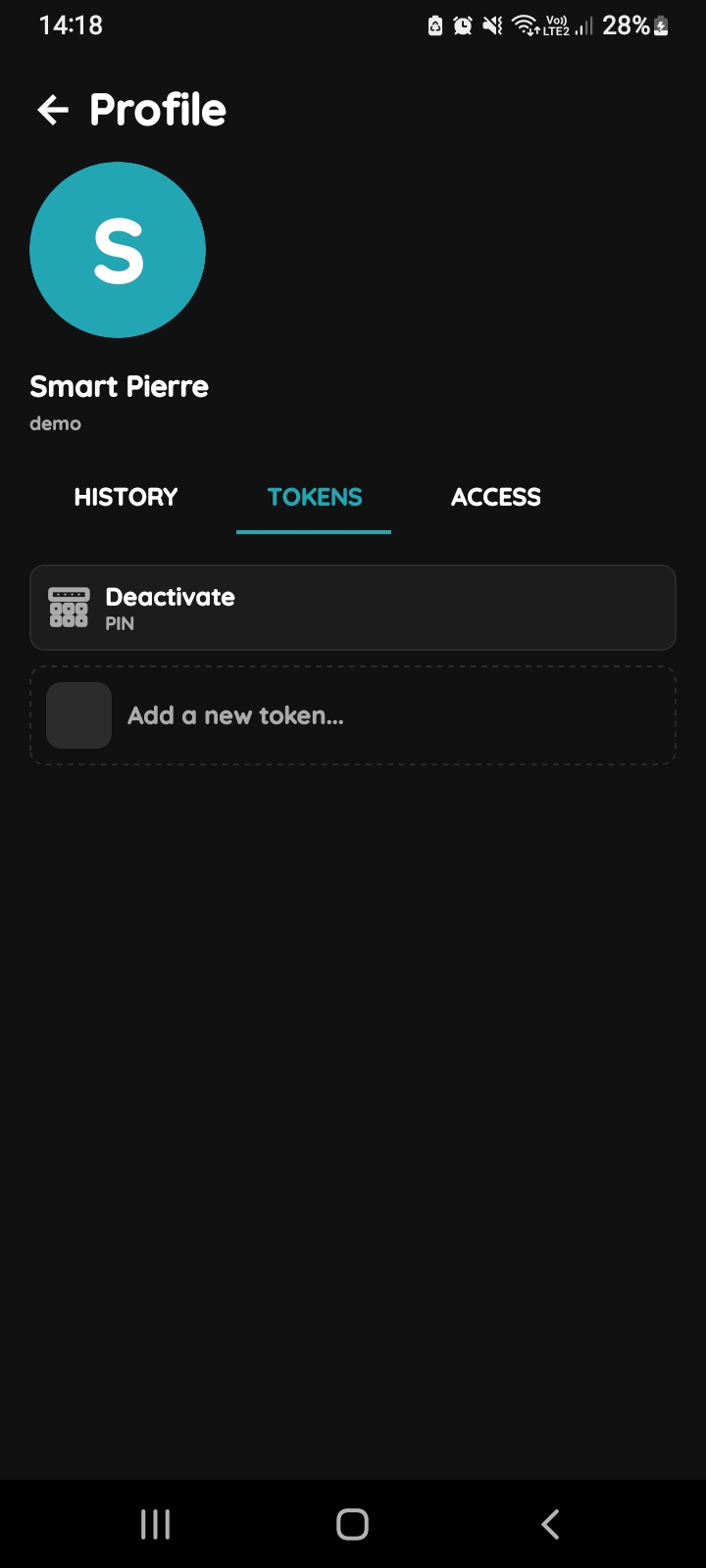
Add Tokens
Tap on the Tokens tab and tap on the Add a new token.
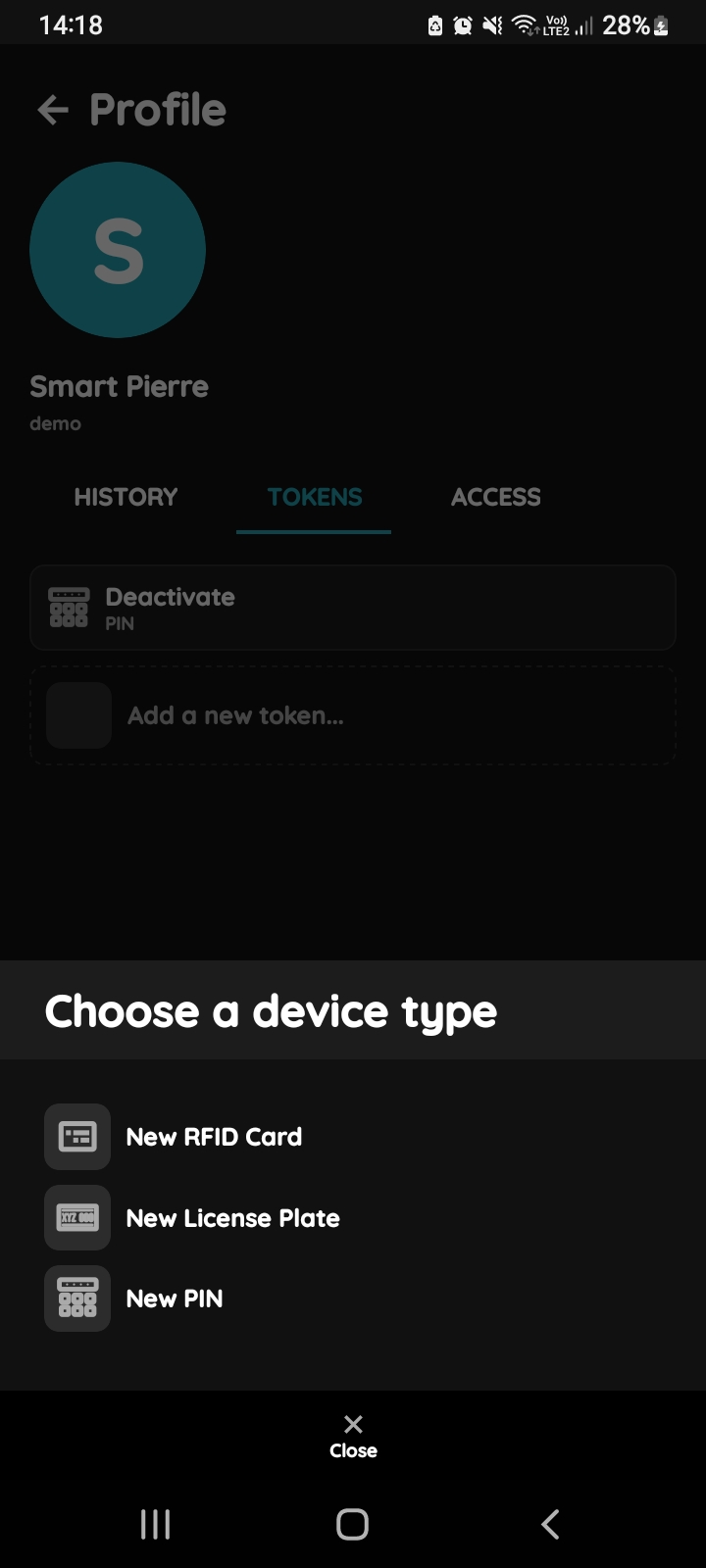
Choose a device type - RFID card
Tap on the New RFID card from the list.
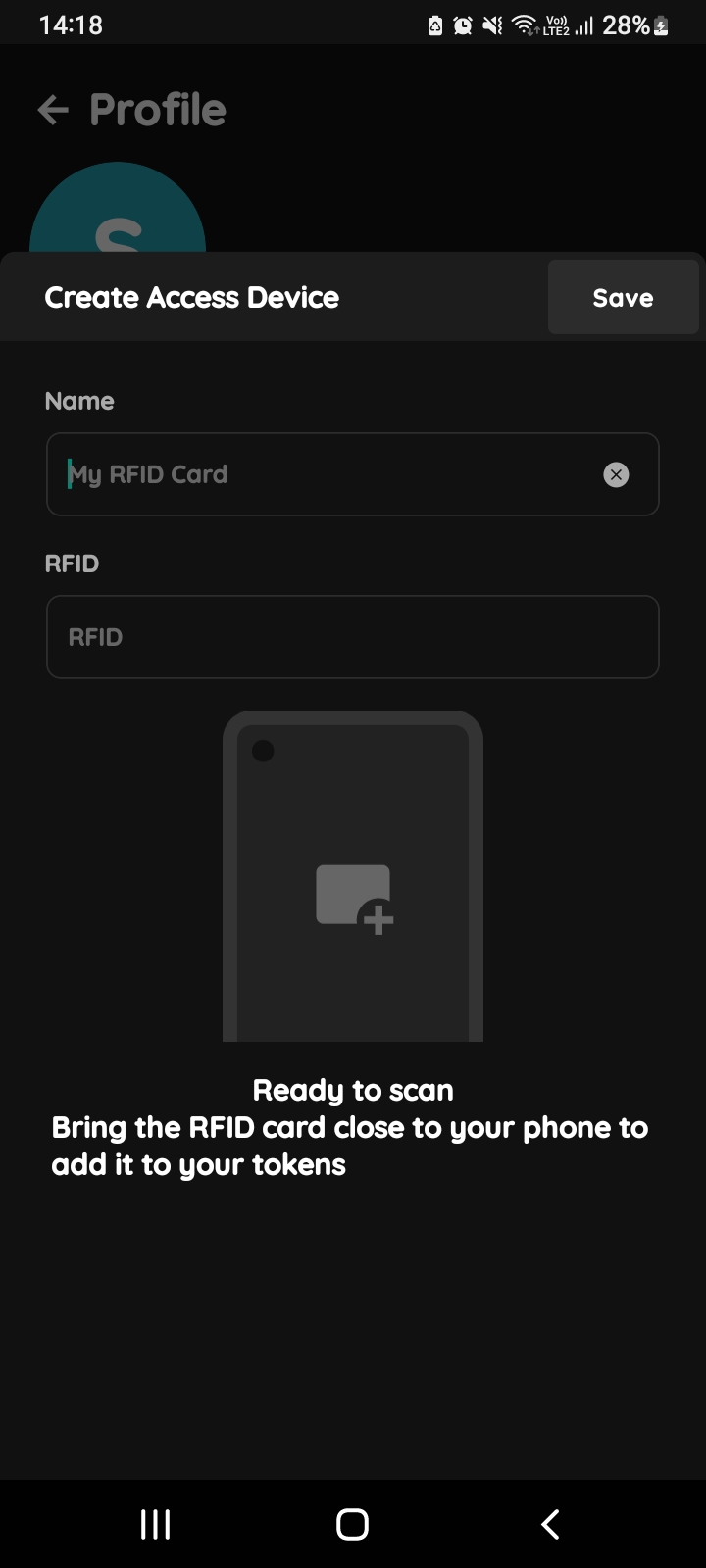
Create Access Device-RFID Card
Fill the form:
- Name - Write name of the RFID card.
- RFID field will be filled when you bring the RFID card close to your phone in order to add it to your tokens.
Tap button Save.