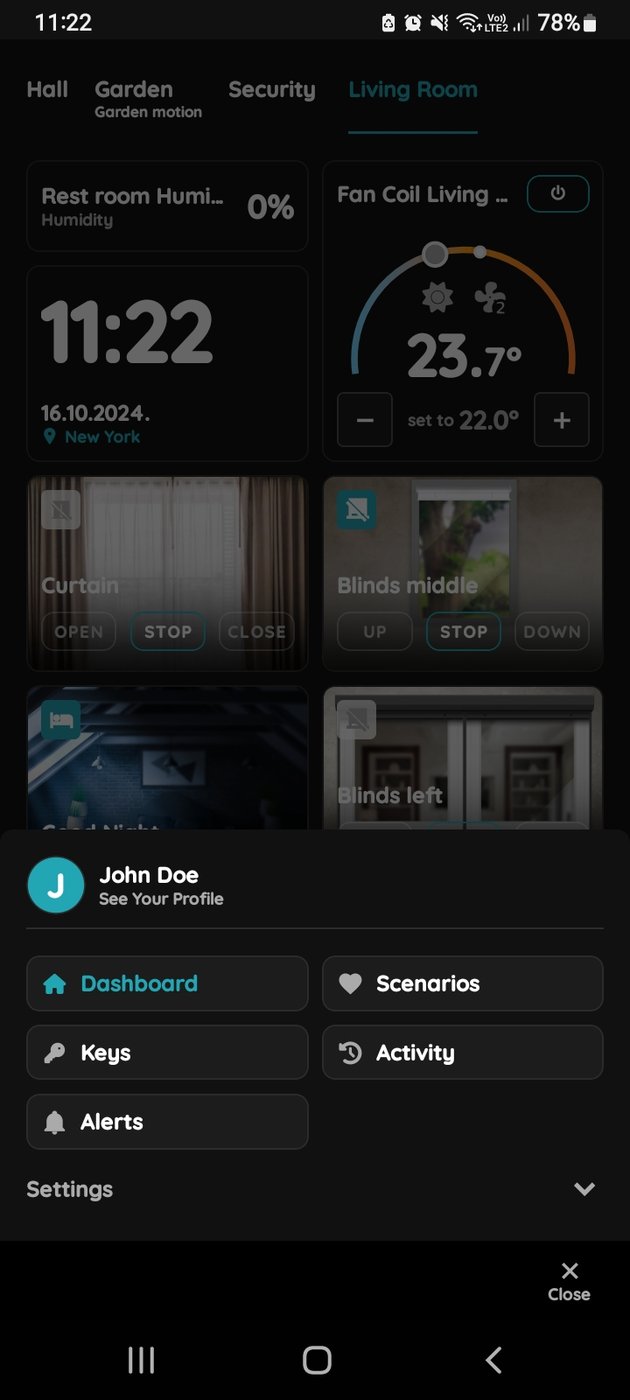
PIERRE Application Versions
Description
The Application Version field displays the currently installed version of the application.
This information is available in:
- Smart PIERRE
- PIERRE Partner
- PIERRE Displays
The application version is used for troubleshooting, maintenance, compatibility verification, and technical support.
Accessing the Application Version
- Open the application.
- Navigate to Profile.
- Select Settings.
- Locate the Application Version field.
Purpose
The application version may be required when:
- Reporting software issues.
- Contacting technical support.
- Verifying compatibility with system components.
- Confirming installation of the latest release.
- Comparing versions across multiple devices.
Providing the application version helps support teams identify software releases, known issues, available updates, and feature availability.
Check the app version
Under the Profile Settings is shown app version.
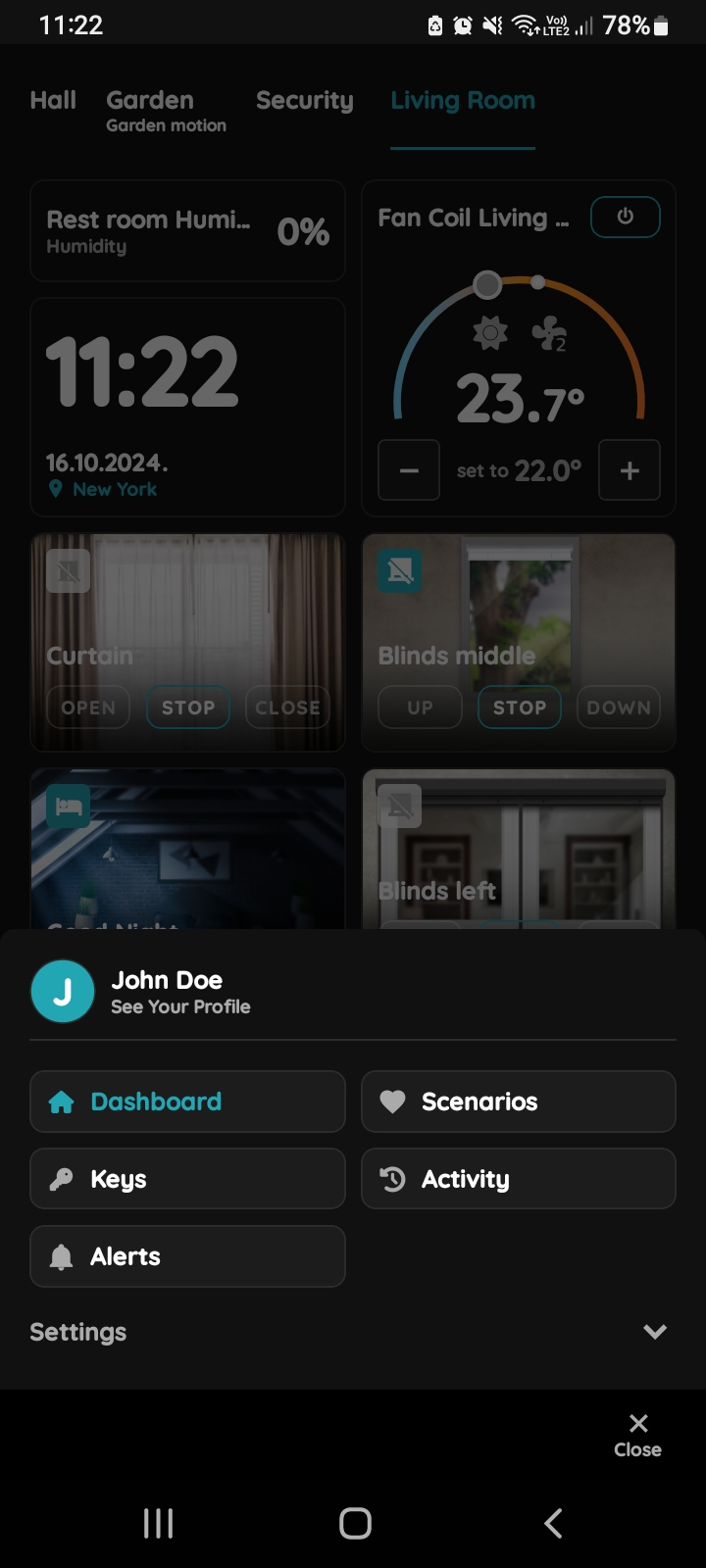
Open Your Profile
Tap on your name and surname.
Under is written See Your Profile.
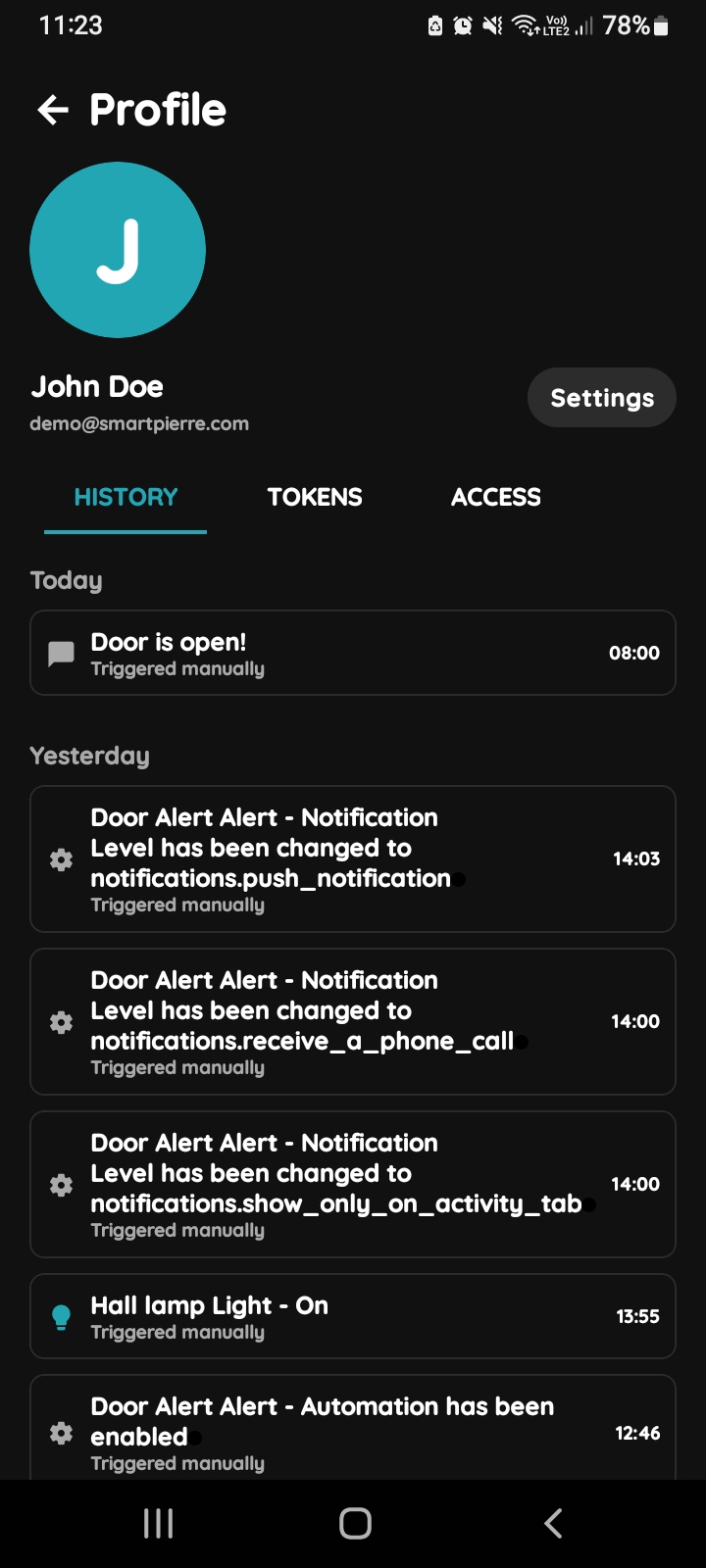
History, Tokens, Access, Settings
- History is displayed - It shows a list of all the I/Os that are activated during time by you.
- Tokens are used to add a new token (New RFID card, New Licence Plate, New PIN).
- Access - Here are displayed details about your Role/Roles.
- Button Settings - It is used for Profile settings.
To change the Your picture, tap on the current picture. To add Tokens, tap on the Tokens tab. To set the Your access permissions, tap on the Access tab.
Tap on the button Settings.
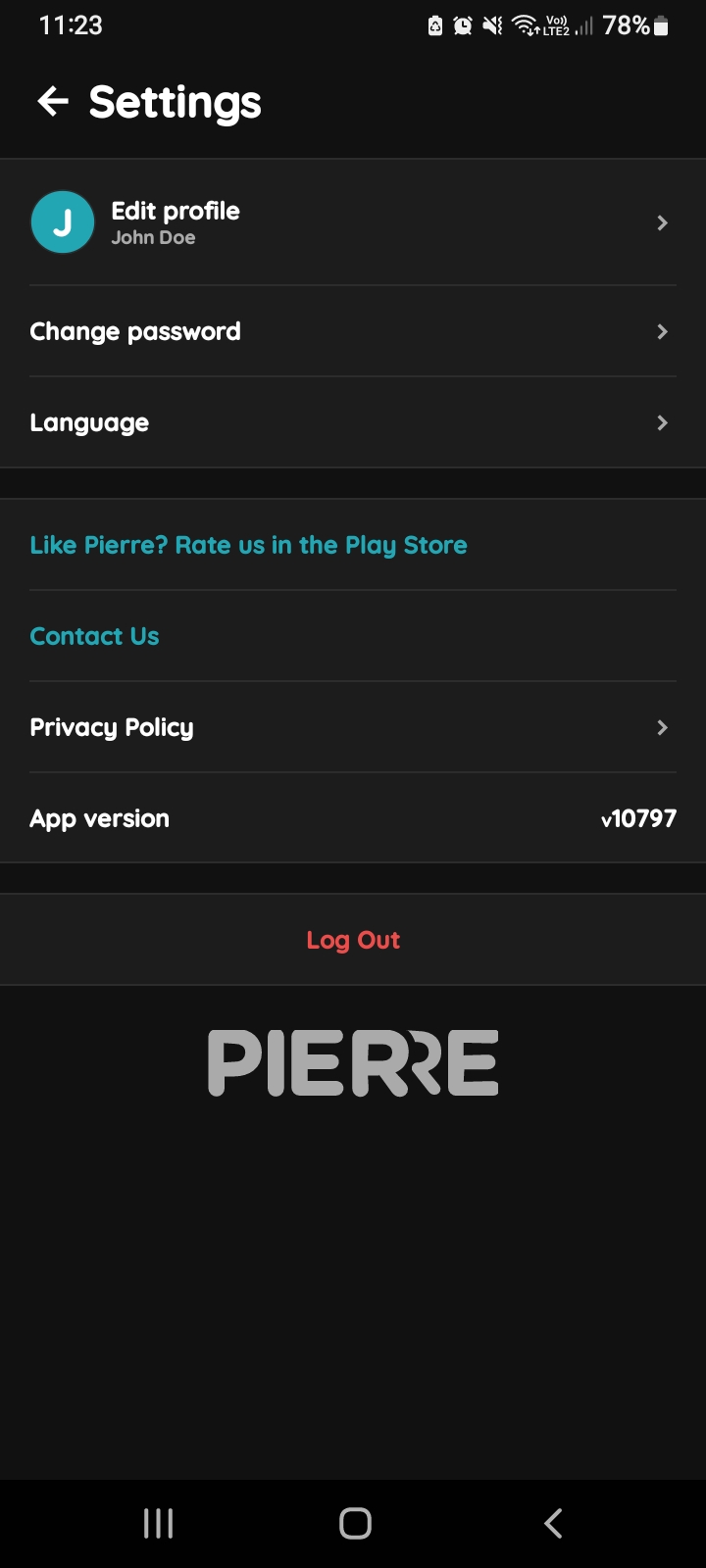
Settings - Your Profile
You can set following Profile Settings:
- Edit Profile - Update your photo, first name, and last name.
- Change Password - Change your password here for added security.
App Version - Displays the current version of the application.
Log Out - At the bottom of the page, you can log out of your account to ensure your information remains secure, especially on shared or public devices.