Smart PIERRE - History
2 min read
Beginner
Updated 2026-11-02
Description
The History section of the Smart PIERRE app shows the devices a user has operated over time.
Where to Find It
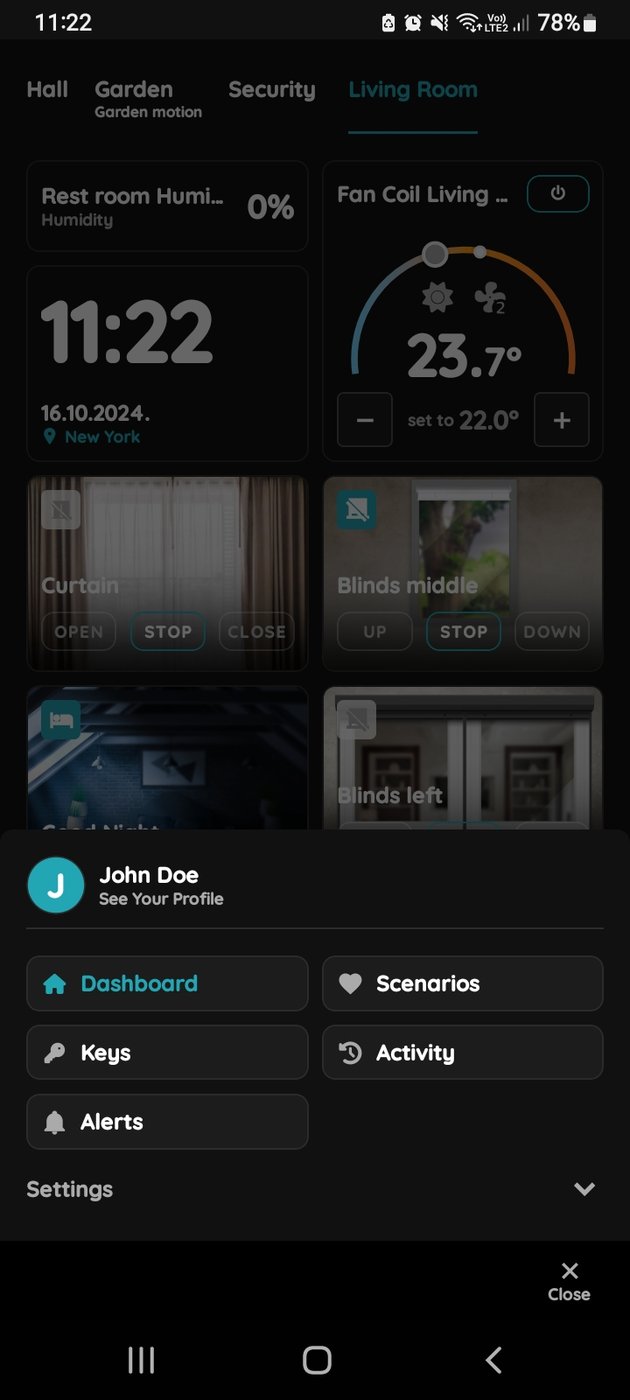
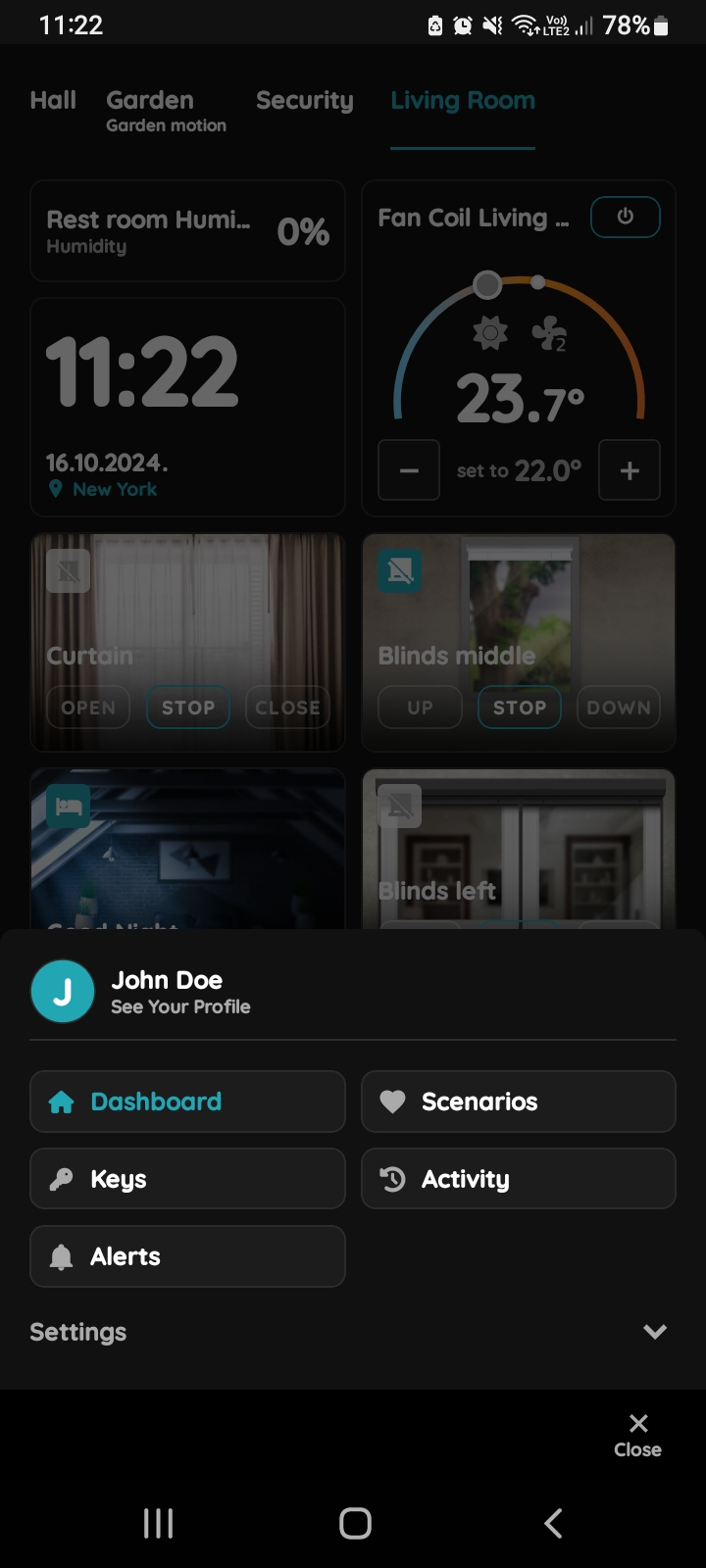
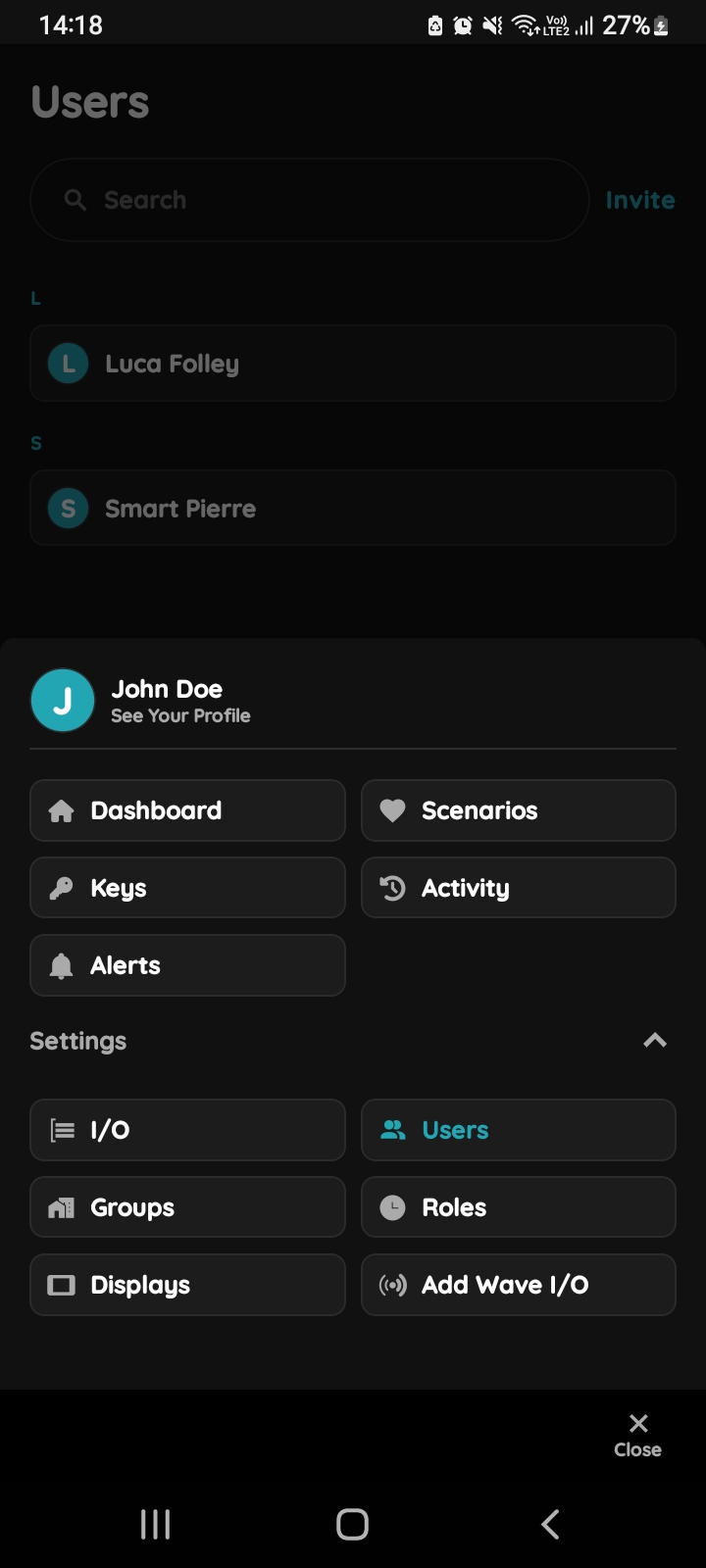
Menu → tap your name → See Your Profile.
What It Shows
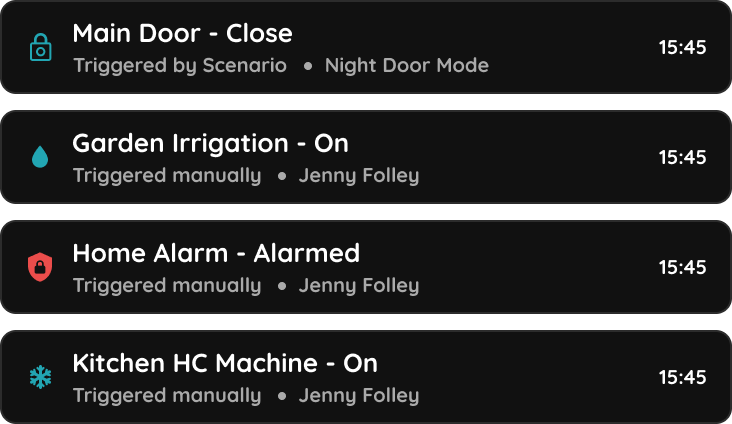
- A list of the I/O devices the user has triggered.
- The exact time of each activation, next to the device.
- The entries in chronological order, organised by date.
Technical Notes
- The history records what the user did, which makes it the first place to look when someone reports a device "changing by itself" — the entry either exists or it does not.
- An action performed by an automation is not the same as one performed by a user; check the automations as well when the history shows nothing.
- Device names appear as they are configured, so a clear naming scheme makes the history readable.
Check your History
Follow next steps to check your History.
1
Open Your Profile
Tap on your name and surname.
Under is written See Your Profile.
2
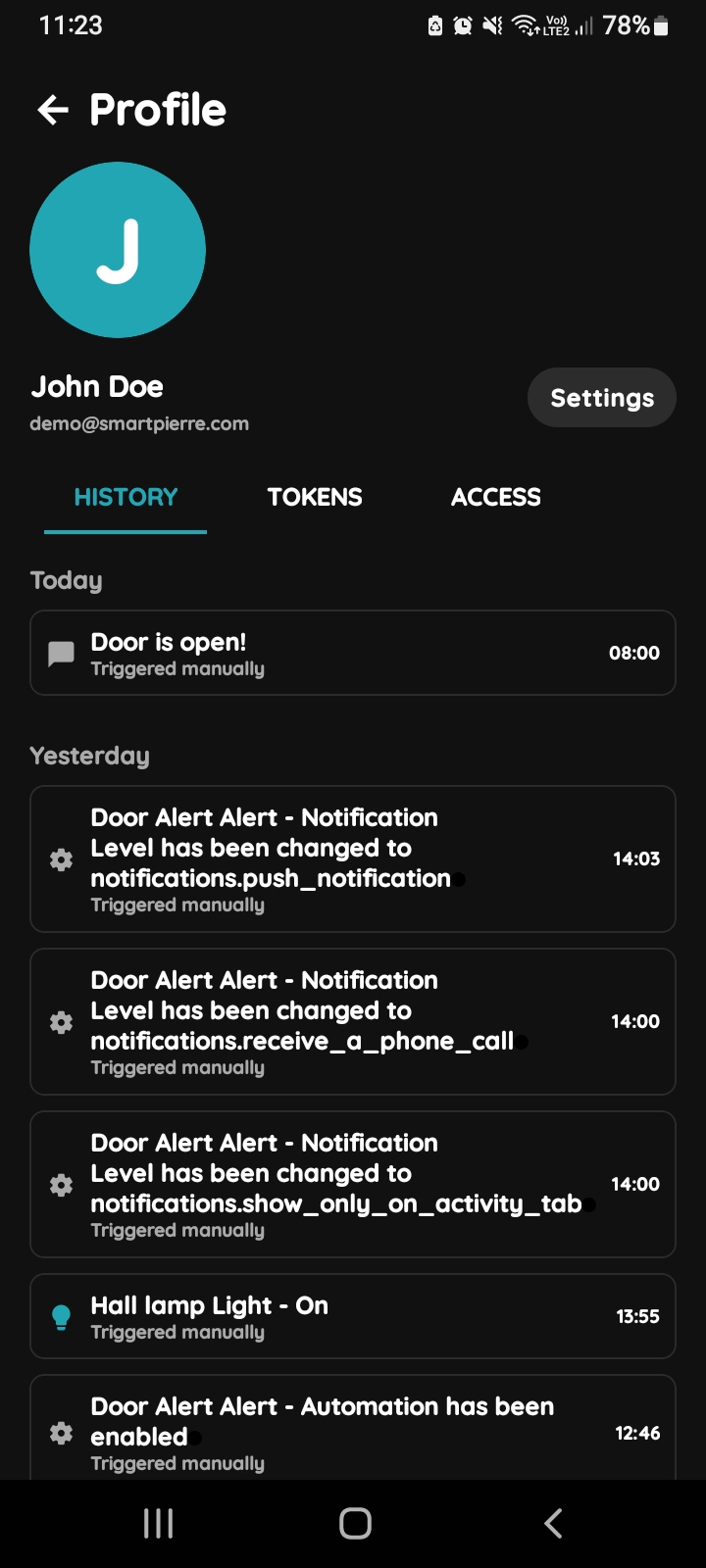
History, Tokens, Access, Settings
- History is displayed - It shows a list of all the I/Os that are activated during time by you.
- Tokens are used to add a new token (New RFID card, New Licence Plate, New PIN).
- Access - Here are displayed details about your Role/Roles.
- Button Settings - It is used for Profile settings.
To change the Your picture, tap on the current picture. To add Tokens, tap on the Tokens tab. To set the Your access permissions, tap on the Access tab.
Tap on the button Settings.
3
Open Users list
Beside your History, you can check History of other Users, too.
4
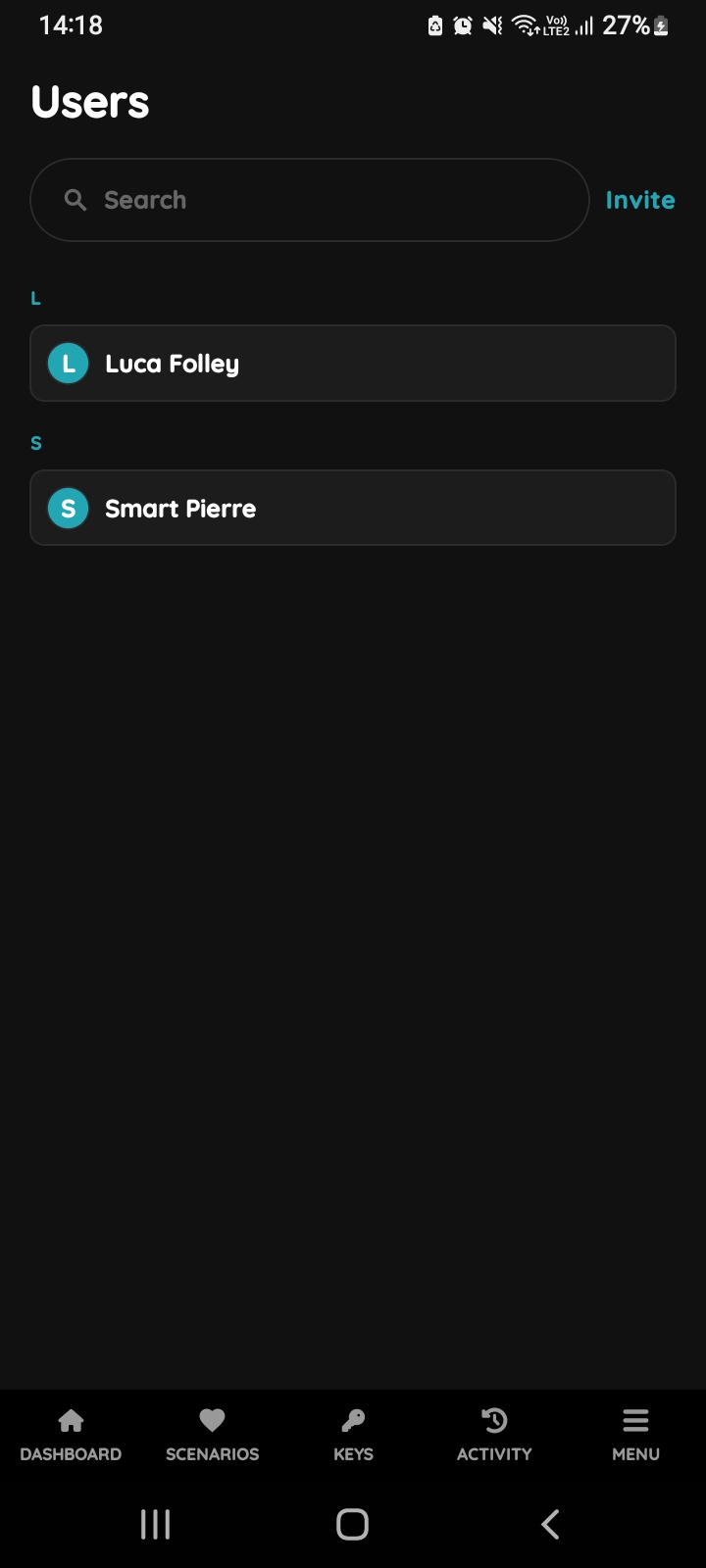
Users list
List of the Users is shown. Select the User from the list (tap on the name).
5
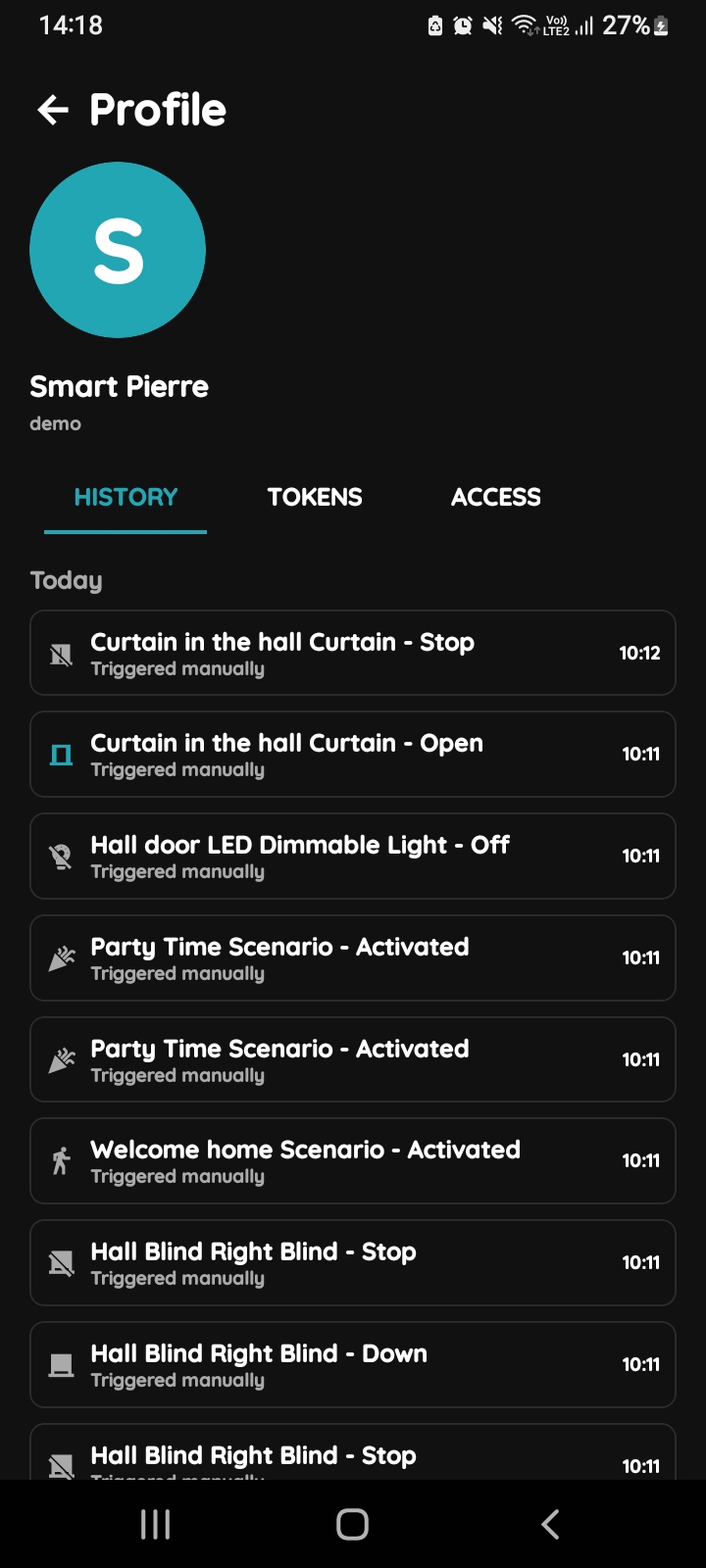
Open Profile, History, Tokens, Access
- History is displayed - It shows a list of all the I/Os that are activated during time by this User.
- Tokens are used to add a new token (New RFID card, New Licence Plate, New PIN).
- Access - Here are displayed details about the Role of the selected User. Also here can be added new role to the selected User.
To change the User's picture, tap on the current picture. To add Tokens, tap on the Tokens tab. To set the User's access permissions, tap on the Access tab.