User Profile Settings
Description
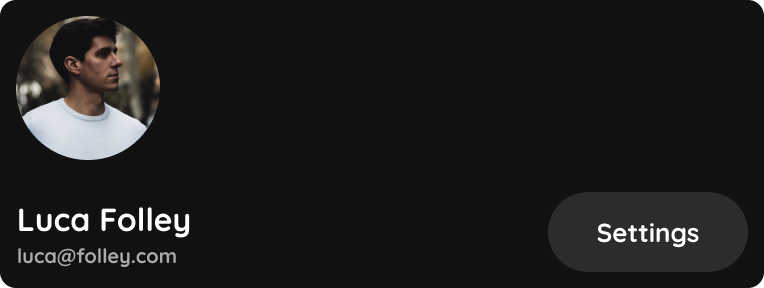
The User Profile Settings section allows users to manage their personal account information, security settings, language preferences, and application details. To access this section, open the main menu and tap your profile picture or avatar at the top of the screen. Then select the Settings icon next to your name.
Personal Information
Users can personalize their account by updating:
-
Profile Name
-
Profile Picture
These settings help identify the account throughout the PIERRE ecosystem.
Password Management
For improved account security, users can change their password directly within the application. It is recommended to use a strong and unique password to protect access to the system.
Language Selection
The application supports multiple languages. Users can select their preferred language to customize the interface and improve usability.
Application Information
The settings page provides useful application-related information, including:
-
Contact information
-
Privacy policy
-
Terms and conditions (if available)
-
Application version number
This information may be required when contacting technical support or verifying software versions.
Logout
Users can securely sign out of their account using the Logout option located at the bottom of the page. Logging out is recommended when using shared or public devices to prevent unauthorized access.
Account Management
The User Profile Settings section provides a centralized location for managing account preferences, security settings, language selection, and application information, ensuring a personalized and secure user experience within the PIERRE platform.
Open Your Profile
Open Your Profile.
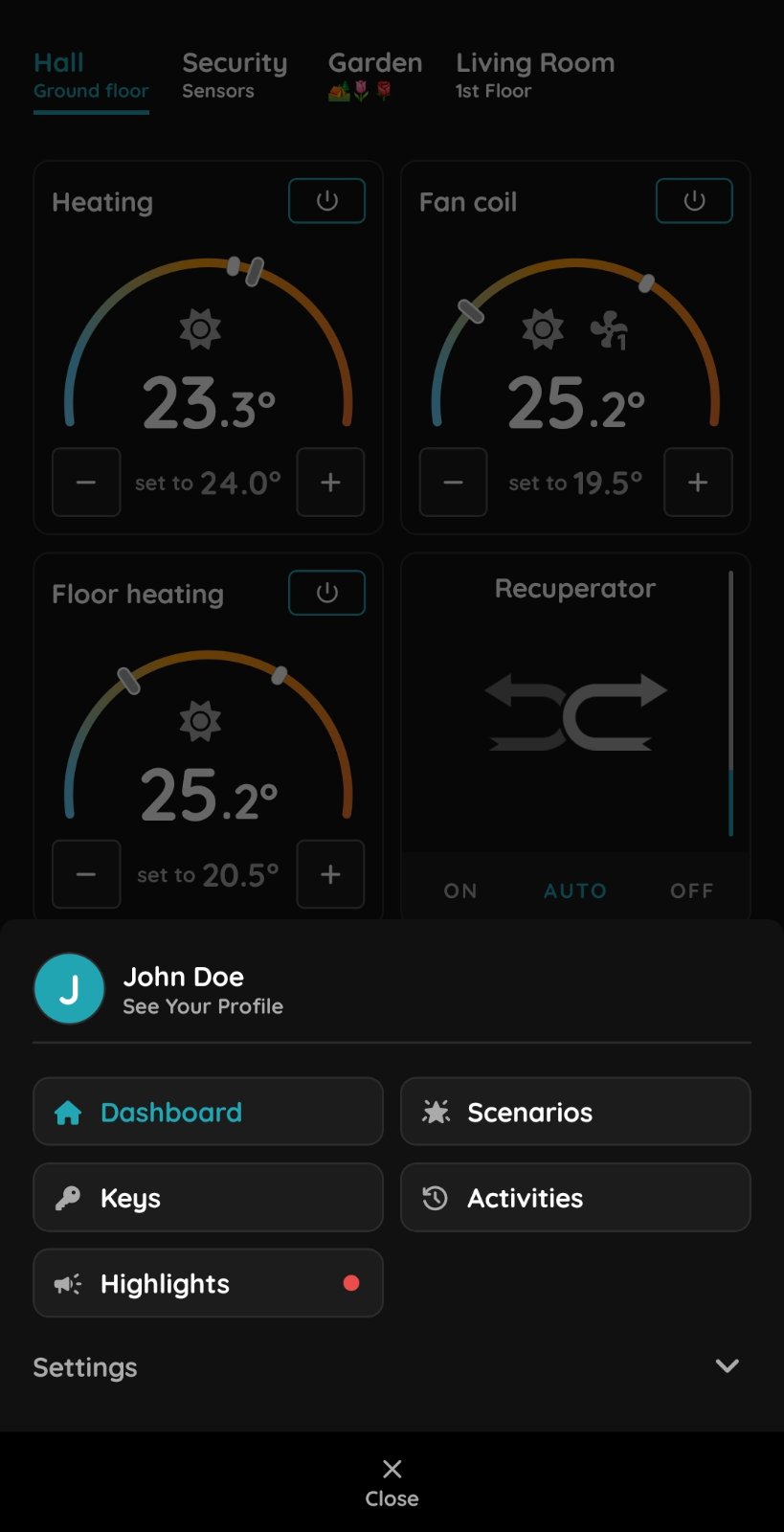
Open Your Profile
Tap on your name and surname and than tap See Your Profile.
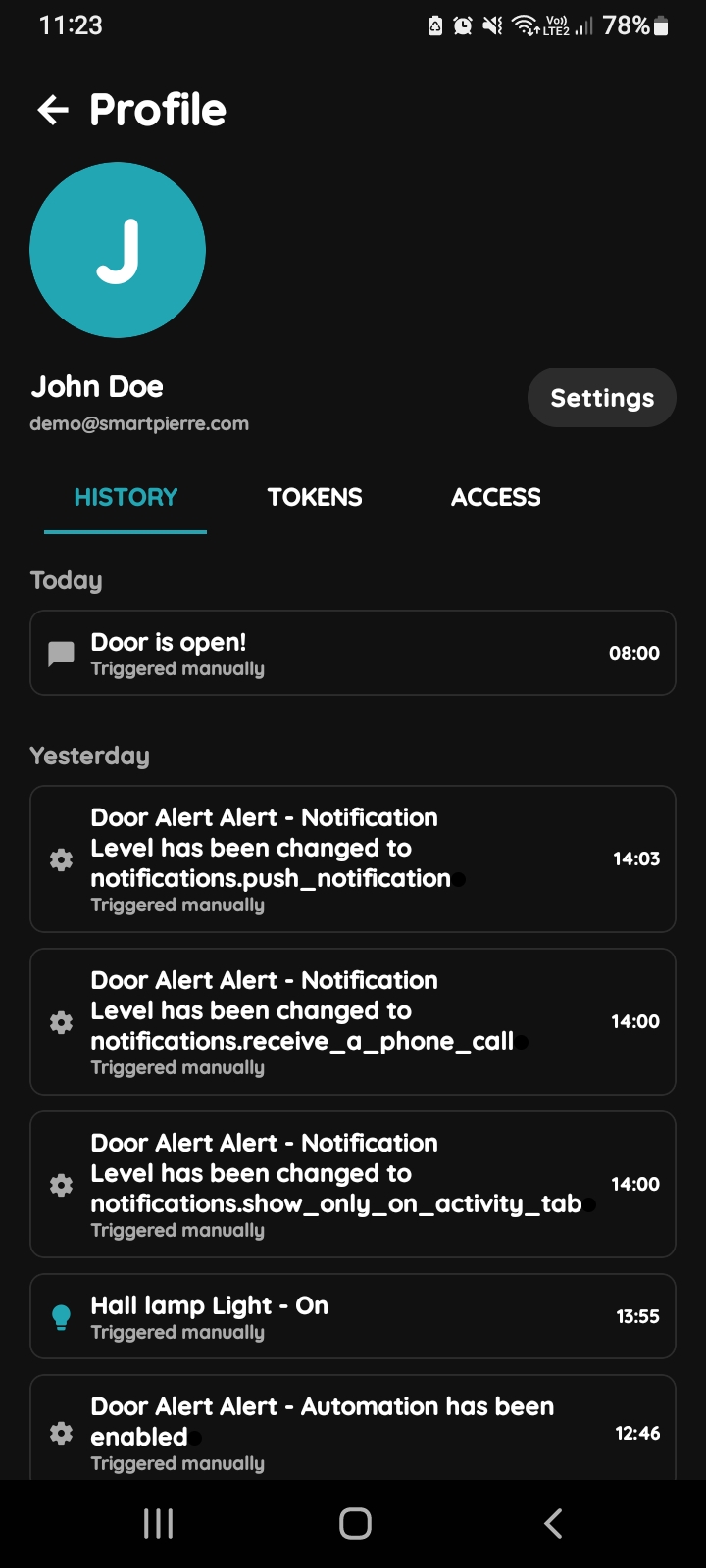
History, Tokens, Access, Settings
- History is displayed - It shows a list of all the I/Os that are activated during time by you.
- Tokens are used to add a new token (New RFID card, New Licence Plate, New PIN).
- Access - Here are displayed details about your Role/Roles.
- Settings - It is used for Profile settings.
To change the Your picture, tap on the current picture. To add Tokens, tap on the Tokens tab. To set Your access permissions, tap on the Access tab.
Tap on the Settings.
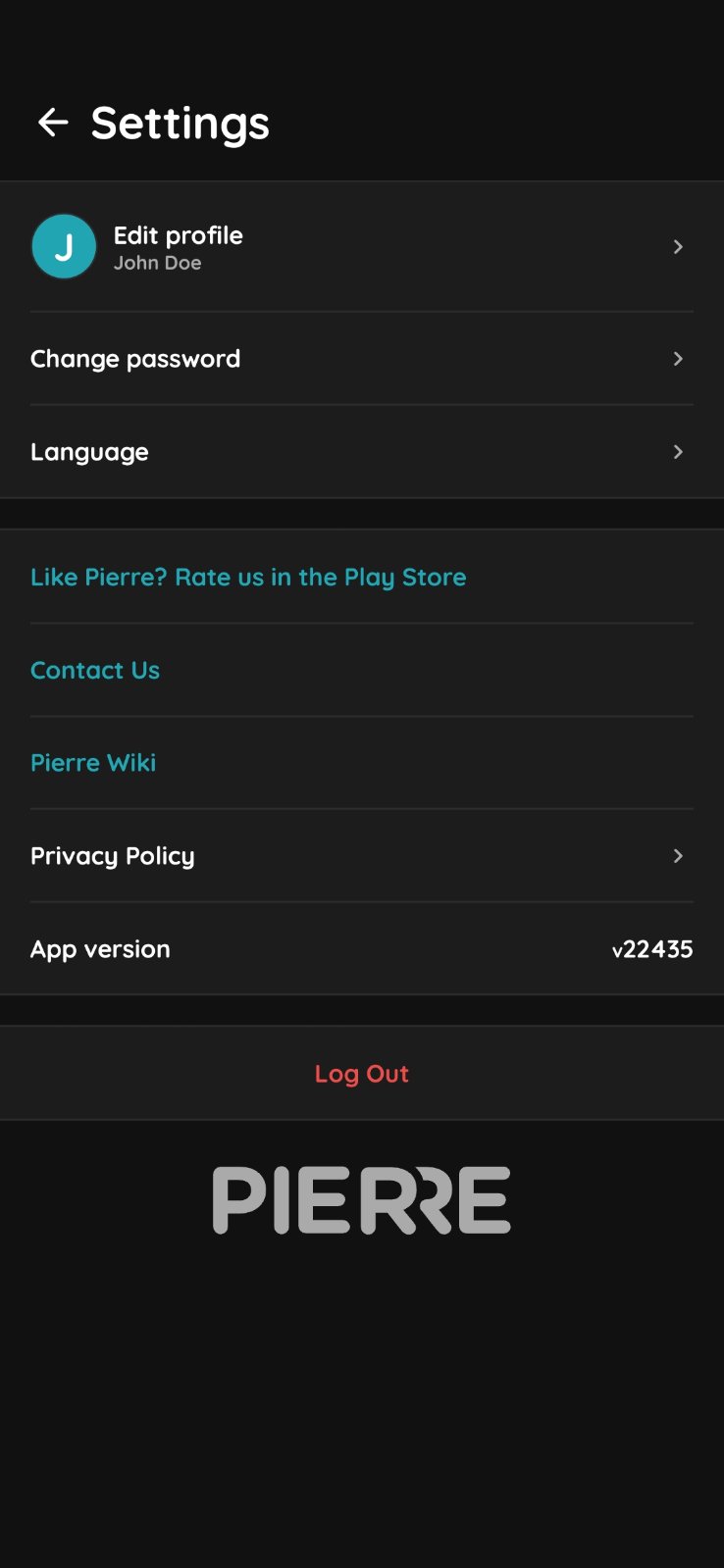
Settings - Your Profile
You can set following Profile Settings:
- Edit Profile - Update your photo, first name, and last name.
- Change Password - Change your password here for added security.
App Version - Displays the current version of the application.
Log Out - At the bottom of the page, you can log out of your account to ensure your information remains secure, especially on shared or public devices.
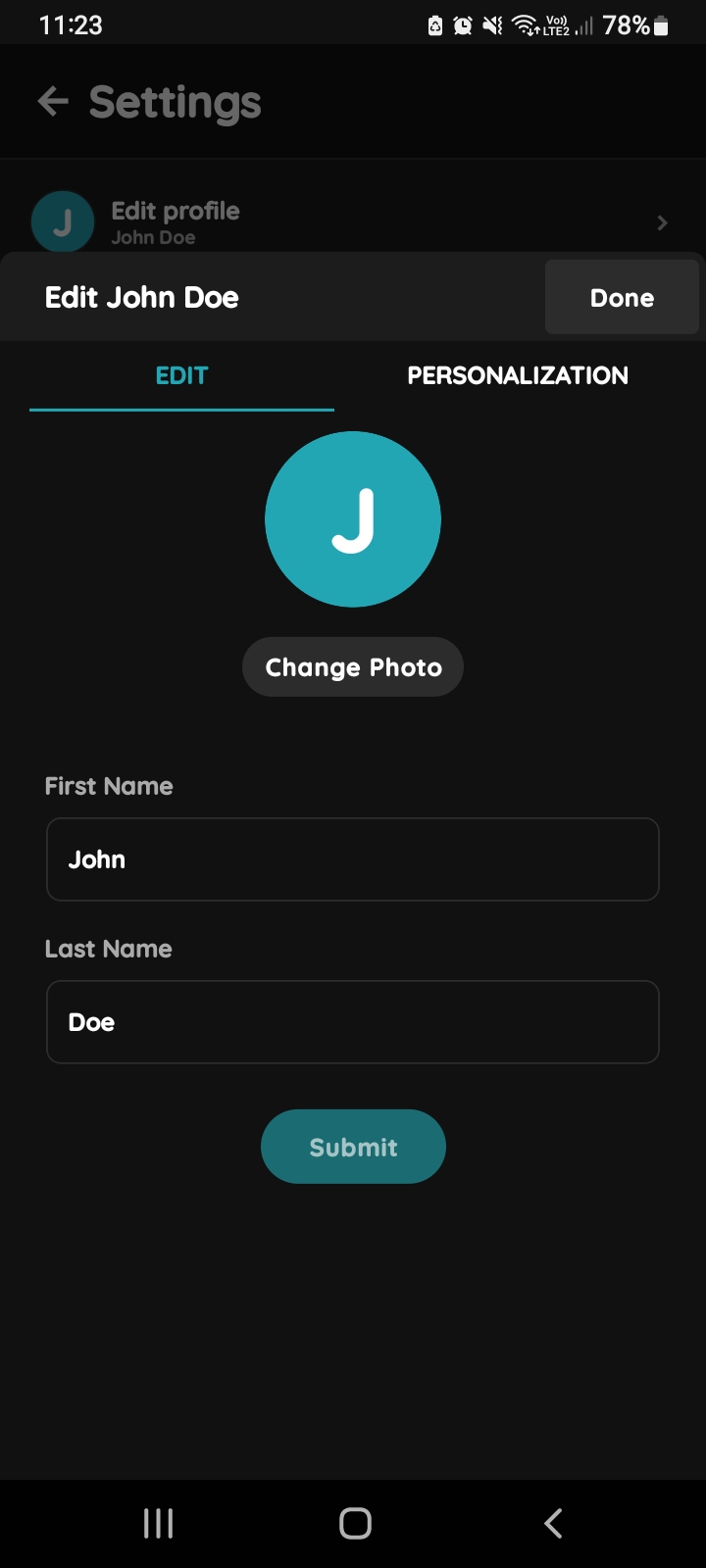
Edit Your Profile
Tab Edit is selected, so you can edit following form:
- Fist Name - Tap in the field and edit Your Name.
- Last Name - Tap in the field and edit Your Last Name.
For more details follow next step.
To confirm your changes tap Submit/Done.
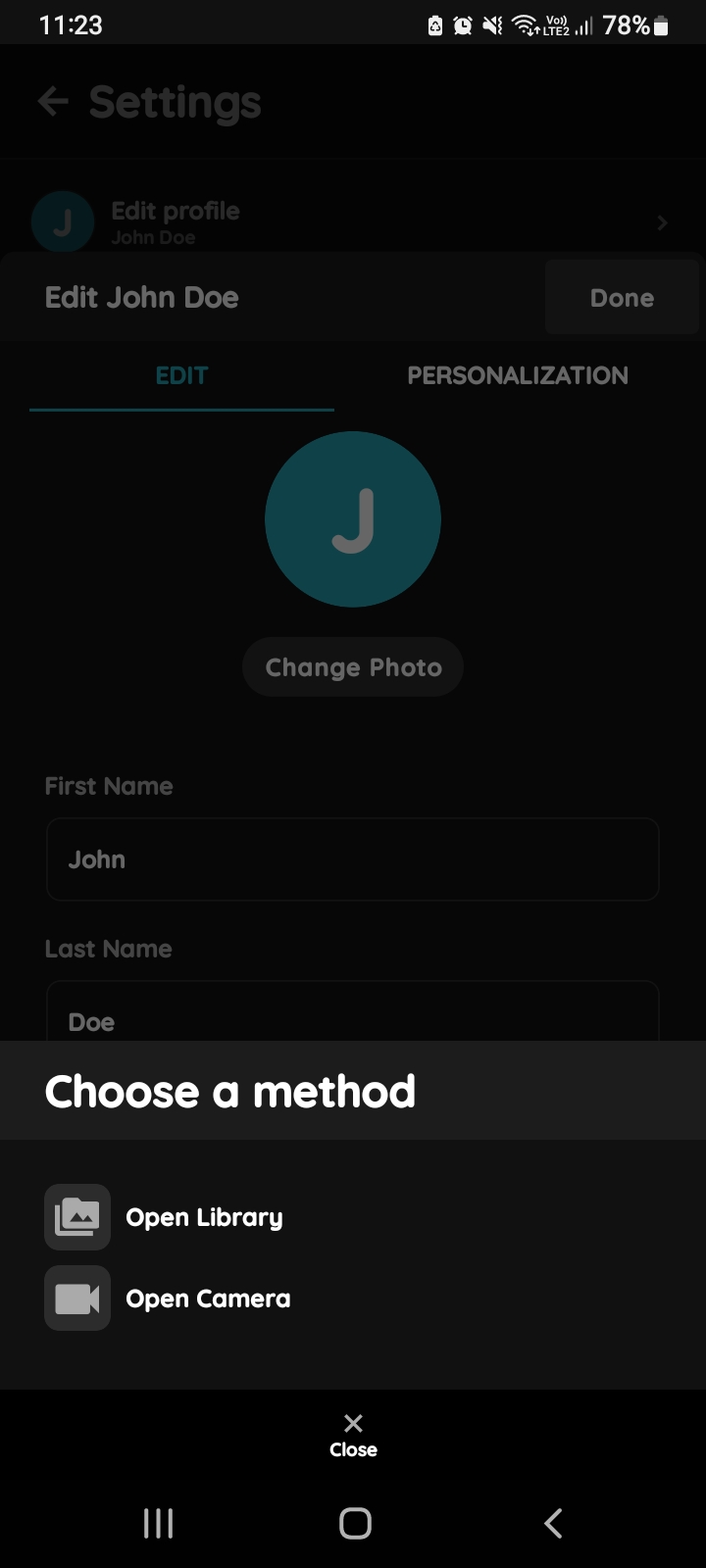
Change Your Profile photo
Tap on your photo.
You have two source of the photo:
- Open Library - The phone’s Library will open.
- Open Camera - You can take a picture using your smartphone.
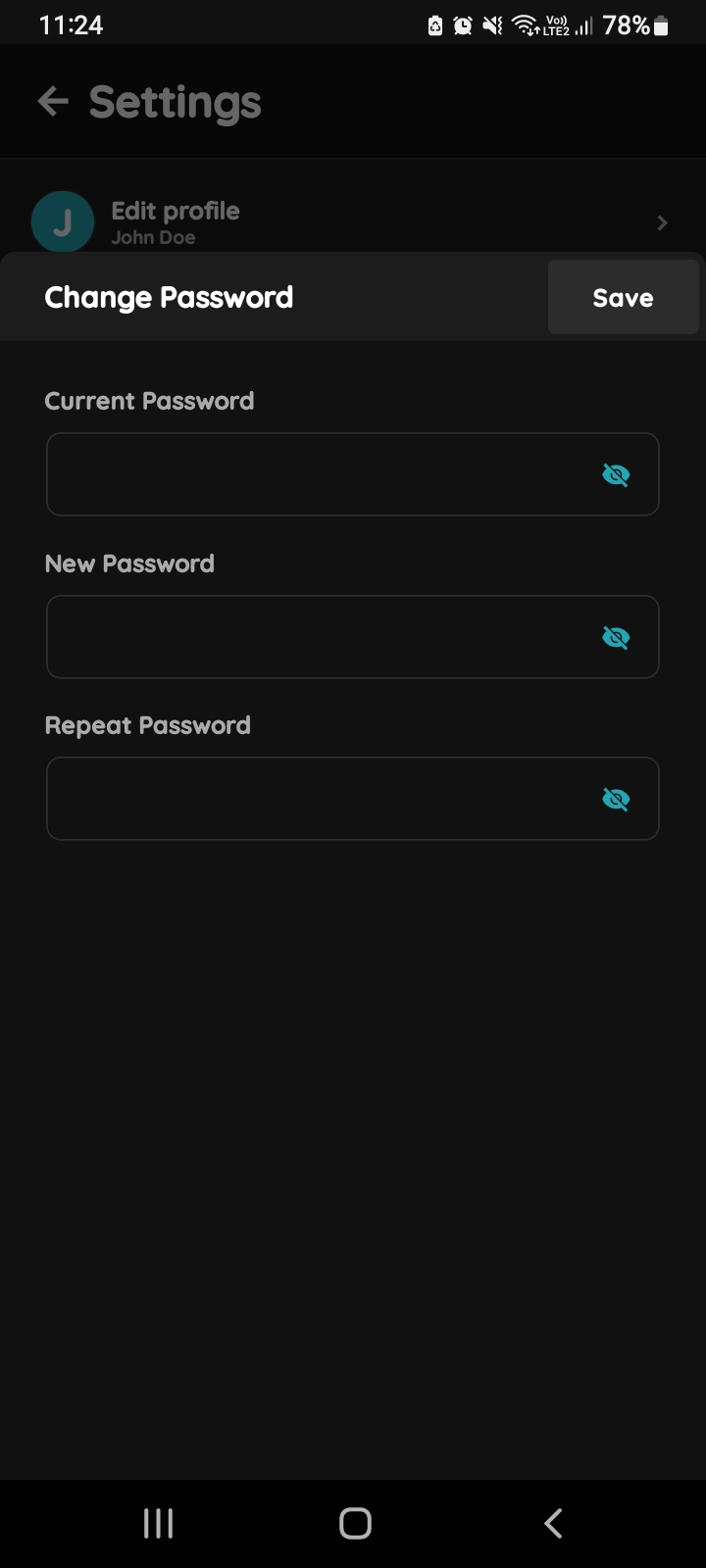
Change Password
Fill the following form:
- Current Password - Input your current password.
- New Password - Create and enter your new password.
- Confirm Password - Re-enter your new password to confirm.
Tap Save.
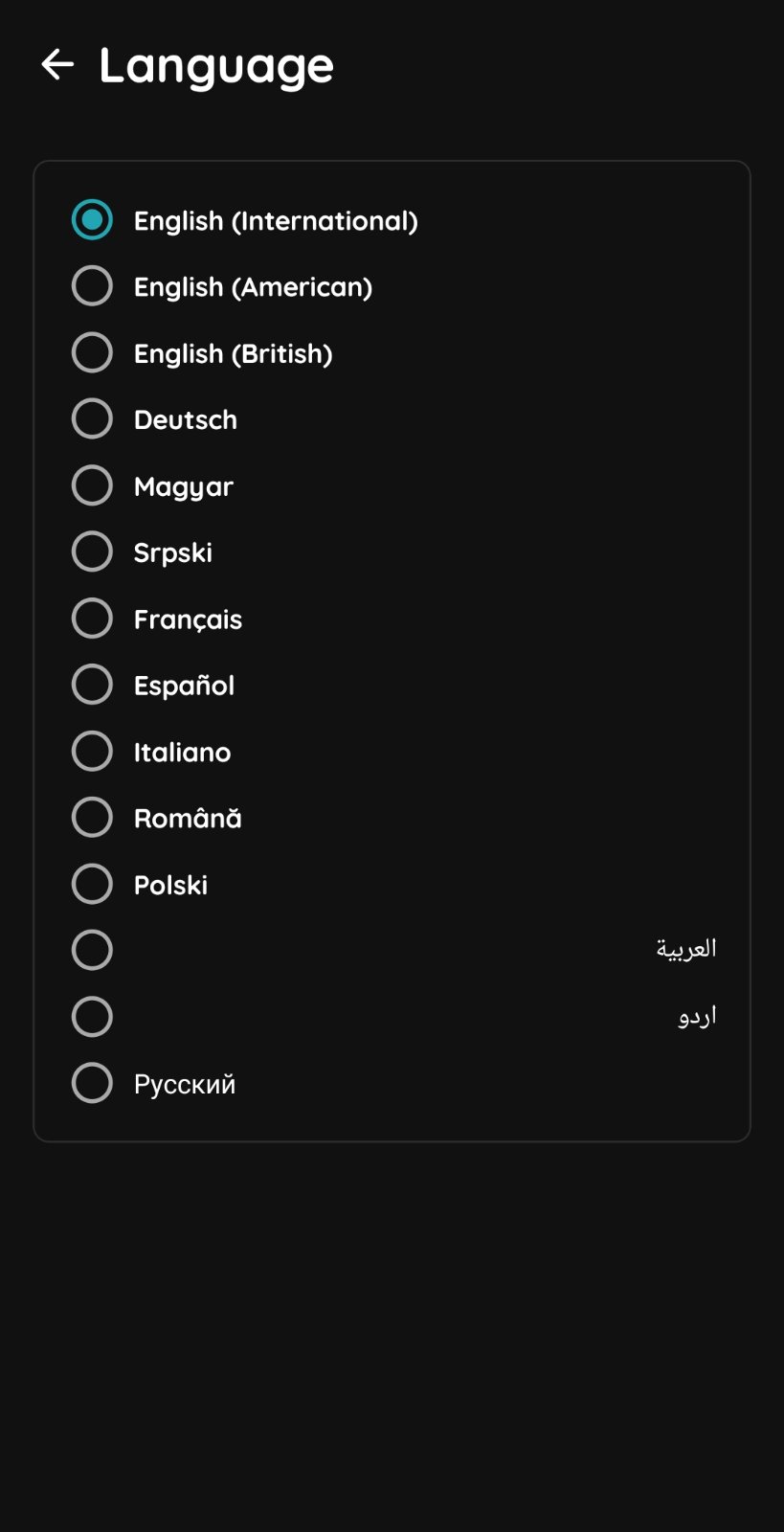
Change Language
Tap on the radio button next to the desired language from the list.
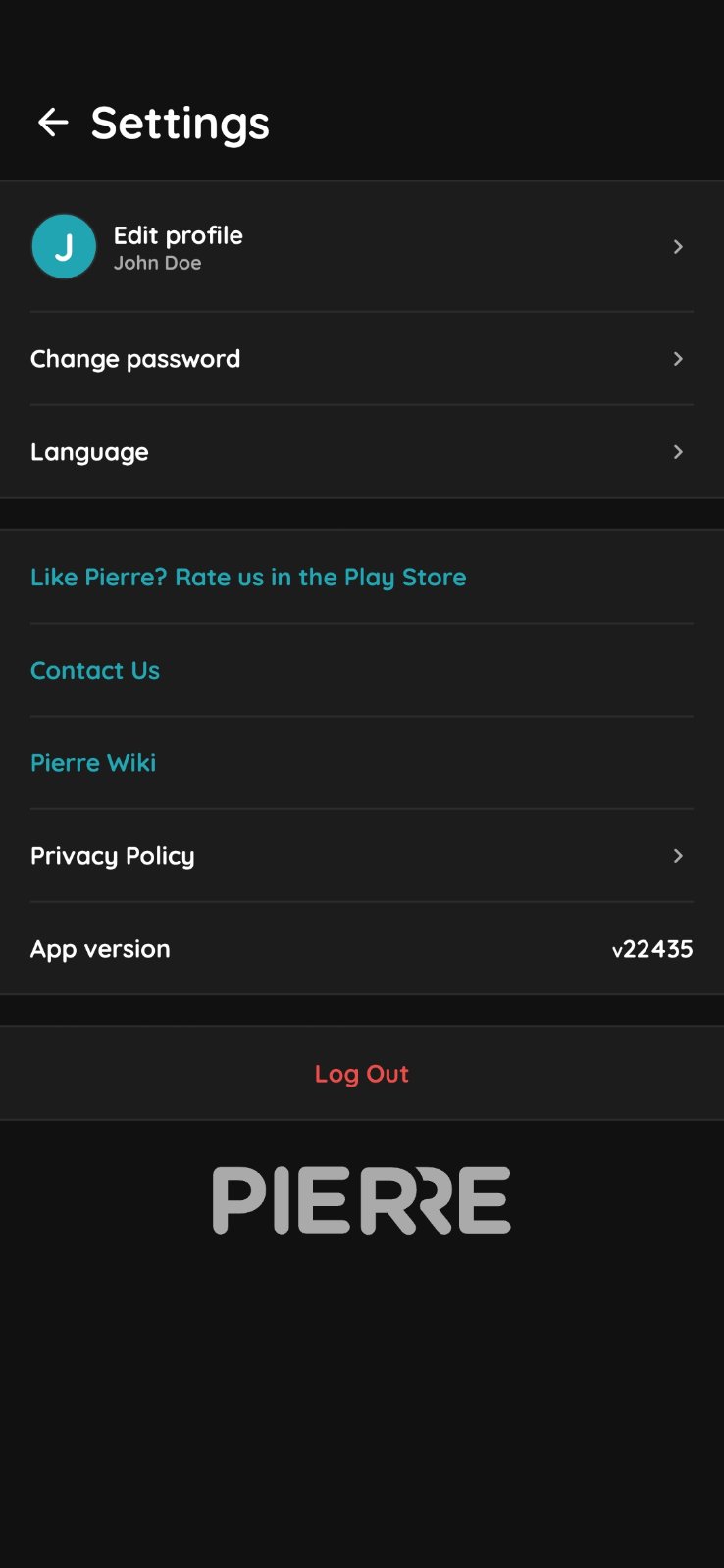
App version
At the bottom of is shown App version.
Log Out button - You can log out of your account at the bottom of the page, ensuring your information stays secure, especially when using the app on a shared or public device.