Solution - PIERRE Alexa Integration
Description
The PIERRE Alexa integration allows devices to be controlled by voice. The user gives the command, Alexa passes it to PIERRE, and PIERRE acts on the devices.
What Can Be Controlled
- Switching lights on and off, and setting colour and brightness.
- Adjusting the heating and cooling target.
- Opening and closing blinds.
- Checking sensor readings and lock status.
- Running complete scenes.
How It Is Used
- Devices can be addressed individually, or as a group or room.
- Natural language commands work, for example "dim the kitchen lights to 50%" or "set the living room to warm white".
- PIERRE scenes can be combined with Alexa routines.
Limit
The Alexa integration supports up to 300 I/O points, including devices and scenes. In a larger project, decide which devices are exposed to Alexa rather than exposing everything.
Technical Notes
- Voice control depends on an internet connection, on both the Alexa side and the PIERRE side. It is not a substitute for local control.
- Name devices and rooms the way people actually speak about them; a device named after its circuit number cannot be addressed by voice.
- Think carefully before exposing door locks to voice control, and tell the customer what a voice command can open.
Supported Languages
English (US, UK, CA, AU, IN), Spanish (US, ES, MX), French (FR, CA), German, Italian, Portuguese, Japanese, and Hindi.
What you can do with Alexa + PIERRE
- Turn lights and smart plugs on/off, dim, and change colors
- Control RGB/RGBW/RGBCW lighting (including warm/cool white)
- Open/close window coverings (blinds, curtains, shades), including percentage positions
- Check and control thermostats (mode and target temperature)
- Ask for temperature and humidity from sensors
- Lock/unlock doors (with voice code) and open/close gates
- Activate scenes you’ve set up in PIERRE
Requirements
- A PIERRE account with your devices set up and named
- An Amazon account and an Alexa-enabled device (Echo, Echo Show, etc.)
- Stable internet for both PIERRE and Alexa
NOTE: Alexa integration is available in the English and Arabic stores.
Connect PIERRE to Alexa (one-time setup)
- Open the Alexa app → More → Skills & Games.
- Search for the Smart PIERRE (Smart Home) skill and Enable it.
- Sign in with your PIERRE credentials to link your account.
- When prompted, tap Discover Devices (or say “Alexa, discover devices”). Alexa will find your PIERRE devices and scenes.
Tip: After discovery, you can edit device names and room assignments in the Alexa app for more natural phrases.
Please note that if your PIERRE user account has access to multiple Buildings, Amazon Alexa will import and integrate the IO list of all Buildings. If you do not need this in such a form, it is recommended to create a new user account that has access only to the specific Building.
Supported device types & example voice commands
Lights (On/Off)
- “Alexa, turn on [device name].”
- “Alexa, is [device name] on?”
Dimmable Lights
- “Alexa, set [device name] to 50 percent.”
- “Alexa, brighten/dim [device name].”
RGB Lights
- “Alexa, set [device name] to blue.”
- “Alexa, change [device name] to red.”
Supports 130+ standard color names (e.g., Blue, Cyan, Magenta, Purple, Orange, Yellow, Green, etc.).
RGBW / RGBCW Lights
- “Alexa, set [device name] to warm white / cool white / daylight.”
- “Alexa, make [device name] warmer/cooler.”
Thermostats
- “Alexa, set [device name] to 22 degrees.”
- “Alexa, set [device name] to heat / cool.”
- “Alexa, what’s [device name] set to?”
Temperature Sensors
- “Alexa, what’s the temperature in [device name]?”
Humidity Sensors
- “Alexa, what’s the humidity in [device name]?”
Window Coverings (blinds, curtains, shades)
- “Alexa, open/close [device name].”
- “Alexa, open [device name] to 50 percent.”
Doors (Smart Locks)
Important: To unlock by voice, enable Unlock by Voice and set a Voice Code in the Alexa app for the lock. Alexa will require the code to unlock.
- “Alexa, lock/unlock [device name].”
- “Alexa, is [device name] locked?”
Gates
- “Alexa, open/close [device name].”
- “Alexa, is [device name] open/closed?” (requires a contact sensor)
Smart Plugs
- “Alexa, turn [device name] on/off.”
- “Alexa, is [device name] on?”
Scenes
- “Alexa, activate [scene name].” / “Alexa, turn on [scene name].”
Note: Scenes can be activated (on) but not deactivated via Alexa.
Notes & limitations
- Device names: Use the exact names from PIERRE, or rename in Alexa for easier phrasing.
- Percentage control: Use any value 0–100% for dimming and coverings.
- Temperature units: Alexa uses Celsius or Fahrenheit based on your Alexa settings.
- Color support: RGB lights accept 130+ color names; RGBW/RGBCW also support warm/cool/daylight whites.
- Scenes: Only activation is supported (no “turn off scene”).
Best practices
- Keep names short and unique (e.g., “Kitchen Light 1”, “Hall Thermostat”).
- Group devices into Rooms in the Alexa app for commands like “Alexa, turn off the Kitchen.”
- For locks, do not share your voice code; consider Disable Unlock by Voice if you don’t need it.
Alexa Integration
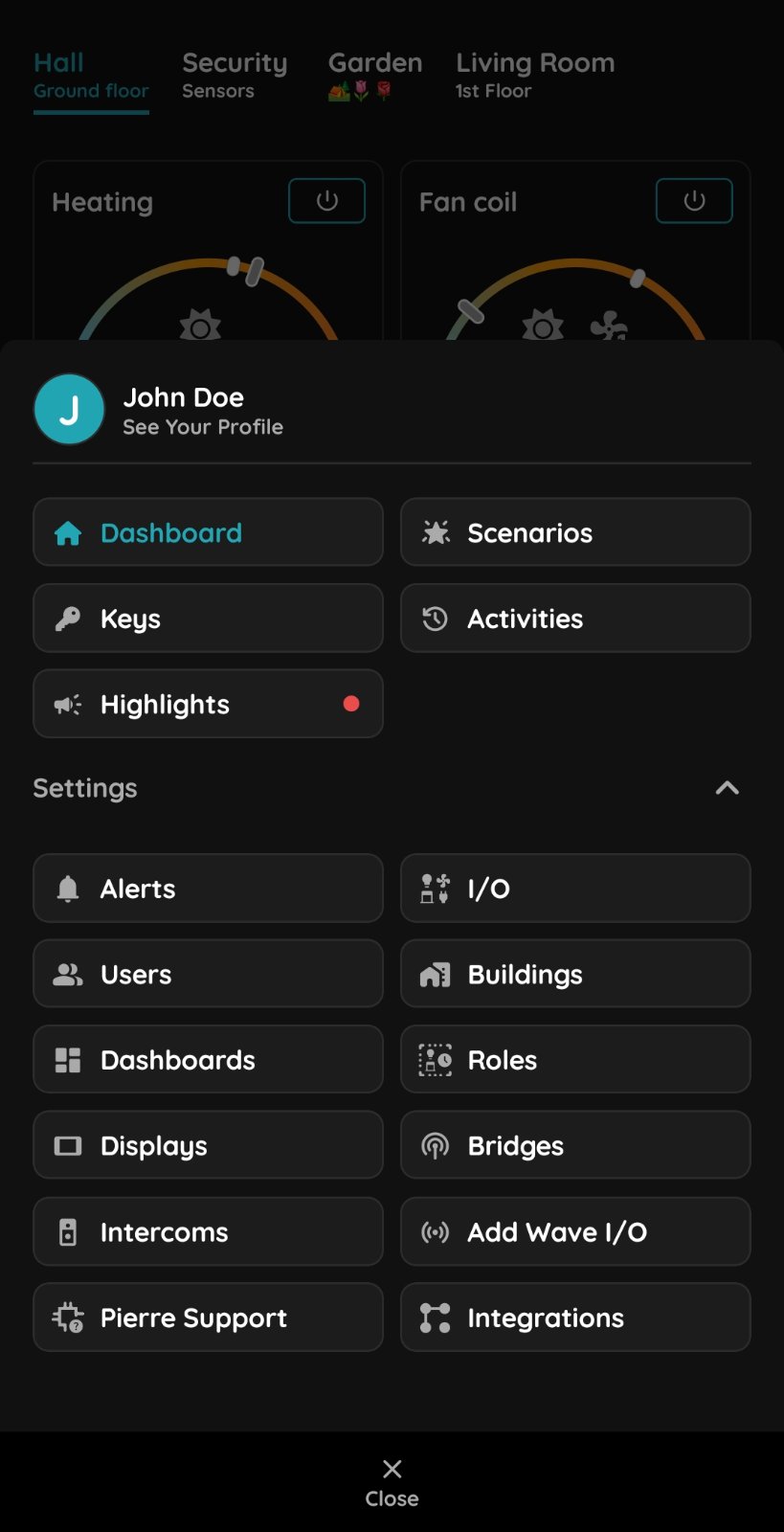
Open Smart PIERRE application
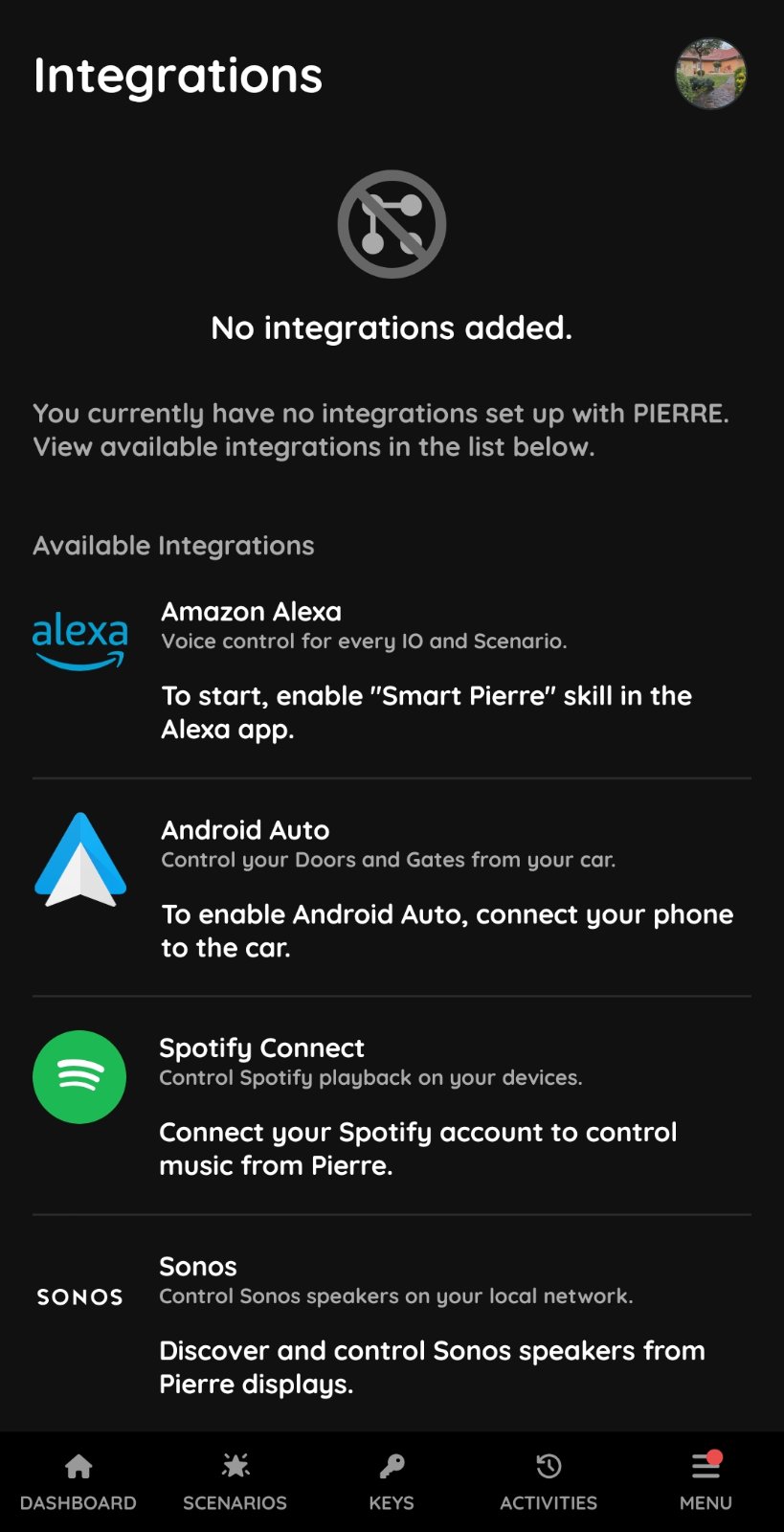
Integration
Amazon Alexa – To start the integration, open the Amazon Alexa app and enable the Smart PIERRE skill.
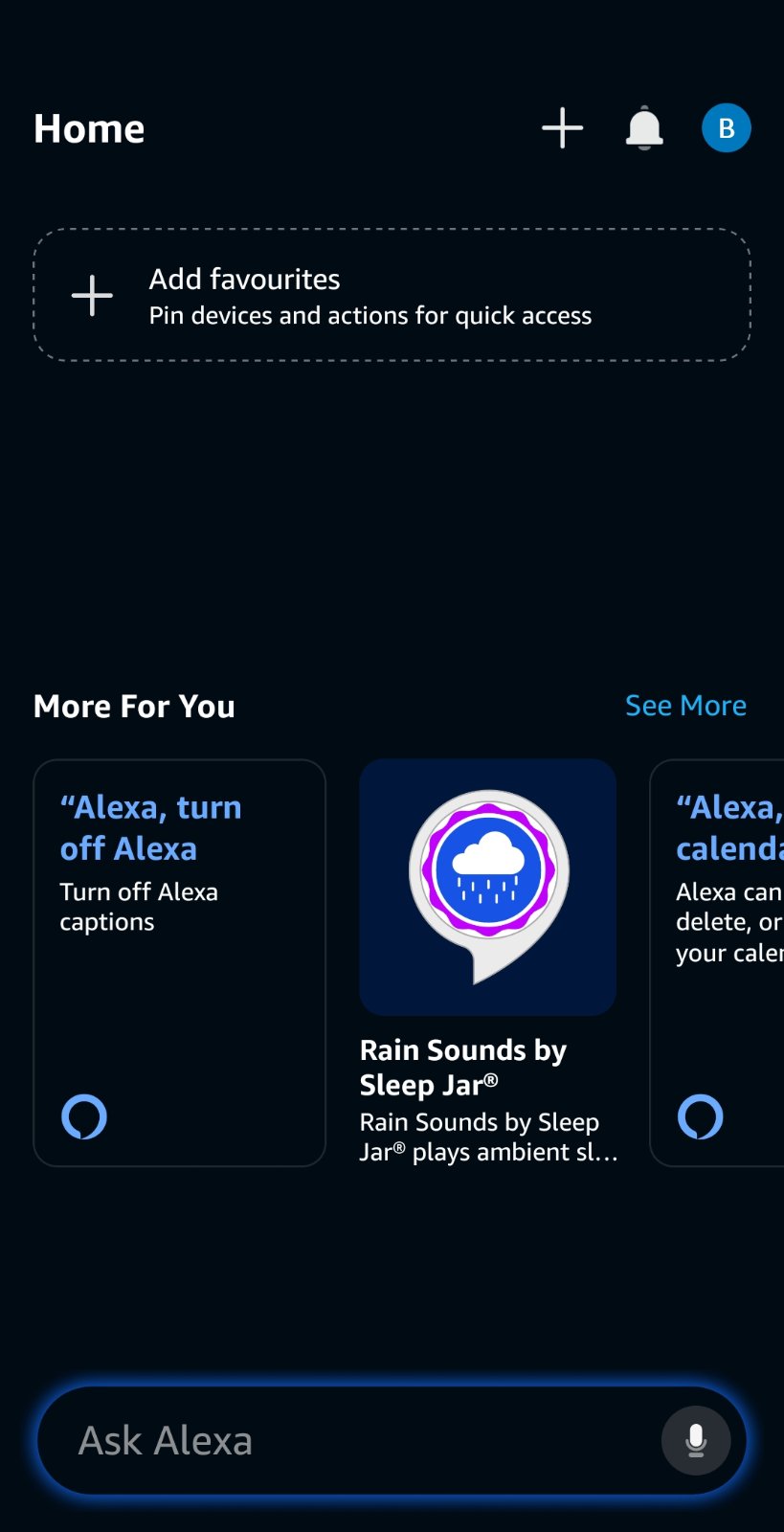
Amazon Alexa
Open the Amazon Alexa application and tap See More.
Please note: An Amazon account is required to use this feature.
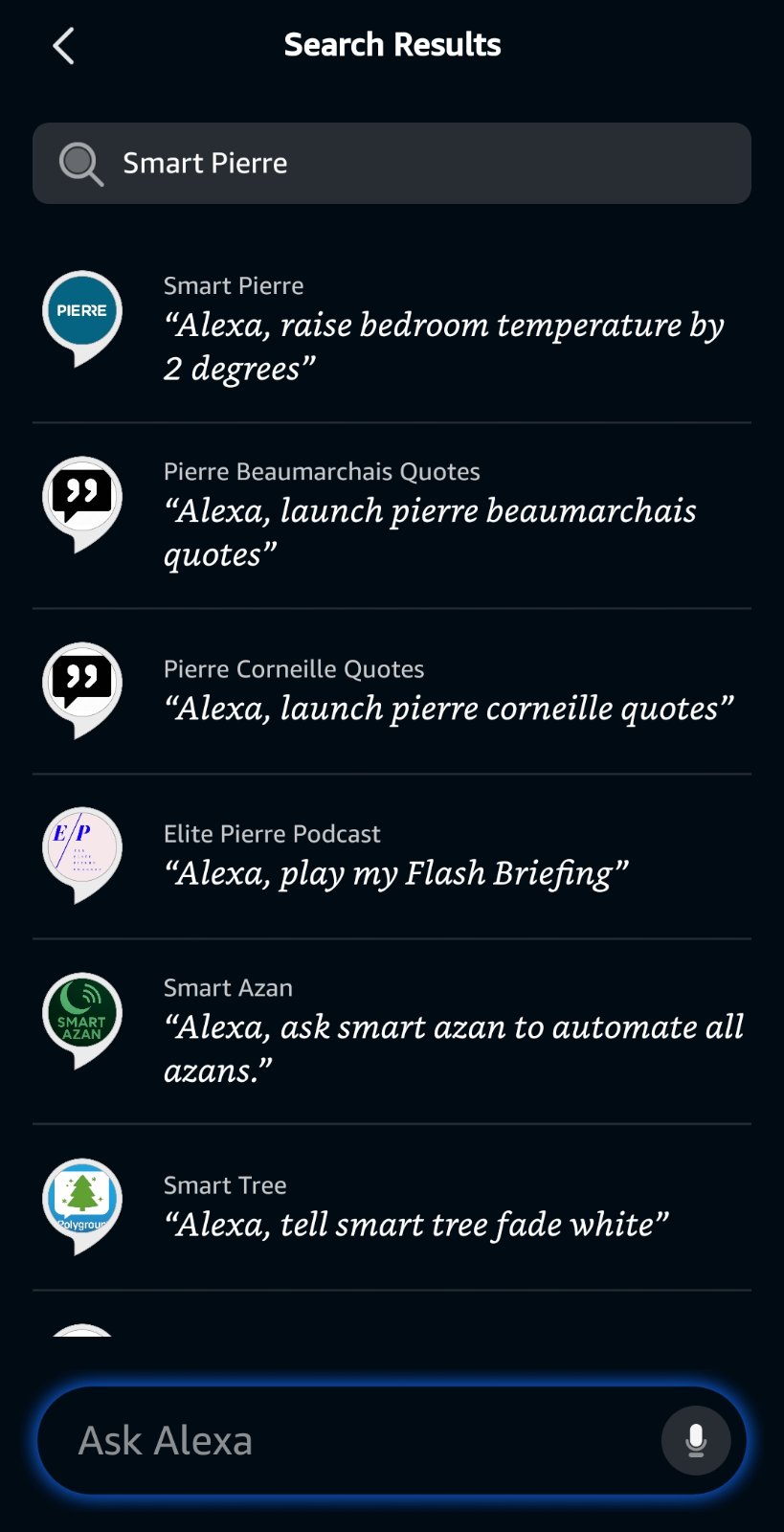
Smart PIERRE Skill
Search for Smart PIERRE under Skills & Games.
Tap Smart PIERRE to open it, then tap Enable to activate the skill.
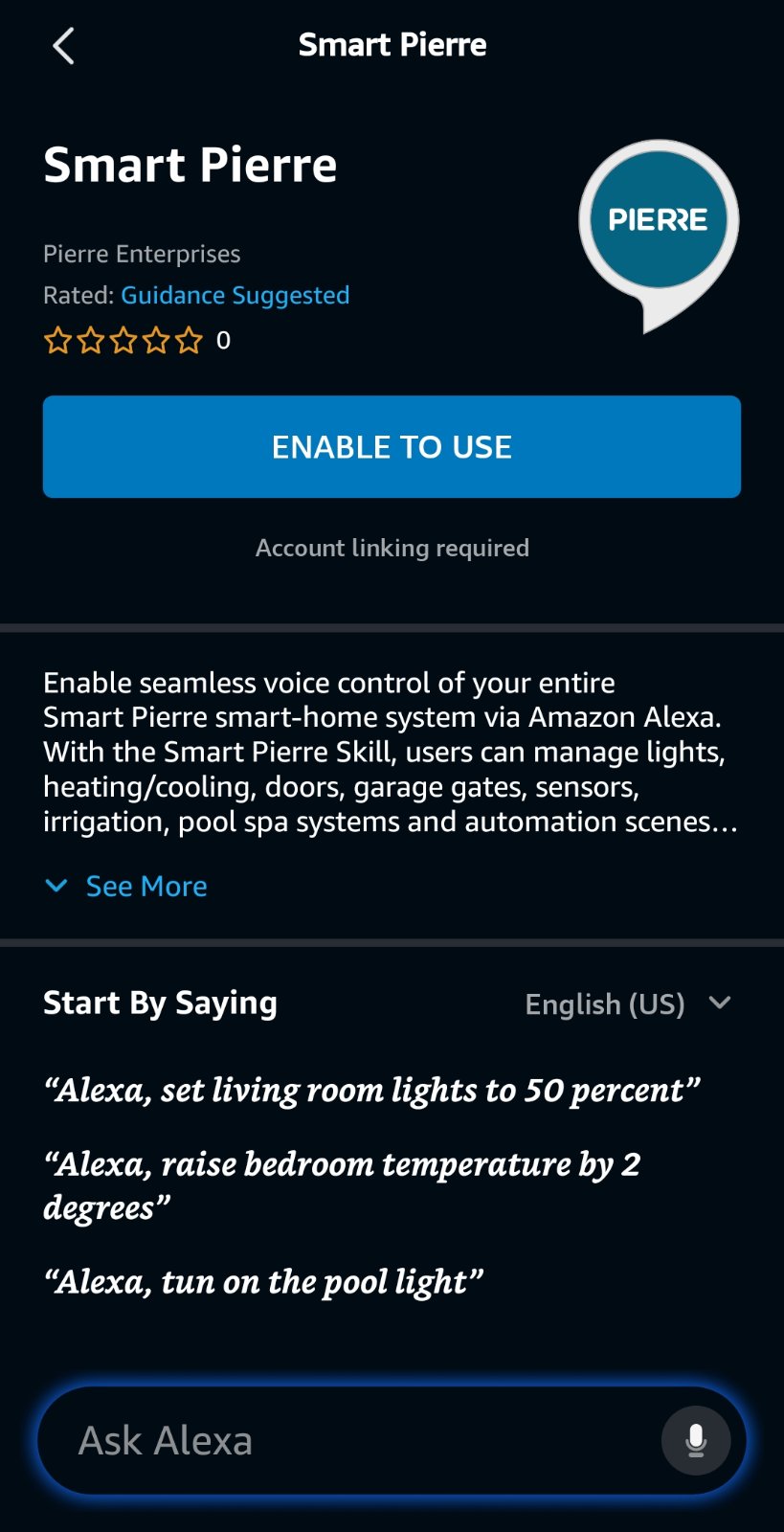
Enable Skill
Tap Enable to use the skill.
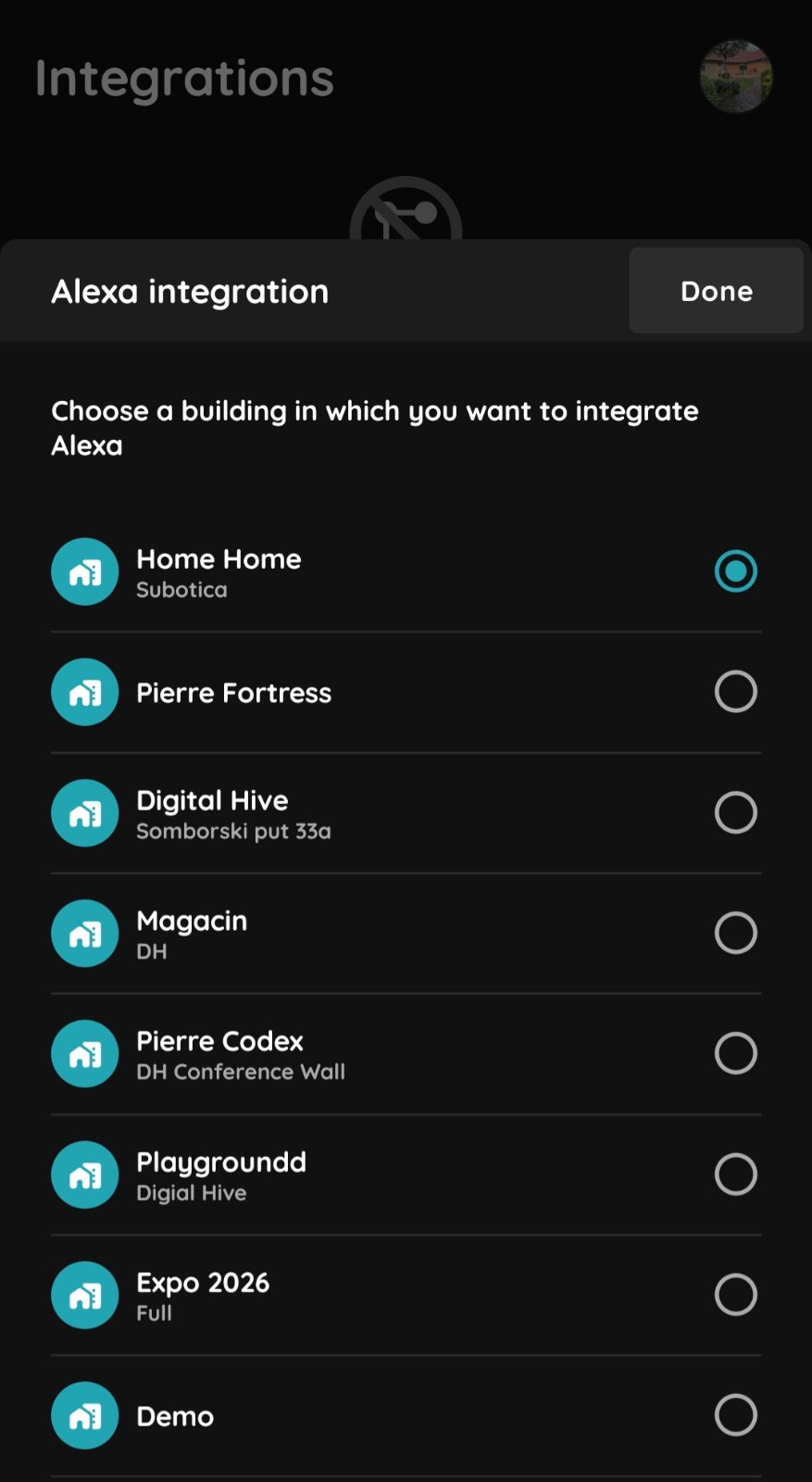
Smart PIERRE integration
The Smart PIERRE application opens automatically.
Select the building you want to integrate with Alexa.
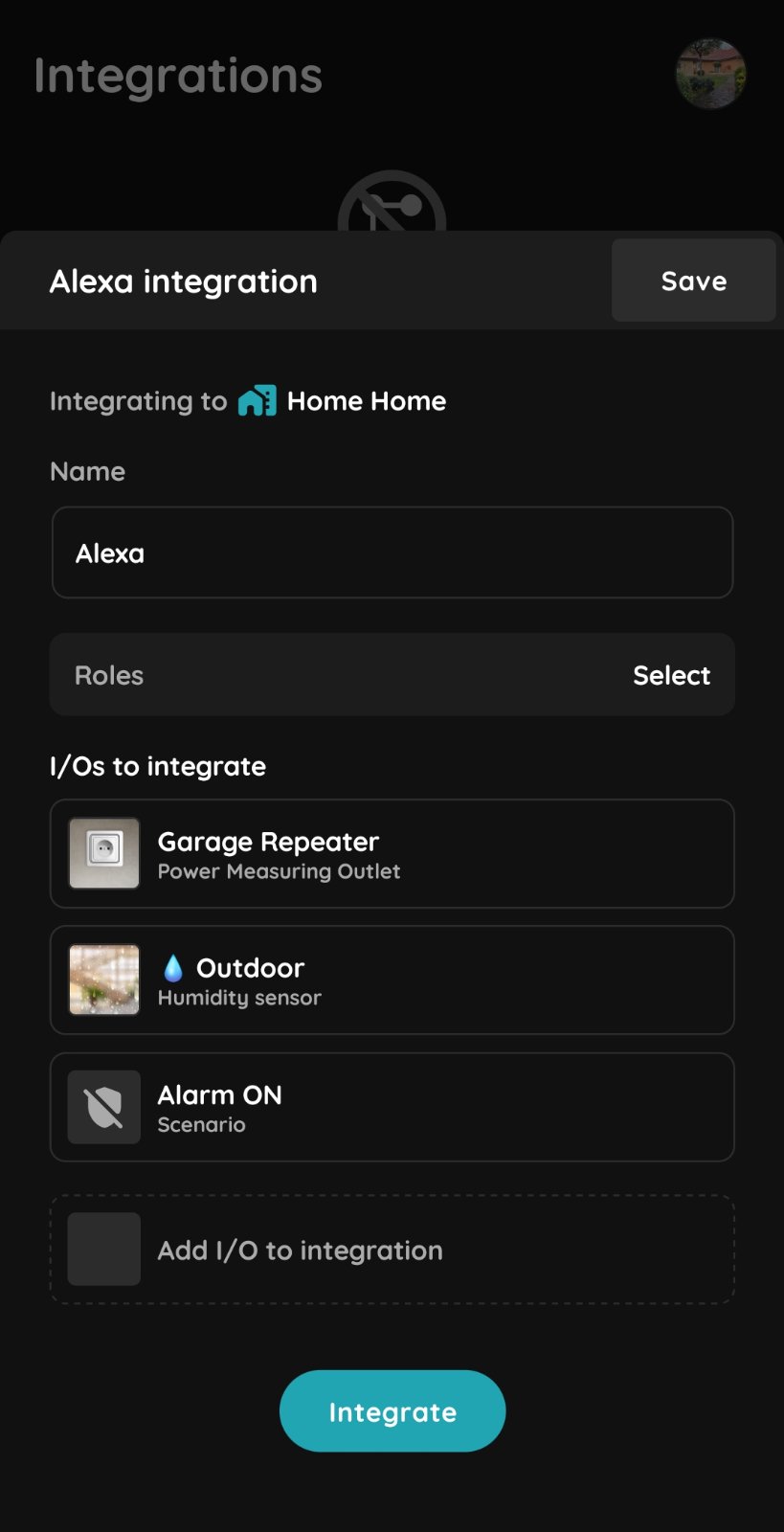
Settings
Name – Enter a name for the integration.
Roles – Select the Role you want to use with Alexa.
I/Os – Select the I/Os you want to make available through the integration.
Tap Integrate when everything is set up.
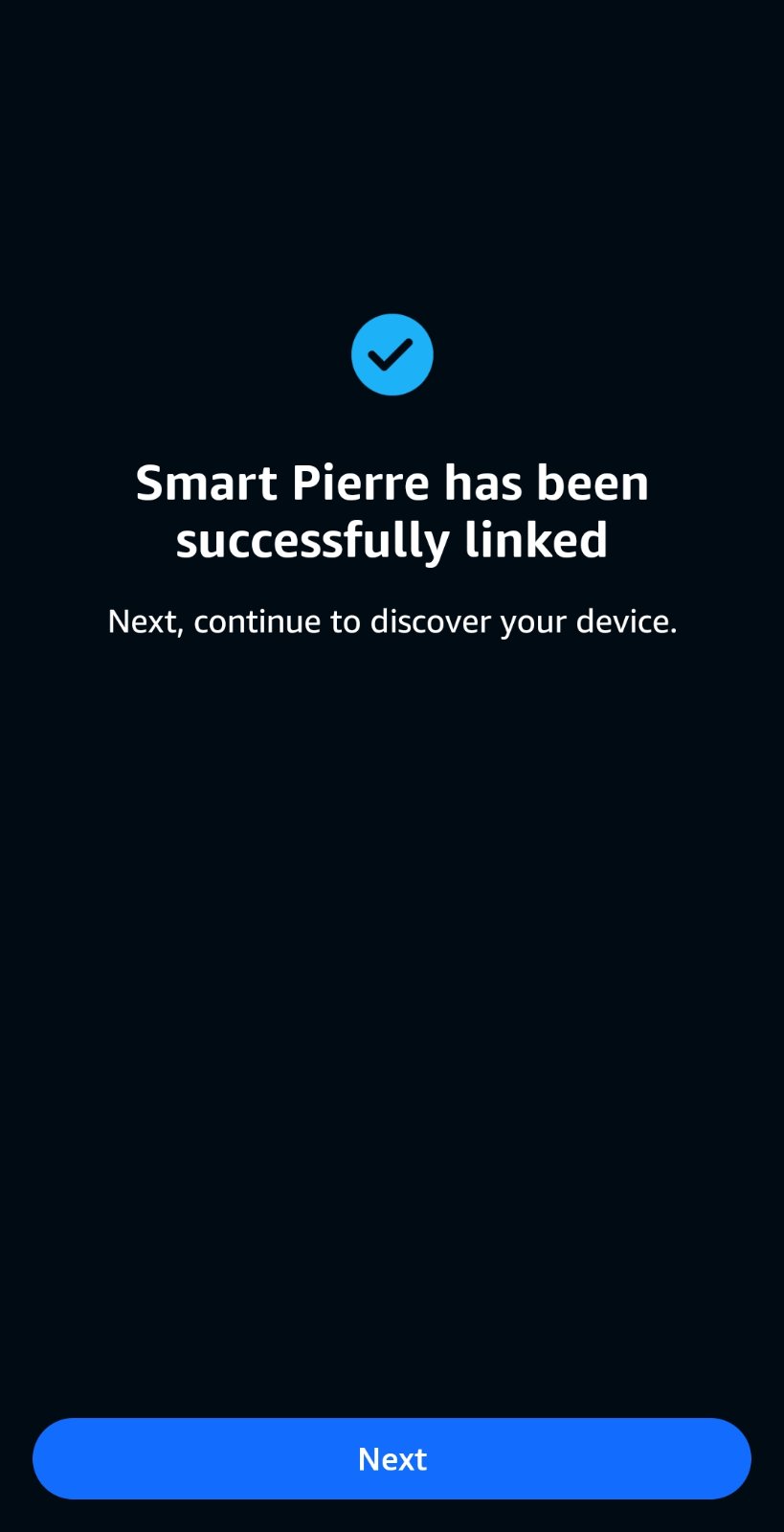
Done
A confirmation message appears in the Amazon Alexa application indicating that the Smart PIERRE skill has been enabled and successfully linked.
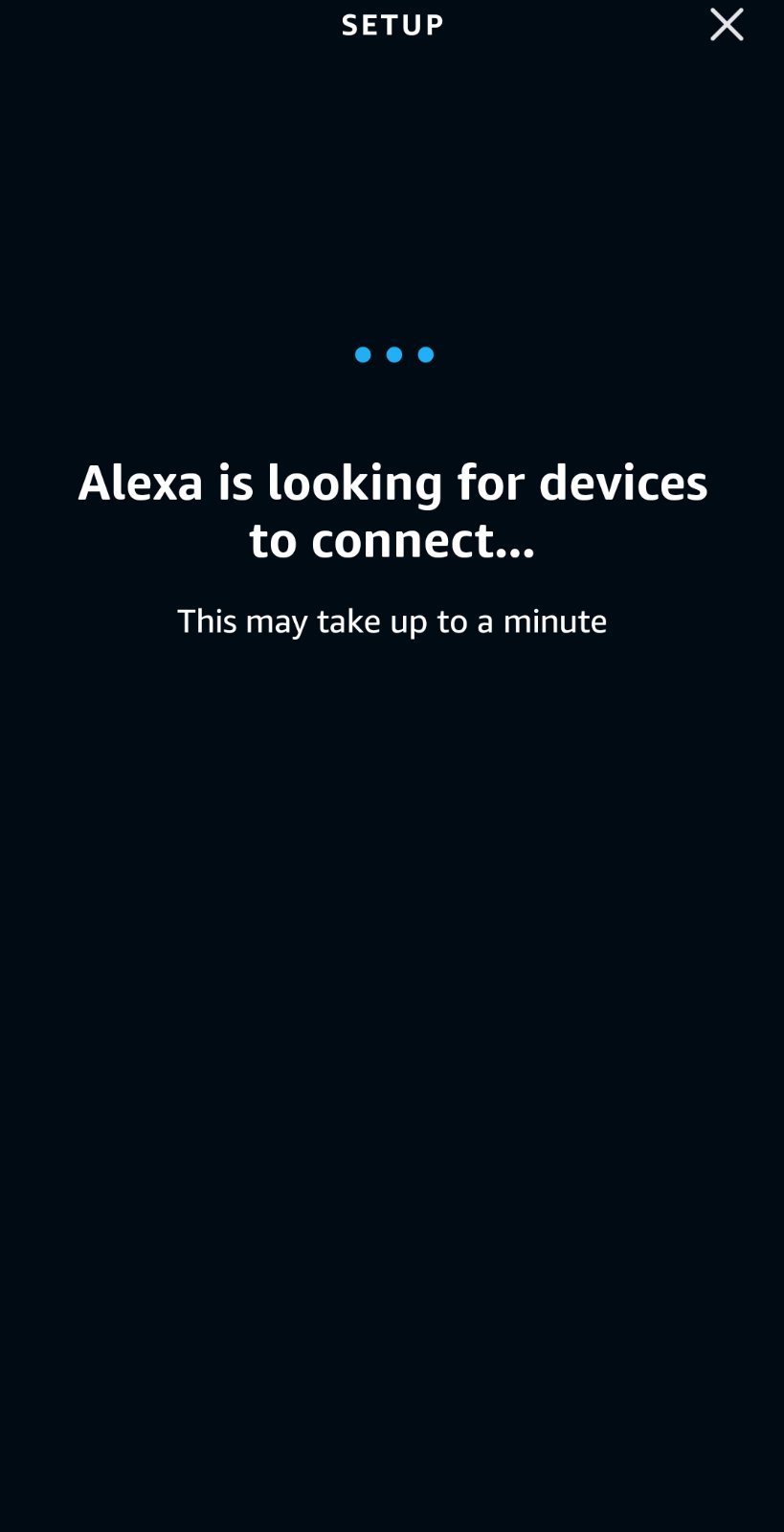
Alexa devices
Select the Alexa device you want to use with Smart PIERRE.
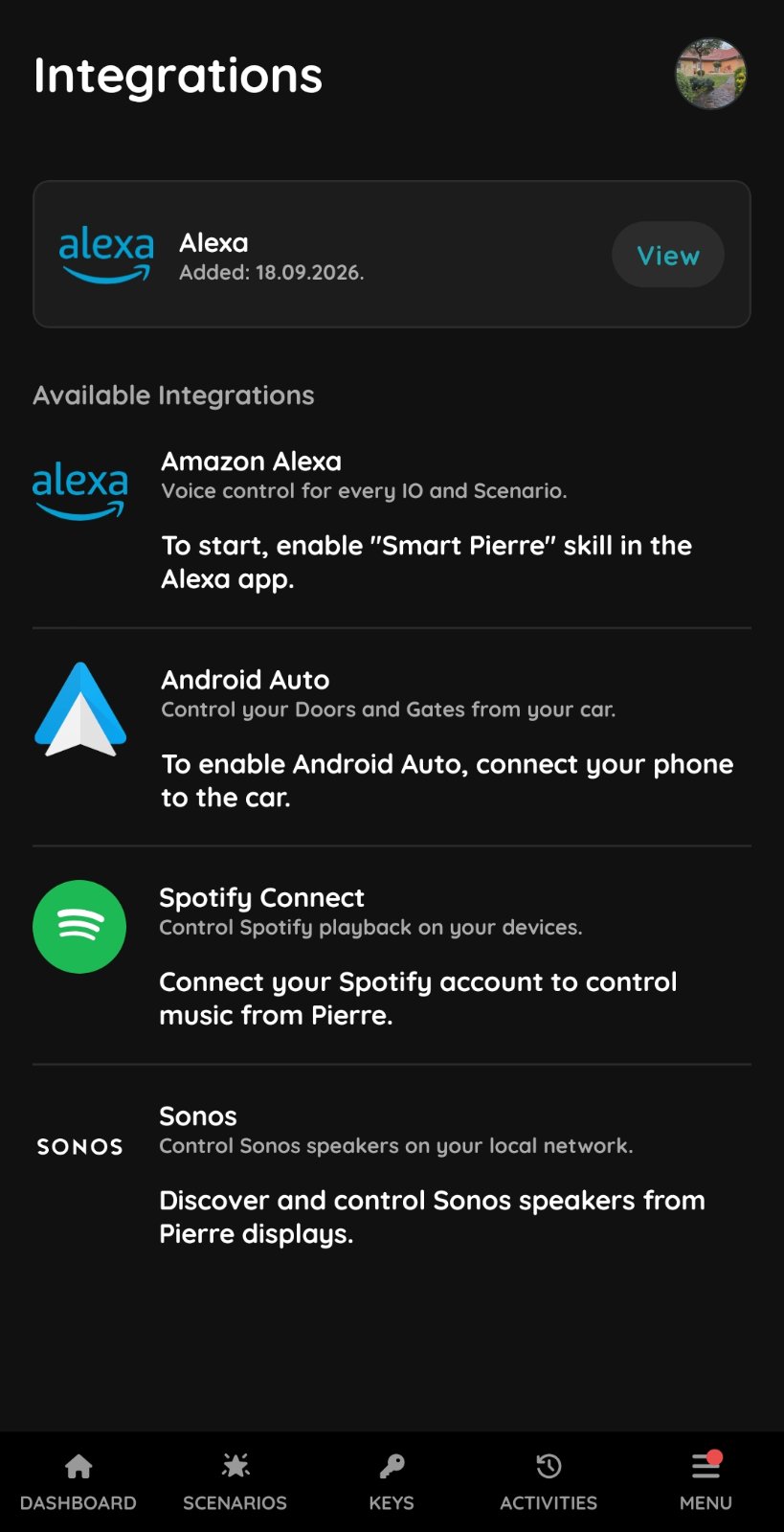
Review the integration
The Alexa integration will be displayed in the Integrations menu.
Tap View to review the integration settings.
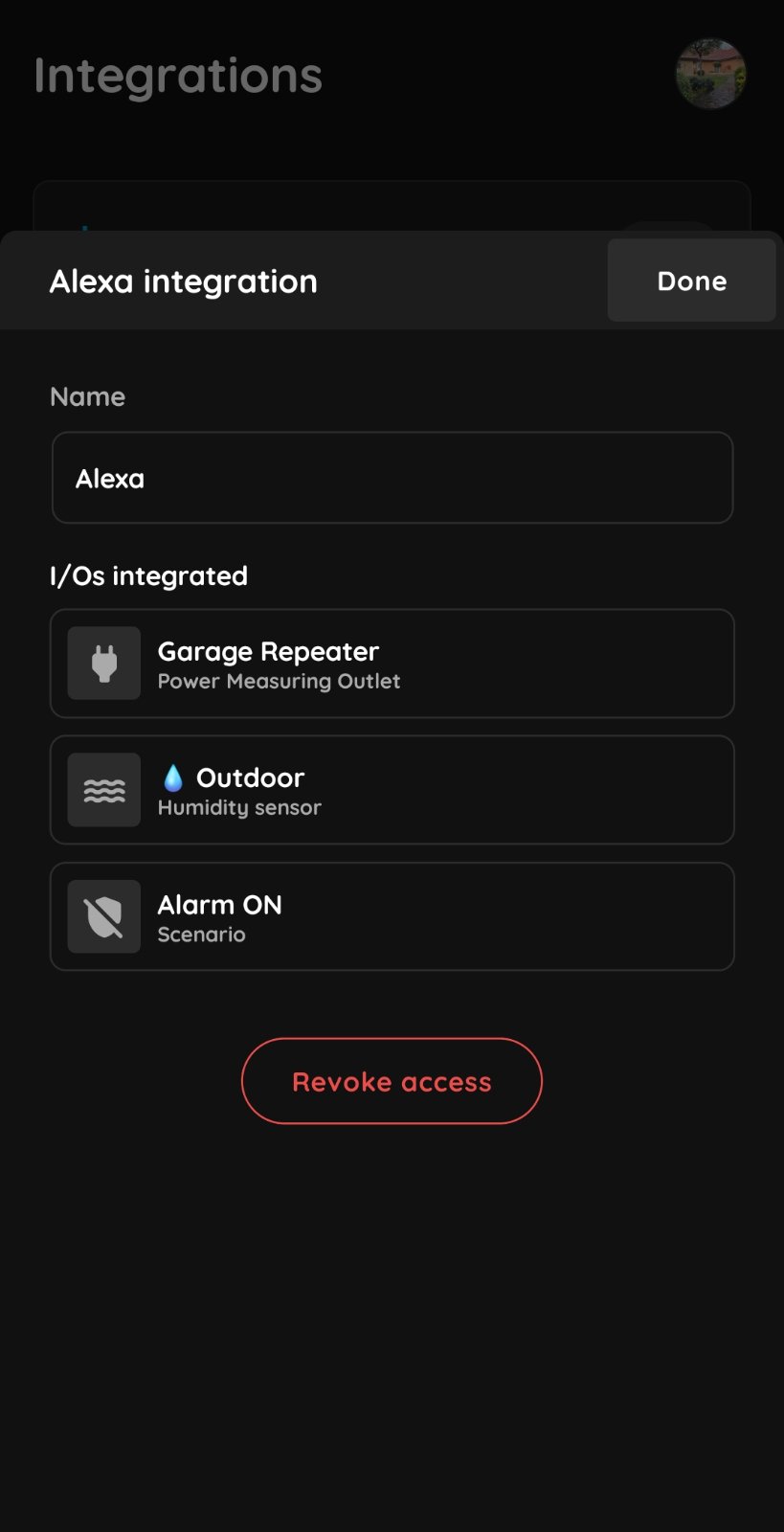
Review the integration
Revoke Access – The integration can be revoked at any time.
Troubleshooting
1. Run discovery again: say "Alexa, discover devices" or use Devices → + → Add Device in the Alexa app. 2. Check that the name you say matches the device name in PIERRE and Alexa. 3. Check that the device is powered and online in PIERRE and that the PIERRE skill is still linked.
Use “set to warm white” (or “cool white” / “daylight”) rather than a color name.
No—only activate scenes. Consider creating a separate “Reset” scene if needed.