Solution - PIERRE Music Integration - SONOS
Description
Music integration makes audio part of the system rather than something managed separately. Music can be included in routines, scenarios and automations, so it starts as part of a moment in the home instead of being triggered by hand every time.
Typical Uses
- Music starting when someone arrives home.
- Music as part of a morning routine, together with the lighting and the blinds.
- A different setting in the evening, run from a single scene.
Technical Notes
- The audio system keeps its own control app and its own settings. The integration adds the ability to include it in scenes, it does not replace the audio system.
- The speakers and the system need to be commissioned and working on their own before the integration is configured.
- Agree the volume levels used in scenes with the customer; a scene that starts music at the previous volume is a common complaint.
- Confirm which models are supported before quoting a project.
What it does
Music Integration allows supported audio devices to be used inside PIERRE as part of the smart home system.
The integration does not filter devices by Sonos model (e.g. Play:1, Amp, Port, Era 100). Instead, it detects and communicates with any compatible Sonos device available on the local network.
With this integration, you can:
- start a playlist
- pause and resume playback
- skip to the next track
- adjust the volume
- include music in scenarios and automations
This makes music part of the way the home responds.
Supported devices
Music Integration currently works with supported Sonos devices.
PIERRE communicates with the audio system over the local network and makes playback available inside the smart home experience.
Setup
To use Music Integration, first set up your Sonos system and then connect it inside Smart PIERRE.
Step 1: Set up Sonos
Download and log in to the Sonos application.
Add and configure your Sonos speakers there.
Step 2: Connect Sonos in Smart PIERRE App
In the Smart PIERRE application:
- go to Integrations
- select Sonos
- choose the appropriate Role
- choose the appropriate Dashboard
- save the settings
Step 3: Make sure everything is on the same network
This feature works on the local network.
The Smart PIERRE application scans the network for available Sonos speakers, so the supported devices must be reachable on that same network.
How to use it
Once the integration is connected, music can be controlled through Smart PIERRE.
Using the Sonos application, select a playlist.
That playlist can then be controlled from the Smart PIERRE application.
Available actions include:
- play
- pause
- next track
- volume control
Music can also be added to scenarios and automations inside PIERRE.
Example scenarios
Good Morning
A morning scenario can start a selected playlist automatically as part of a wake-up routine.
Welcome Home
When arriving home, music can start automatically and immediately change the feeling of the space.
Evening atmosphere
An evening routine can combine lighting and music to create a calmer or more immersive atmosphere.
Summary
Music Integration in PIERRE allows supported Sonos devices to become part of scenarios, routines and automations.
Once connected, music can be controlled through Smart PIERRE and used as part of the way the home responds throughout the day.
Sonos Integration
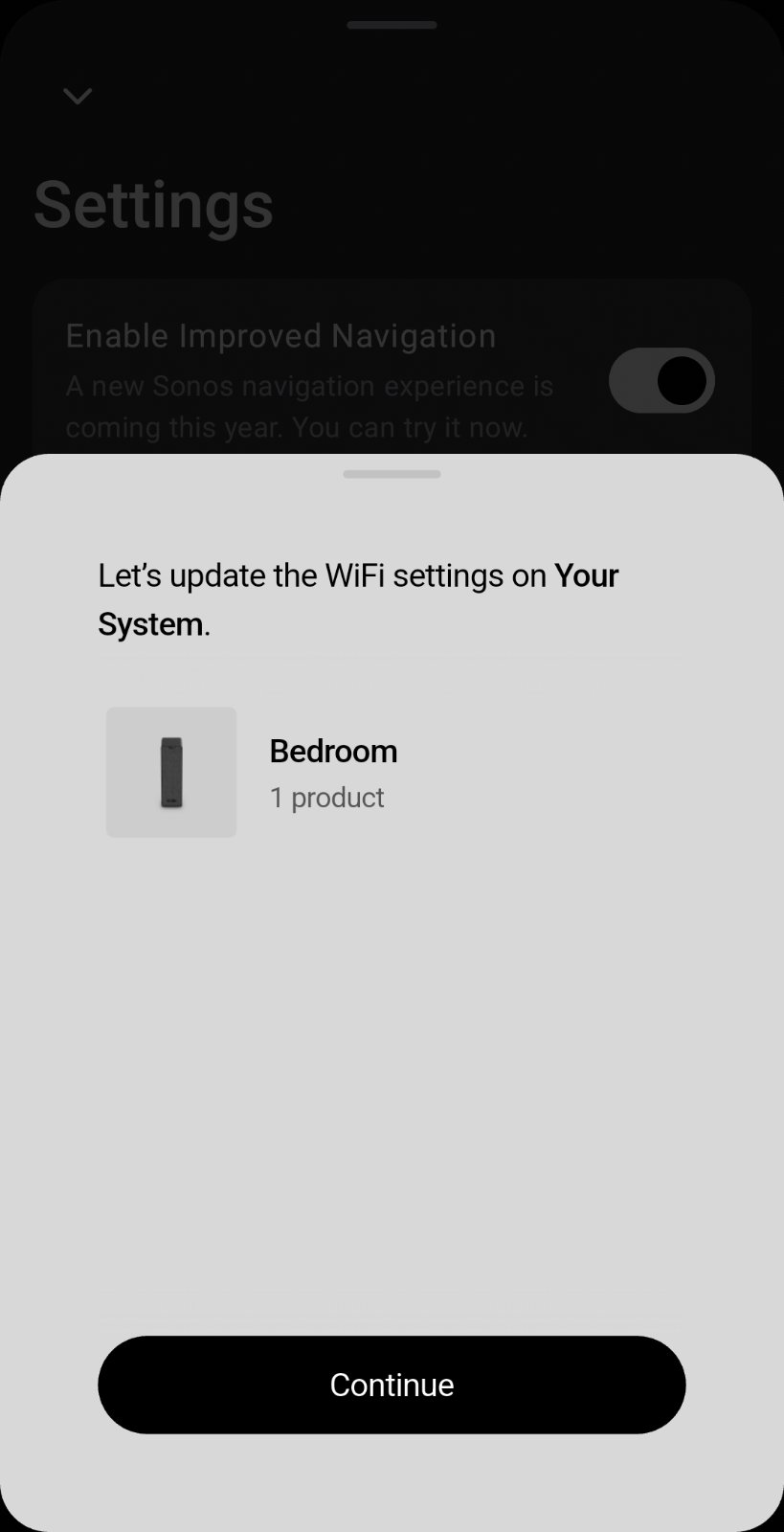
Sonos application
Go to Menu → Settings → Integrations.
Tap Sonos to add the integration.
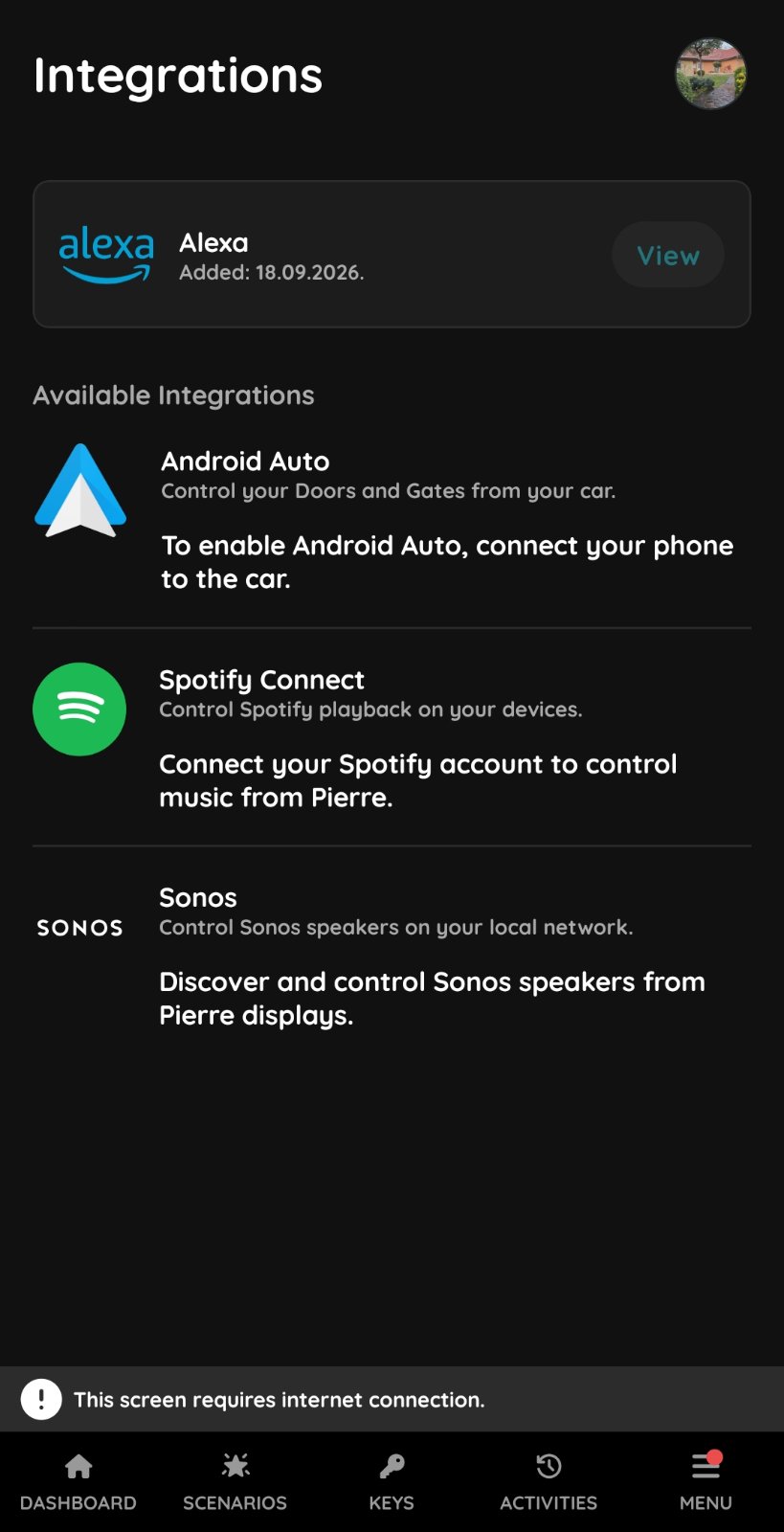
Smart PIERRE application
Go to Menu → Settings → Integrations.
Tap Sonos to add the integration.
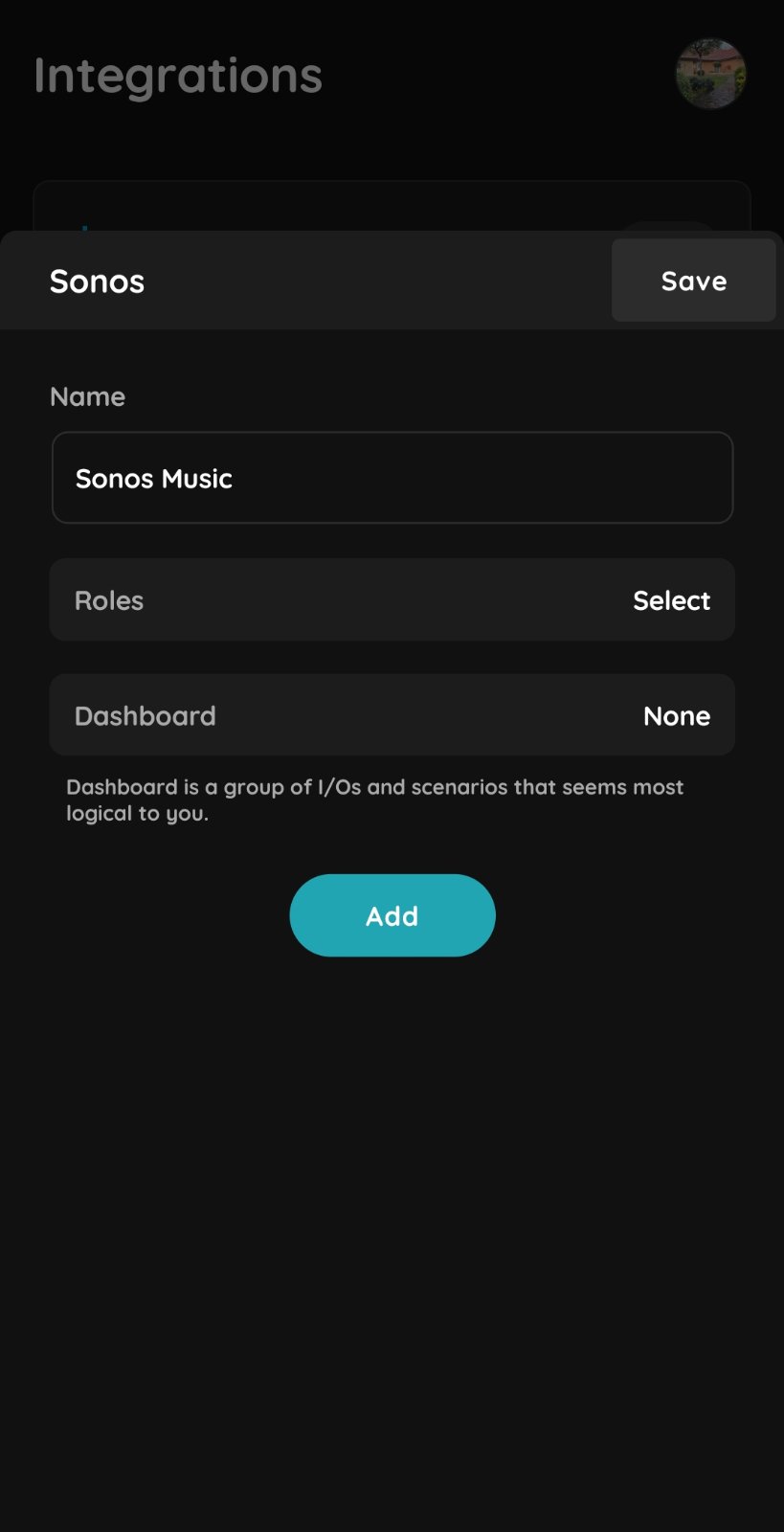
Settings
Name – Enter a name for the Sonos device.
Roles – Select the Role where the Sonos I/O will be added.
Dashboard – Select the Dashboard where the Sonos I/O will be displayed.
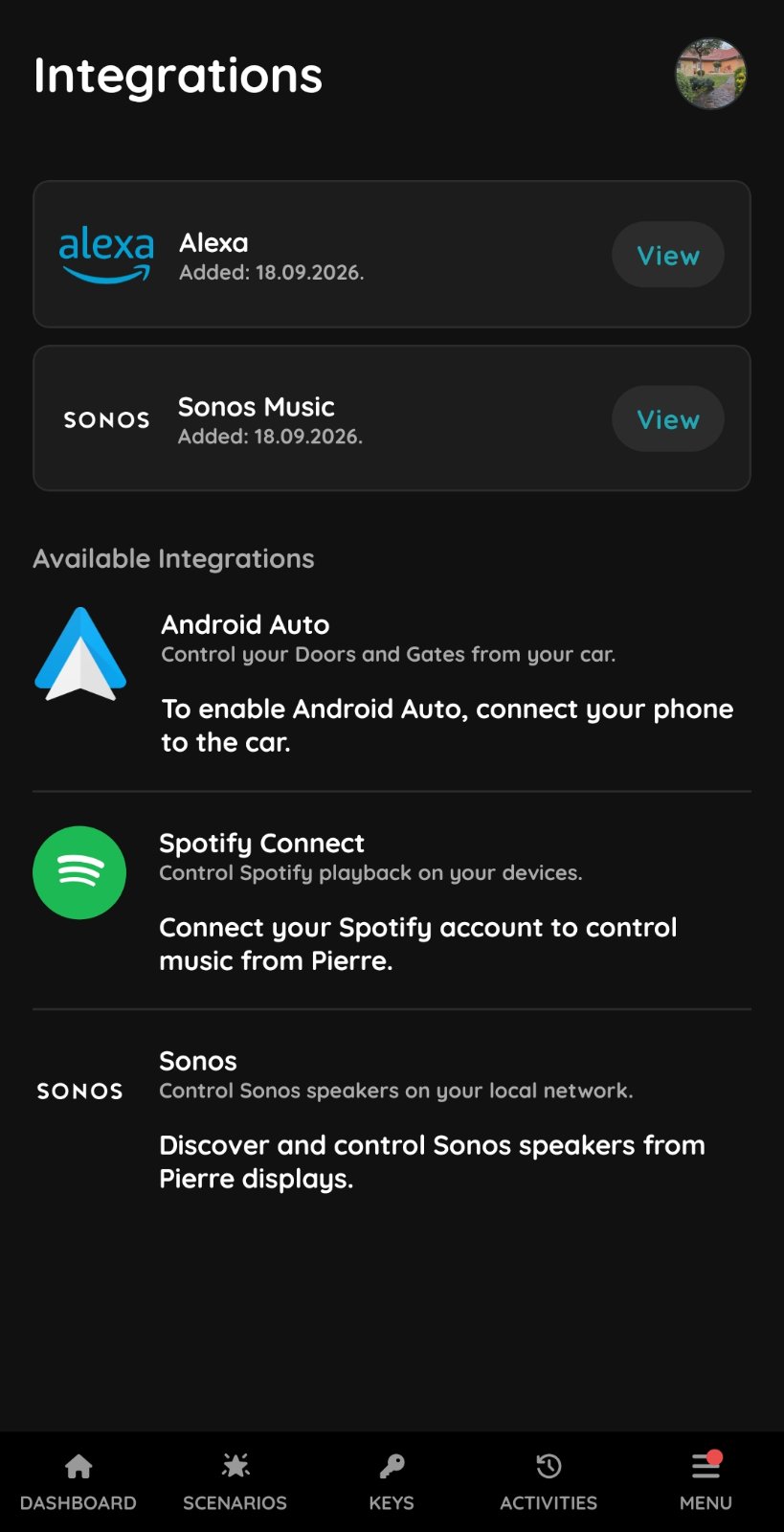
Finished setup
Tap View to review the Sonos settings.
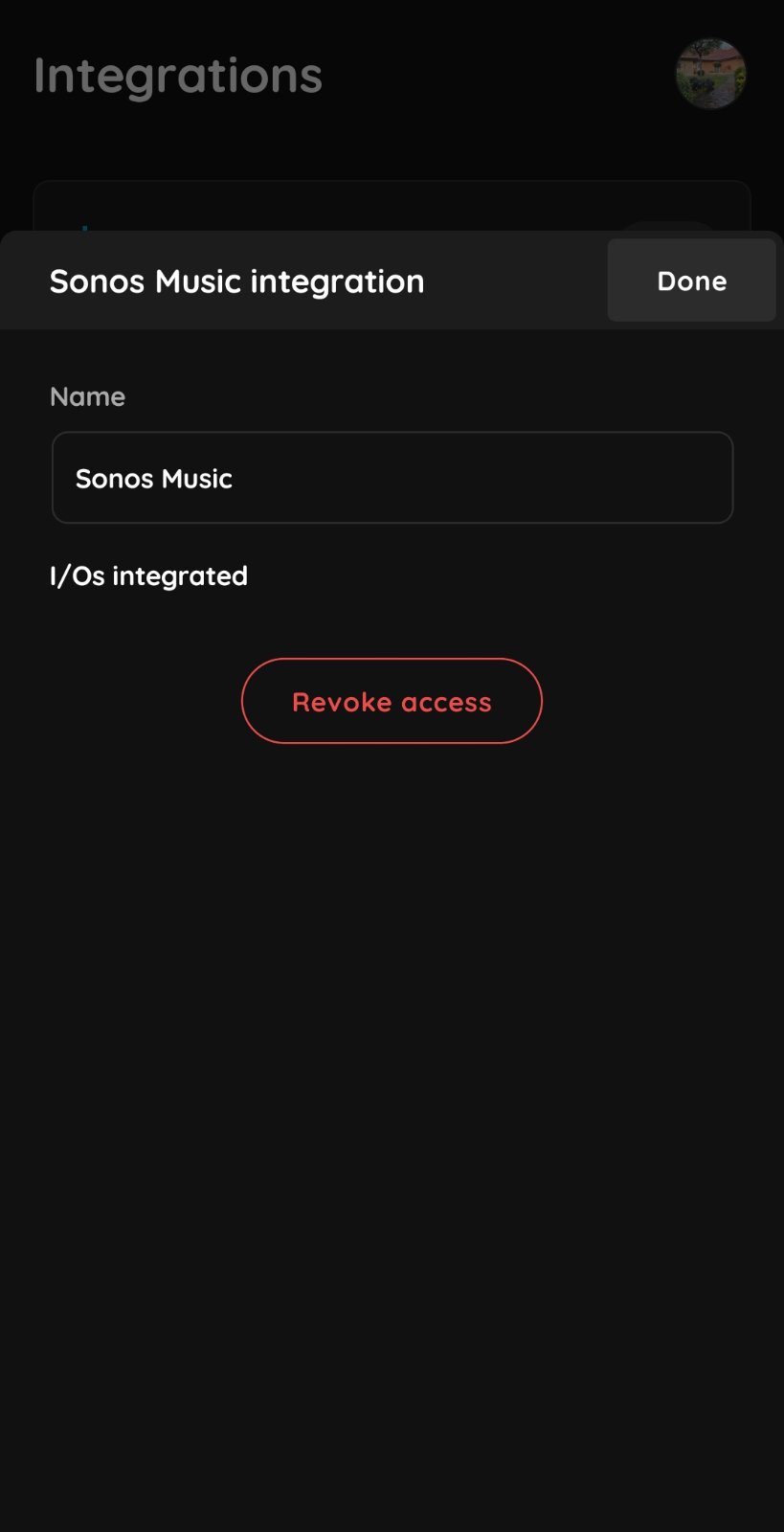
Sonos settings
Name – The name of the integration can be changed.
Revoke Access – Removes the Sonos integration.
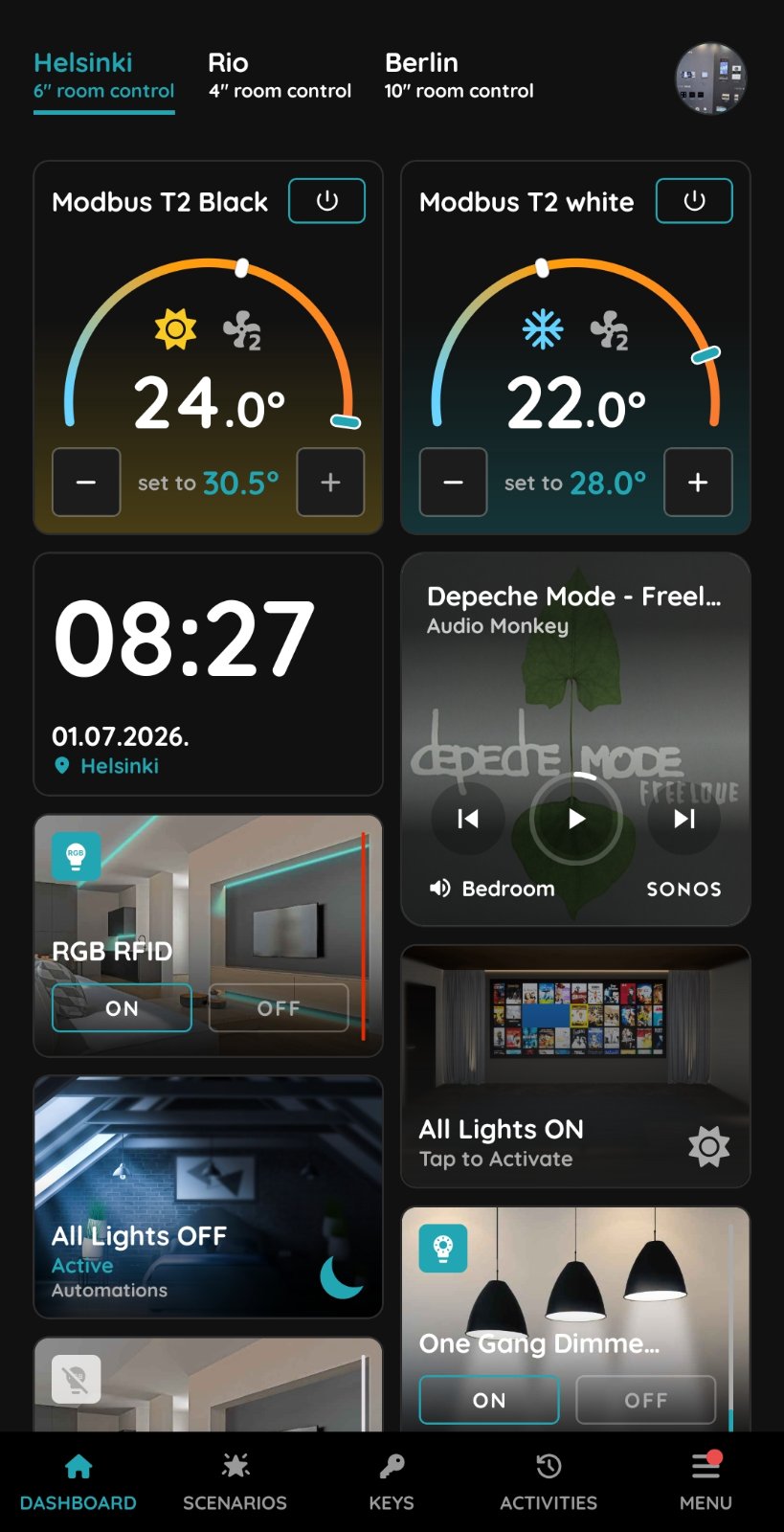
Dashboard
The Sonos I/O displayed on the Dashboard.
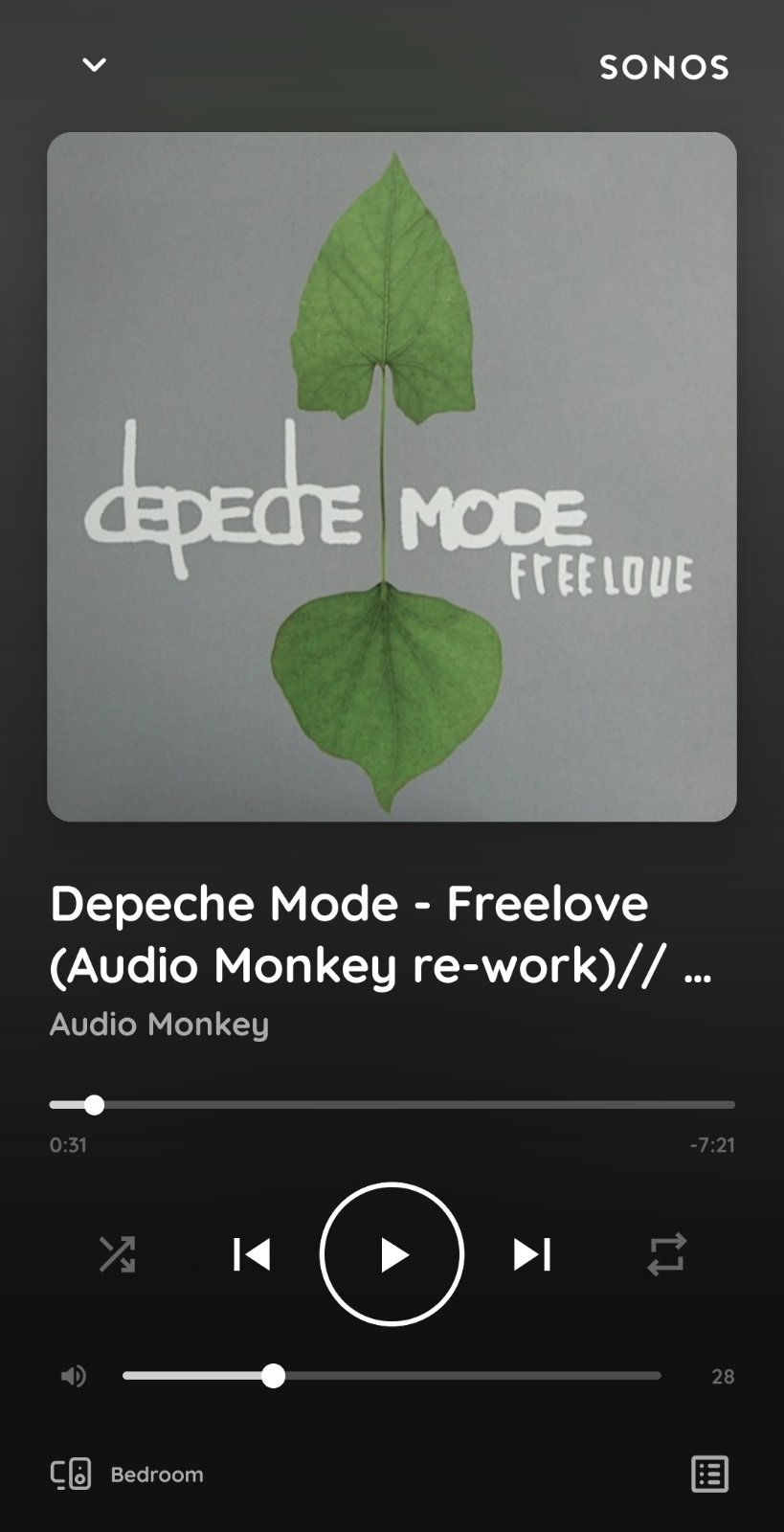
Sonos I/O
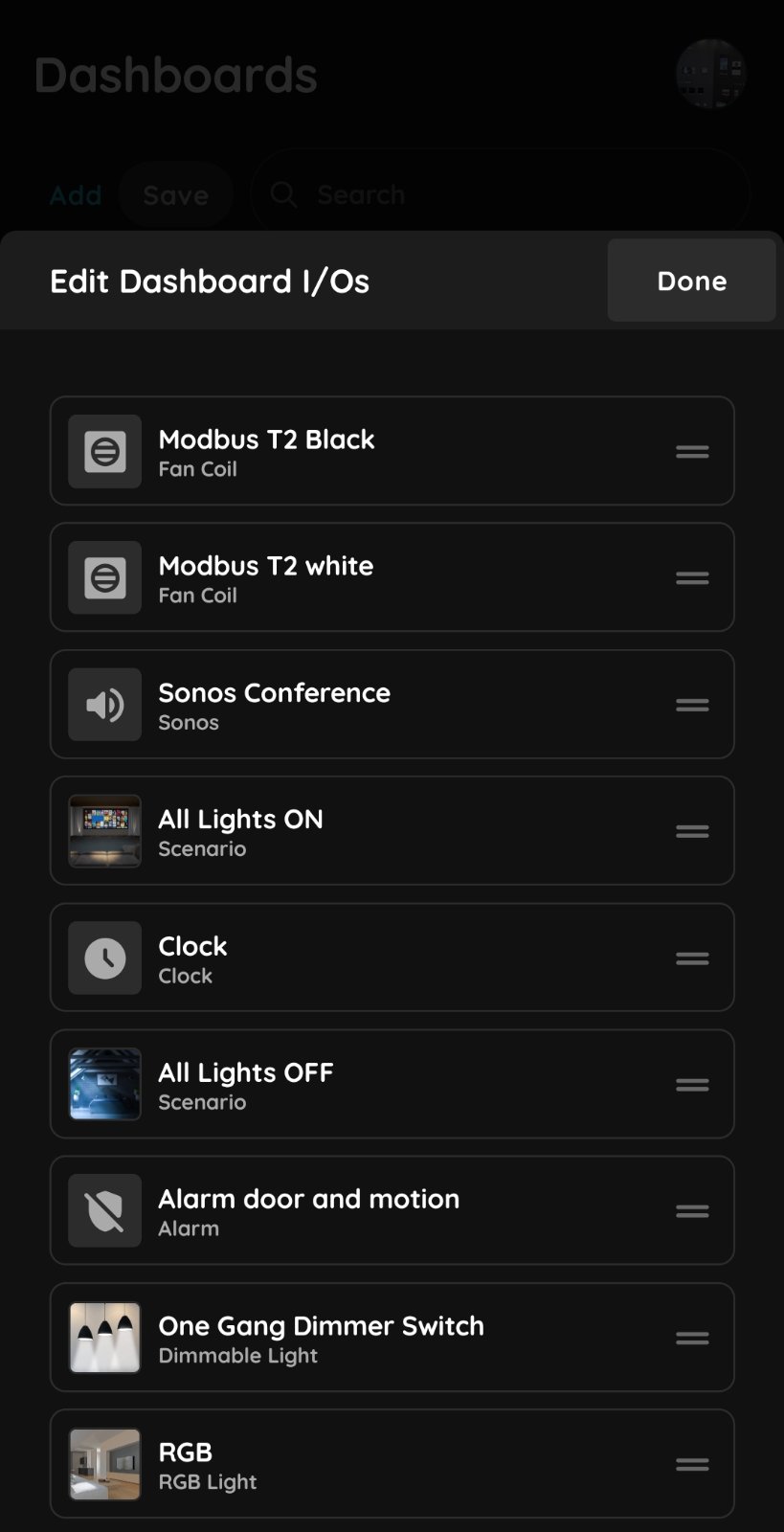
Sonos I/O
The Sonos I/O will appear in the application.
It can be used as part of Scenarios or Automations.
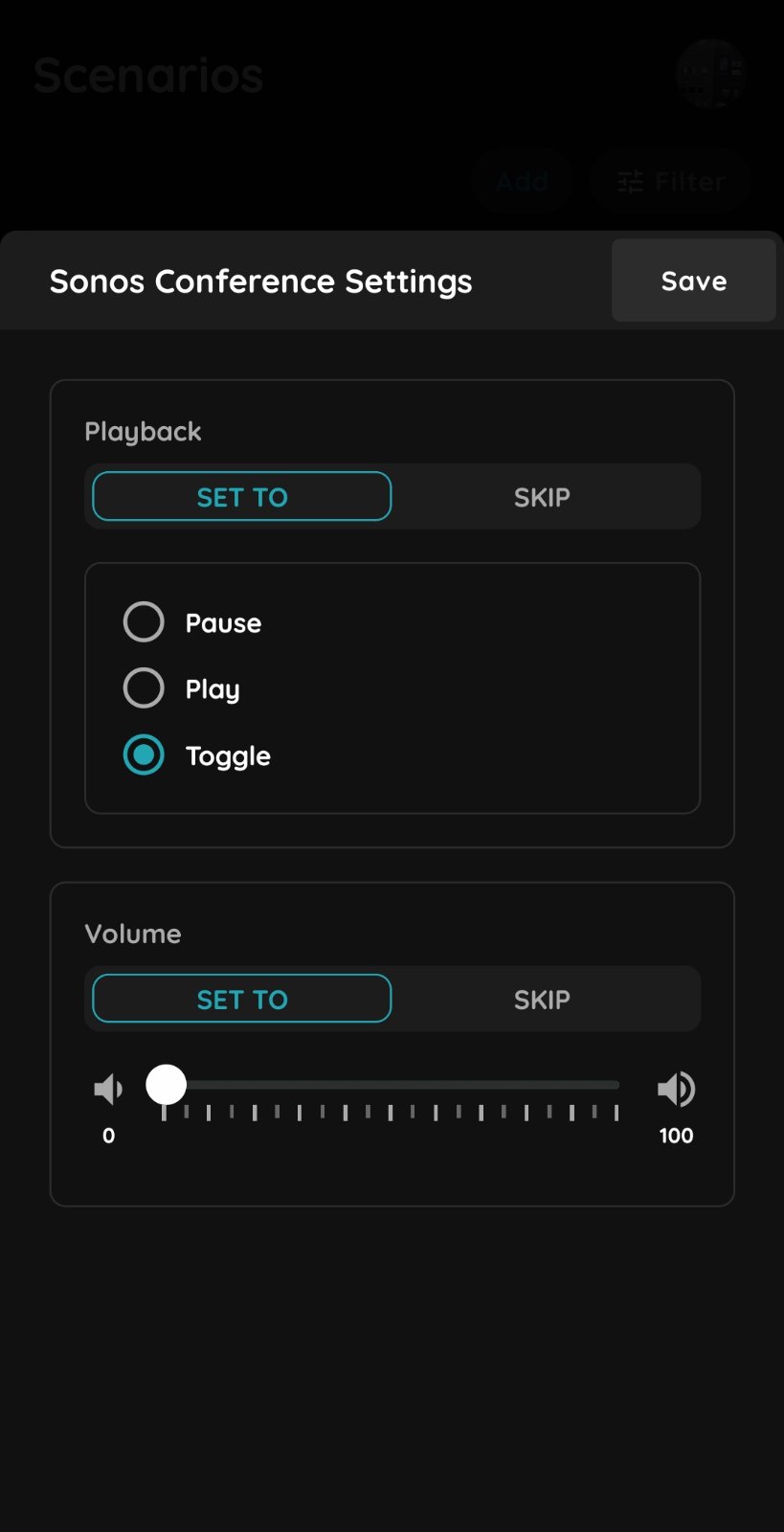
Sonos details
There are parameters that can be set within a Scenario to control Sonos in PIERRE.
Playback – This parameter can be skipped or set to one of the following actions: Pause, Play, or Toggle.
Pause – Pauses the current playback.
Play – Starts playback.
Toggle – Changes the current playback state:
If music is playing, it pauses the playback.
If playback is paused or stopped, it resumes playback from the existing queue, continuing from where it was paused.
Volume Control – This parameter can be skipped or used to set the volume level from 0 to 100.