Smart PIERRE - Alerts
Description
The Alerts section in Smart PIERRE application allows users and system administrators to create, manage, and monitor real-time notifications based on specific events, device states, or automation conditions within the smart home or building system.
Alerts help monitor security events, technical failures, access control activity, and other important system conditions.
Main Features
Create and Manage Alerts
New alerts can be created using the Add button. Each alert can be configured with custom trigger conditions based on selected I/Os, device states, or automation events.
Notification Methods
Alerts can notify users through multiple channels:
- Mobile push notifications
- Phone call notifications
- System log entries
Trigger Conditions
Alerts can be configured to react to specific system events, including:
- Door or gate status changes
- Motion detection
- Unauthorized access attempts
- Technical faults or offline devices
- Sensors exceeding configured thresholds
- Devices remaining active for longer than a specified time
Automation Integration
Alerts can be integrated with automations and system logic.
When an alert condition is triggered, the system can automatically execute configured actions such as:
- Activating lights
- Triggering alarms or sirens
- Opening or closing devices
- Sending additional notifications
- Starting predefined automation scenarios
Monitoring and Event History
The Alerts section provides an overview of active alerts, triggered events, related I/Os, and notification history. Logged events can be used for diagnostics, troubleshooting, and security monitoring.
Example Use Cases
- Security and intrusion notifications
- Garage door left open alerts
- Water leak or gas leak warnings
- HVAC or equipment fault notifications
- Access control event monitoring
- Device offline or communication failure alerts
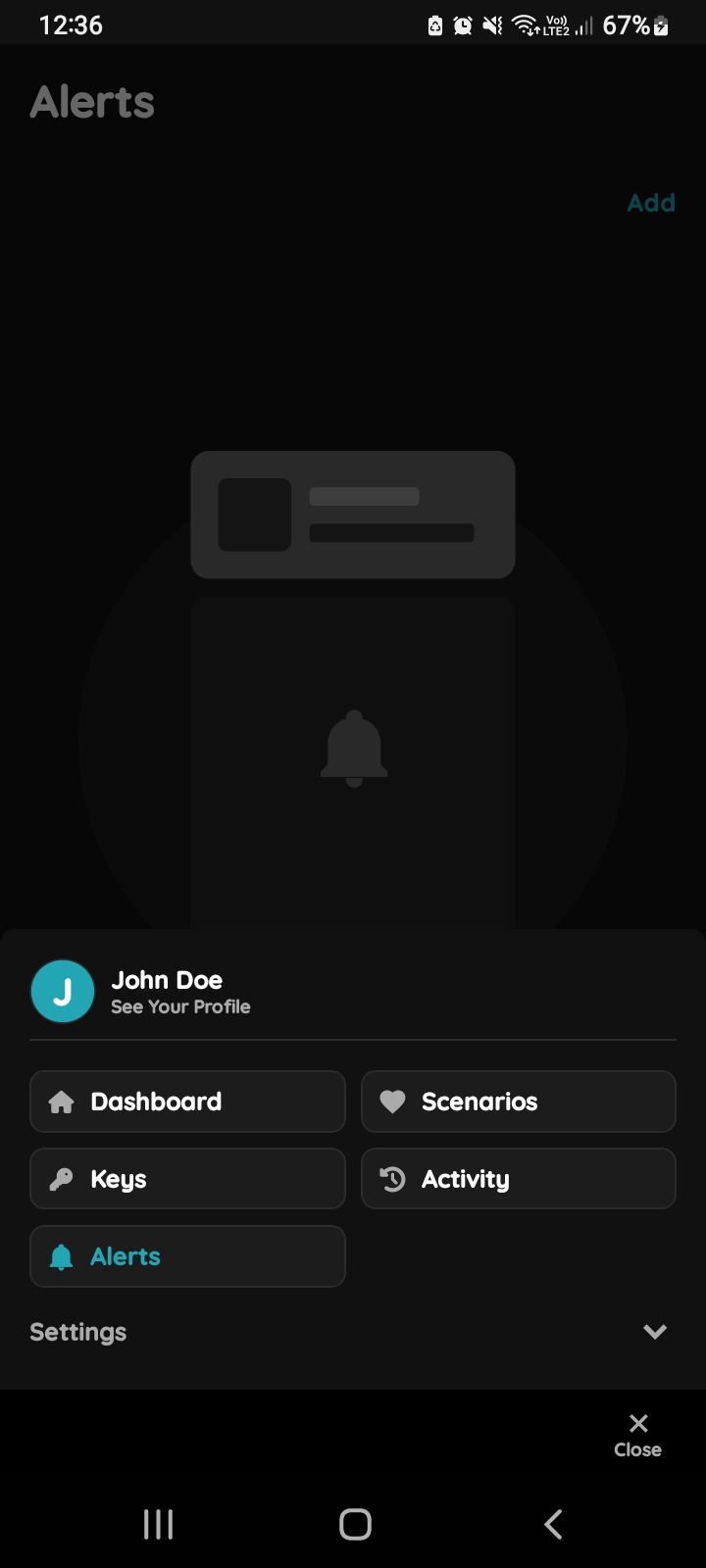
Open Alerts - Menu list
Open Alerts under Settings.
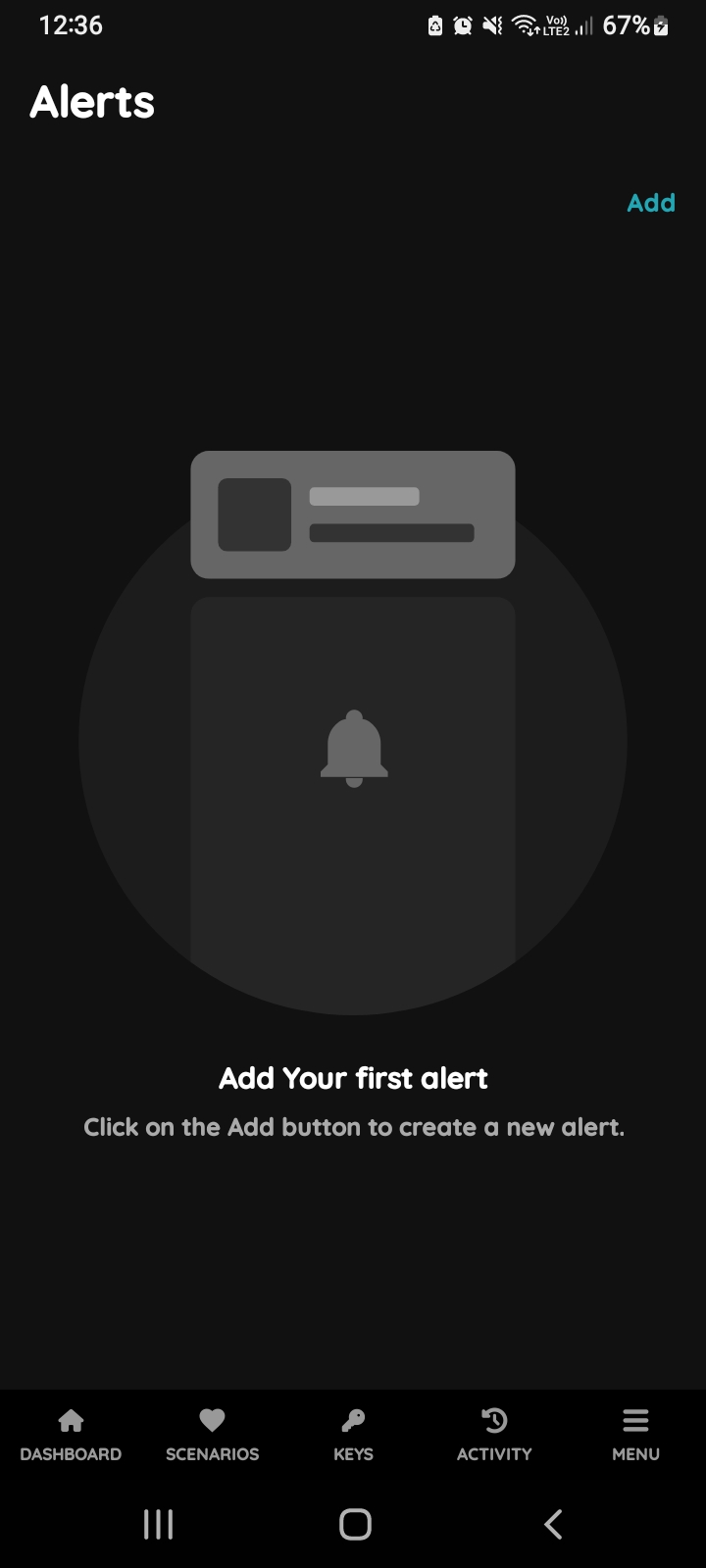
Open Alerts
Tap on the Alerts from the Menu list.
Button Add - New Alert
Follow next steps to add New Alert.
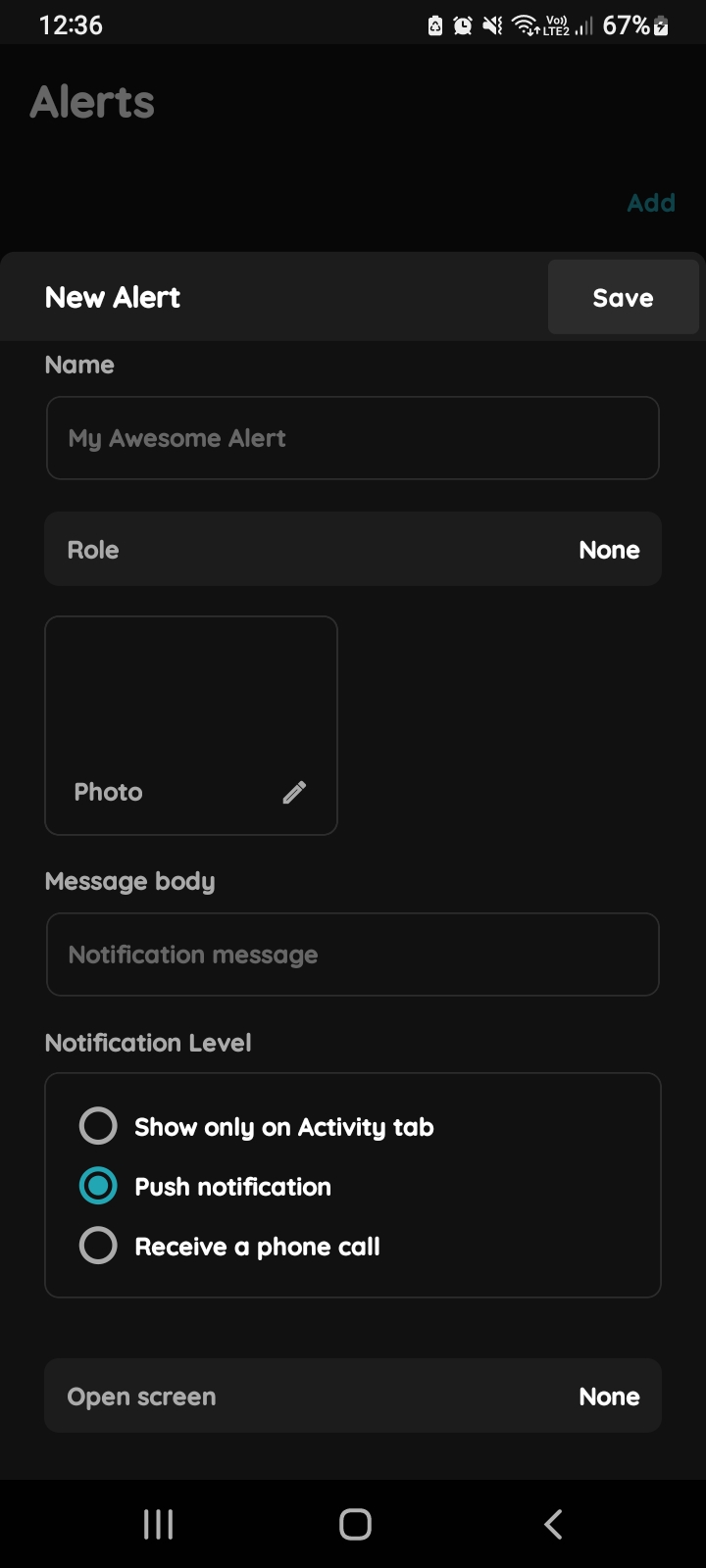
New Alert
Fill the following form:
- Name - Enter the name of the Alert.
- Role - Select the Role from the list.
- Photo - Choose a photo to represent the Alert.
- Message body - Enter the message that will be displayed when the Alert is triggered.
Notification Level (tap radio button next to desired notification level):
- Display only in the Activity tab - This alert will appear in the list of all activities that have occurred over time on the Activity tab.
- Push notification (A push notification is a message sent directly to your device, alerting you instantly without needing to open the app.)
- Receive a phone call - A phone call will be made as an alert.
Open screen - Specifies which screen opens when tapping on the alert notification.
Tap Submit/Save.
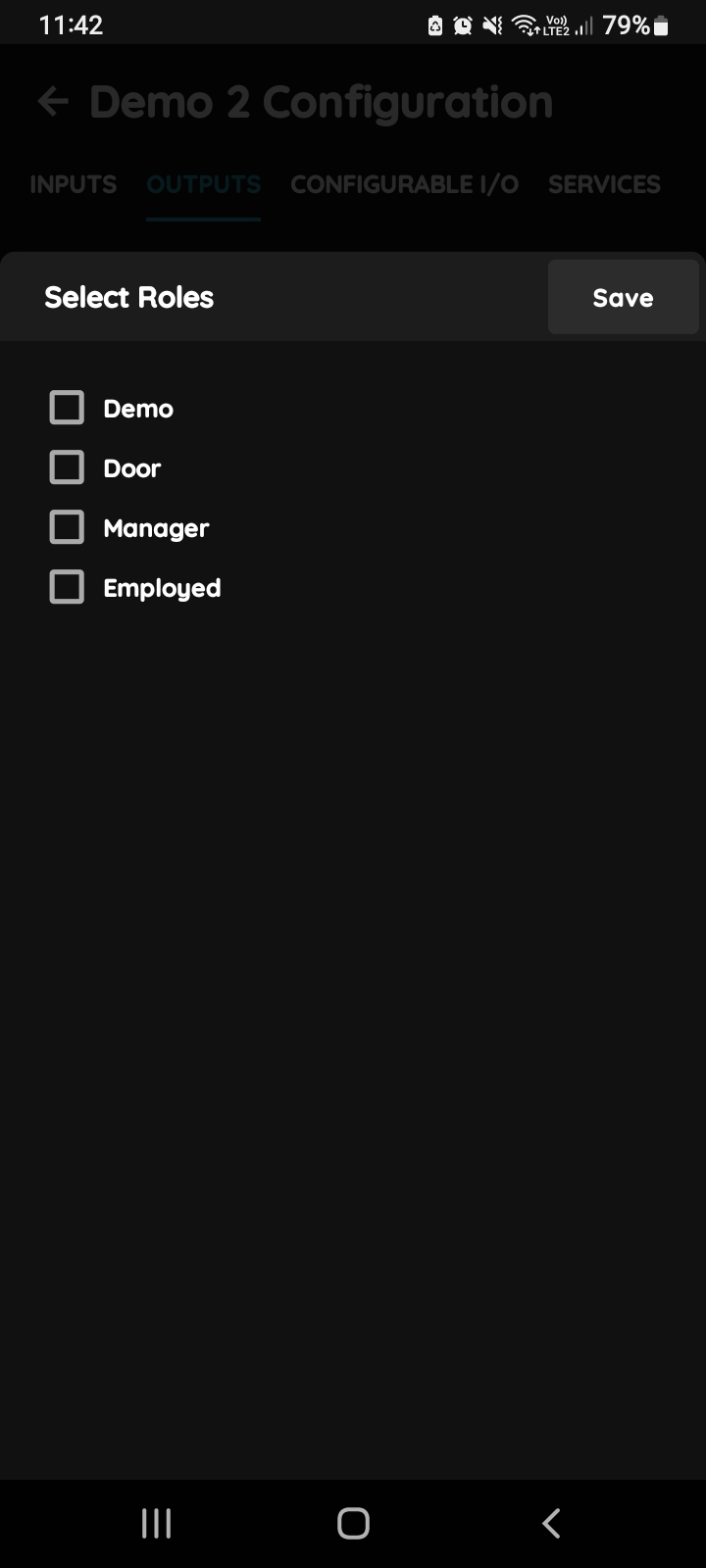
Select Roles
You can select desired Role or Roles - multiple choice if you tap on the checkboxes next to them.
Tap on Save/Done.
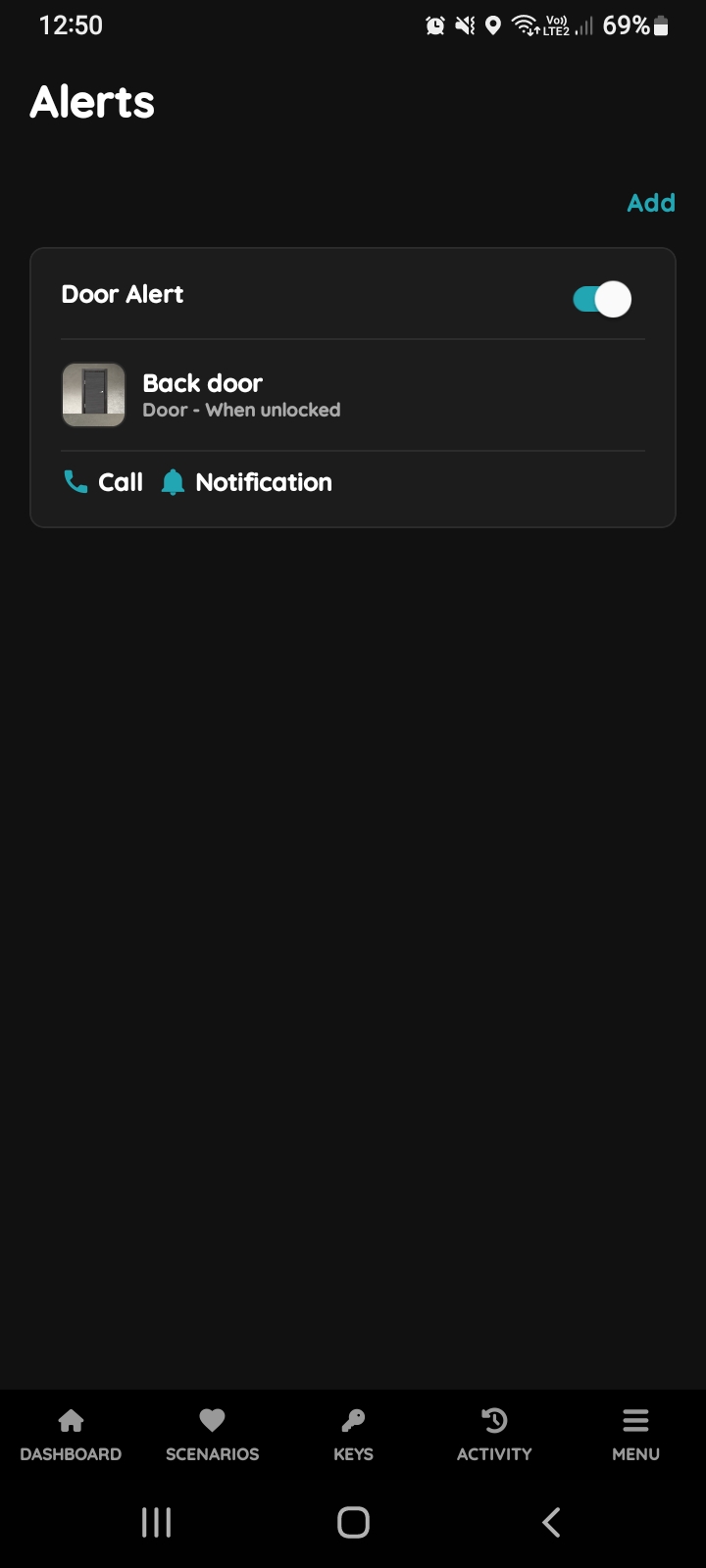
Choose Alert for editing
Edit Alert in a few steps.
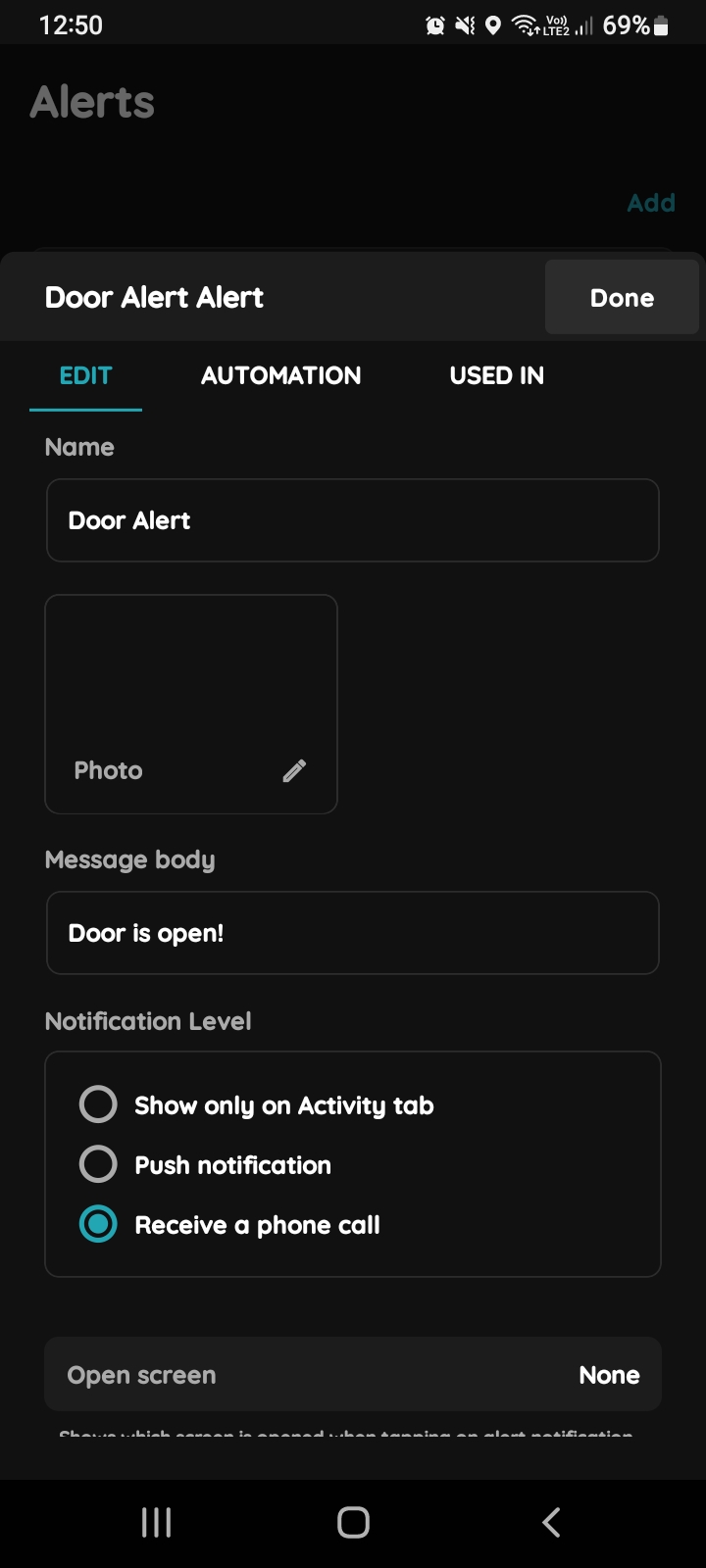
Edit Alert
- Name - Enter the name of the Alert.
- Role - Select the Role from the list.
- Photo - Choose a photo to represent the Alert.
- Message body - Enter the message that will be displayed when the Alert is triggered.
Notification Level (tap radio button next to desired notification level):
- Display only in the Activity tab
- Push notification (A push notification is a message sent directly to your device, alerting you instantly without needing to open the app.)
- Receive a phone call
Open screen - Specifies which screen opens when tapping on the alert notification.
Tap Submit/Save, or if you would like to delete Alert, tap button Delete.
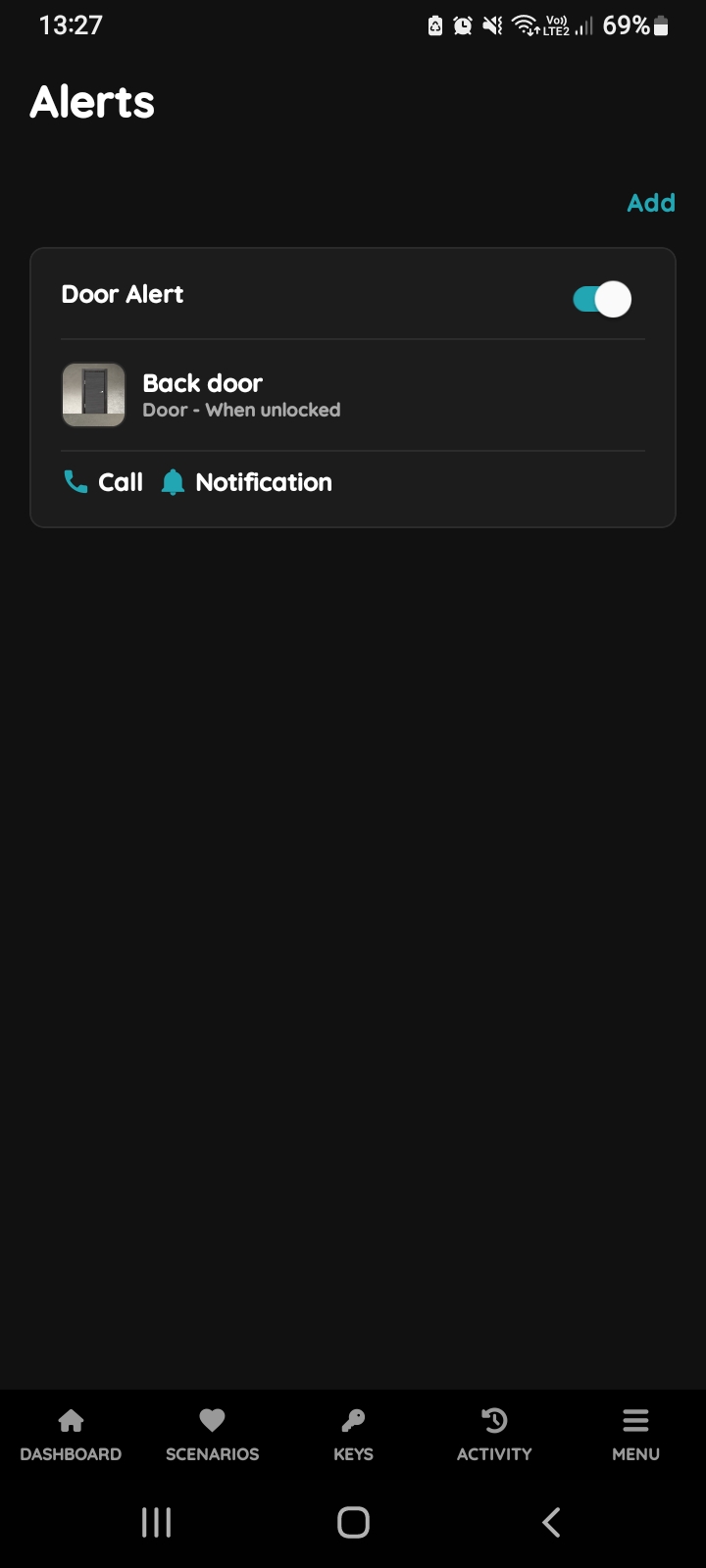
Enable/disable button - Alert
In order to enable Alert use slide button next to it.
Under each Alert is shown which Notification Level is included.
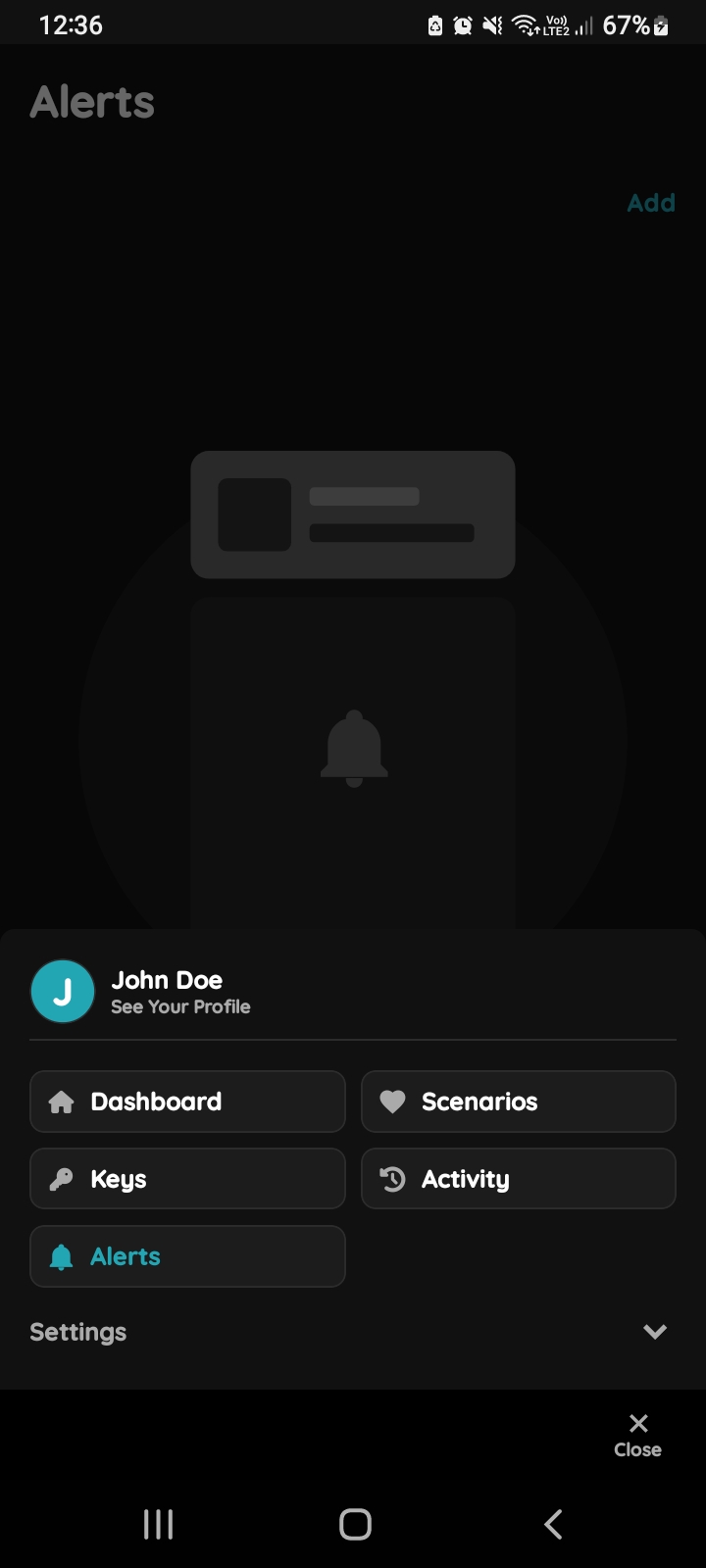
Open Alerts from the Menu
Automation is also available in Alerts.
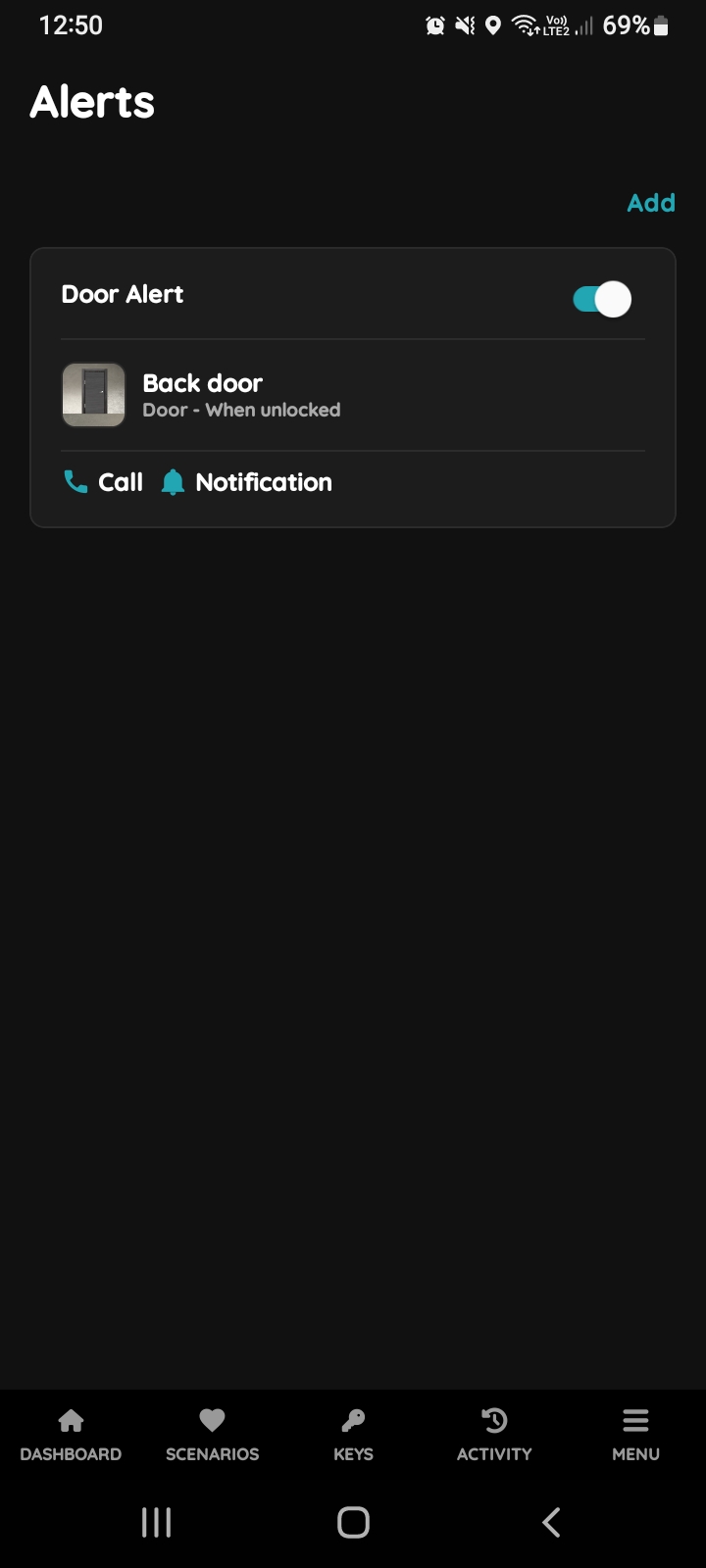
List of Alerts
Tap on the Alert that you would like to include into Automation.
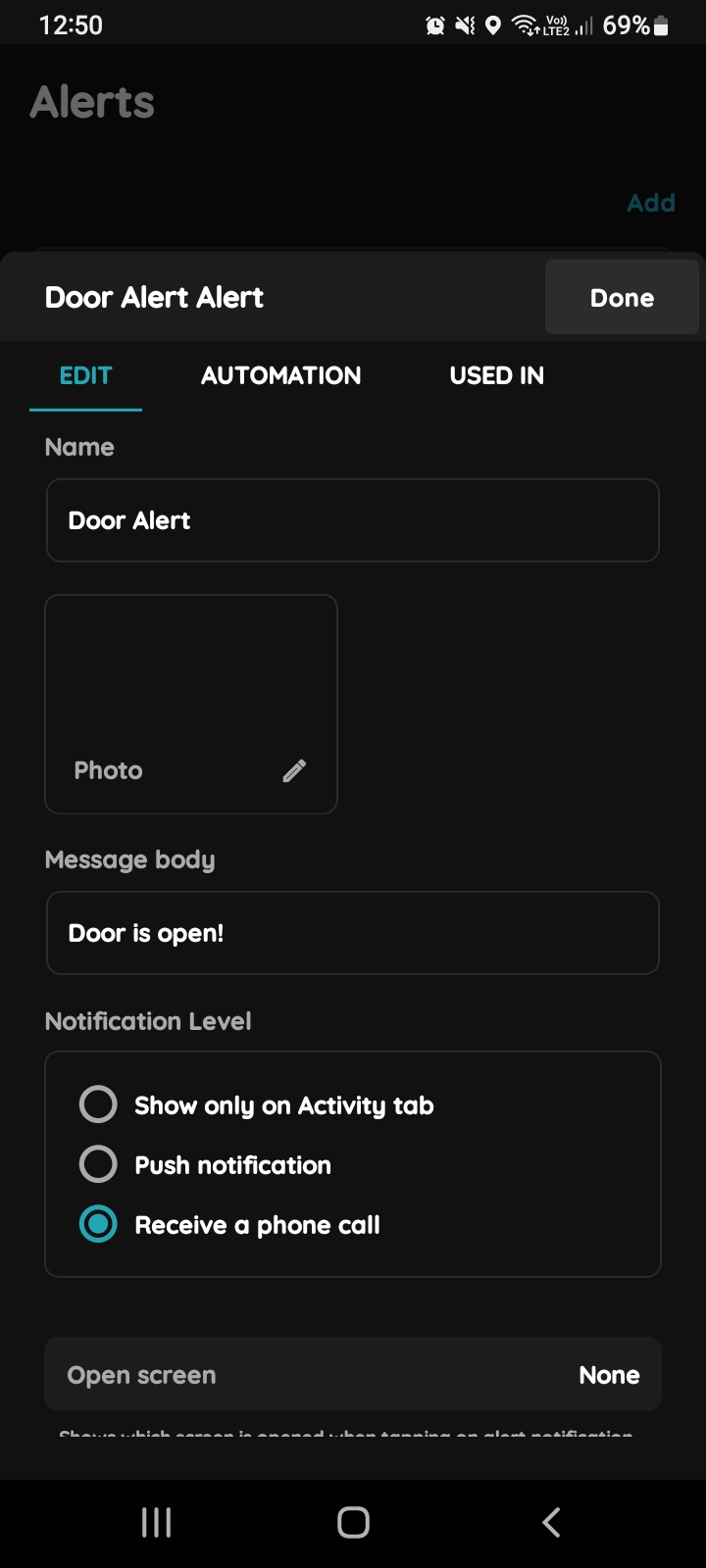
Automation - Alerts
Tap on the tab Automation.
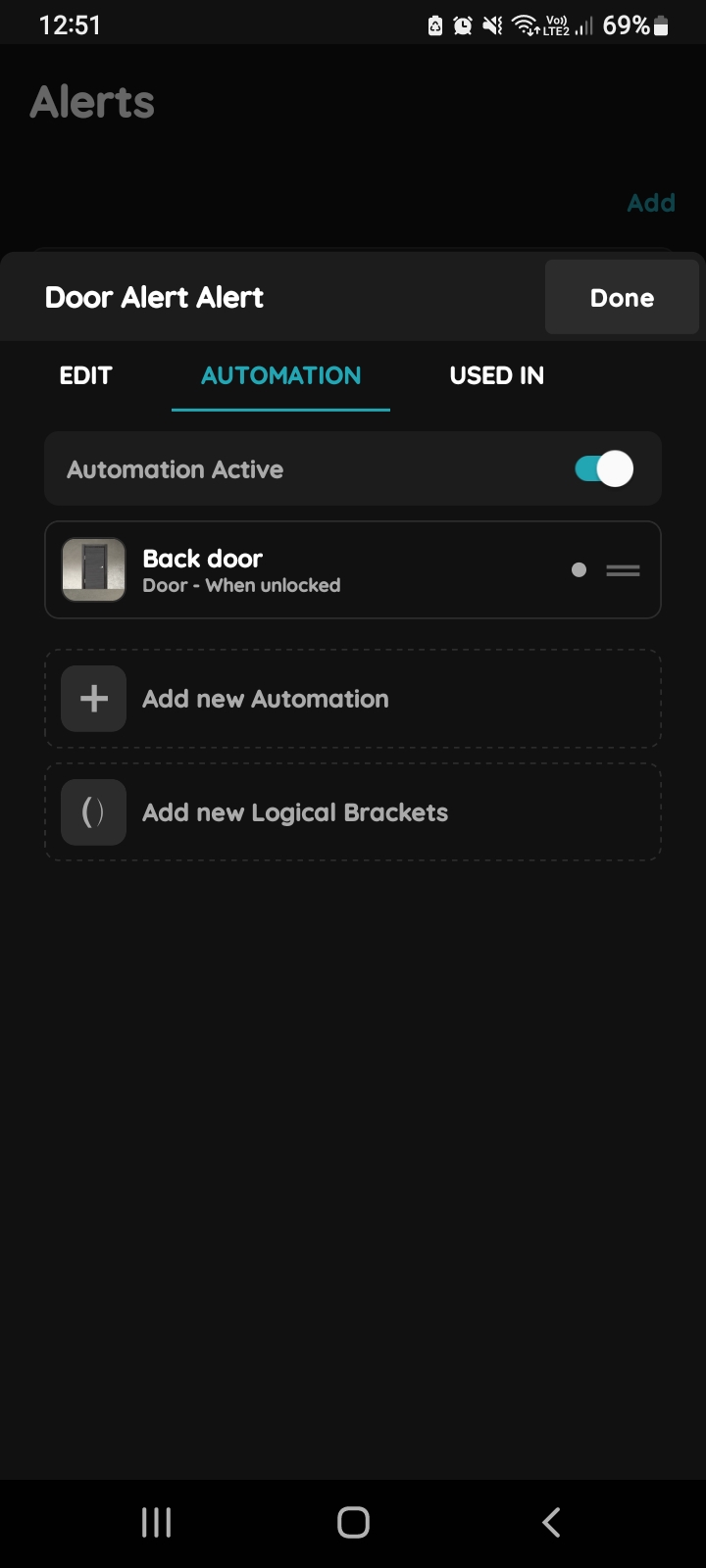
Add new Automation - Alert
List of Automations where Alert is included is shown.
When these conditions are met, it will trigger the Alert.
If you want to add new Automation tap +Add new Automation.