Smart PIERRE - Cameras
Description
Cameras
The Cameras section of the Smart PIERRE app allows you to view all connected security cameras.
Features
Camera Overview
-
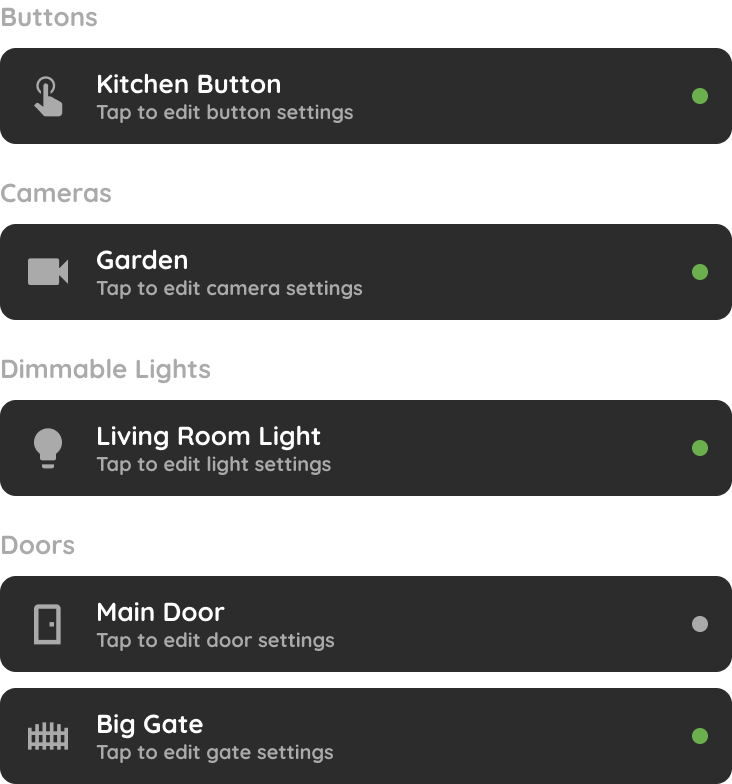
View all connected cameras and their current status in a single list.
Live View
-
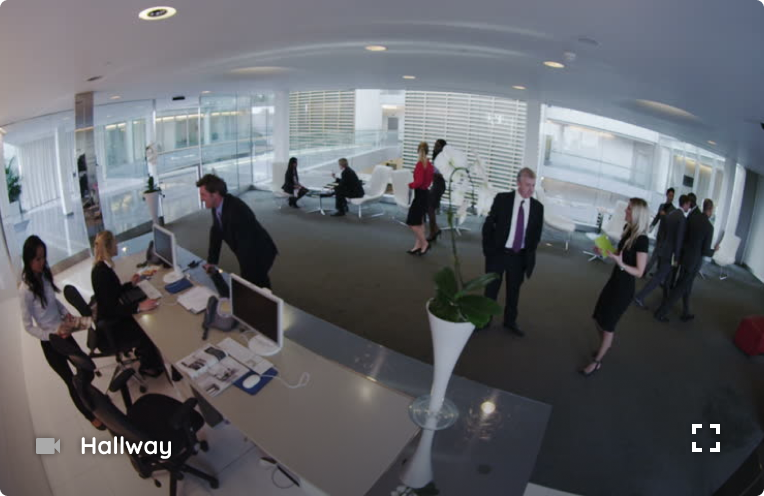
Tap a camera to open its live video feed in full-screen mode.
Camera Settings
-
Press and hold a camera to access its settings.
-
Rename the camera.
-
Change its position within the list.
-
Modify available camera settings.
The Cameras section provides quick access to live video streams and camera configuration, allowing you to monitor and manage your security cameras from a single interface.
Open Cameras
Follow next steps to open Cameras.
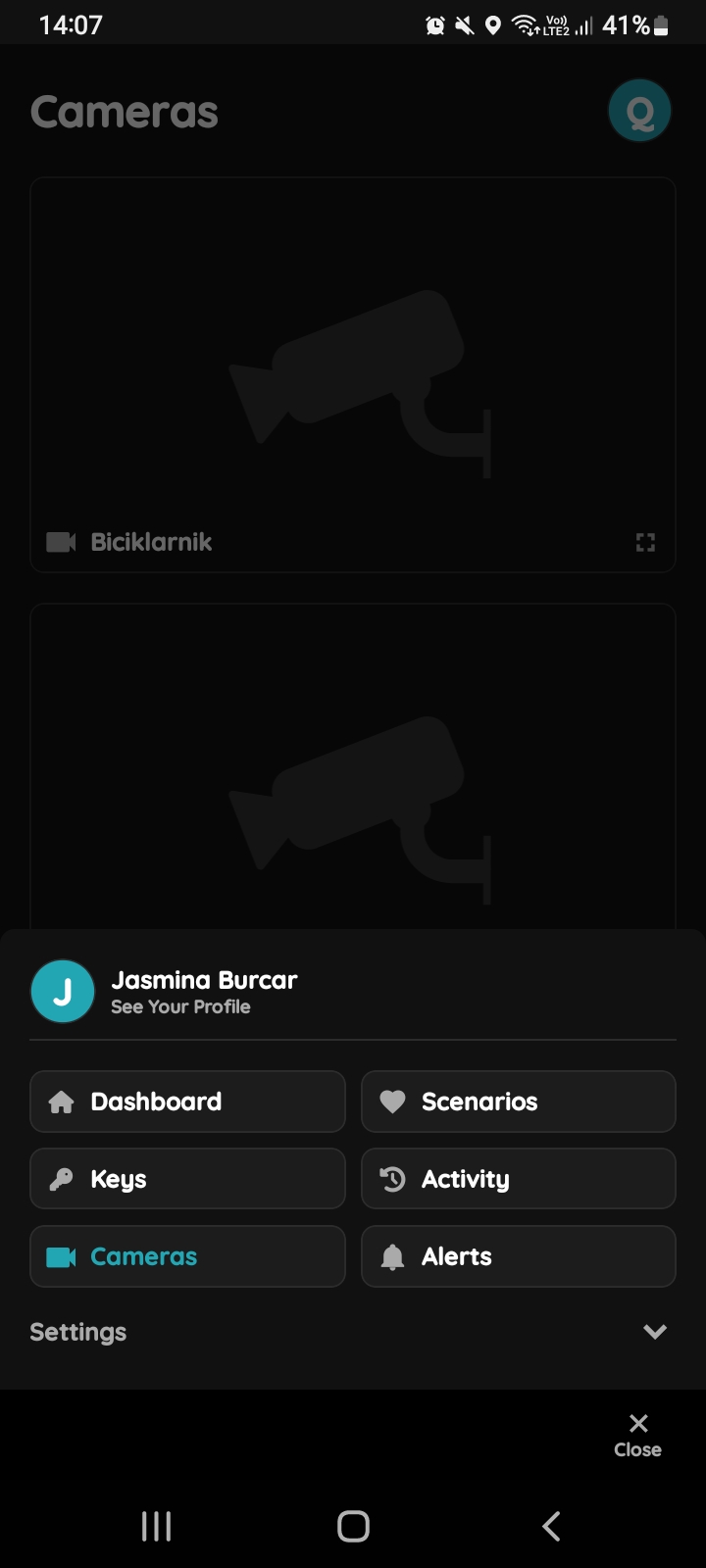
Open Cameras - I/O list Menu
Tap on the Cameras.
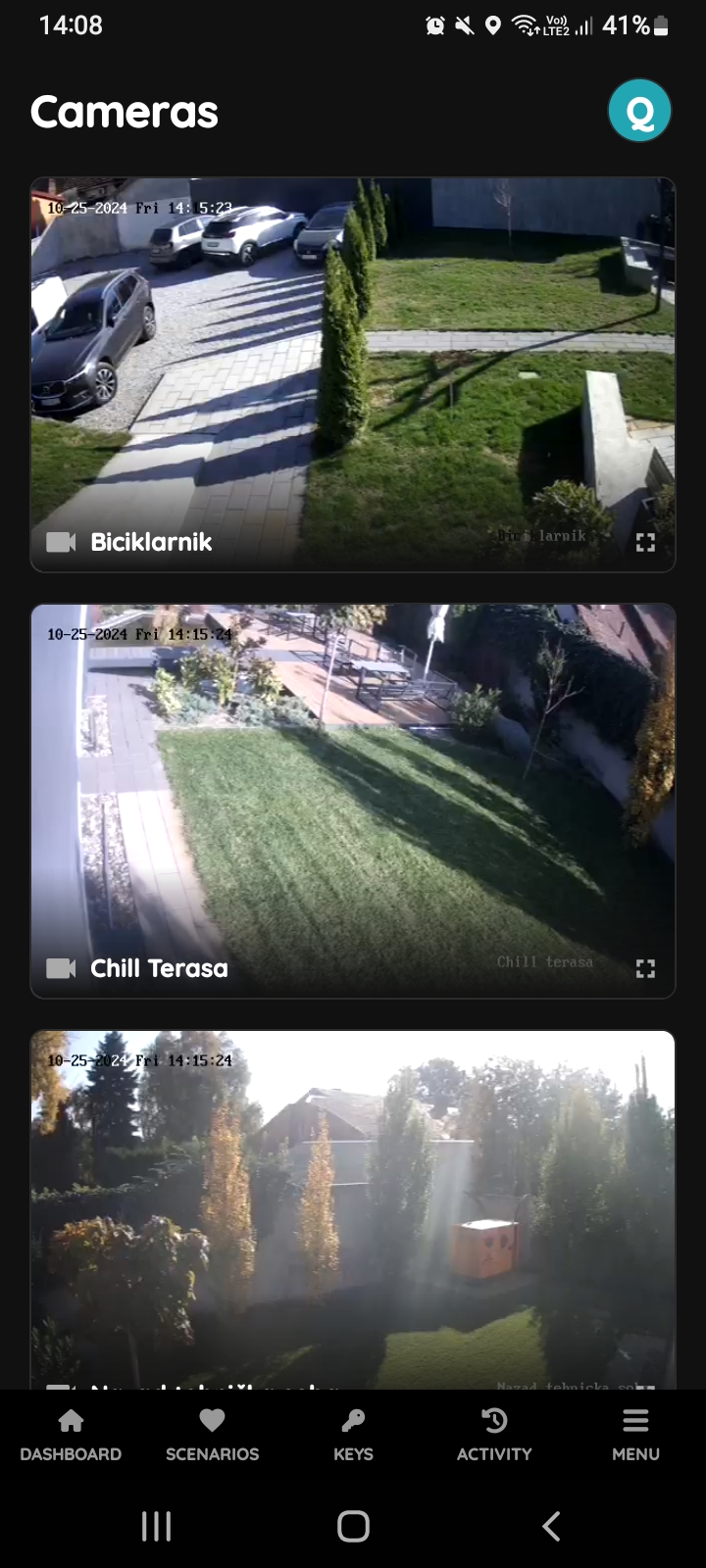
List of Cameras
The list of Cameras shows each Camera's live view, providing a convenient overview of all feeds in one place.
Scroll through the list to locate any specific Camera, and tap on it to make edits if it is needed.
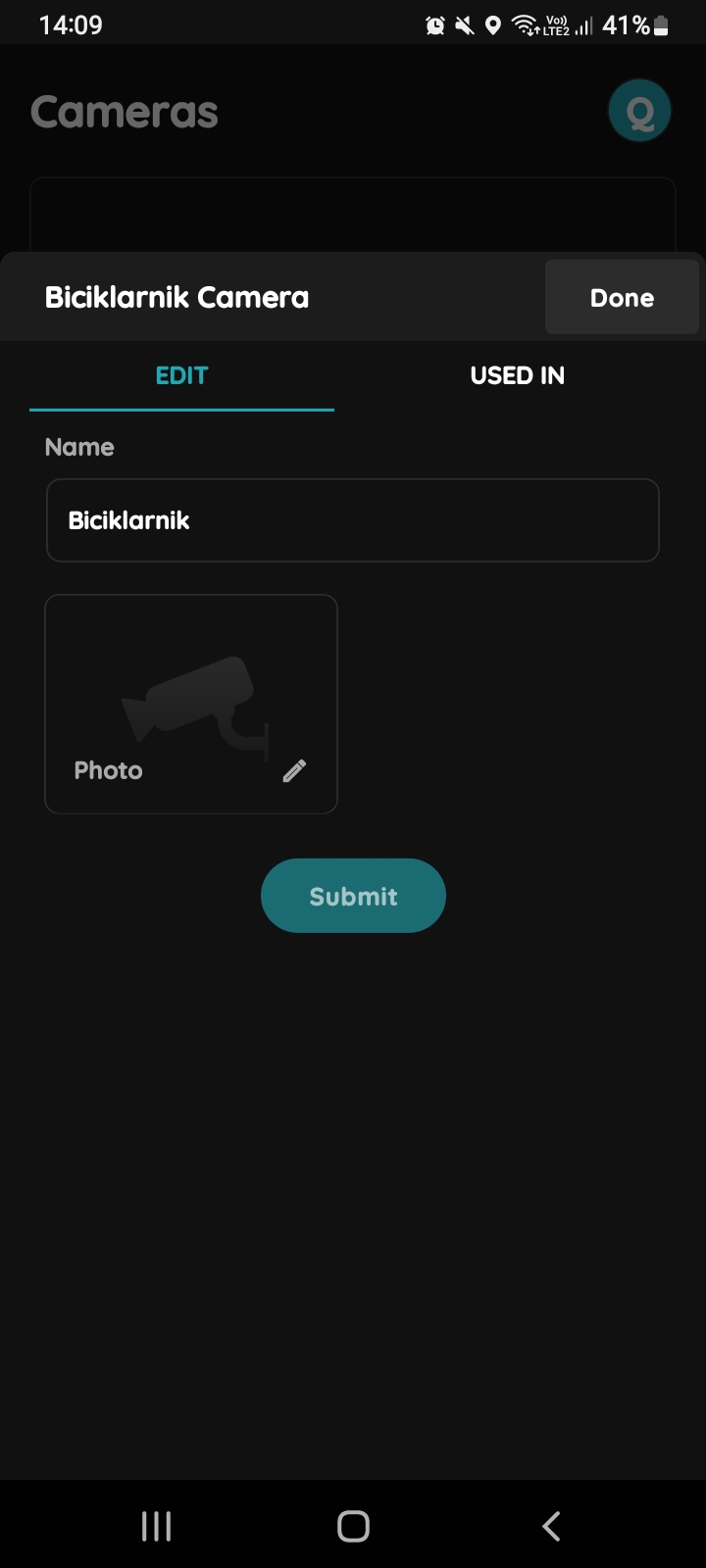
Edit Camera
Edit following form:
- Name - Edit name of the Camera.
- Photo - Choose source of the photo.
To confirm tap Submit and Done.
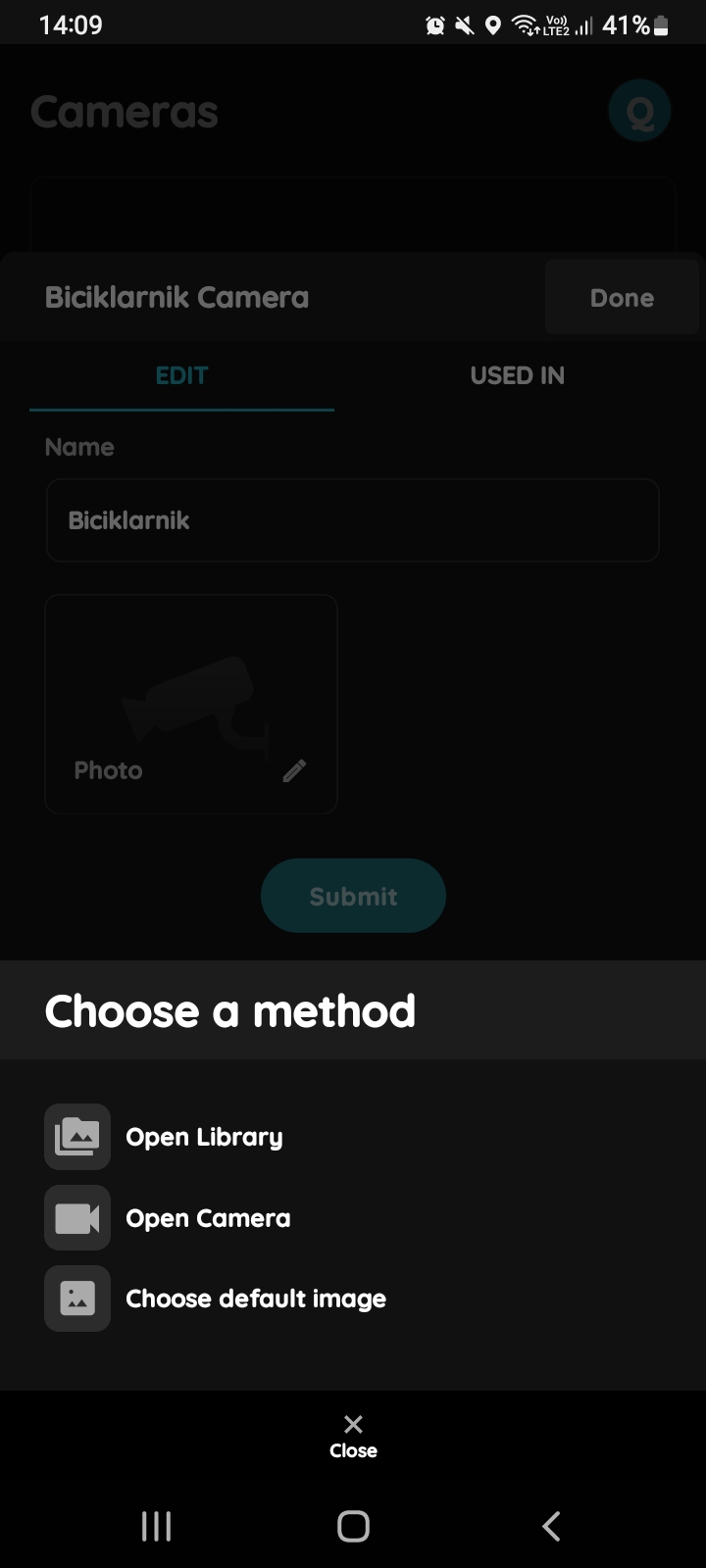
Change photo - Camera
Tap on the picture of the Camera.
You have three options:
- Open Library - The phone’s Library will open.
- Open Camera - You can take a picture using your smartphone.
- Choose default image - These images are prepared in advance in order to provide a complete and seamless experience.
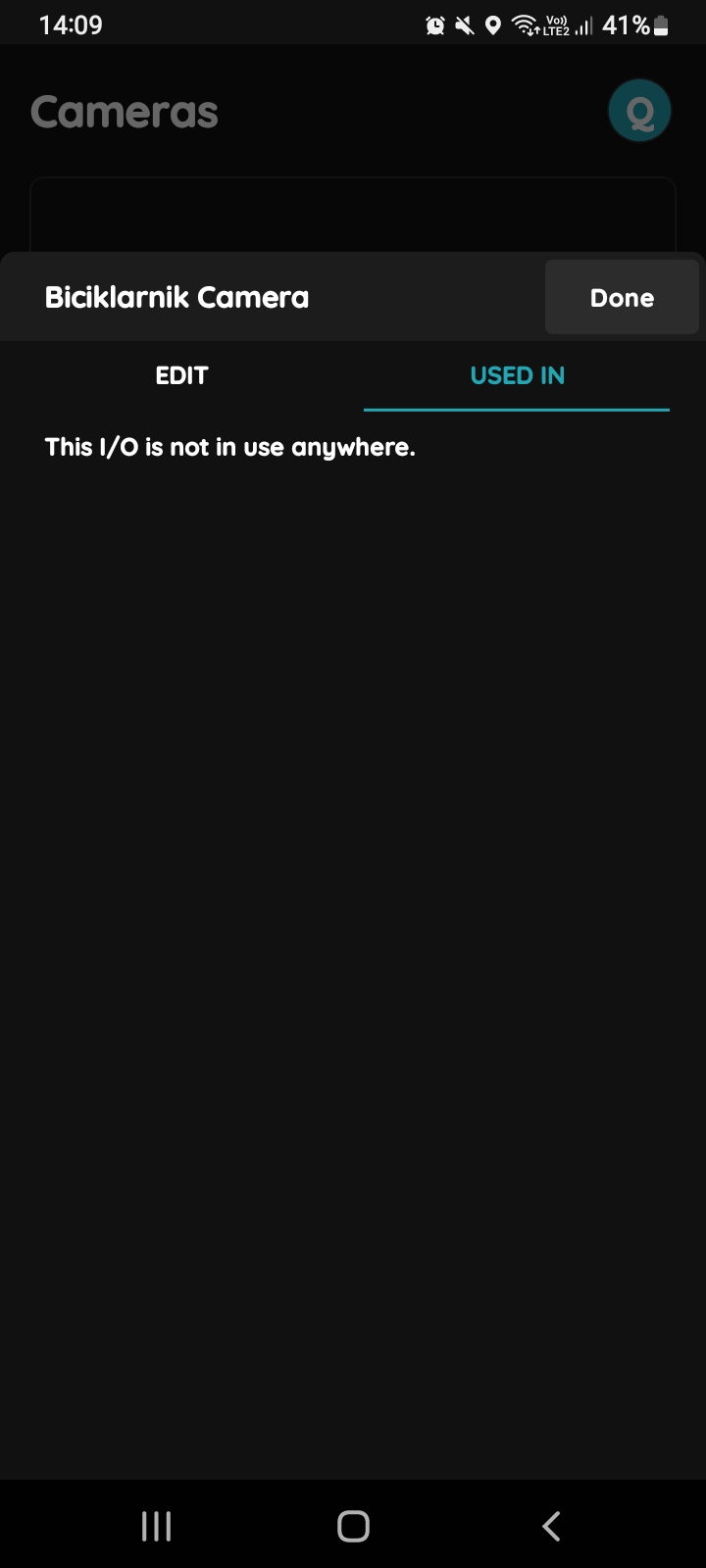
Used In - Camera
The Used In tab shows all the scenarios and automations where the Camera is applied. If it isn't used in any, the list will be empty, and a message will display: "This I/O is not in use anywhere."